By Saqib Ahmad
How to Easily Remove Backgrounds Using Craft Designer
Removing backgrounds from images can be one of the most time-consuming parts of design work, especially if you’re doing it manually in software like Photoshop or other editing tools. Whether you’re preparing product photos, portraits, or design elements for your creative projects, clean background removal is essential for professional results.
Fortunately, there’s now an easier and faster way to remove image backgrounds, without needing complex software or technical skills. In this guide, you’ll learn how to use one of the best online background removal tools available: Craft Designer, a part of the Design Bundles creative toolkit.
Why Choose Craft Designer for Background Removal?
Craft Designer is an online, browser-based design platform built to make creative workflows faster and simpler. It includes multiple AI-powered tools for editing, enhancing, and generating designs, and one of its most popular features is automatic background removal.
Unlike traditional photo editing tools, Craft Designer’s background remover is:
- Fast – It processes images in seconds.
- Accurate – It cleanly separates subjects from complex or detailed backgrounds.
- Beginner-Friendly – No technical knowledge or software installation required.
- Accessible – Works directly in your web browser from anywhere.
If you regularly prepare graphics for print, sublimation, DTF, or digital mockups, this tool can save hours of manual work.
Step 1: Access Craft Designer
To use Craft Designer, you’ll need a Plus Membership from Design Bundles. This gives you unlimited access to the full suite of tools, templates, and design resources.
If you haven’t subscribed yet, visit the following link to get started:
For the best value, choose the Unlimited Plan, which offers full access to all premium features, including the Craft Designer.
Once your membership is active, you can access the background removal tool directly here:
Once you start your membership you can access tool from:
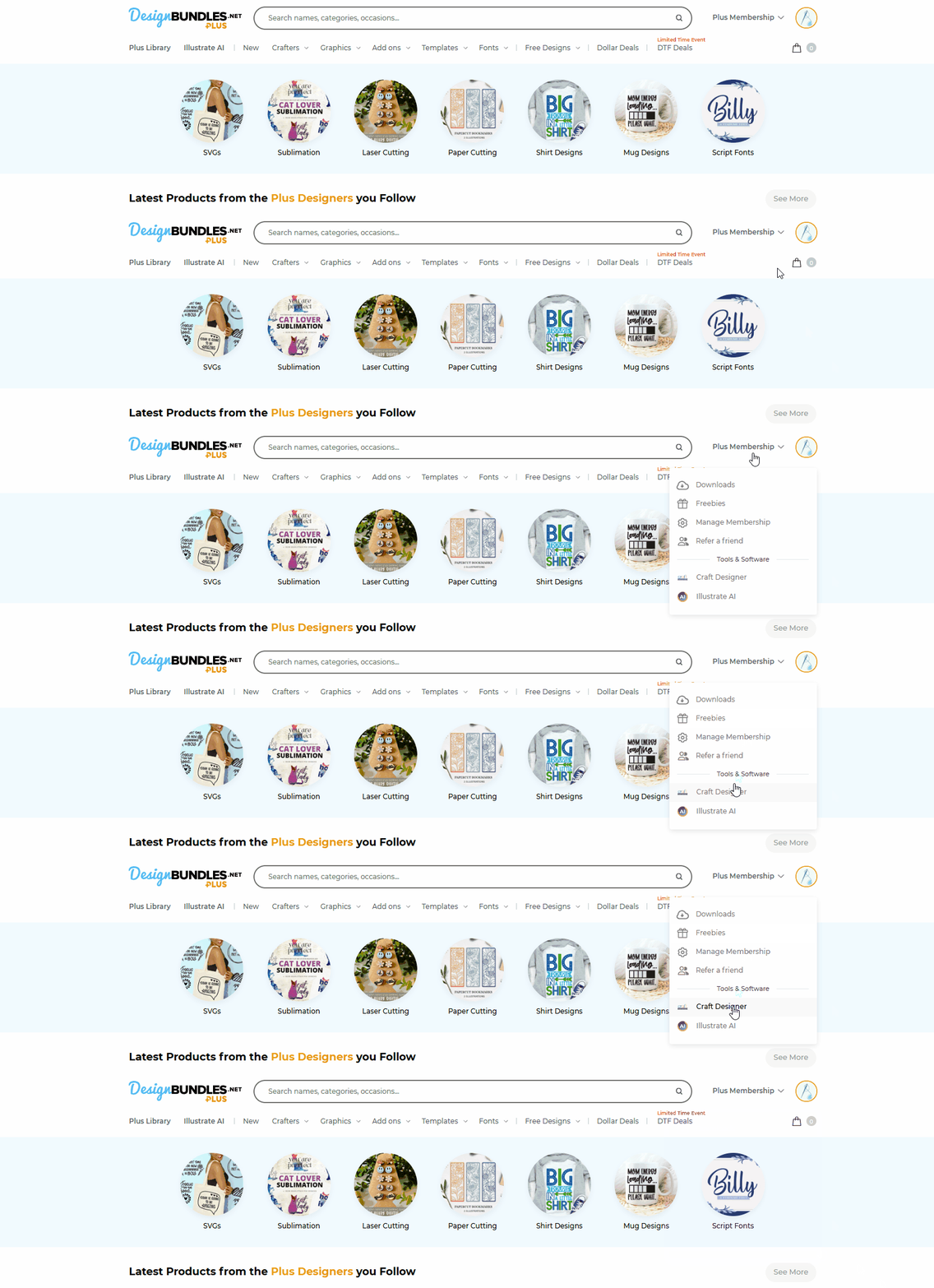
Here is the Direct link:
https://illustrateai.designbundles.net/create
Step 2: Import Your Image
After opening Craft Designer, click on “Import Image.”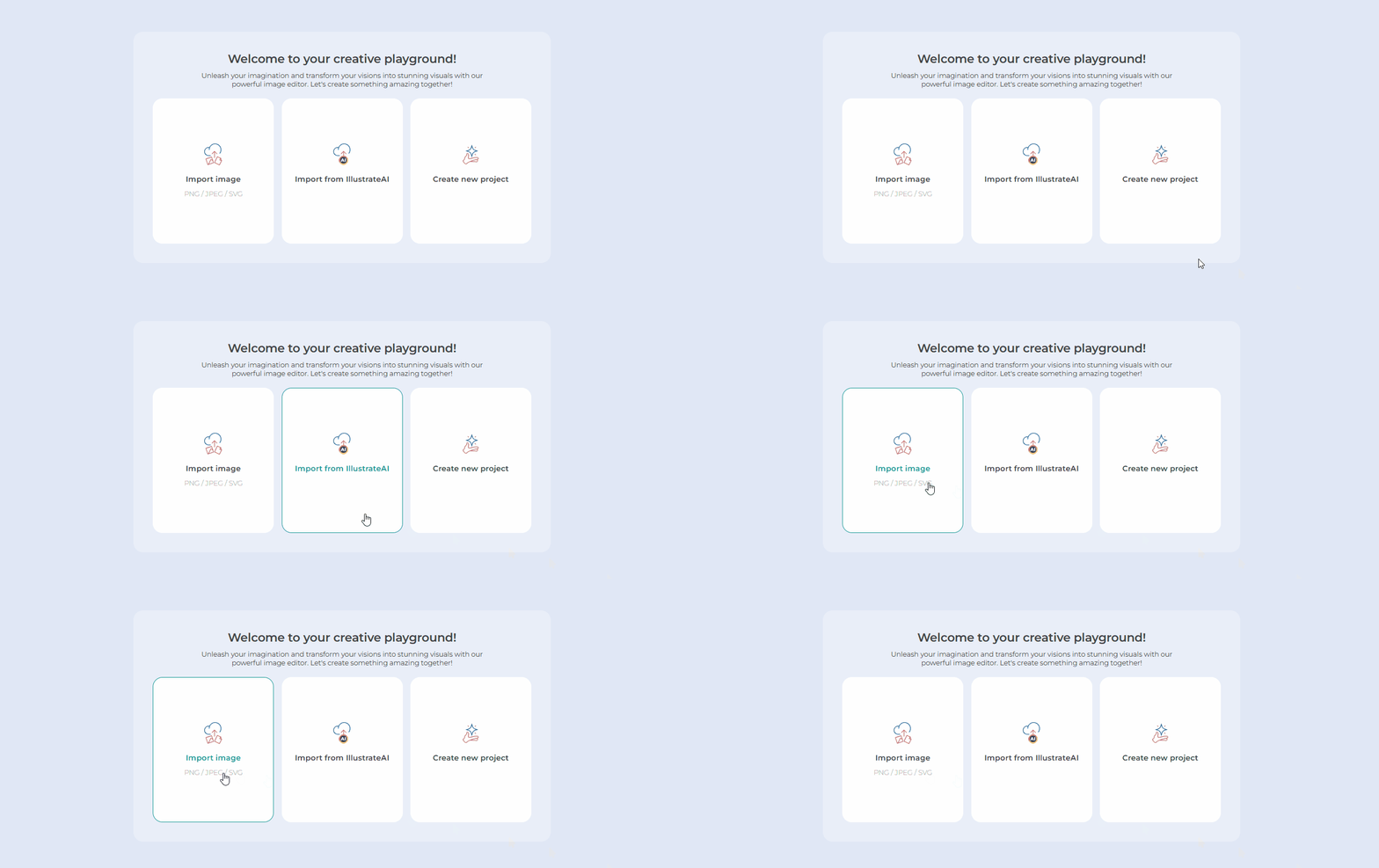
Choose the image you’d like to edit from your computer. The background remover works best with raster images, such as photos, complex illustrations, or any design where the subject and background are visually distinct.
You can upload portraits, product images, or even digital artwork that you want to isolate from the background.
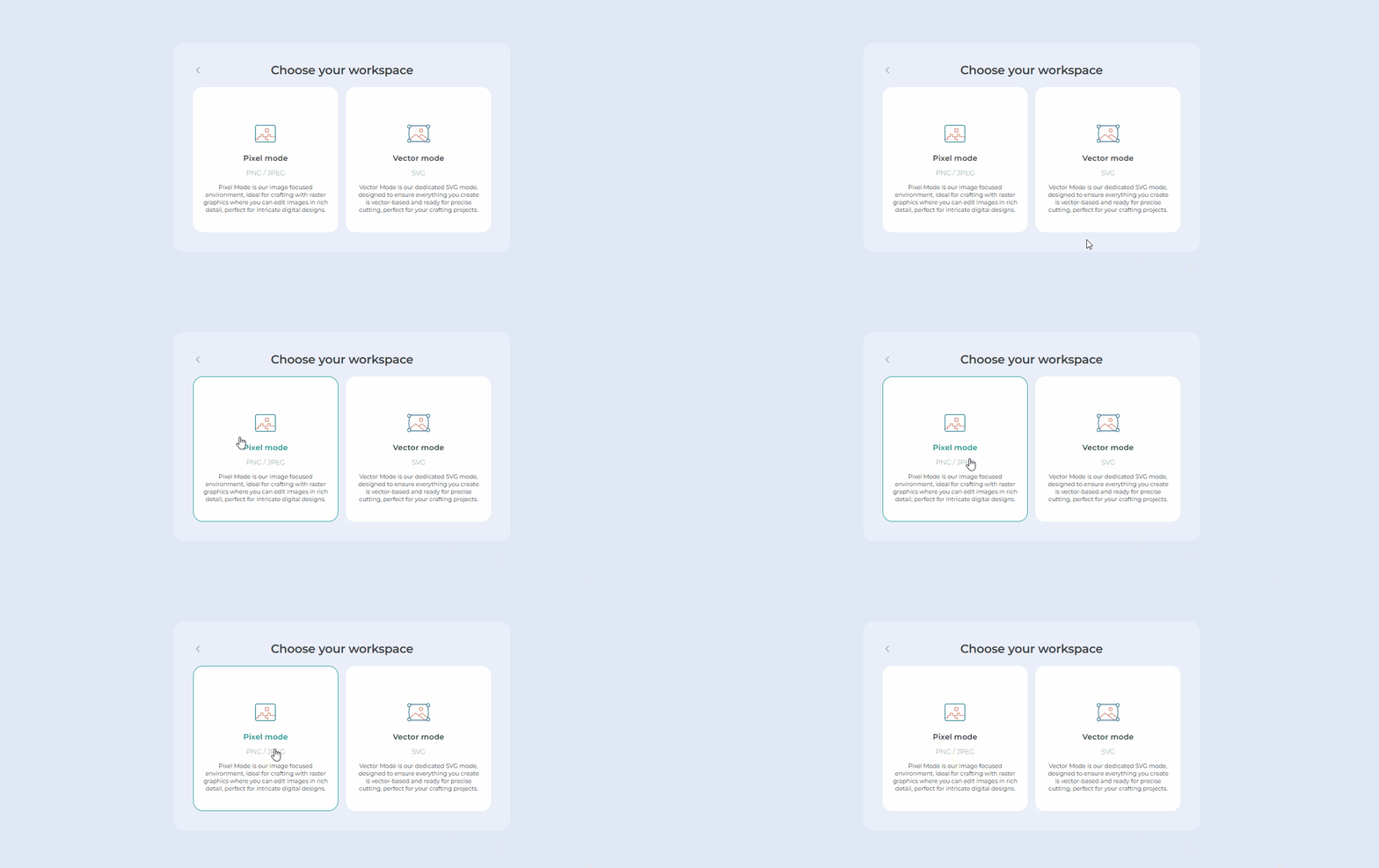
Step 3: Choose Pixel Mode
Before starting the background removal, make sure you’re in Pixel Mode.
Step 4: Remove the Background
On the left-hand toolbar, find and select the option “Remove BG.”
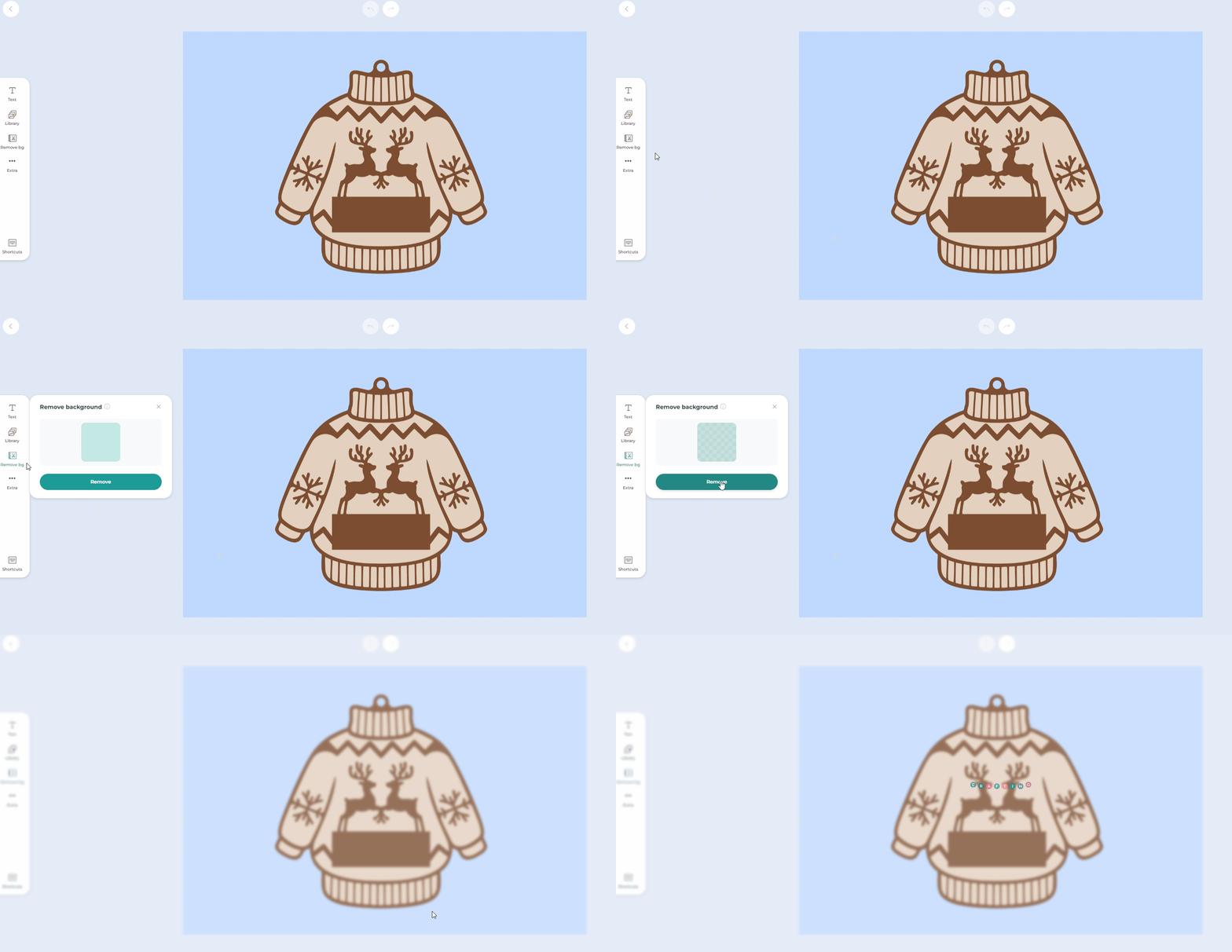
Once selected, click the “Remove” button.
The system will begin processing your image, and you’ll see a short message like “Crafting…” while the background is being removed. This usually takes just a few seconds, depending on the image size and complexity.
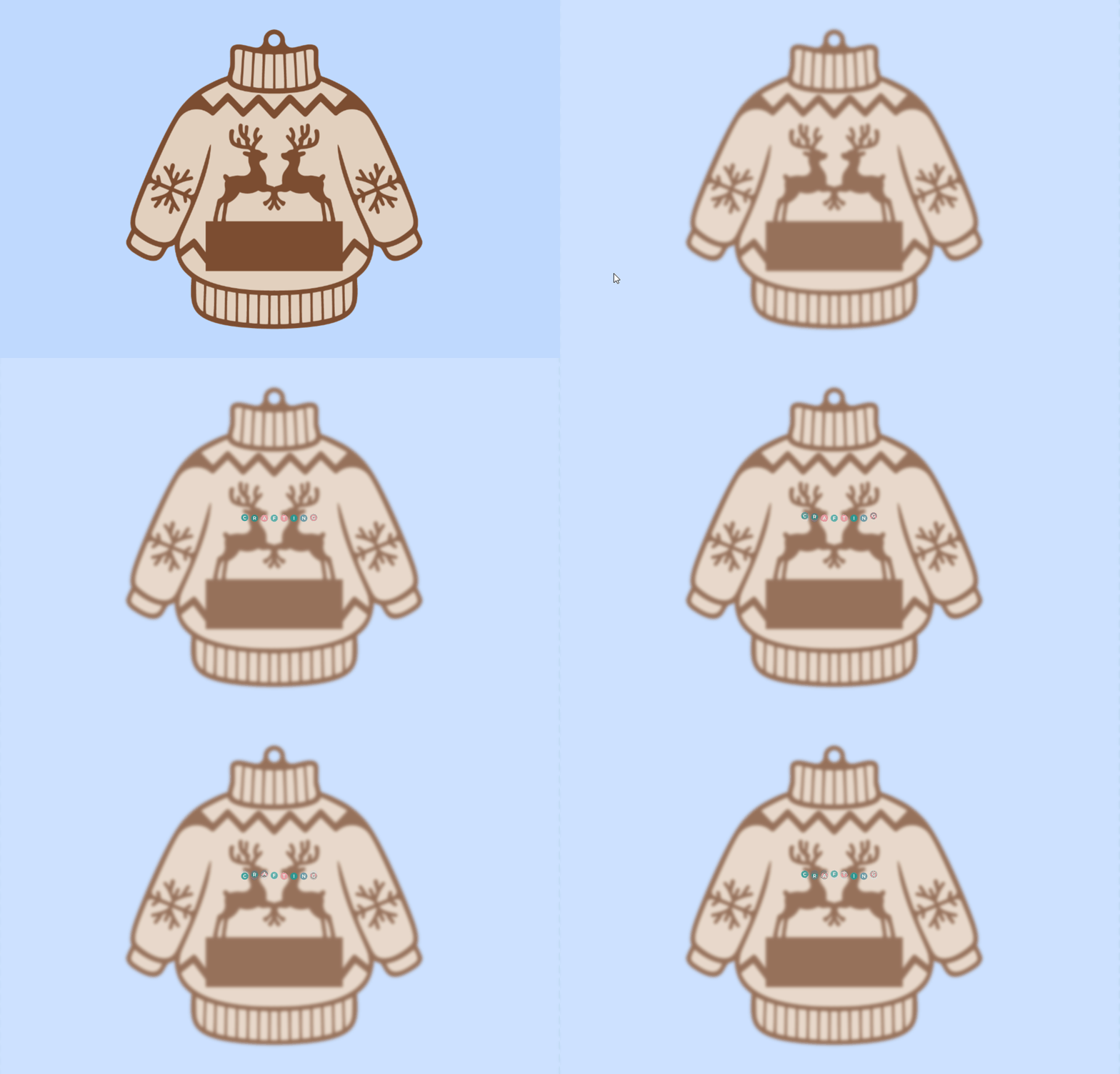
When the process finishes, the background will be completely removed, leaving your subject cleanly isolated on a transparent layer.
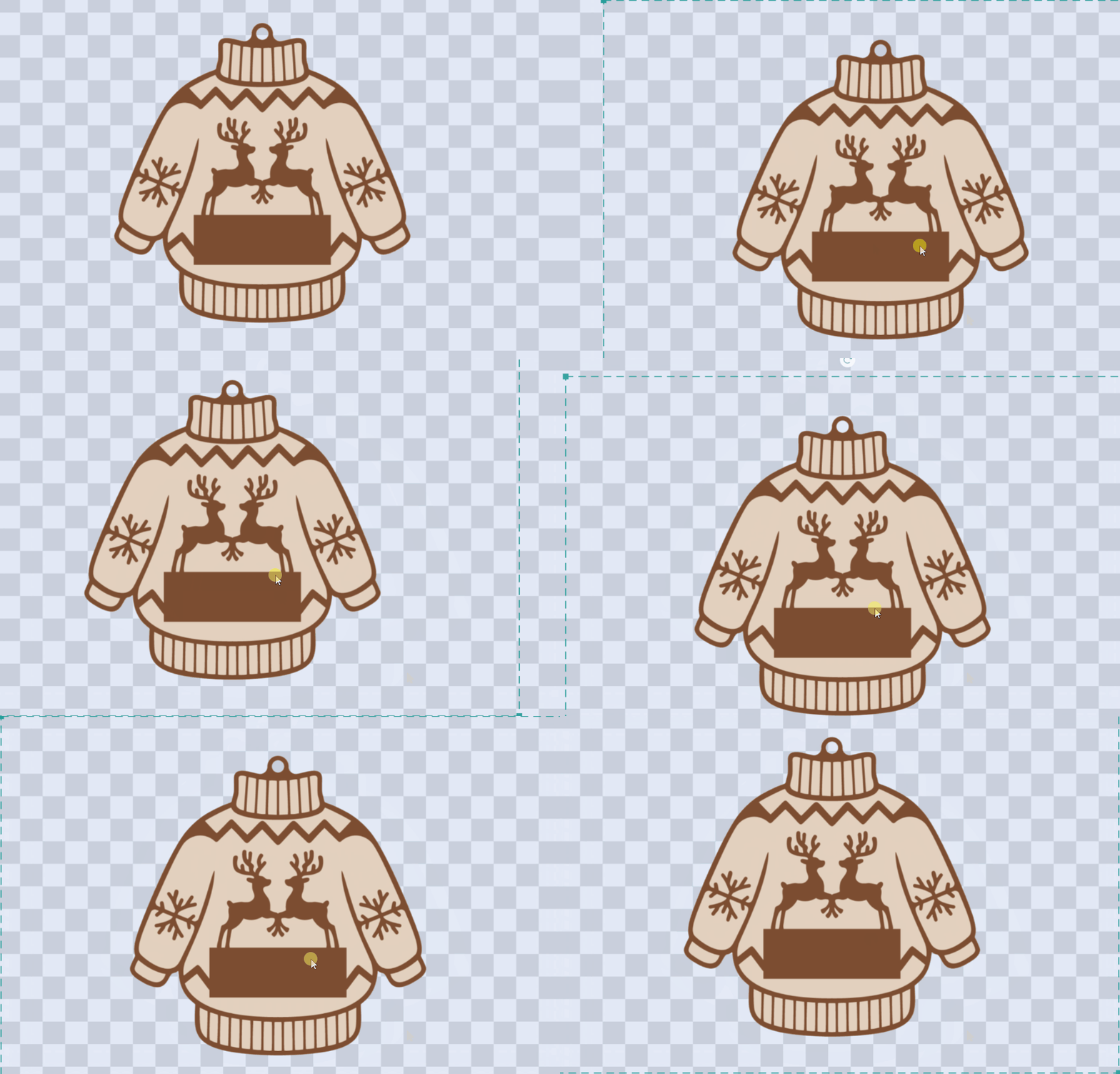
Step 5: Download Your File
Once you’re satisfied with the result, simply click “Download” or “Save” and export your image as a PNG file.

PNG format supports transparency, which is perfect for using your edited image in other projects such as:
Why It’s Better Than Manual Background Removal?
If you’ve ever used Photoshop or similar tools to erase backgrounds manually, you know how time-consuming it can be, zooming in, tracing outlines, and refining edges.
Craft Designer’s AI-driven background remover eliminates that hassle. It’s designed to recognize shapes, subjects, and color contrast automatically, providing clean results with minimal effort.
Whether you’re removing backgrounds from portraits, pets, or complex craft designs, the entire process takes less than a minute.
Final Thoughts
Background removal doesn’t have to be complicated. With Craft Designer’s built-in background removal tool, you can skip hours of manual work and achieve professional-quality results instantly.
If you’re ready to speed up your workflow and enhance your creative projects, this is the perfect time to try Craft Designer. Once you experience how easy it is to remove backgrounds with AI, you’ll never want to go back to doing it manually.