By Nadine Spires
How to Print Notes in a Canva Presentation
Quickly print your notes in Canva documents, whether you are managing tasks, creating presentations, or using project plan templates. It's super easy to save notes and print in PDF formats using Canva's design tools and presentation ideas. In today’s free guide, we will show you how to easily print notes in a Canva Presentation.
Did you know that Design Bundles offers ready made Canva presentation templates that you can customize for your projects?
For this tutorial we will be using this Canva Creative Project Template from the Plus Hub. Check out the amazing benefits of our very popular Plus Membership if you're not already a member.
Step 1 - Open the Presentation Template in Canva
Sign into your Canva account before beginning. We are using the free version of Canva for this tutorial. After downloading your purchased file, you will need to open the template in Canva. Go to where your file has been saved on your device and click on the HTML document in the template folder.
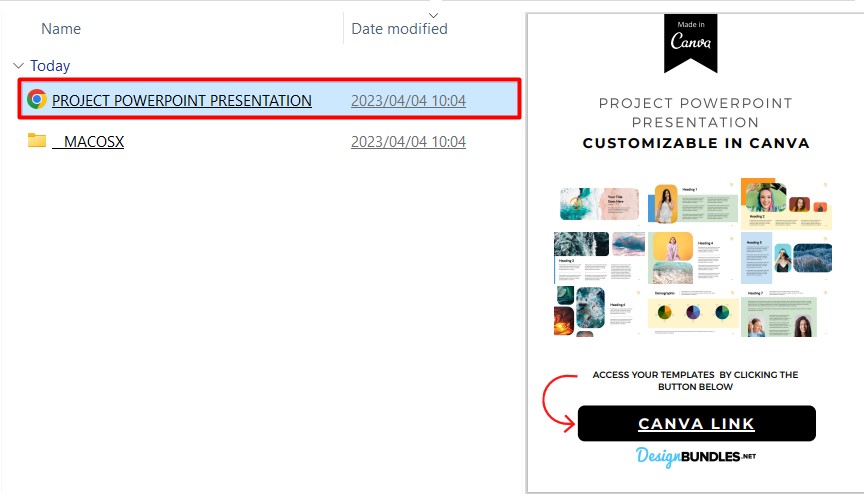
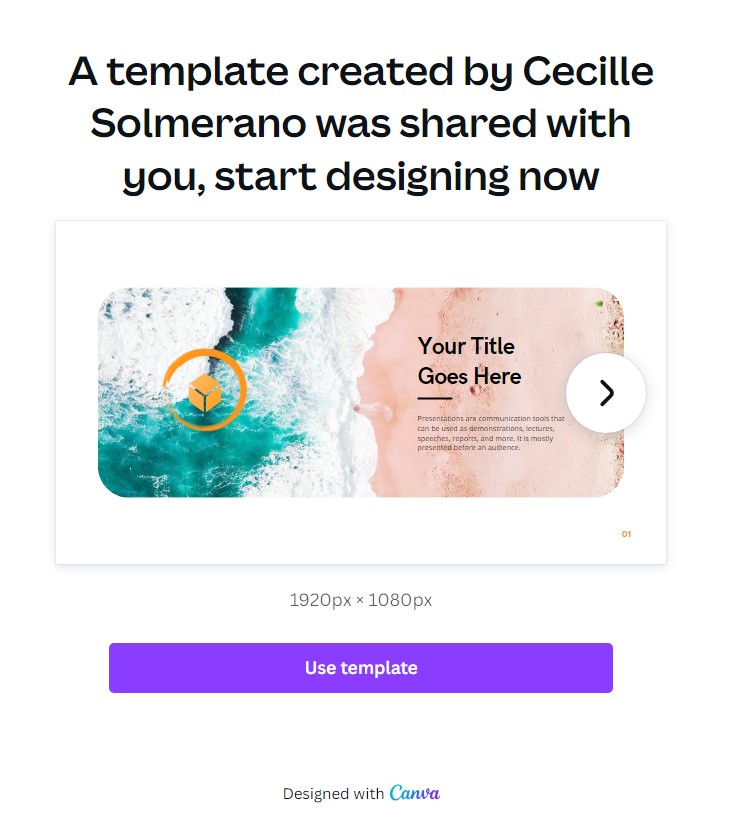
In the PDF document you will find a Canva Link. Click on this link, and in the next window click on the button that says Use Template. This will directly open the template in Canva for you.
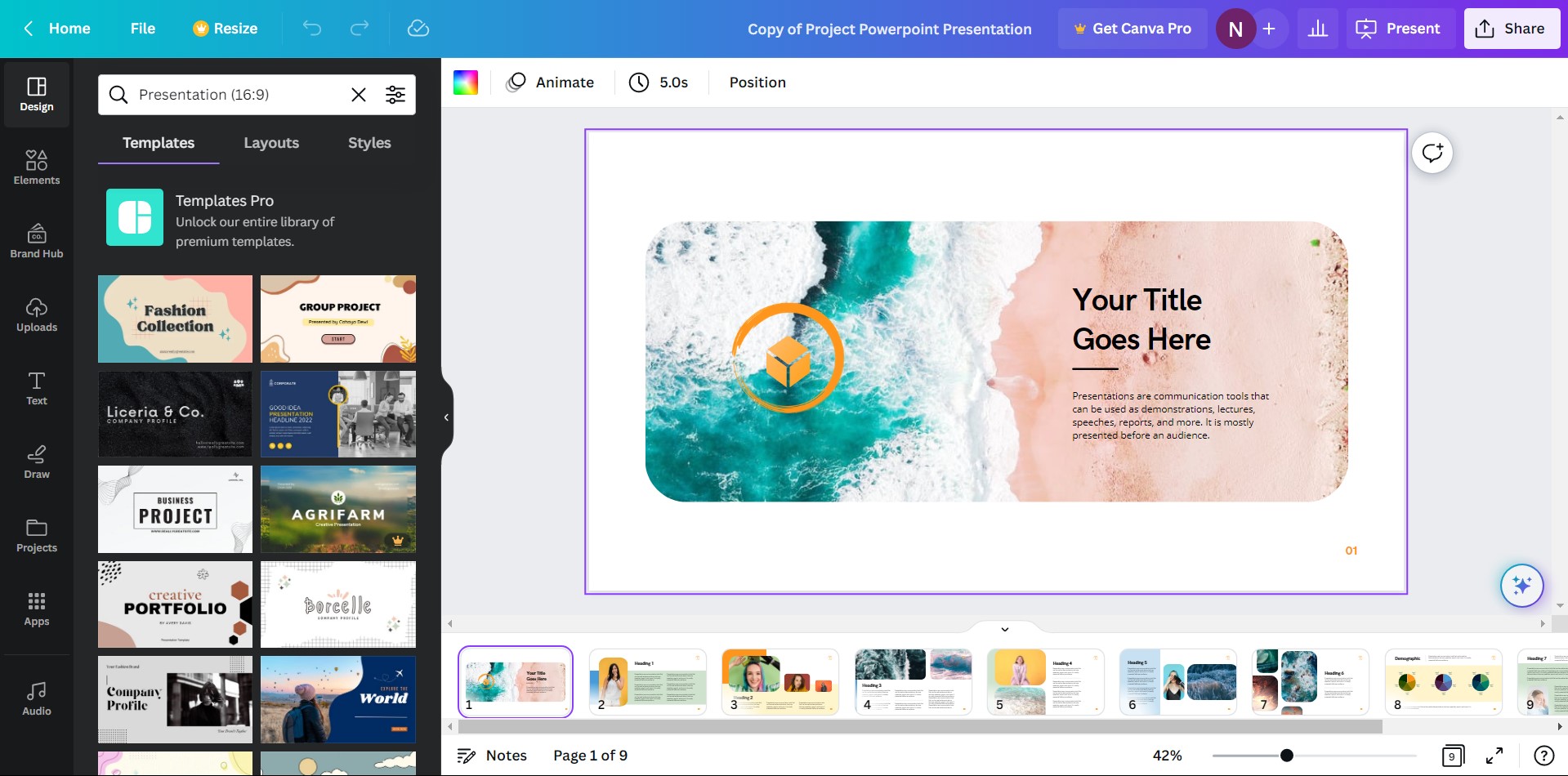
After the presentation template has opened in Canva, you can make your edits and add your notes. It should be noted that if you want to add animation to your presentations, saving in a PDF format requires that you have a Canva Pro subscription.
Step 2 - Add your Notes to the Canva Presentation Template
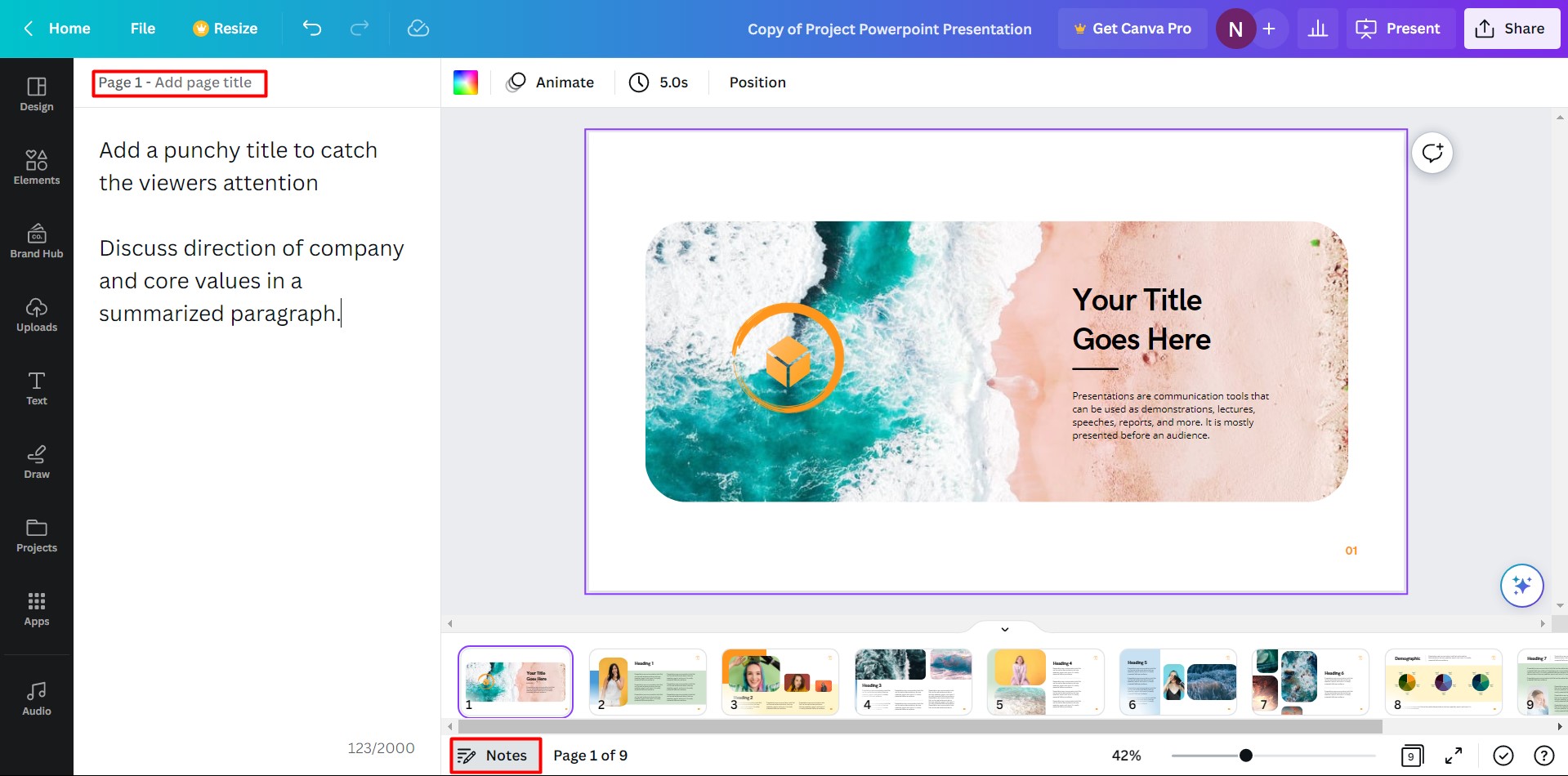
Notes are very handy and easy to add in Canva. At the bottom of the page, click on the Notes tab and a section will open on the left-hand side of the screen. You can give your page a title at the top and type in your notes beneath.
You can add notes to each page by clicking on the specific page, and then clicking on the Notes tab at the bottom of the screen.
Step 3 - Print the Notes in your Canva Presentation
Once you have added all of your notes to the template, you can download the file as a PDF and include the notes for printing.
Click on the Share button in the top right-hand corner to open the menu options. Next, click on the Download button.
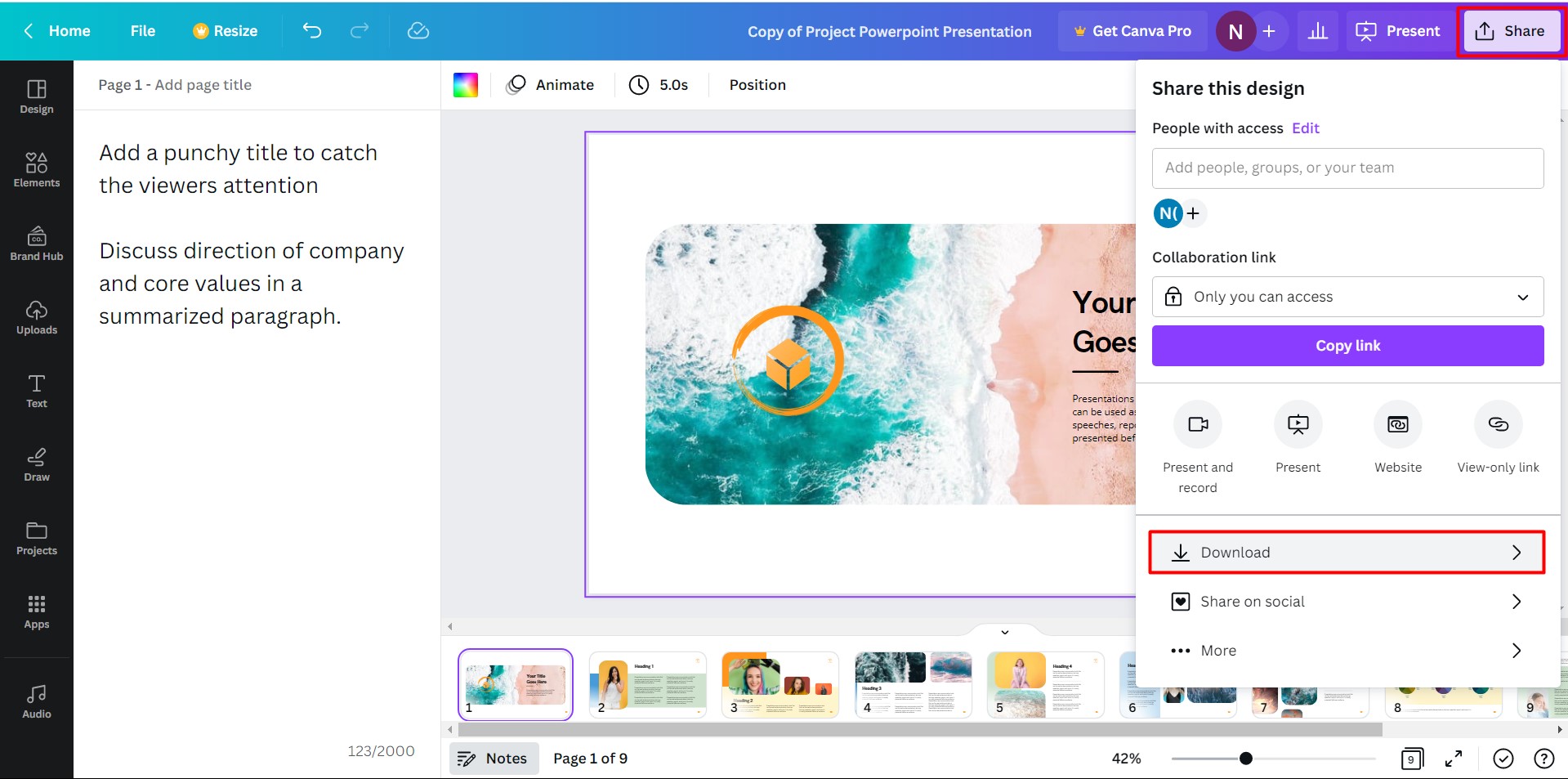
Download options will be available in various file formats, with PDF being the recommended one. You can save in any format that you want, but for this particular tutorial, we will be saving as a PDF file.
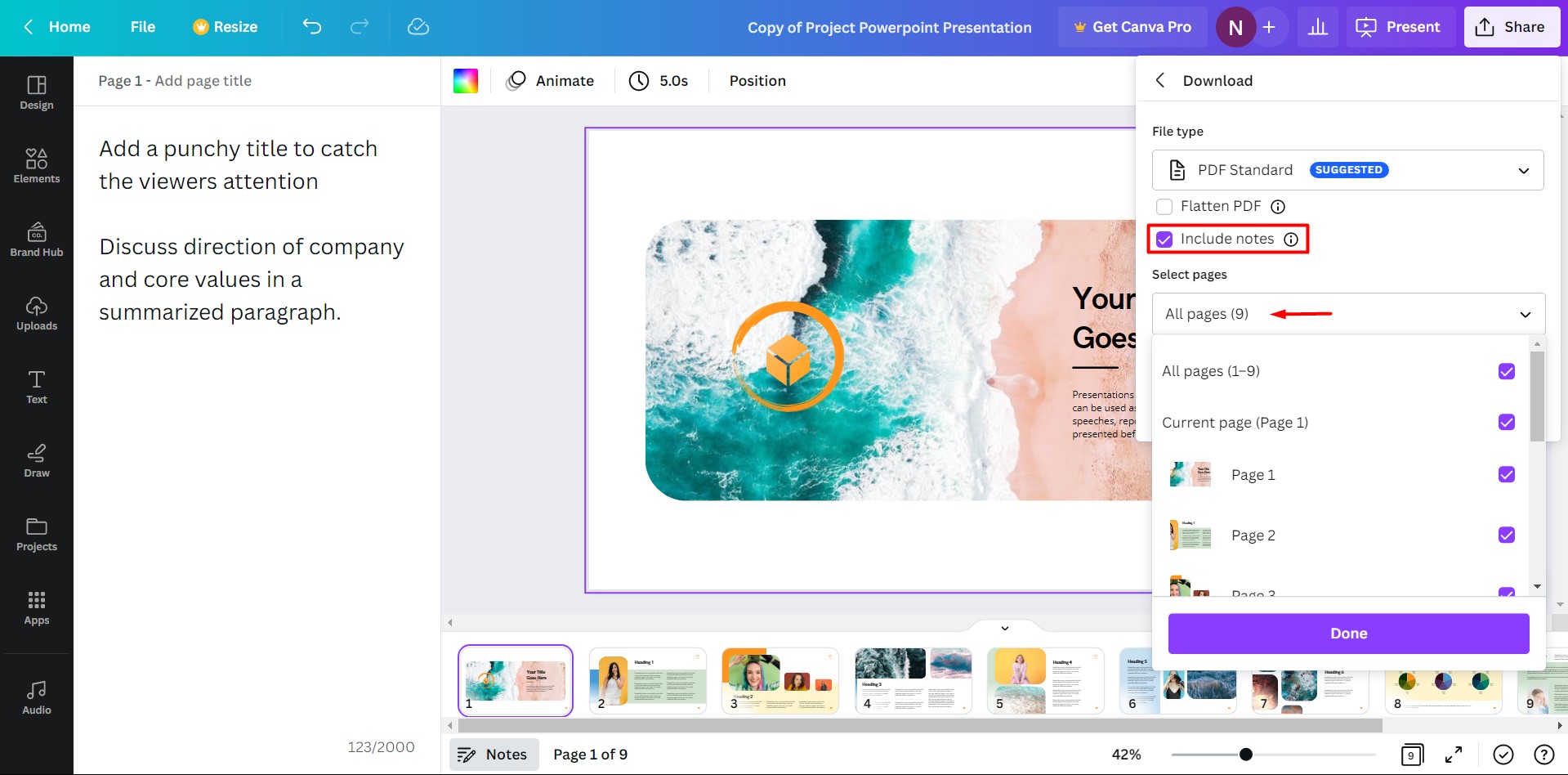
Tick the box for Include notes and if need be, select which pages you want saved or leave as is. When you have made your changes, click on Done. Next, click on the Download button to begin downloading the file.
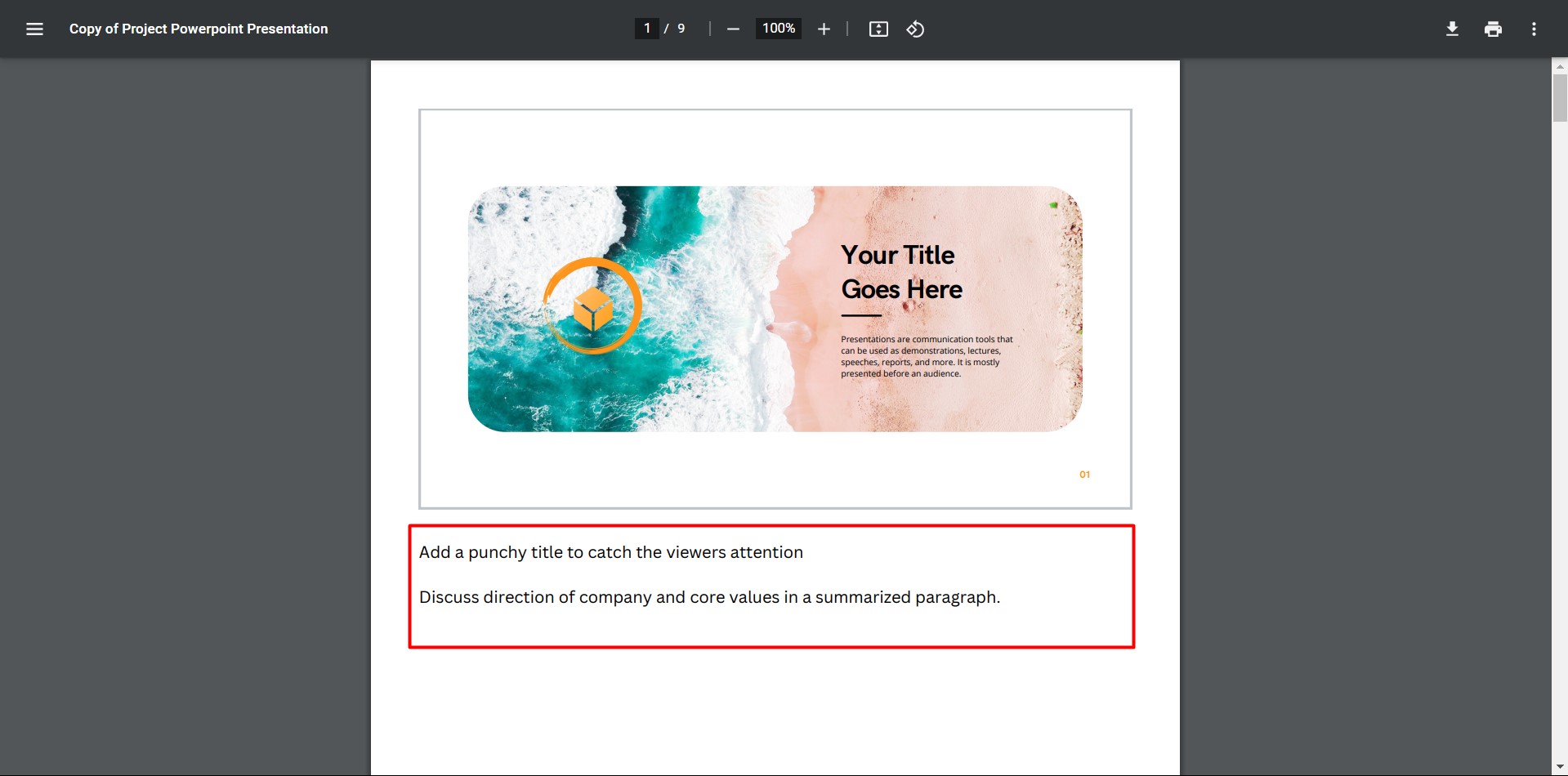
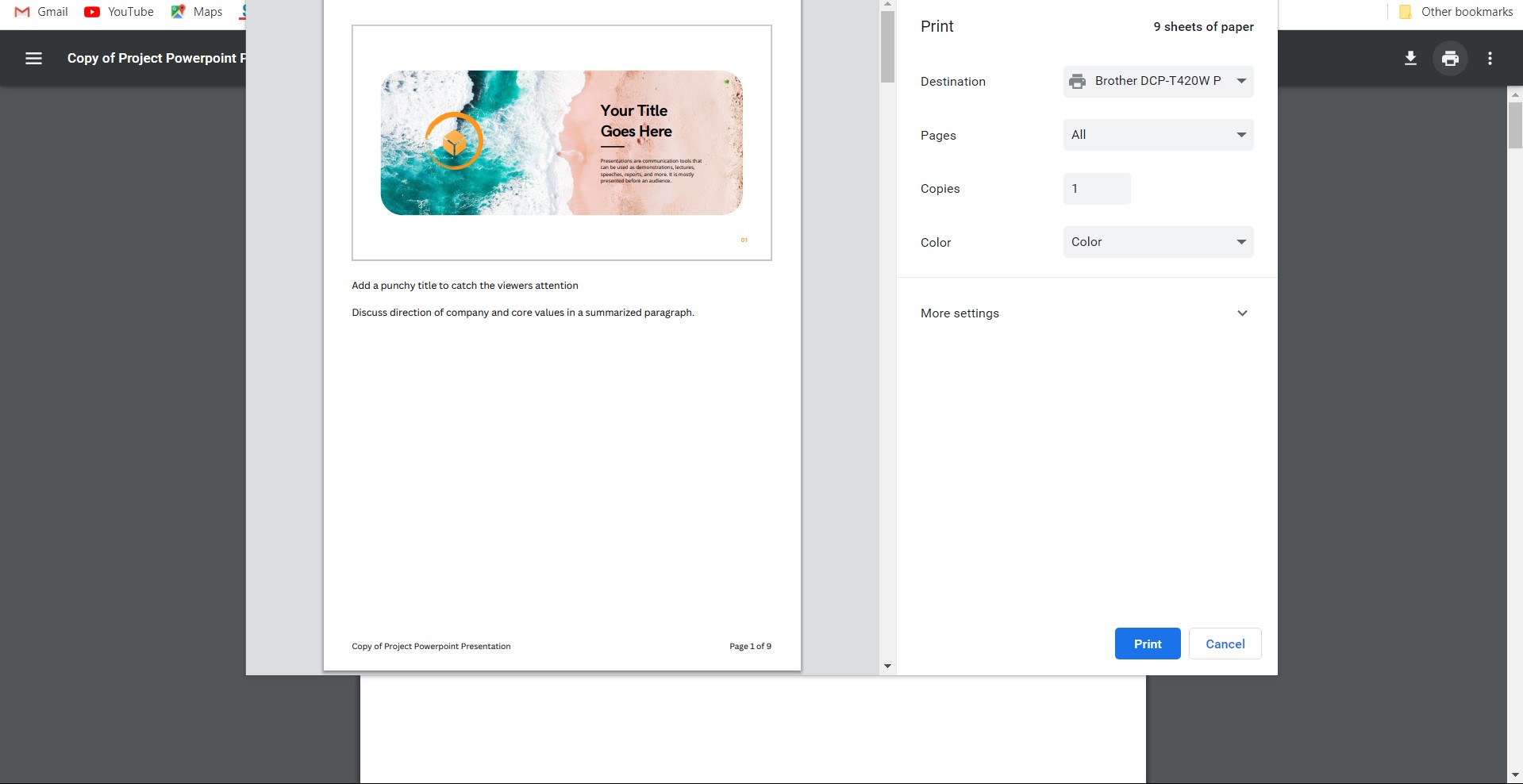
After downloading the file, click to open it in your browser or PDF program. Each presentation page will have been saved on its own page with a space beneath it. Here you will find your notes for that particular page.
To print the file, click on the Printer icon in the top right-hand corner of the screen. In the print settings window, select your printer from the drop-down menu, and then click on the Print tab bottom right. We have a great tutorial on how to print in Canva if you want to print your other projects.
Now that you know how to print your notes in a Canva presentation, you can be sure that your next project will be a success. Looking for more ways to boost your business? We’ve got you with a selection of professional Canva Branding Templates. Take your brand to the next level!