By Design Bundles
How to Use Alternate Glyphs in Canva
A glyph is an assortment of designs of a certain character and a part of a specific font. It could be a letter, an accented letter, a ligature, a punctuation mark, or a dingbat. We use them as an embellishment for words and letters to give extra flair to your text. In this tutorial, we will be looking at how to use the alternate glyphs and swashes of purchased fonts for Canva.
You need a Canva Pro account for this feature. This is because you have to upload your purchased fonts in Canva. You can check out our tutorial on using purchased fonts in Canva if you don’t know how to do it yet.
There are a lot of other great adventure fonts available on Font Bundles. We will be using the Orchid Key font by Missy Meyer as there are tons of glyph variations and swashes available.


Step 1: Open your design
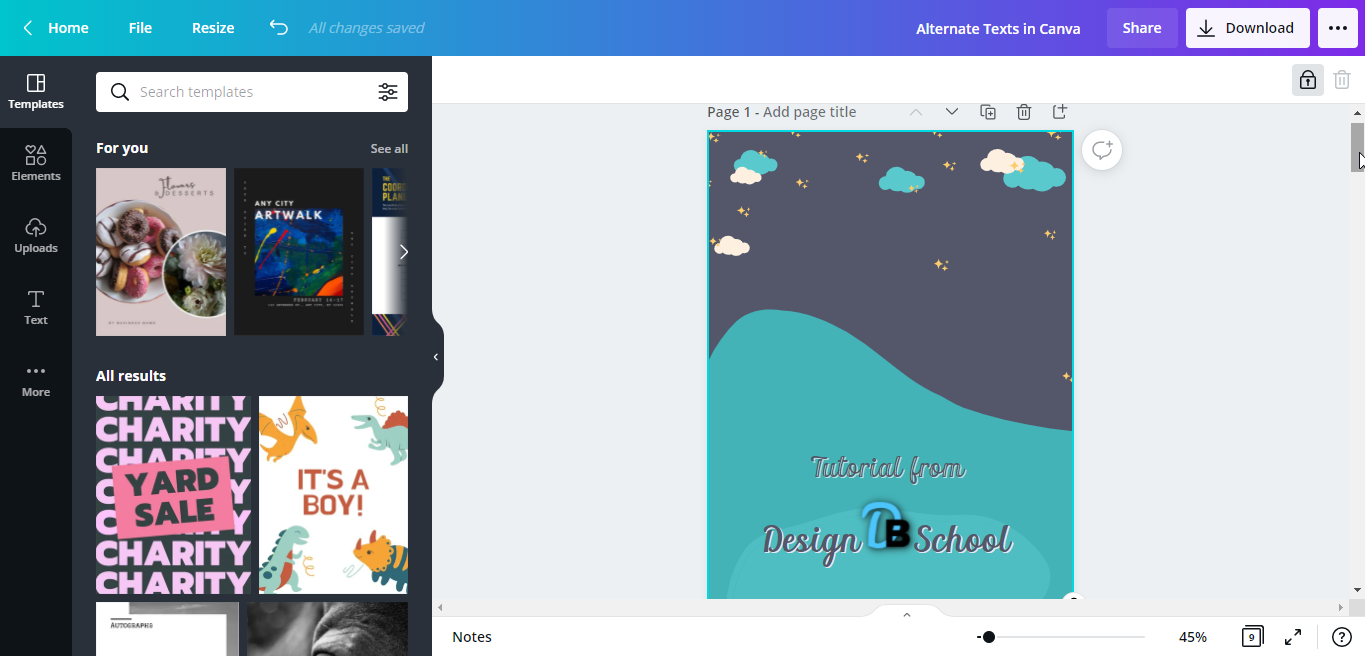
Open your existing design where you want your text with glyphs and swashes added.
Step 2: Add text
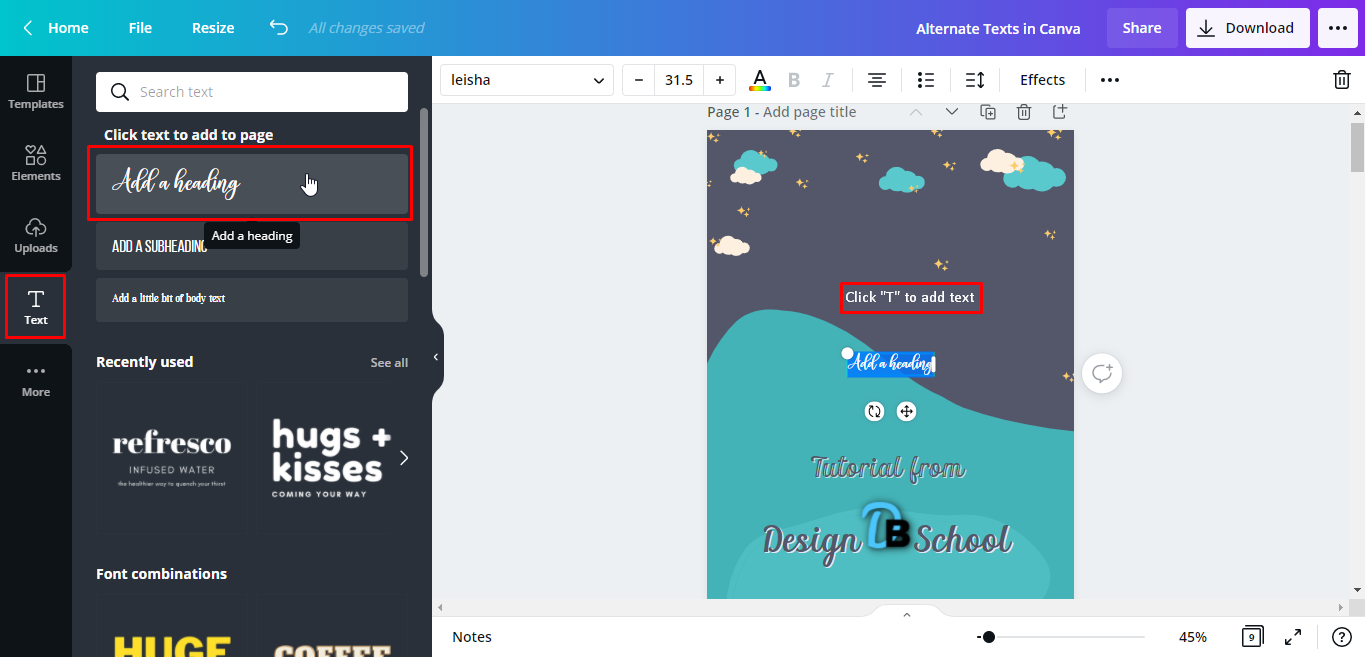
You can add text by clicking the text button > Add a heading or just simply type "T" to quickly add a text box.
Step 3: Edit text
With the sample text selected/highlighted, start typing your own text. It will automatically change the sample text. You can make the text bigger by dragging the white circle handle out. Change the font by clicking on the font name drop down and scroll through the options. We will use the pre-uploaded Orchid Key font. This font has four style variations. We're going to select "Orchid Key Inline Regular".

We will also change our text color to white. Click the color tile and select the white tile from the left panel to apply the color change.

Add your second text, and follow the same process above. This time we will use the third style variation "Orchid Key Spurs Regular".

Step 4: Insert glyphs
To add the glyphs to your text, you have to go to the product page of the font you’ve purchased and see its PDF Glyphs guide. Scroll down further until you see the “View Font Glyphs” option. Click it.

A new tab will appear. There you will see all the font variations and alternate glyphs available. Orchid Key font has 45 pages of PDF Glyphs guide. You can always access this online. Or you have the option to download the PDF file and save it to your computer for future reference.

Scroll down through the pages until you see the swashes you want to add to your texts in Canva. Select/highlight the one that you like > right-click > copy or press Ctrl/Command + C.

Go back to your design space in Canva, click the text box, and highlight the specific letter you want the copied swash to be added. Here, we want to change the regular H to an H with a swash so we will highlight it > right-click > paste or highlight >Ctrl/Command + V.

We can now see that our regular H was changed to an H with extra swash.

Repeat the steps above to copy and paste other glyphs. This was our text with regular font.

Now, this is our text with the copied glyphs.

There you go, now you know how to insert glyphs in Canva. You can make the best use of the available glyphs and extra swashes from purchased fonts. Incorporate them into your text to add more flair to your designs. One final note, you have to be mindful in adding glyphs to your texts and their placement. Usually, you just add them at the beginning or the last letter of your word.
Check out some of our other Canva tutorials like how to use digital papers, and how to use mockups.