By Design Bundles
Cricut Tutorials6 min
Cricut Design Space 3 Overview Part 1
The new Cricut Design Space 3 software has just been released and there are many new features and differences with it. One of the best features is the software does not rely now on a flash player so the first thing you will find is the software runs much more smoothly and there is less lagging.
1- Open Cricut Design Space. The new opening pages has a cleaner layout with everything clearly displayed. Everything you need for your cricut machine is now found at the top left home icon.
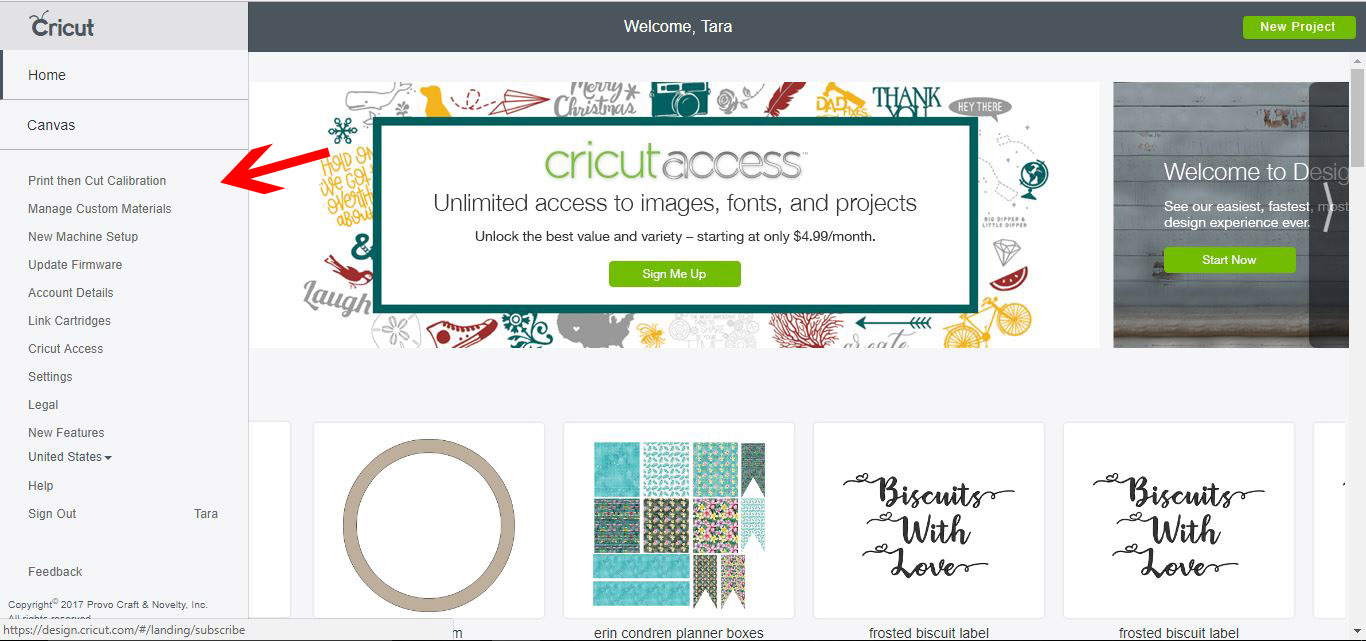
2- Click on the 3 lines to access the main menu. This includes your print and cut calibration, settings machine set up and many other features.
It is great to have them all together in one place to access.
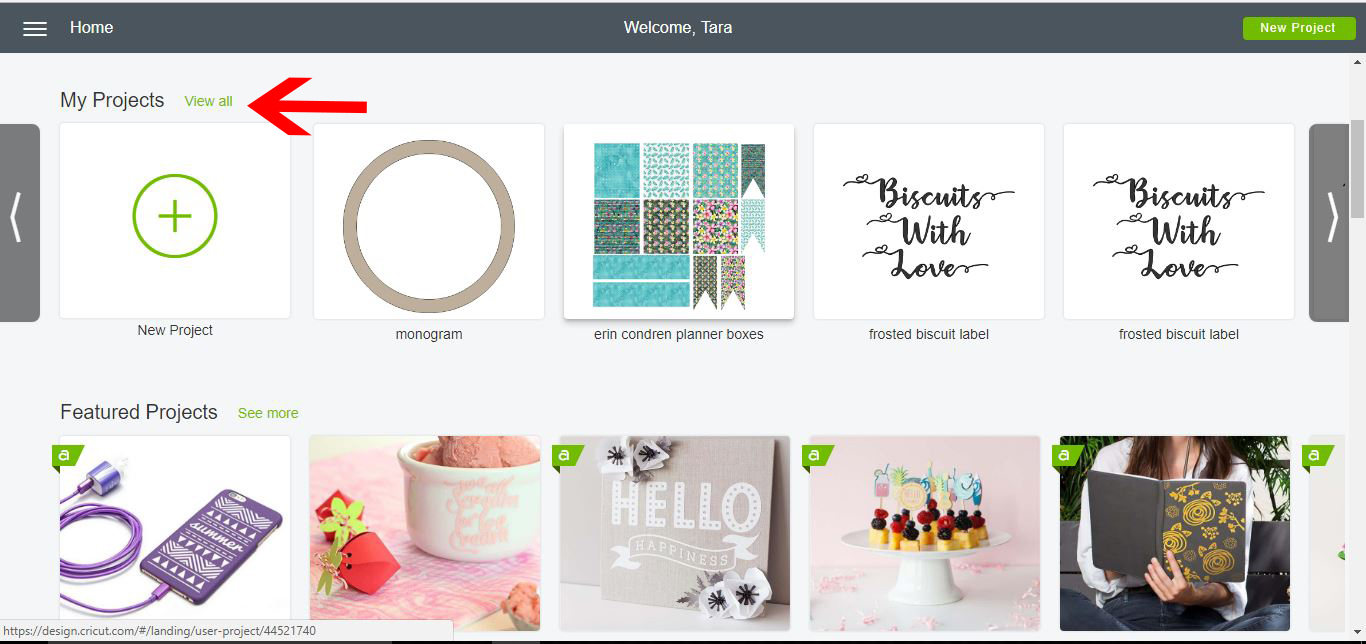
3- On to main page you now have a "My Projects" section. All your projects are located here. the most recent will be on the home screen, now shown as large thumbnails for you to see what is in each project.
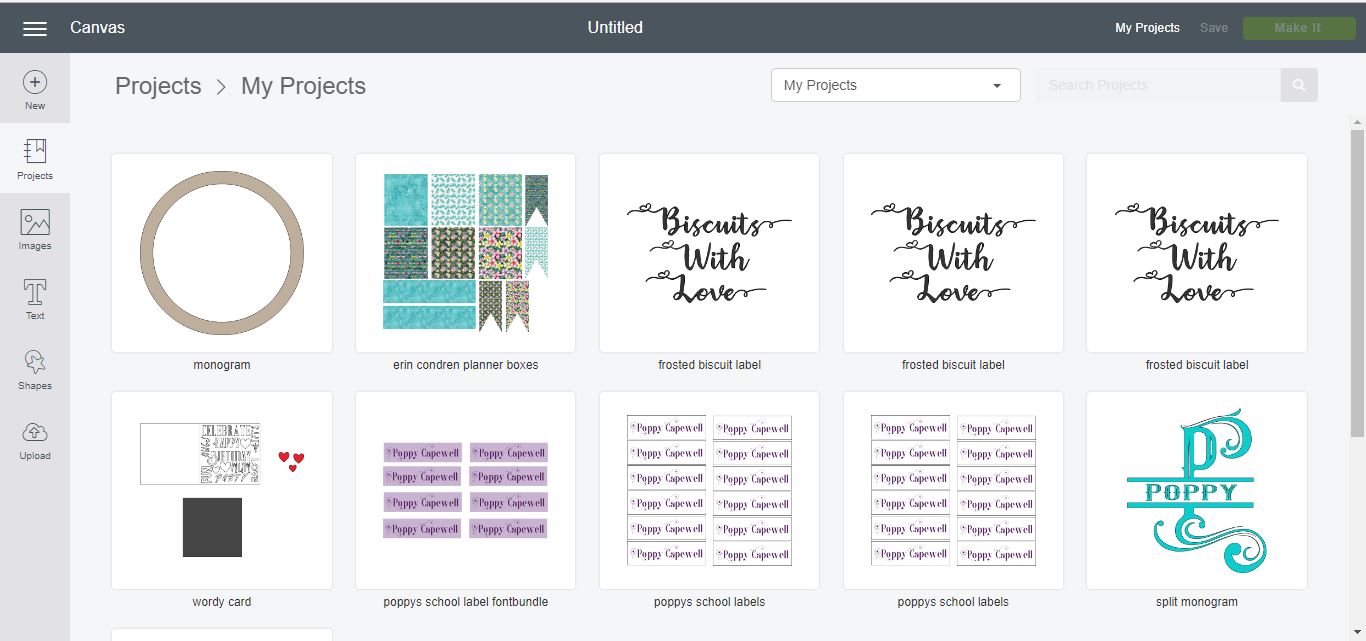
4- By clicking on the View all option all your your projects will appear with a large thumbnail. This is great to see what file you need.
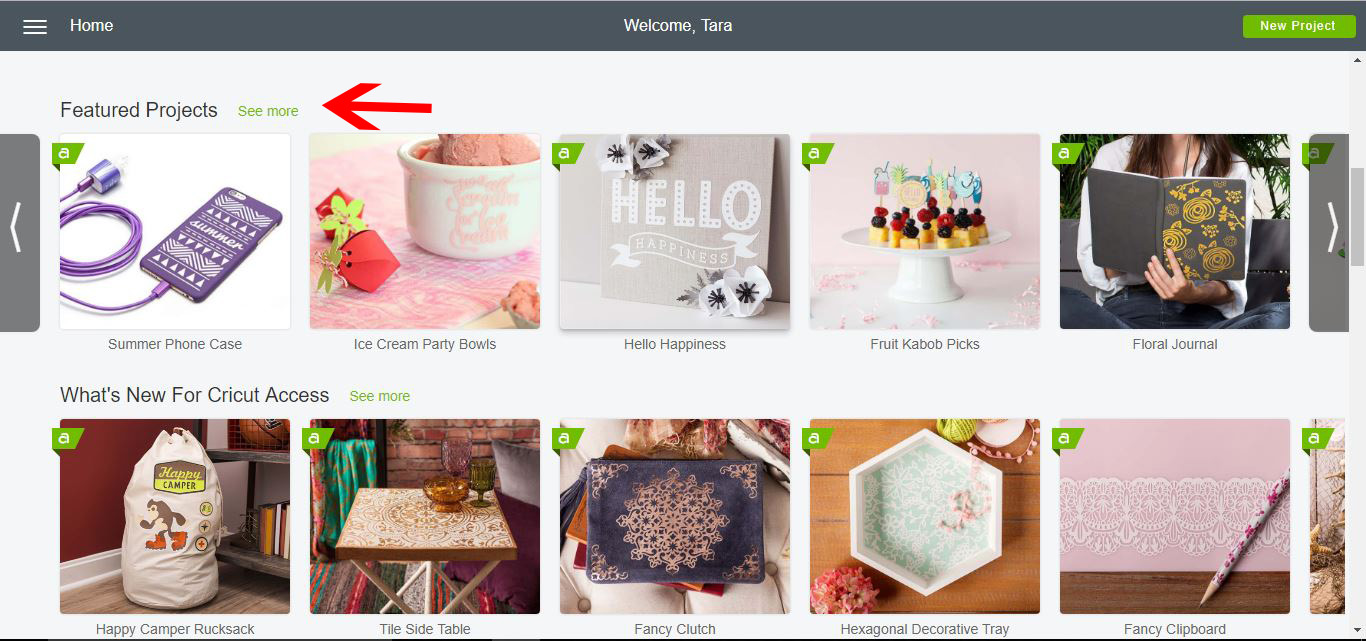
5- Also on the home screen You have the Featured projects section, here you can see the latest projects that cricut have released. You can also click on the "see more" icon to check out even more new projects.
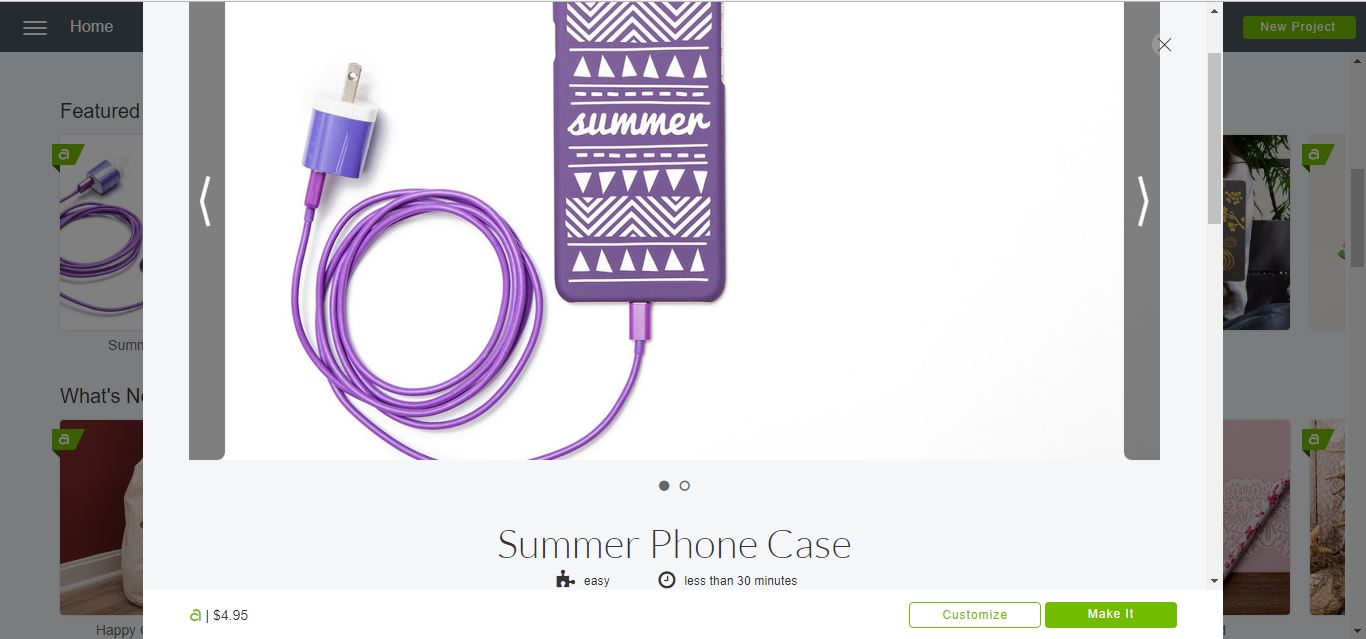
6- When you select a project that cricut has created, A new pop up window will appear with the project image and the option to customize it or make it. If you select the make it icon you will make the design in the image, where if you select the customize icon you have the option to change the design.
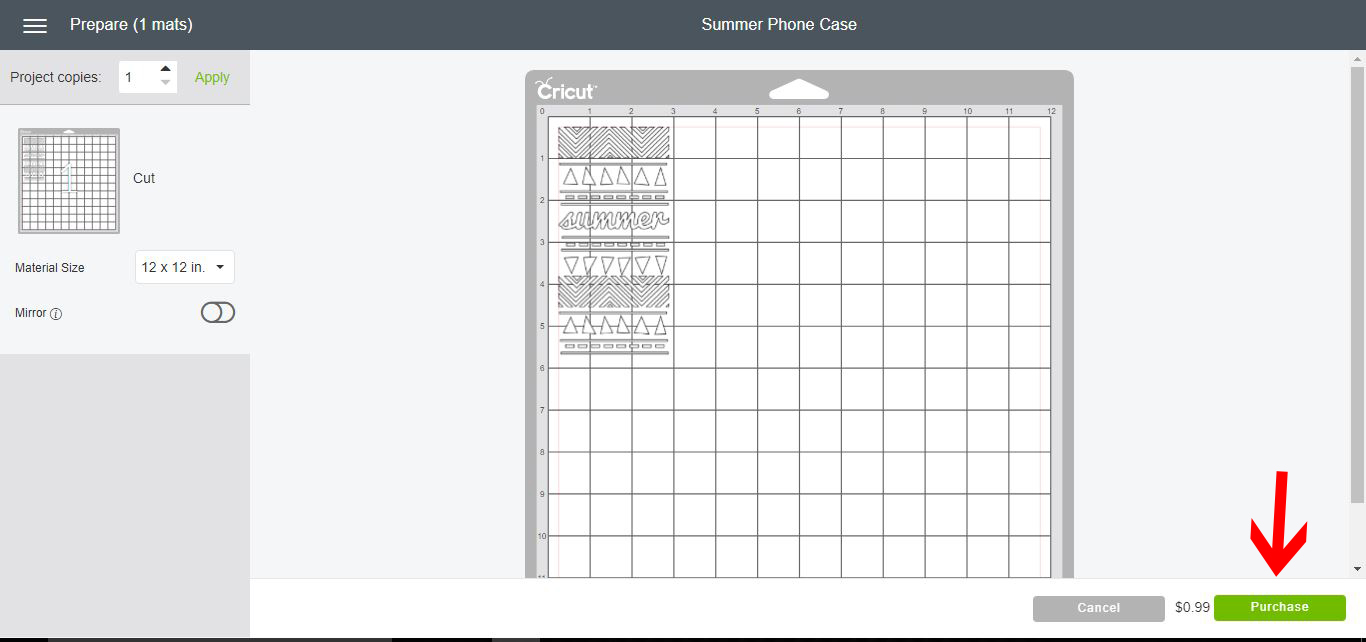
7-After selecting the make it icon, the new software automatically takes you to the cut screen now. If there is a cost for the design you will see a purchase icon and a price. If the item is free or you have cricut access you will have a continue icon.
8- To create a new project, you now have a large New Project icon in the top right of the new home page.
9- Select the icon and this will now bring you automatically to a new project canvas to use.
1- Open Cricut Design Space. The new opening pages has a cleaner layout with everything clearly displayed. Everything you need for your cricut machine is now found at the top left home icon.
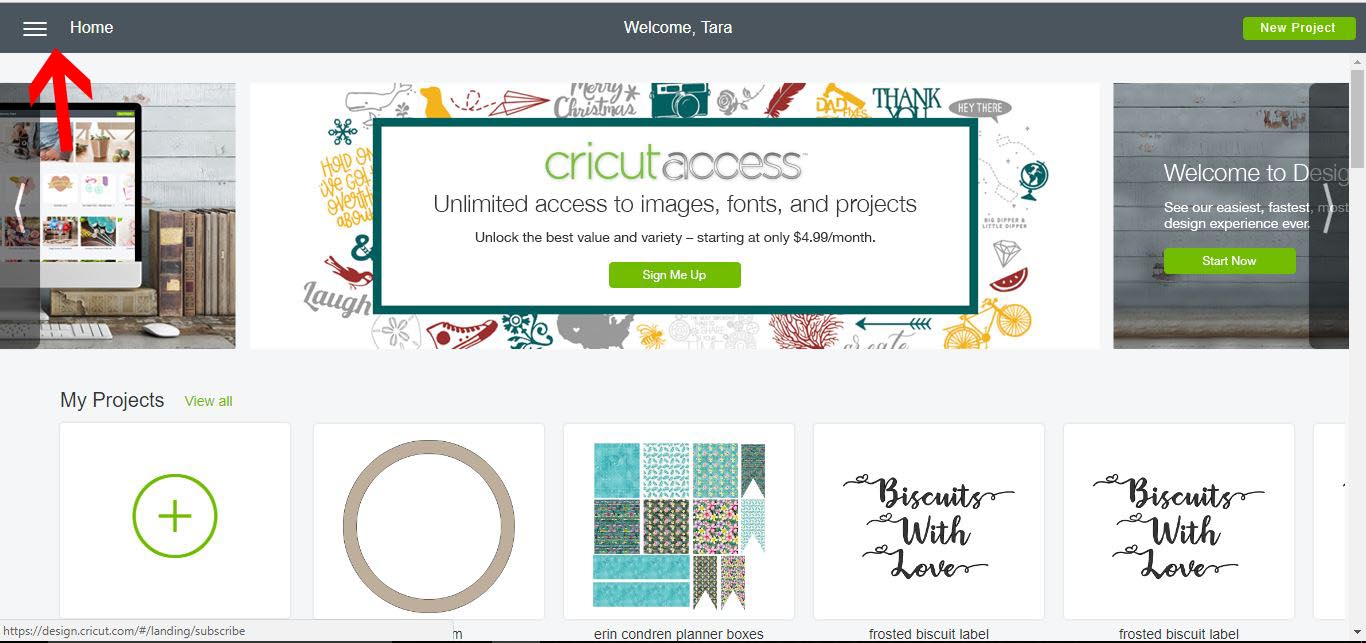
2- Click on the 3 lines to access the main menu. This includes your print and cut calibration, settings machine set up and many other features.
It is great to have them all together in one place to access.
3- On to main page you now have a "My Projects" section. All your projects are located here. the most recent will be on the home screen, now shown as large thumbnails for you to see what is in each project.
4- By clicking on the View all option all your your projects will appear with a large thumbnail. This is great to see what file you need.
5- Also on the home screen You have the Featured projects section, here you can see the latest projects that cricut have released. You can also click on the "see more" icon to check out even more new projects.
6- When you select a project that cricut has created, A new pop up window will appear with the project image and the option to customize it or make it. If you select the make it icon you will make the design in the image, where if you select the customize icon you have the option to change the design.
7-After selecting the make it icon, the new software automatically takes you to the cut screen now. If there is a cost for the design you will see a purchase icon and a price. If the item is free or you have cricut access you will have a continue icon.
8- To create a new project, you now have a large New Project icon in the top right of the new home page.

9- Select the icon and this will now bring you automatically to a new project canvas to use.

Related Tutorials
Cricut Tutorials
How to Create a Layered Image in Cricut Design Space
In this tutorial, you will learn how to create a layered image in Cricut Design Space.
Cricut Tutorials
How To Use The Slice Tool In Cricut Design Space To Split Images
Learn how easily to Split Images in Cricut Design Space using the Slice Tool.
Cricut Tutorials
How to Use a PDF File in Cricut Design Space
In this tutorial we guide you through the steps on using a PDF file in Cricut Design Space.
Cricut Tutorials
Editing Images in Cricut Design Space
Crop, Erase or completely change a design with multiple tools for editing made easy.
Cricut Tutorials
How to Edit Default Material Settings in Cricut Design Space
Learn how to easily change your default material settings in Cricut Design Space!
Cricut Tutorials
How to use Glyphs in Cricut Design Space
Discover how to use font glyphs/alternate characters in Cricut Design Space.