By Design Bundles
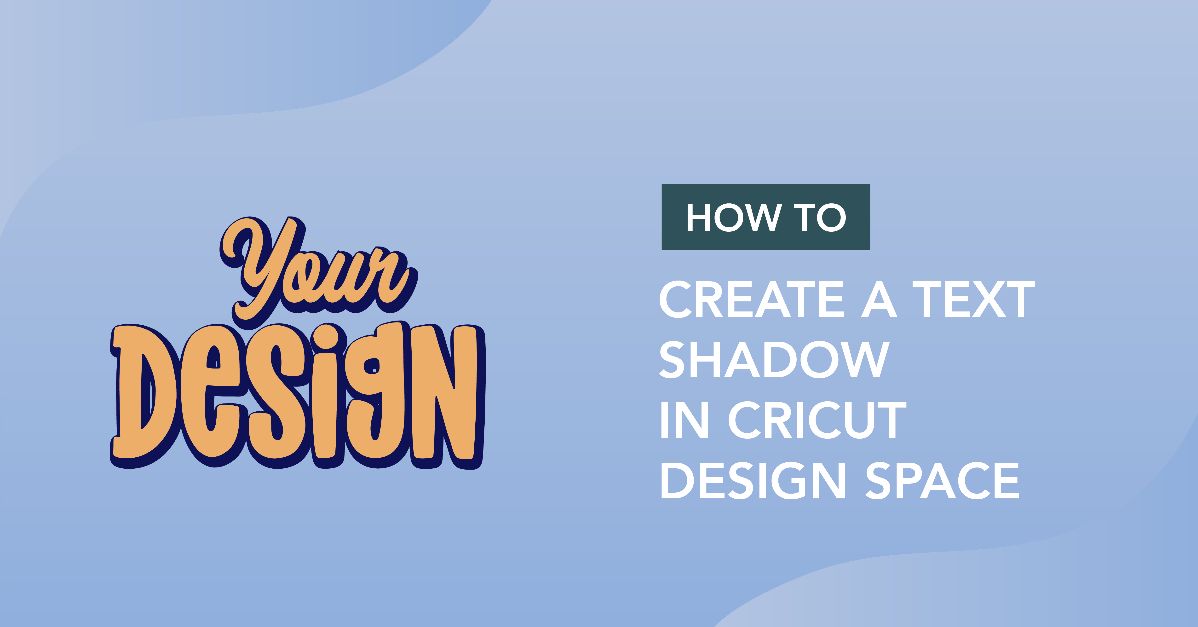
How to Create a Text Shadow in Cricut Design Space
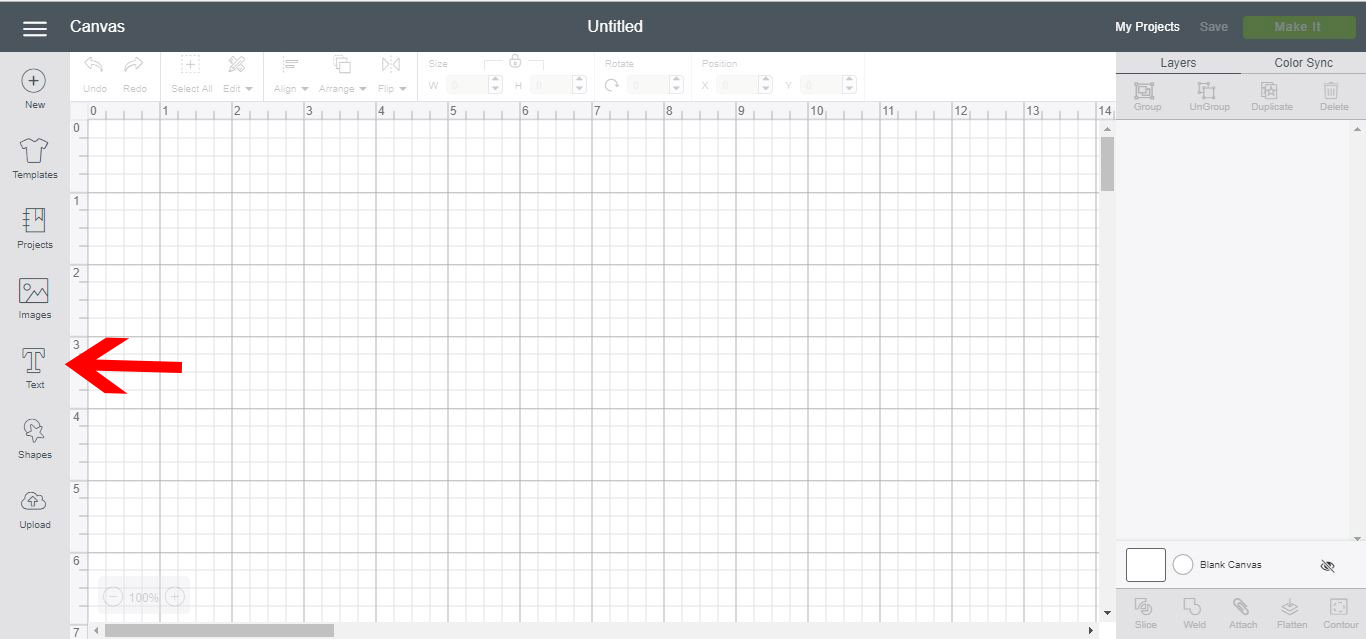
1- Open Cricut Design Space. Select the text tool.
2- Type your text. Select your font. I will be using the Dallon font from fontbundles.net.

3- Click on your text and then adjust the letter spacing.
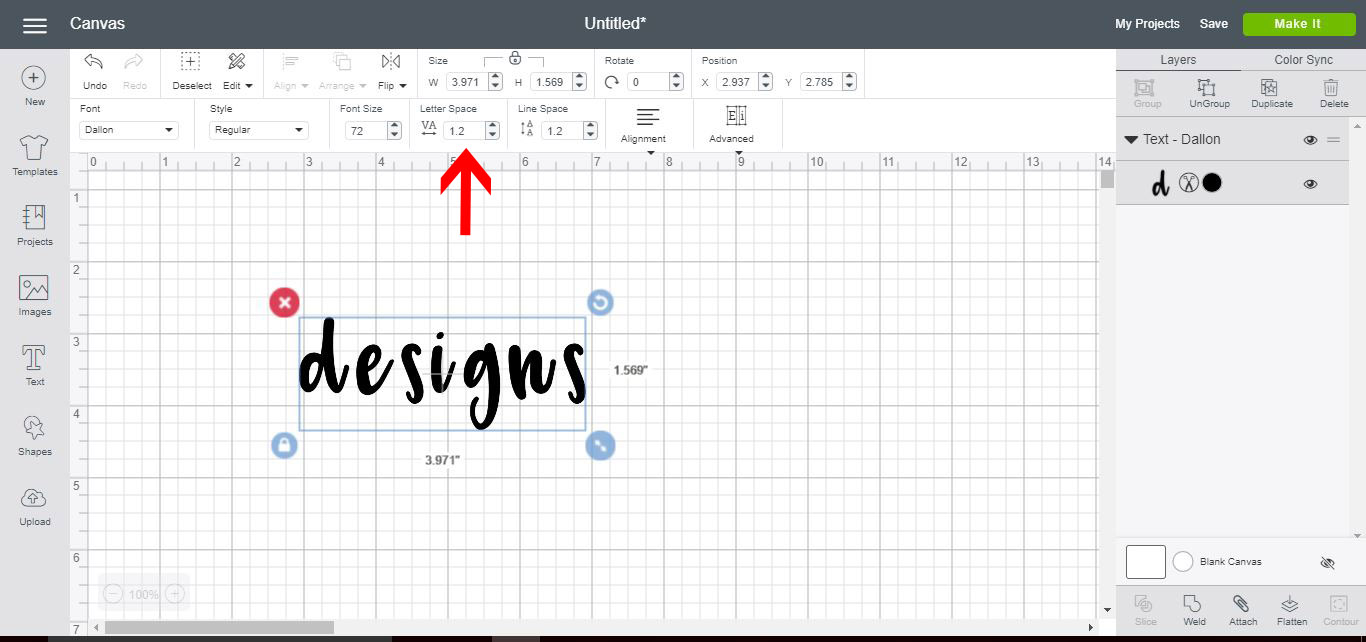
4- Adjust the letter spacing so all the letters touch a tiny bit.
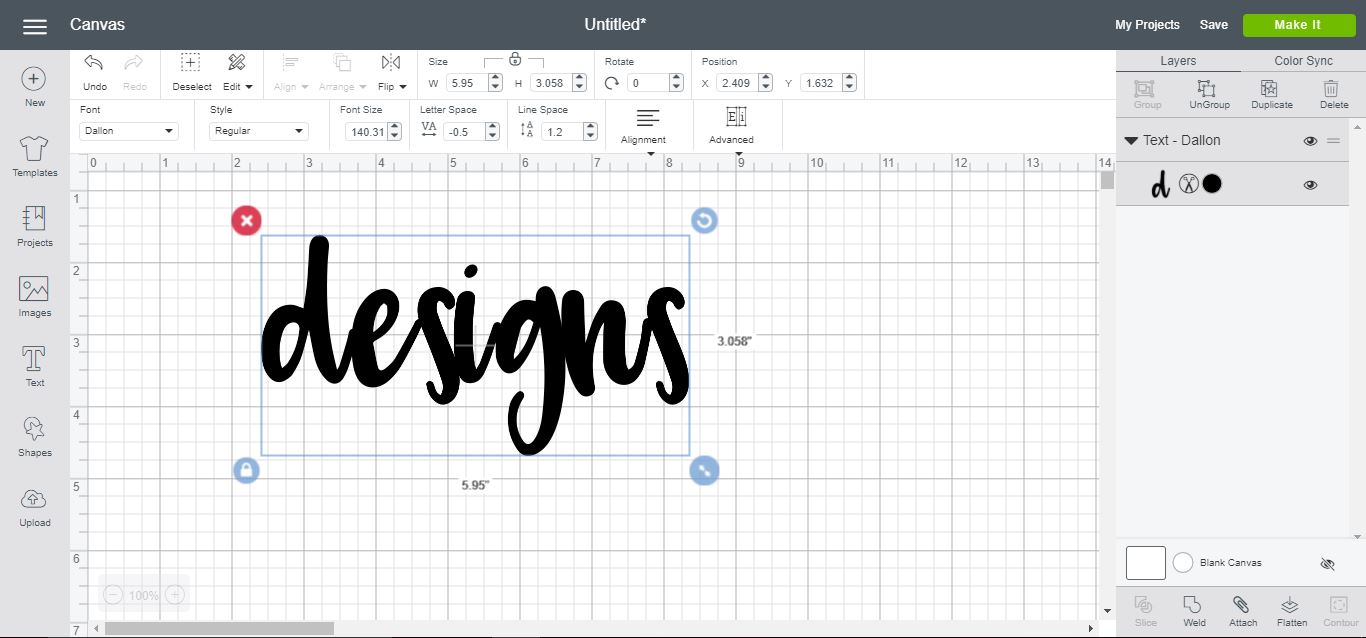
5- Click on the text layer and change the color of the text.

6- In the Layer attributes window, select the print option. Then click Make it.
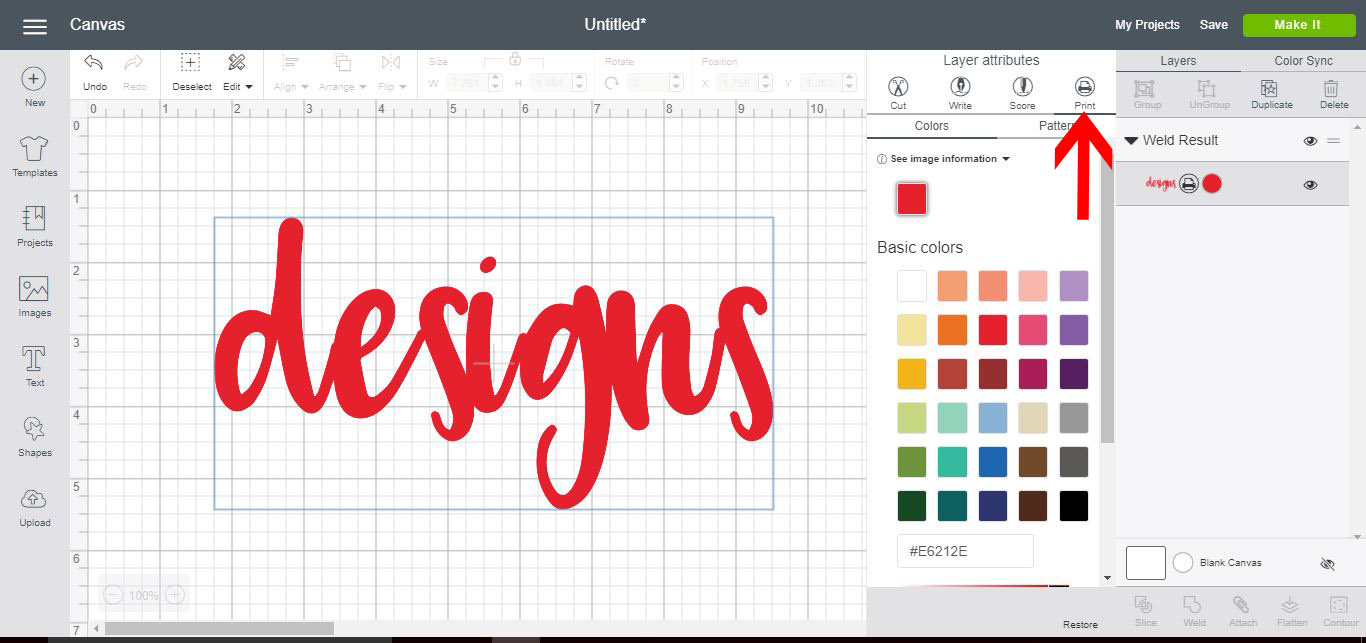
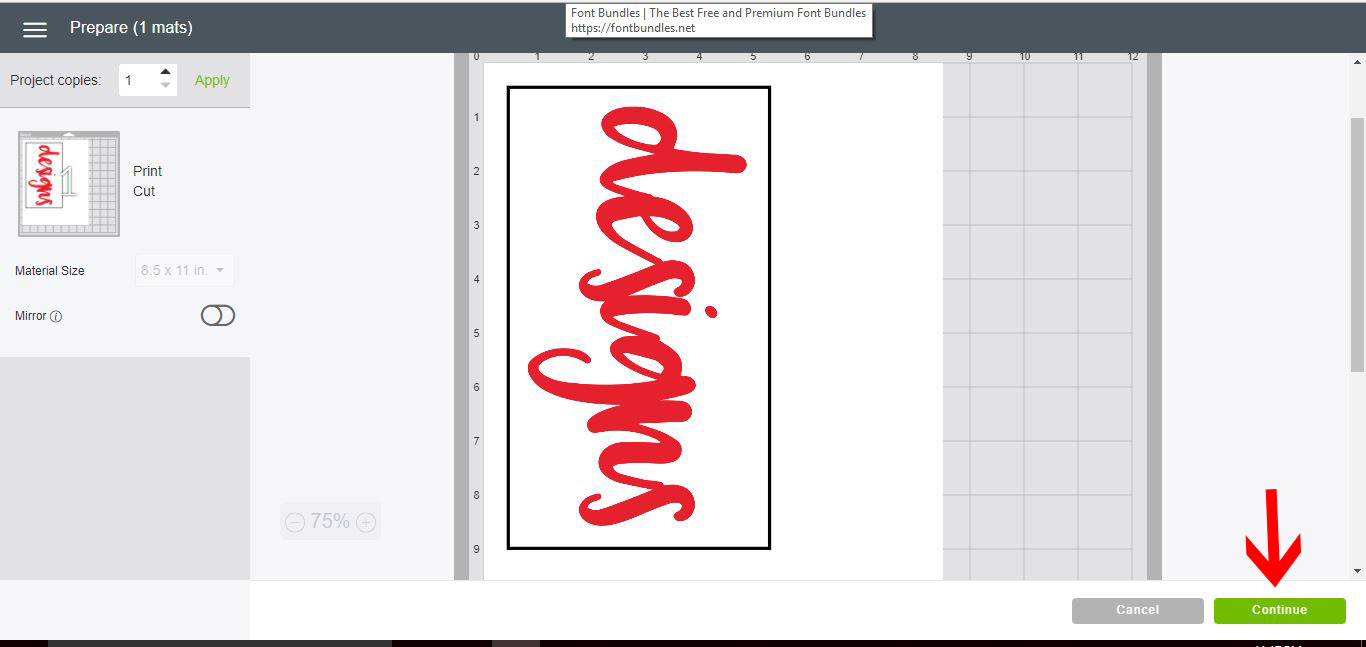
7- You will see that the print and cut window will appear. Click Continue.
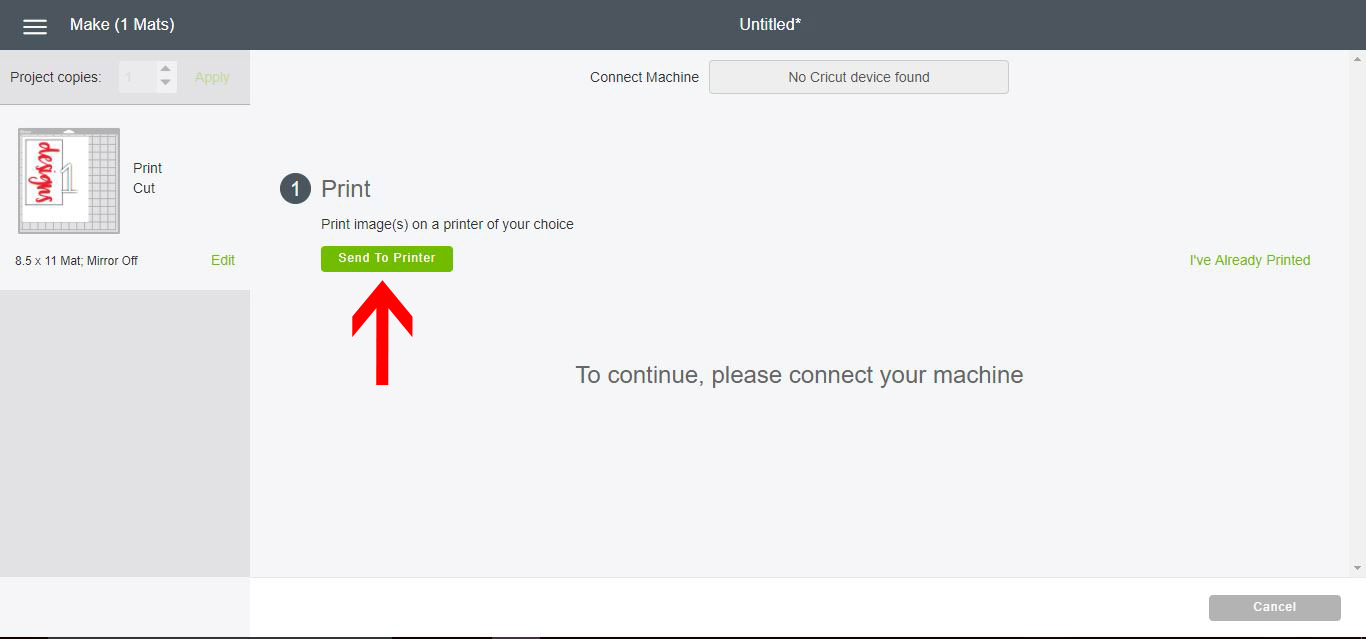
*Note- you do not need your Cricut machine connected at this point to create the shadow text.
8- Click on Send to Printer.
9- In the print setup window make sure that the bleed option is selected. This will make your text slightly wider.
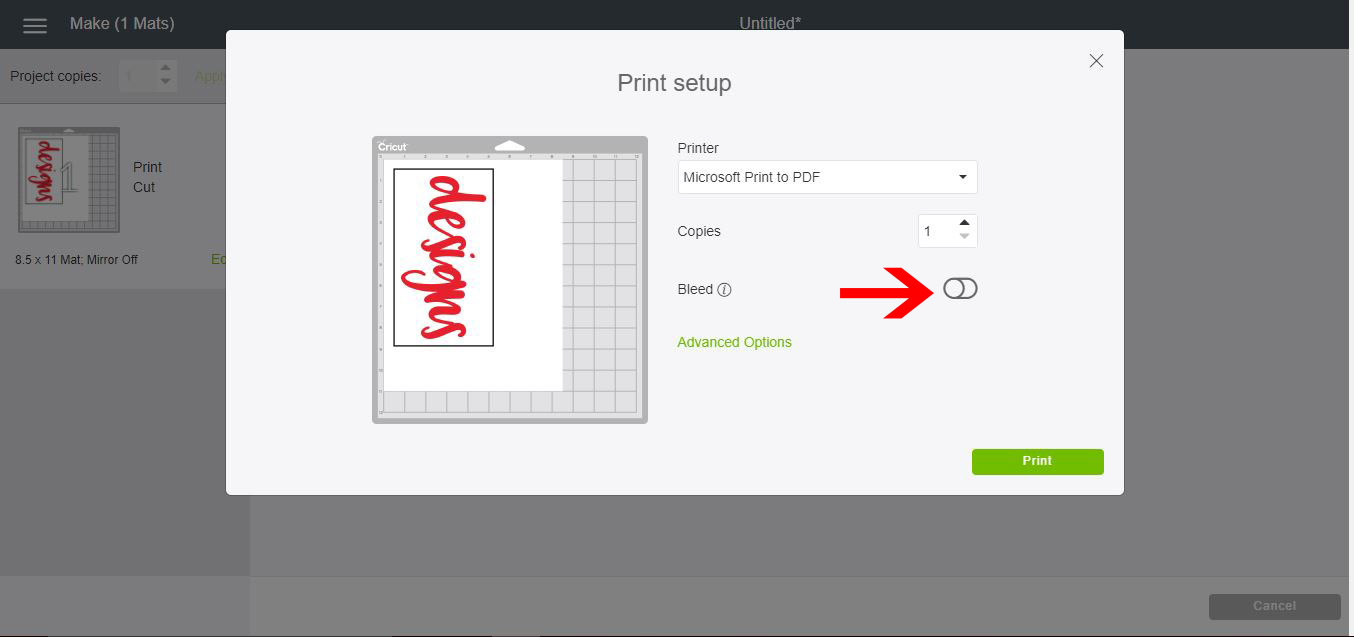
10- Right-click on the image and save.
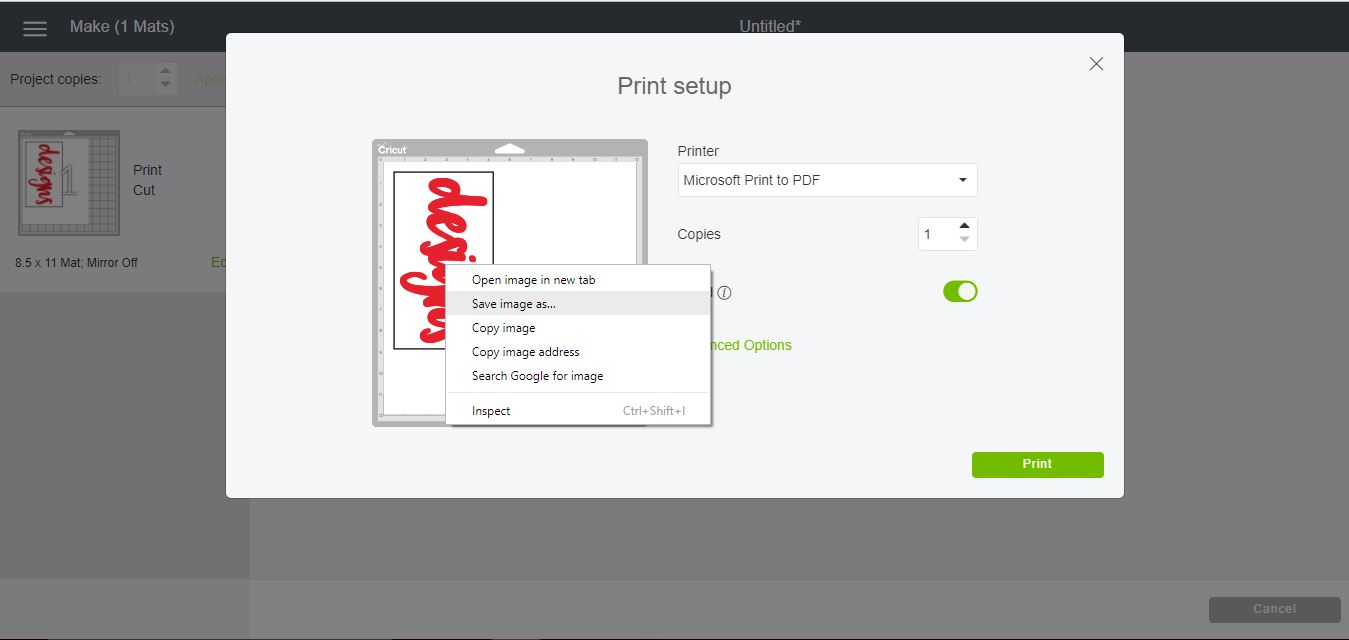
11- Save your image as a PNG.
12- Go back to the design space screen and click on upload image.
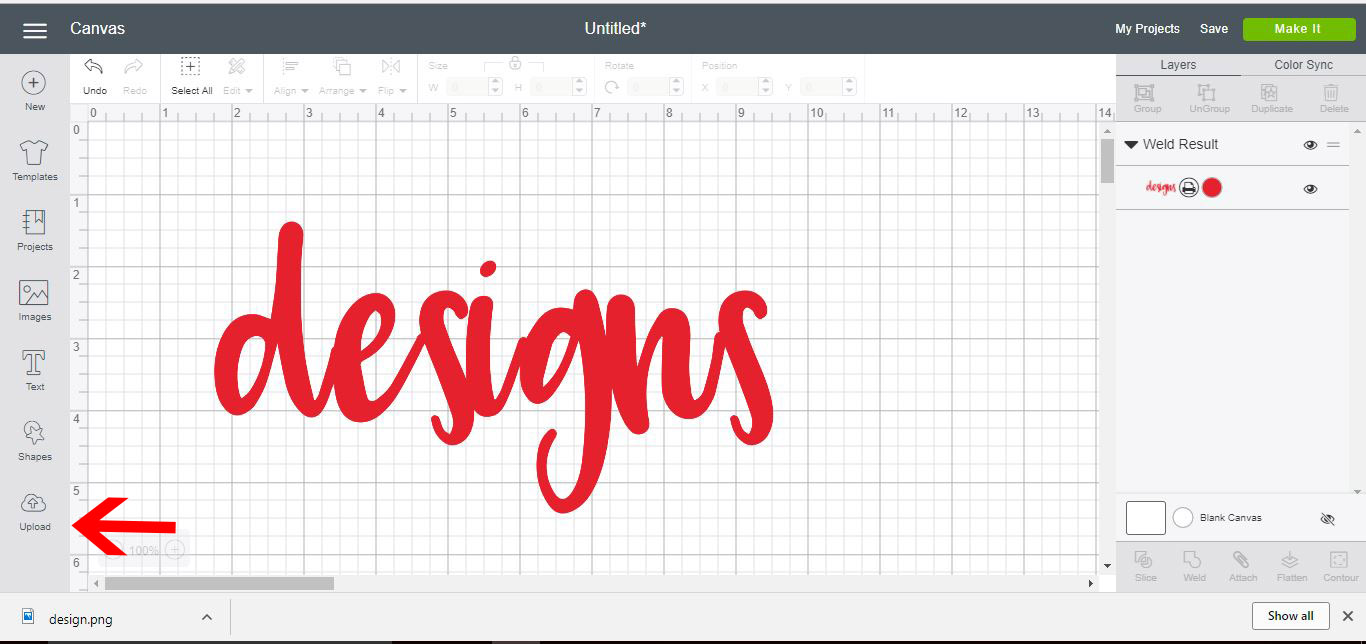
13- Click on upload image.
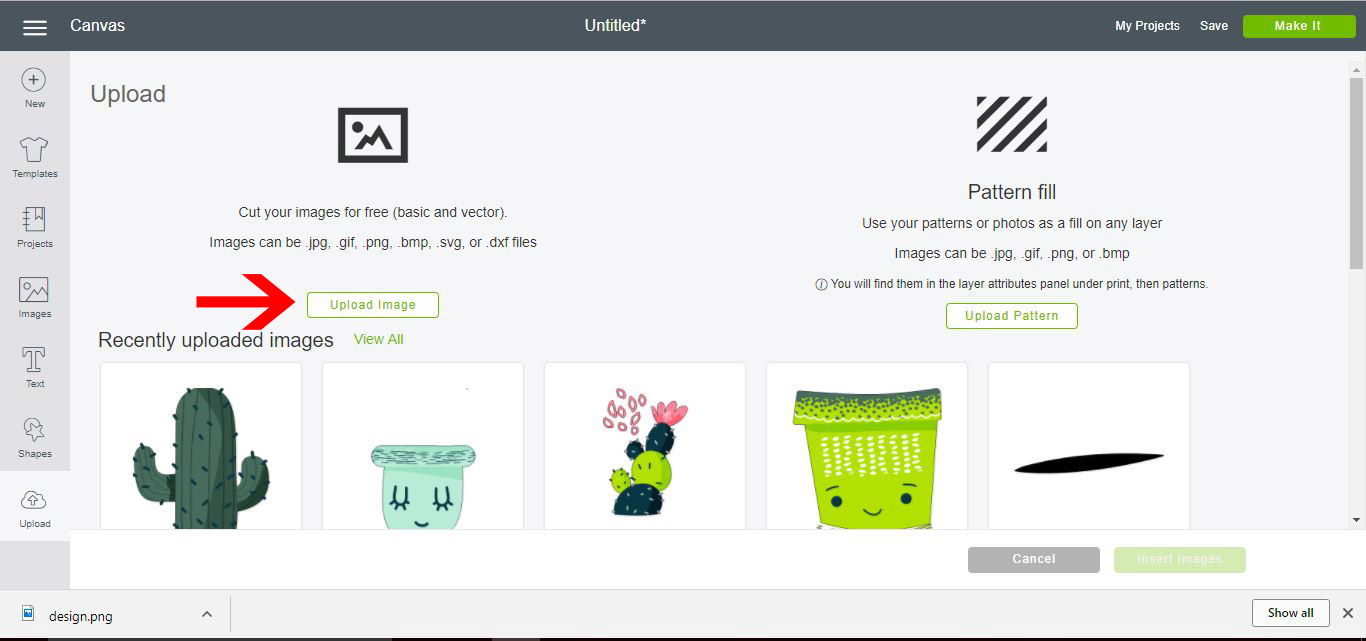
14- Click on browse and access your image you saved.
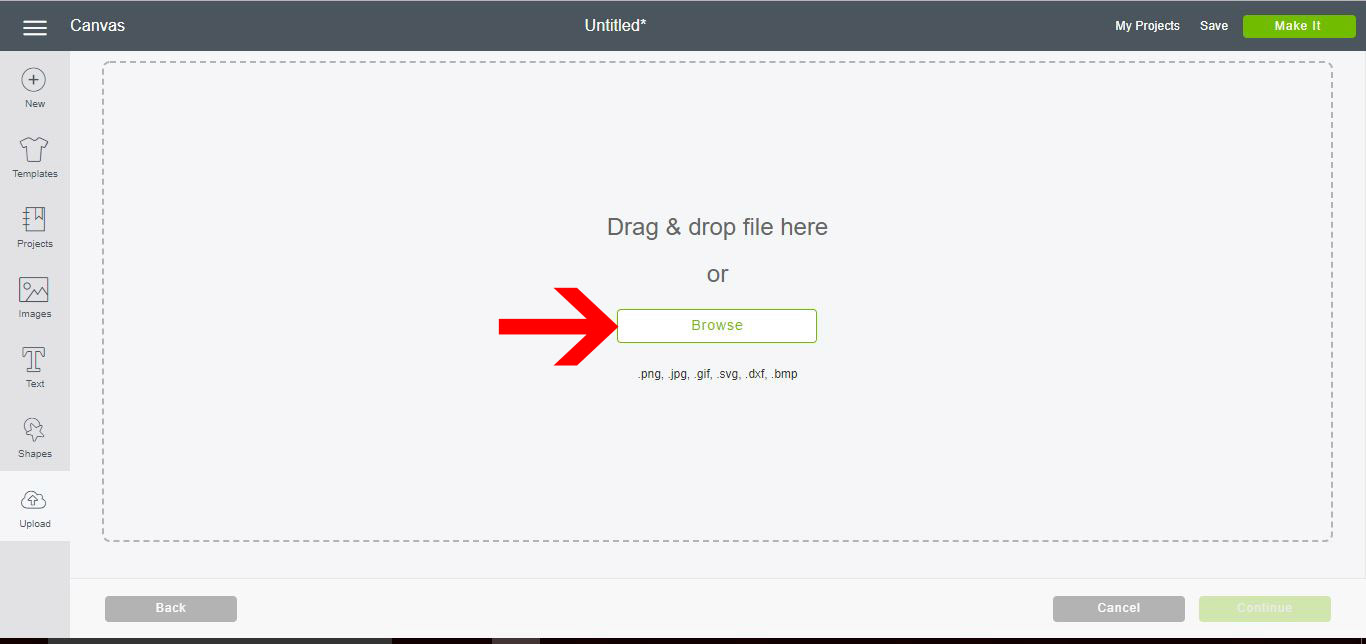
15- Your image will appear on white with a black line around it. Click Complex and then Continue.
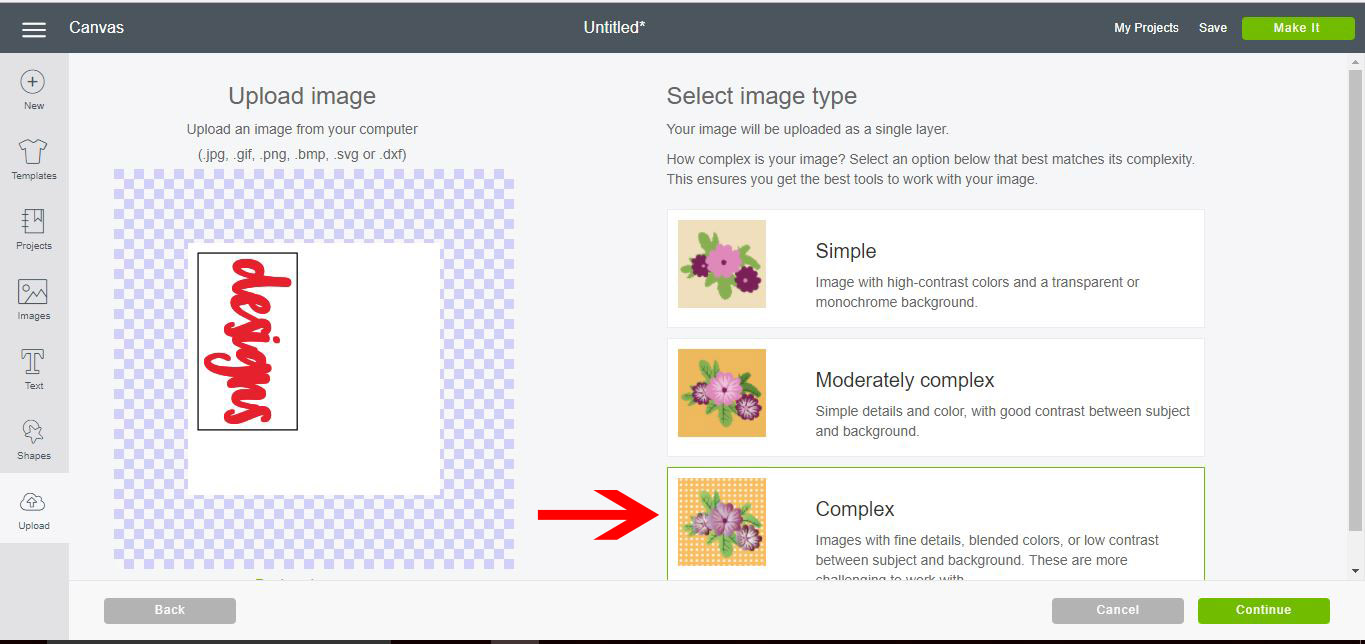
16- Use the magic wand to remove the white from your design. Next click on the crop tool.
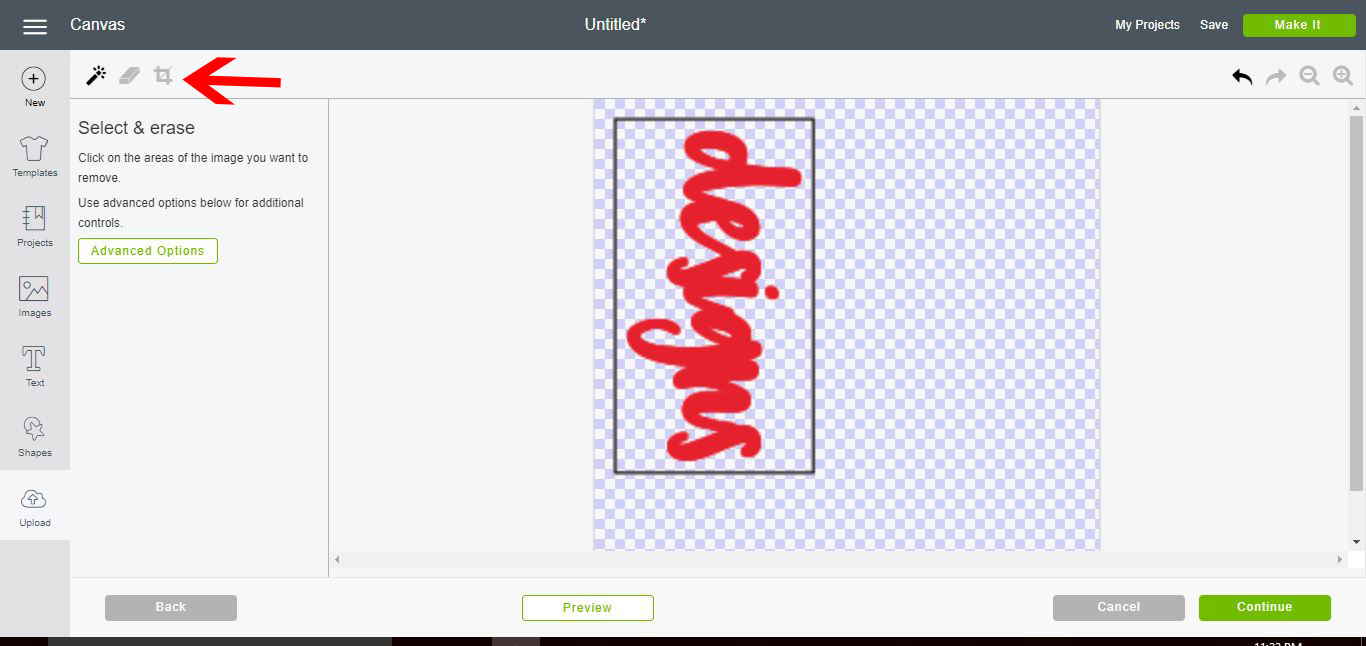
17- Crop around your text. Then click Continue.
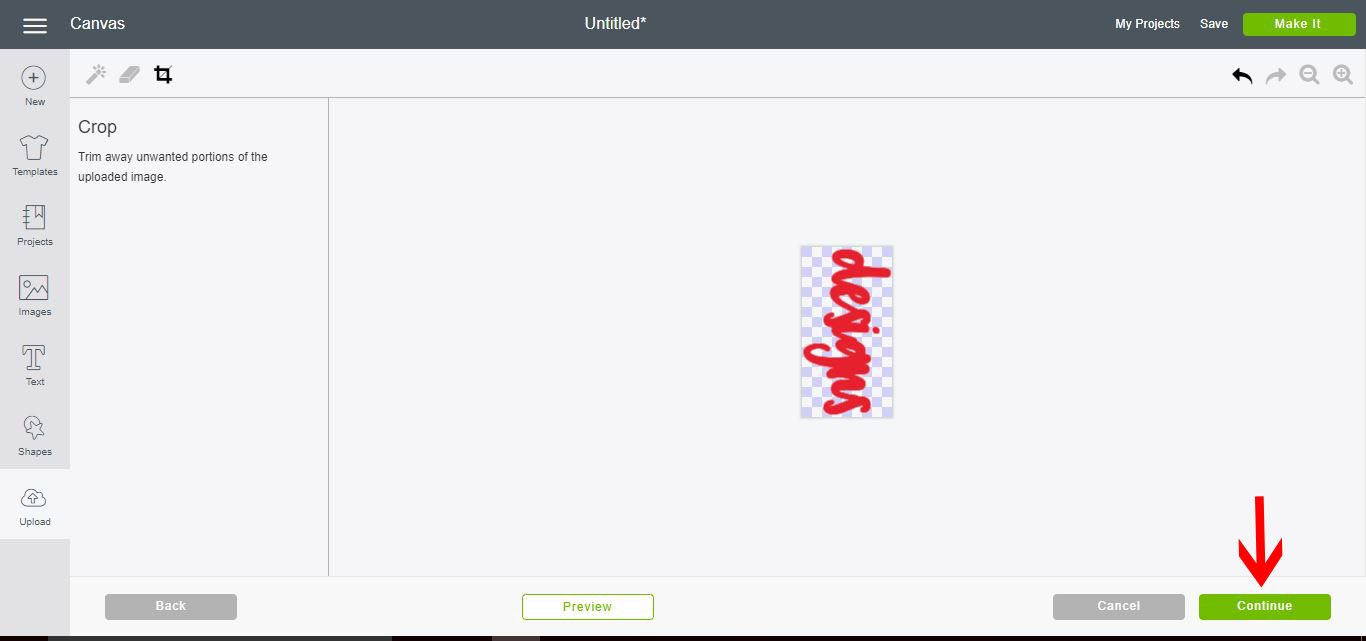
18- Select the cut file and save.
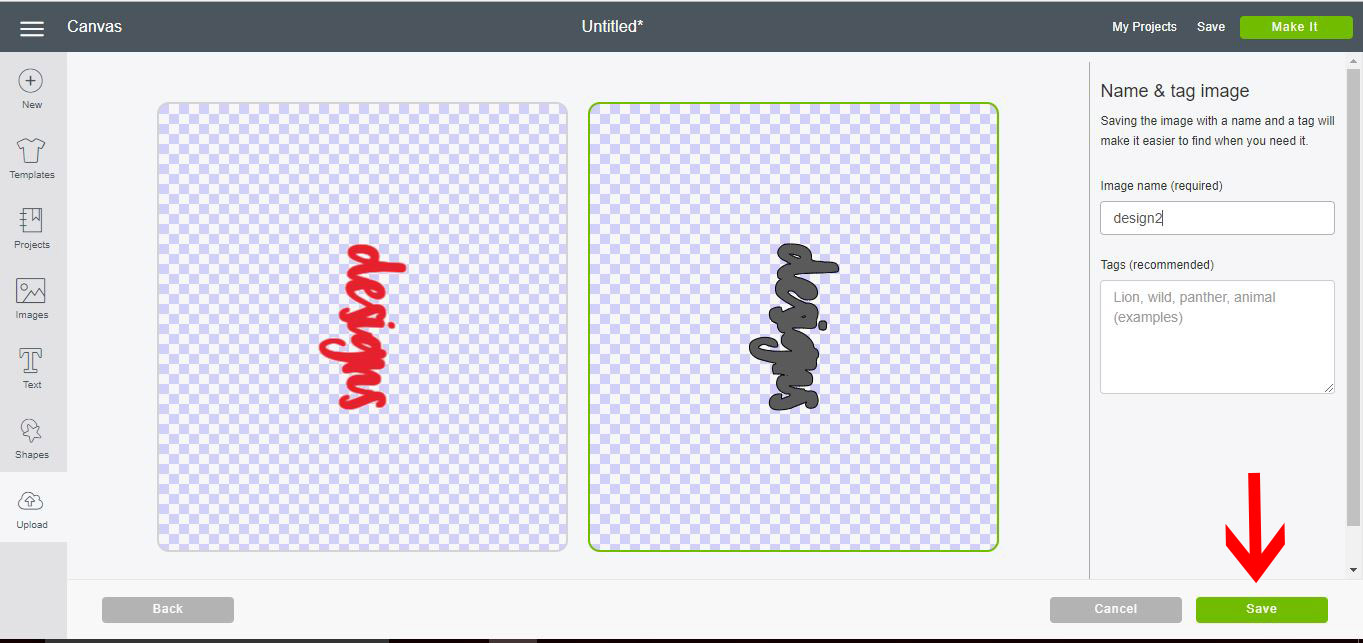
19- Select the design and insert.
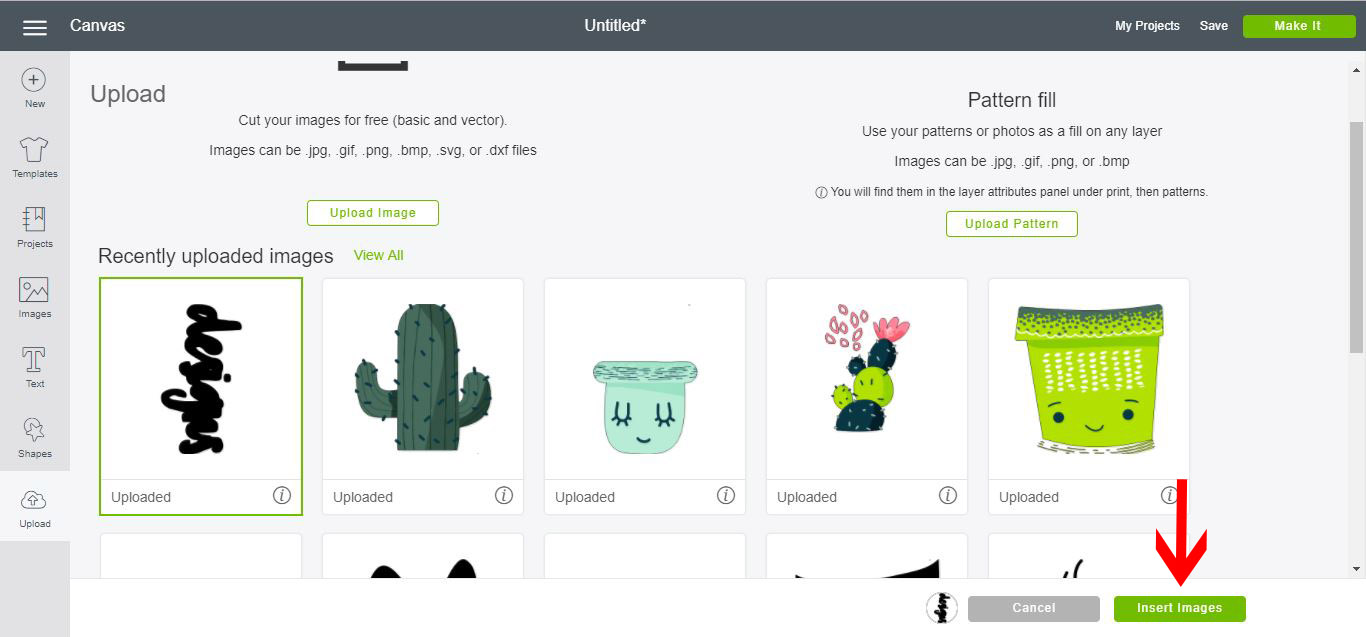
20- Your image is now on your design space.
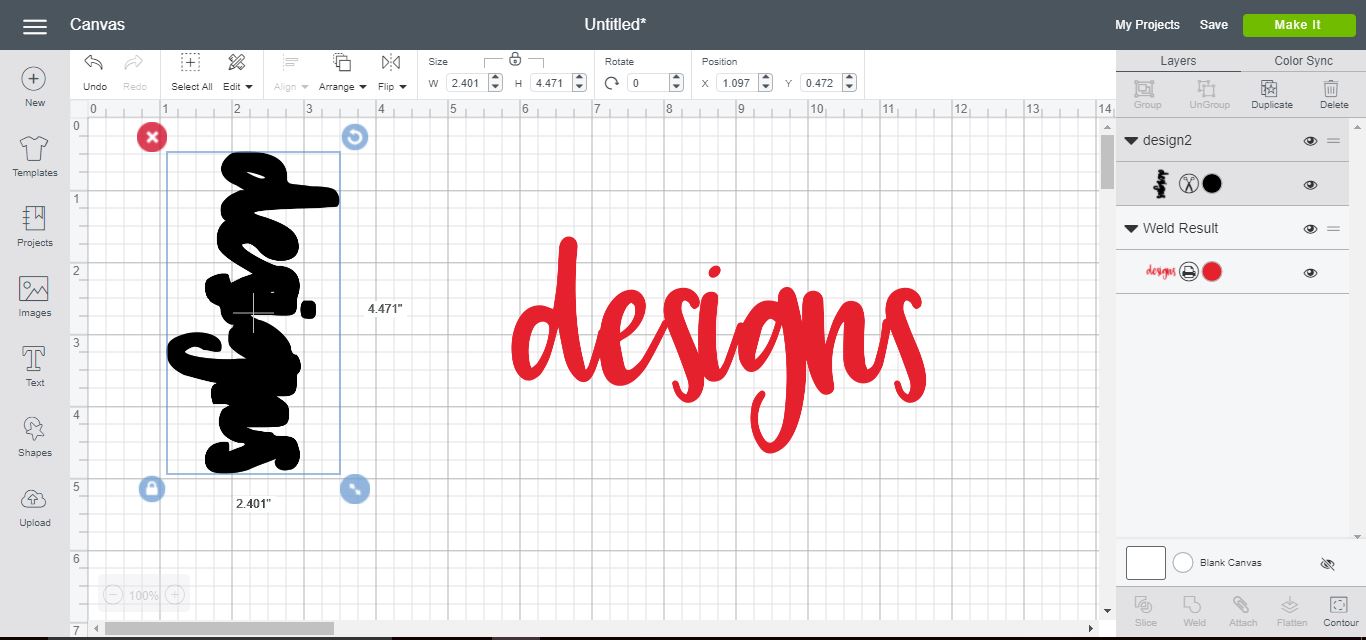
21- Using the Snap rotate function and rotate your design.
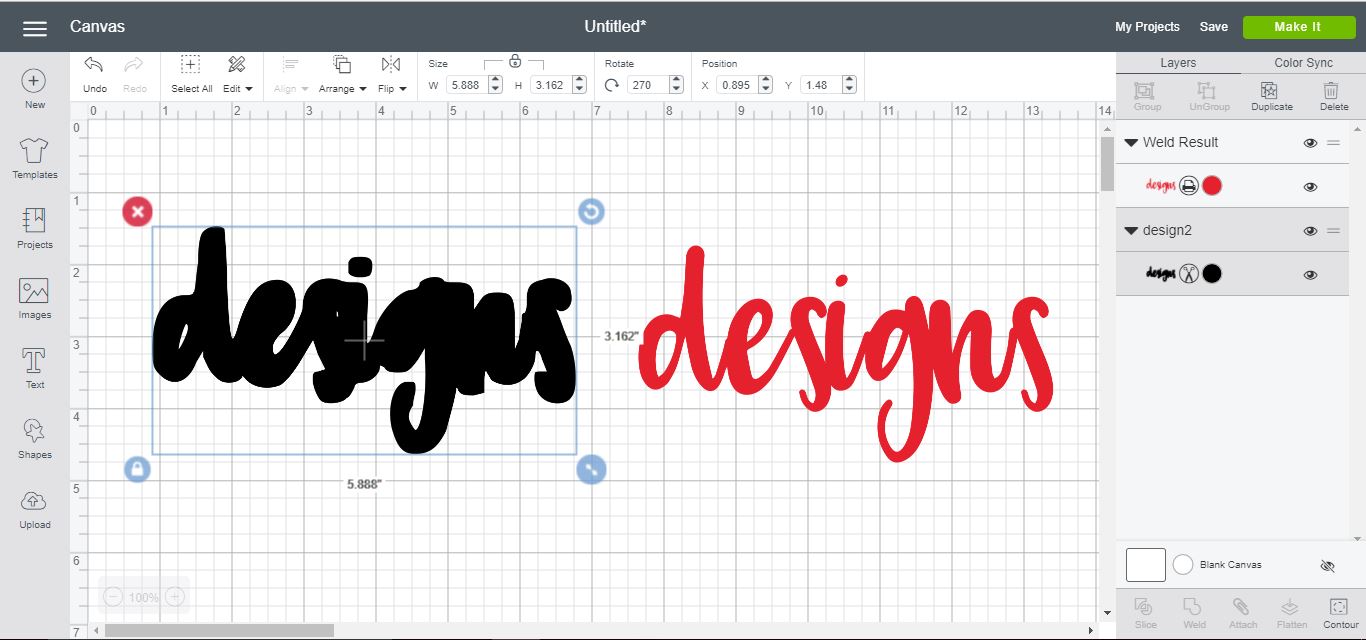
22- You can now layer the original text over the shadow layer.

23-Select the original text layer in the layers panel and change the print back to cut file. Your design is now ready to be cut.
If you want to print then cut, select both text objects, and click flatten. That will convert to a print file ready to print and cut.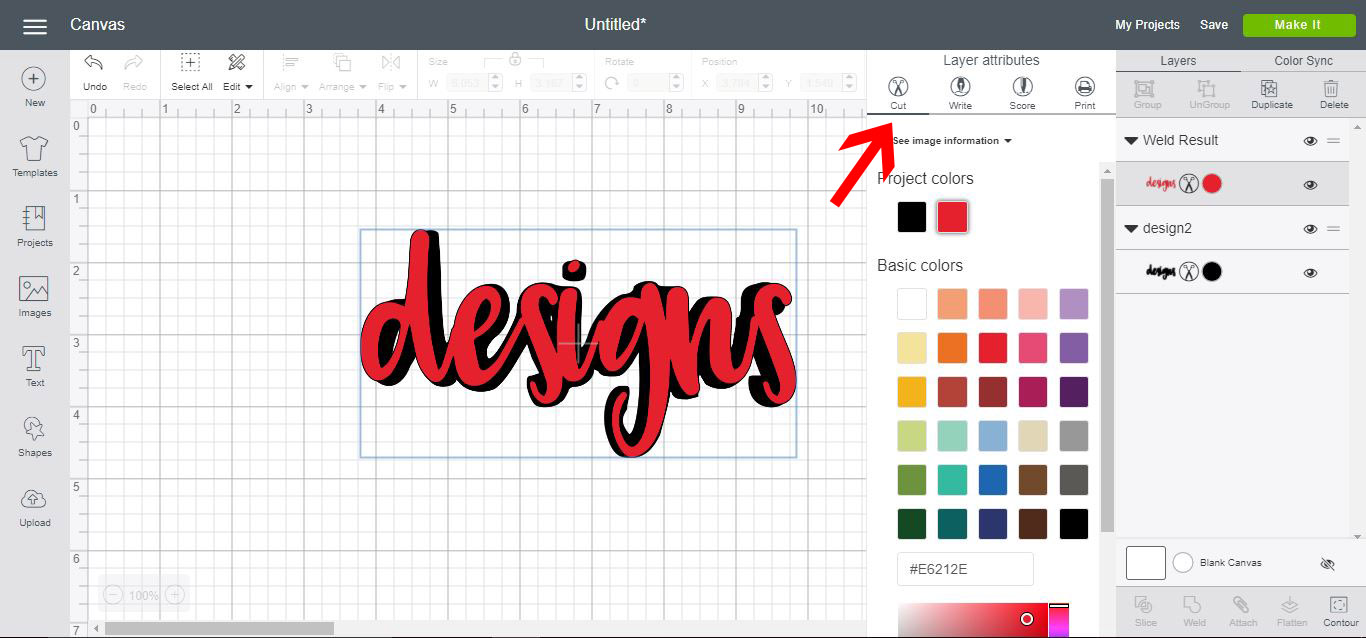
Adding shadow to text creates an eye-catching impact for your projects. Use this technique for shirts, mugs, even online with websites.