By Design Bundles
How to Weld Text in Cricut Design Space Mobile App
Welding text in the Cricut Design Space mobile app can help you create different looks for text designs and keep your text together as one piece for cutting. Look at our guide on how to weld in Cricut Design Space on the computer if you need that guide instead.
Step 1 - Open the Cricut Design Space Mobile App
Locate and tap on the Cricut Design Space mobile app.

Step 2 - Start a New Project
Tap on New Project.

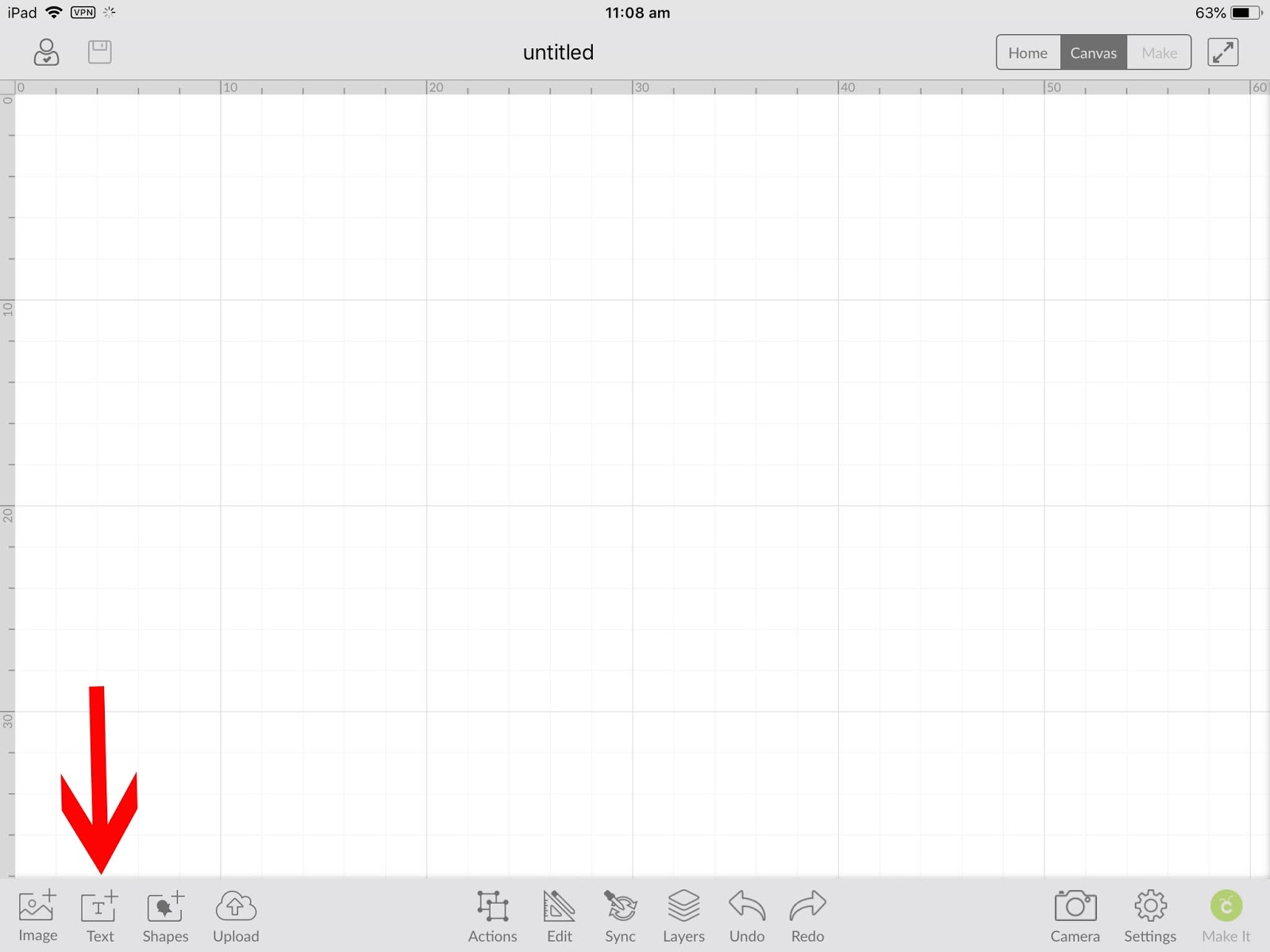
Step 3 - Tap on the Text Icon
Tap on the Text icon at the bottom left of the screen.
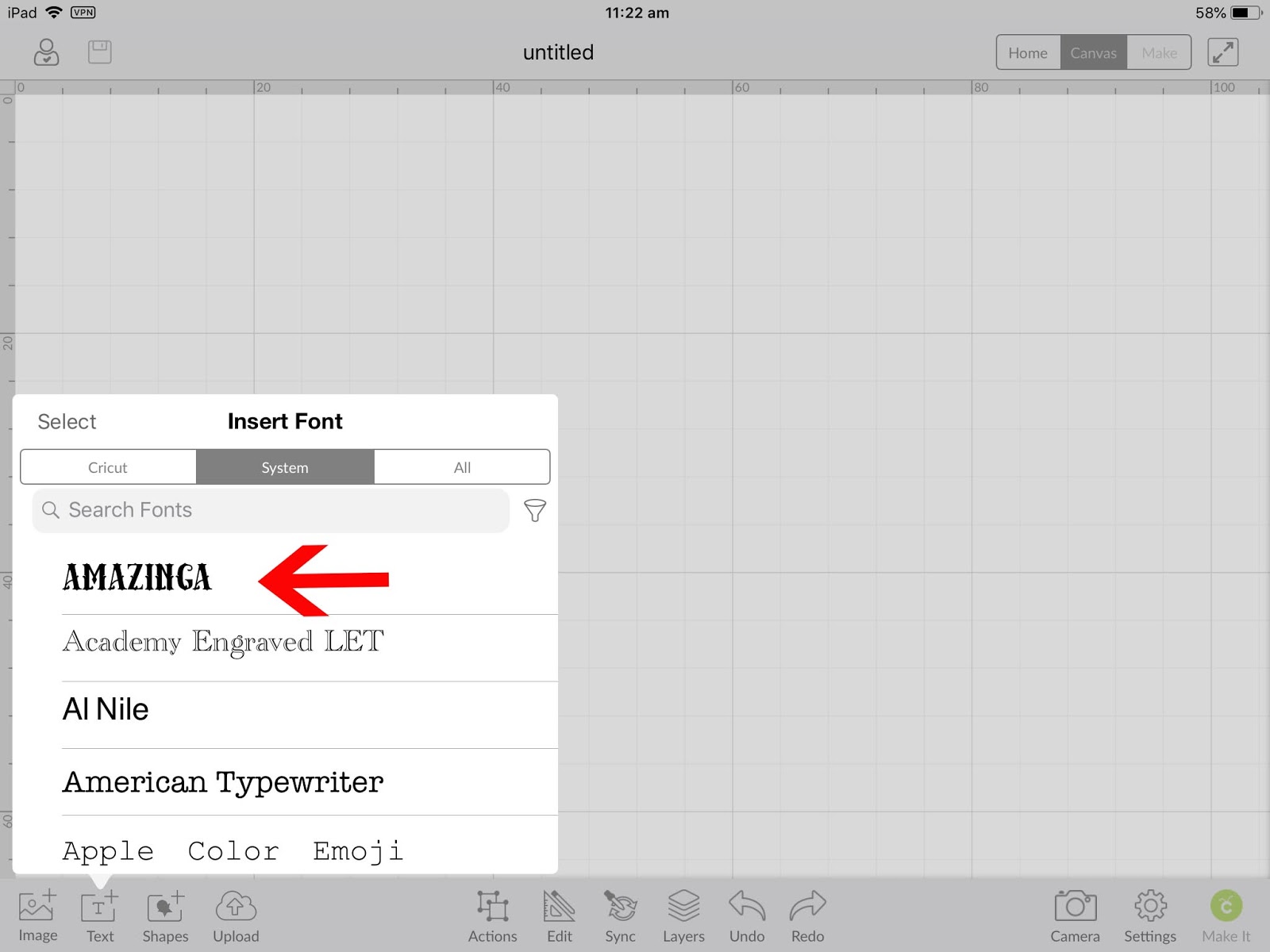
Step 4 - Select Your Font
Select your font from the list. We are using the Amazinga font from Font Bundles.
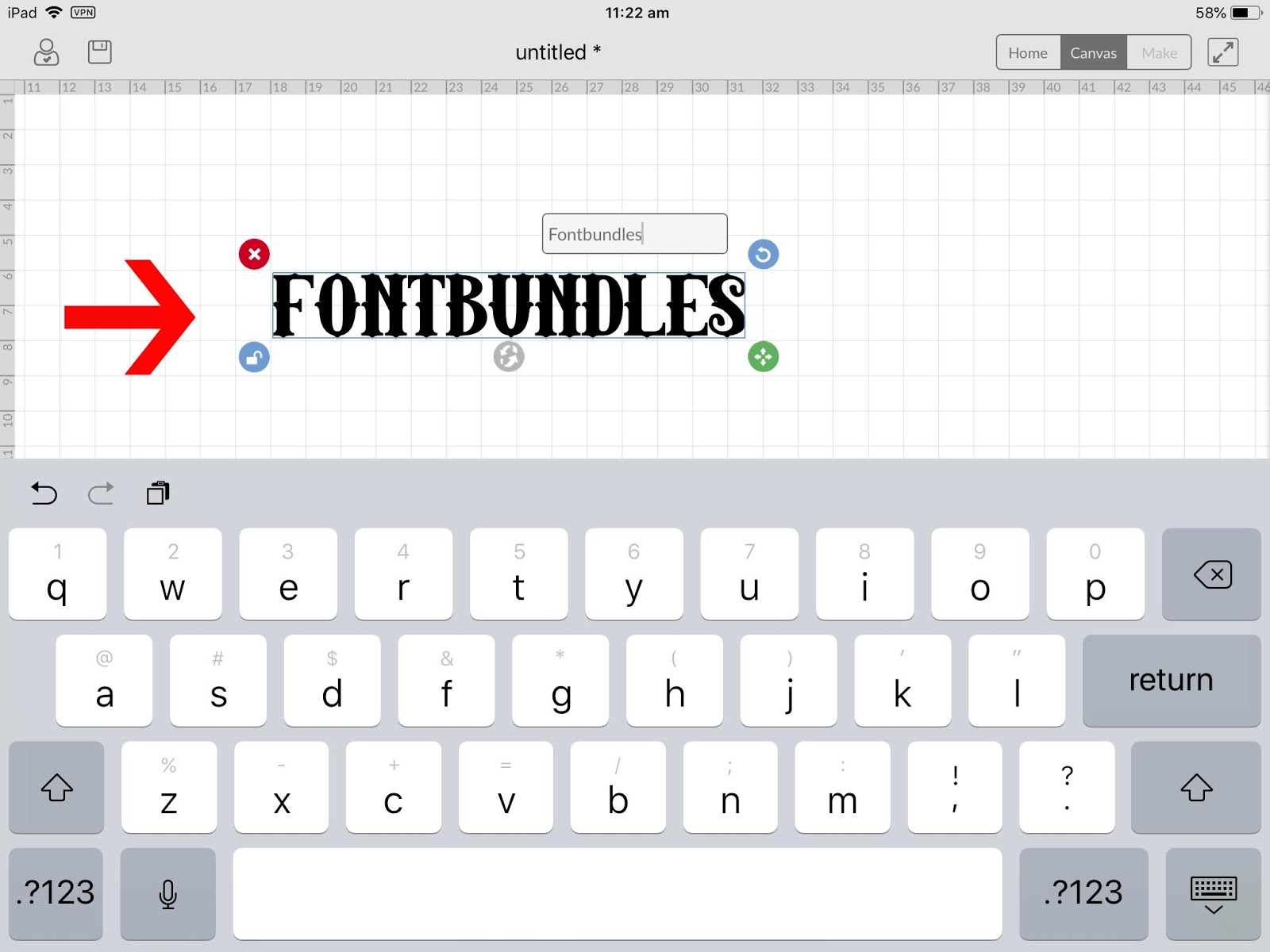
Step 5 - Type Your Text
Type out your text on the canvas.
Step 6 - Isolate the Letters
Make sure you are happy with the font, as you won’t be able to change it after this step.
Tap on the Actions icon at the bottom of the screen. With the text highlighted, select Isolate Letters.
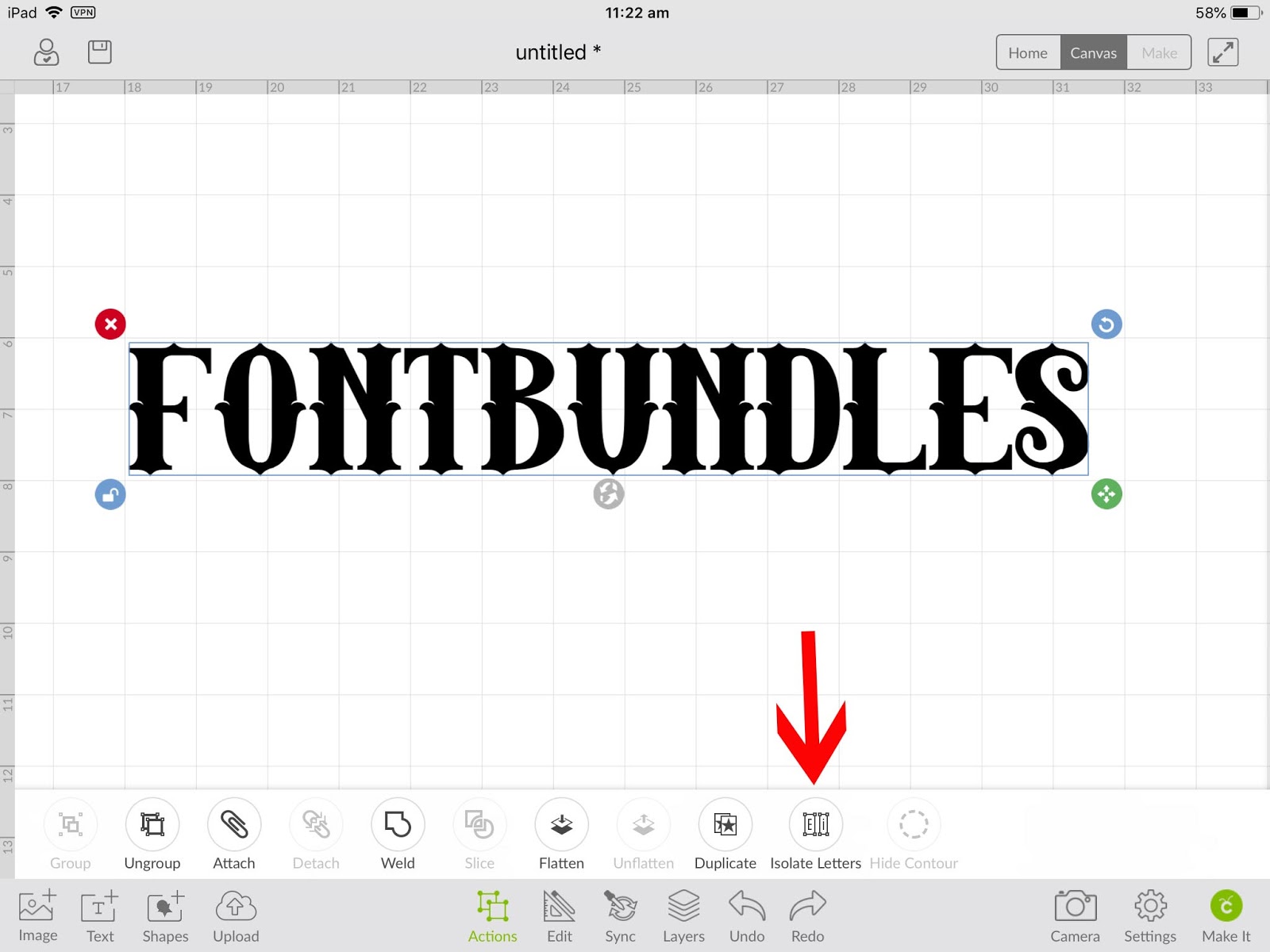
Isolating the letters will allow you to move each letter individually.

Step 7 - Move and Overlap All the Letters
Move each letter so they all touch and slightly overlap.

Step 8 - Weld the Letters Together
Tap on the Actions icon, and with all the letters selected, tap Weld.
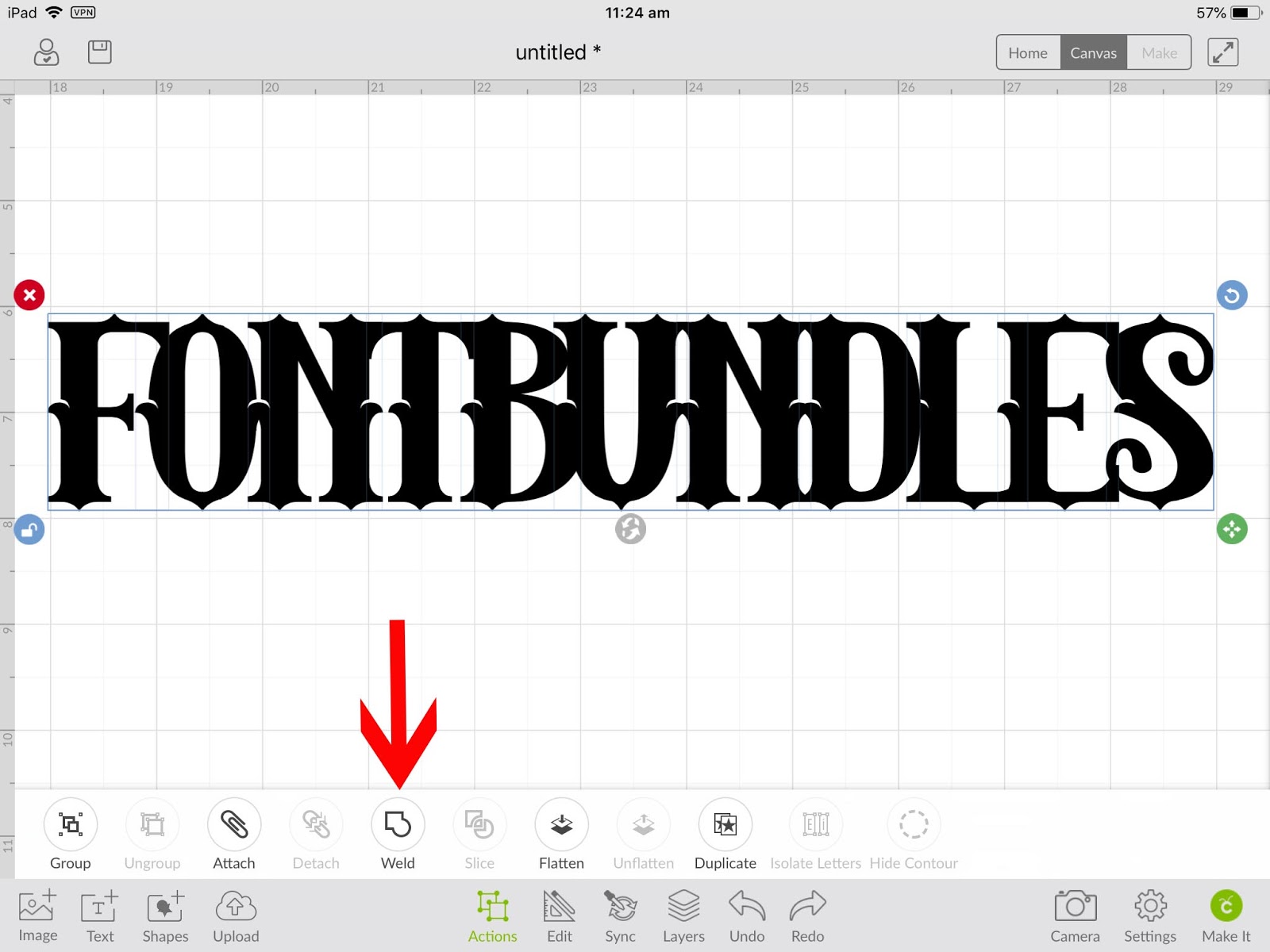
Your letters will now be welded together.
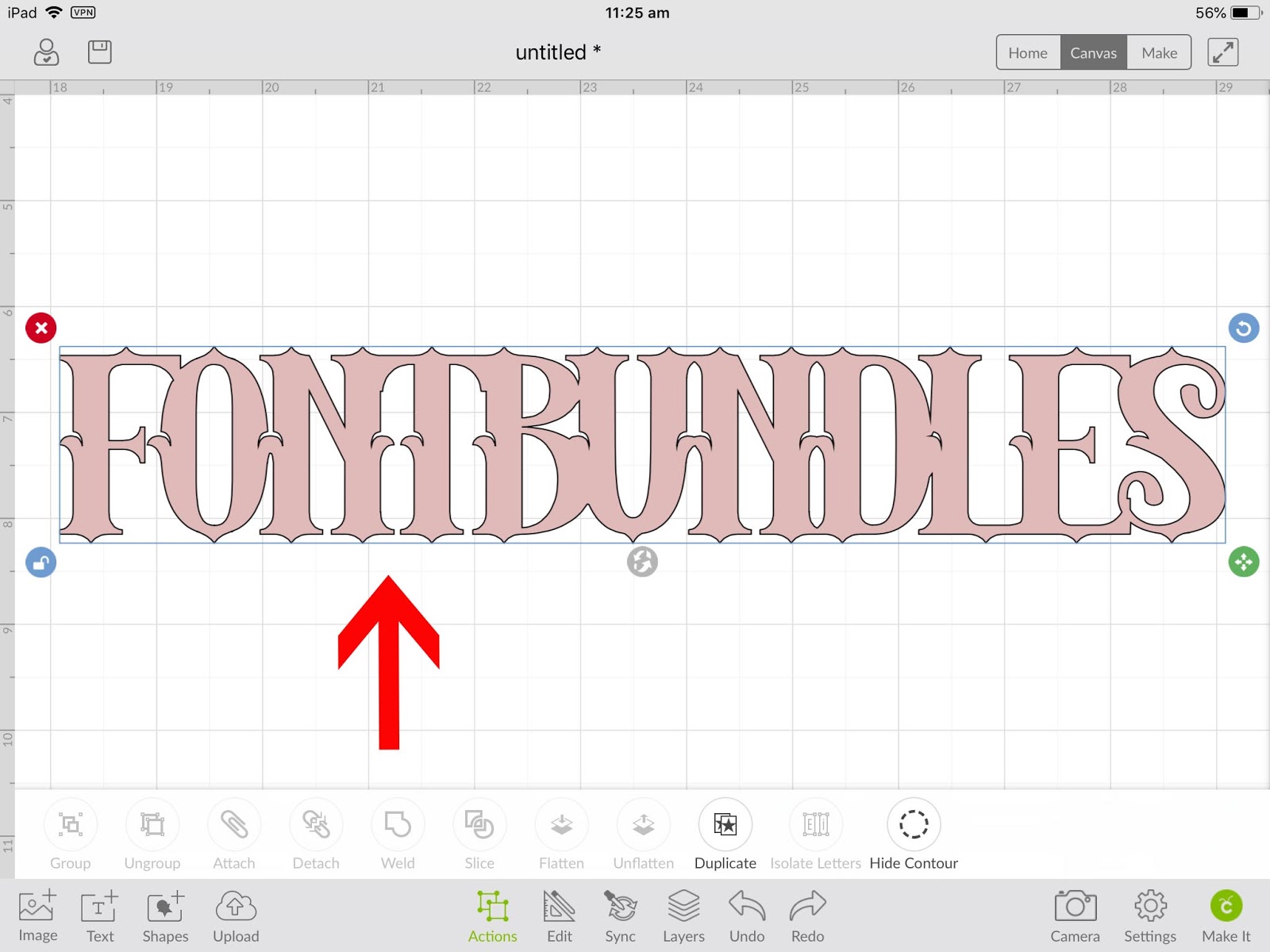
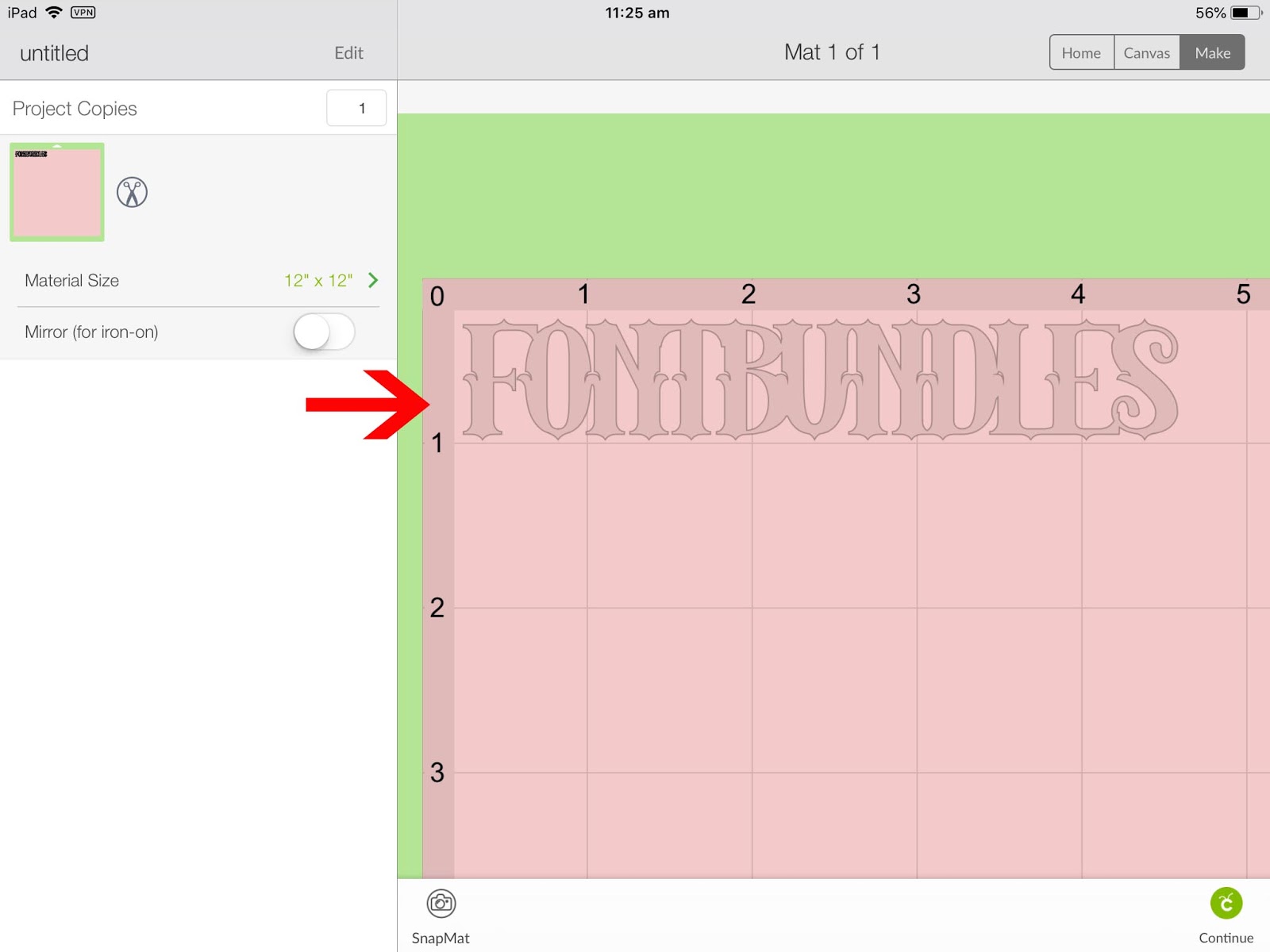
When you go to the cut screen, you will see that it will be cut as one piece.
Now that you know how to weld text in the Cricut Design Space mobile app, you might want to learn how to create a simple monogram design in the Cricut Design Space mobile app which also uses the weld action.