By Design Bundles
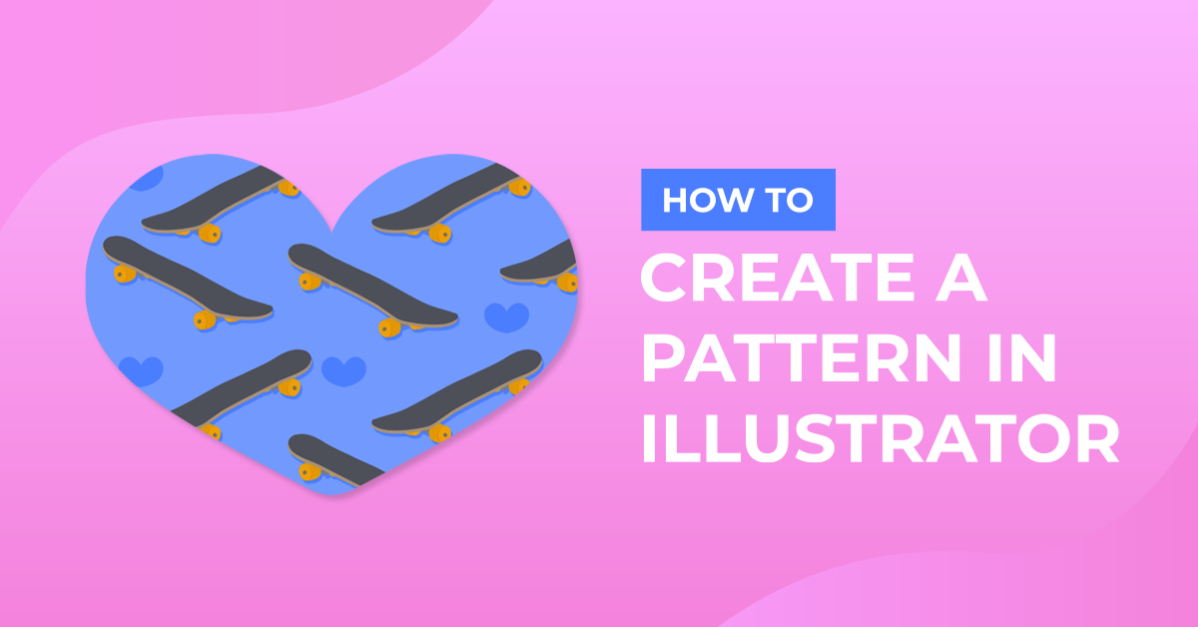
How to Create a Pattern in Adobe Illustrator
1- Open Ai.
2- Open a new Document.
3-Select File > Place to select your image to create a pattern with.
4- A new window will appear. Select the image you would like and click Place.
5- Select the image. (ctrl A)
6- We now need to use the pattern maker function in Ai. Go to Object > Pattern (1) > Make (2)
7- A new window will appear alerting you that a new swatch will be added. Click Ok.
8- The pattern options palette will appear. also you will see in your workspace that the image you selected is now repeated over your workspace.
We need to go to the pattern tile tool now to adjust how the image is set up on our pattern.
Click on the pattern tile icon.
9- Once the icon is clicked you will see a bounding box appear around your original image.
10- You can now adjust the handles on the bounding box (points) as you make the bounding box smaller you will see the images get closer together. adjust to what you need for your pattern.
11- Once happy with your pattern uncheck the dim copies to box in the pattern option palette. This makes sure that all the images in the pattern are the same color and the rest.
Rename your pattern in the pattern option palette.
Next you need to click on done in the top of your pattern box. or a shortcut is to just hit Esc key.
12- Your pattern will now be saved in your swatches. and you will now be back to your original artboard with the original image.
13- To access and use your new saved pattern, you need to create a shape to fill in. I am creating a rectangle to fill my artboard. Select the rectangle tool and draw your rectangle.
14- Make sure the stroke is no fill.(1) and then go to the swatch icon and select the new pattern you made (2)
your pattern will appear.
15- Your rectangle is now filled up with your pattern. If at anytime you want to adjust your pattern you can re select your pattern in the swatches and edit it.
16- You can use any image to make a pattern, or even use several images together to make a pattern.
Images are from Design Bundles and the collection is called Beautiful Watercolor Lavender

2- Open a new Document.

3-Select File > Place to select your image to create a pattern with.

4- A new window will appear. Select the image you would like and click Place.

5- Select the image. (ctrl A)

6- We now need to use the pattern maker function in Ai. Go to Object > Pattern (1) > Make (2)

7- A new window will appear alerting you that a new swatch will be added. Click Ok.

8- The pattern options palette will appear. also you will see in your workspace that the image you selected is now repeated over your workspace.
We need to go to the pattern tile tool now to adjust how the image is set up on our pattern.
Click on the pattern tile icon.

9- Once the icon is clicked you will see a bounding box appear around your original image.

10- You can now adjust the handles on the bounding box (points) as you make the bounding box smaller you will see the images get closer together. adjust to what you need for your pattern.

11- Once happy with your pattern uncheck the dim copies to box in the pattern option palette. This makes sure that all the images in the pattern are the same color and the rest.
Rename your pattern in the pattern option palette.
Next you need to click on done in the top of your pattern box. or a shortcut is to just hit Esc key.

12- Your pattern will now be saved in your swatches. and you will now be back to your original artboard with the original image.

13- To access and use your new saved pattern, you need to create a shape to fill in. I am creating a rectangle to fill my artboard. Select the rectangle tool and draw your rectangle.

14- Make sure the stroke is no fill.(1) and then go to the swatch icon and select the new pattern you made (2)
your pattern will appear.

15- Your rectangle is now filled up with your pattern. If at anytime you want to adjust your pattern you can re select your pattern in the swatches and edit it.

16- You can use any image to make a pattern, or even use several images together to make a pattern.
Images are from Design Bundles and the collection is called Beautiful Watercolor Lavender
Related Tutorials
Illustrator Tutorials
Create a Halftone Pattern in Adobe Illustrator
Illustrator Tutorials
How to Create SVGs in Adobe Illustrator
In this tutorial, learn how to create and save a SVG in Adobe Illustrator.
Illustrator Tutorials
How to Create a Honeycomb Pattern in Illustrator
Learn how to create a Honeycomb pattern in Adobe Illustrator.
Illustrator Tutorials
How to Create a Paisley Pattern in Illustrator
Illustrator Tutorials
How to resize an image without losing quality in Adobe Illustrator
Learn how to resize an image without losing quality in Ai.
Illustrator Tutorials
How to Create a Transparent Gradient in Illustrator
Learn how to create a transparent gradient in Adobe Illustrator with this step by step tutorial.