By Design Bundles
How to Simplify Nodes in Adobe Illustrator
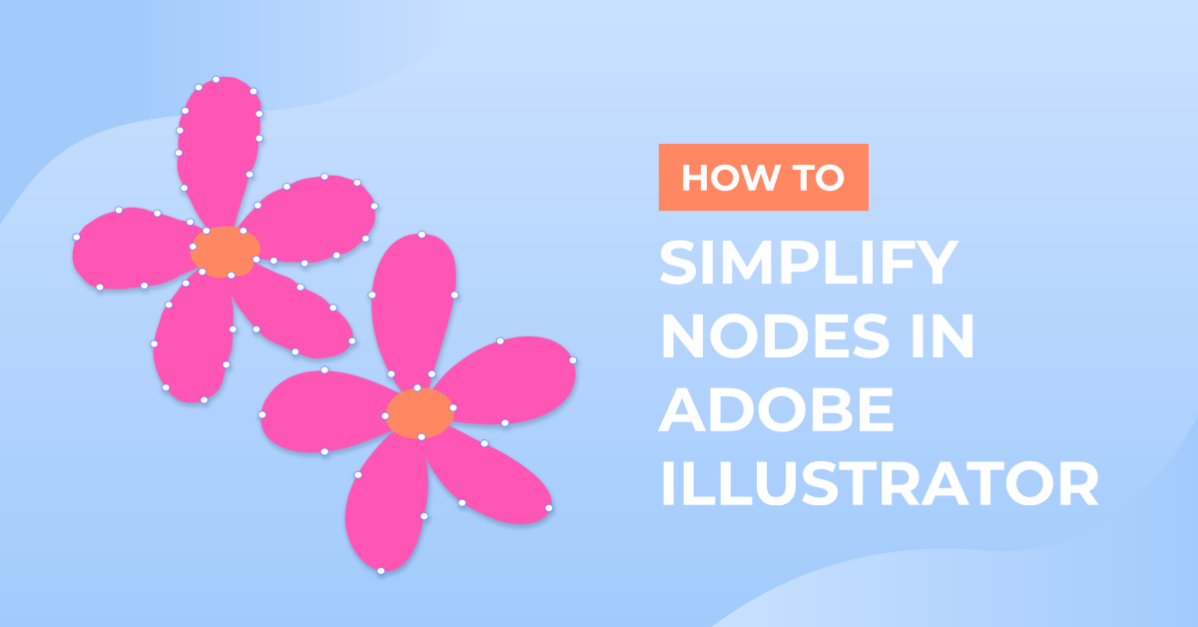
When designing in Adobe Illustrator you will come across nodes or anchor points. These nodes are the defining points along your path that indicate the start and end of your lines. At times you may want to decrease the amount of nodes, especially for cut files. In this tutorial we will guide you on how to simplify nodes in Adobe Illustrator.

Simplifying nodes essentially means that your shape will contain less nodes, resulting in smoother, simplified edges. We are going to use a rough handwritten font to show you how this works.
Step 1 - Convert text and identify nodes
When using a font, it must be converted from an editable type to an outlined path. To do this, select Type > Create Outlines.

Some of the letters overlap, so we will also merge these shapes. This is done by clicking Window > Pathfinder and selecting the Merge tool. We have a great tutorial on how to use the pathfinder panel if needed.

To identify how many nodes our design has we need to go to the document information. Open your Document Info panel by selecting Window > Document Info.

Within this panel, select the burger menu, then Objects. Under this menu, our design shows as having 472 points/nodes. The design also has rough edges. In the next step we will decrease the nodes and smooth out the edges.

Step 2 - Use the Simplify Tool
We will be using the Simplify Tool to give our design a cleaner look. This can help to create a more manageable cut file for cutting machines.
Simplify the path
At the top of the screen go to Object > Path > Simplify.

A toolbar with options will appear. Dragging the circle across the line changes the number of points or nodes. As you do this, your document info will update with the number of points. Moving towards the left will create fewer points while moving right will add more points.

Adjust the Simplify options
It is important when using this tool to keep an eye on the finer details. These details can be lost when simplifying. If you are not satisfied with the result, you can open the Simplify options. You will be able to tweak more of the settings to achieve your desired result. Select the three dots on your Simplify toolbar.

Here you have more flexibility with two additional toolbars. Ensure your preview is turned on in the bottom left to see your changes in real time. You can also turn on Show Original Path to see an outline of your design before being simplified.

Within our design you can see there are some sharp edges. We want to reduce the edges with a maximum curve for softened edges. The Corner Point Angle Threshold will also be tweaked for a better result.

When you are happy with your design, click OK. As you can see, our design now only has 91 points.

Simplifying your design is one way to clean up any extra nodes.If you enjoyed this tutorial you may also enjoy our other Illustrator tutorials on how to use the shape builder tool, how to make a triangle, and how to use the width tool.