By Christine Hattingh
How to Create a Two Point Perspective in Procreate
Do you want to learn how to create multi-perspective artwork, like interior design layouts? Then this tutorial is for you, as we take you step-by-step on how to create a two point perspective in Procreate.
We are only focusing on perspective drawing guides in this tutorial. We have an in-depth tutorial on how to use Procreate drawing guides if you want to learn more about all guides.
Please note: we are using the latest version of Procreate 5X. If you do not see the features mentioned below, ensure your Procreate is up-to-date.
Step 1 - Enable Drawing Guides in Procreate
With a blank canvas open, we need to first enable the drawing guide function to create a two point perspective in Procreate. See how you can create a custom canvas size in Procreate.
To enable drawing guides, open the Actions panel (wrench icon) at the top left of the toolbar.
From the options, tap on Canvas and toggle on Drawing Guide. Then, tap on Edit Drawing Guide.

Step 2 - Apply Two Point Perspective Guides
Inside the Drawing Guides toolbar at the bottom, switch to the drawing guide we need to use. Tap on Perspective to use perspective guides.

Place Your First Perspective Point
Place the first perspective point by tapping anywhere on your canvas. Your first perspective point will have green guides by default.

Placing a Second Perspective Point
Next, apply the second point of perspective on your canvas by tapping on your canvas again. Your second perspective point will have purple guides by default.
Edit Your Two Point Perspective in Procreate
With the two perspective points placed, you can edit and adjust them as needed. To adjust the perspective, simply press on a perspective point and drag it anywhere on or off the canvas.
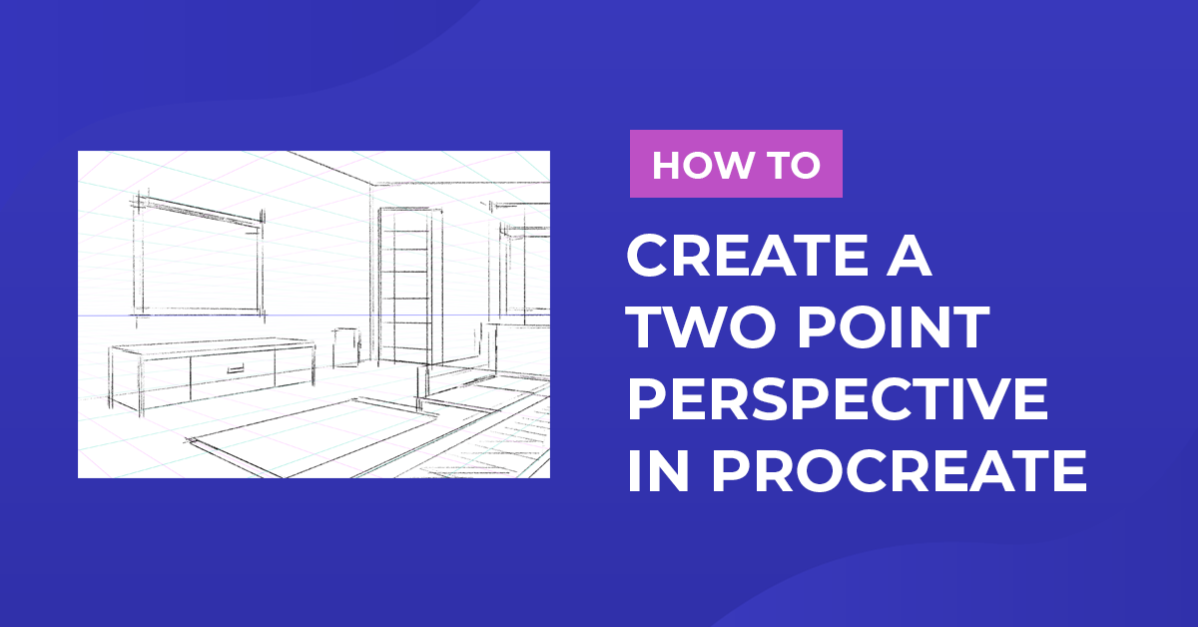
The closer your perspective points are on the canvas and to each other, the deeper your perspective view will be in the middle. To get a wider perspective like our example image below, drag your perspective points far off the canvas on either side.
Tap Done when you are ready to start creating your two point perspective in Procreate.

Step 3 - Enable Drawing Assist on Your Layer
Before you start drawing in a two point perspective, make sure drawing assist is enabled on your layer to guide your strokes. Open your Layers panel and tap on your layer to see the layer options.
In the layer options, look for Drawing Assist and tap on it to activate drawing assist. When drawing assist is active on the layer, you will see the wording Assisted below the layer name.

Step 4 - Drawing in Two Point Perspective
We have set up our two point perspective in Procreate and enabled drawing assist. We can now move on to the final step and begin creating a two point perspective drawing.
Using the soft sketching brush from these versatile Procreate brushes, we made a rough sketch of an interior layout. You can see how the two point perspective with drawing assist looks.
If you no longer want assisted drawing on, refer back to the previous step and disable Drawing Assist to draw freehand.

There are many creative possibilities when using two point perspective in Procreate, from landscapes to 3D product mockups. We hope you found this tutorial helpful.