By Nadine Spires
How to Select Multiple Layers in Procreate
In only 2 steps, you can learn how to select multiple layers in Procreate. When you work with Procreate layers, you have the flexibility to edit each part of your creative design independently. We will show you how to select layers if you want to create groups, copy multiple layers to a new canvas or simply move a few layers around.
We are going to use a selection of sublimation images from this Mom Life bundle.
Begin by opening the Procreate App on your iPad. We will be using Procreate V5.3.2.
Step 1 - Import the Designs into Procreate
You can draw a design where each element is placed on a new layer. If you’re looking for inspiration, check out the Procreate Brush section or grab some great design resources with our FREE Procreate brushes. Instantly download watercolor brushes or painting brushes and boost your Procreate brush collection.
We are going to add a few PNG images together to create a design. In the Procreate Gallery, tap on the Import icon on the top right corner of the screen. In the new window, locate your download and tap on one of the images to open it.

Resize the design by tapping on the Transform tool in the top left corner. The toolbar will open at the bottom of the screen with various options such as resizing, rotating, or flipping the design vertically and horizontally.
If you are still new to Procreate or need a refresher on navigating the interface, we have a very helpful guide on how to use Procreate. Find out what all the little menus and buttons do so you can get started with your creations.
In the bottom left corner, tap on the Snapping icon and in the menu, tap on the Snapping icon to make it active. Use the Freehand option to resize and reposition the image. Snapping will help with centering and aligning the design elements. You will see vertical and horizontal lines appear as you move your design around.

Next, tap on the Actions or wrench tool top left-hand corner, then tap on Canvas > Insert a file. Choose another design and tap to important. Resize and reposition as needed.

Now, if you tap on the Layers Panel on the top right-hand corner, you will see that each new file is placed on its own layer.

Carry on to add as many elements as you want to your design depending on what you want to do with the design. We want to make a selection of stickers, so it will be easier to group the images together.

Step 2 - Select Multiple Layers In Procreate
After adding your designs, tap on the Layers Panel. Here you can see that the last layer selected is highlighted in blue. You can select any of the layers by tapping on them.

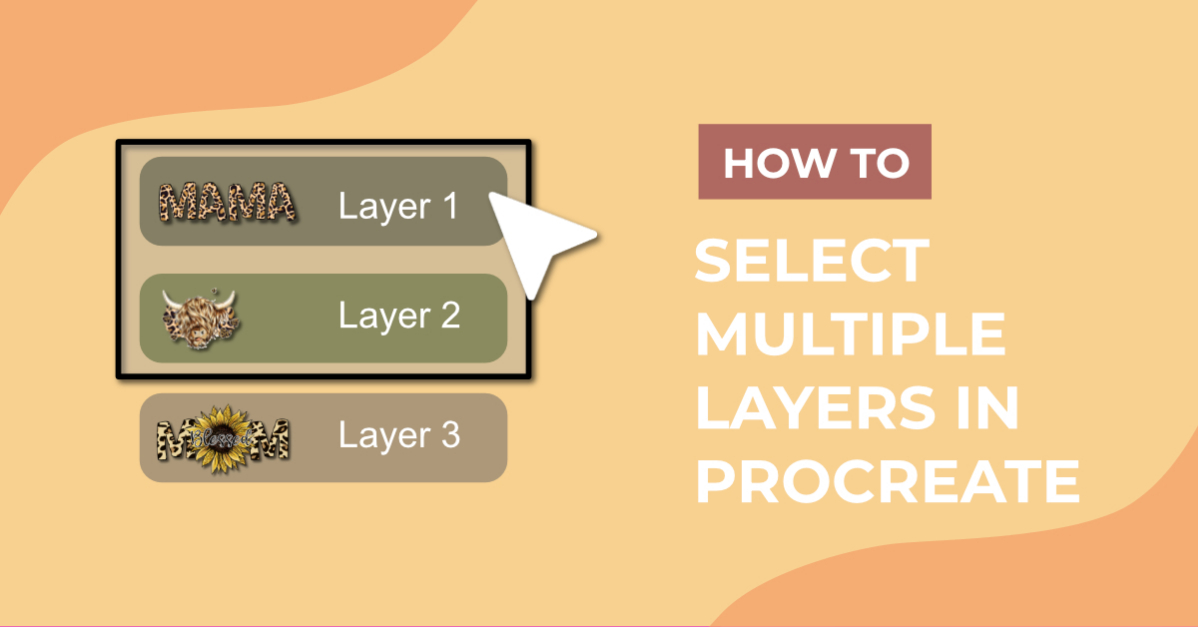
We want to group selected layers for each sticker design, but first we need to select them. Tap on the Layers Panel, and then select one of the layers. To select multiple layers, swipe your finger or Apple pencil to the right on another layer.
The layer will almost bounce to the right and then be highlighted in a slightly darker blue. Swipe to the right on additional layers that you want selected. If you want to deselect layers, swipe once again to the right on the selected layer

With your layers selected, tap on Group at the top right corner of the Layers Panel.

The layers will be added into a grouped layer. To view the layers, tap on the arrow on the right-hand side of the layer.

You can now easily move your grouped layer around or edit it. If your designs consist of a number of components, selecting multiple layers can help you keep things organized. We hope that you enjoyed following our free guide. Be sure to check out our other fun Procreate Tutorials for more insight into this amazing app.