By Design Bundles
How to Use Procreate Gestures
Let your creativity flow and make your creative process easier by using Procreate gestures. Today we are having a look at 22Procreate Gestures that are essential and some that will help speed up your design flow. We are using this lovely Procreate brush pack for our background to demonstrate the Procreate gestures.
Please note: we are using the latest version of Procreate 5X.Some features mentioned in this tutorial are not available for earlier versions of Procreate.
Gallery Gestures
When you open Procreate, you're greeted with the gallery and all your artwork. Thereare a few helpful Procreate gestures you can use here, so let's have a look at them.
Quick Preview
You can "quick preview" your artwork with two fingers by pinching outward on any canvas. Once the preview is open you can swipe left/right to view more artwork.

Share, Duplicate and Delete
You can share, duplicate and delete individual artwork by swiping left on it.

Quick Select
Using one finger tap and hold down on an artwork, then use another finger to tap on additional artwork to select them.See how to unstack in Procreate using this Procreate gesture.

Canvas Gestures
The most important Procreate Gestures are the ones you use when creating artwork. Whether you are a beginner or a long-time user of Procreate, these gestures are not only the basics but also time savers.
Zoom In and Out
Using two fingers Pinch in or out to zoom in and out. This is a basic Procreate gesture that you'll use all the time. You can also rotate your canvas as you are pinching in/out and rotating your fingers.

Fit to Screen
Doing a quick pinch out with two fingers will make your canvas fit to the screen (Zoomed out). If your canvas is zoomed-in do the reverse, a quickpinch together will reset the frame.

Fullscreen View
Tap the screen with four fingers to view your artwork fullscreen. Tap again to exit fullscreen.

Undo and Continuous Undo
Use a two-finger tap on the screen to undo.For a continuous undo tap and hold with two fingers.

Redo and Continuous Redo
Tap with three fingers to redo and tap and hold for a continuous redo.

Layer Clear
Clear contents of a single layer by using a quick three-finger scrub motion. Make sure to select the correct layer first before using this Procreate Gesture.

Color Picker
Select a specific color on your canvas by pressing and holding down on the canvas with one finger. The color picker will pop up and you can move it anywhere on the canvas to select a color.

Color Swap
Tap and hold the color icon to switch between the current and last color used.

Color Drop
Press and drag the color icon to drop the color on your canvas. We have an in-depth tutorial on filling a shape using the ColorDrop Procreate gesture.

Select True Color
Double-tap on the color disk edges to select a True color. The color picker automatically snaps to the closest true color like true white, it works for other colors too.

Expand Color Disk
Pinch out on the color disk to expand it to get an accurate color selection.

Detach Color Panel
Press and drag from the top center of the color panel to detach it.

Copy and Paste Menu
Use a three-finger swipe-down motion to show the "Copy & Paste" menu.

Layer Gestures
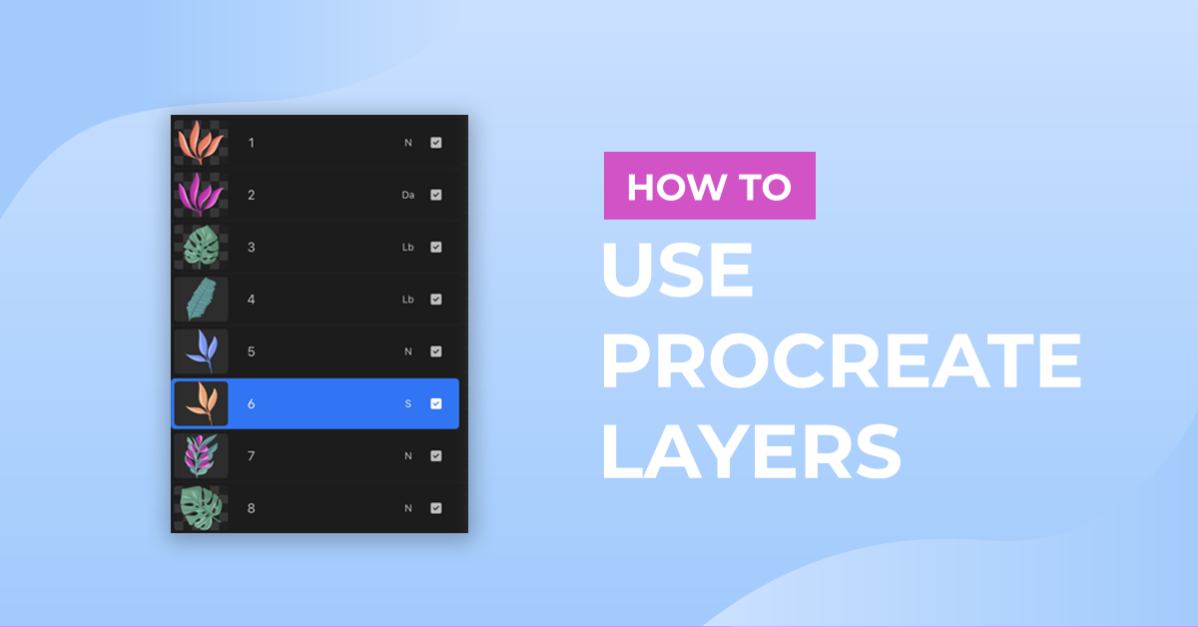
Working with layers in Procreate is very important, especially when creating intricate artwork. We will show you some quick Procreate gestures for layers but if you need help we have a tutorial on how to use Procreate layers.
Alpa Lock
Swipe right with two fingers on the layer to enable Alpa Lock.

Multiple Layer Select
Tap on a layer and swipe right on other layers to select multiple layers.

Layer Opacity
Use a two-finger tap on a layer to adjust its opacity. Slide your finger left or right to reduce/increase the opacity.

Layer Contents Select
Press and hold on to a layer to select the contents of the layer.

Organize Layers
Press and hold on a layer then drag up or down to move it.

Isolate Layer
Isolate and show only a single layer by pressing and holding down on the checkbox.Press and hold to go back to the previous view.

Gesture Control Settings
You can customize Procreate gestures by going to the "Actions" panel (wrench icon), tap on "Prefs" and select "Gesture controls". Set your gestures to work for you, if at any point you want to go back to the default gestures go to "General" and tap on "Reset to defaults". Once you are done making changes tap on "Done".

Now you know some of our favorite Procreate gestures and how to customize them to work with your creative workflow.Next up, we have more great tutorials like copying layers to a new canvas and making a transparent background in Procreate.