


By Design Bundles
Scan N Cut Tutorials2 min
Remove cut lines from shapes in brother scan and cut canvas workspace
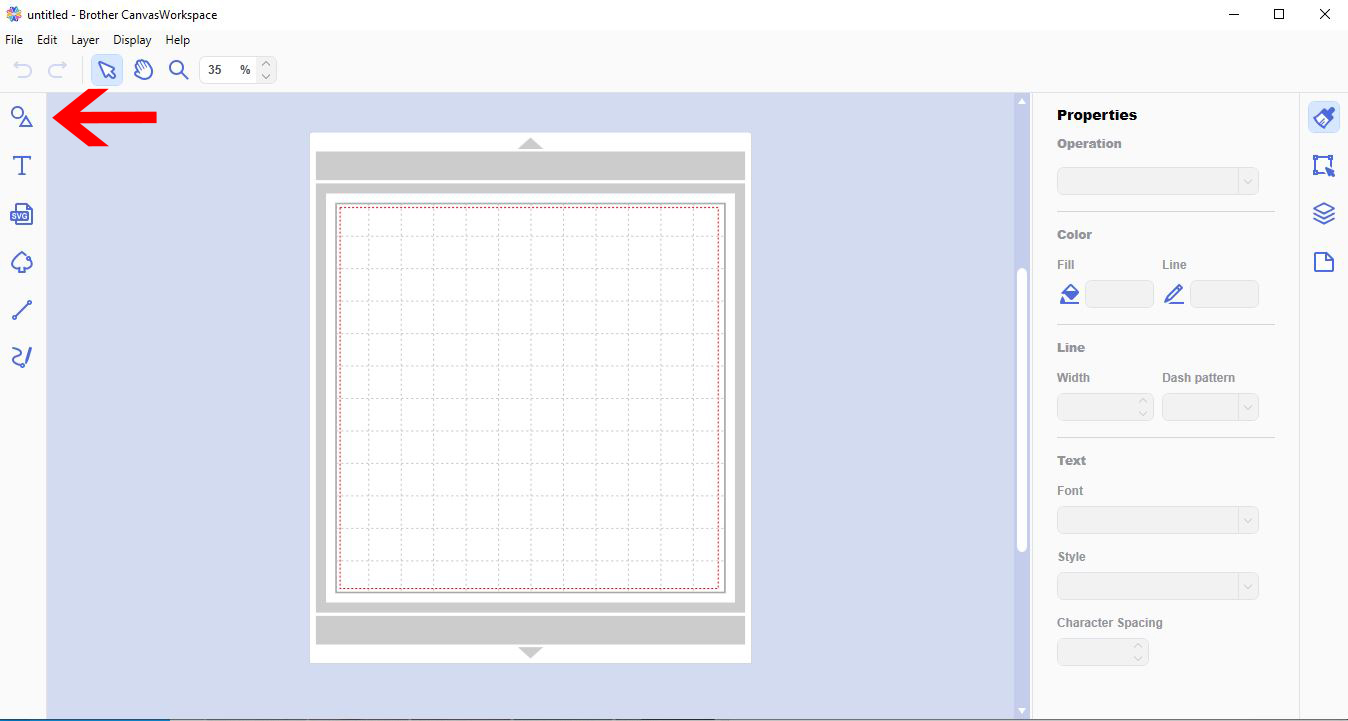
1- Open canvas workspace. Click on the shape icon.
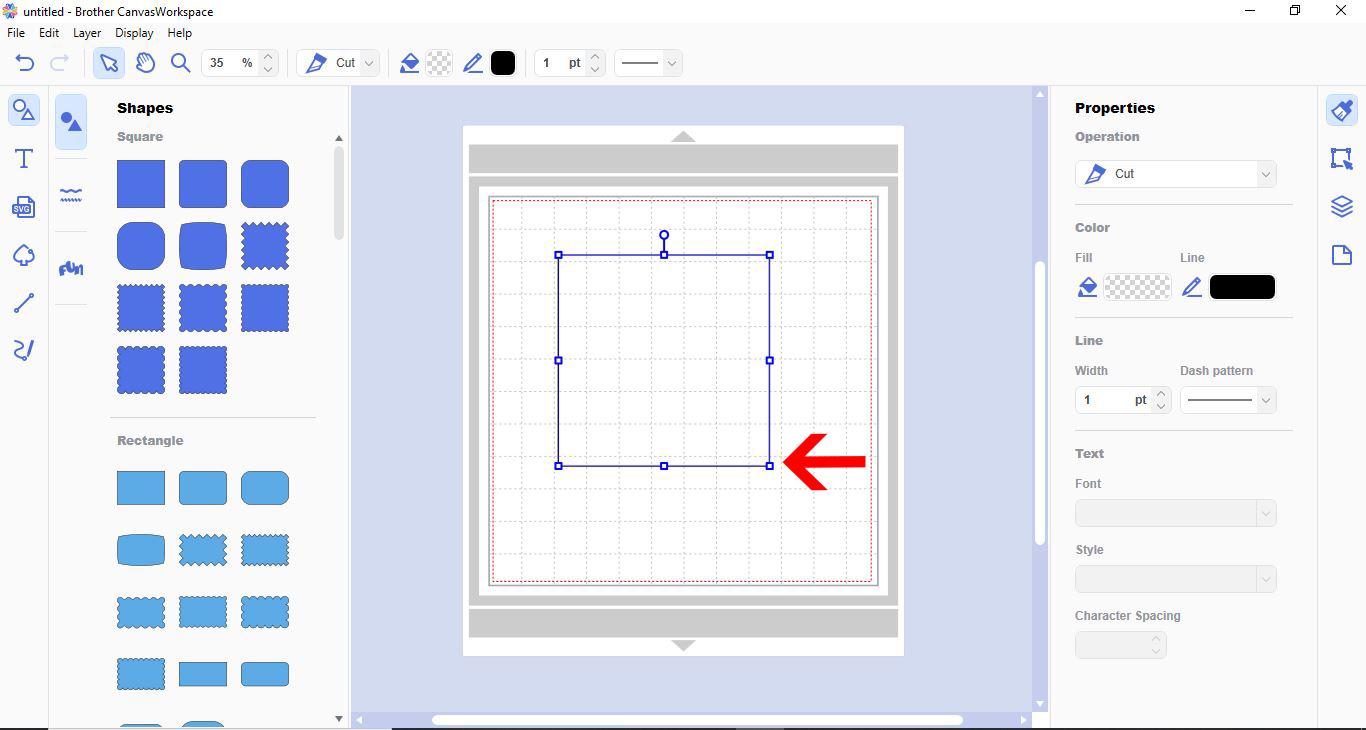
2- Create a shape.
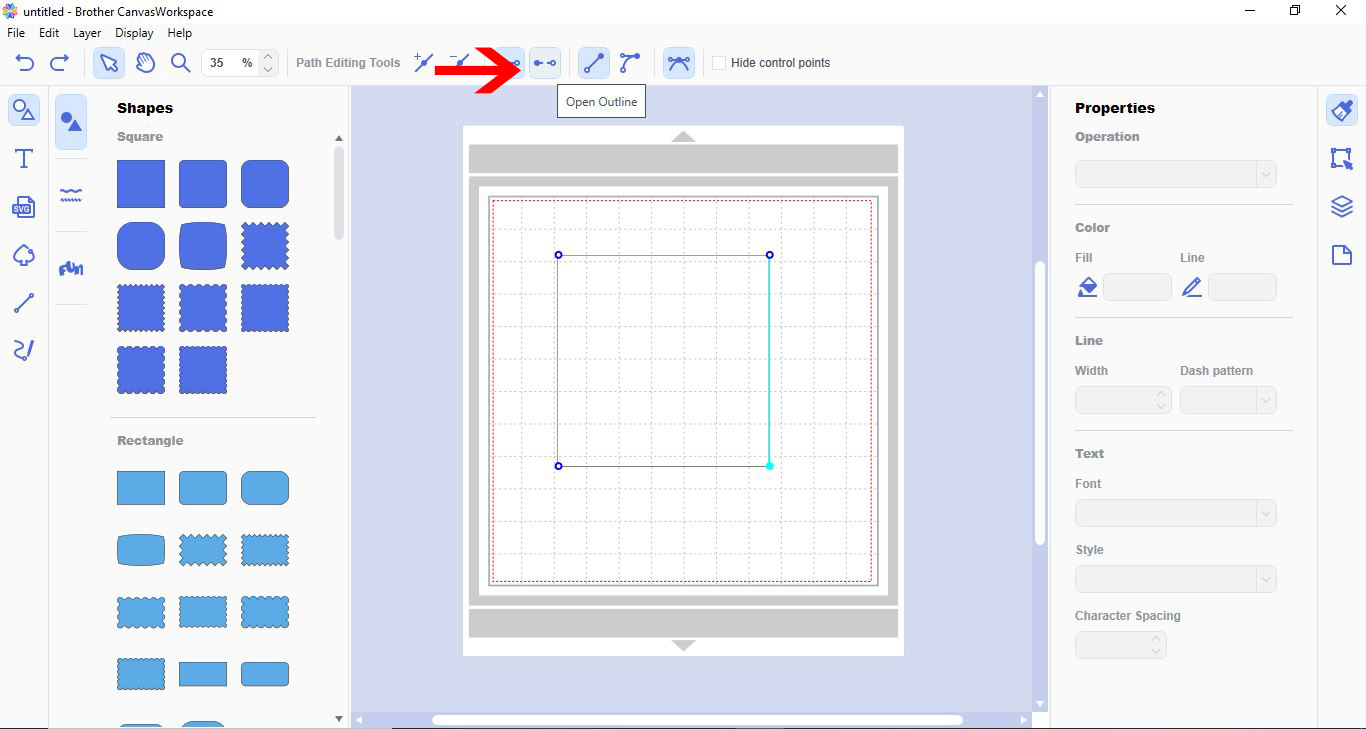
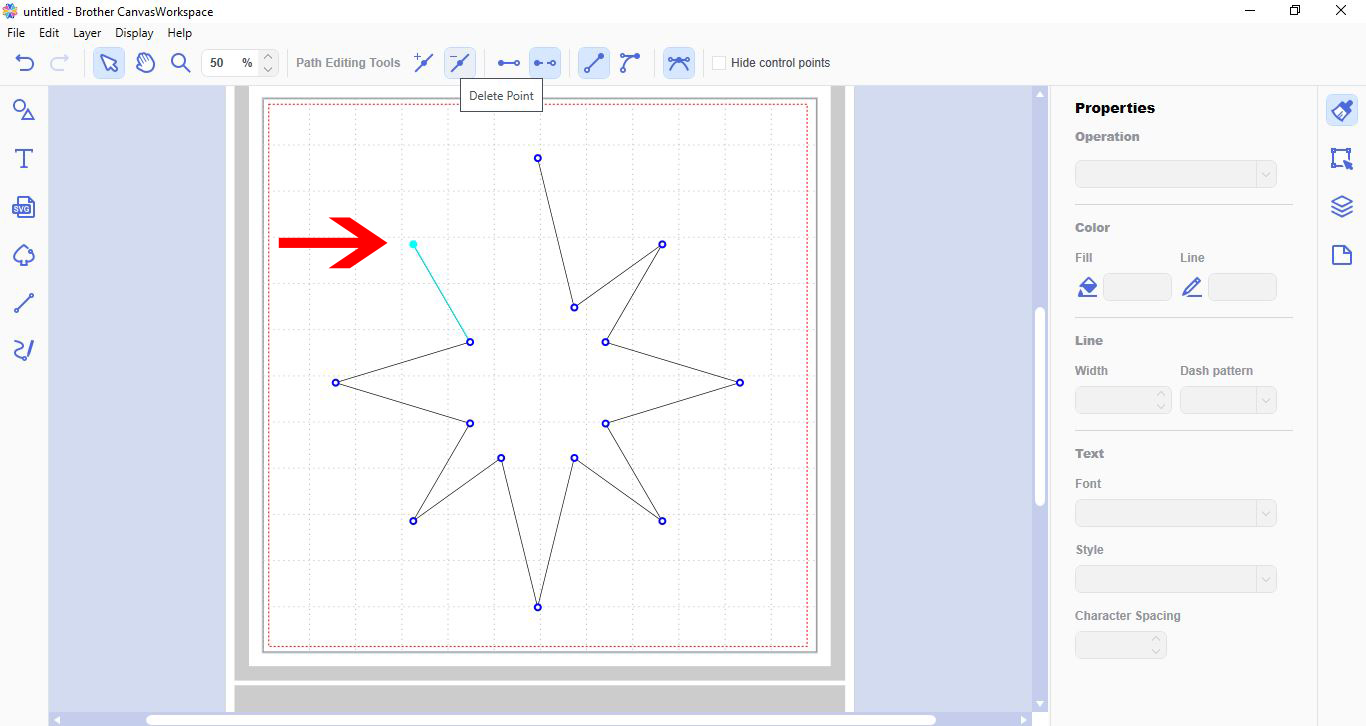
3- Double click on a node. A new toolbar will appear at the top of your workspace. The node you click on will change colour as will the path attached to it.
4- With the node you want removed(and line) selected, click on the open outline icon.
5- Your path will be removed. You can remove other paths by clicking on the - path icon.
6- You can keep clicking the remove path icon to remove as many paths as you need in a shape. If you need to return the path you can undo your previous work or add a path.
2- Create a shape.
3- Double click on a node. A new toolbar will appear at the top of your workspace. The node you click on will change colour as will the path attached to it.

4- With the node you want removed(and line) selected, click on the open outline icon.
5- Your path will be removed. You can remove other paths by clicking on the - path icon.
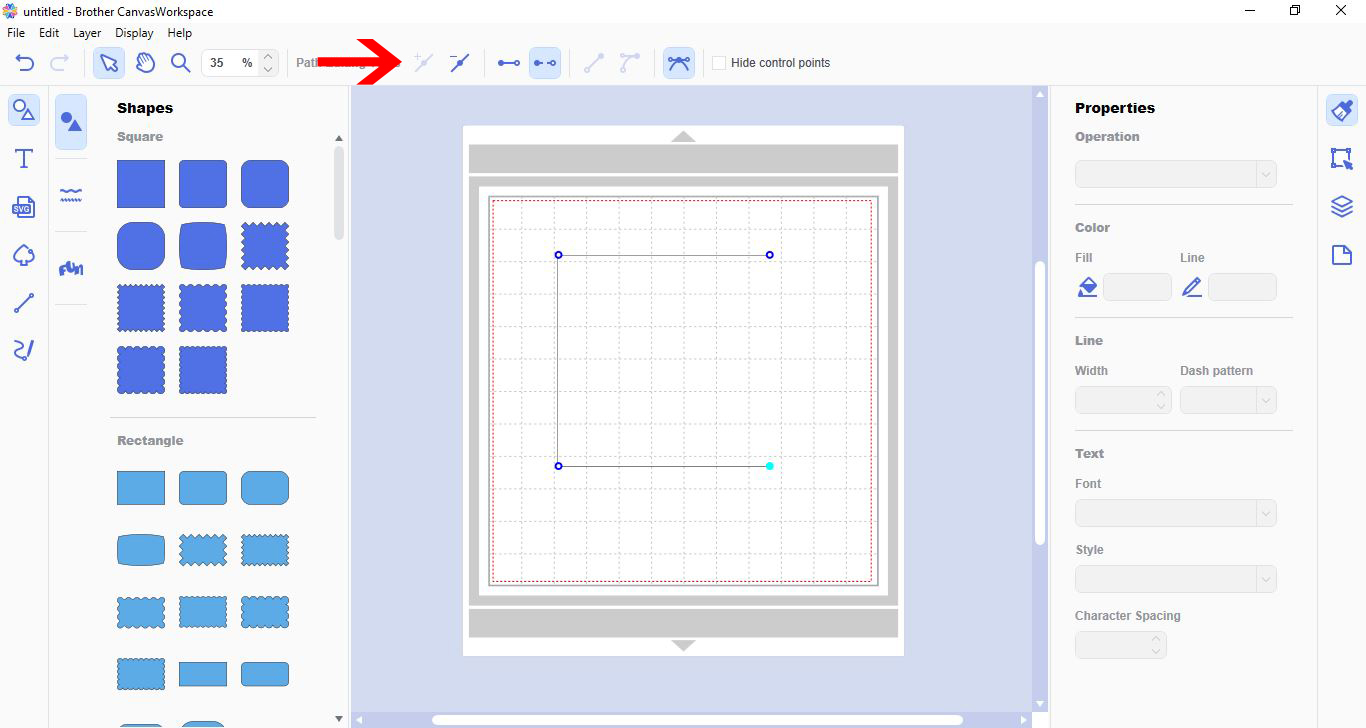
6- You can keep clicking the remove path icon to remove as many paths as you need in a shape. If you need to return the path you can undo your previous work or add a path.
Related Tutorials
Scan N Cut Tutorials
How to create curved text in brother scan and cut canvas workspace
Learn how to curve text in Brother Scan N Cut
Scan N Cut Tutorials
How to make a image larger than your cutting mat in Brother Scan N Cut canvas workspace
Learn how to cut designs larger than your cutting mat in Brother Scan N Cut canvas.
Scan N Cut Tutorials
Converting SVG to FCM cutting fine in Brother scan and cut canvas workspace
Scan N Cut Tutorials
How to use the free designs in brother scan and cut canvas workspace
Scan N Cut Tutorials


