By Design Bundles
Scan N Cut Tutorials2 min
Brother Scan N Cut- Auto layout function
1- Turn on the Brother Scan N Cut machine.
2- Click on the pattern icon.
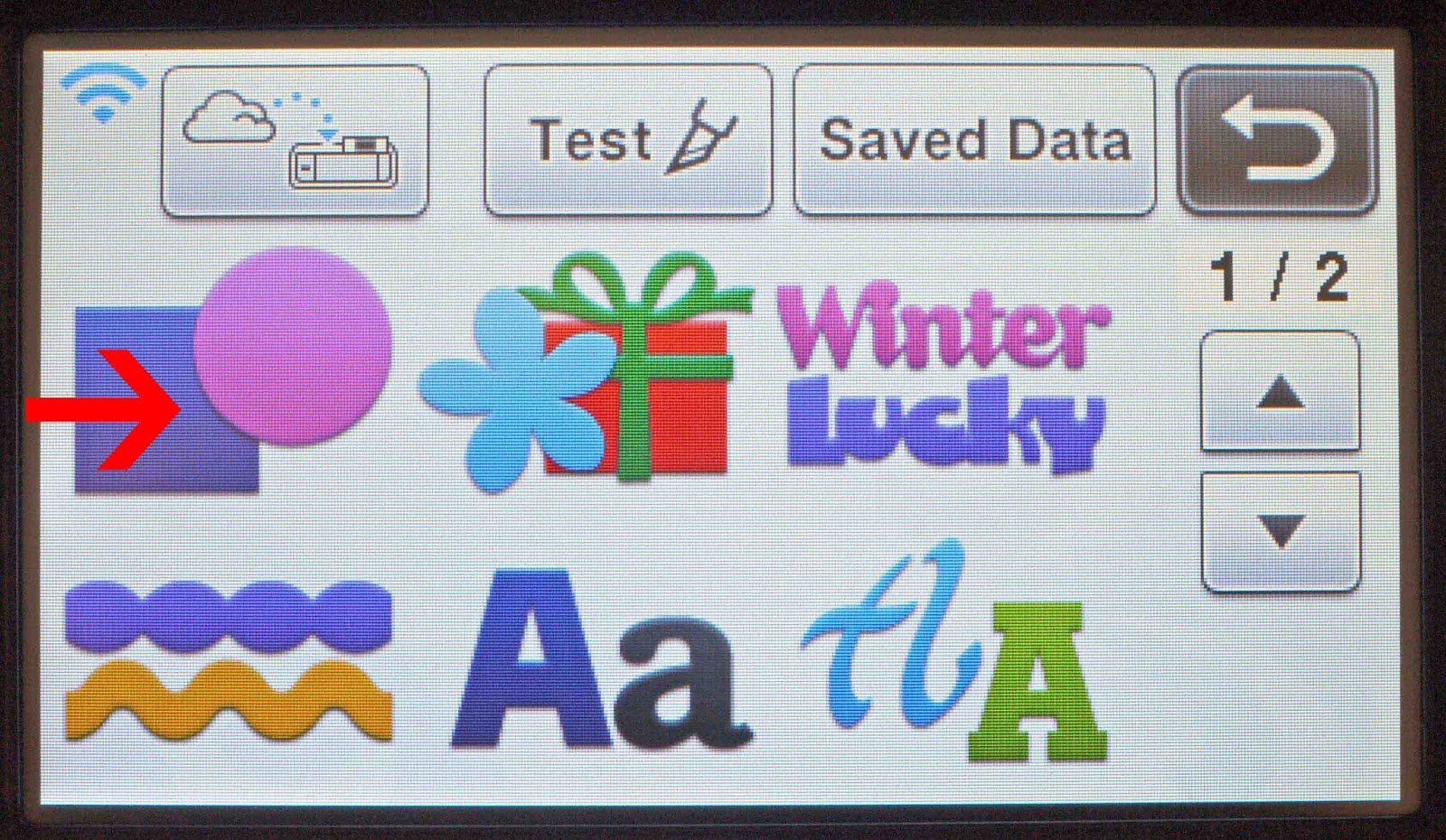
3- Select the shapes you would like.
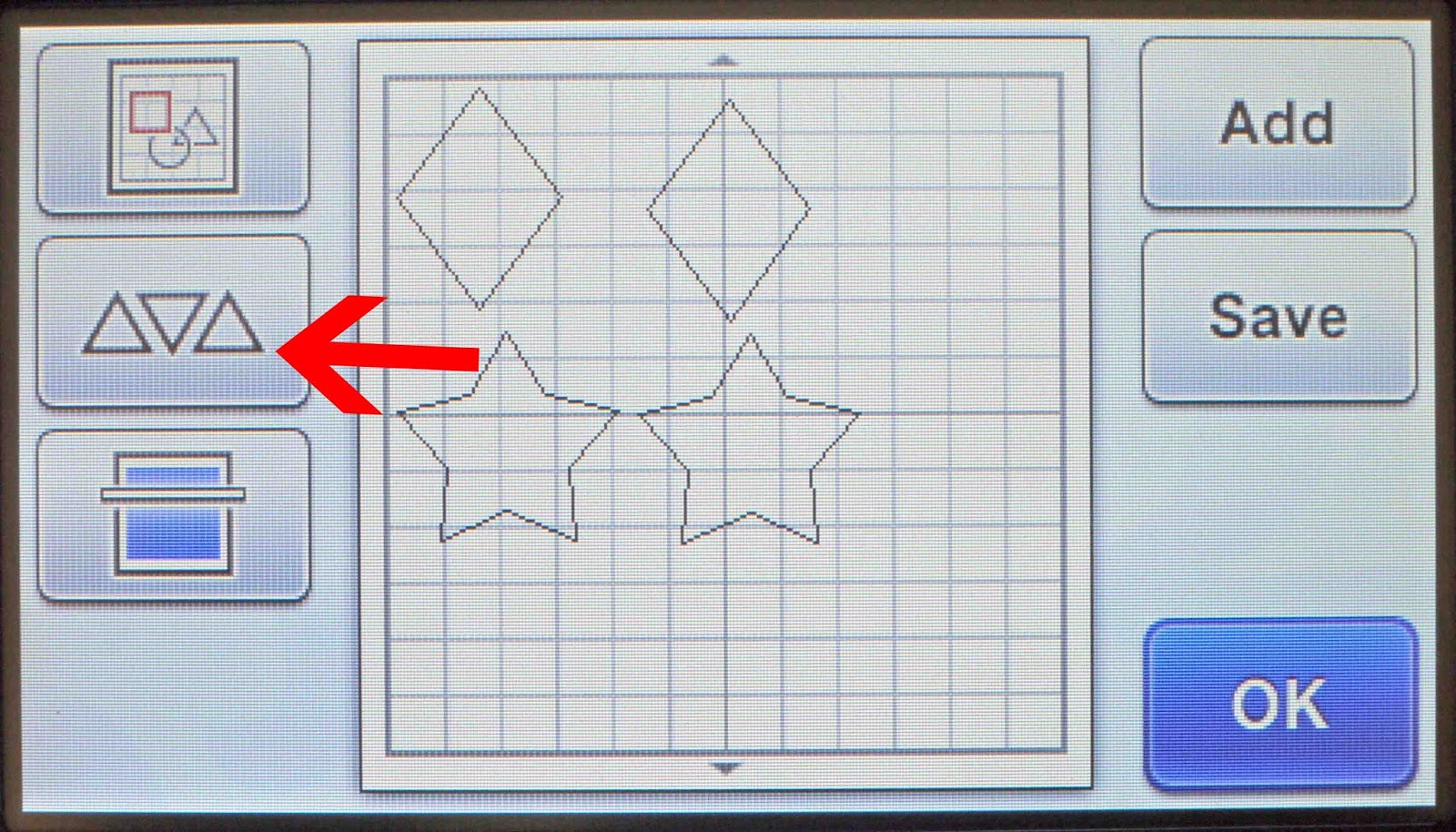
4- Once you have added all the shapes/designs click on the Pattern layout icon.
5- You will be sent to a new screen with 3 different layout options.
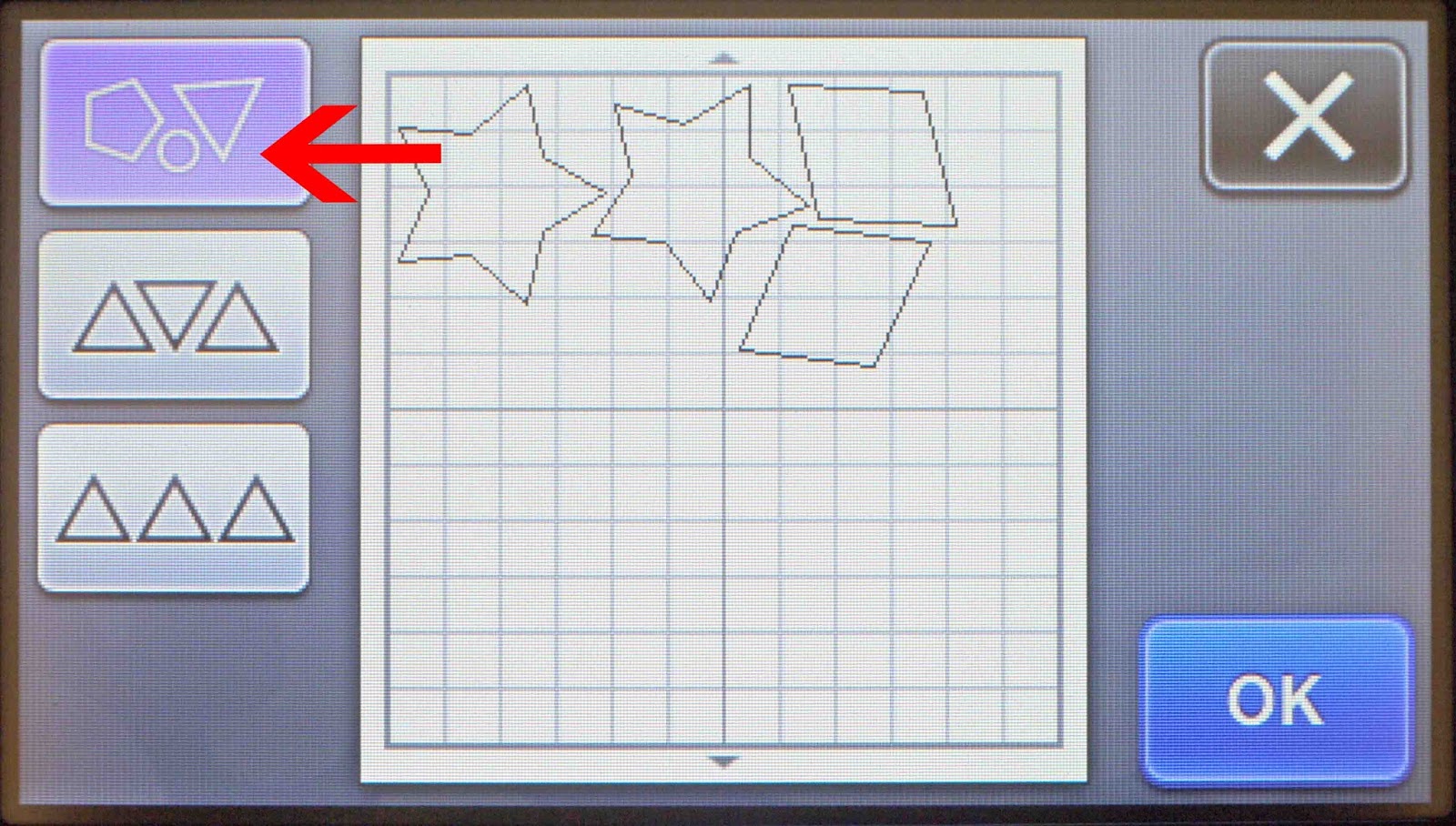
6- The shapes the first icon will arrange your shapes by rotating the shapes by any angle to best fit your canvas.
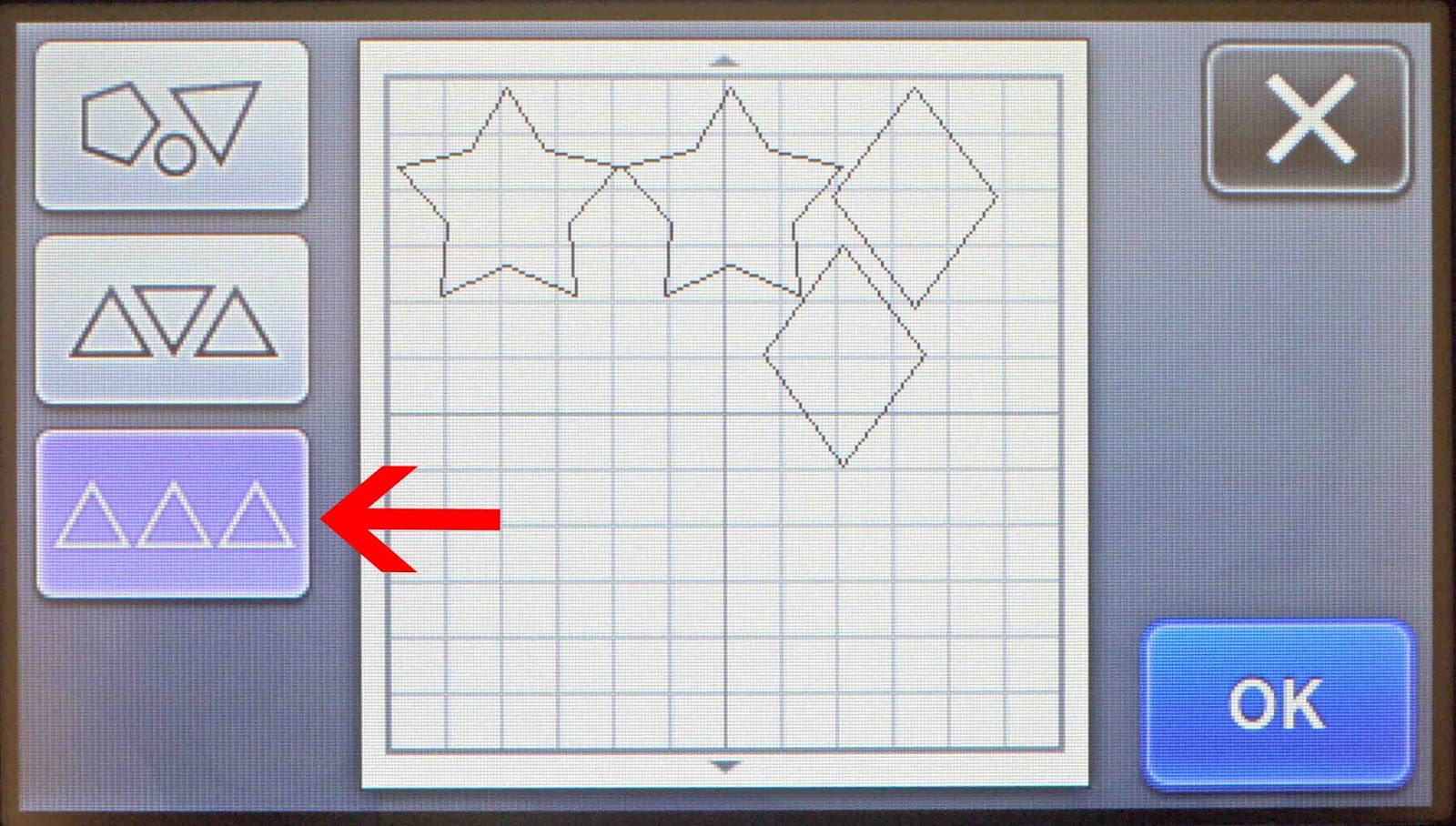
8- The third icon is to rearrange the shapes without rotating the shapes.
9- When you are happy with the layout select ok, then follow your normal process to cut.
2- Click on the pattern icon.
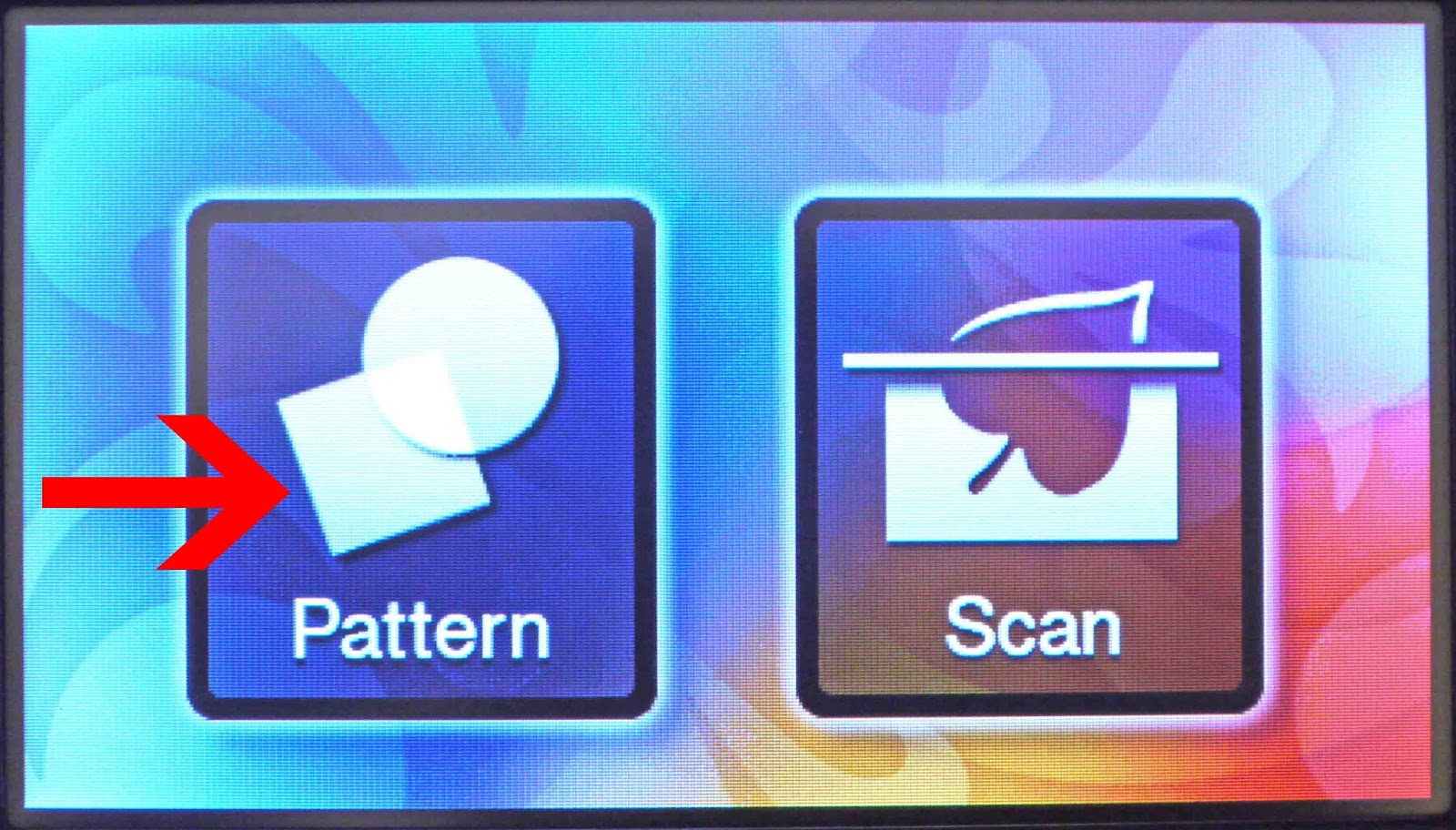
3- Select the shapes you would like.
4- Once you have added all the shapes/designs click on the Pattern layout icon.
5- You will be sent to a new screen with 3 different layout options.
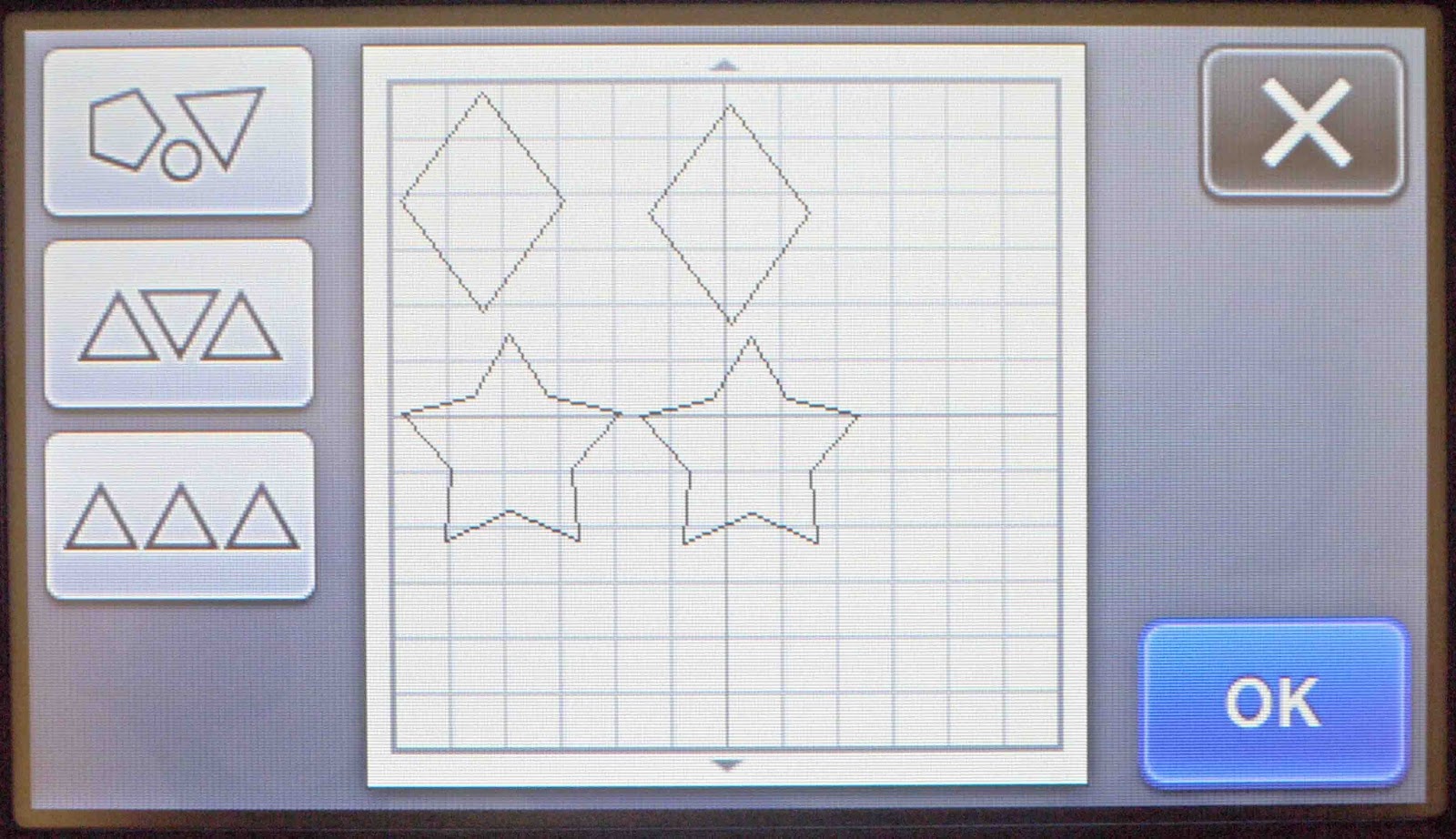
6- The shapes the first icon will arrange your shapes by rotating the shapes by any angle to best fit your canvas.
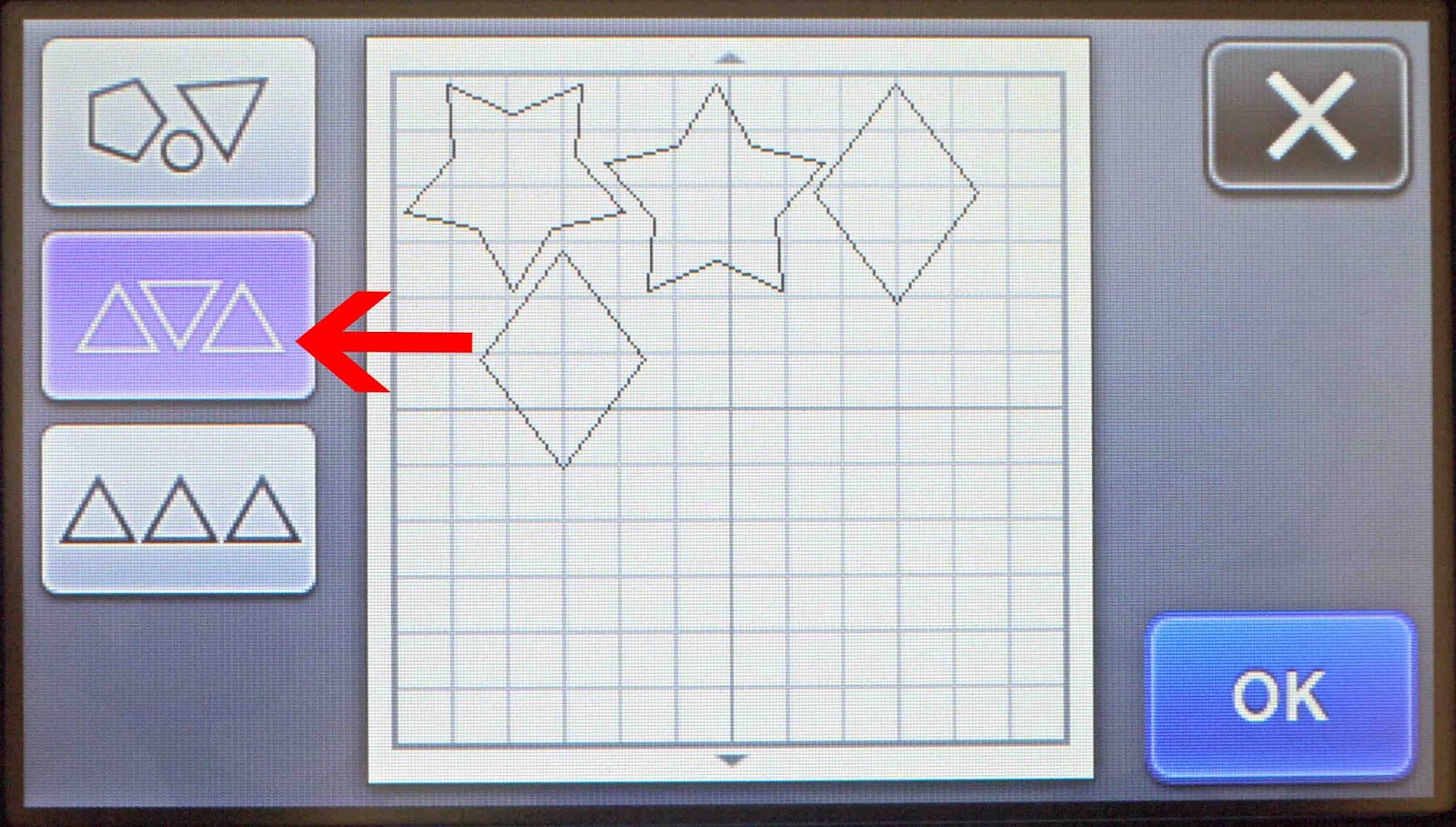
7-The second option is to arrange the shapes by 0oC or 180oC.
8- The third icon is to rearrange the shapes without rotating the shapes.
9- When you are happy with the layout select ok, then follow your normal process to cut.
Related Tutorials
Scan N Cut Tutorials
Brother Scan N Cut Character input function tutorial
Scan N Cut Tutorials
Adjusting objects and text using the node function in brother scan and cut canvas workspace
Scan N Cut Tutorials
How to make a image larger than your cutting mat in Brother Scan N Cut canvas workspace
Learn how to cut designs larger than your cutting mat in Brother Scan N Cut canvas.
Scan N Cut Tutorials
Understanding the Setting Screens in Brother Scan N Cut
Scan N Cut Tutorials
How to Make a Dash Fold Line in Brother Scan N Cut
Scan N Cut Tutorials