By Design Bundles
Scan N Cut Tutorials2 min
Brother Scan N Cut- Pattern selection tool
*Note- CM900 machine used.
1- Turn on the Scan N Cut machine.
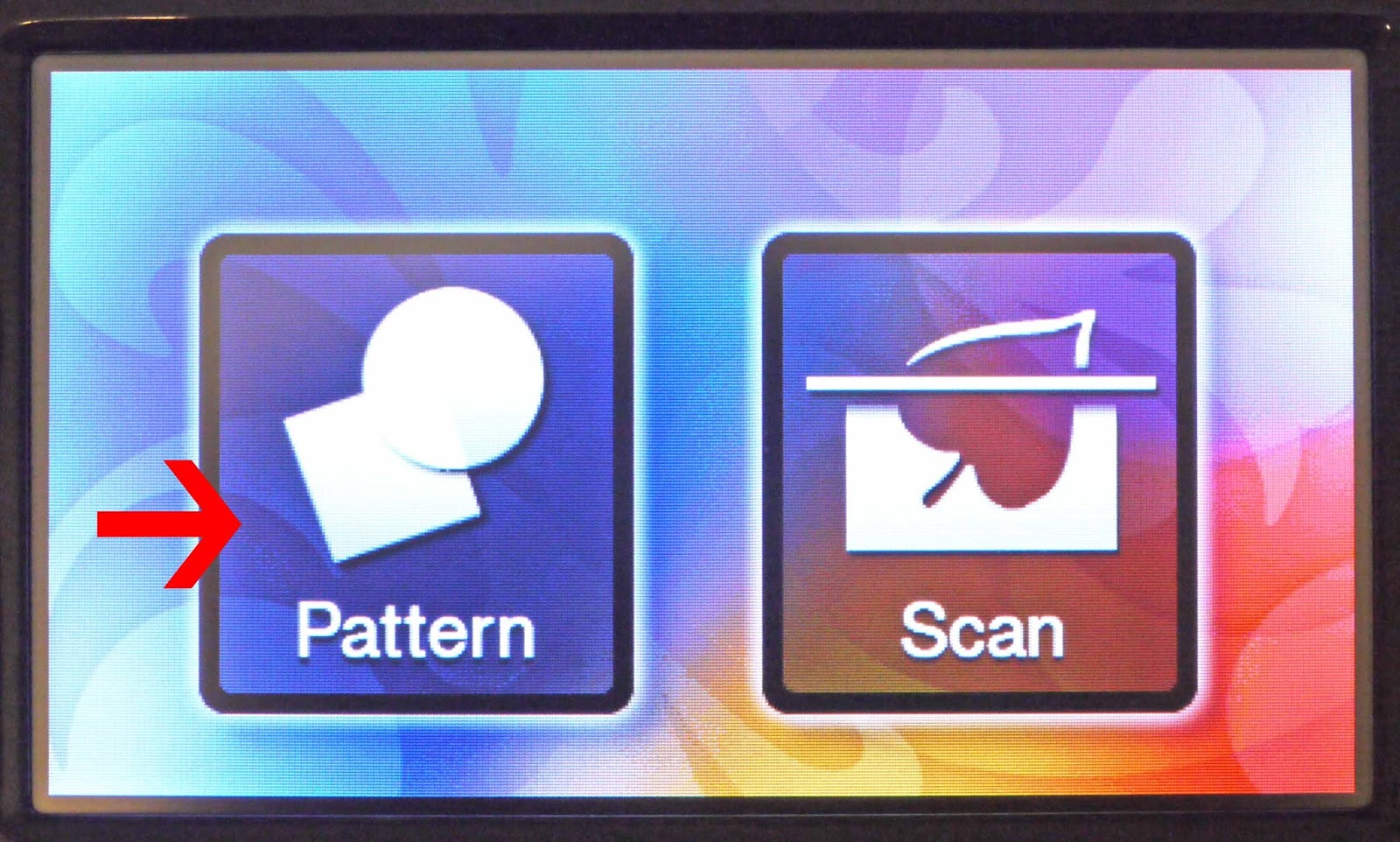
2- Select the pattern icon.
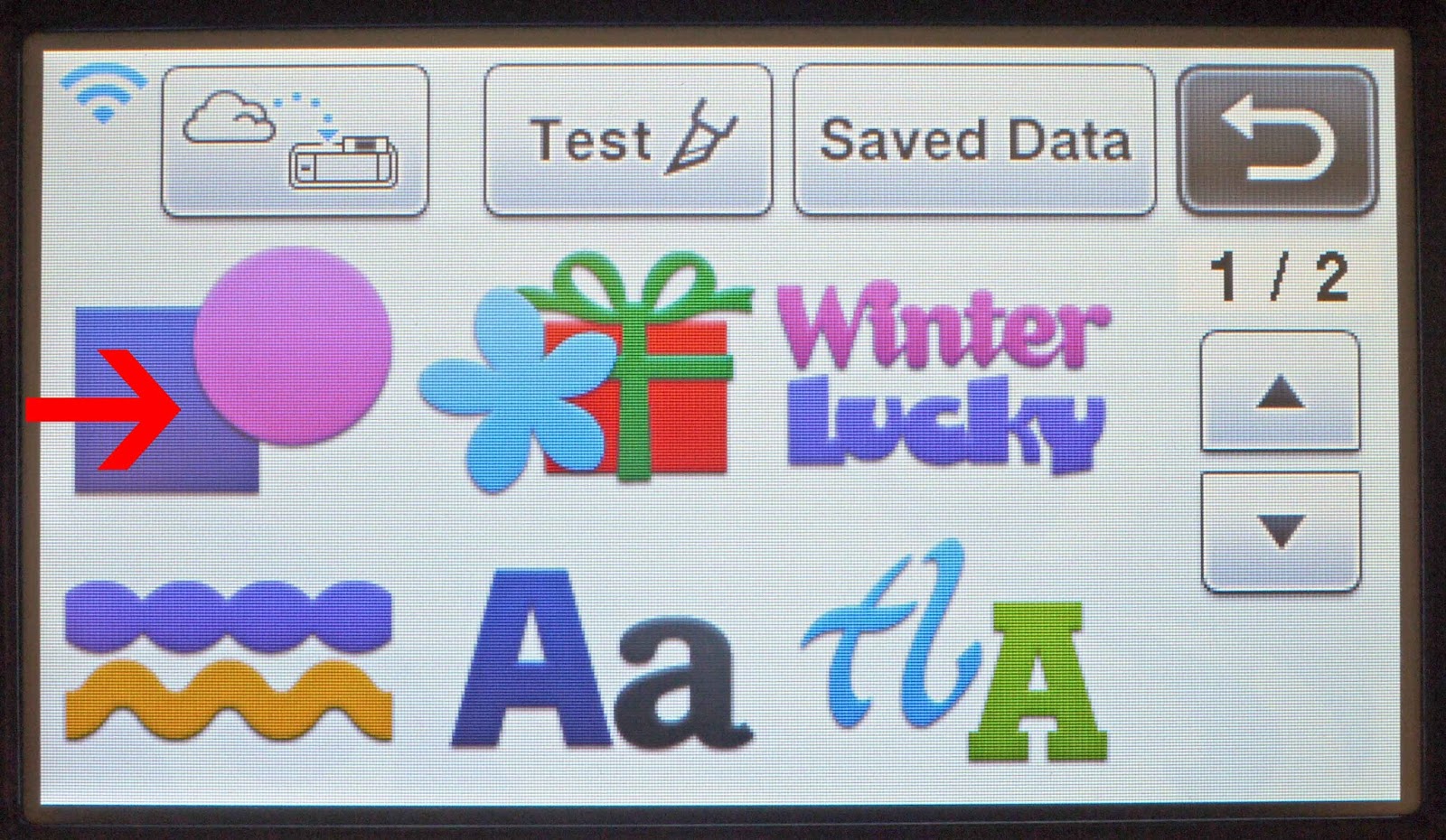
3- Select the patterns/shapes you would like to use.
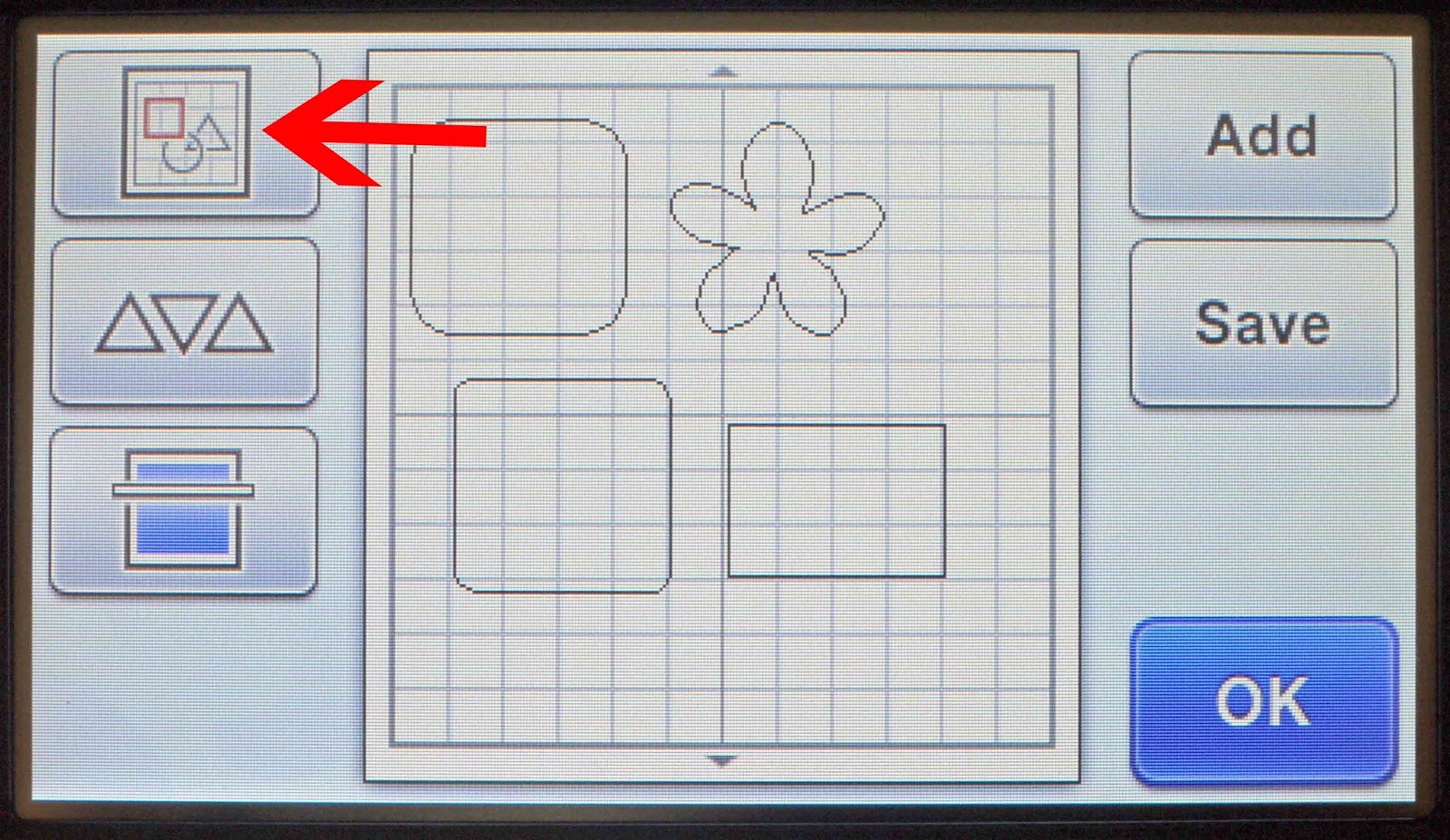
4- Once you have the patterns onto your screen select the pattern layout icon.
5- On the new screen you can click on each shape/pattern and move it, or you can use the left and right arrows.
6- The next option is the multiple pattern icon.
7- On the next screen you will have several options on your layout.
8- The right icon is the "select all patterns" icon. This will select all the patterns on the screen at once.
9- The other icon is the "Specify the selection area" icon.
10- You can use the arrows to move the highlighted area to select the patterns you would like selected.
11- When you are happy select OK.
1- Turn on the Scan N Cut machine.
2- Select the pattern icon.
3- Select the patterns/shapes you would like to use.
4- Once you have the patterns onto your screen select the pattern layout icon.
5- On the new screen you can click on each shape/pattern and move it, or you can use the left and right arrows.
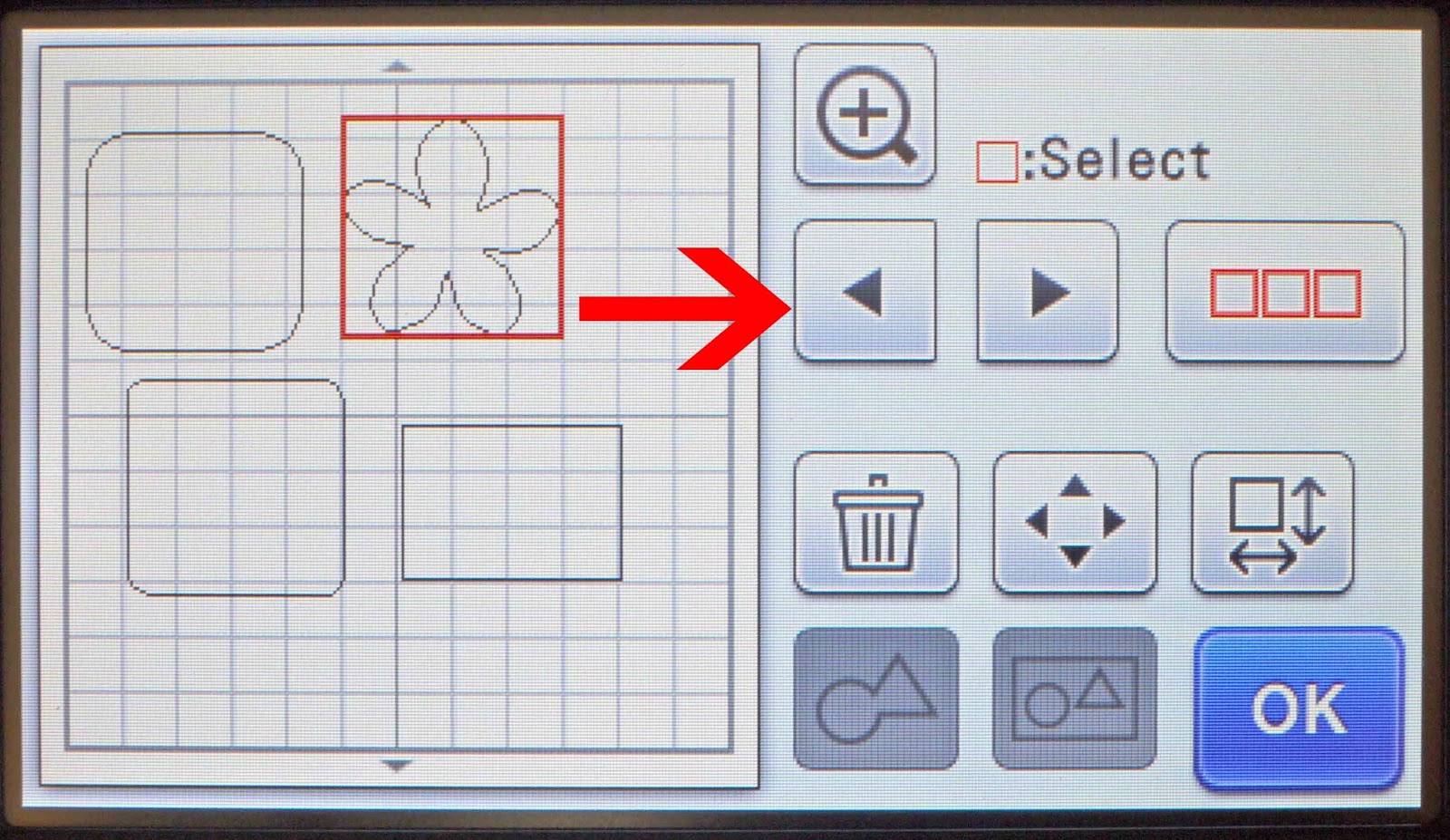
6- The next option is the multiple pattern icon.
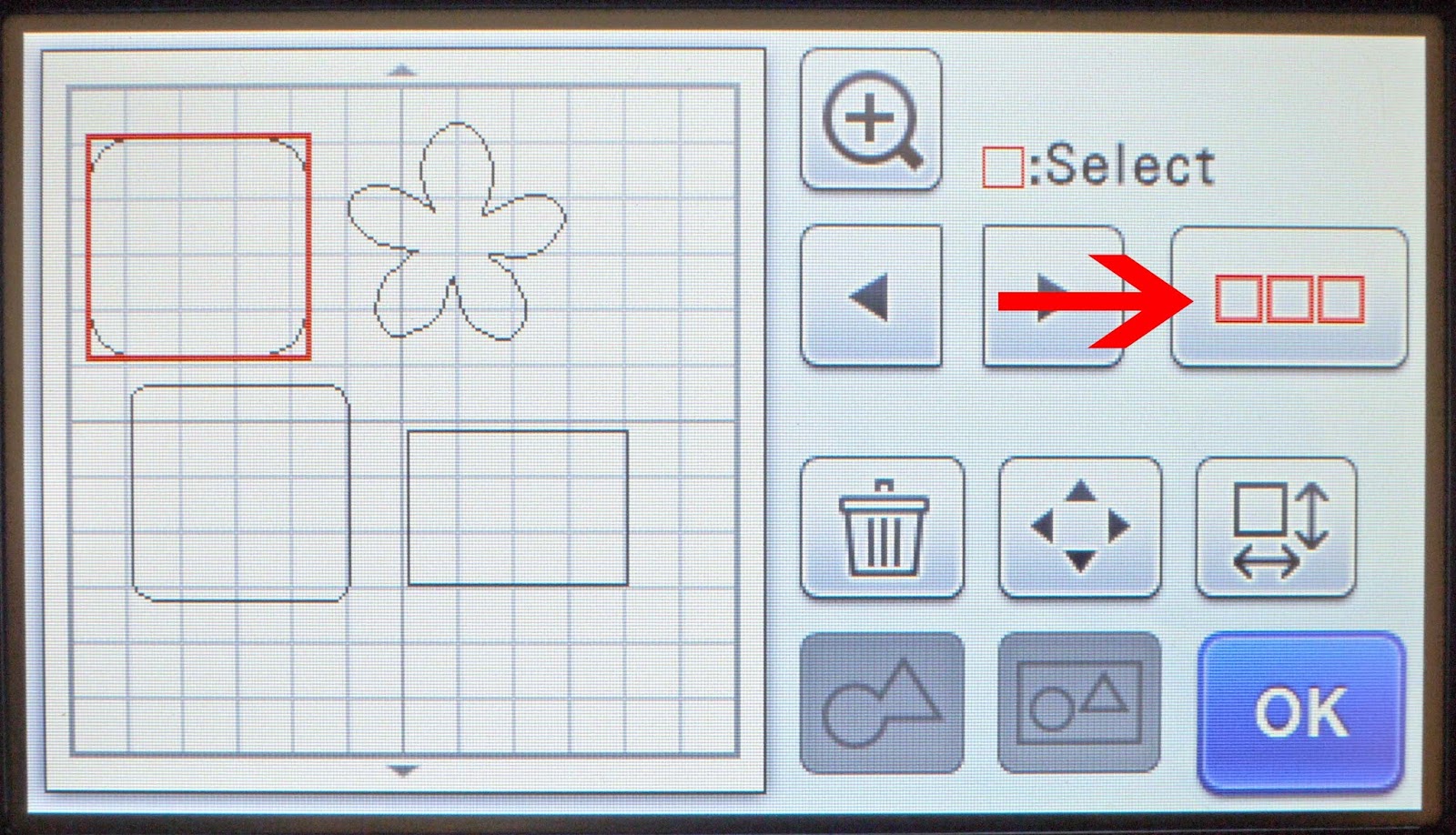
7- On the next screen you will have several options on your layout.
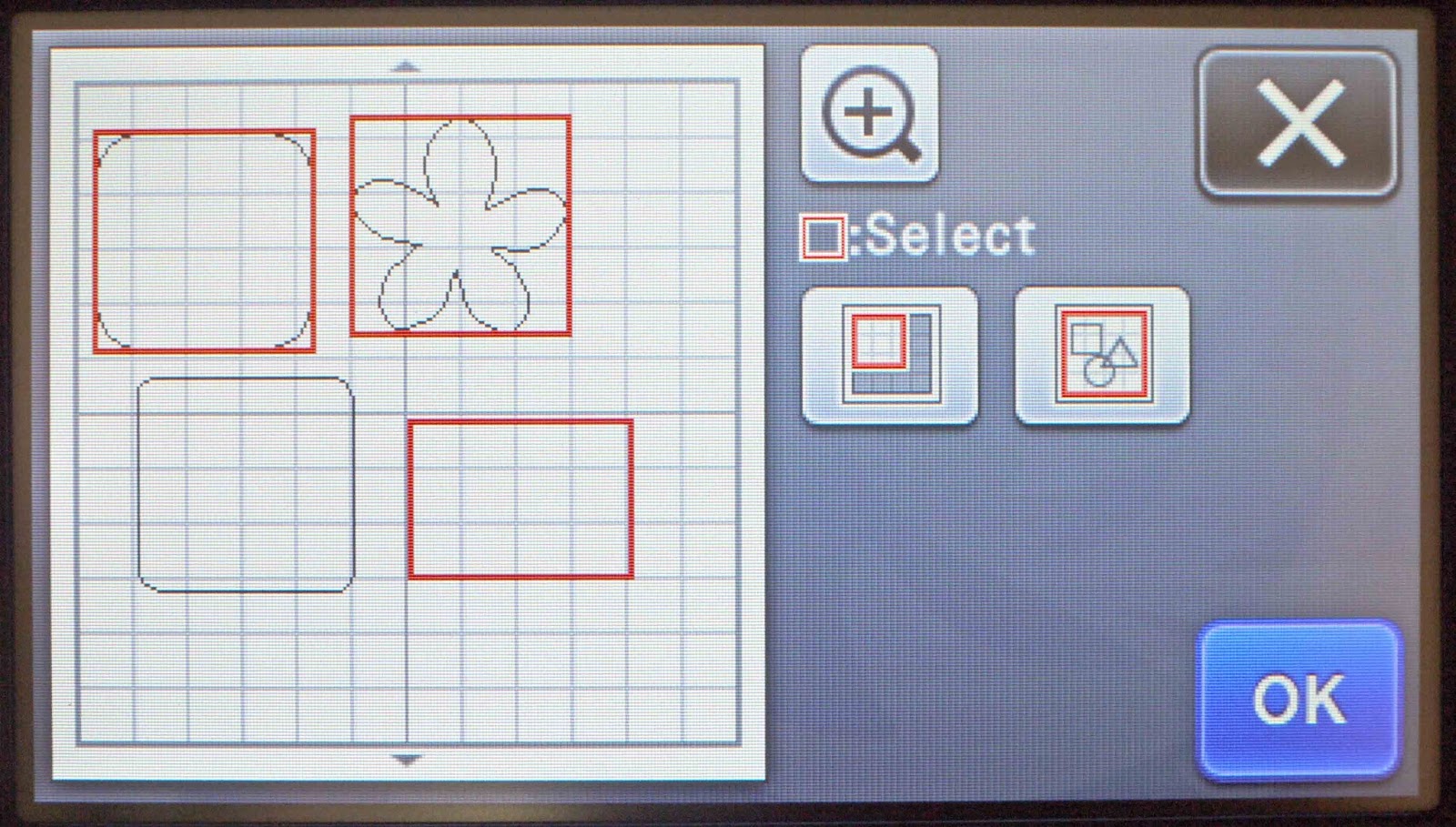
8- The right icon is the "select all patterns" icon. This will select all the patterns on the screen at once.
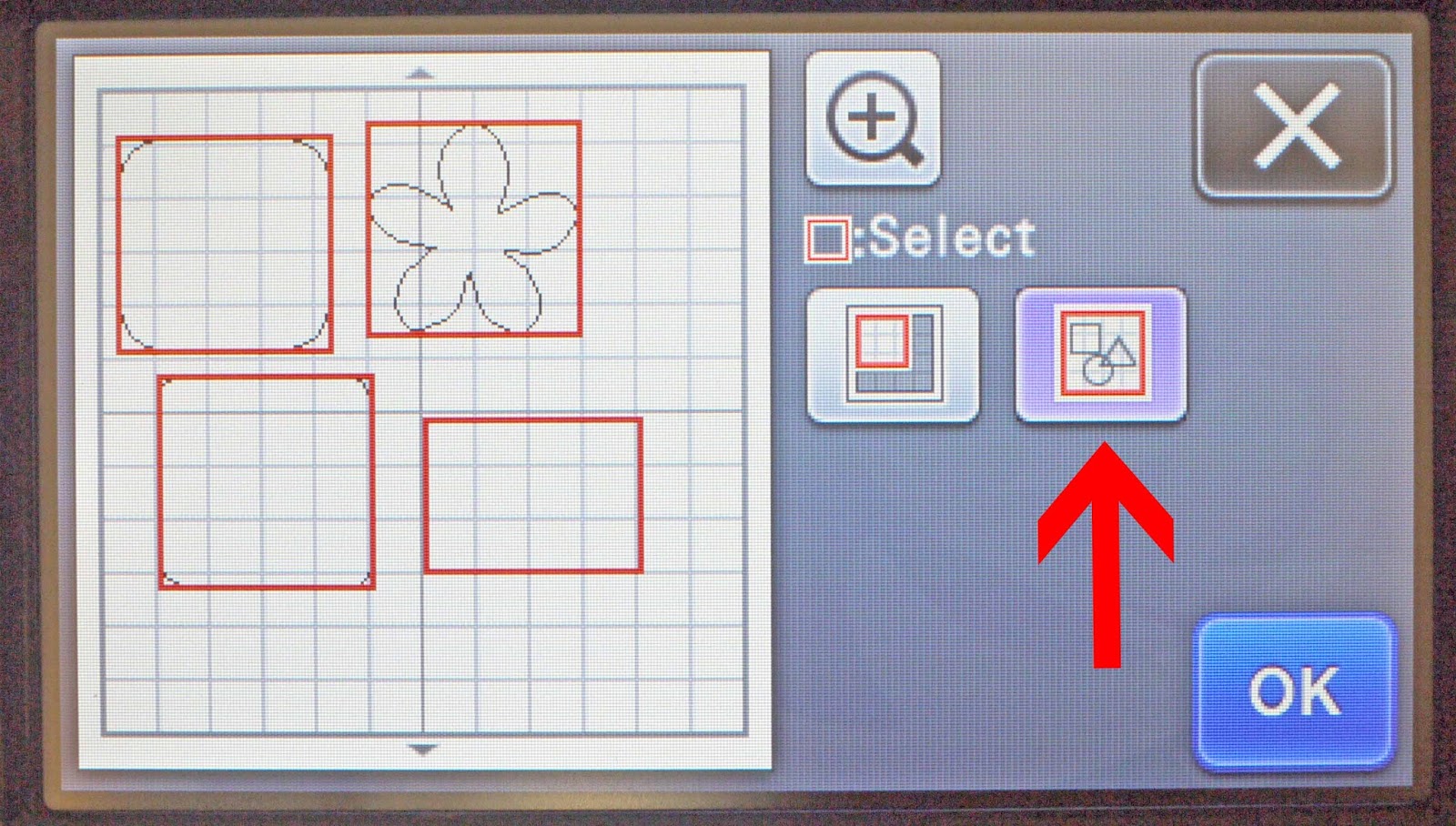
9- The other icon is the "Specify the selection area" icon.

10- You can use the arrows to move the highlighted area to select the patterns you would like selected.

11- When you are happy select OK.
Related Tutorials
Scan N Cut Tutorials
How to Fill in a Preset Pattern in Brother Scan n Cut
Scan N Cut Tutorials
How to create a custom fill pattern in brother scan and cut canvas workspace
Scan N Cut Tutorials
How to make a image larger than your cutting mat in Brother Scan N Cut canvas workspace
Learn how to cut designs larger than your cutting mat in Brother Scan N Cut canvas.
Scan N Cut Tutorials
Understanding the Setting Screens in Brother Scan N Cut
Scan N Cut Tutorials
How to Make a Dash Fold Line in Brother Scan N Cut
Scan N Cut Tutorials