
By Design Bundles
Silhouette Tutorials4 min
How to fill text with a cuttable pattern in silhouette studio
1- Open Silhouette studio software.
2- Insert your cut file. this can be one your designed yourself or purchased from a 3rd party shop. I am using basic chevron background file I made.
3- Type the first letter of the text you would like to add a cuttable file in.
4- Place the letter over the chevron cut file.(make sure the letter is the top layer)
(Note-I have filled the chevron and letter in to see the technique easier. you do not need to do this.)
5- We now need to create an internal offset in the letter. Select the offset panel.
6- Select your letter then select the internal offset option and with the size left at the default size (0.200cm) Apply the offset.
7- We now need to hide the original letter so only the offset is seen. Select the original letter (not the offset or background) To do this select Ctrl + X. the original letter will disappear.
8- We now need to crop the excess cut file. Select Modify (1) then with both the cutable file and the offset of letter selected, click on Crop.
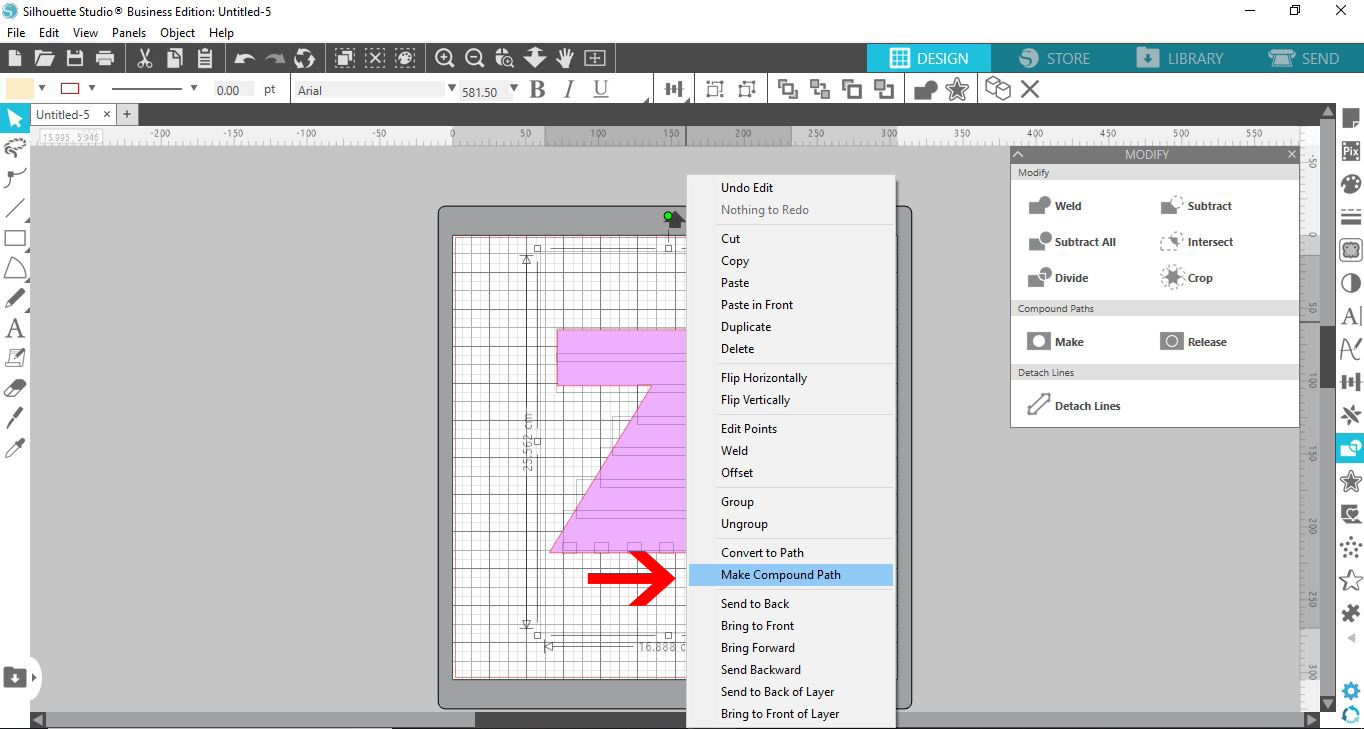
9- We now need to bring back the original letter. select Ctrl + F to bring it back. With everything selected right click and select Make Compound Path.
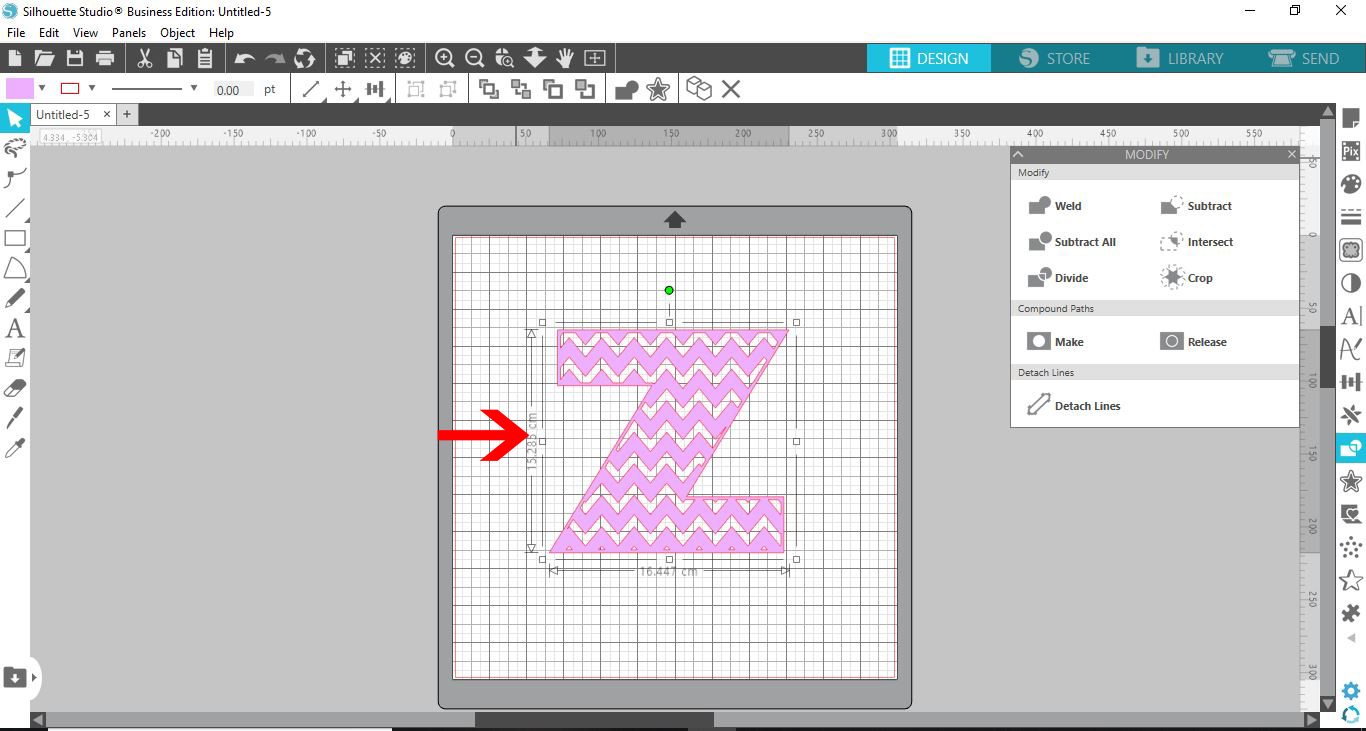
10 - This now produces the edge of your letter so when you cut the file it will stay in one piece.
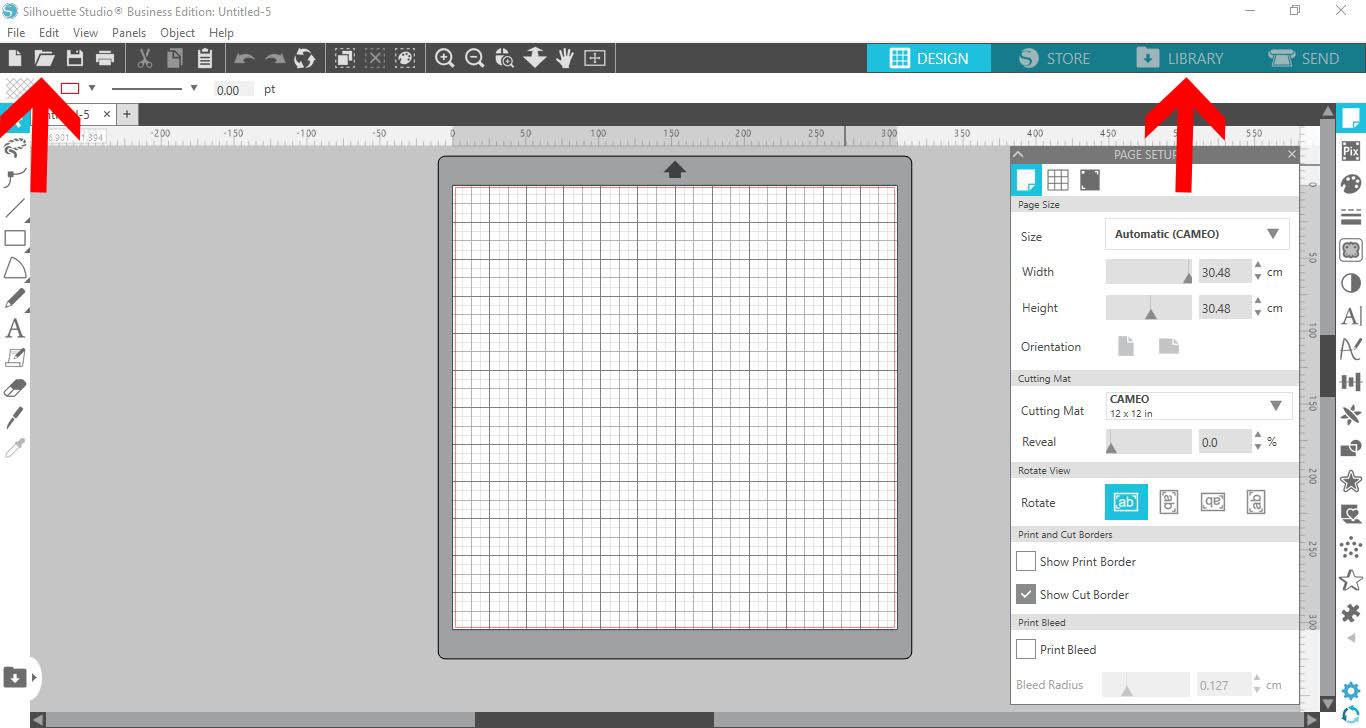
2- Insert your cut file. this can be one your designed yourself or purchased from a 3rd party shop. I am using basic chevron background file I made.
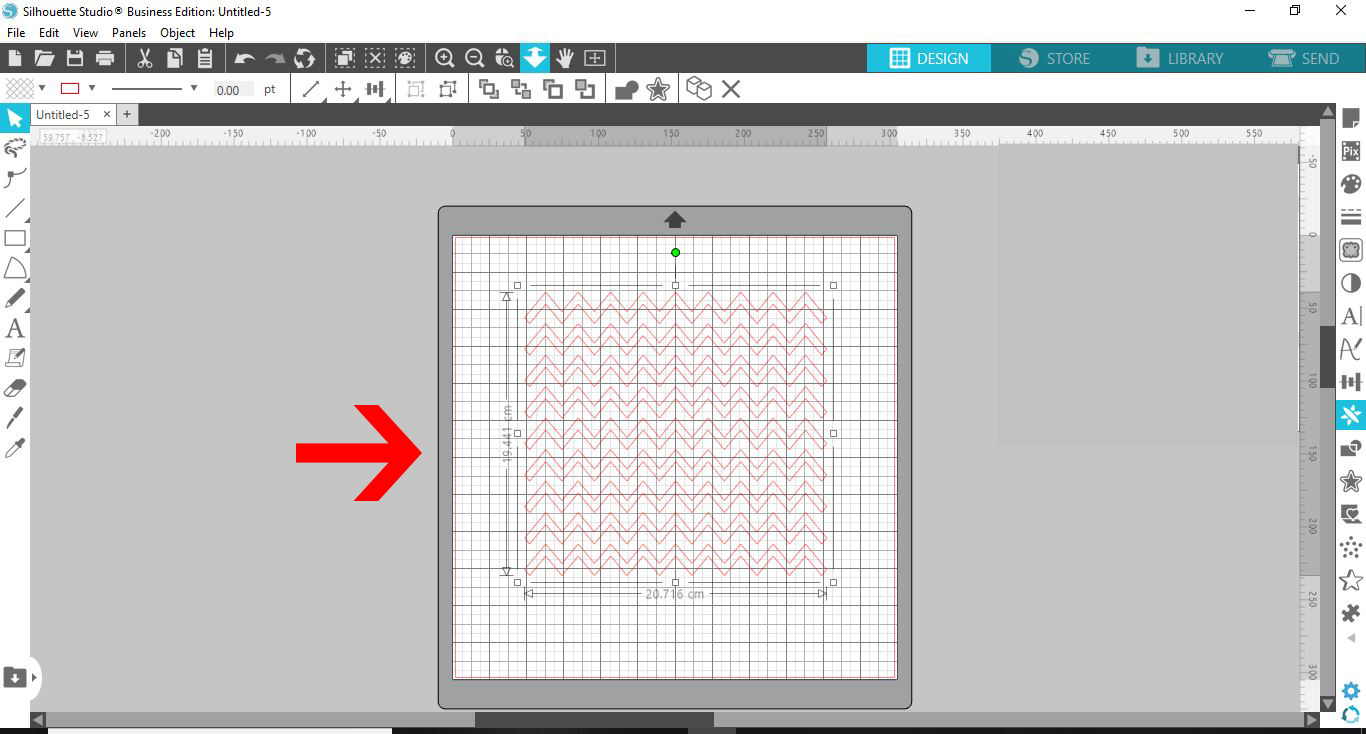
3- Type the first letter of the text you would like to add a cuttable file in.
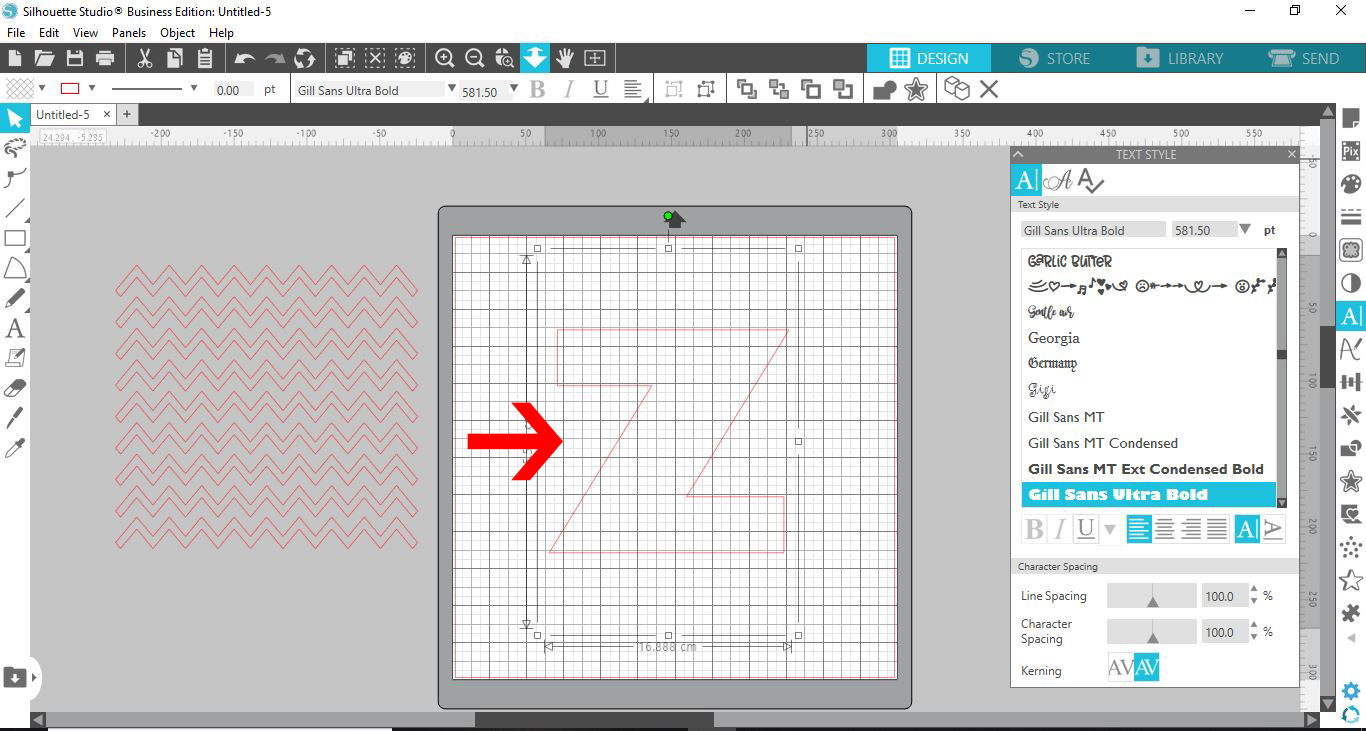
4- Place the letter over the chevron cut file.(make sure the letter is the top layer)
(Note-I have filled the chevron and letter in to see the technique easier. you do not need to do this.)
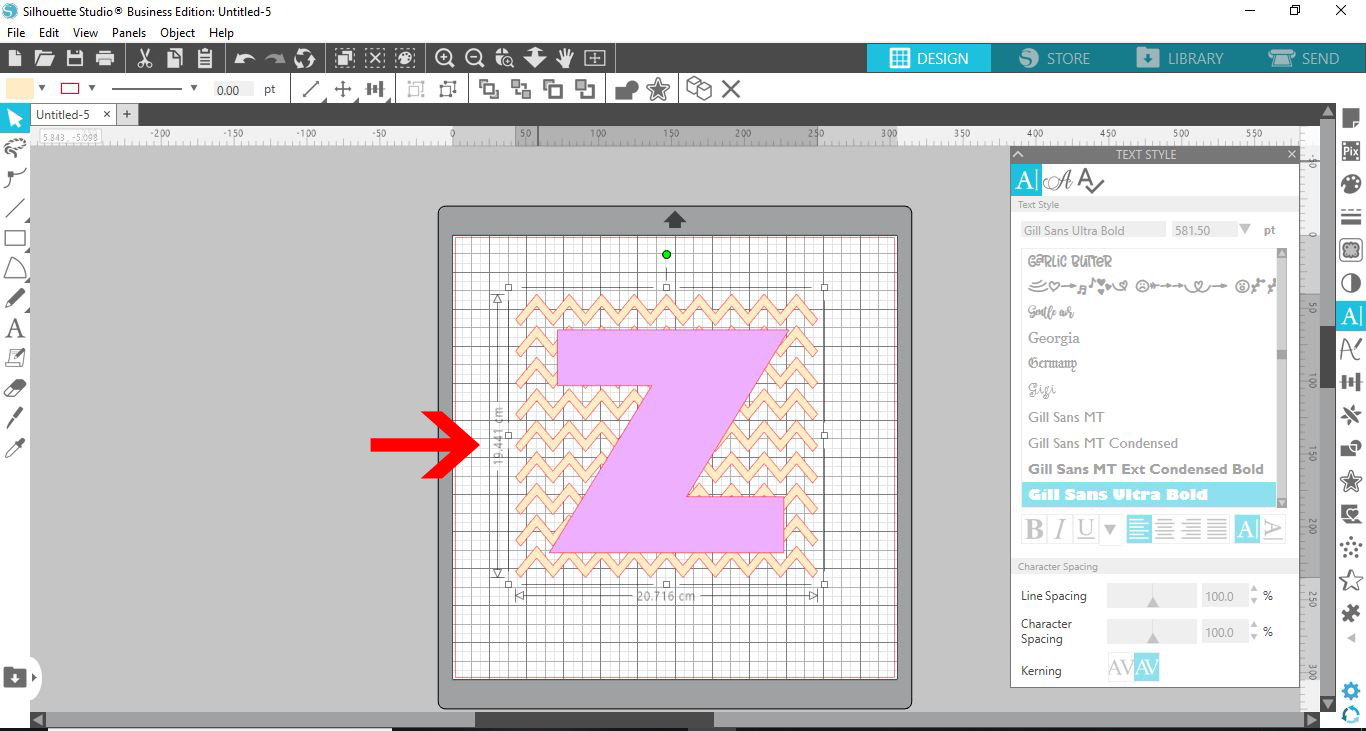
5- We now need to create an internal offset in the letter. Select the offset panel.
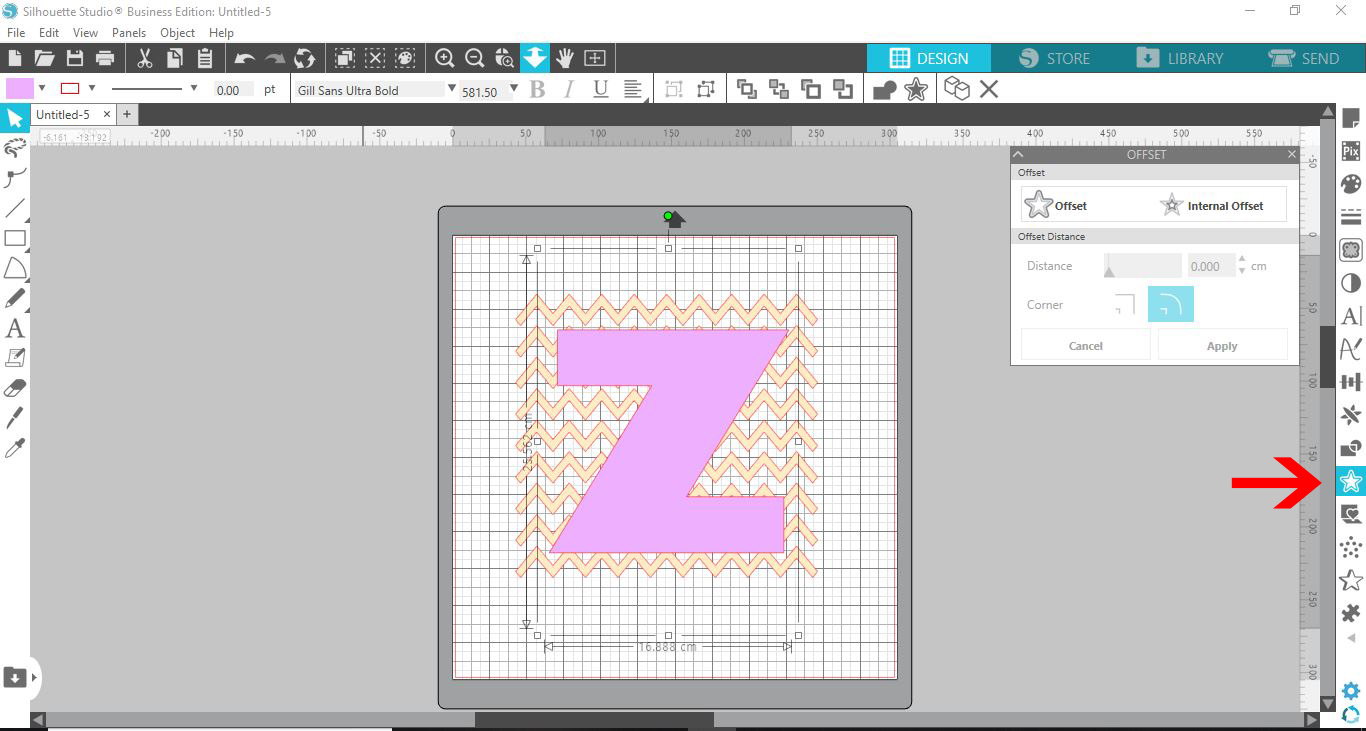
6- Select your letter then select the internal offset option and with the size left at the default size (0.200cm) Apply the offset.
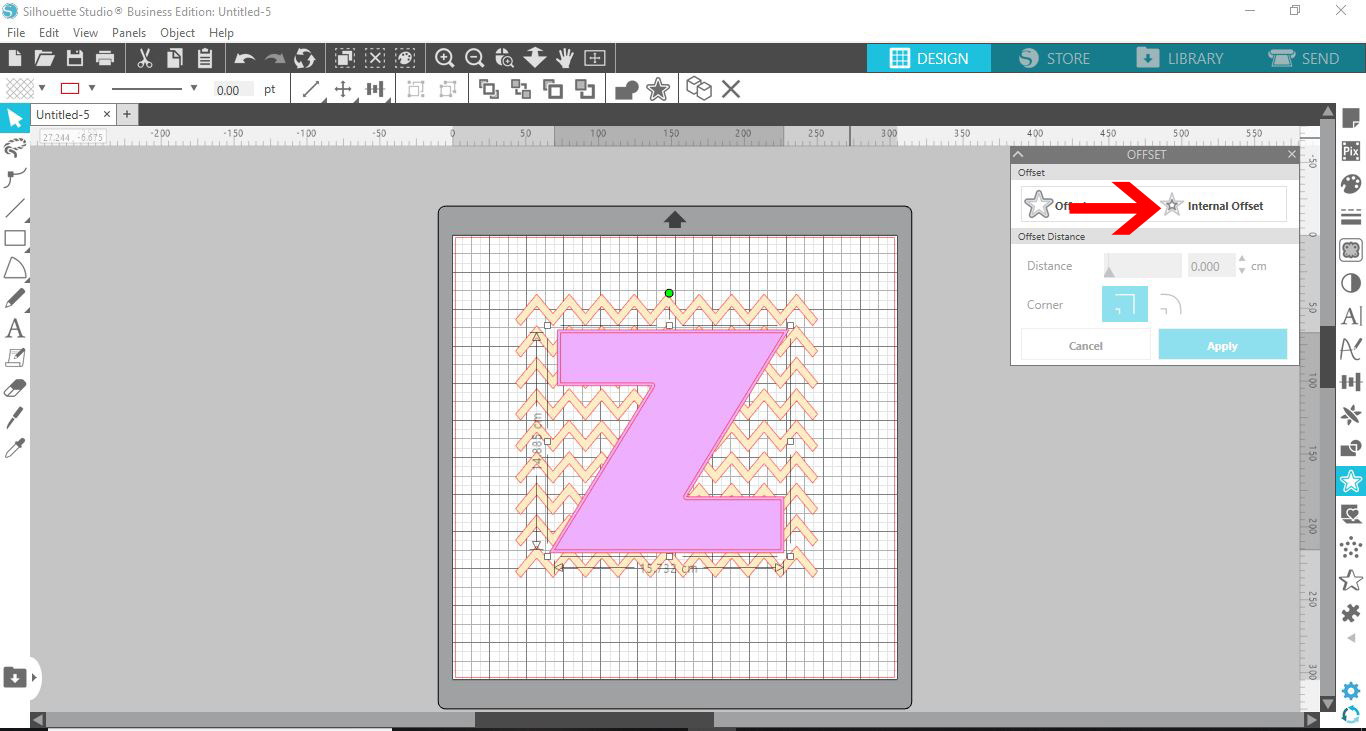
7- We now need to hide the original letter so only the offset is seen. Select the original letter (not the offset or background) To do this select Ctrl + X. the original letter will disappear.
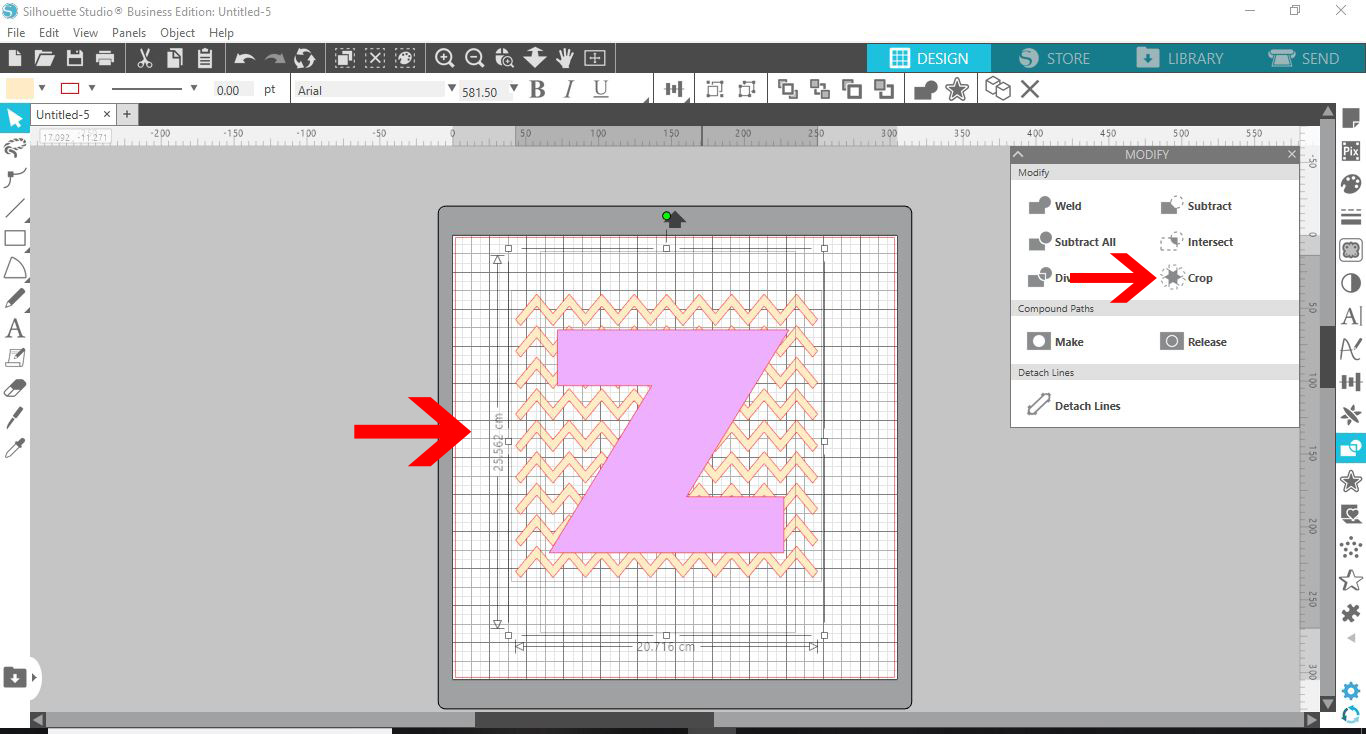
8- We now need to crop the excess cut file. Select Modify (1) then with both the cutable file and the offset of letter selected, click on Crop.
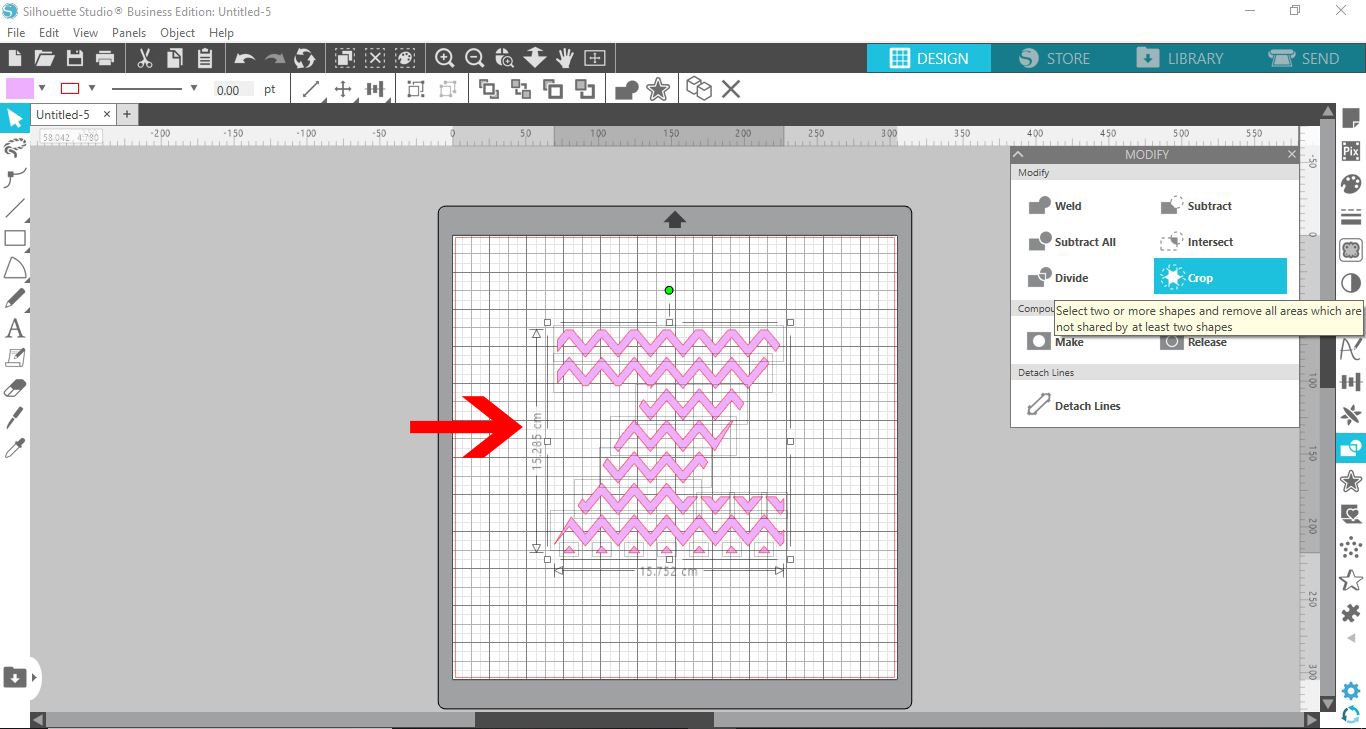
9- We now need to bring back the original letter. select Ctrl + F to bring it back. With everything selected right click and select Make Compound Path.
10 - This now produces the edge of your letter so when you cut the file it will stay in one piece.
Related Tutorials
Silhouette Tutorials
How to Fill Text with Images in Silhouette Studio
Silhouette Tutorials
How to fill text with the foil quill in silhouette studio free edition
In 4 easy steps learn two ways to fill text with the Foil Quill in Silhouette Studio Free Edition.
Silhouette Tutorials
Filling Text with Digital Patterns and Papers in Silhouette Studio
Filling text with digital patterns and papers in Silhouette Studio is so easy with our tutorial.
Silhouette Tutorials
How to fill text using the foil quill with silhouette studio designer and business edition
Cricut Tutorials
Filling text in Cricut Design Space using Silhouette Studio software
Learn how to fill text with a pattern using Silhouette Studio, then import to Cricut Design Space.
Silhouette Tutorials
How to Add an Outline Around Any Text in Silhouette Studio
Discover how to add an outline to any text in this Silhouette Studio tutorial. Quick read!