By Design Bundles
Silhouette Tutorials2 min
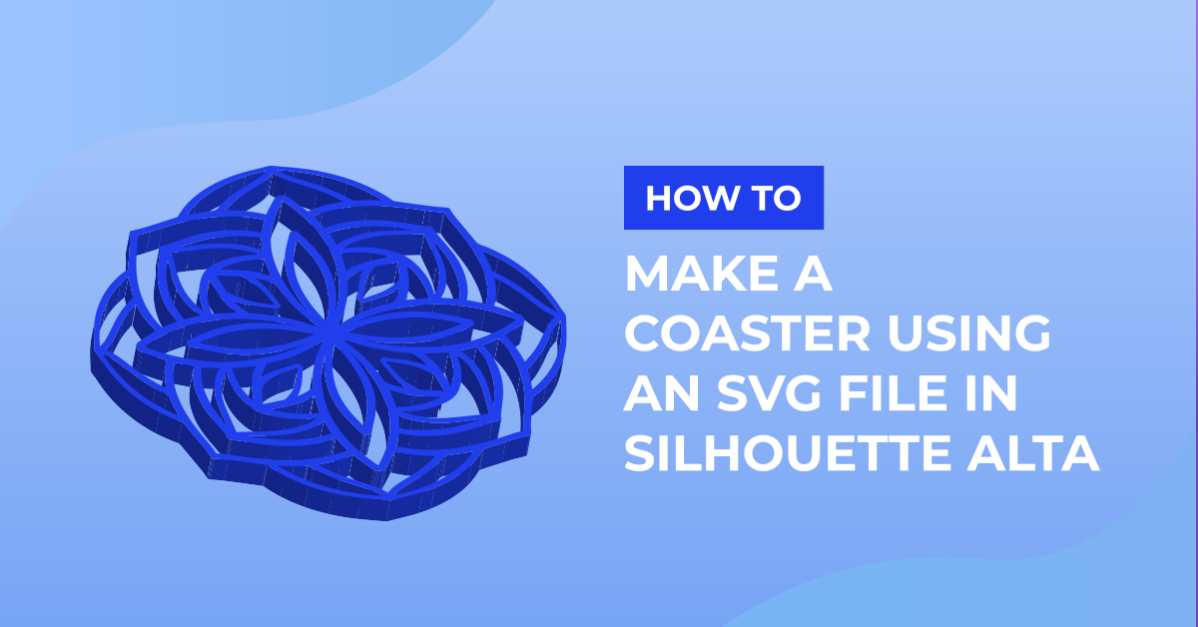
How to Make a Coaster Using a SVG in Silhouette Alta
1- Open Silhouette Studio Software (free edition). click on open file.
2- Select your SVG file. I am using Mini Bundle Patterned Animals from designbundles.net
3- Once your design is loaded, click on file - save as - save to hard drive. By saving as a .studio file we can open the SVG in the silhouette Alta software.
4- Open the Silhouette Alta software. Next click the open icon.
5- Load your studio file.
6- A new window will appear. Click on the wax pendant icon.
7- Your design will appear as a 3D design. Click on the 3D print icon.
8- Adjust your settings to suit your needs then click on print.
9- The finished coaster.

2- Select your SVG file. I am using Mini Bundle Patterned Animals from designbundles.net

3- Once your design is loaded, click on file - save as - save to hard drive. By saving as a .studio file we can open the SVG in the silhouette Alta software.

4- Open the Silhouette Alta software. Next click the open icon.

5- Load your studio file.

6- A new window will appear. Click on the wax pendant icon.

7- Your design will appear as a 3D design. Click on the 3D print icon.

8- Adjust your settings to suit your needs then click on print.

9- The finished coaster.

Related Tutorials
Silhouette Tutorials
How to Add Embossing Effect to Cookie Cutter Using a SVG file In Silhouette Alta 3D Printer Software
In only 4 steps, discover how to make an embossed cookie cutter with the Silhouette Alta 3D printer.
Silhouette Tutorials
Creating a Stencil Box Using SVG file in Silhouette Alta software
Affinity Tutorials
How to Make SVG Files to Sell Using Affinity Designer
In this tutorial, learn how to make SVG files to sell using Affinity Designer
Silhouette Tutorials
Using Silhouette Studio to Create Text for the Silhouette Alta 3D Printer Software
Silhouette Tutorials
How to use Fonts to Make a Bookmark in Silhouette Alta 3D software
Silhouette Tutorials