By Design Bundles
Silhouette Tutorials4 min
Object to Path Feature in Silhouette Designer Studio V4
Object to path feature in Silhouette Designer Studio V4.
1- Open Silhouette Designer studio software V4 and select the replicate icon.
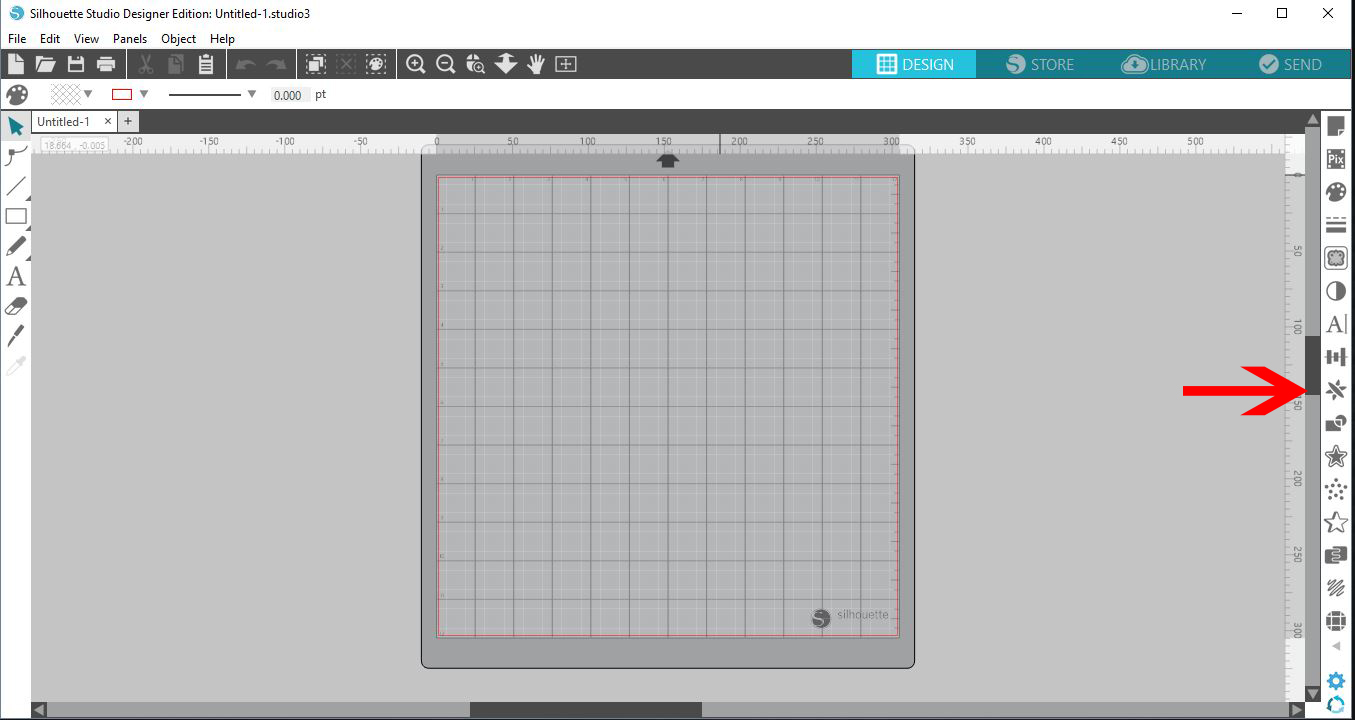
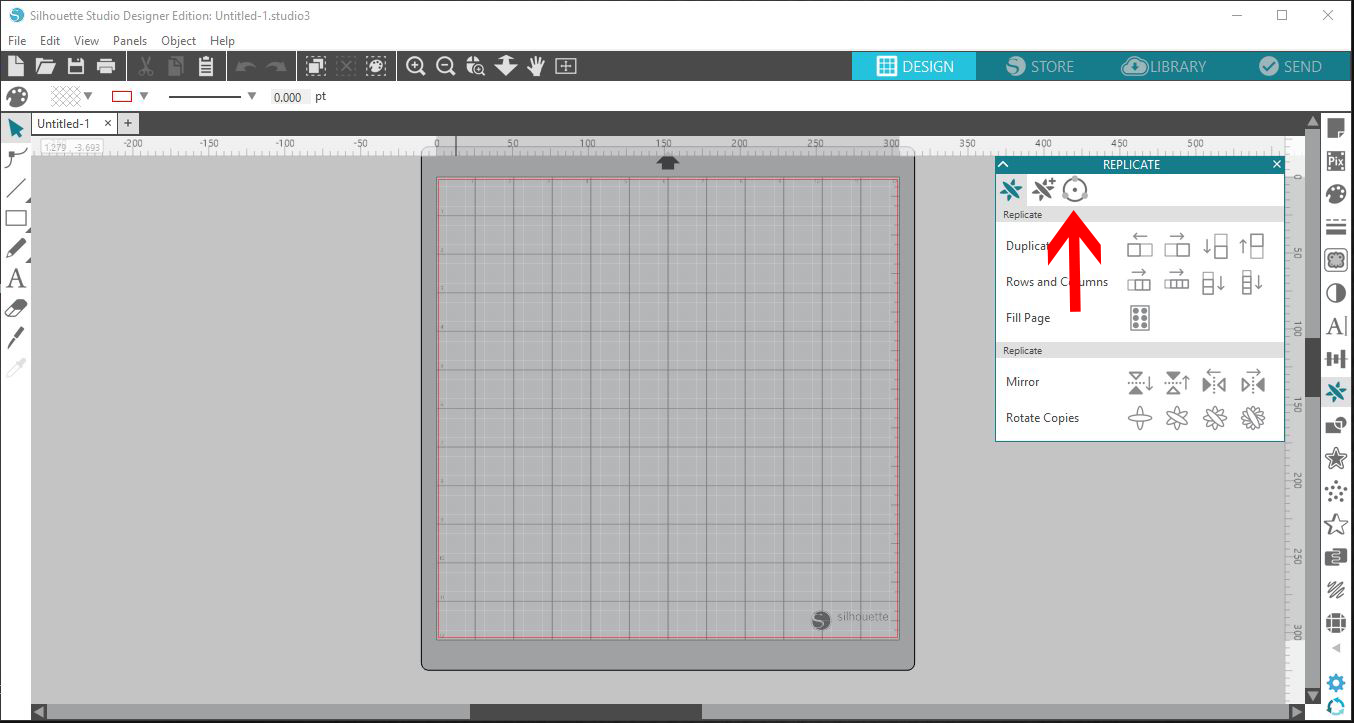
2- In the replicate panel there are 3 options, select the object on path icon.
3- Create a shape to place your object on.
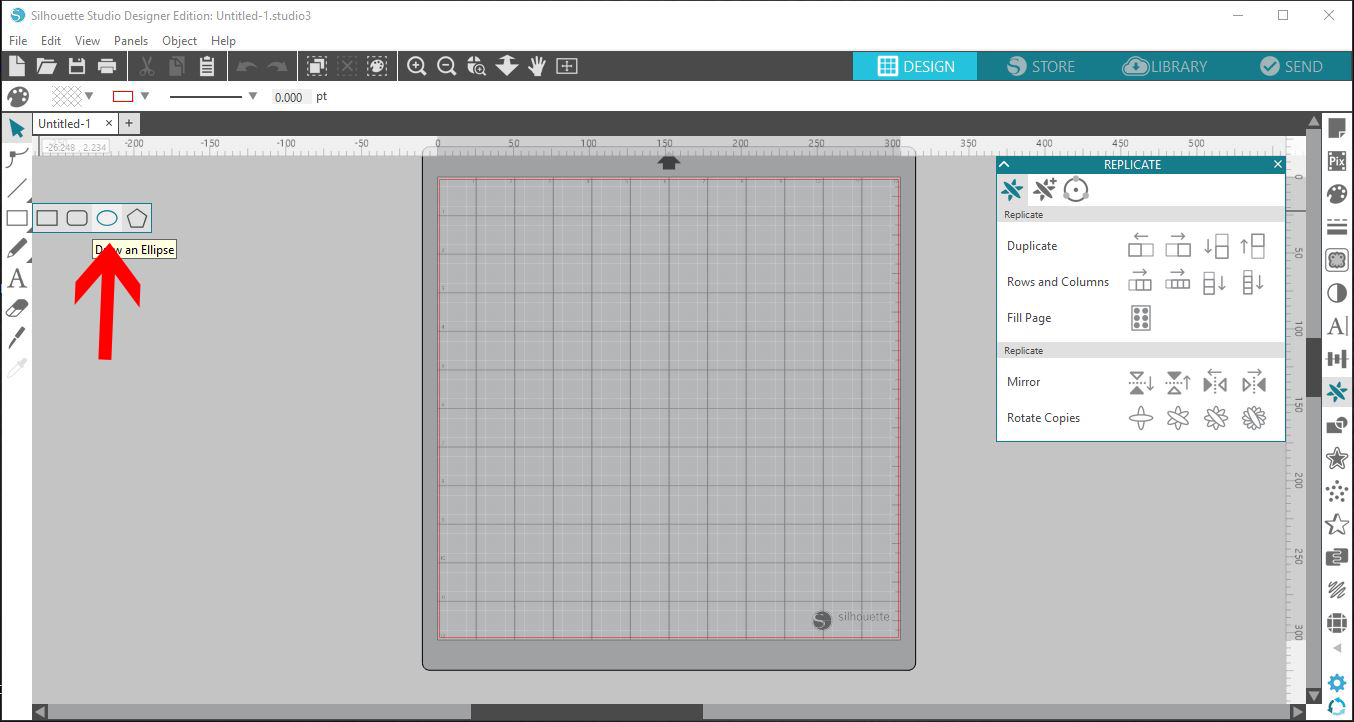
4- Select your shape.
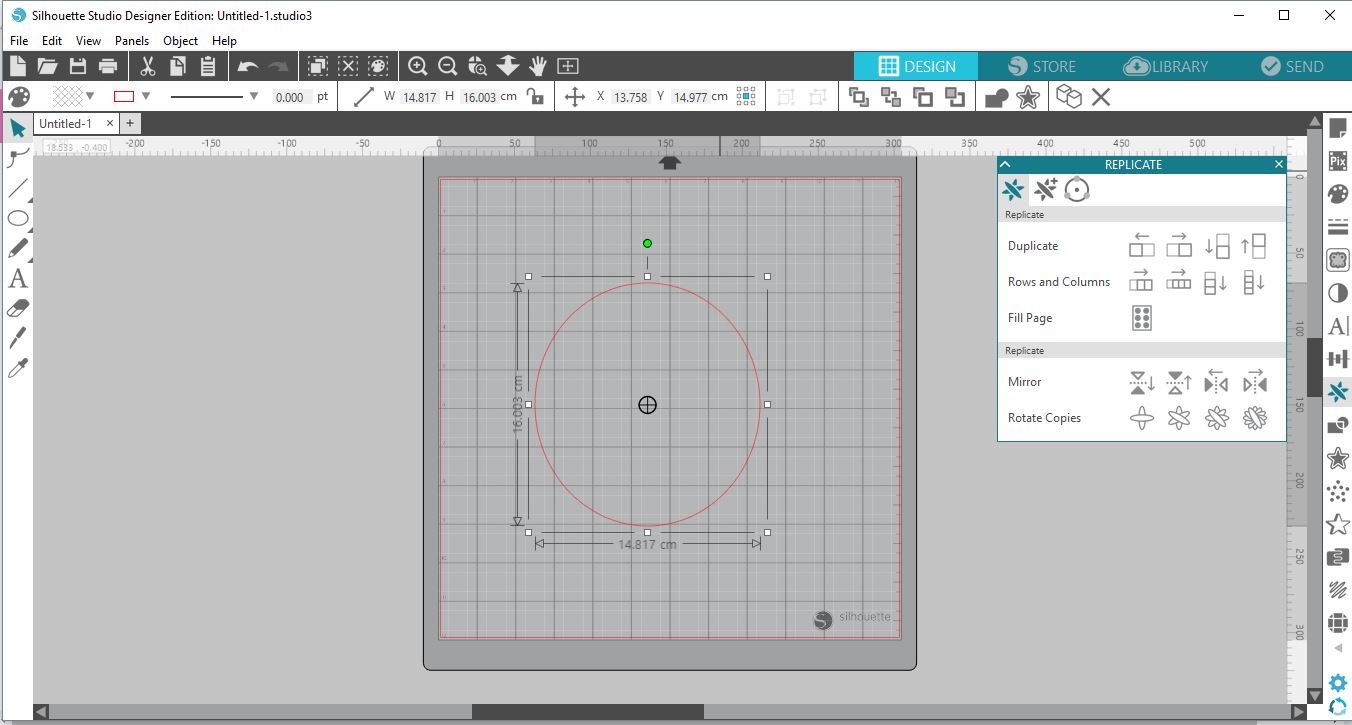
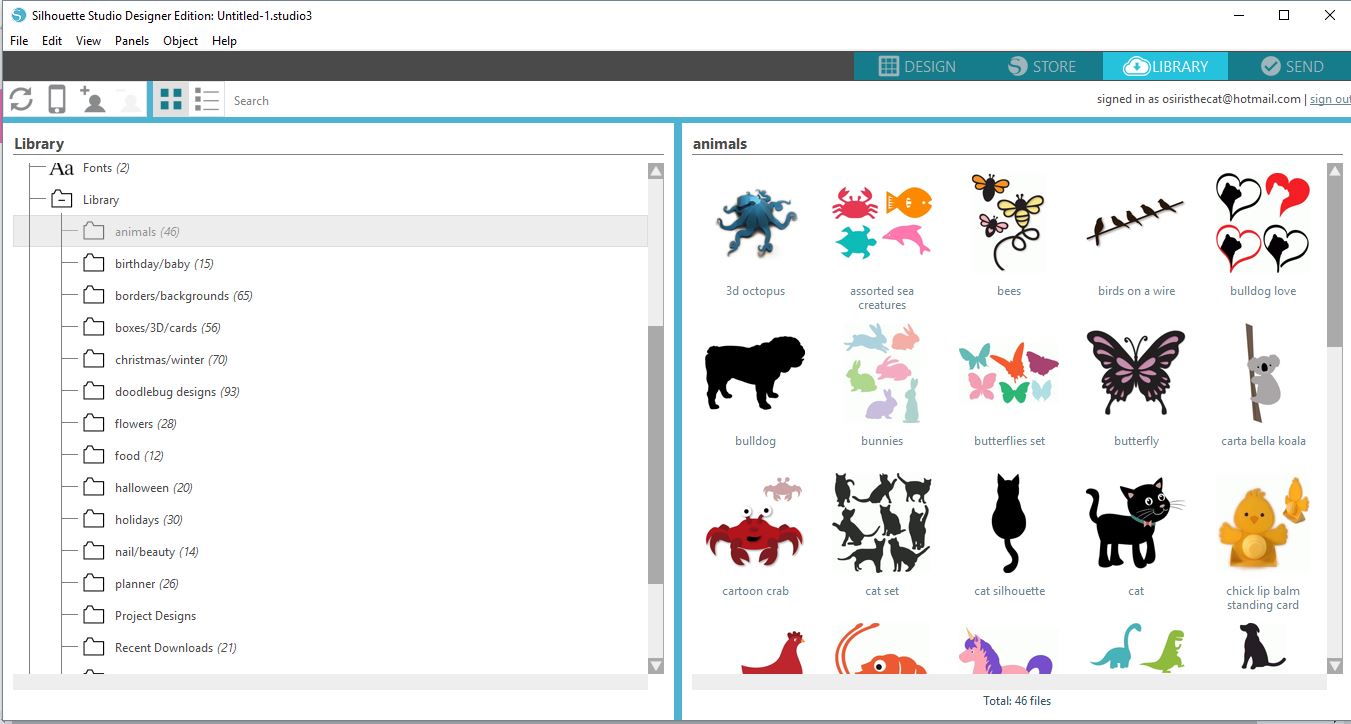
5- Import a design/word you would like to place on the path.
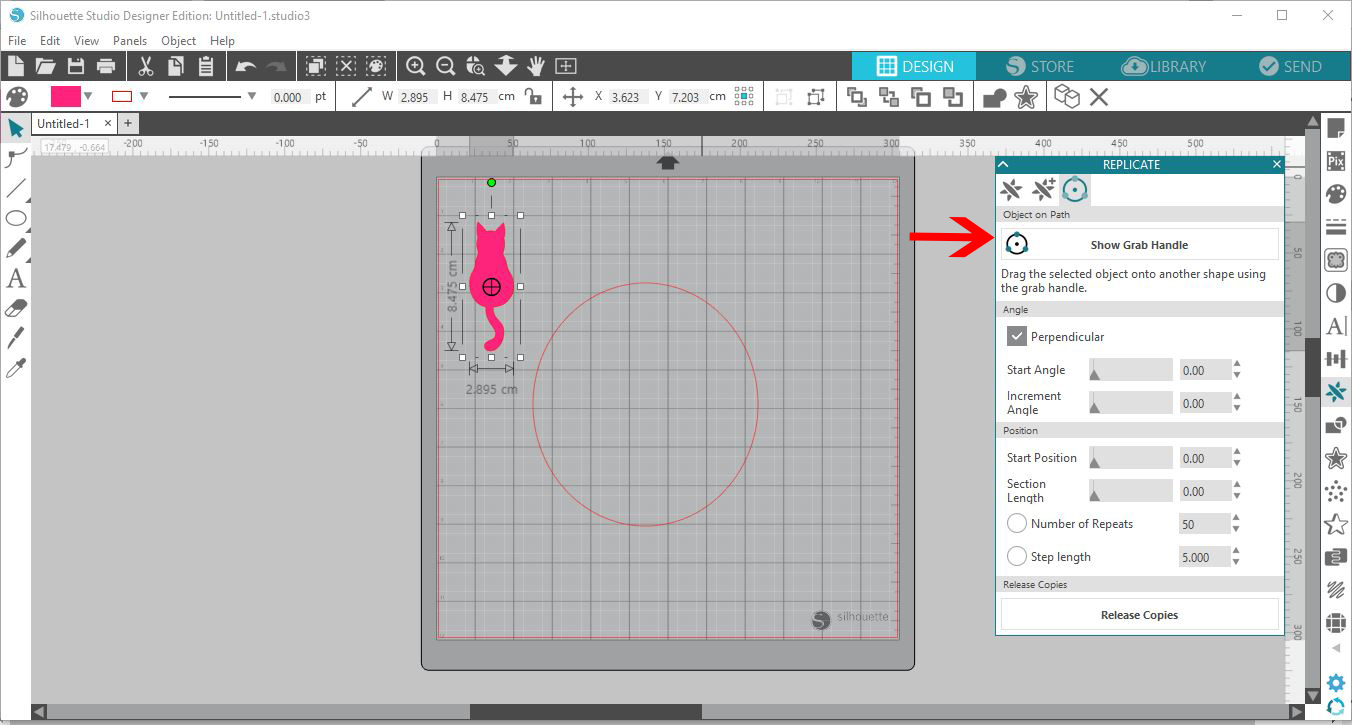
6- Select the object. Select the show grab handle option on the panel.
7- The grab handle will now appear on your object.
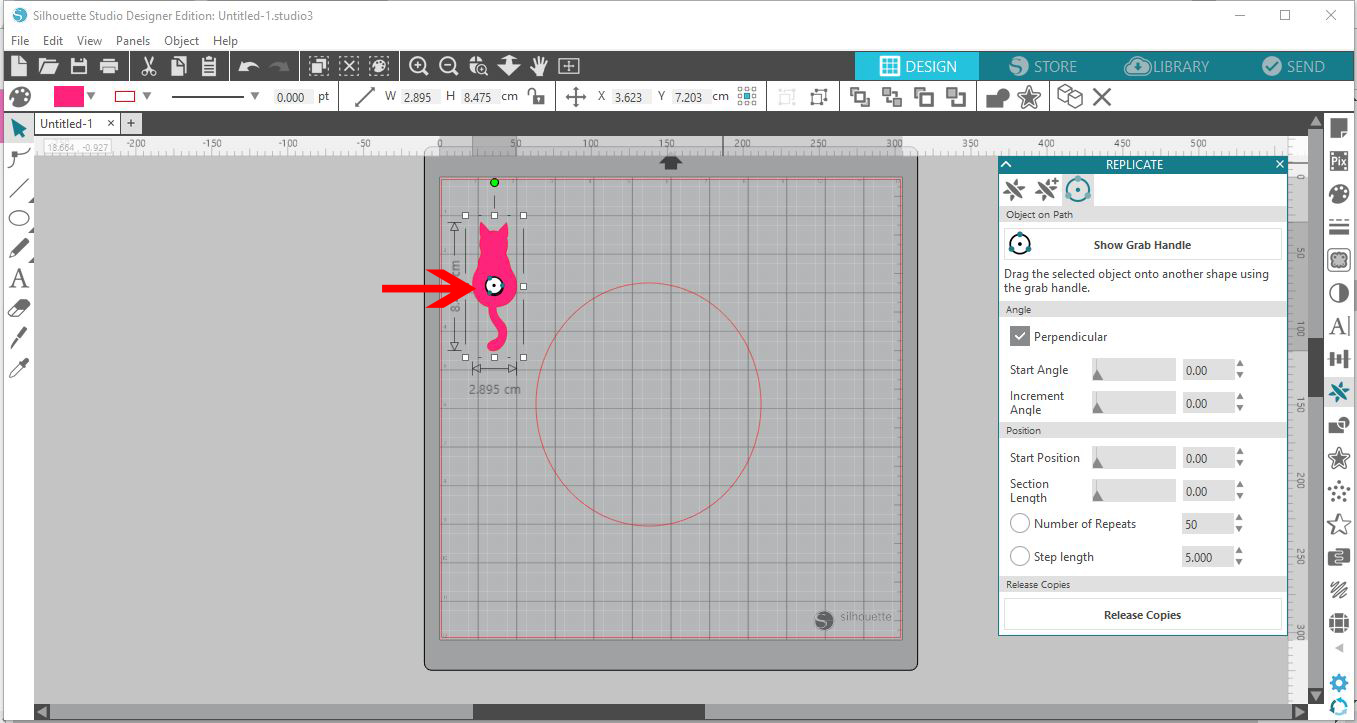
8- Click and drag the object with the handle to the shape you have created. As soon as the object touches the shape (path) the object will repeat around the path.
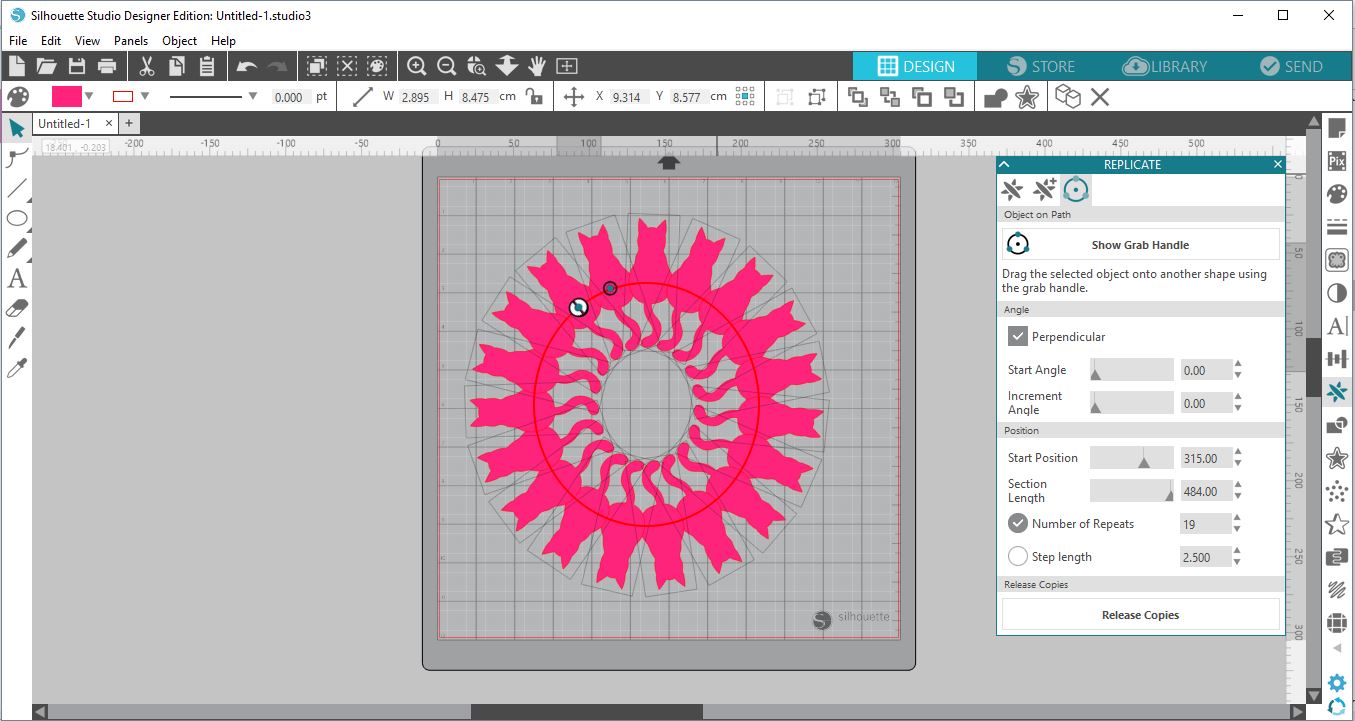
9- You can adjust the number of objects you have on your path by changing the number of repeat option.
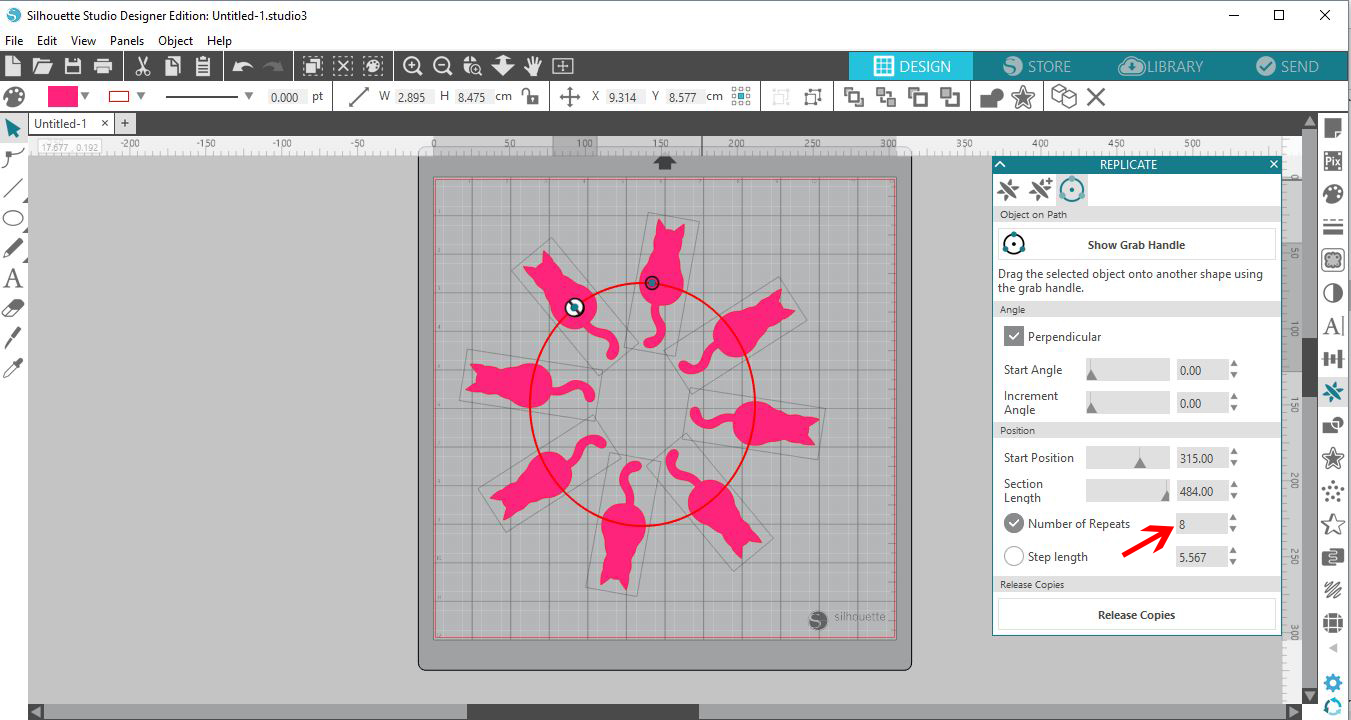
10- you can also adjust the way the object appears on the path by unselecting the perpendicular option.
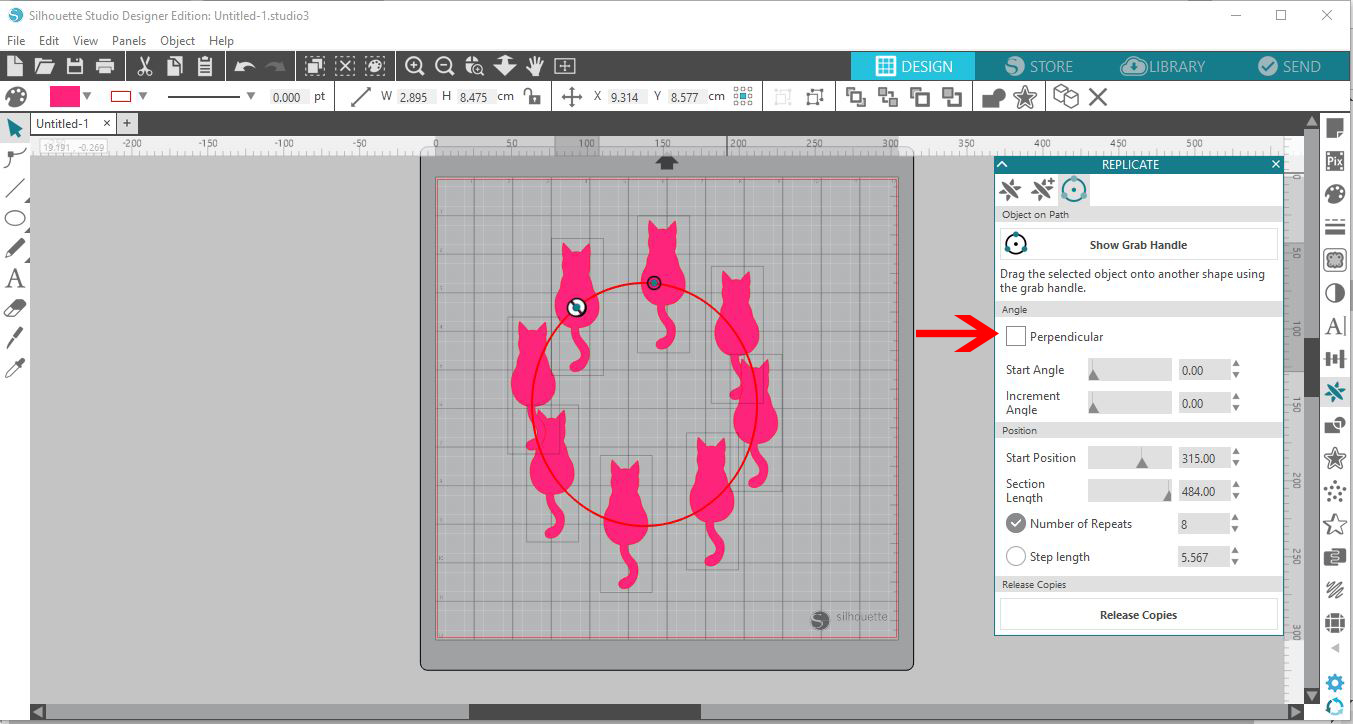
11- You can also adjust the start angle on the object.
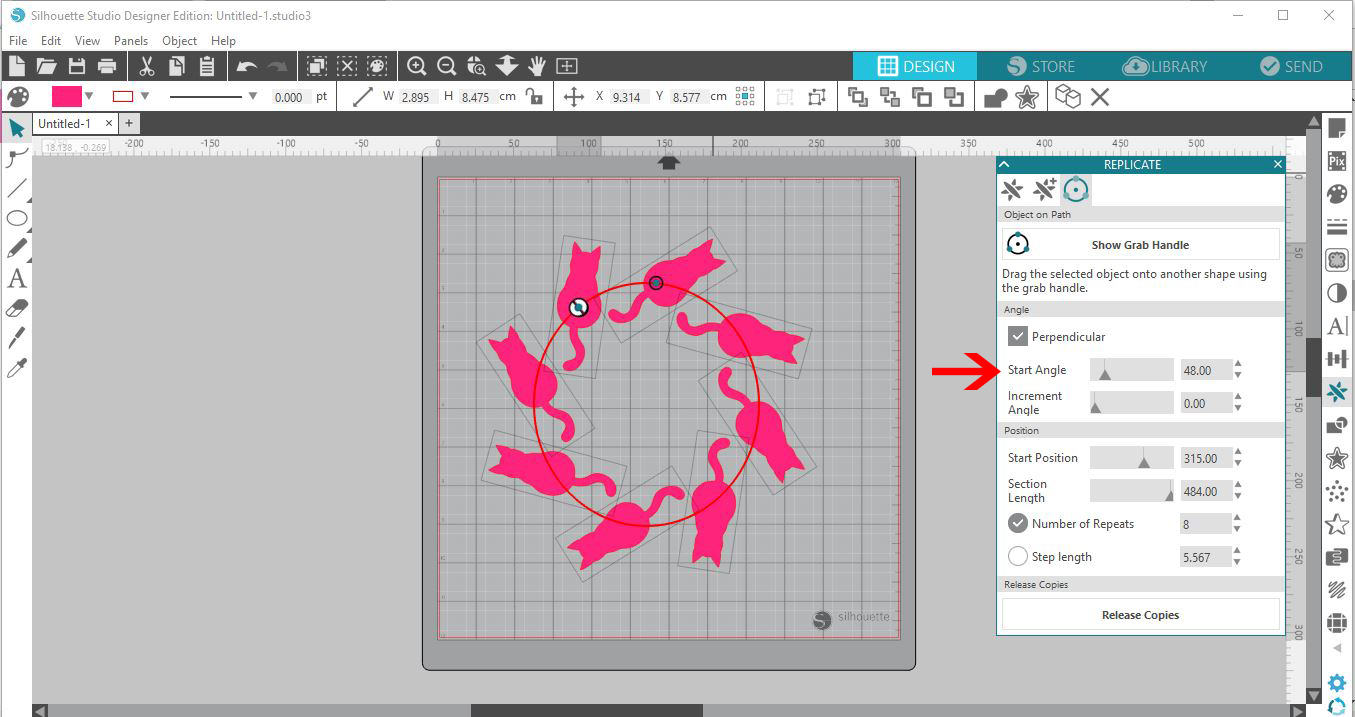
12- you can also adjust the increment angle on the objects.
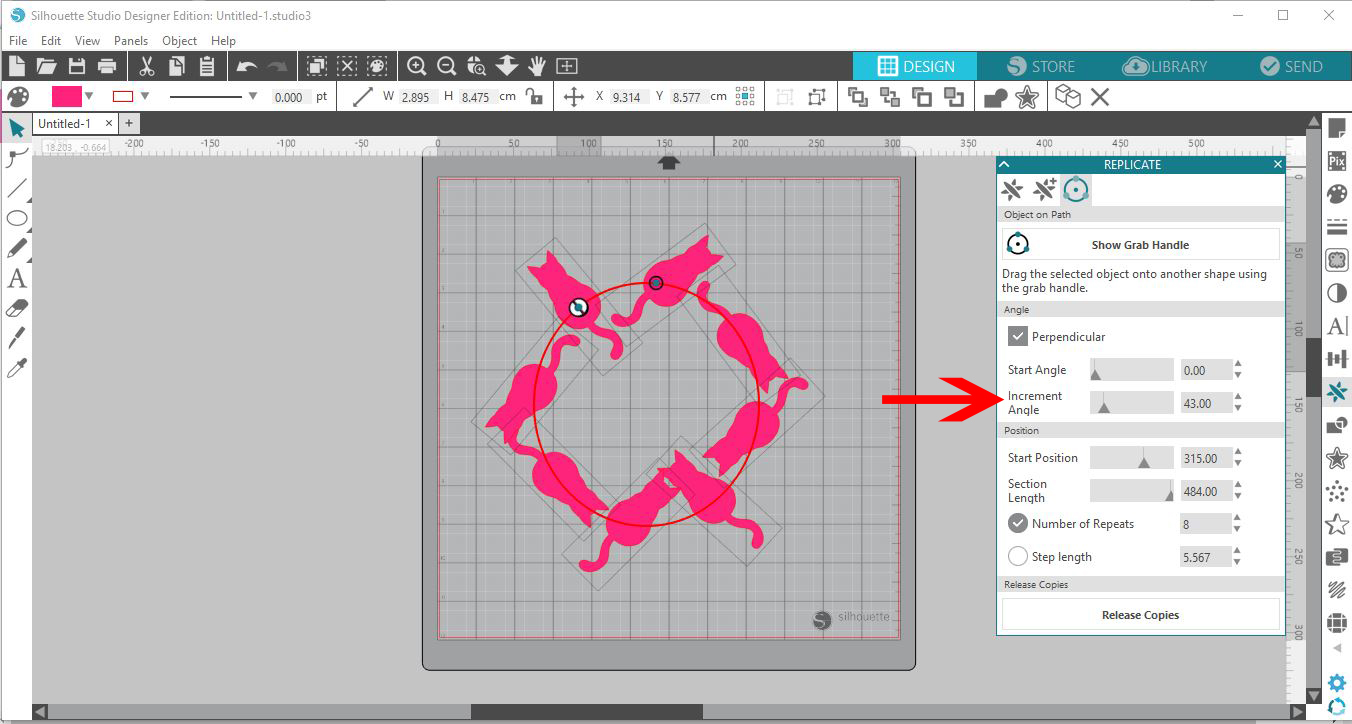
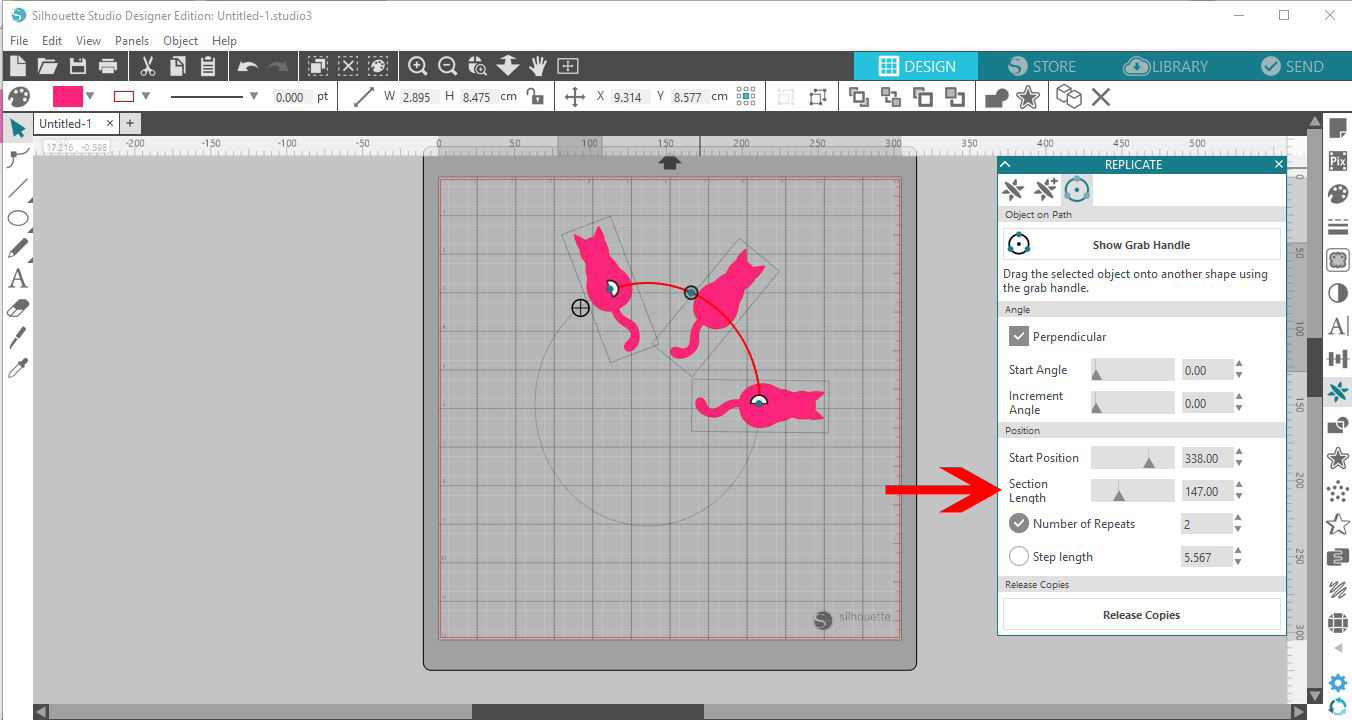
13- If you want to shorten length you can adjust this and this will affect the number of objects you have on your path also.
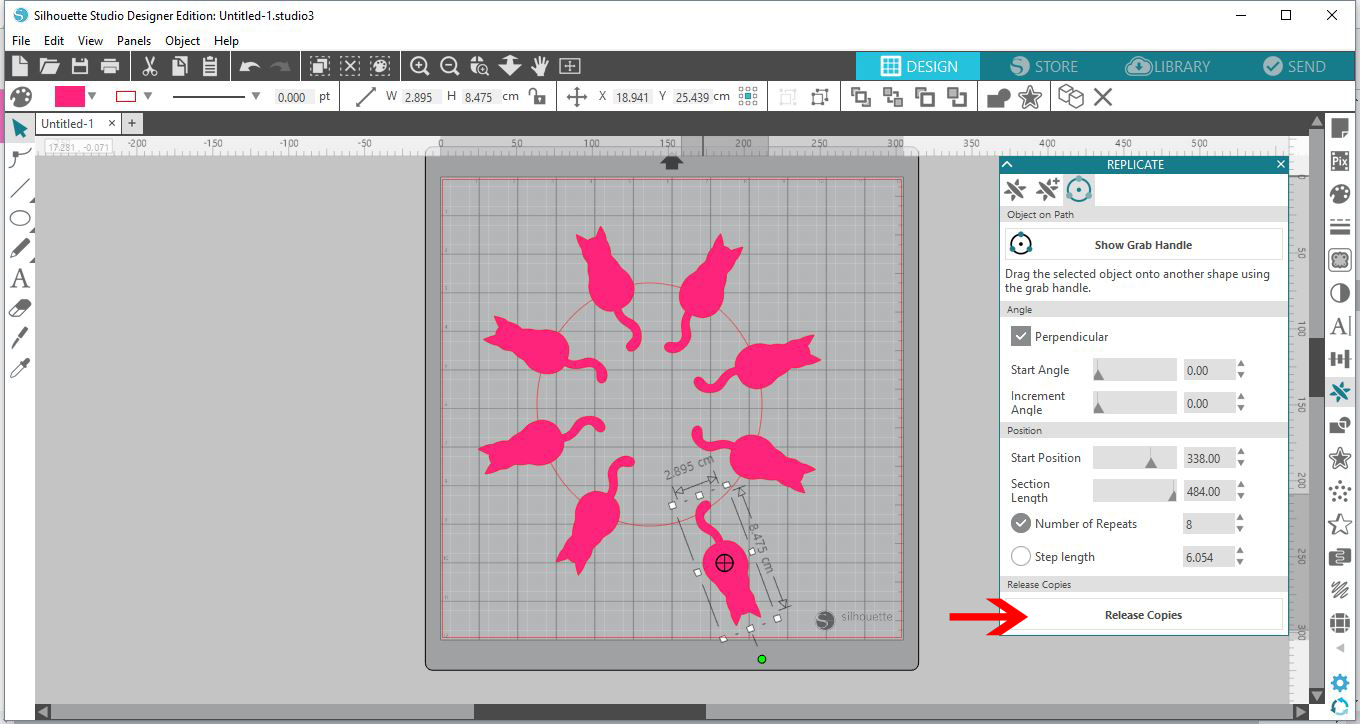
14- Lastly if you are not 100% happy of need to adjust a specific object on the path, or even remove the path/shape, you can select release objects and this will enable you to move objects off the path.
Related Tutorials
Silhouette Tutorials
How to Use AutoTrace Feature in Silhouette Studio
Silhouette Tutorials
How To Create Text to Path in Silhouette Studio
Discover how to use the Text to Path feature in Silhouette Studio with this easy to follow tutorial.
Silhouette Tutorials
How to Use the Puzzle Feature in Silhouette Studio
In just 4 easy to follow steps discover how to use the Puzzle Feature in Silhouette Studio.
Silhouette Tutorials
How to Use the Magnetic Floating Panels in Silhouette Studio V4
In this quick tutorial discover how to use the magnetic floating panels in Silhouette Studio V4.
Silhouette Tutorials
How to fill text using the foil quill with silhouette studio designer and business edition
Silhouette Tutorials