By Design Bundles
How to Use Your Silhouette Studio Library on More Than One Computer
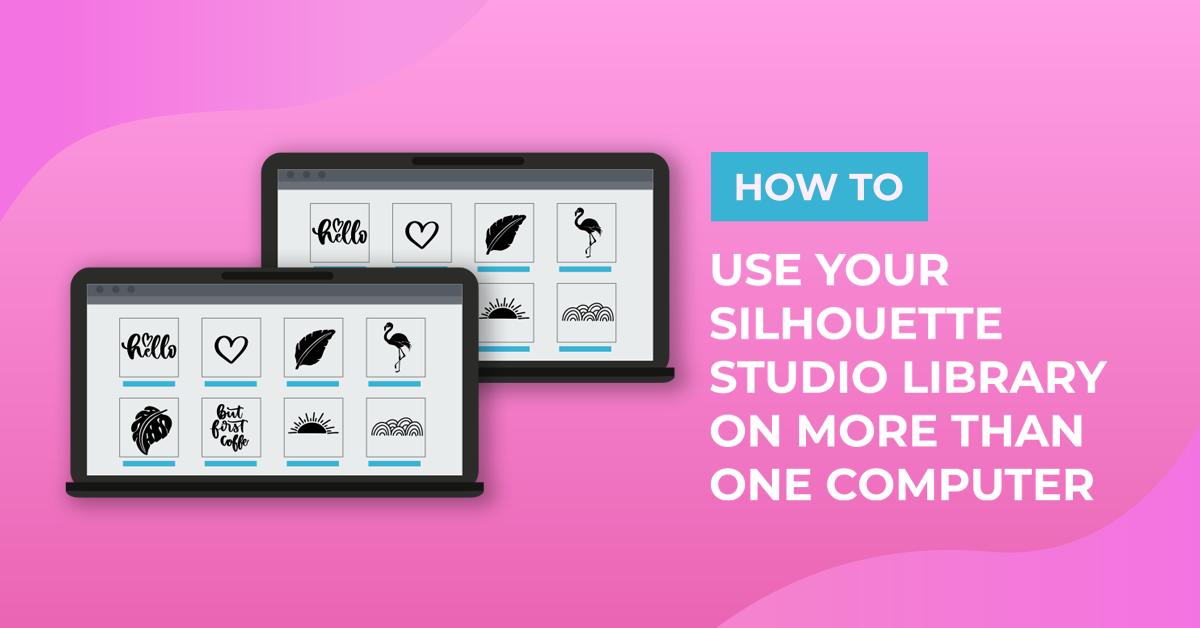
Did you know that Silhouette Studio will allow you to use your Designer Edition Upgrade on more than one computer!? You can actually use your License Key on up to 3 different devices at one time. Even though you can use the same key, your Silhouette Library won’t import automatically, so we are here to show you exactly what you need to do to move those files to your new computer.
1. Install Silhouette Studio
Before we begin, you will need to have Silhouette Studio installed on both of your computers. You can grab the Free Basic Edition of Silhouette Studio from their website. After re-installing the Silhouette software be sure you are signed into your account with them, and that the software is fully up to date.
2. Export your Silhouette Library
After you have downloaded the software, you’ll need to export your Silhouette Library. To export, open Silhouette Studio and click on the Library icon in the top right corner. Next, click the drop down arrow next to your name and select Library Export to save the file.

Click the blue Browse Computer button and choose where you want to save it, I recommend desktop - but whatever is easiest for you is fine. To complete the export, click OK.

3. Import your Silhouette Library to the new computer
After you have saved your export, you’re ready to import the designs into the Silhouette Library on your new computer. To initiate the import process, open Silhouette Studio then click on File > Library > Import library.

Next, find your exported file and select it and click OK.

After you have completed these steps, the transfer is complete! You can now go to your Library and you will find your downloaded library, identical to the one on your other computer.