By Design Bundles
How To Use Mock Ups in Canva
In this tutorial, we will go over how to use mockups in Canva. Mockups are used by designers to quickly showcase their designs and layouts in a real-life setting. It gives viewers an idea of how the final product will look without actually having to create a product.
For our tutorial, we will be uploading a purchased mockup template from Design Bundles.
Step 1 - Upload Mockup Template
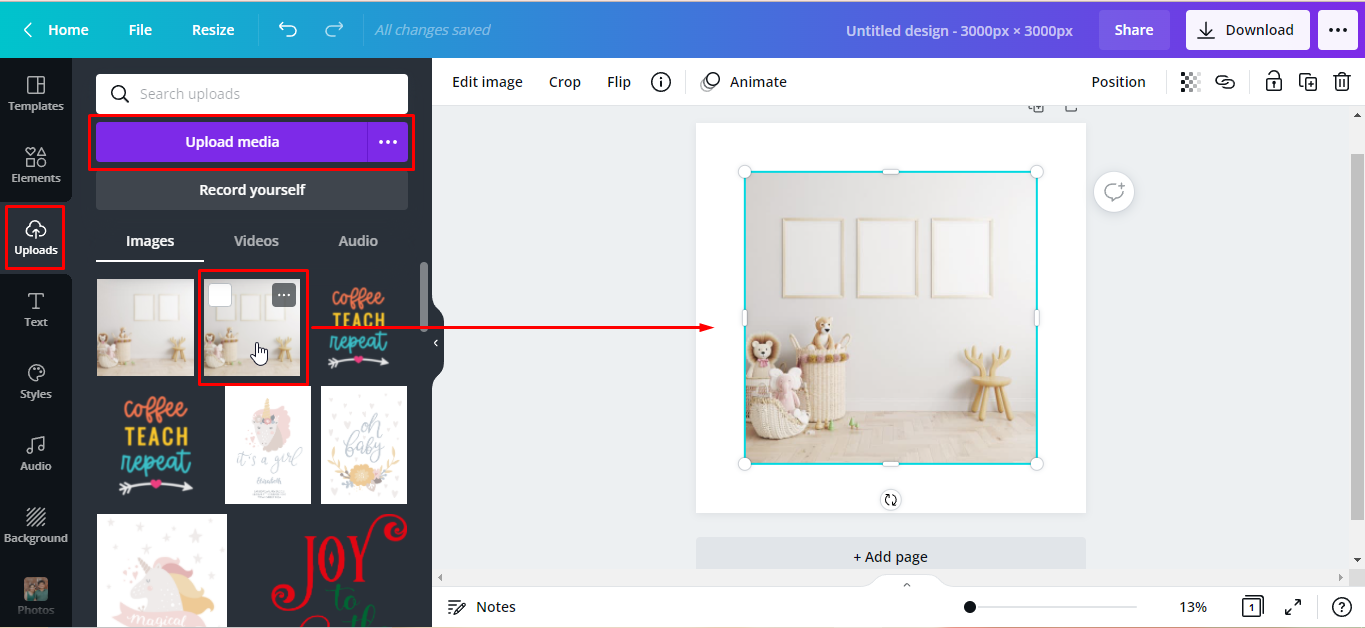
From the side panel, click on the Uploads tab and then click on Upload Media. Locate the design file from your device. You can follow our super easy tutorial on uploading an image if you need more information.
We’ll be using this nursery wall mockup from Design Bundles. We chose the JPEG file. Remember, when using mockups in Canva, they need to be either a JPEG or PNG format. This is because Canva does not support Ps files.
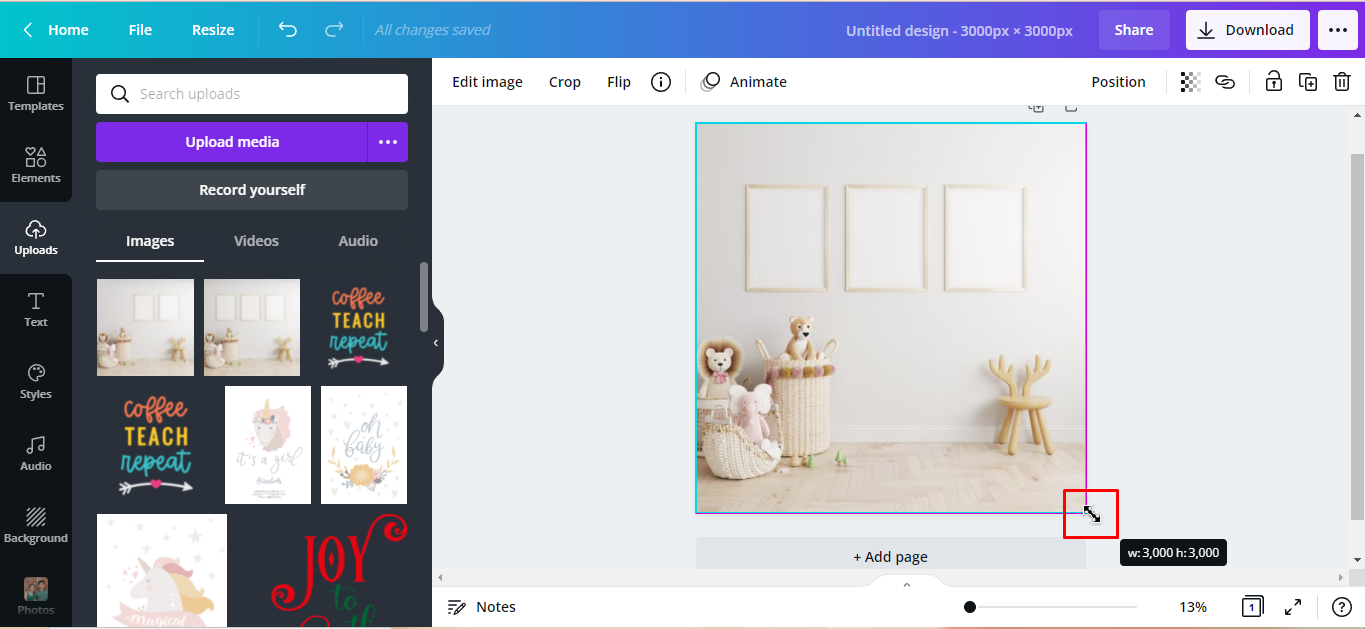
You can adjust the image size by dragging out the white handles on the corner. We increased the image size until it filled our canvas.
Step 2 - Add the Designs
For our mockup, we will use this cute dinosaur clipart, which we already uploaded earlier. Click each chosen clipart to add it to the canvas.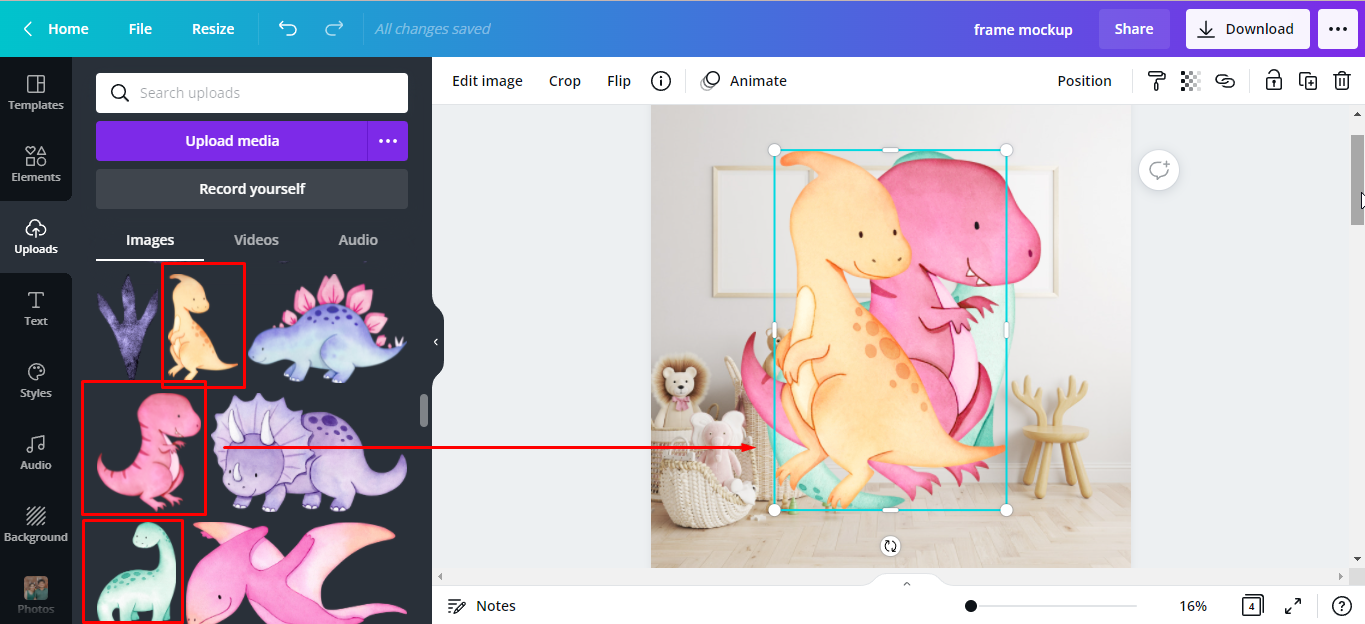
Scale each clipart down to fit into the frames by dragging the corner handles in.
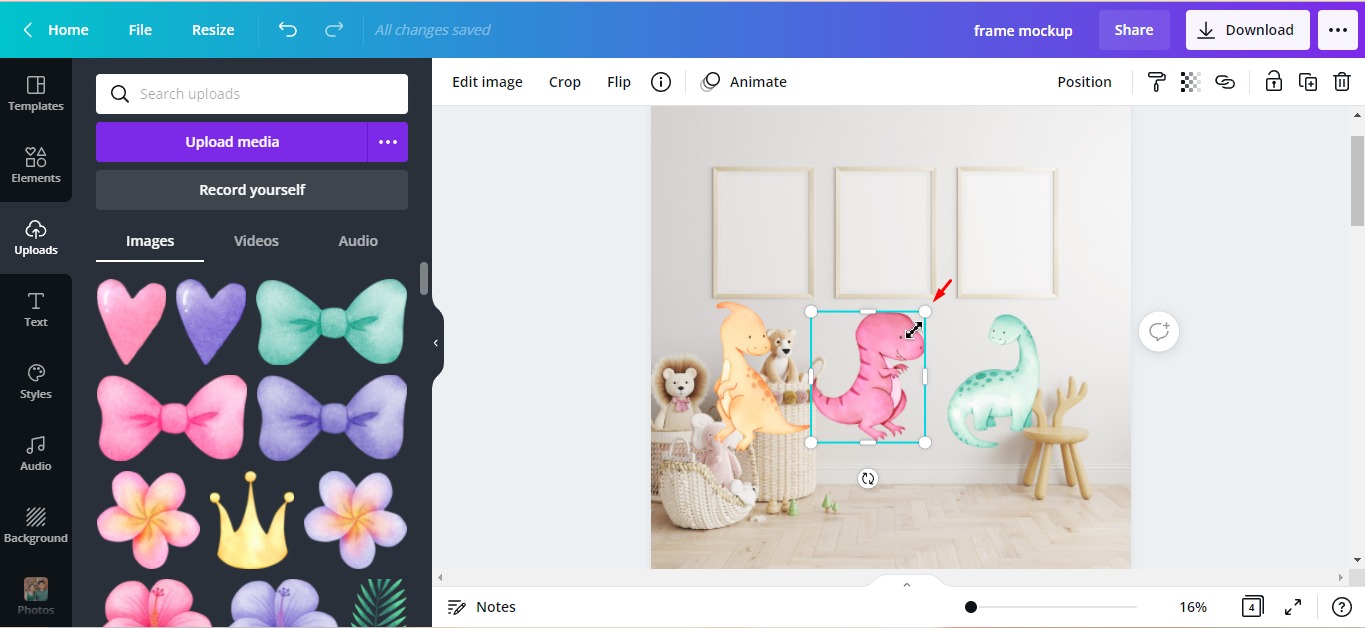
Place each dinosaur on the top of the frames. Crop if necessary. To crop, just drag in the middle handle until it’s appropriately inside the frame.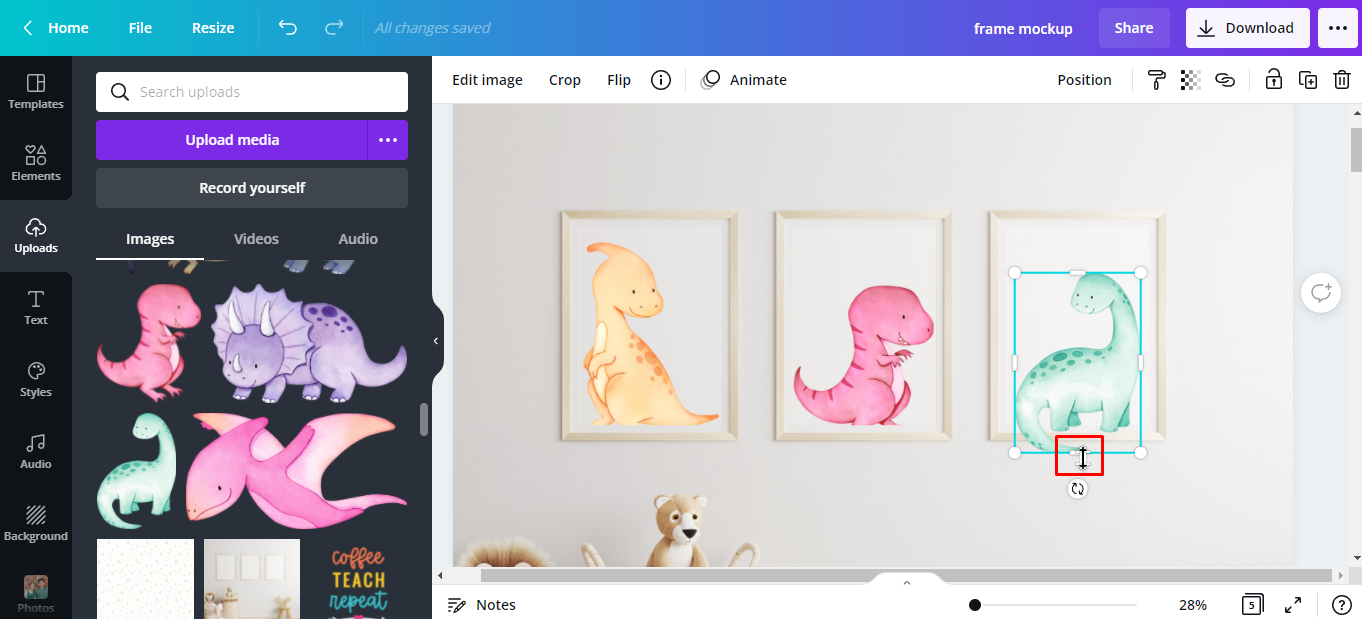
Step 3 - Adjust the Image Brightness
Our images appear too bright and don’t look natural against the lighting in the mockup. So we need to adjust the brightness.
With the image selected, click Edit image and drag the brightness control slider to the left. We will go about -3 to -5. Adjust the contrast also when necessary.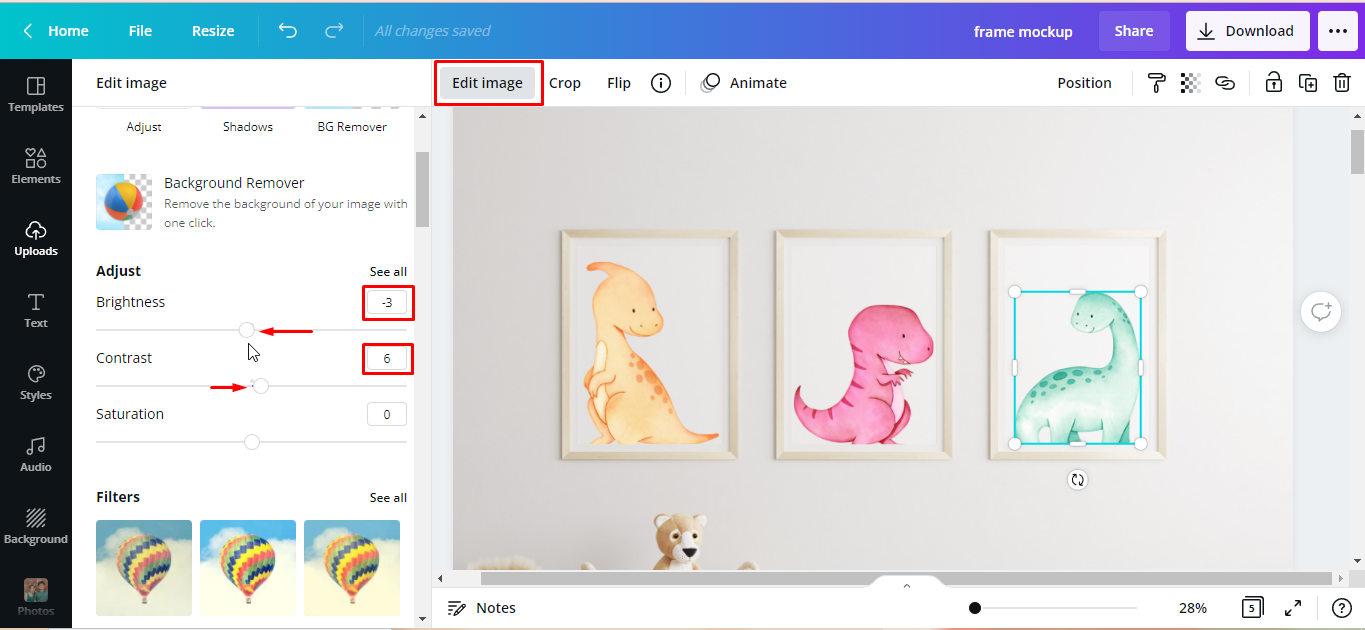
Step 4 - Add Embellishments to Images
The clipart set includes some foliages and cute accessories that you can add to your design. We wanted to add a little more character with a few embellishments. So we gave our dinosaurs a few accessories and added some background elements.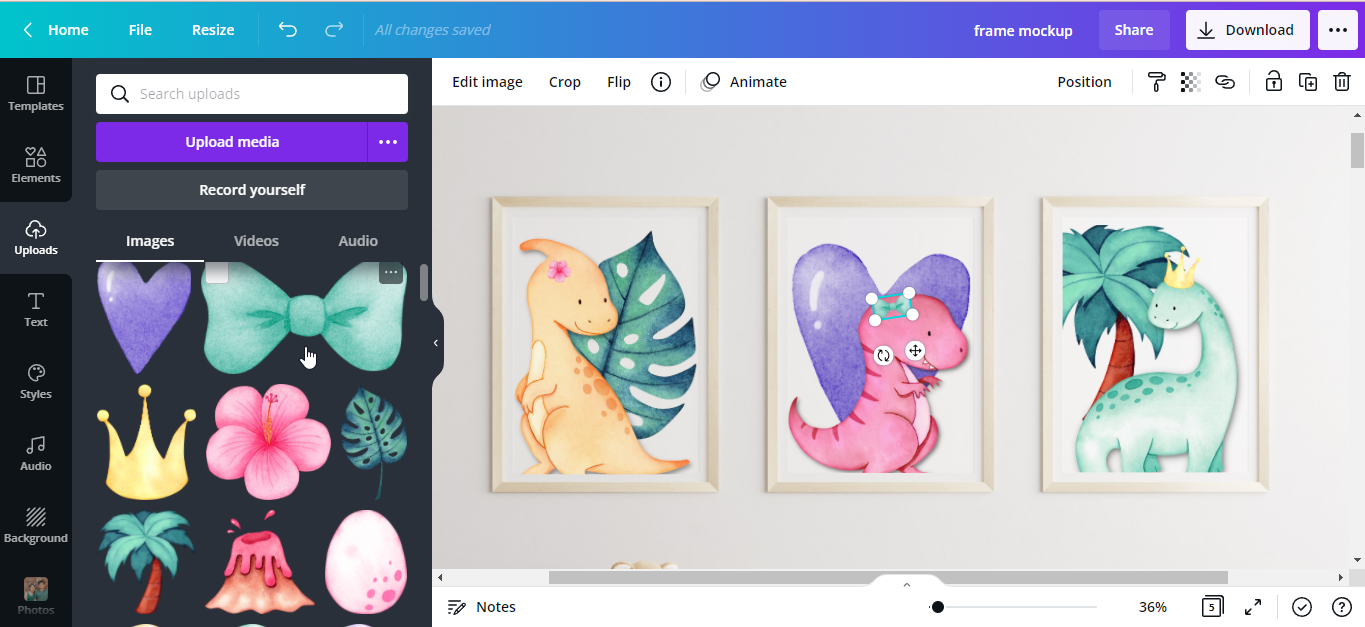
Here’s what our finished frame mockup looks like.
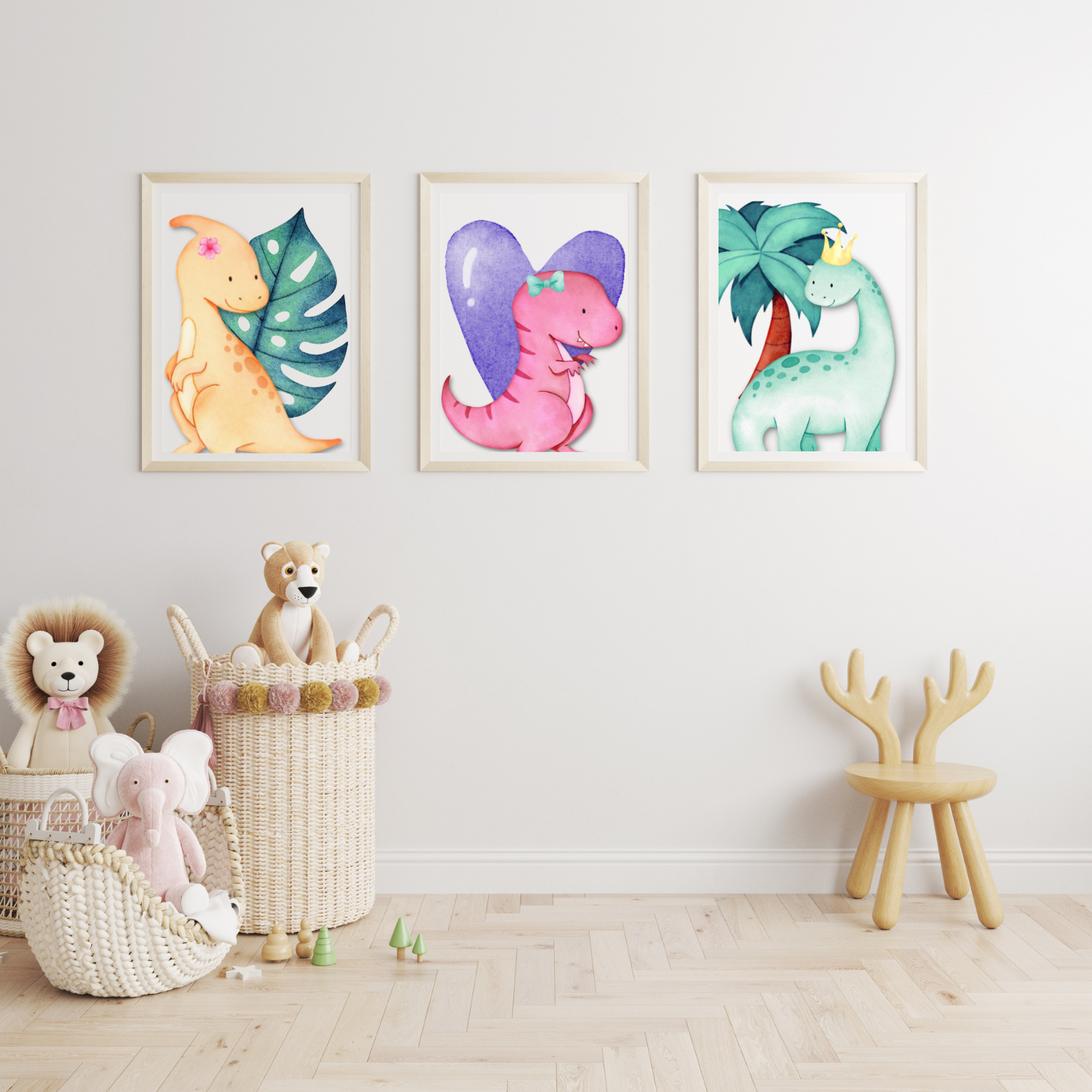
Now that you know how to use mockups in Canva, you can present your designs in a photo-realistic showcase. It can aid in impressing your clients while helping you sell the functionality of your products.