By Design Bundles
How to Use Monograms in Canva
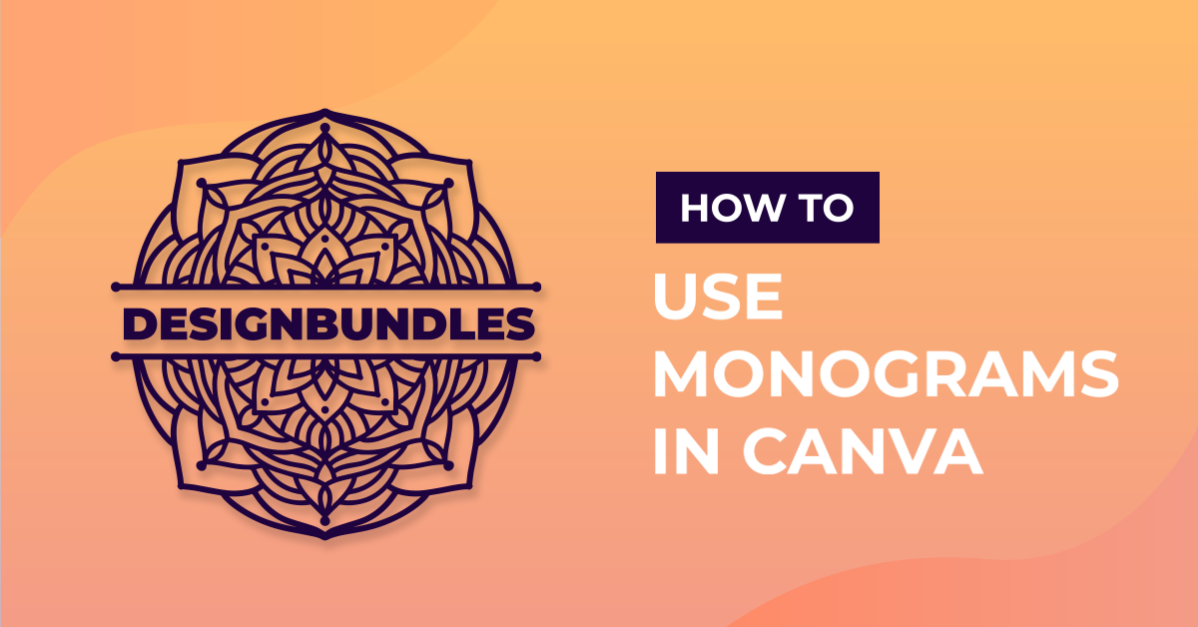
Have you ever wanted to use monograms in Canva but didn’t know how? Monograms can consist of designs and initials. They can be added to clothing, household items, or even framed for display in your home. In this tutorial, you will learn how to customize and use monograms in Canva.
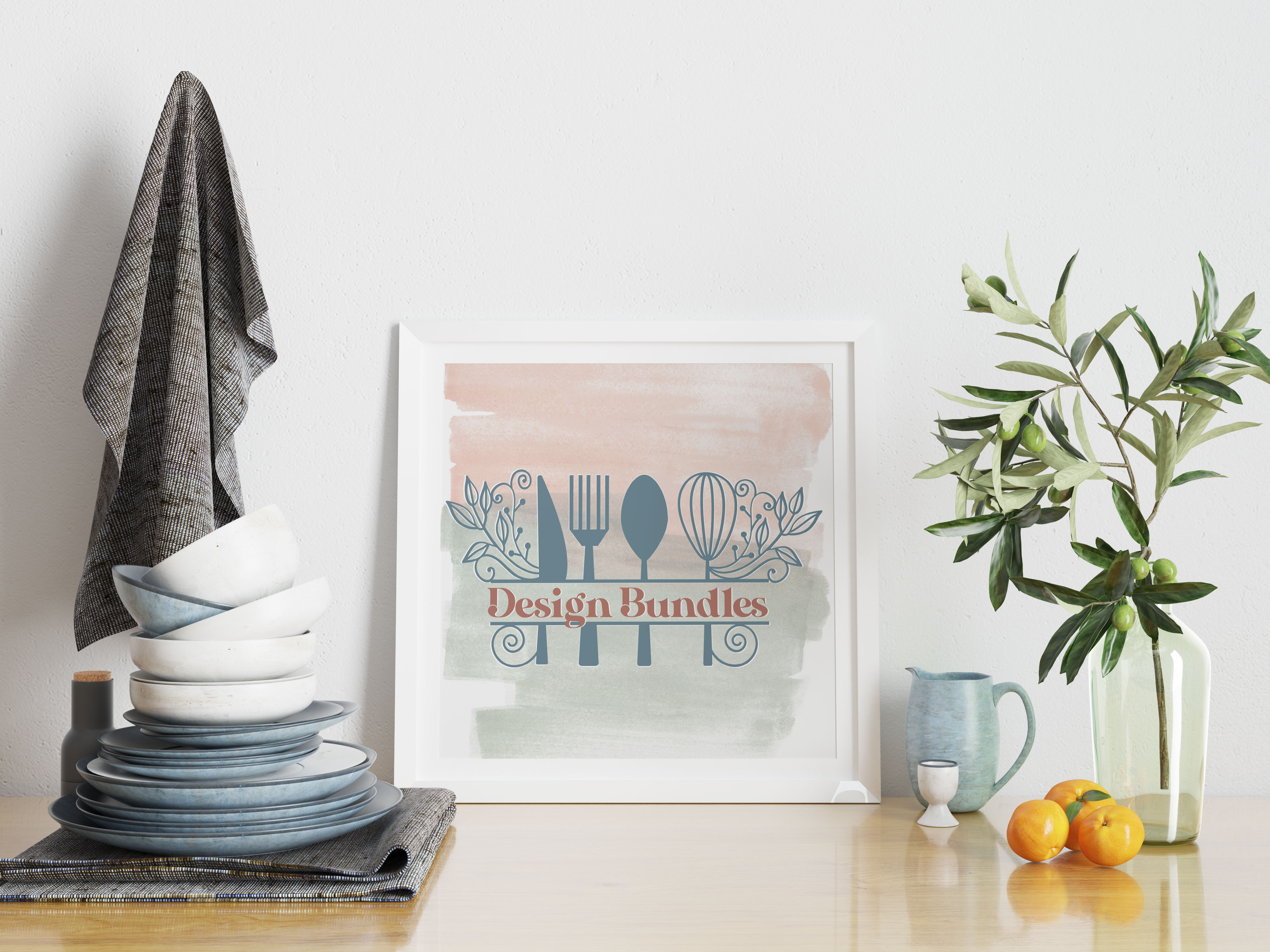
Monograms are usually created with a person’s initials combined in a decorative design. They can also have all sorts of other fun designs, just like this kitchen monogram that we’re using today.
If you would like to use a different design we have a lovely selection of split letter monogram SVGs available.
For our text, we are using a fashionable font called AL Bavista Soulvare from Font Bundles.
Step 1 - Upload the Purchased Monogram
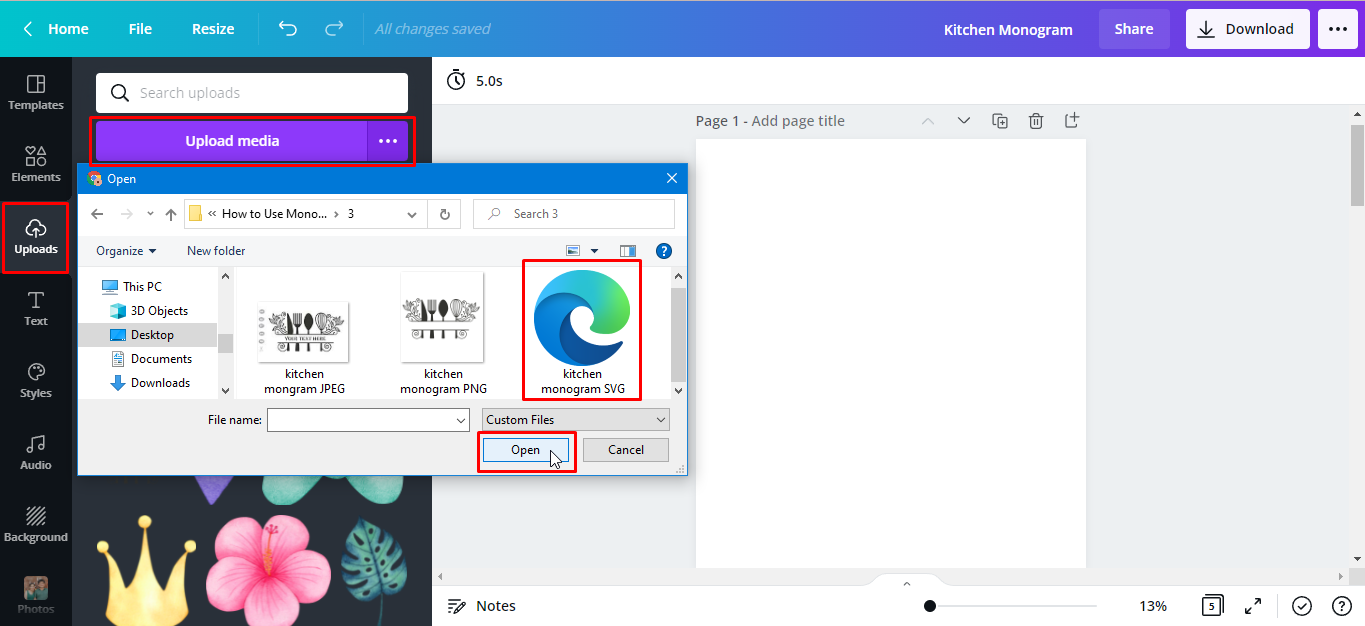
We have already downloaded and unzipped our purchased files. Next, we want to upload our image to Canva. From the side panel, click on Uploads> Upload Media and locate the file from your computer.
Next, click the monogram you’ve purchased. We will select the SVG file so we can change the color later on. Then click Open.
Step 2 - Edit the Monogram
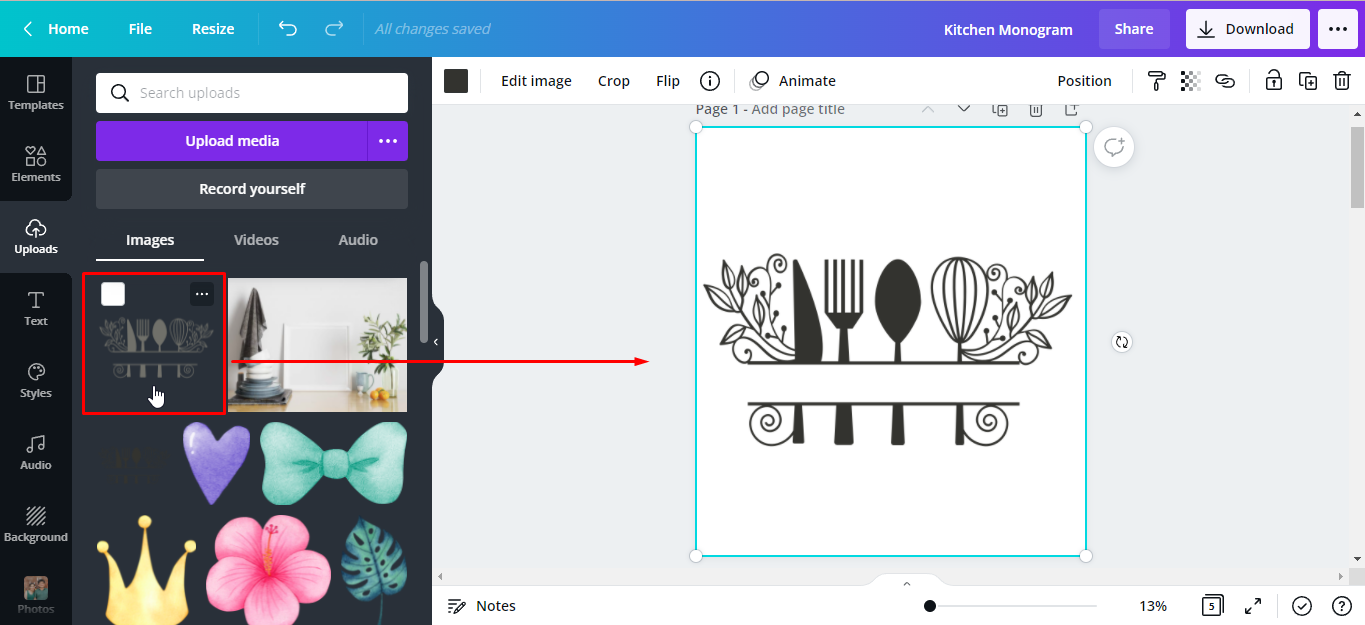
Once the monogram has been uploaded to Canva it will appear on the left side. Select the monogram you want and it will be added to your design space.
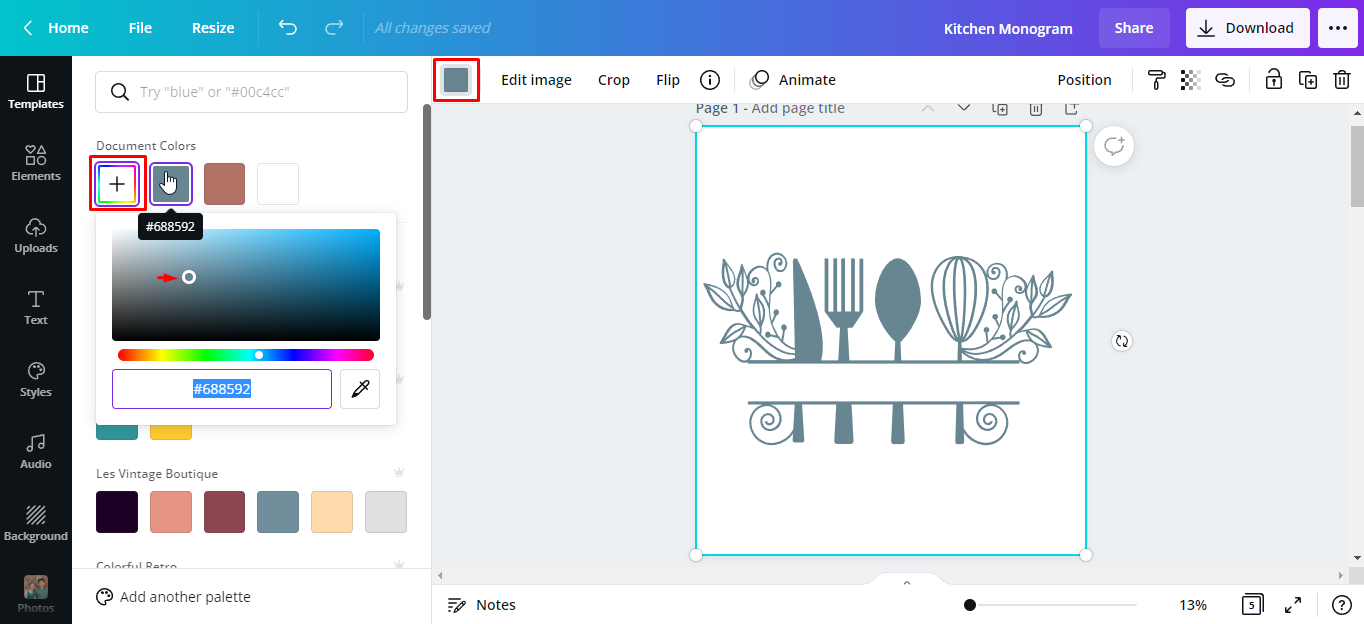
With the monogram selected, click the color tile on the toolbar. Then click New Color or the rainbow color tile with the plus sign on the top left corner. Here you will be able to access the color slider and choose a color from there. We chose this teal blue shade.
Step 3 - Add Text to the Monogram
You can add text by clicking the Text button. Then click Add a heading or simply type "T" to quickly add a text box. We typed "Design Bundles". We have already uploaded the font in Canva. If you need help with this check out using purchased fonts in Canva.
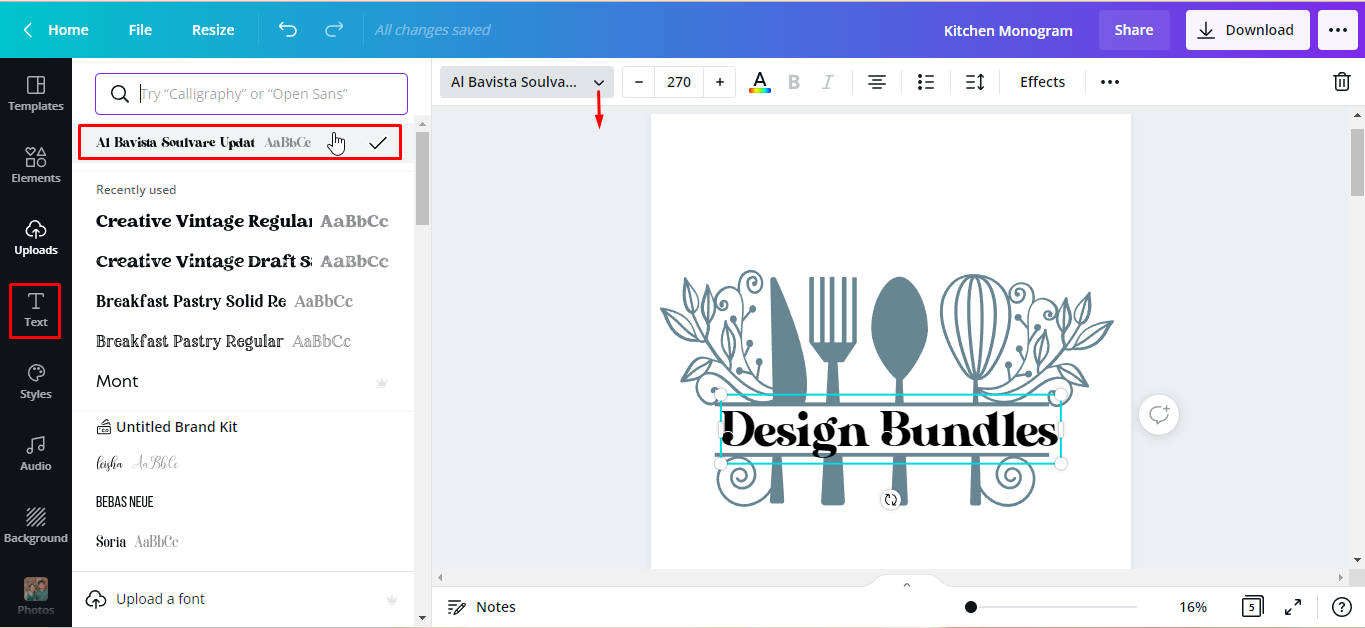
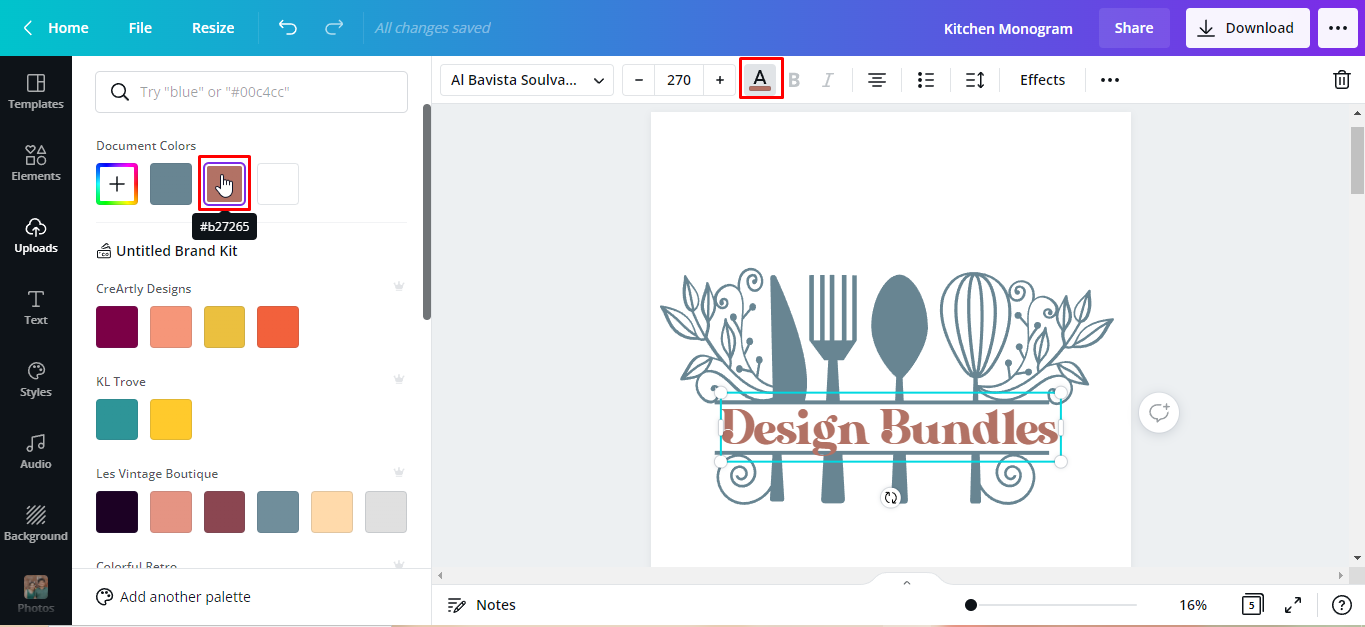
To change the text color, click the text color button on the toolbar. Then, from the left panel, click the color tile you want to use. The color we chose is rosewood pink.
Step 4 - Add a Background
Adding a background is an optional step. For this project, we want to print from Canva, frame our monogram, and display it in a kitchen. So we will be adding a hand-painted watercolor swash from Canva for our background.
Just type the keyword on the search bar > Graphics > enter. We chose this pink and blue-gray watercolor swash.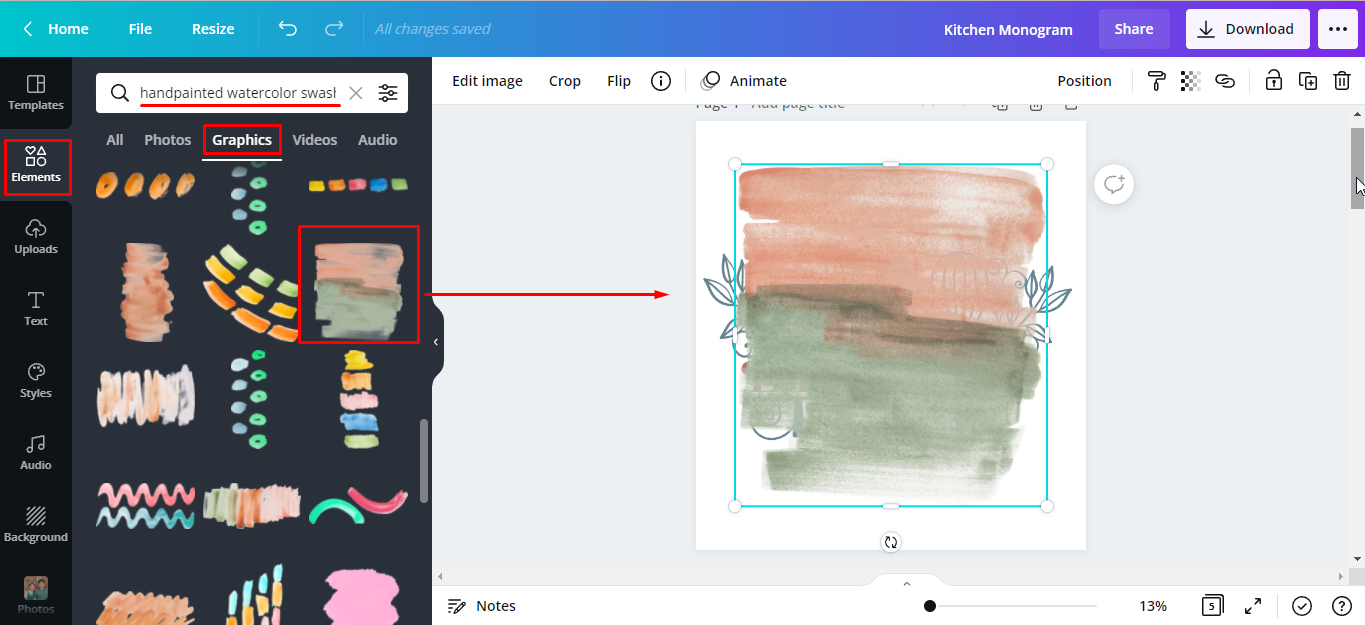
Before we use it as a background, let’s adjust the transparency first to mute it out a bit. With the image selected, click the transparency button on the toolbar. Next, move the slider to the left to lessen the opacity. We went about 45.

To set it as a background, select the image >right-click > Set as Image Background.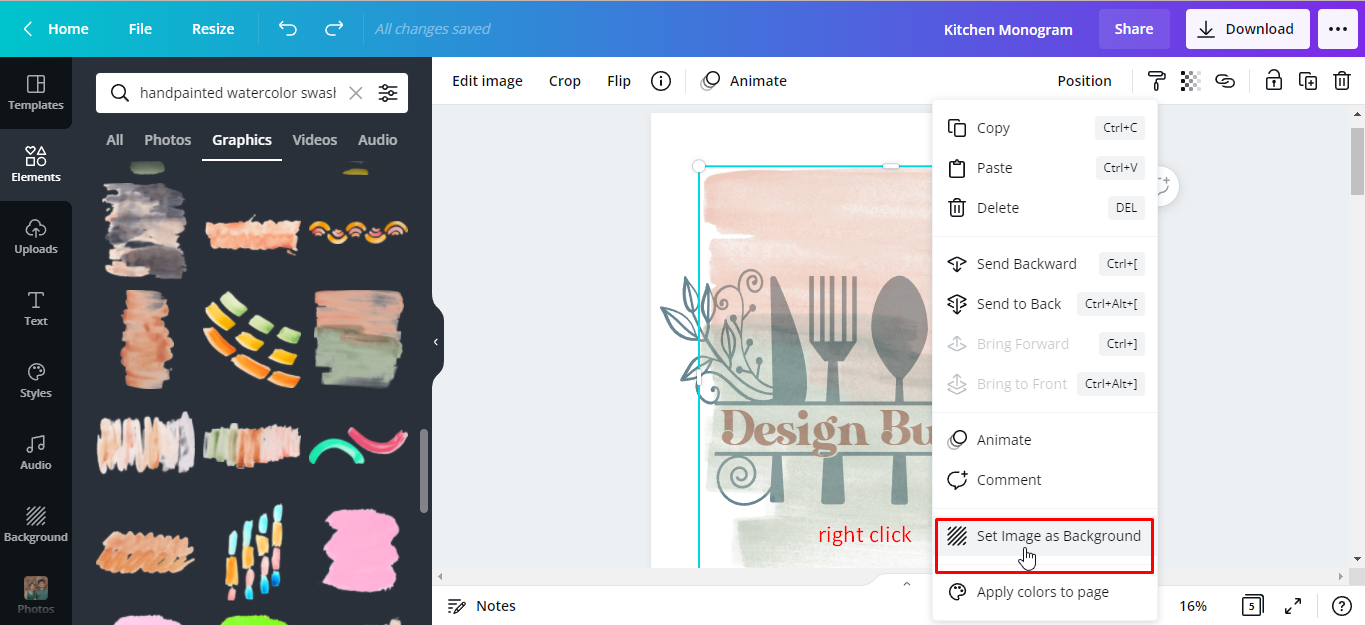
Here’s our finished kitchen split monogram.
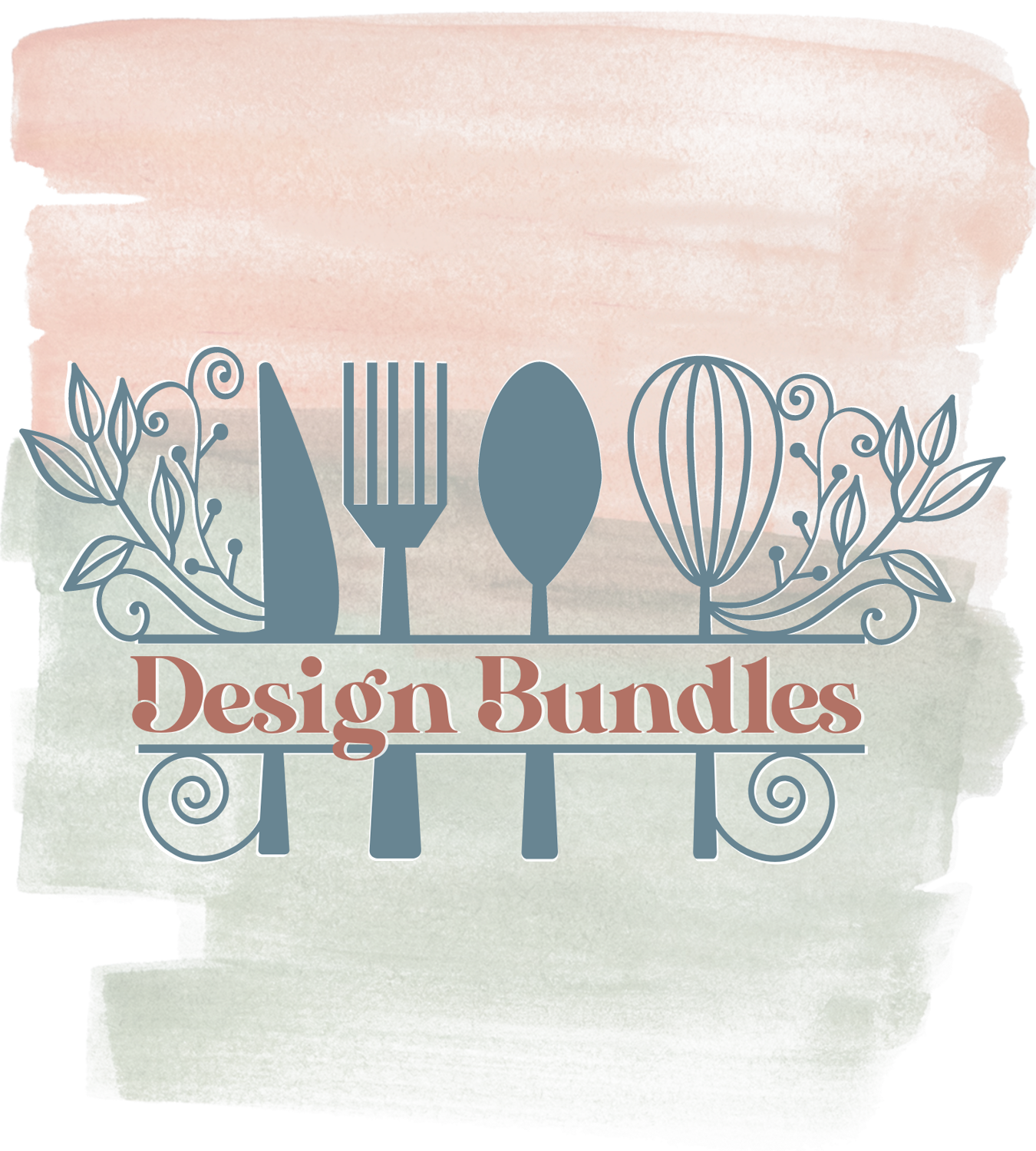
If you’re going to add this as a decal to a household item, you can download the file in your desired format such as an SVG. Then you will be able to use the file with your cutting machine.
Now that you know how to create a monogram in Canva, you can make the perfect personalized gift for friends, family, or even for yourself.