By Design Bundles
Cricut Tutorials6 min
Shape Icon in Cricut Design Space Mobile App
In this tutorial, we will learn how to access and use the Shapes tool in the Cricut Design Space mobile app. Using the Shapes tool will allow us to modify old designs or create new designs, such as an easy split monogram. This tool may be plain and simple but something that we regularly use in Design Space.
To begin, open the Cricut Design Space mobile app and create a new project.
To access Design Space shapes, you will first have to tap on the Shapes icon in the lower toolbar. A pop-up will appear with all of the available shapes.
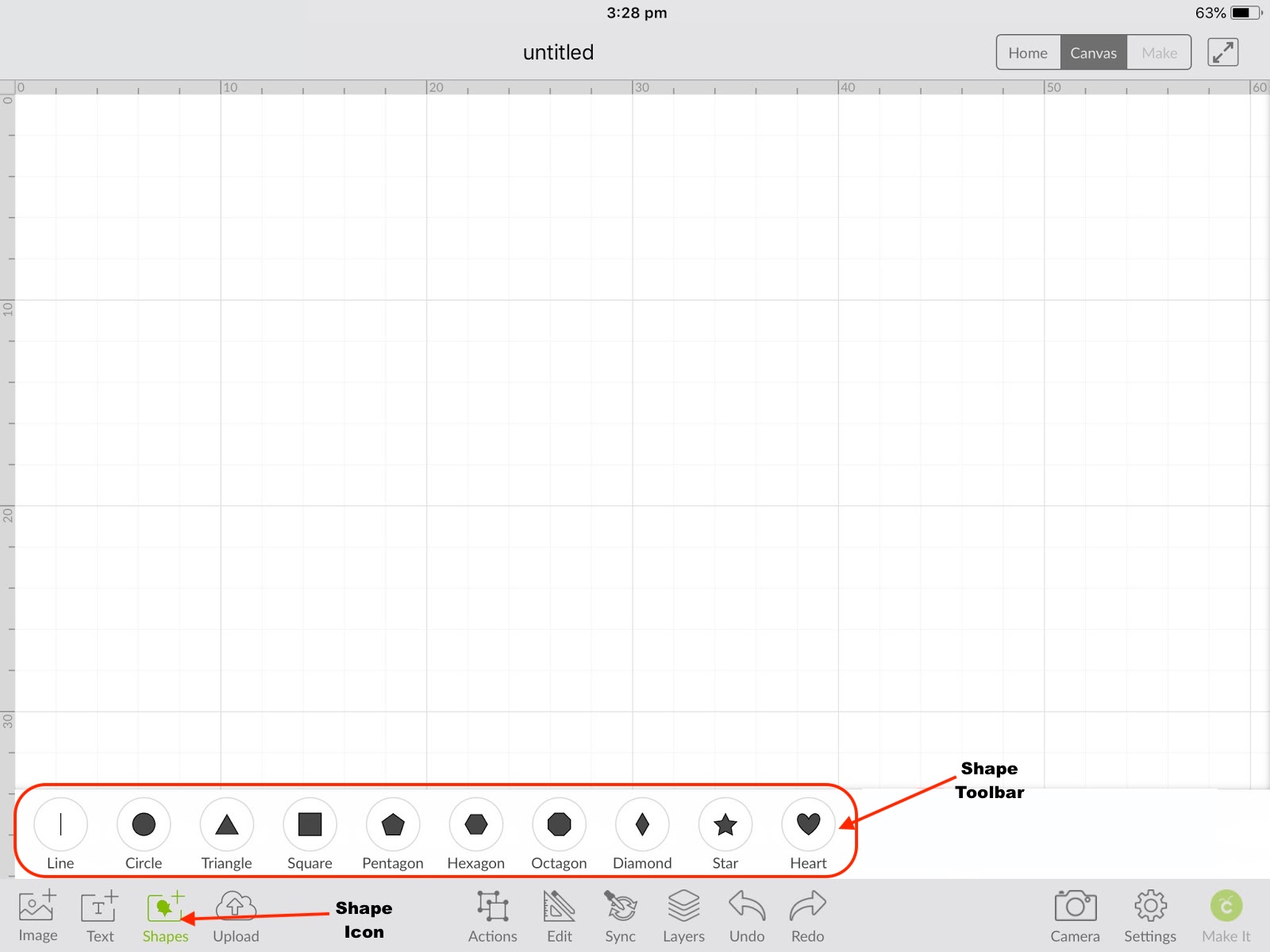
Next, tap the shape you desire to use in the project. The shape will appear on the canvas and can now be used to create a beautiful design. You can take it a step further and use the Cricut Slice tool to slice out another object from the design.
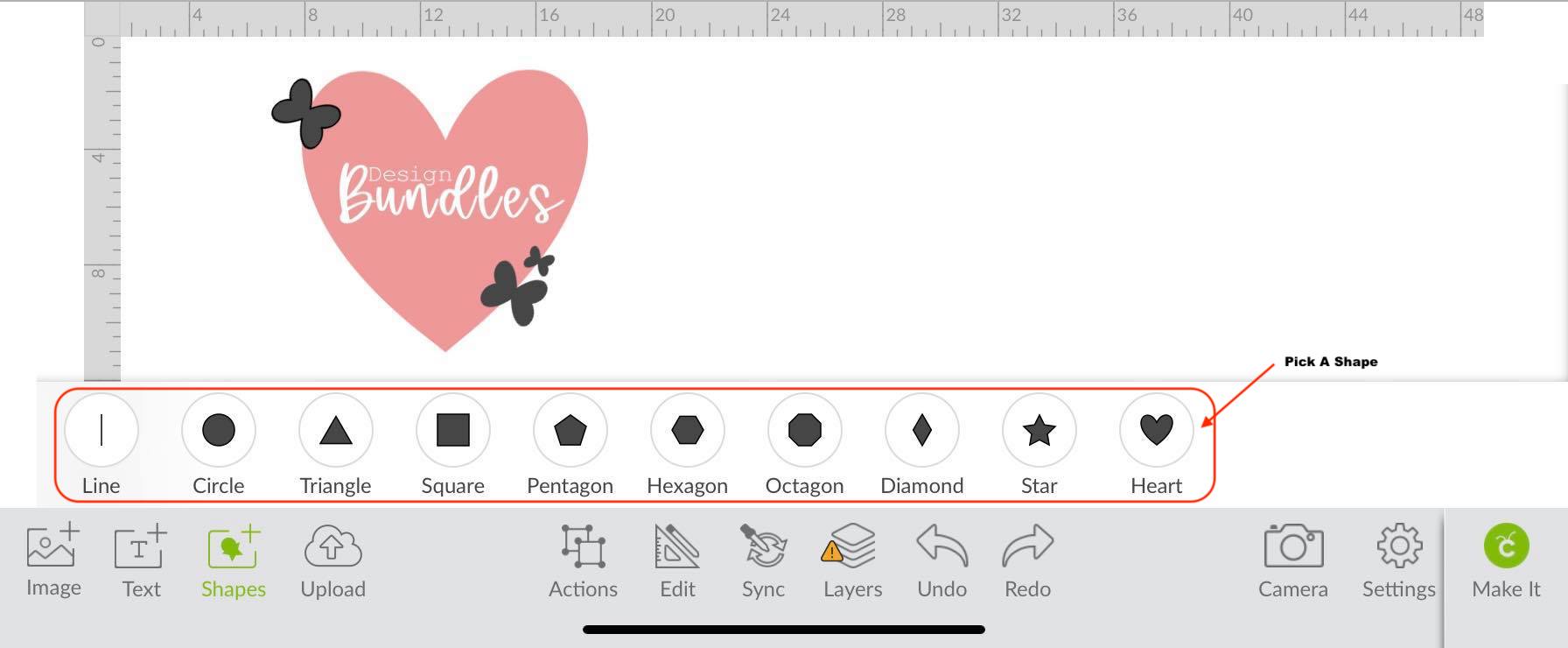
The butterflies in the previous image were easily made by welding two heart shapes together. You can create these butterflies and so much more by using the Actions tool alongside the Shapes tool in Cricut Design Space.
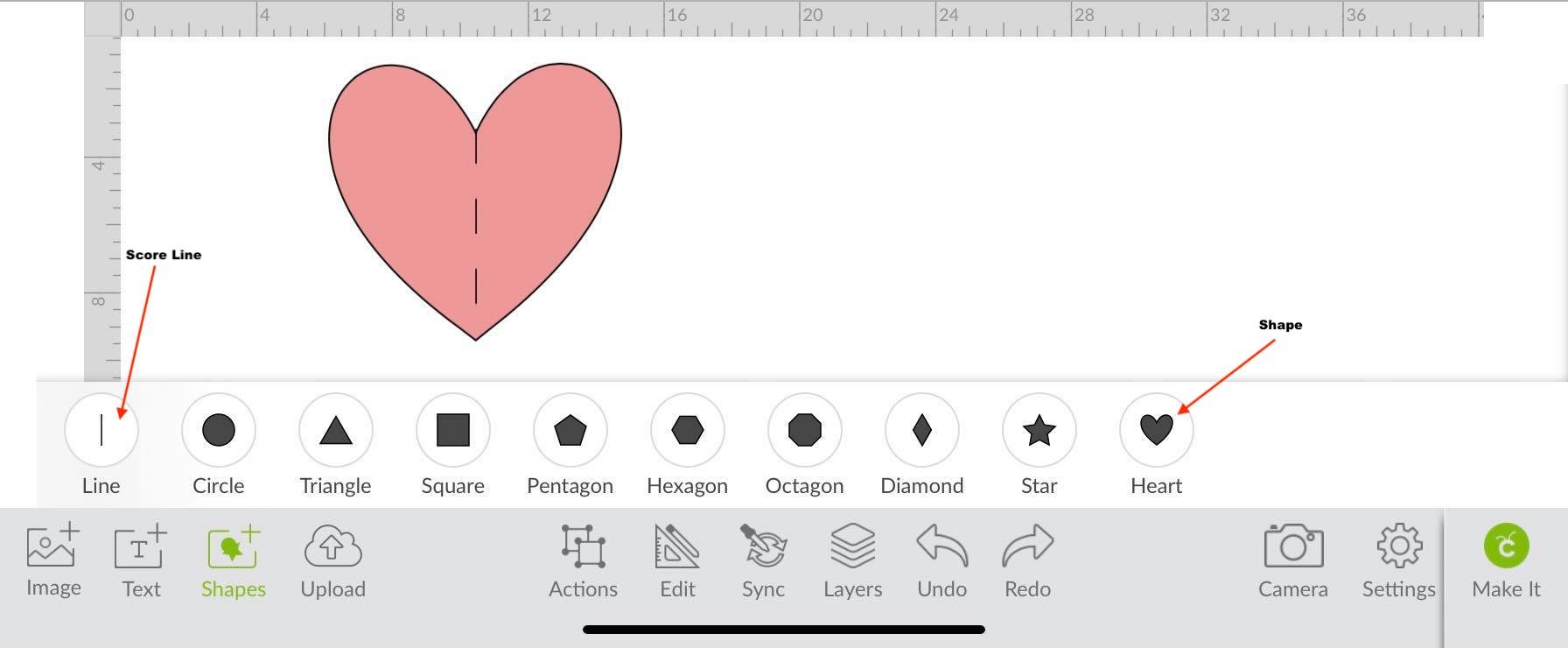
You can also use the Line tool in the Shapes toolbar to create a crisp score line for folding items like invitations or holiday cards. You can truly create anything when using the available shapes and adding a little imagination.
Using shapes in the Cricut Design Space mobile app is just that easy. There are tons of great projects that call for shapes, and now you know how to access and use them.
Next up, you can learn how to manually adjust kerning in the Cricut Design Space mobile app. If you use Cricut Design Space for Desktop instead, you can take a look at some of our fun tutorials, such as how to create a custom photo puzzle or how to use the snap rotation function to create a flower.
To begin, open the Cricut Design Space mobile app and create a new project.
Step 1 - Access Design Space Shapes
To access Design Space shapes, you will first have to tap on the Shapes icon in the lower toolbar. A pop-up will appear with all of the available shapes.
Step 2 - Select Shape in Shapes Toolbar
Next, tap the shape you desire to use in the project. The shape will appear on the canvas and can now be used to create a beautiful design. You can take it a step further and use the Cricut Slice tool to slice out another object from the design.
The butterflies in the previous image were easily made by welding two heart shapes together. You can create these butterflies and so much more by using the Actions tool alongside the Shapes tool in Cricut Design Space.
You can also use the Line tool in the Shapes toolbar to create a crisp score line for folding items like invitations or holiday cards. You can truly create anything when using the available shapes and adding a little imagination.
Using shapes in the Cricut Design Space mobile app is just that easy. There are tons of great projects that call for shapes, and now you know how to access and use them.
Next up, you can learn how to manually adjust kerning in the Cricut Design Space mobile app. If you use Cricut Design Space for Desktop instead, you can take a look at some of our fun tutorials, such as how to create a custom photo puzzle or how to use the snap rotation function to create a flower.
Related Tutorials
Cricut Tutorials
Upload Icon in Cricut Design Space Mobile App
Cricut Tutorials
How to Curve Text in Cricut Design Space Mobile App
Today we’ll focus on how to curve Text in Cricut Design Space App....
Cricut Tutorials
How to Print then Cut in Cricut Design Space Mobile App
Learn how to easily use the Print then Cut Feature in Cricut Design Space Mobile App.
Cricut Tutorials
Text Options in Cricut Design Space Mobile App
Cricut Tutorials
How to Weld Text in Cricut Design Space Mobile App
In this tutorial we will show you how to weld text in the Cricut Design Space App.
Cricut Tutorials
How to Use the Slice Tool in Cricut Design Space Mobile App
Discover how to slice in Cricut Design Space Mobile App using the Slice Tool.