By Kia Lor
How to Mirror an Image in DesignScape
This tutorial will show you how to mirror an image, text, or design element in DesignScape. You can also mirror a whole design/project at once just as easily. Included in a Gold Plus Membership, DesignScape comes at no extra cost and is entirely online. If you're looking for an alternative to Photoshop/Illustrator, go ahead and try it out free for 30 days with this Gold Plus Membership trial.
We used a cute puppy bookworm image to show the mirroring process along with the fun hand lettering script font, Houstander.
Before we hop into this tutorial, we will first prepare our image by downloading and unzipping the file.
Step 1 - Open Your Image
In DesignScape, click on File > Open (Ctrl/Cmd + O).

Select your image and click Open.

Step 2 - Mirror One Layer/Design Element or All Layers/Whole Design
In DesignScape, you have the choice of mirroring one design element or the whole design at once. We will show you both processes.
Mirror One Layer/Design Element
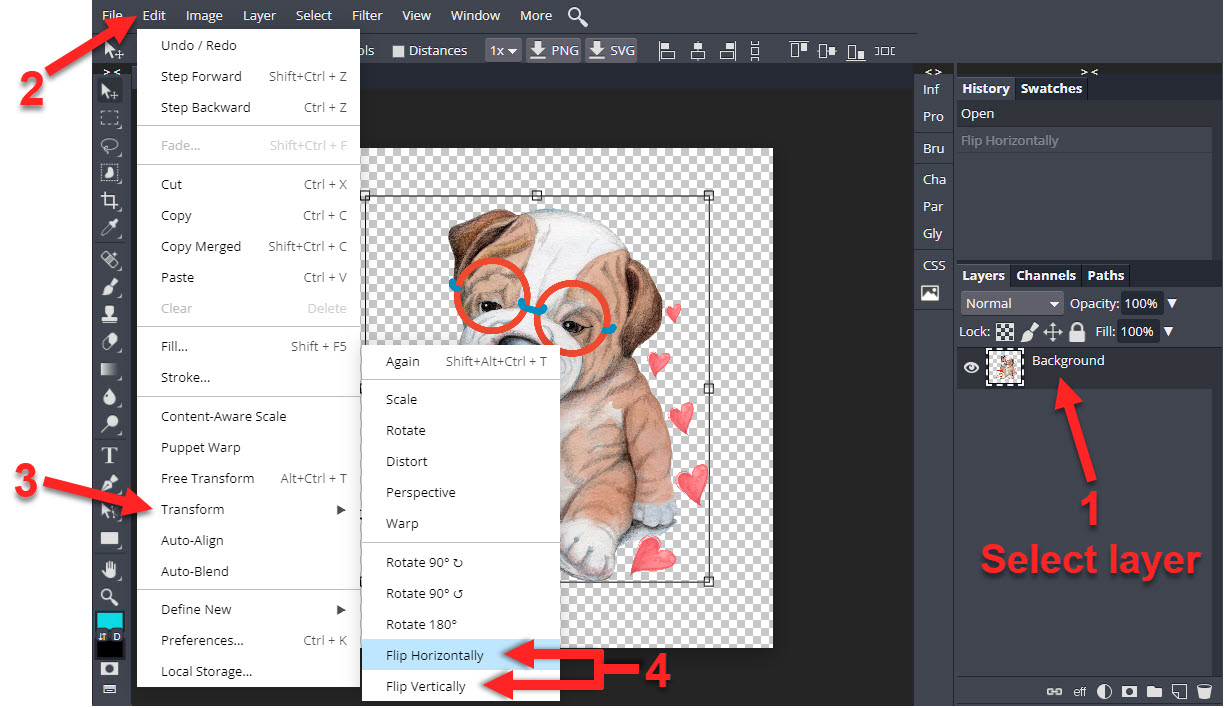
First, select the image/layer by clicking it on the project document or in the Layers panel. Then click Edit > Transform and select Flip Horizontally or Flip Vertically, depending on how you want to mirror the image.
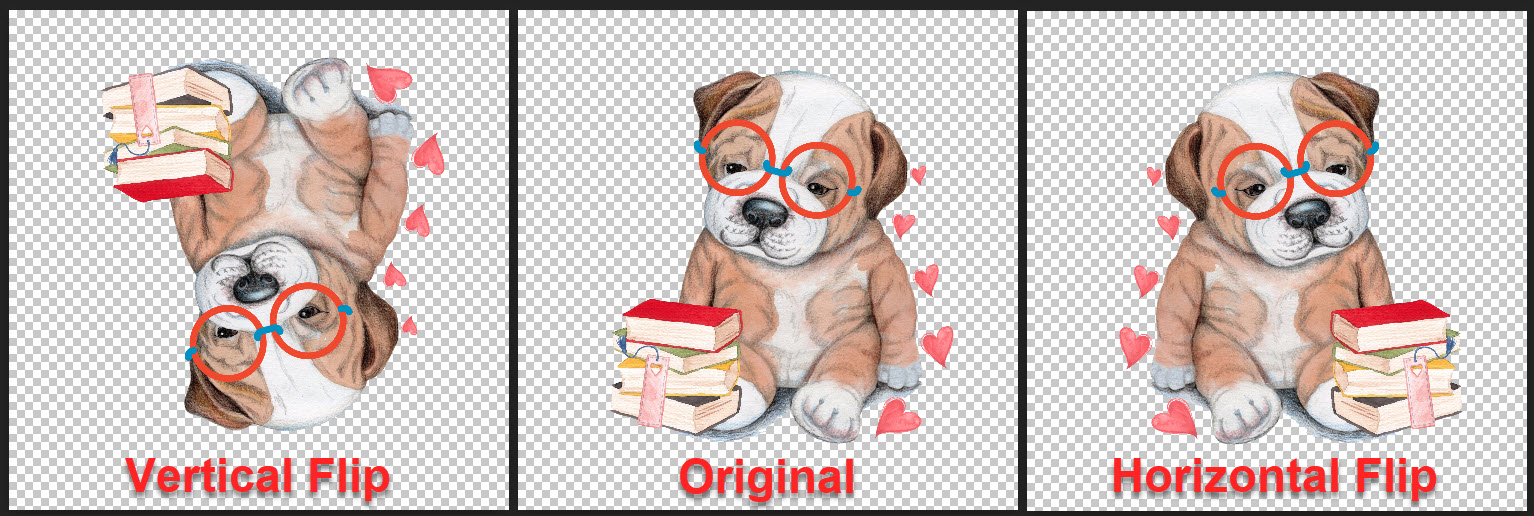
The following image shows the results of mirroring the puppy image vertically and horizontally compared to the original (in the center).
Mirror All Layers/Whole Design at Once
When mirroring a whole design, you don't need to select anything. Click Image > Transform and select Flip Horizontally or Flip Vertically.
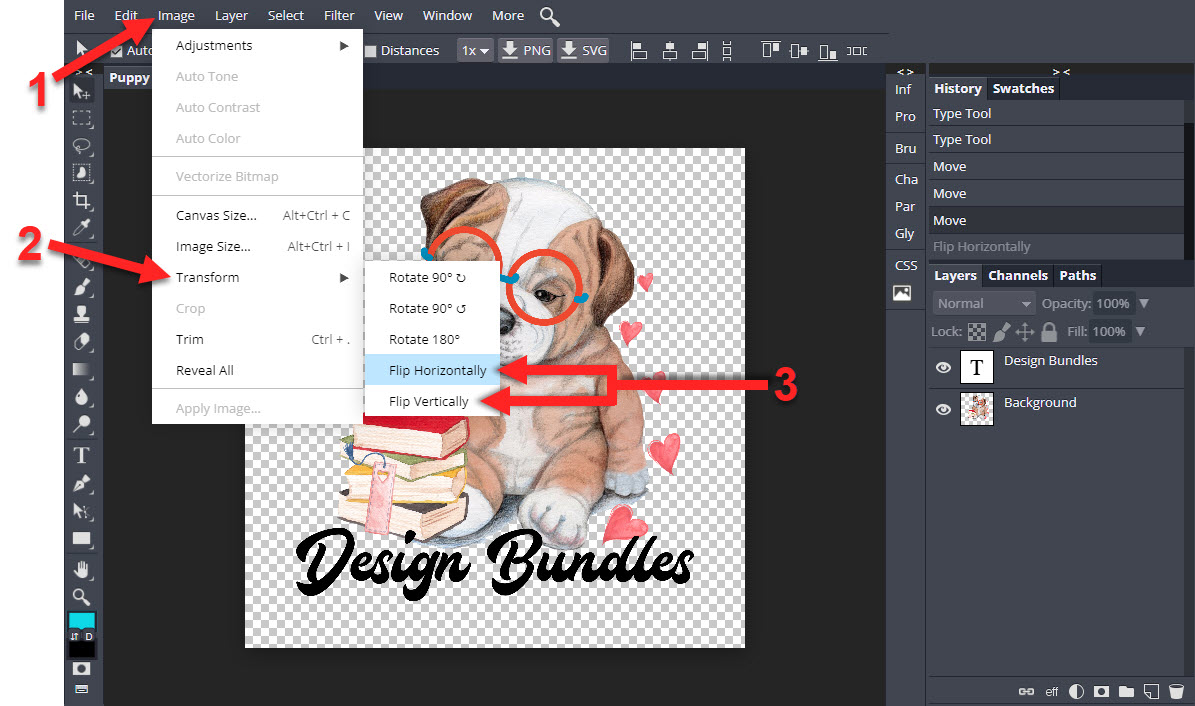
The following image shows the original design and the horizontally flipped design. See how the puppy and the text have both been flipped.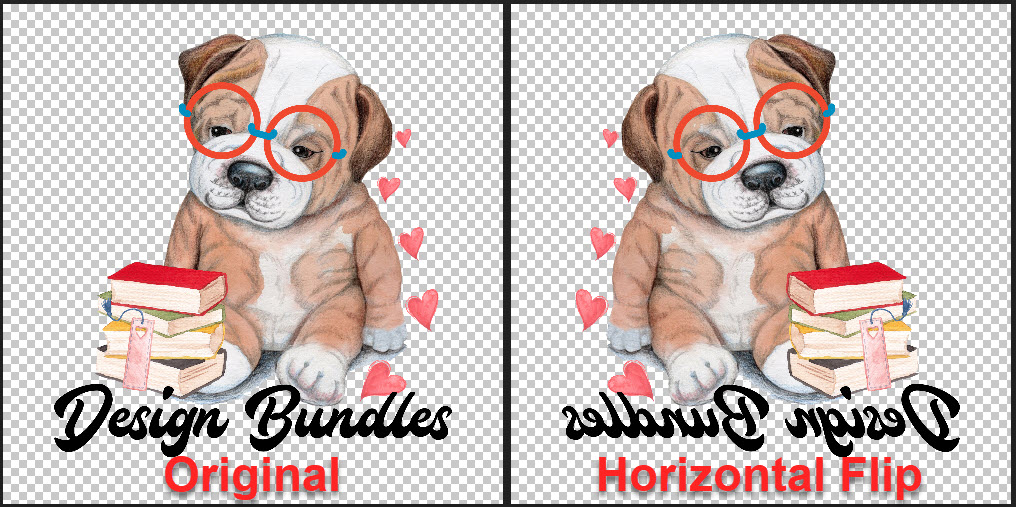
Step 3 - Export/Save Your Design
Once you have finished mirroring your image and are happy with your design, you can export/save your design.
It's as simple as that! We hope this tutorial has helped clear up any confusion with mirroring individual design elements and whole designs. If you're interested in learning more, head on over to see our list of DesignScape tutorials.