By Design Bundles
How to Download a Font Bundle on Your iPad
In this tutorial you will discover how to download a Font Bundle on your iPad. You will be able to effortlessly install your favorite fonts across all apps, all at once. This is a huge time saver and you will be using your fonts in no time. In only a few steps we will guide you on exactly how to do this.
If you prefer, we do have a visual guide below.
For this tutorial, we will be using these summer beach fonts but we have tons of Summer fonts to choose from. To install the fonts, we are using the app Fonteer, found in the App Store.
Step 1 - Install Fonteer then Create Font Collection
The free version of Fonteer allows for a limited amount of font installs.
If you prefer, we also have a very helpful tutorial on installing fonts with AnyFont on your iPad.
Once you have downloaded Fonteer, tap to open it. You will get a welcome message, so tap on Got it to continue. Next, tap on the “+” symbol top left to create a new collection. Give the collection a name and tap OK.

Step 2 - Download Purchased Fonts
Sign into Font Bundles, then click on your profile top right. Now, select Purchases in the menu. Scroll down to the selected product then tap on Download Product on the right side.

Confirm the download request that pops up. In some cases you may be given the option to download the individual fonts. When choosing an option, otf can be preferable over ttf.
Step 3 - Install your Fonts with Fonteer
Unlike other apps that may require you to unzip your purchased fonts, we need to Share the zip file with Fonteer. So, tap and hold to open the menu options. Now, select Share.

In the pop up window, tap on Fonteer.

Fonteer will open and ask you to choose the collection to install to. Select the collection we created in Step 1. Then tap on Add.

If you are installing with Fonteer for the first time, you may get the following pop up window. Tap on OK, Got It.

The fonts will be added to the collection but still need to be installed.
Tap on the fonts to select the ones you want to install. A tick will appear in the circle, which will change blue to show as selected.
If you don’t see the option to select, tap on the Edit icon top right. Then tap on Install Fonts bottom of the screen.
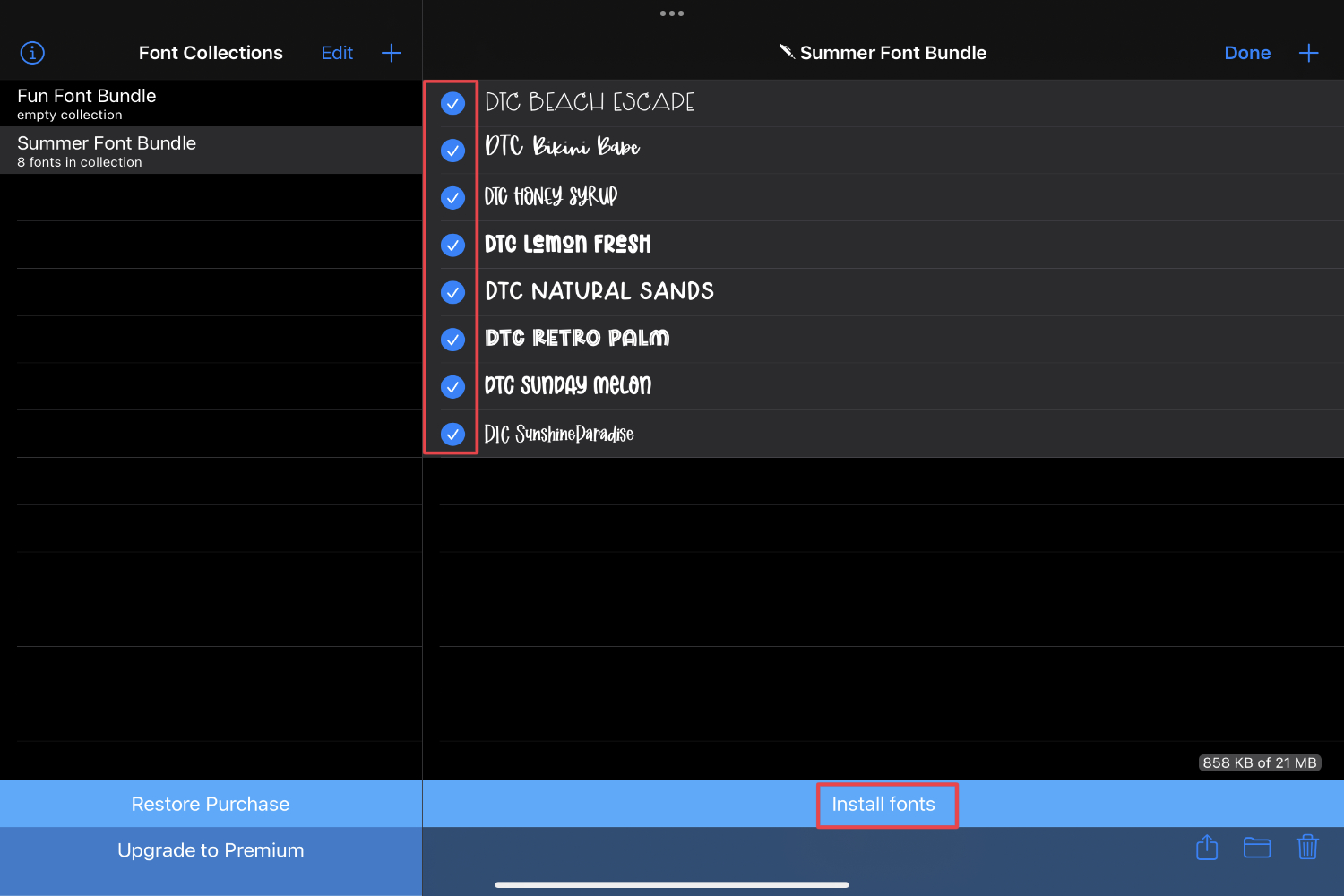
You will be warned about the installation of configuration settings. Select Allow to proceed. Another notification will tell you to use the Settings app to complete installation.
Step 4 - Complete Font Installation
To complete the font installation, you need to go to your iPad Settings. There you will see Profile Downloaded on the left side. Tap on this then tap on Install top right.
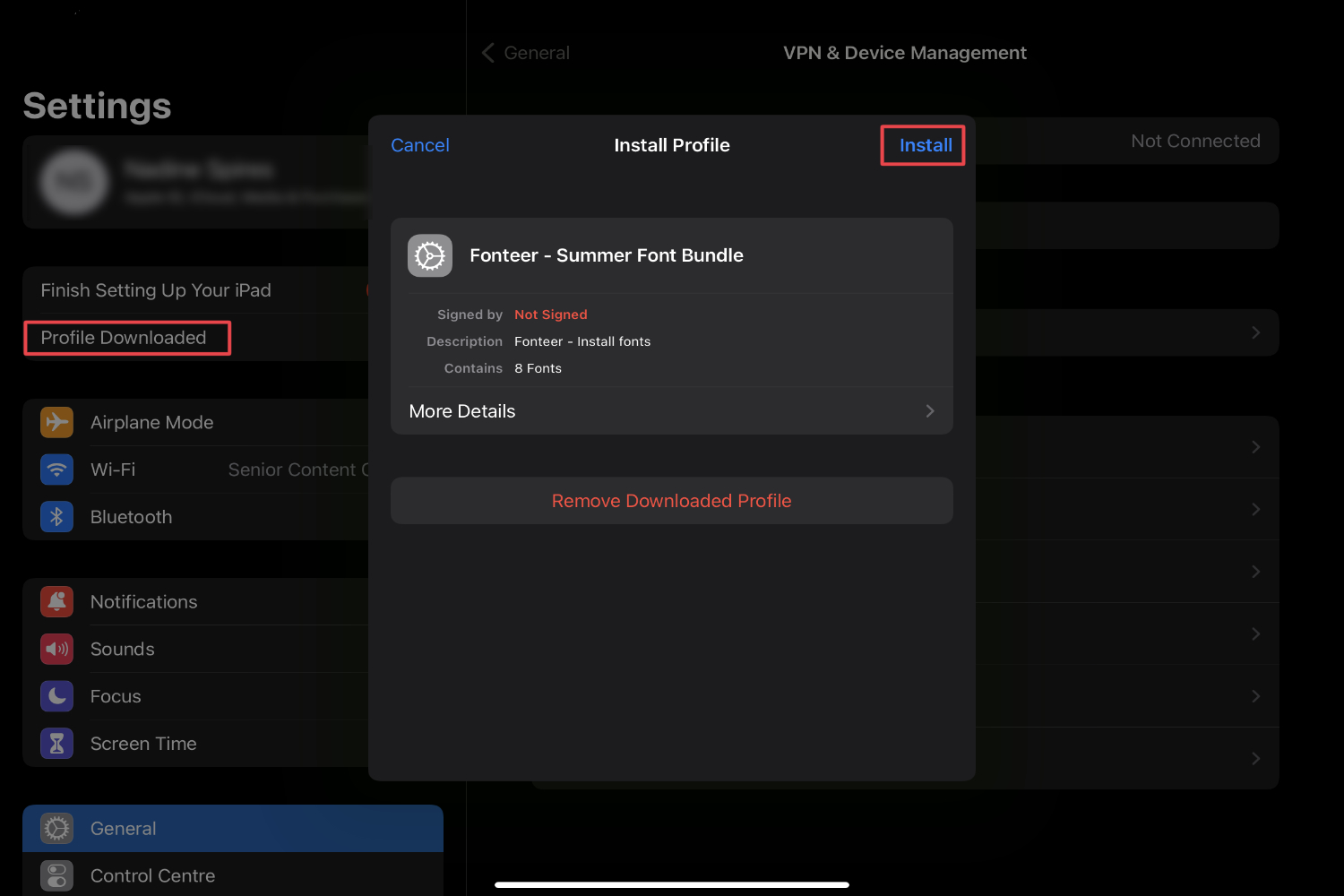
Follow the prompts to install the fonts. You will have to tap on Install a few times. Finally, click on Done top right corner. Now your fonts have been installed to your iPad and you can use them across all of your apps.

Using an app like Fonteer makes it so much easier to download a font bundle to your iPad. Instead of individually installing for each app, the fonts are installed once and available instantly.