By Design Bundles
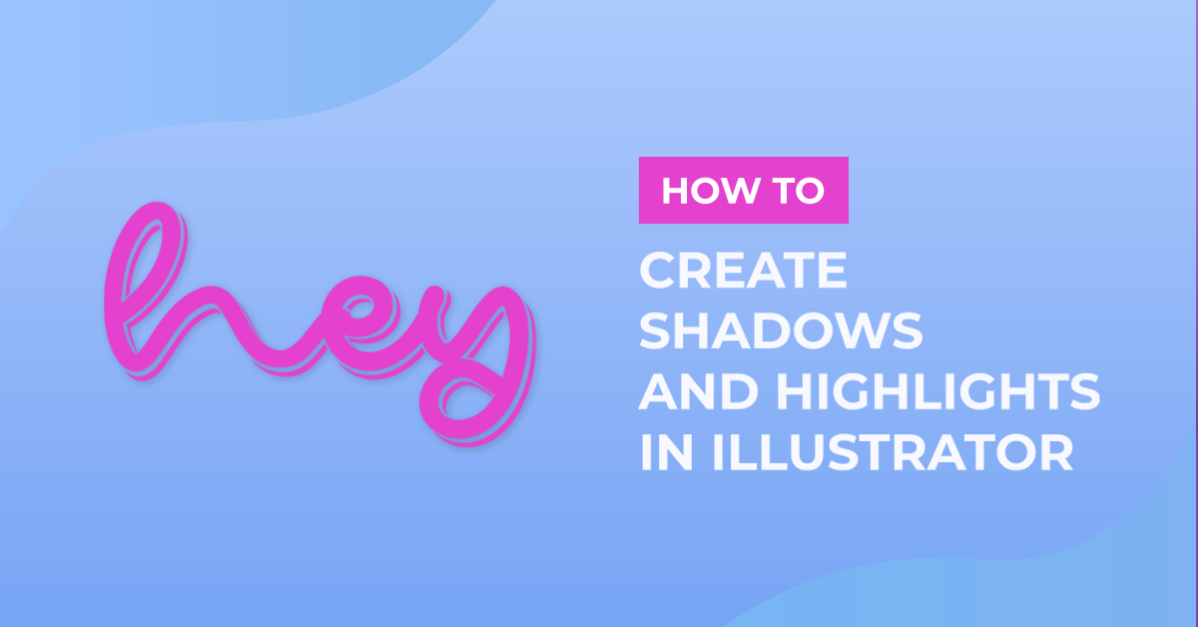
Give Text Shadows and Highlights in Adobe Illustrator
For this Tutorial, we will use Tynabella Font from Fontbundles.net.
1 - In Illustrator, create a “New Document”. Select the “Rectangle Tool” (M) and make a rectangle that covers your entire document. Fill it with black and no “Stroke”.


2 - In the “Layers” Panel, lock your rectangle by clicking right next to the little eye icon to bring out the padlock icon. Create a “New Layer” by clicking on the small button at the bottom of the Panel.


3 - Select the “Type Tool” (T), choose your font (we used Tynabella) and type your text. You can also use some digitalized lettering. Fill the text with a color of your liking.


4 - Once you are happy, select your text and convert it to “Outlines” (Shift + Command/Control + O). Then, go to the “Pathfinder” panel and choose “Unite”.

5 - Copy your text (Command/Control + C), create a “New Layer” under the one with your text and making sure you are selecting the new layer “Paste in Place” (Shift + Command/Control + V).

6 - While selecting your new copy, go to Object > Path >Offset Path. Make sure the “Preview” box is checked and give the “Offset” a value of 1.5 mm, leave the rest the same and click “OK”.


7 - In the “Layers” Panel, click on the small circle in the right side of your layer’s thumbnail to make sure you are selecting everything in the layer. Then, go to the “Pathfinder” Panel and click “Unite”. Change the color to a darker shade and with the “Move Tool”, move your text some clicks down and right.


8 - Create a “New Layer” and place it on top of your original text. Repeat the “Paste in Place” (Shift + Command/Control + V) command and apply an “Offset Path” to this text too, but this time use a 2.5 mm “Offset”. In the “Layers” Panel, click on the small circle in the right side of your layer’s thumbnail to make sure you are selecting everything in the layer. Then, go to the “Pathfinder” Panel and click “Unite”. Check your bottom layer, and if you think is needed to move it a bit.


9 - Select the bottom layer and click “Command/Control + 8” to make a “Compound Path”. Do this to your top layer too. Then, select them both (click on the thumbnails while holding the “Shift” key) and in the “Pathfinder” Panel select “Minus Front”.


10 - Lock your “Shadow” Layer. Create a “New Layer” and place it on top of everything. Repeat the “Paste in Place” (Shift + Command/Control + V) command and apply an “Offset Path” to this text too, but this time use an -1,5 mm “Offset”. Make a “Compound Path” (Command/Control + 8) of the resulting path.


11 - Click on the small arrow to the left of the thumbnail to show its contents. You should see some “Paths”. Keep the “Compound Path” that has the “Smaller” text and delete the ones that are full sized. Change the “Fill” color to a lighter shade.


12 - Create a “New Layer” and place it on top. Repeat the “Paste in Place” (Shift + Command/Control + V) command. Move the text right and down a few clicks until you are happy with the look of the “Highlights”. Create a “Compound Path” in both the layers and then select them, go to the “Pathfinder” Panel and choose “Minus Front”.


13 - You can change the colors of your “Shadows” and “Highlights” to get a more dramatic result.

There you go, all done!