By Design Bundles
How to Make a Seamless Instagram Carousel in Illustrator
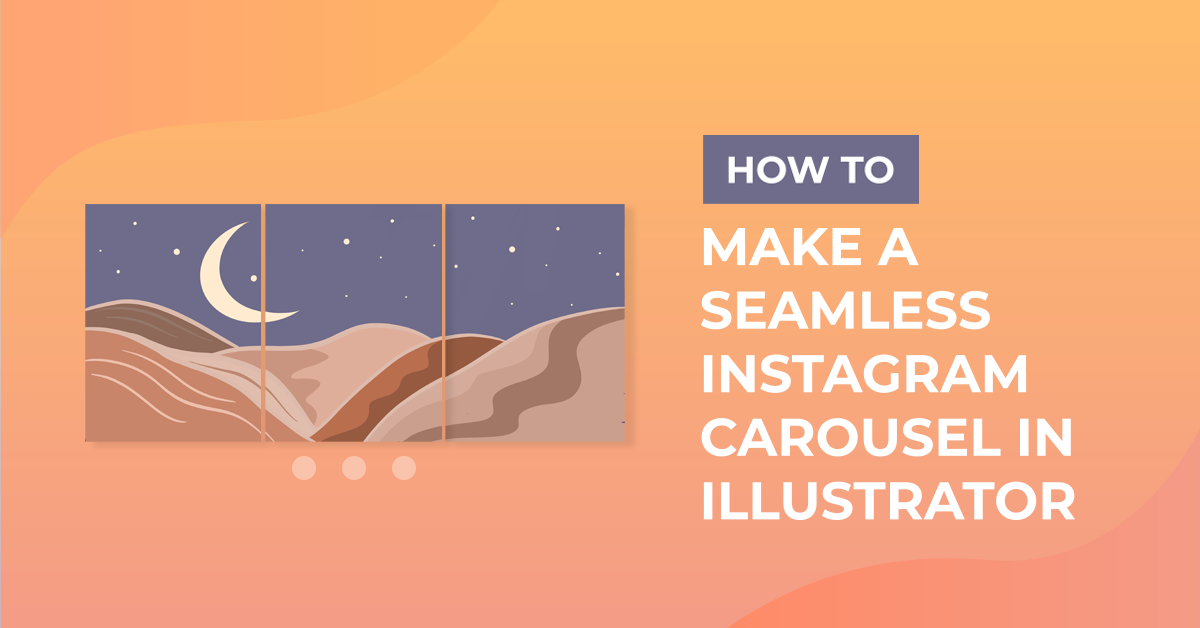
Instagram Carousel posts are a type of social media post that can gain you lots of engagement. Whether it's swipe-worthy information posts, seamless posts that all fit together, or one design shown in different colors – Instagram Carousel posts are gaining in popularity!
You can use Carousels to promote a new product, share a before and after, provide recommendations, share brand stories or customer reviews, encourage engagements, share recaps, bring creativity to your feed.
There are a couple of ways to make Carousels for Instagram. You can create a unique design yourself, or you can use an already made Template. For this tutorial, we will be using Adobe Illustrator.
Make a Seamless Instagram Carousel From Scratch
Step 1 - Create a New Document
In Illustrator, create a New Document with the following settings: Width and Height of 1080 px, add the number of Artboards you want to use (is up to 10, but we will be using 3 for this example), and set the Top/Bottom/Left/Right Bleed to 0px. Color Mode: RGB, Raster Effects: Screen (72 PPI).

Step 2 - Rearrange the Artboards
If you are using more than three artboards, you will need to rearrange them in a straight line. To do so, go to the Artboards panel, click on the small menu icon on the top-right and choose Rearrange All Artboards.

Input the number of Columns (same as your artboards) and 0 for Spacing.


Step 3 - Create More Layers
Create two layers, name the bottom one Background and the one on the top Design. If you want, you can also create a third layer on top to add your guides. You can use the guides to keep the elements in the different artboards aligned.

Now that you have your workspace set up, you can start creating your design!
Step 4 - Add the Background
First, add the background in the proper layer. You can use flat colors, gradients, seamless patterns, images, etc., whatever suits your design. For our background, we decided to use a floral seamless pattern from Design Bundles.

You may want to lock the bottom layer after adding your background.

It is a good practice to have your color palettes available somewhere outside the canvas so you can find them easily.

Step 5 - Add Text and Visual Elements
Now, add your text, images, and other visual elements to complement your design. Make sure that you are placing them in the proper layer. The fonts we are using came from this font duo from Font Bundles.

You can use the Eyedropper Tool (I) to add the desired colors to your design from the color palette.


Step 6 - Let Elements Overlap Between Artboards
Let some of the visual elements or even the background overlap between artboards to connect them and

Step 7 - Save and Export
Once you are done, don’t forget to save your document in case you want to edit it later. Go to File > Export > Export As and choose PNG (.png).

Mark the Use Artboards box and the All button.

Then, use Medium (150 PPI) for the Resolution with White as the Background Color in the PNG Options pop-up and click OK.

The resulting files should look similar to these.


Make a Seamless Instagram Carousel from a Template
If you don’t want to create the design from scratch, there are many template options for you to choose from. You can browse our large variety of Instagram social media templates created for different programs. For this example, we will use a stylish Instagram promotion template from Design Bundles.
The process is fairly similar to the prior one.

You can just do the same in Steps 1 and 2. But, instead of creating your artwork, open the template and Copy (Cmd/Ctrl + C).

Then Paste (Cmd/Ctrl + V) the desired elements in the artboards and resize and/or edit them if needed.

Elements have now been copied over.

Or, open the template and rearrange the artboards or edit whatever needs to be changed. Finally, do the same as Step 7 to save and export.


Once you have exported the PNG files, you can use them to create the Carousel post on Instagram!
Even if in these examples we used Adobe Illustrator, you can create or find templates for many different programs. You can check out our Illustrator tutorials and Photoshop tutorials that may help you with creating your own templates.