By Design Bundles
How to remove the background from an image in Illustrator
Learn how to remove a background in Illustrator.
1- Open Ai and create a new art board.
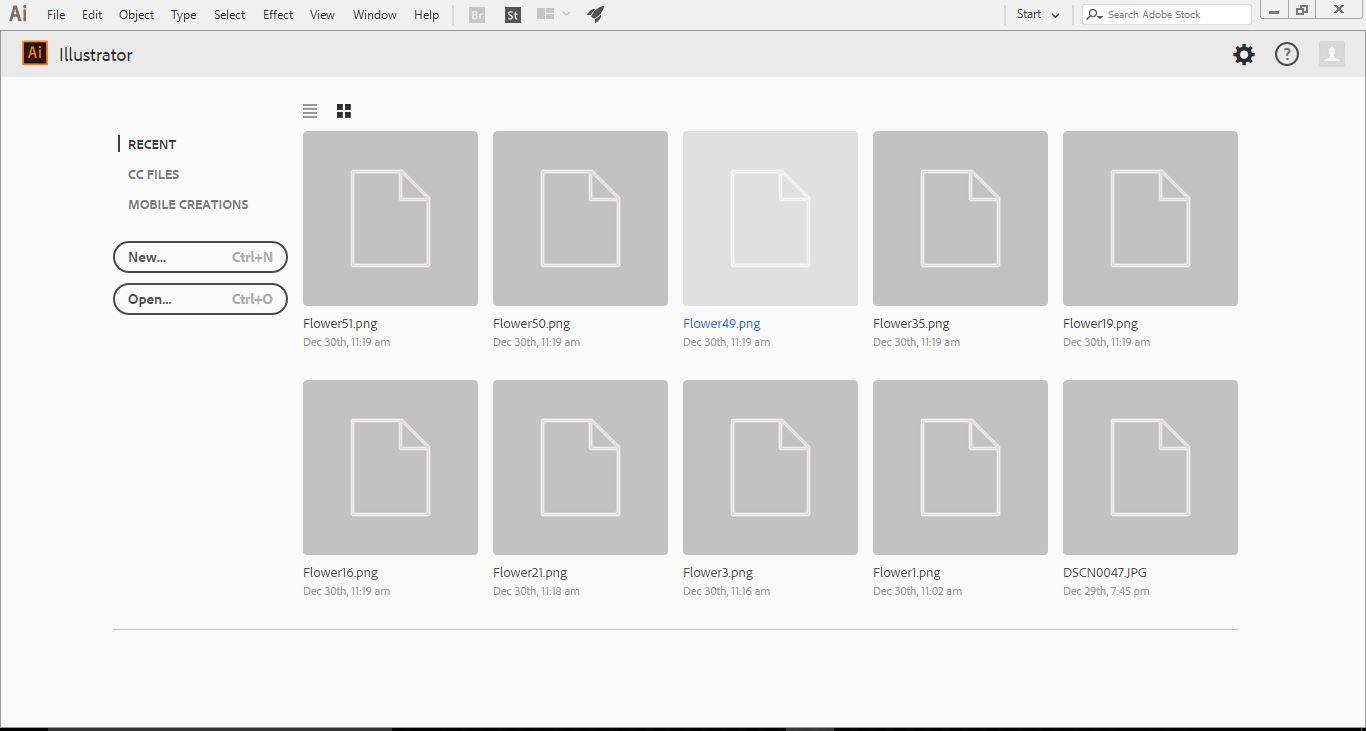
2-Click and drag your image into your art board.
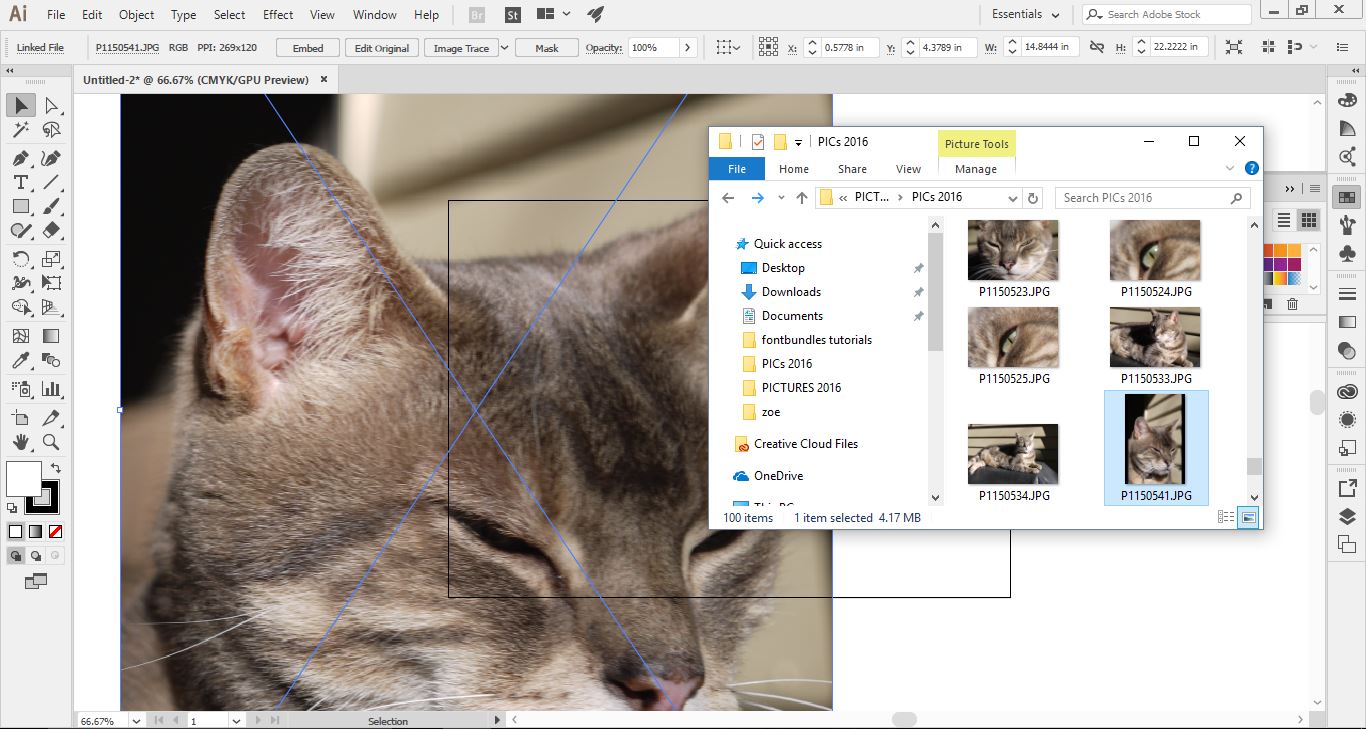
3- Adjust your image to fit your art board.
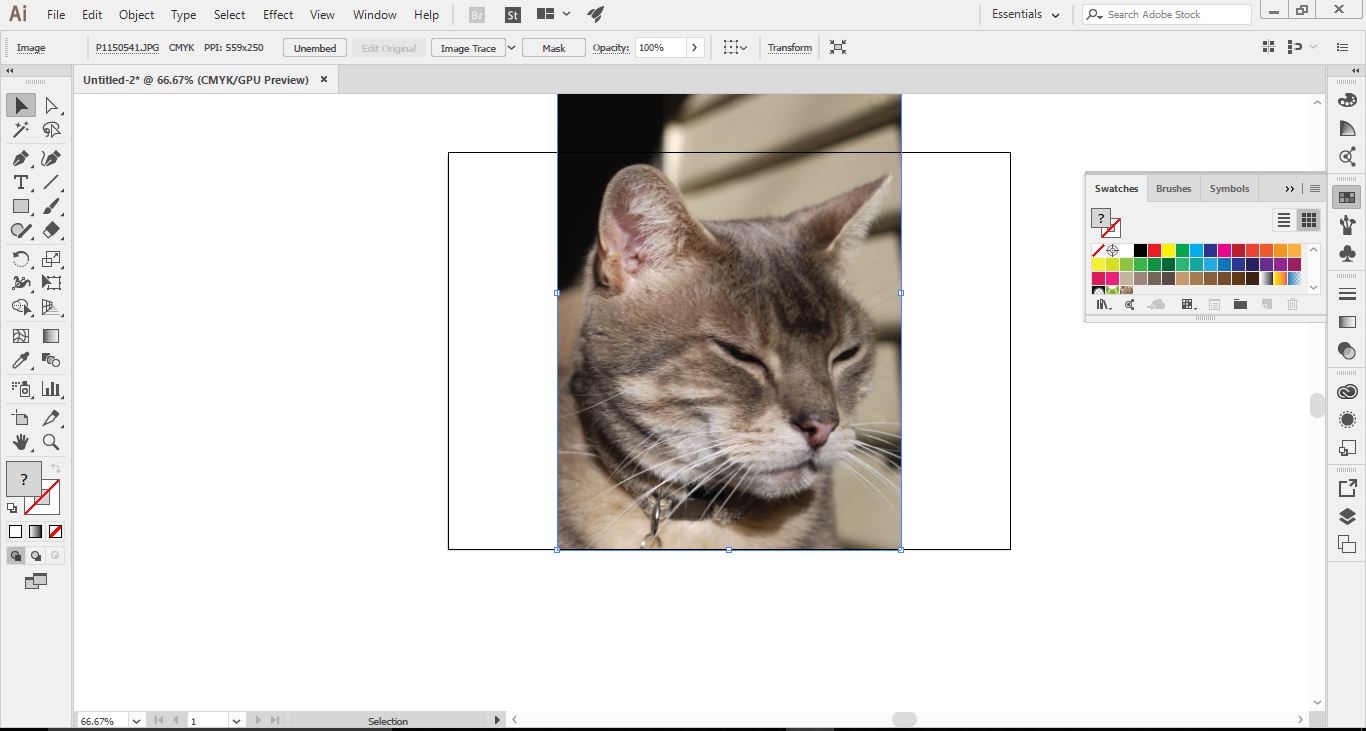
4- On the left toolbar select the stroke colour to black and turn off the fill colour.
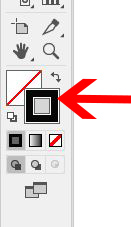
5-Select the pen tool (1) and then with the pen tool draw around the image you want(2).
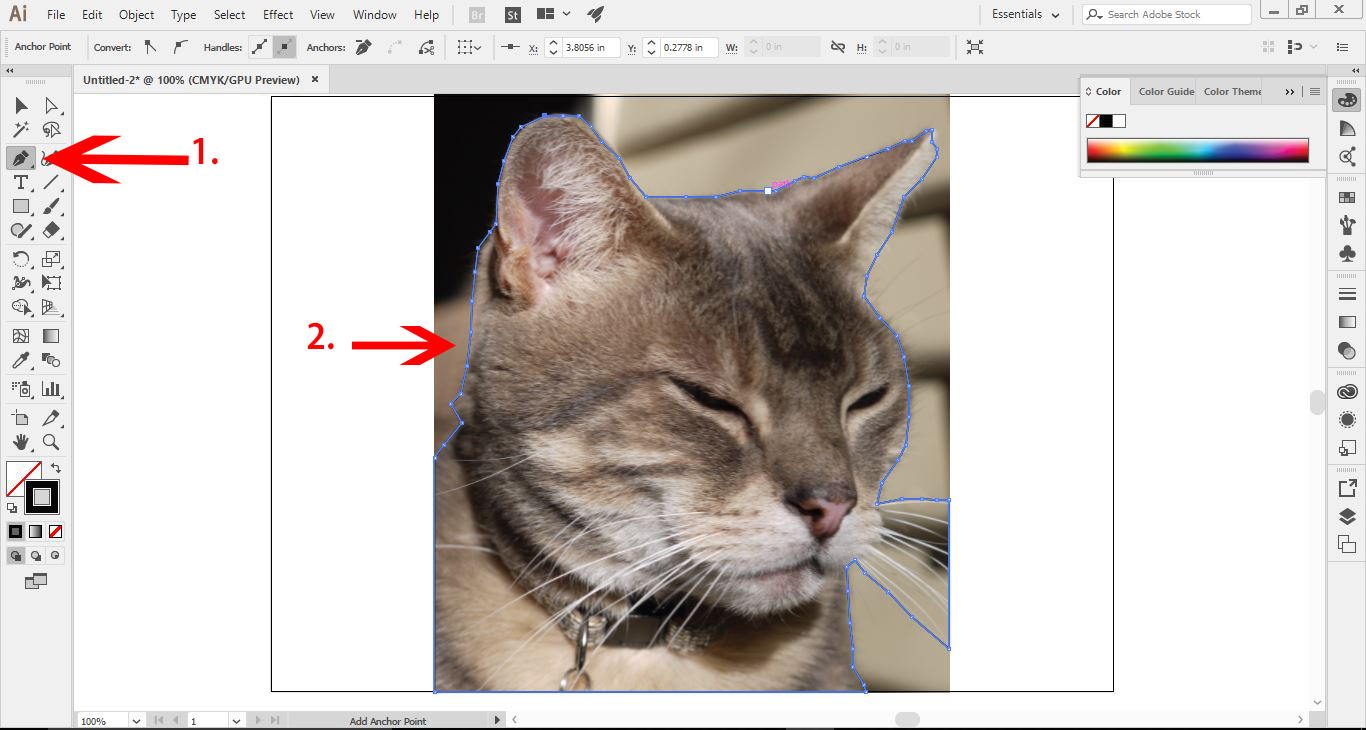
6- Once you have finished tracing the image from the background, select both the image as well as the trace. Right click and select Make clipping mask.
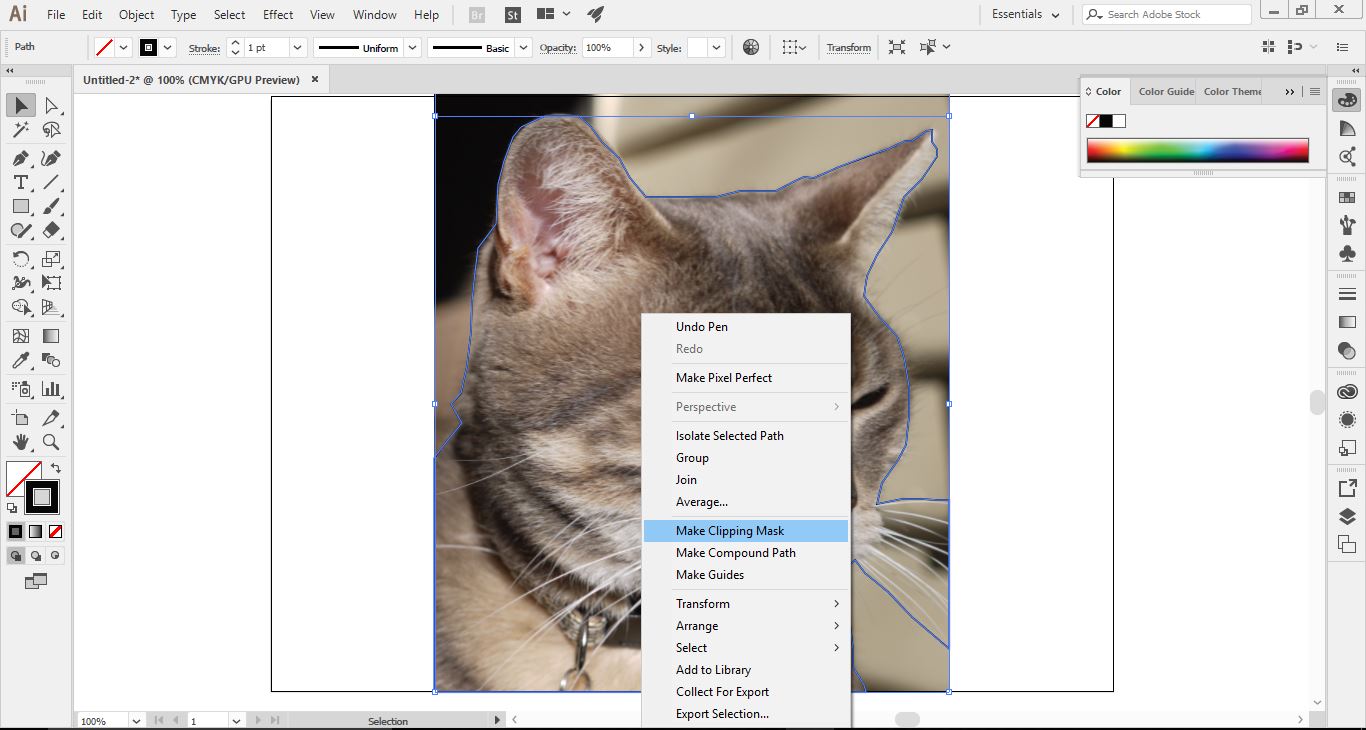
7- your background is now removed and the image you wanted is still on the art board.

There you go, you have successfully removed the background from an image.
Related Tutorials
Inkscape Tutorials
How to remove an image from a background with inkscape
Learn how to separate elements from an image in this easy to follow Inkscape tutorial.
Photoshop Tutorials
How to remove the white background from images in Photoshop
Illustrator Tutorials
How to resize an image without losing quality in Adobe Illustrator
Learn how to resize an image without losing quality in Ai.
Illustrator Tutorials
How to Crop an Image to a Shape in Illustrator
Learn how to crop an image to a shape in this step by step Illustrator tutorial.
Affinity Tutorials
How to Remove Object from Image in Affinity Photo
Learn how to remove unwanted objects in images with Affinity Photo with the Inpainting Tool.
Silhouette Tutorials
How to Remove Background in Silhouette Studio
In this tutorial, learn how to remove a background in all versions of Silhouette Studio!