By Daisy Boothman
How to Repeat Objects for a Quick Pattern in Illustrator
In this tutorial you will learn how to repeat objects for a quick pattern in Illustrator. This is a great feature to easily create various pattern options from any object you have designed. It is also super versatile, you can modify one shape and the others will update to match. We will be discussing 3 ways in which you can repeat your object; radial, grid and mirror.

During this tutorial we are going to be using this moon phases SVG to demonstrate how this works.
Create a Radial Repeat
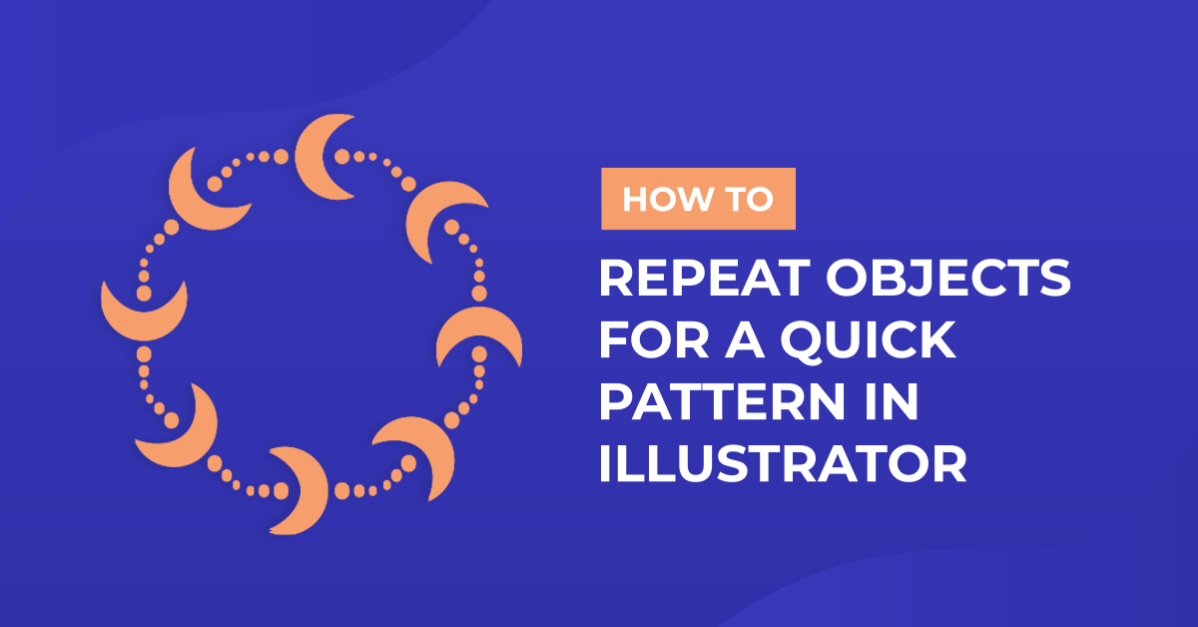
A Radial repeat will duplicate your object around a central point to create a circle.
Step 1 - Create your Radial Pattern
Start by creating a new Illustrator document, then import the design you want to repeat. Here we imported a cute moon design.

Now, select your object then Object > Repeat > Radial. This setting will automatically add eight repetitions of your original object.

Step 2 - Modify your Radial Pattern
Once the repeat objects have been added we can now adjust the radial pattern. Select your new radial pattern. Next, drag the outer arrow icon up or down to change the number of instances.

Click on the inner arrows icon to remove sections of the circle.

When clicking + dragging out the circle icon, your radial size will increase. This will add space in between each object.

If you want to rescale the whole pattern, select and drag the corners of your design in or out.

Step 3 - Adjust the Radial Repeat Settings
You can also modify your pattern using the Repeat Options. Select your repeat pattern and then Object > Repeat > Options. Be sure to check that your Radial tab is selected.

Within this panel, tick the Preview box to see real time changes to your design. You can change the number of instances and the specific measurement of the circle radius.
By selecting ‘on’ Reverse Overlap, you can change the stacking order of your objects in the radial pattern. Next, select OK to confirm the new settings.

Create a Grid Repeat
A Grid repeat will duplicate the objects horizontally and vertically to form a grid.
Step 1 - Create the Grid Pattern
As with before, import the design that you want to create a repeat pattern with. You can choose to create a new document or carry on in the current one. With your object selected go to Object > Repeat > Grid.

As with the Radial repeat, the Grid option will automatically add eight repetitions of your original object. The repetitions will be in the form of rows and columns.

You can add more rows and columns to your grid. Do this by selecting your new grid pattern then dragging the right and bottom handles out.

To add and remove space between each object, click + drag the top and left arrow icons. You can also do this to remove objects from the pattern. Rescale your pattern if needed.

Step 2 - Adjust the Grid Settings
You can also modify your pattern using the Repeat Options. Select your repeat pattern and go to Object > Repeat > Options. Be sure that the Grid tab is selected.
Make sure the Preview is ticked to see the changes in real time. In this panel you can change the measurements of the vertical and horizontal spacing within your grid.
Change your grid type from grid, brick by row and brick by column to modify the alignment of your objects. You can also flip the objects within your design by rows and columns.
Once you have made your selections, click on OK to confirm the new settings.

Create a Mirror Repeat
The Mirror option will duplicate your object symmetrically. In other words, it will create a mirror image of your object.
Step 1 - Apply the Mirror Pattern
Once you have chosen the image you want to use, select your object then Object > Repeat > Mirror.

With your object selected, use the corner nodes to rotate or resize your design. As you adjust, the mirrored design will also change. Note: hold shift when resizing to keep the proportions of your object.

Next, we want to change the angle and spacing between the mirrored designs. To do this we need to click + drag the top and bottom handles of the mirror line.
Note: double click away from your design to commit your new settings. Then, to re-edit, double click your objects again.

Step 2 - Edit the Mirror Repeat Settings
As with the Radial and Grid options, the settings can be found under the Repeat Options panel. With the design selected, go again to Object > Repeat > Options. This time ensure your Mirror tab is selected.
Tick the Preview box if not done already. You can now set the angle of the mirrored axis. Then select OK to confirm the new settings.

Edit your Object Within Repeat Pattern
If you need to adjust your design, you only have to change the original design. As you make adjustments, these will be added to the duplicates.
Double click the object that you want to edit.

With your object selected, make your changes as needed. When happy with your design changes, double click off your design. The new modifications will then be applied to all other duplicated objects.

You can also experiment with colors by using color swatches in Illustrator.
We hope you enjoyed learning how to repeat objects for a quick pattern in Illustrator. Many different results can be achieved by changing just a few settings. Once you start exploring the possibilities with Illustrator, the creative capabilities are endless.