By Daisy Boothman
How to Quickly Duplicate Objects in Illustrator
In this Illustrator tutorial, you are going to learn a super quick and easy way to duplicate any object. This shortcut will speed up your workflow as well as keep consistent spacing between objects. It is perfect for designing absolutely anything! We will use this technique by designing a ‘to do’ list in Illustrator.
Step 1 - Create the Objects you want Duplicated
Start by drawing up your design, We created a title at the top of our list using the Black Pearl font duo. If you need further information we have a very helpful tutorial onusing fonts in Illustrator.

Then add the elements that you will want to duplicate. We used the Rectangle Tool to draw a tick box and the pen tool in Illustrator to draw a straight line.

Step 2 - Quickly Duplicate your Objects
Select all the objects you want to duplicate. In this case we wanted to duplicate the check box and line.

Then click and drag your objects to where you can want while holding down Shift + Alt.
Alt will create the duplication while Shift will keep the alignment of your shapes.

You can quickly create multiple duplications of your object by pressing Cmd + D. Illustrator will space out your duplicated objects according to your previous duplication. This means no more worrying about correctly spacing your objects.
Carry on to create as many duplicates as needed. We created duplicates to fill our To do list.
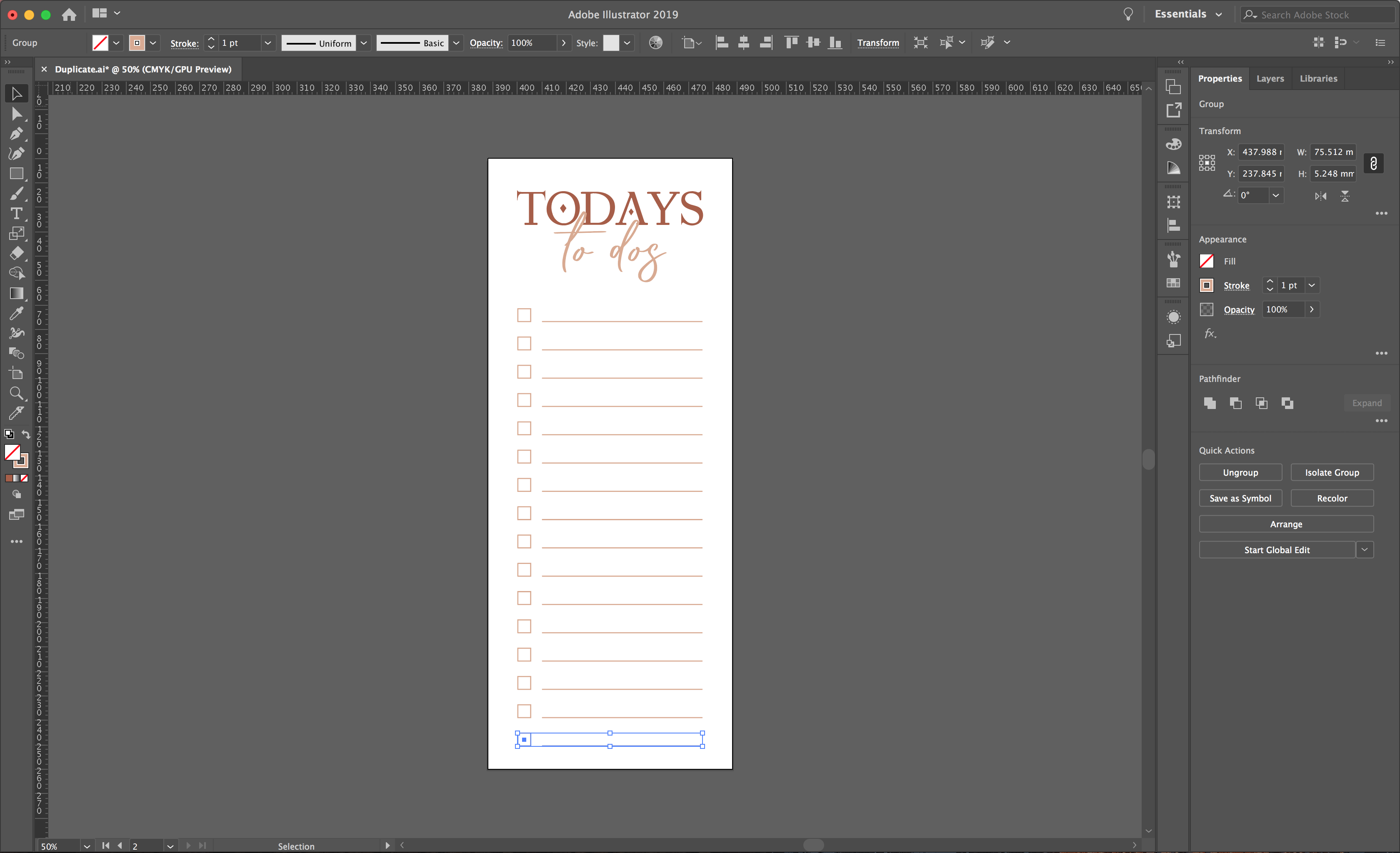
As quick as that your objects have been duplicated. This technique works great for personalized projects, important lists and even creating designs.