By Design Bundles
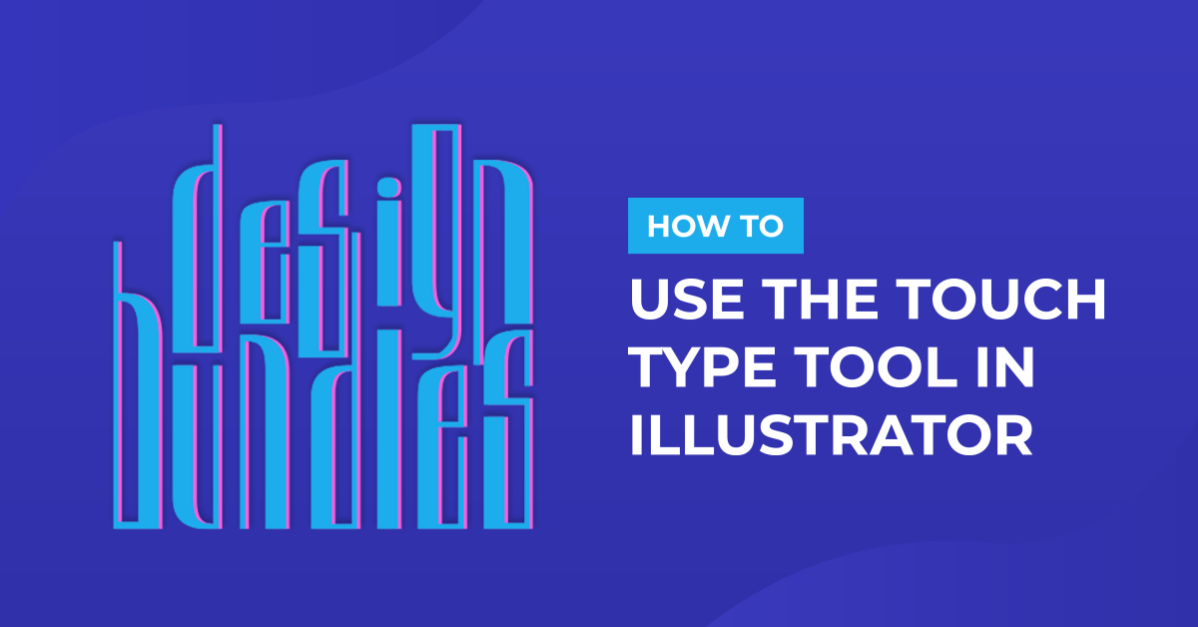
Using the Touch Type Tool in Illustrator
For this tutorial, we will use Urkelian Regular Free Font.
1 - In Illustrator, create a “New Document”.

2 - Select the “Type Tool” (T), choose your font and type your text.


3 - Open the “Touch Type Tool” (Shift + T) or click on the button on top of the “Character” Panel. If you don’t see it in the Panel, click on the small Menu on the top-right corner and make sure “Show Touch Type Tool” is checked.


4 - A Pop-up will appear saying “Click on a Character to Select” it. When you do it, you will see a box around it with handles on the top and corners. They have different functions.

5 - The “Bottom-left” is for “Position” or to move around a letter (you can also move it by clicking inside the box).


6 - The “Top-left” if for “Vertical Scaling”.


7 - The “Top-right” is for “Scale” (Vertical and Horizontal or Proportional Scaling).

8 -The “Bottom-right” is for the (horizontal Scaling) “With” of the letter.

9 - And the Top one y for “Rotation”.

10 - Your text is still “Live Text” so you can still edit it. Is very good for “Kerning” words more accurately.


11 - You can’t make changes to multiple letters at one, but you can use the “Eyedropper Tool” to duplicate them (double-click on top of the icon on the “Toolbox” to bring out the “Eyedropper Options”). You can also “Copy” (Command/Control + C) and “Paste” (Command/Control + V) letters and the formatting will remain.


12 - Or you can create a “Character Style” and use it.


13 - Check it out.

by @lornacane