
By Design Bundles
How to Use the Clone Tool in Inkscape
We are going to guide you on how to use the clone tool in Inkscape. This is a very useful and sometimes very important tool for designers. You can quickly clone a design in the same way as duplicating. The main difference is that edits done to the original will affect all clones. It can help a great deal when editing a large number of the same design.
Step 1 - Import or Create Your Shape
Open Inkscape and then either import your design or use the Bezier Curve to create one. You can even use one of the shape tools on the left side. We also have a great tutorial on creating a SVG in Inkscape to get you started.
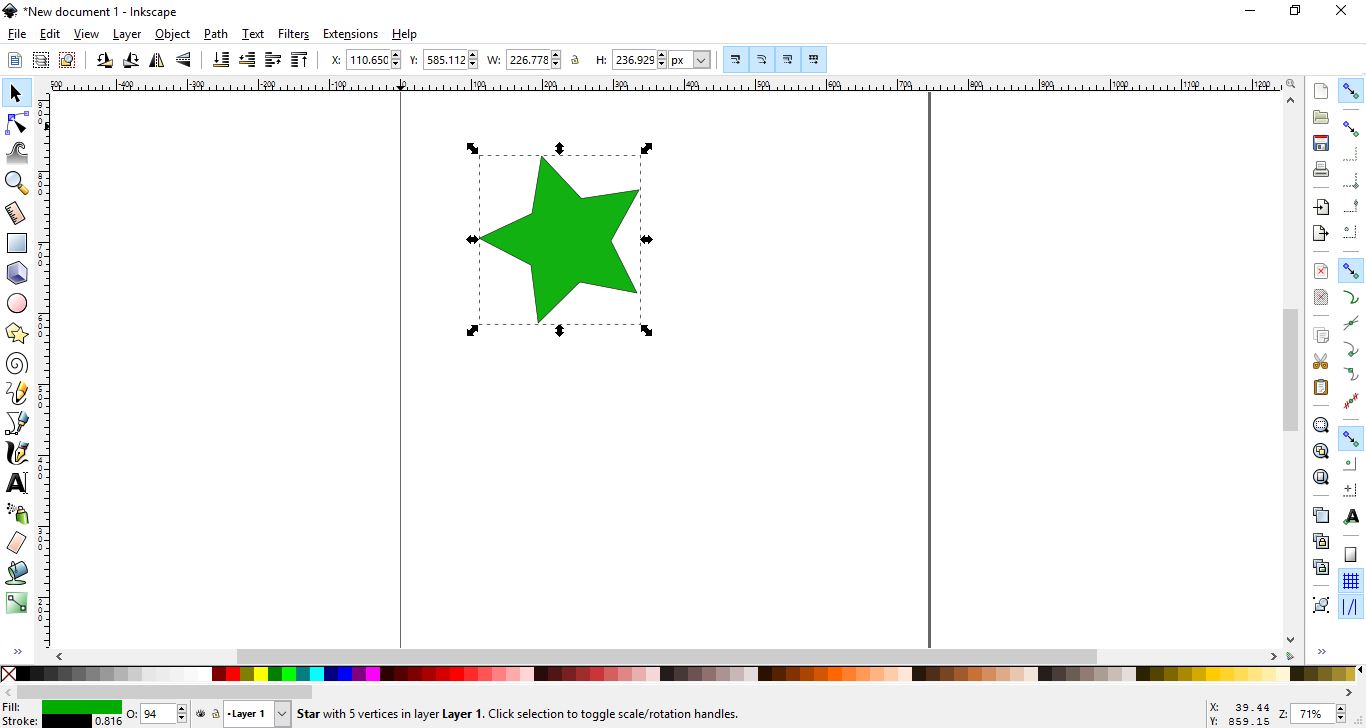
Step 2 - Create a Clone of Your Shape
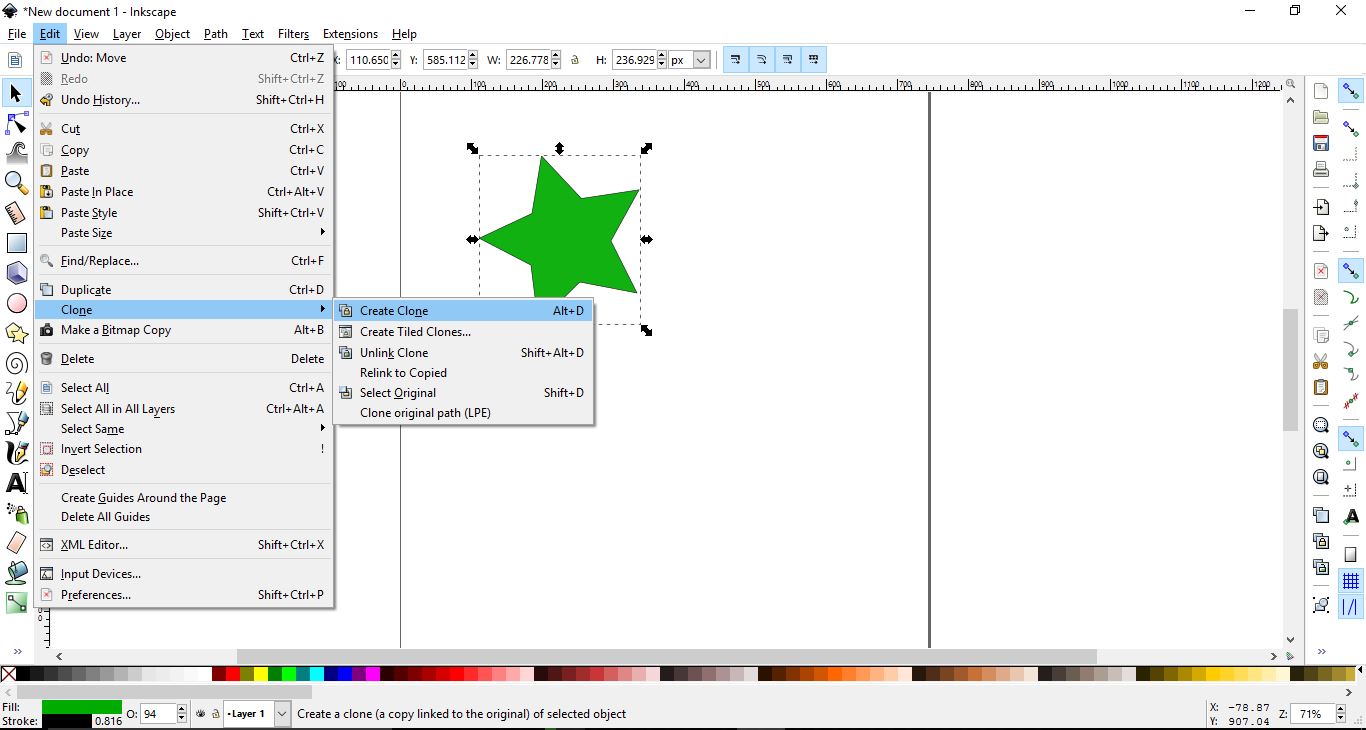
Make sure that your shape or design is selected, then go to Edit > Clone > Create clone.
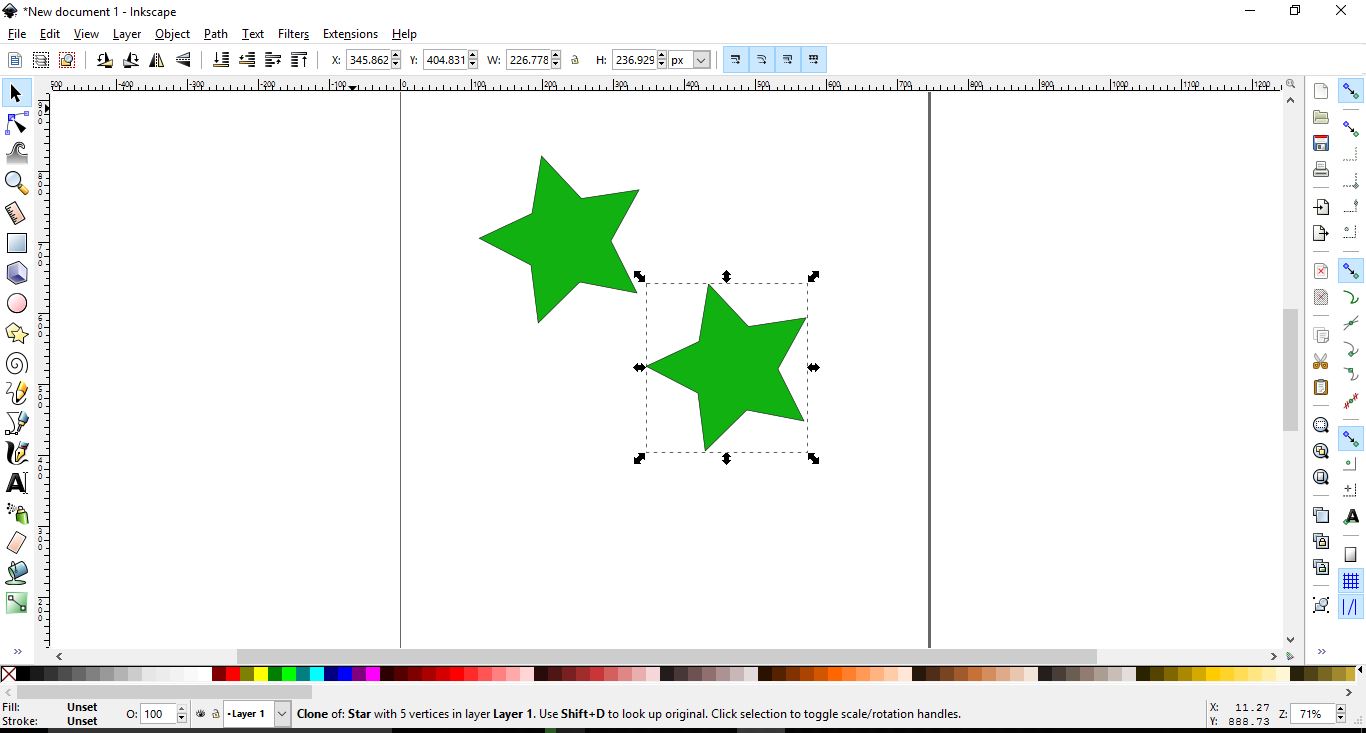
Your clone will be placed on top of the original shape or design. On the top left toolbar, click on the black arrow called Select and transform objects. This is essentially the Move Tool. Now, click on the clone, the top most shape. Then click + drag it to one side.
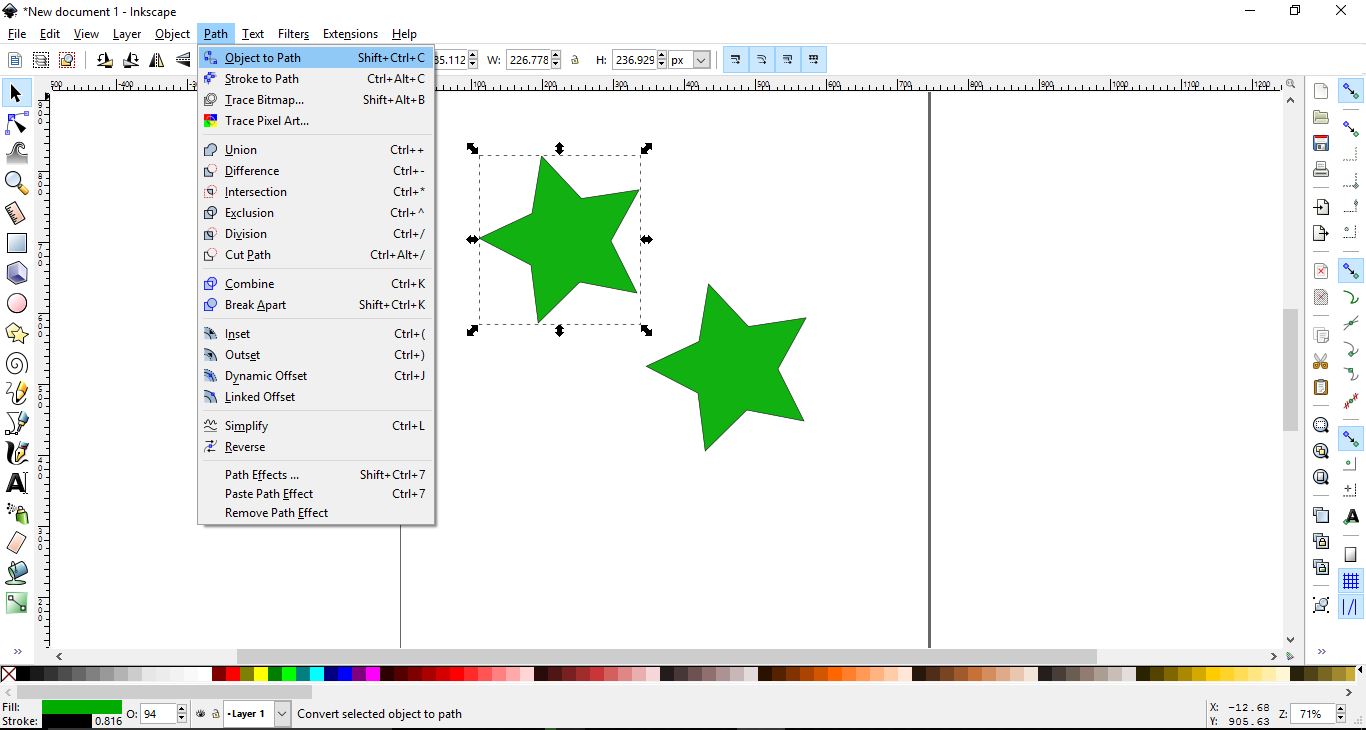
If you edit the original, the clone will be updated to look the same. However, if you want more flexibility with nodes, you need to convert the original to a path. Select the original shape or design, then go to Path > Object to path.
Now you can edit the original shape or design using the Edit path by nodes tool on the left just below the Move Tool. You can clone your original as many times as you like. When you adjust the original, all of the clones adjust along with it.
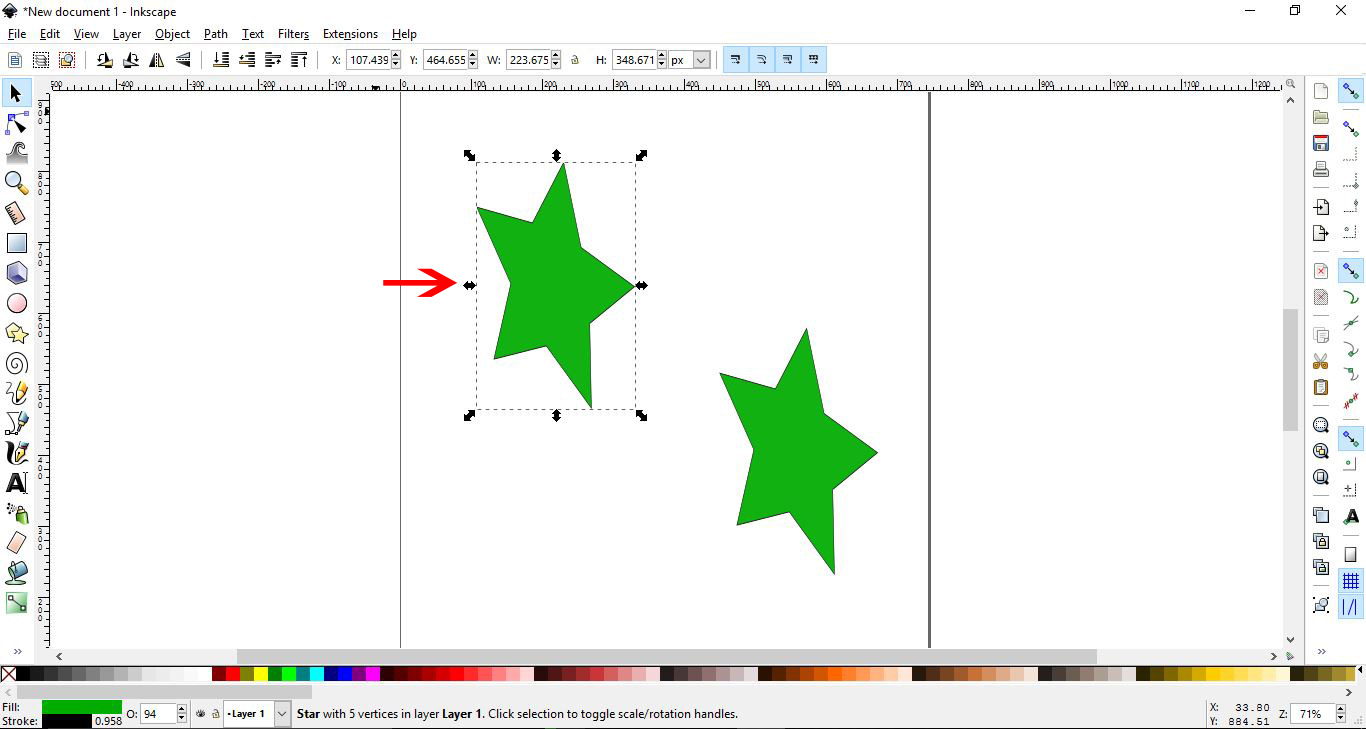
We hope this tutorial has been helpful in understanding how to use the clone tool in Inkscape. With this tool, you can save yourself huge amounts of time and make your workflow more efficient.