By Design Bundles
How to Change Pattern of Clothes in Photoshop
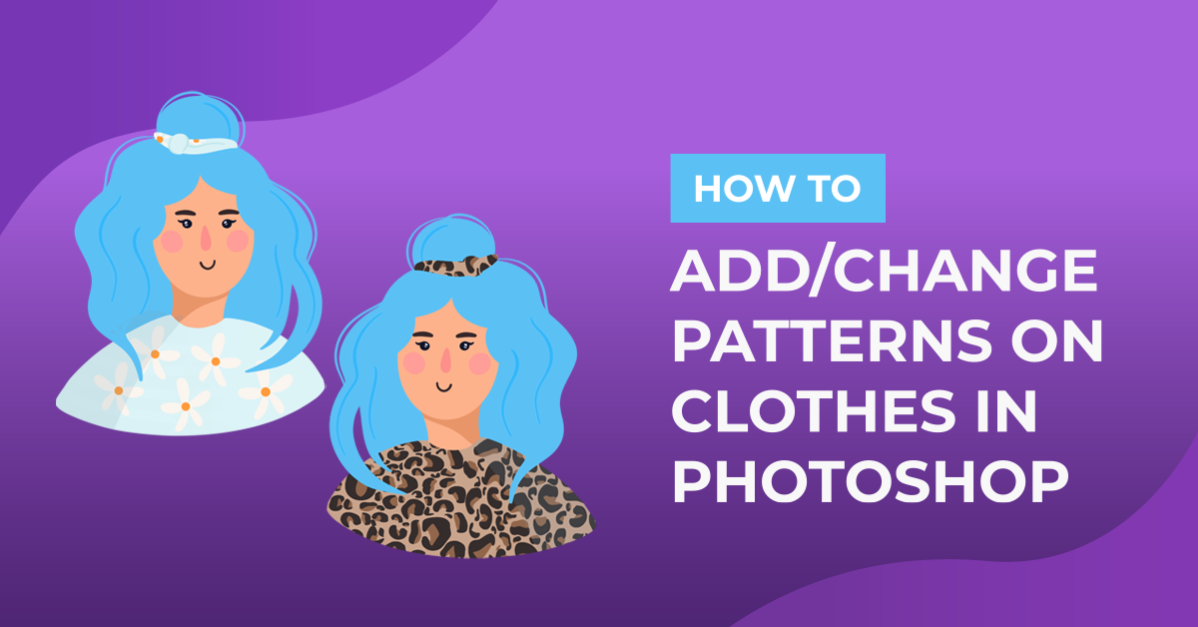
For this tutorial, we will use an image with neutral colored clothing and a pattern or patterns to apply.
1 - In Photoshop, open the image you wish to apply the pattern to. Duplicate your Layer (Command/Control + J).


2 - Since the color of our subjects clothing is black and we will need the folds and details of the fabric a bit more we are going to change it to white. Select the “Quick Selection Tool” (W) make a selection of the clothes. Once you are done click on the “Select and Mask” button on the top Menu and fiddle with your settings until you are satisfied with your selection, then choose “Output To Layer Mask” and click “OK”.


3 - “Invert” your Layer (Command/Control + I), then, bring out the “Levels Panel” (Command/Control + L) and move the “Levers” until you get a nice contrast but you still see the “Midtones” clearly.

4 - Open the document containing your “Pattern”, place your two documents side by side and using the “Move Tool” (V) drag the Pattern to your other image.

5 - Use “Free Transform” (Command/Control + T) to resize your Pattern and make it slightly larger than the clothing. You can temporarily lower the “Opacity” in the “Layers Panel” to make it easier to do so.


6 - Click on top of your “Dress Mask” thumbnail while holding the “Command/Control key to bring out your selection. Then, with the selection still active go to the “Pattern” Layer and click the “Add Layer Mask” button at the bottom of the Panel to create a mask.


7 - Go to Filter > Liquify and make sure the “Show Mask” and “Show Background” buttons are checked. Bring the “Opacity” value up a bit and use your “Dress” Layer as “Background”.


8 - Now, use the “Forward Warp Tool” (W) with a very large brush to push the fabric into the clothes and make it look like its wrapping around the clothes. You can change the “Size” of your brush and “Lower” the “Pressure” of the brush to be more accurate.


9 - If your clothing has some folds in it, choose the “Freeze Mask Tool” (F) to mask the parts of the clothes you want to stay put. Then, use the “Forward Warp Tool” (W) to move the portion that should look like it’s “under” the fold. Use the “Thaw Mask Tool” (D) to erase the masked area and see how it looks. Repeat this with the other parts of the clothes that have folds in them. Once you are happy, click “OK”.


10 - Change the “Blending Mode” of your Layer to “Multiply” and maybe lower the “Opacity” a bit to let the details show more.

11 - To accentuate the “Shadows” duplicate your “Dress” Layer and place the duplicate on top then, change the “Blending Mode” to “Multiply”.

12 - Now, to bring out some “Highlights” duplicate your “Dress” Layer again, and place the duplicate on top. Bring out the “Levels Panel” (Command/Control + L) and move the “Levers” around. Change the “Blending Mode” to “Screen” and lower your Layer’s “Opacity” to about 30%.


13 - You can achieve cool “Effects” with your fabric if you play around with the “Blending Mode” of your Layers.


* Remember, that depending on your Clothes and/or Pattern, the values used may change.