By Design Bundles
Photoshop Tutorials9 min
Autumn Colors in Photoshop
For this tutorial, we will use an Image of some trees or leaves with autumnal colors.
1 - In Photoshop, open the image you wish to use apply the “Effect” to.
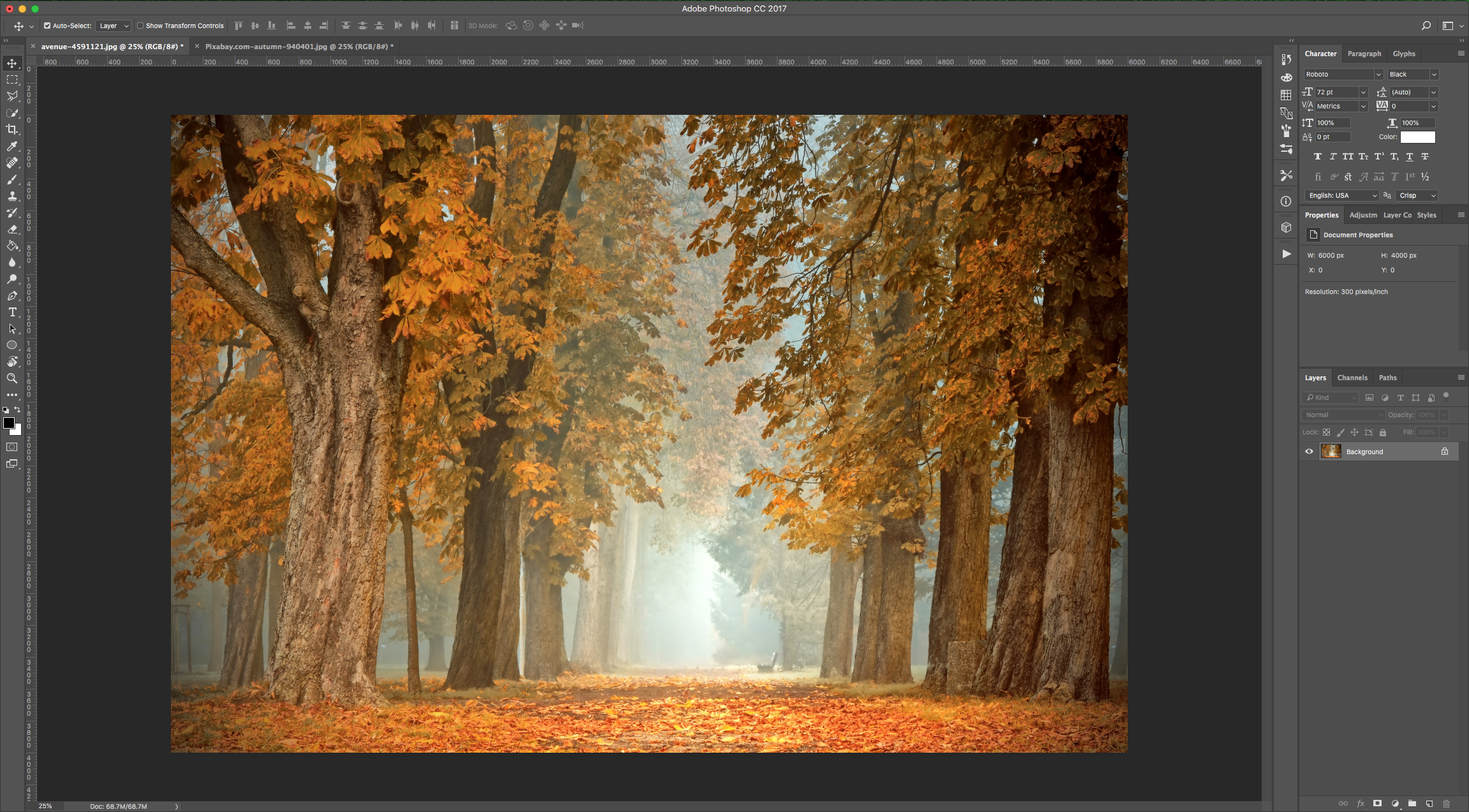
2 - Go to the “Adjustments Panel” and create a “New Gradient Map” Adjustment Layer.
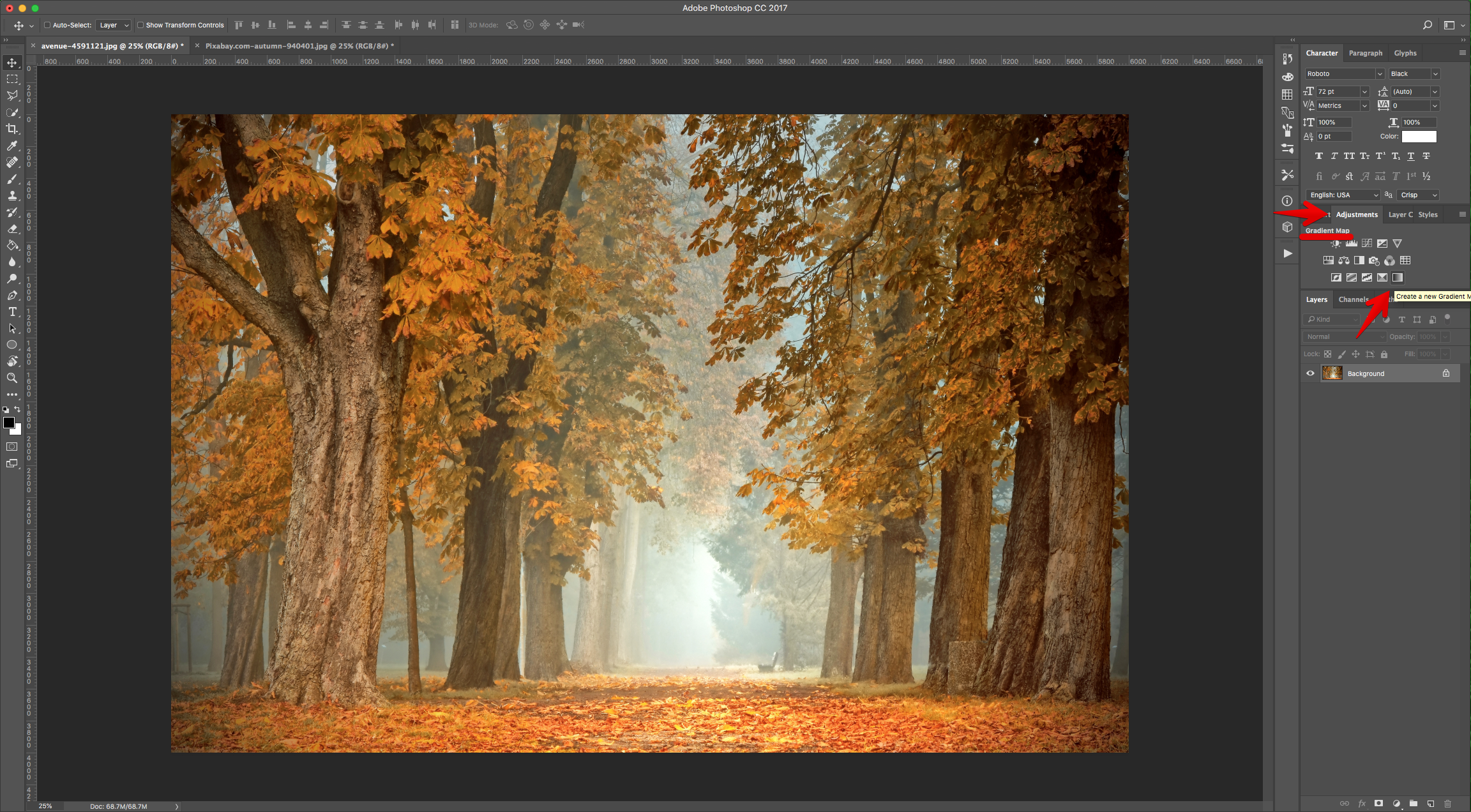
3 - Double-click on the Gradient and use #020c52 @ 0% (Location) and #fbb4fa @ 100% (Location).
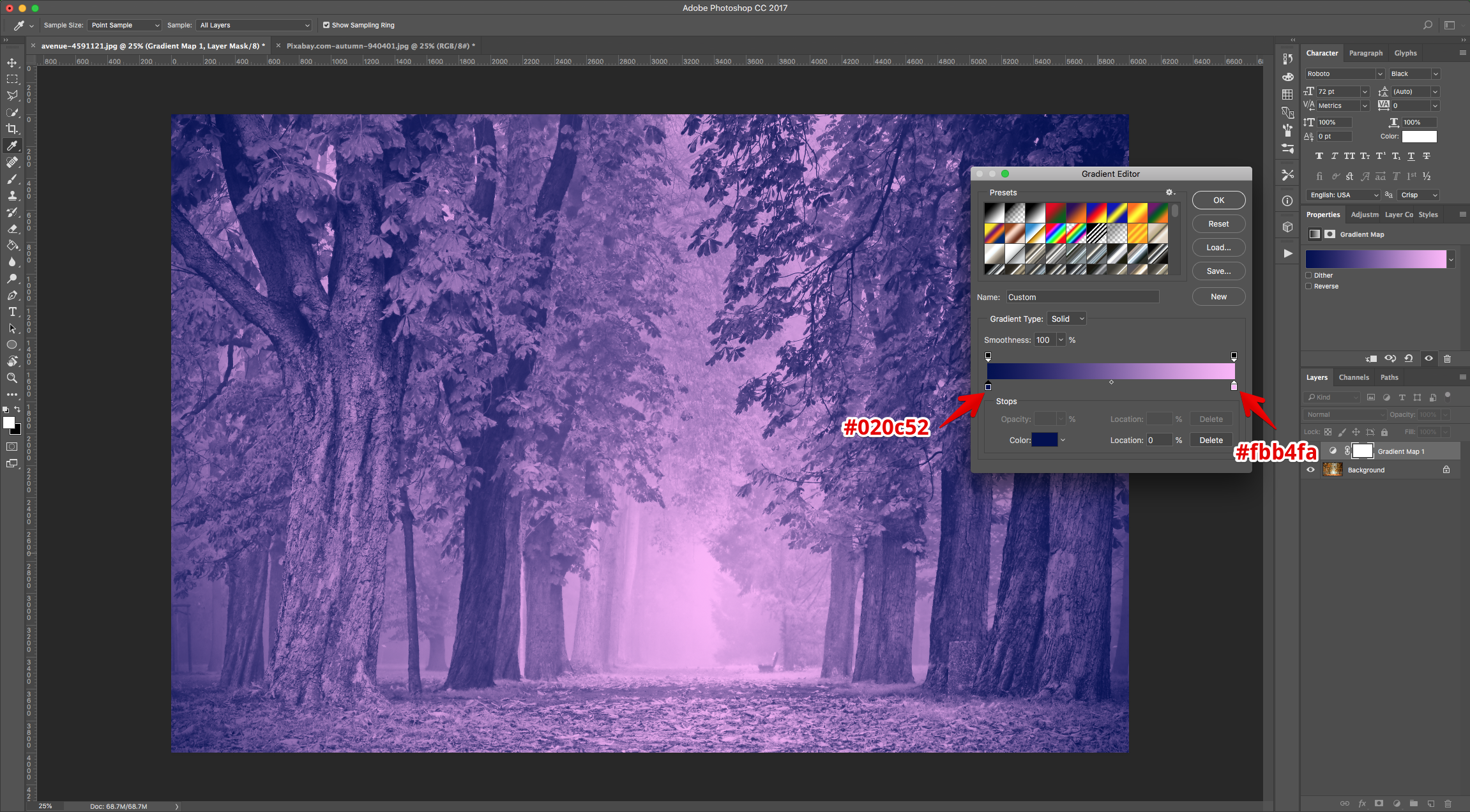
4 - Change the “Blending Mode” of the “Gradient Map” layer to “Soft Light”.
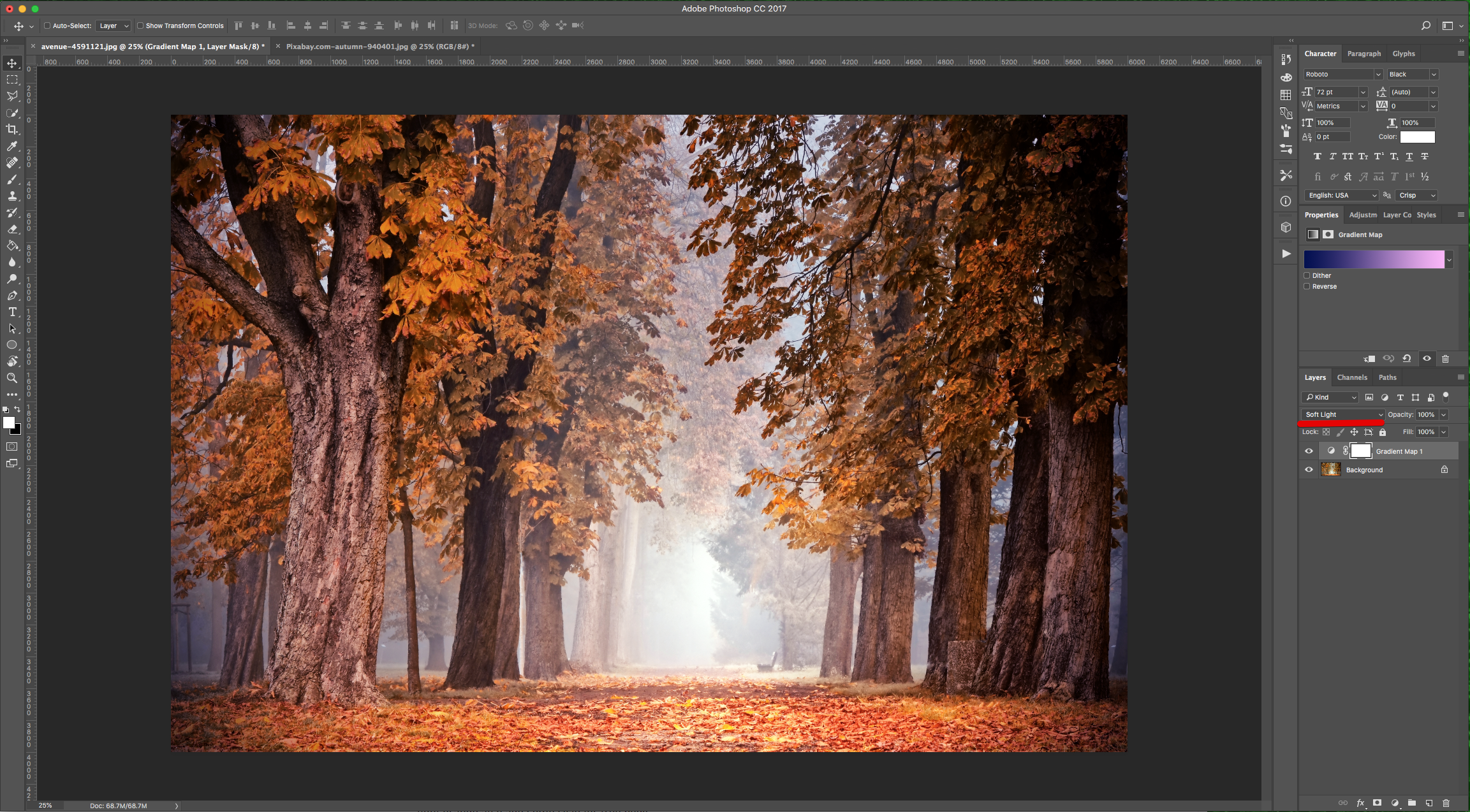
5 - Go to the “Adjustments Panel” and create a “Selective Color” Adjustment Layer.
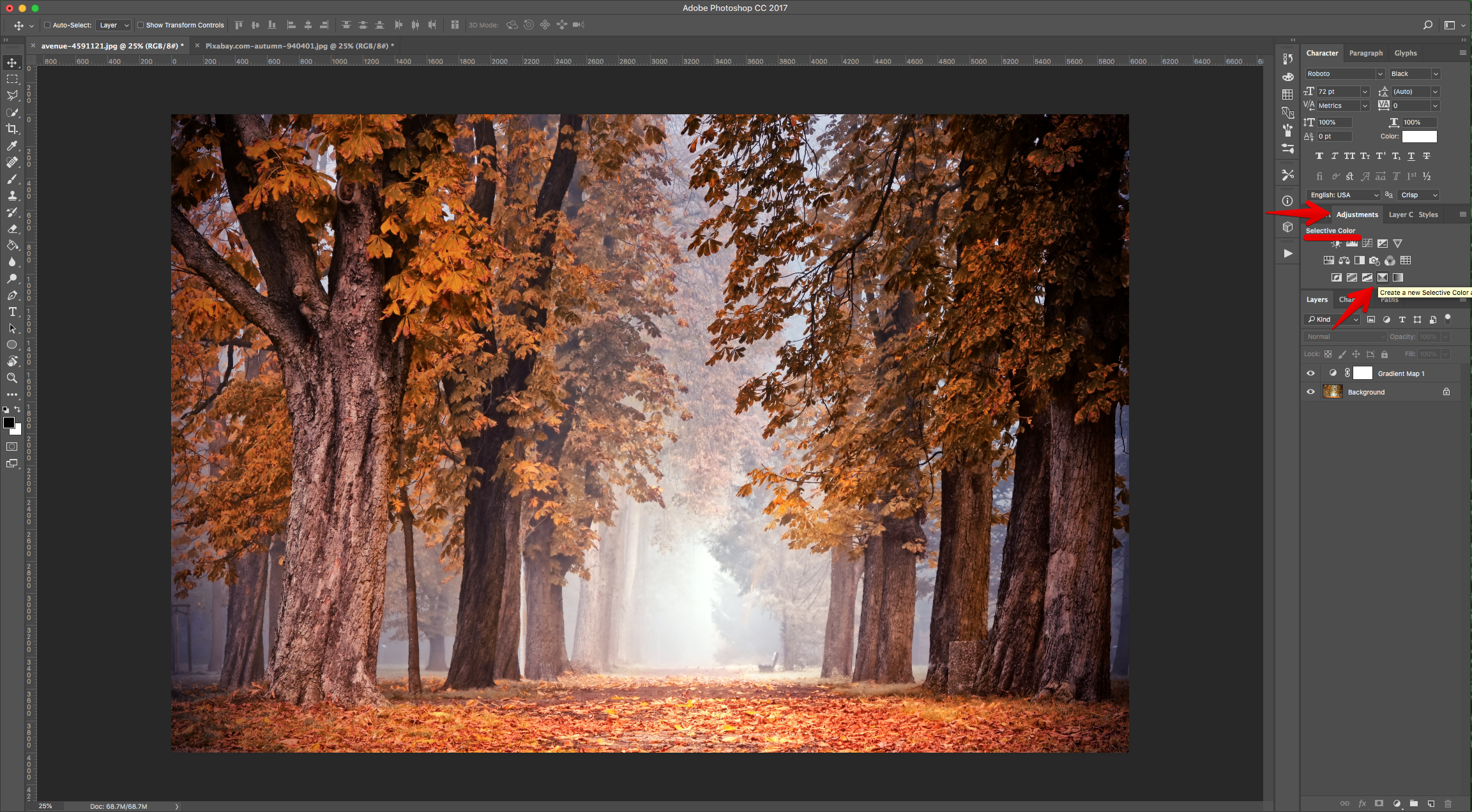
6 - Choose “Reds” and lower the “Cyan” completely (or almost), the “Yellow” to about 40% and increase the “Magenta” around 10. Then, choose “Yellows”, lower the “Cyan” and “Yellow” increase the “Magenta”. Finally, choose the “Neutrals” and increase the “Cyan” and “Yellow” and lower the “Magenta” a bit. The values to use are going to depend on your image.
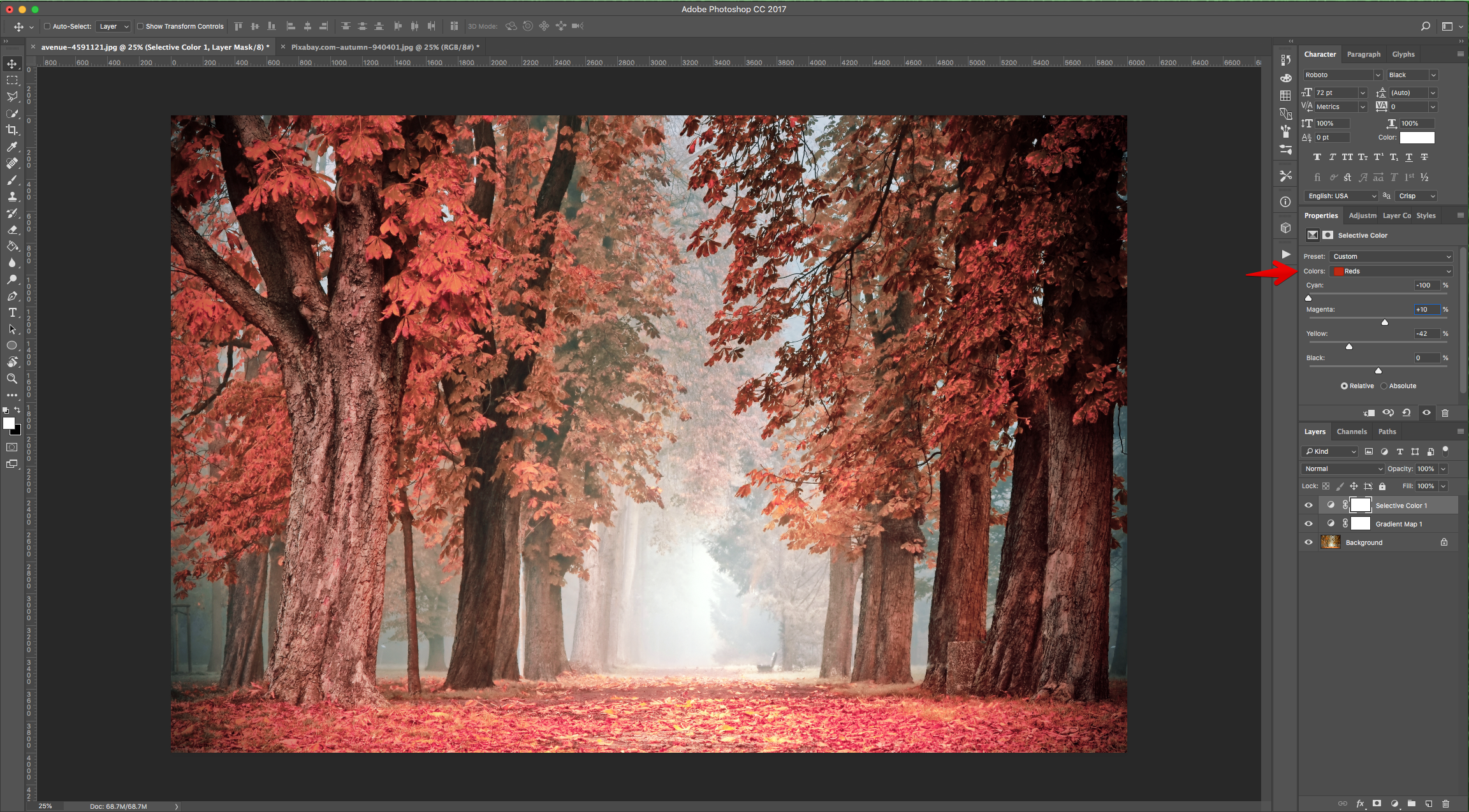
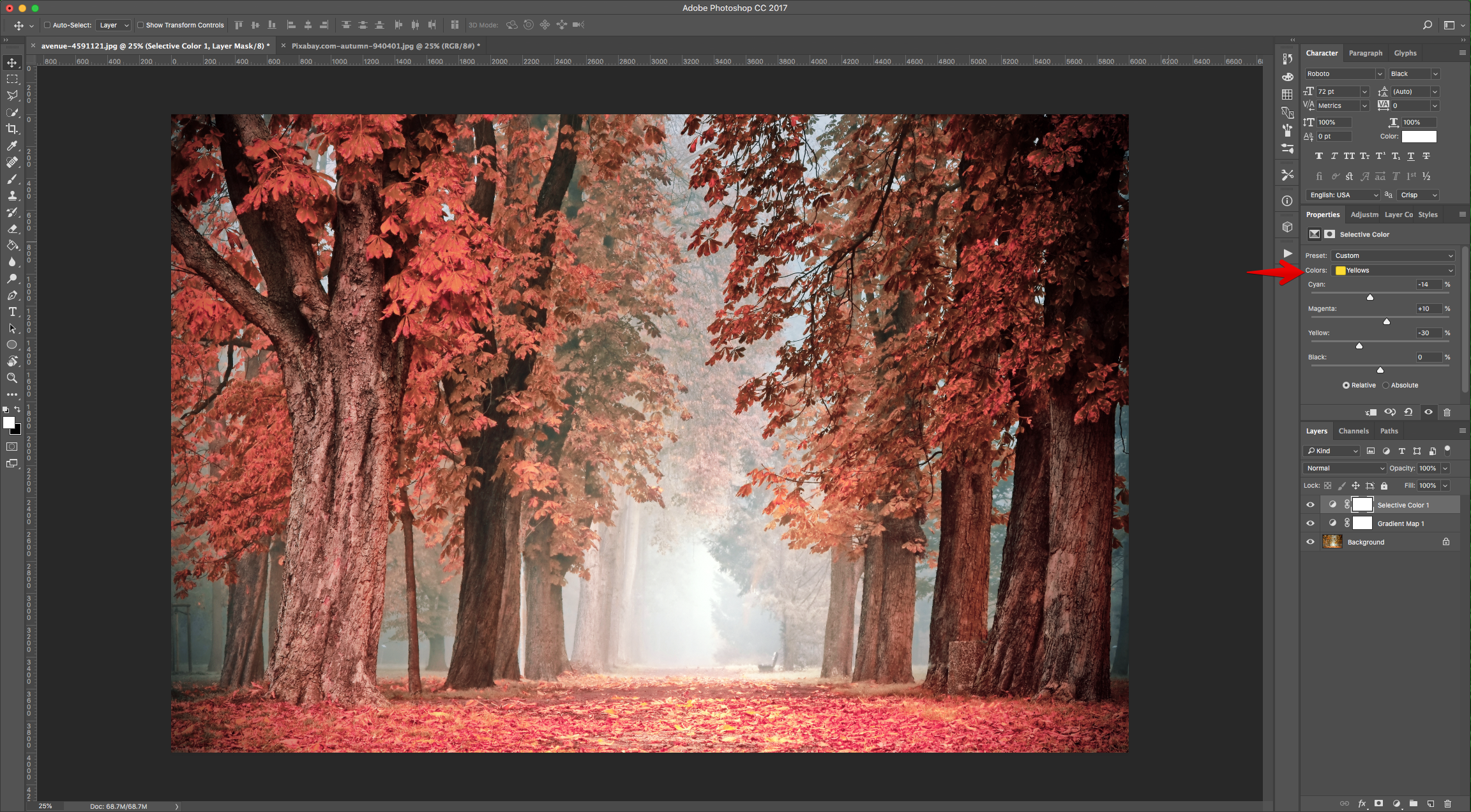
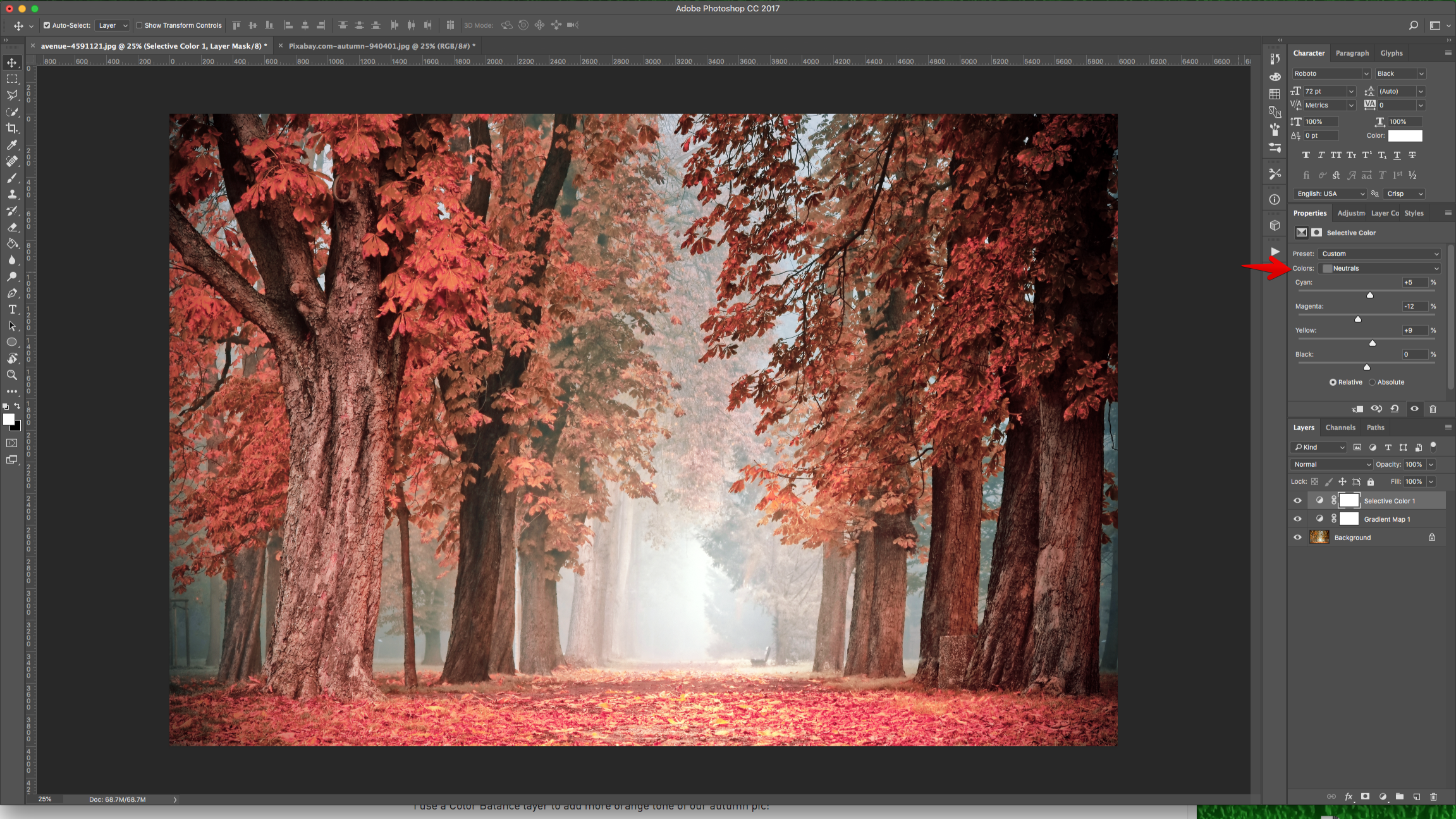
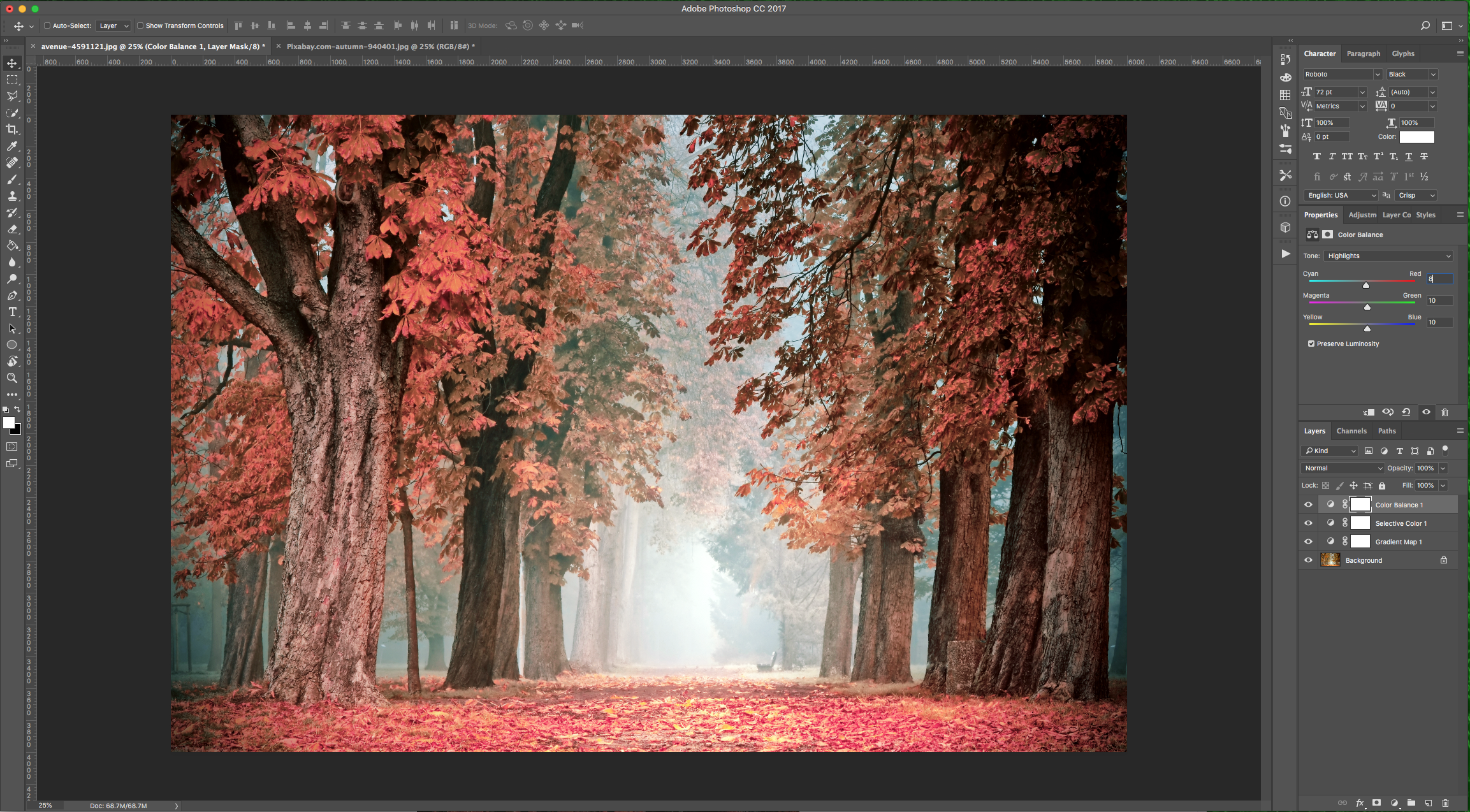
7 - Go to the “Adjustments Panel” and create a “Color Balance” Adjustment Layer.
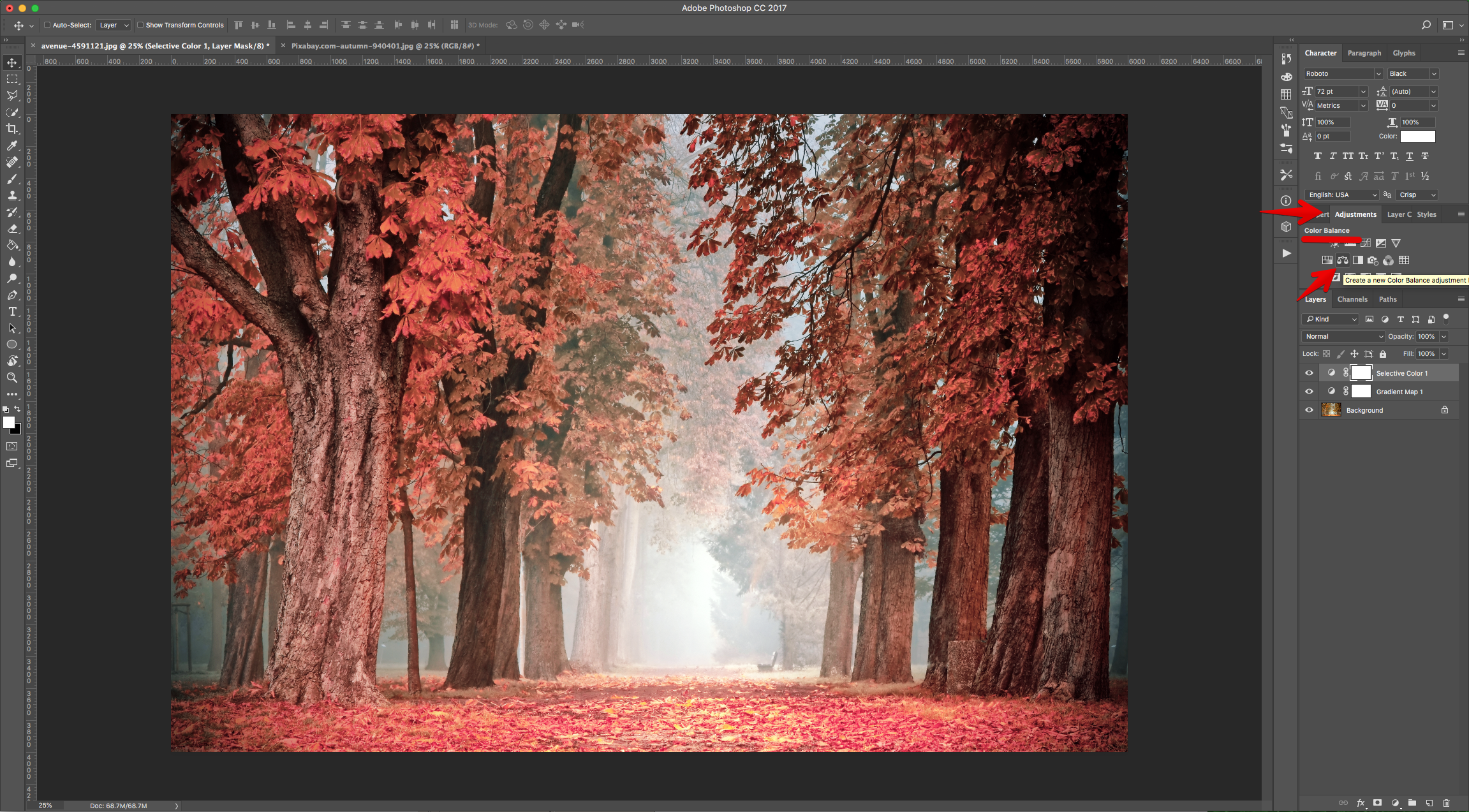
8 - Choose “Shadows” and move the first lever towards the “Red” side a bit and the last one towards the “Yellow” a bit. Then, choose “Midtones”, and move the levers towards the “Cyan”, “Green” and “Blue” sides a bit. Finally, with the “Highlights”, move the levers towards the “Red”, “Green” and “Blue” sides a bit. The values to use are going to depend on your image.
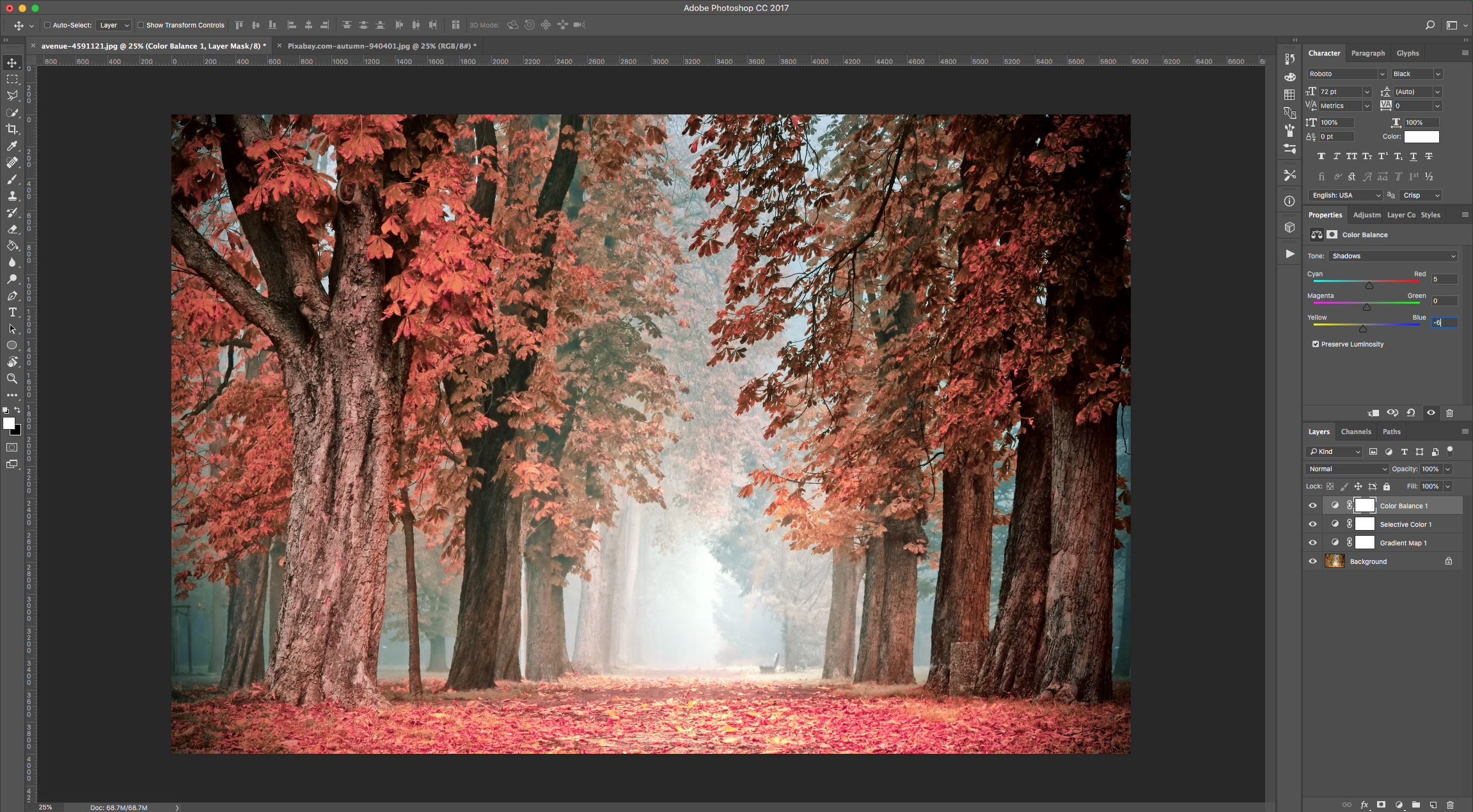
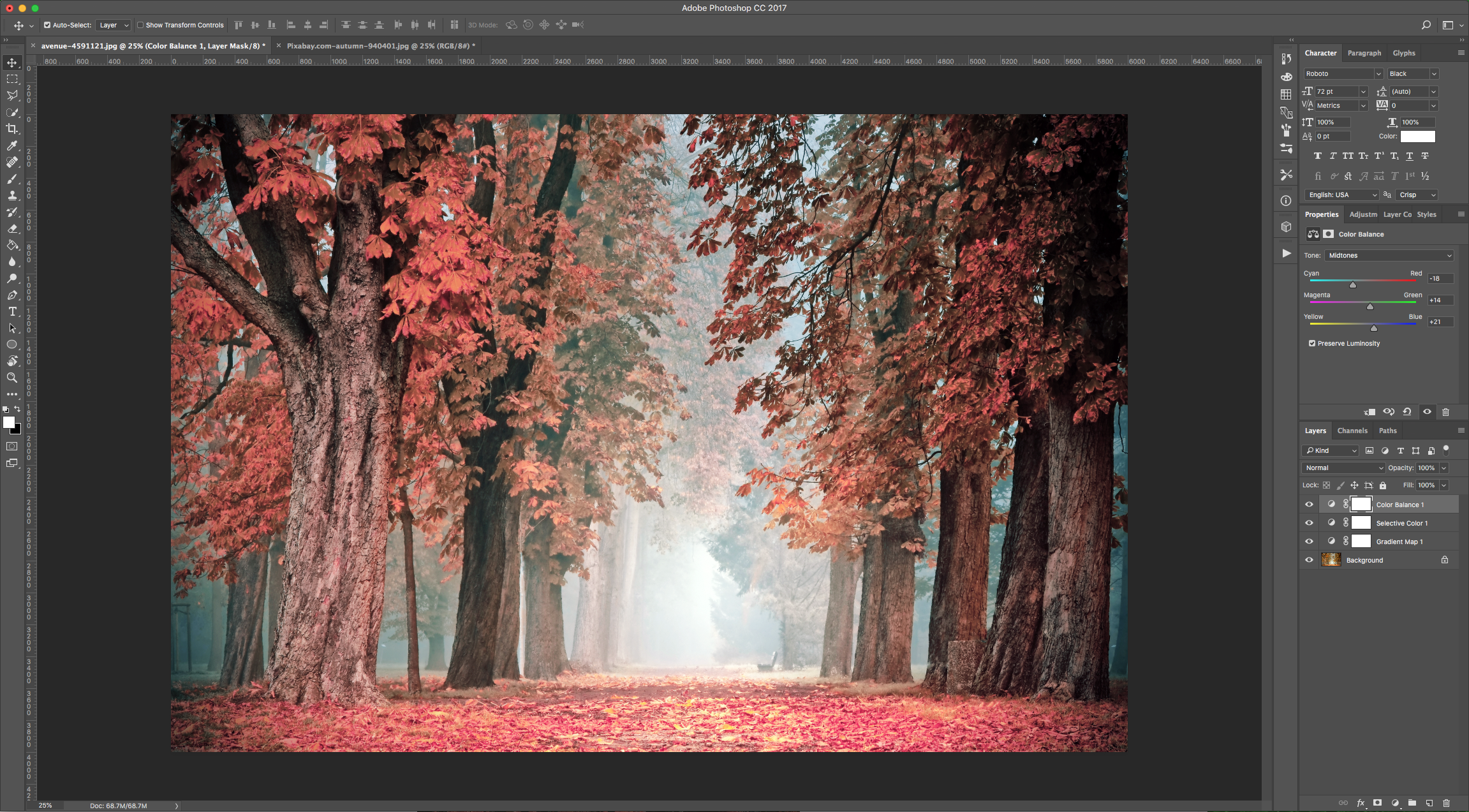
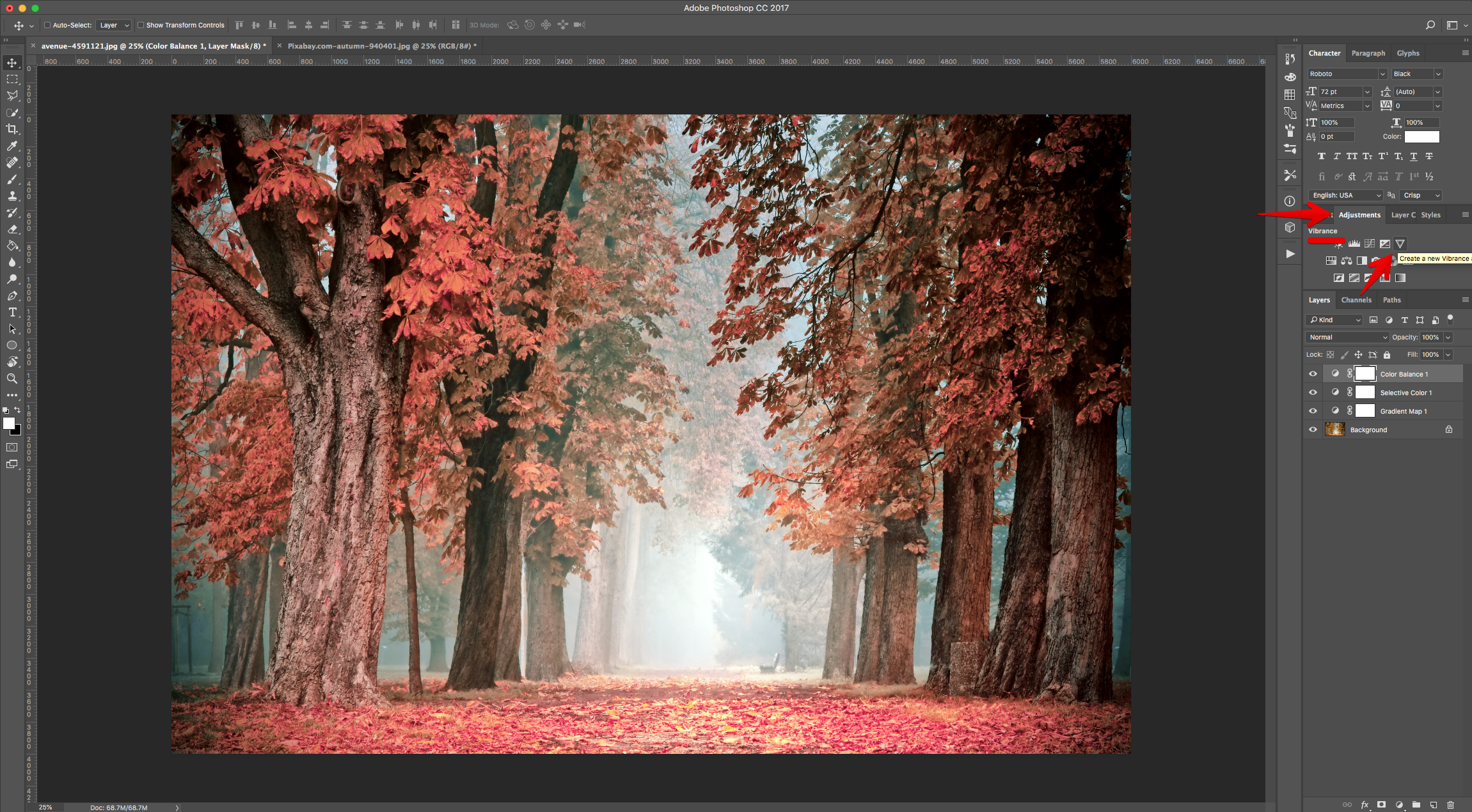
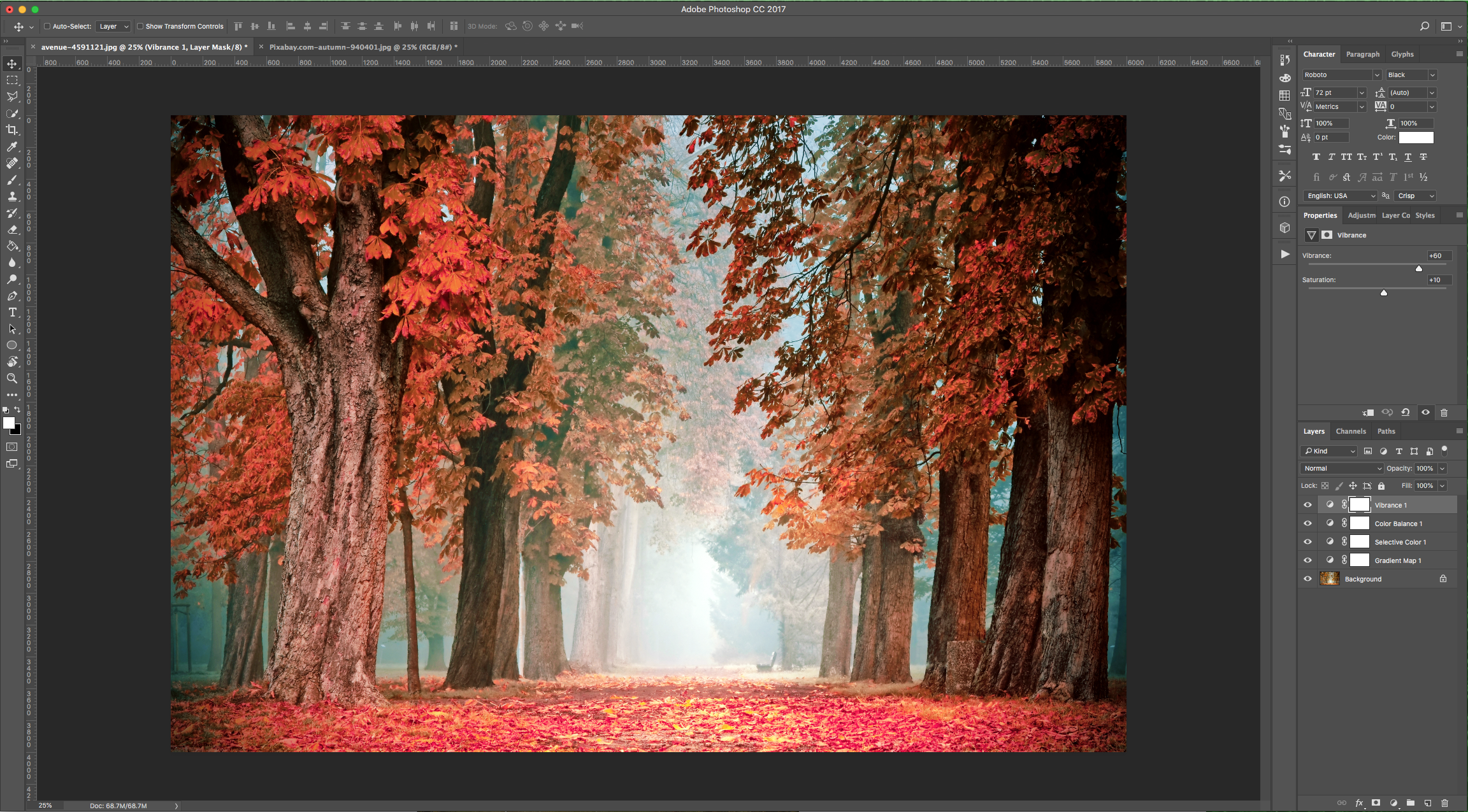
9 - Go to the “Adjustments Panel” and create a “Vibrance” Adjustment Layer. Increase the “Vibrance” and “Saturation” values to make the colors pop a bit more.
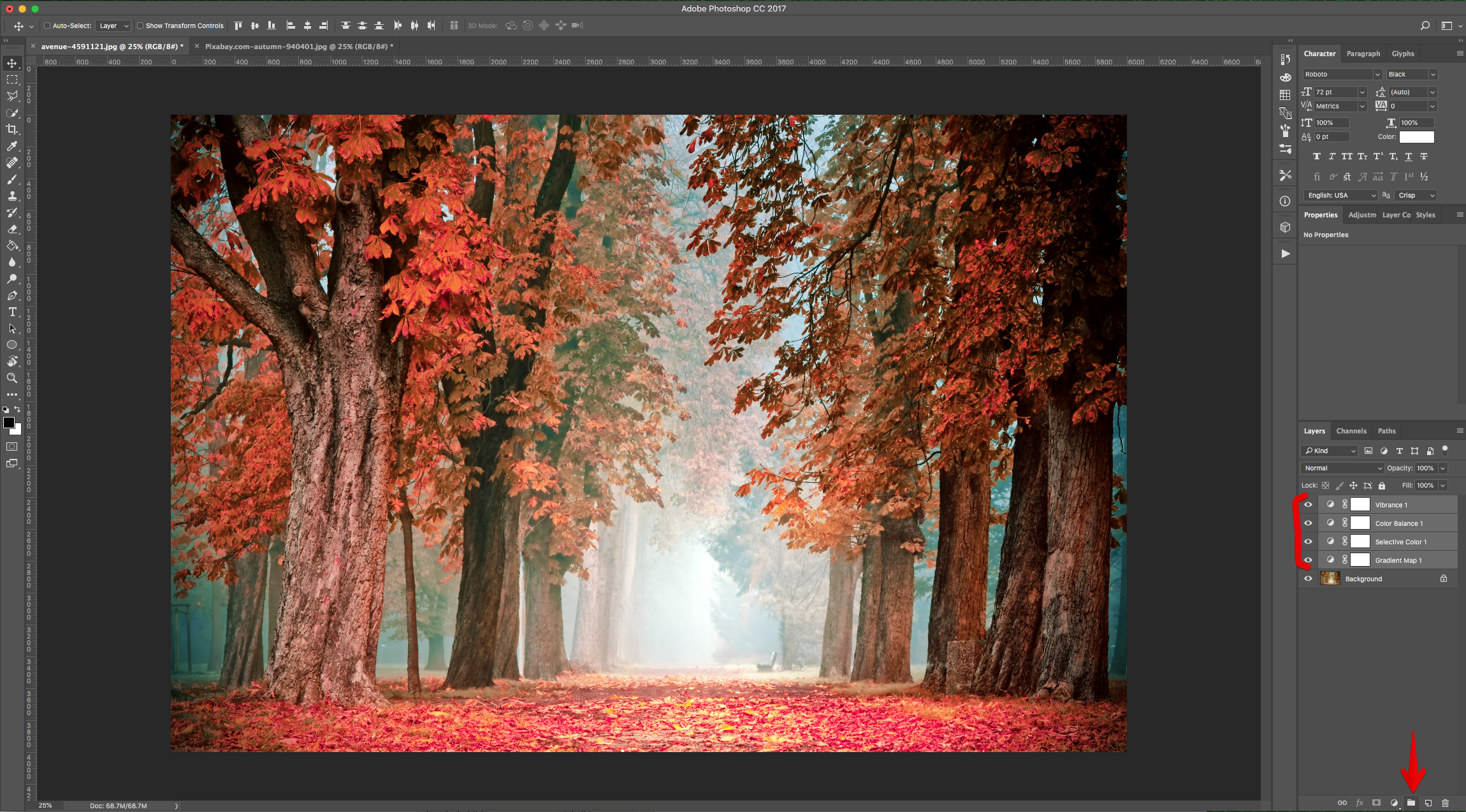
10 - Select all the “Adjustment Layers” (“Shift” key) and “Group” them together by clicking on the small Folder icon at the bottom of the “Layers Panel”. Name the group “Orange”.
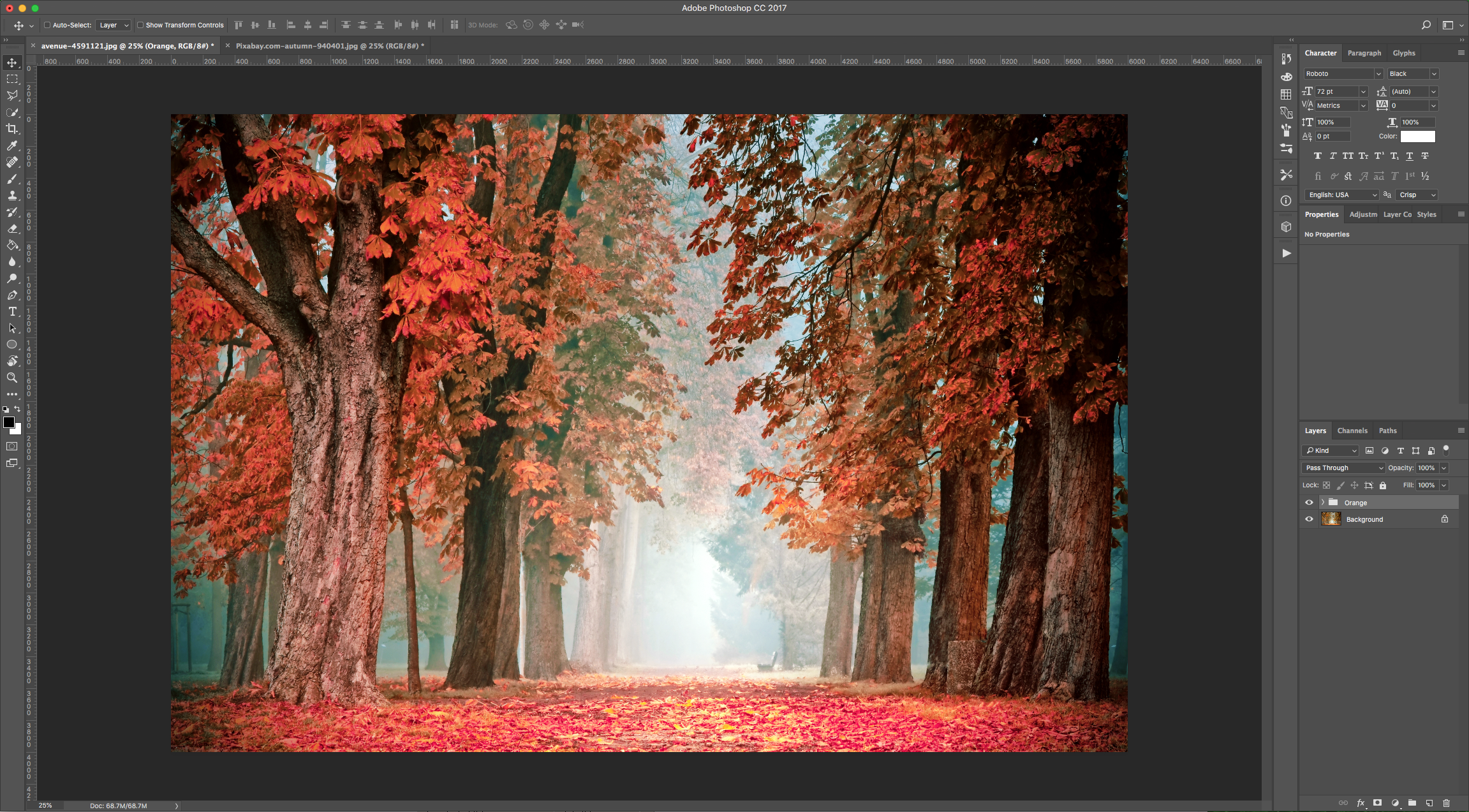
11 - Hide the “Orange” group by clicking on the small eye icon on the left side of its Thumbnail.
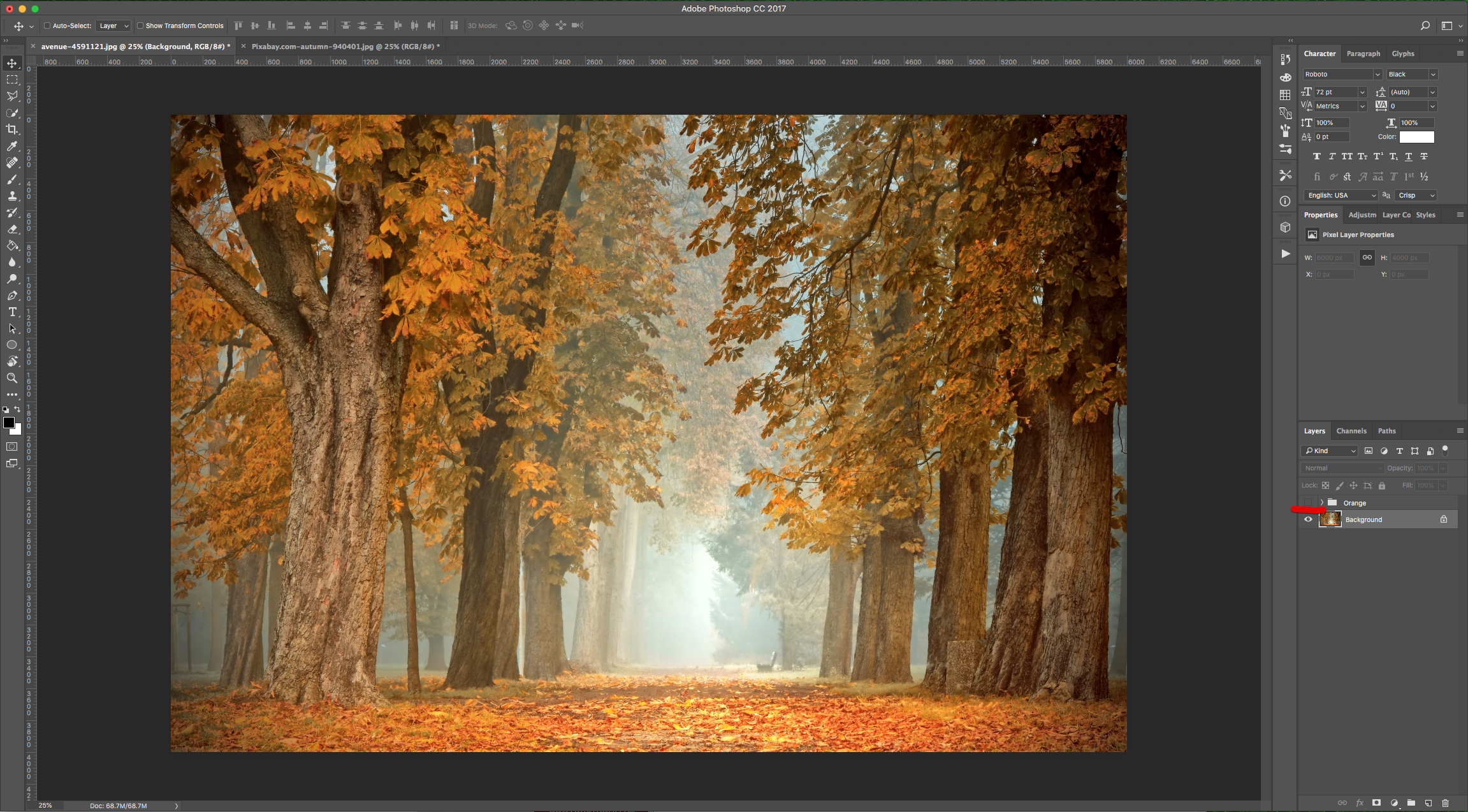
12 - Go to the “Adjustments Panel” and create a “New Hue/Saturation” Adjustment Layer.
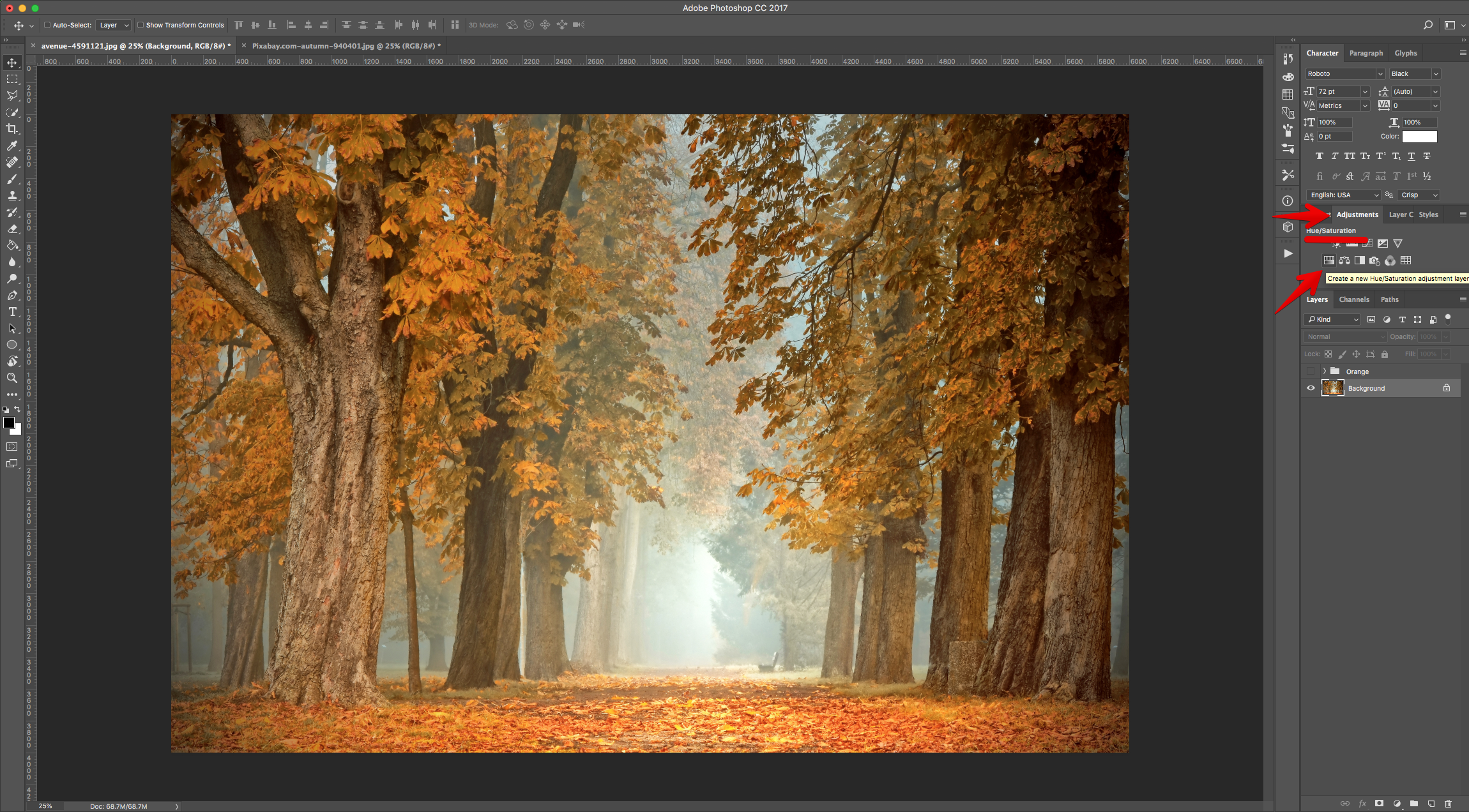
13 - Choose “Reds” and lower the “Hue” to about -25 and increase the “Saturation” to 18, and in the “Yellows” lower the “Hue” to about -15 and increase the “Lightness” to 11. The values to use are going to depend on your image.
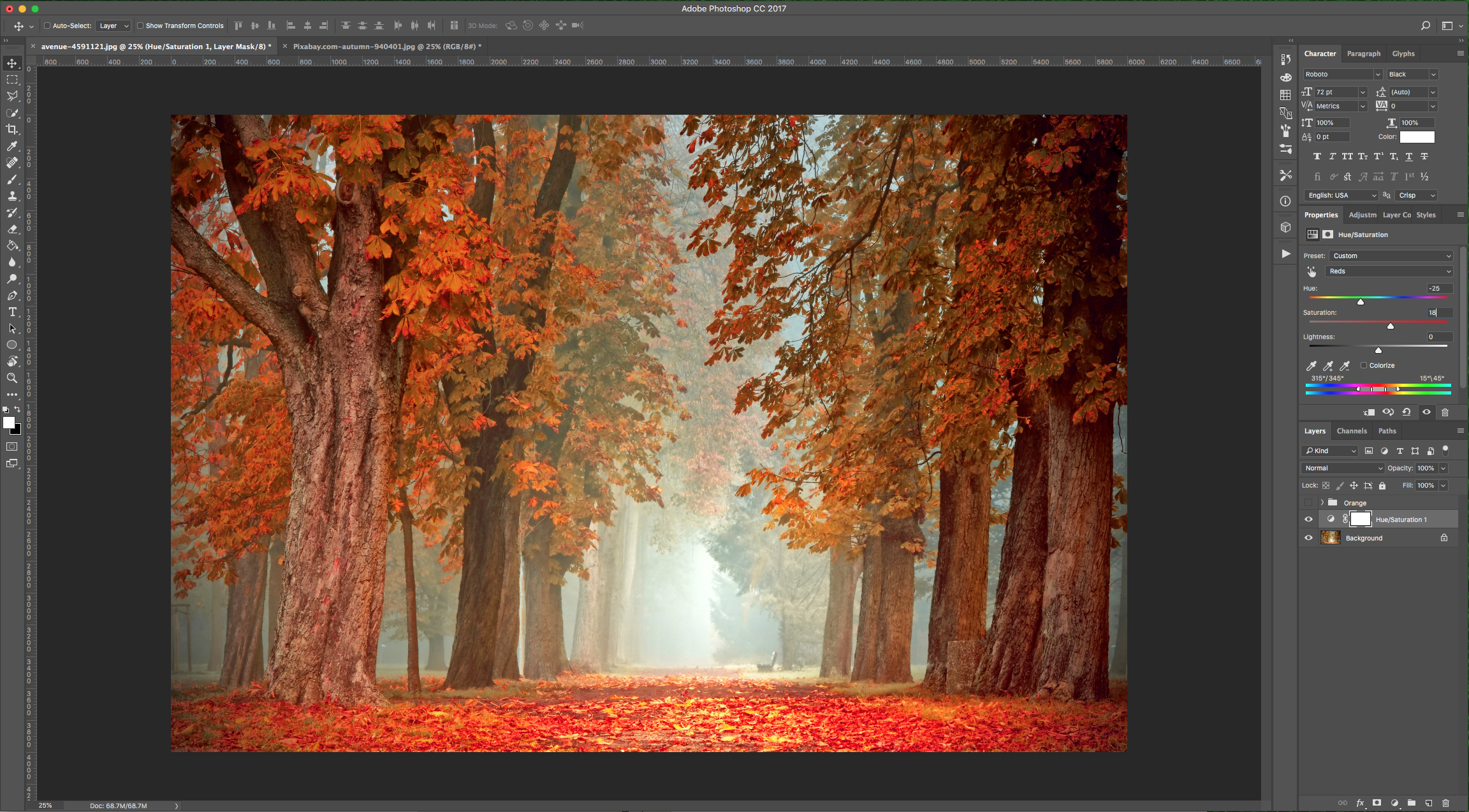
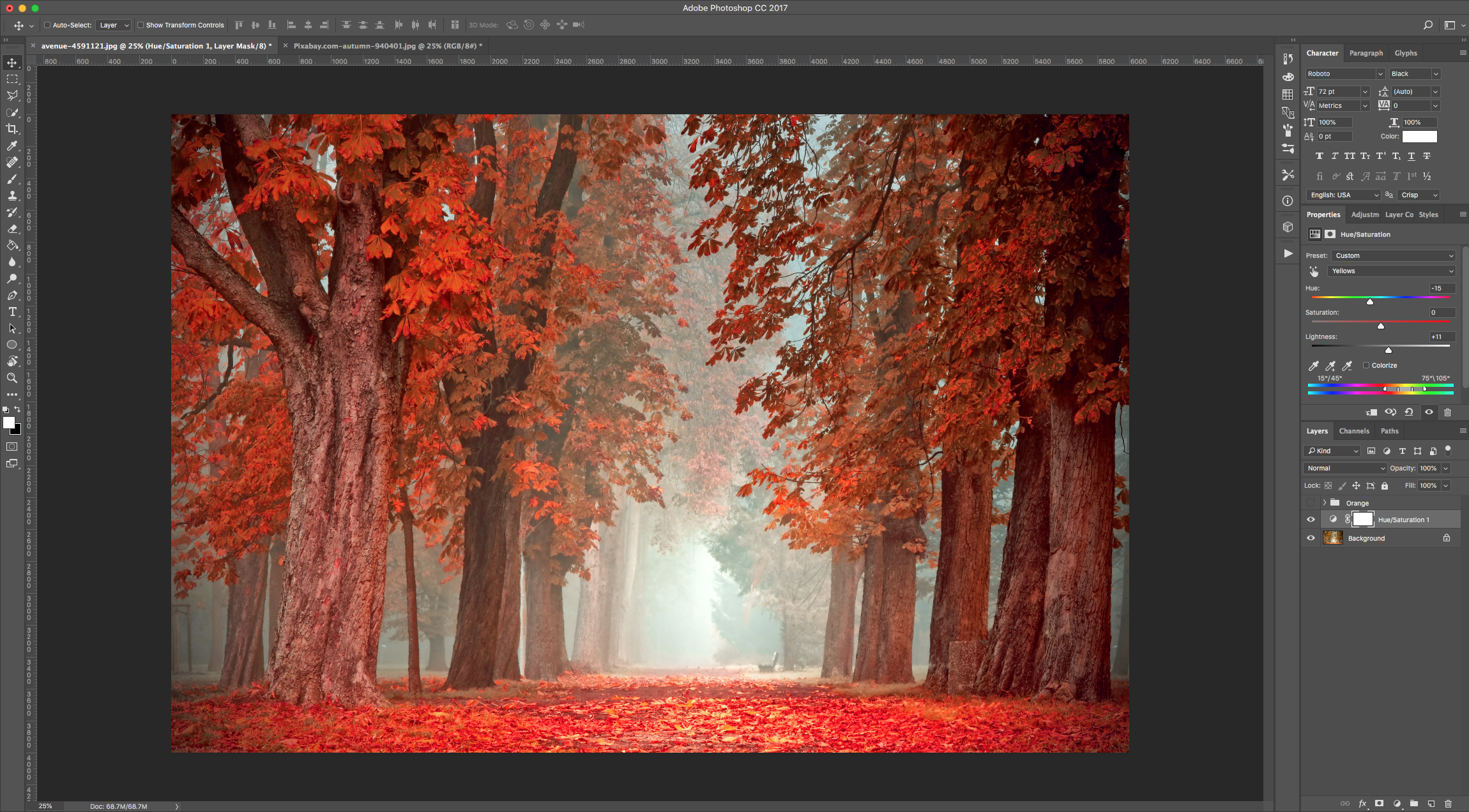
14 - Duplicate the “Hue/Saturation Adjustment Layer” (Command/Control + J). Increase the “Lightness” of the “Master” a couple of points and change the “Reds” “Hue” value to about -3 and the “Saturation” to 1.
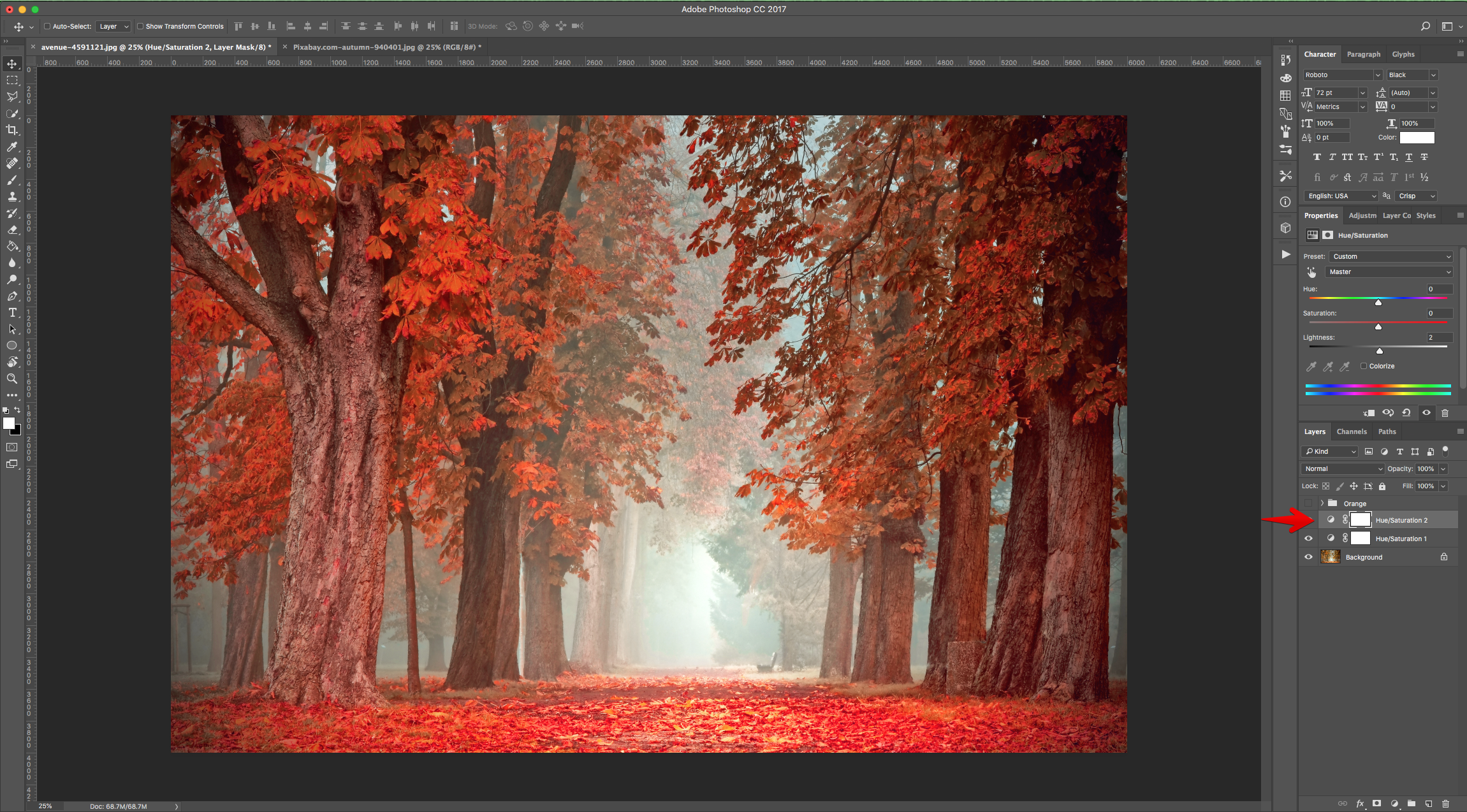
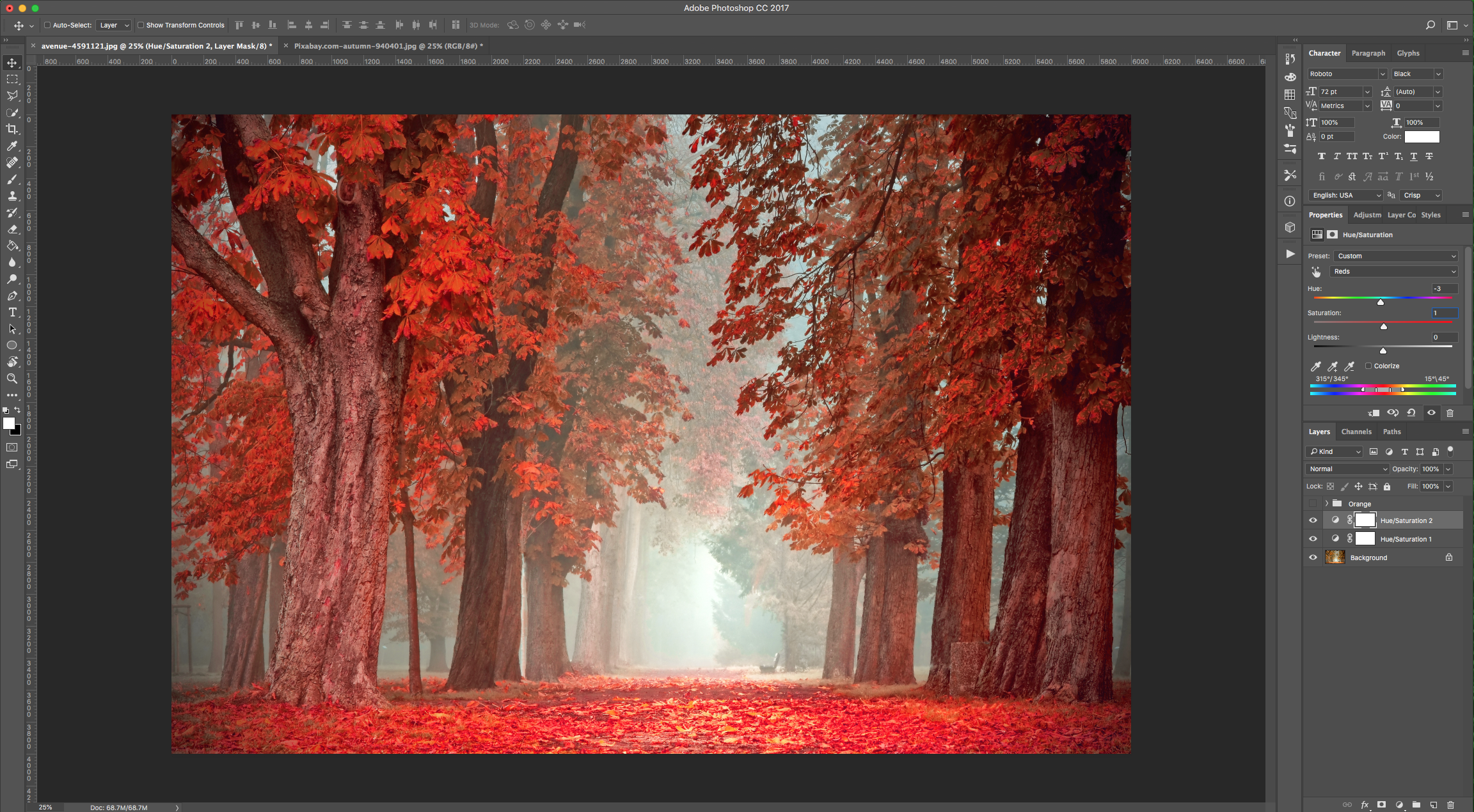
15 - Select all the new “Adjustment Layers” (“Shift” key) and “Group” them together. Name the group “Red”.
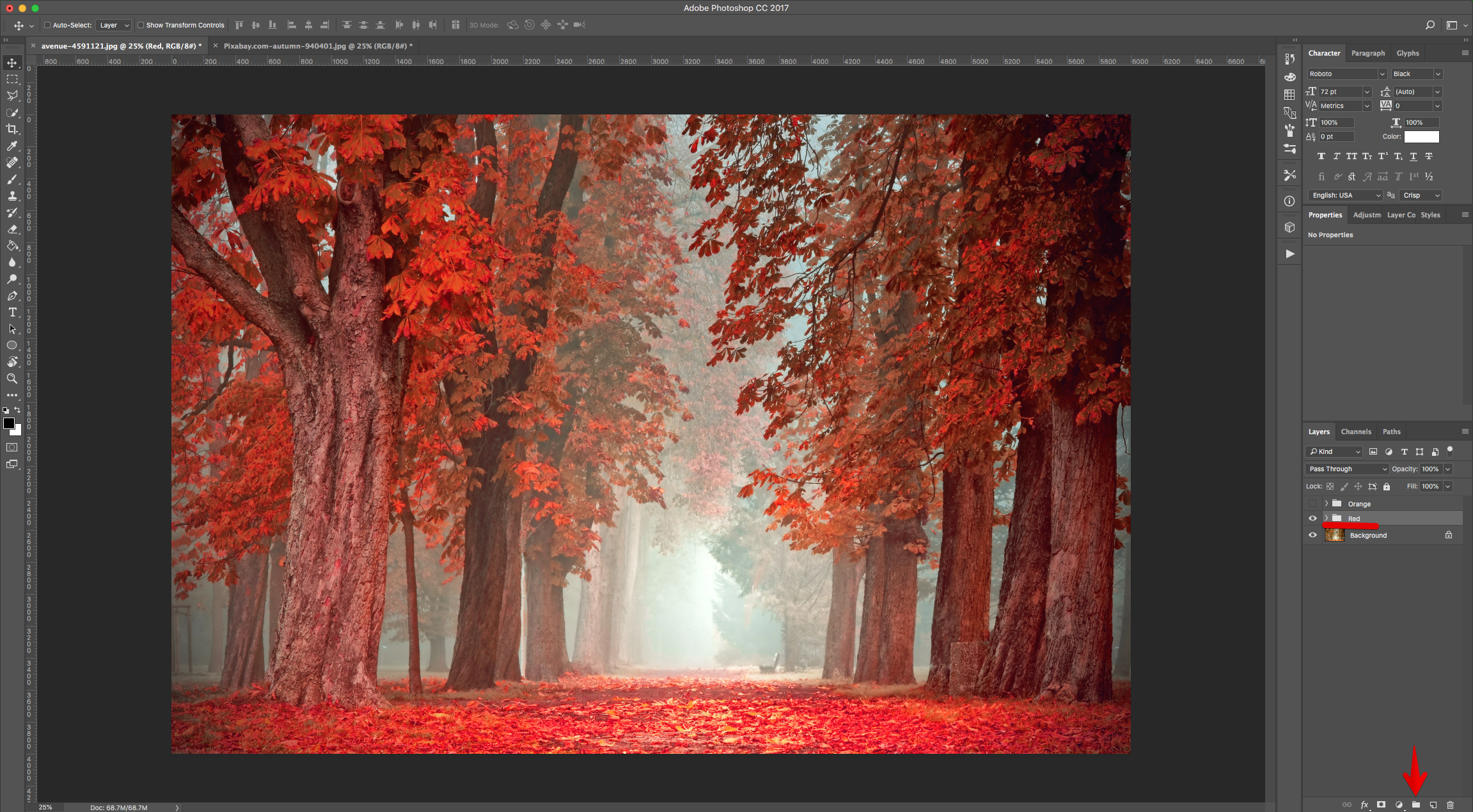
16 - Hide the “Red” group too. Create a “New Layer” by clicking on the small button at the bottom of the “Layers Panel” and make sure it’s placed on top of the “Background” Layer.
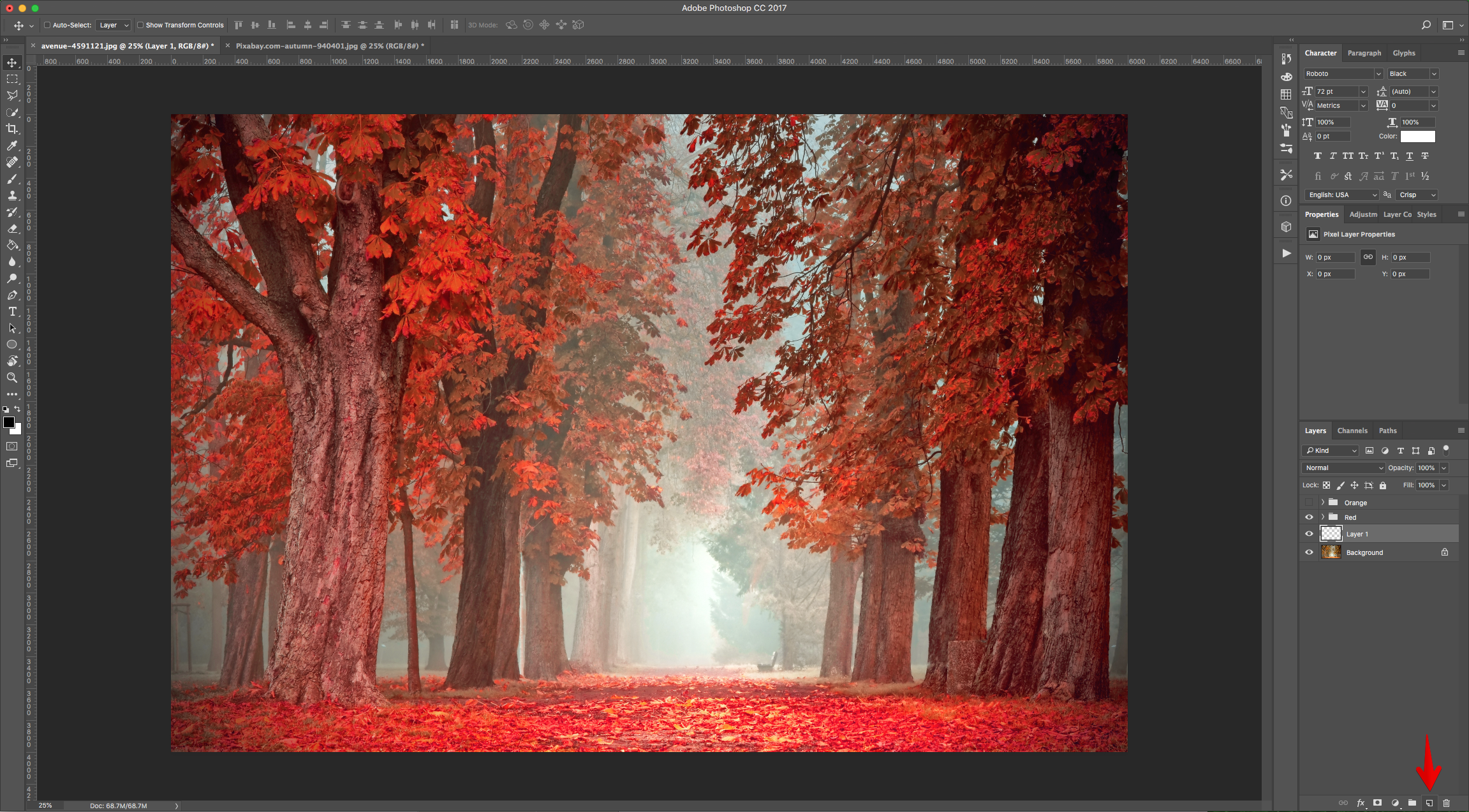
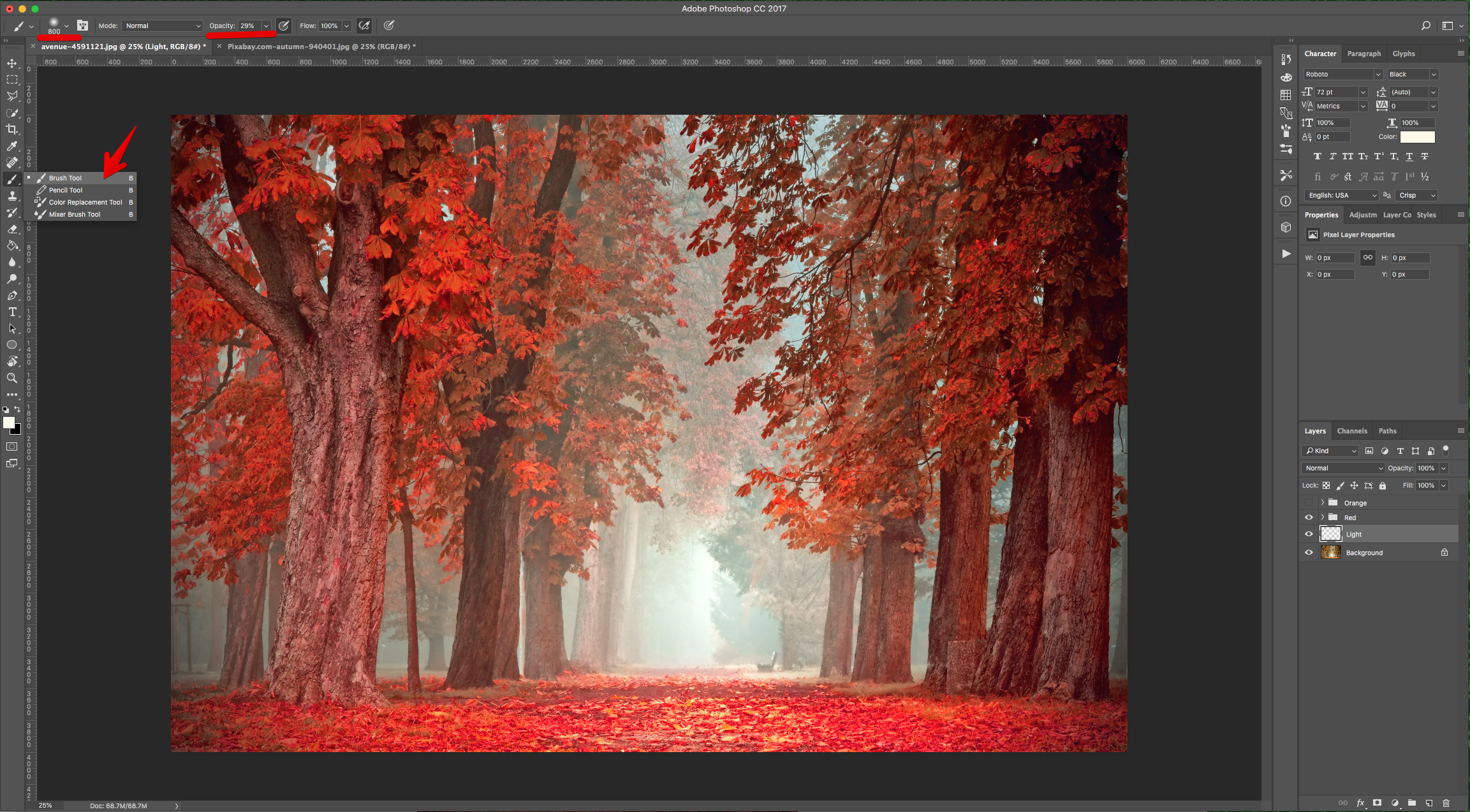
17 - Select the “Brush Tool” (B)and choose a Large and soft brush (800 pt and 0% “Hardness”) with 29% “Opacity”. Change the “Foreground” color to # df9ea and paint some “Light” where needed.
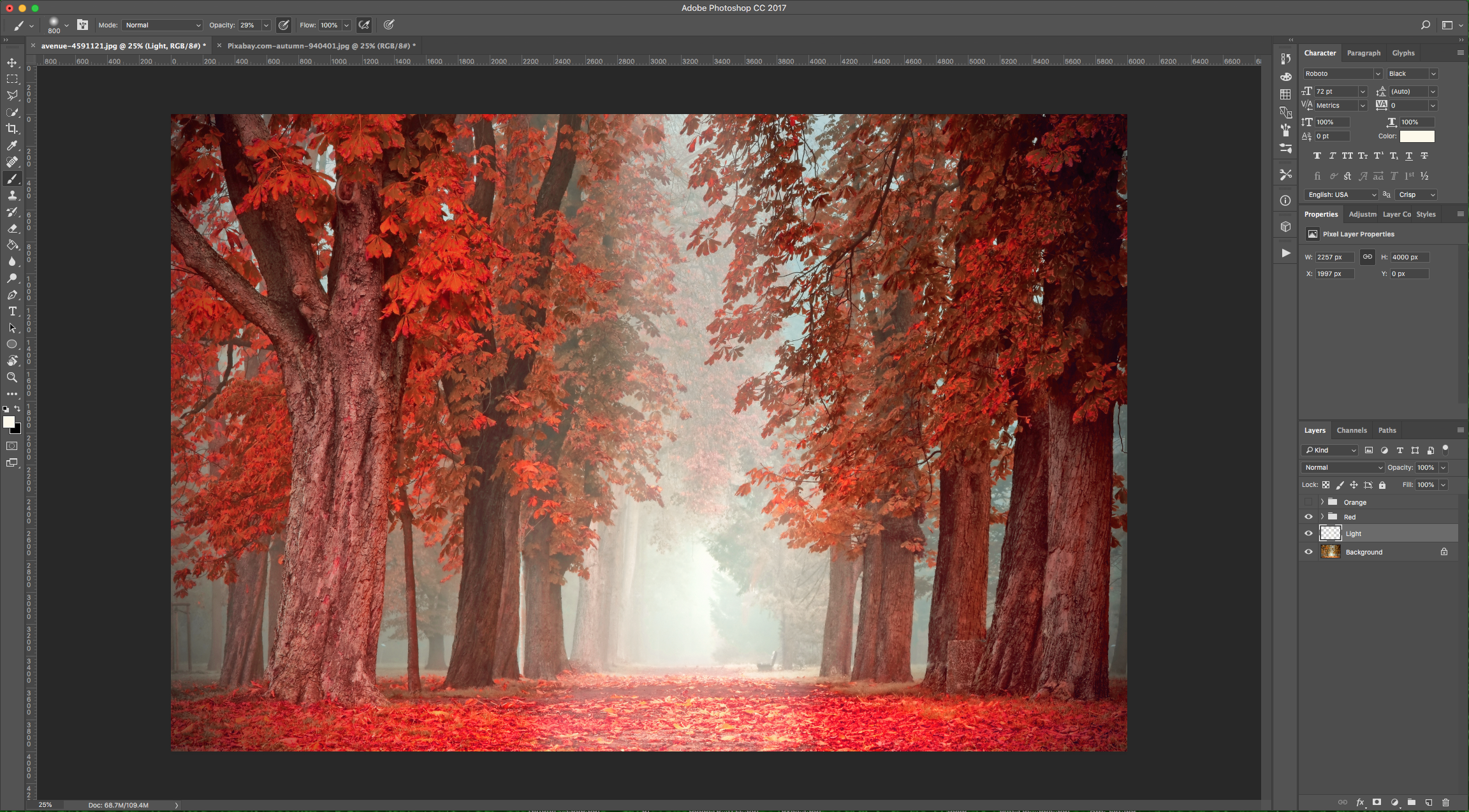
18 - Change the “Blending Mode” of the Layer to “Overlay”.
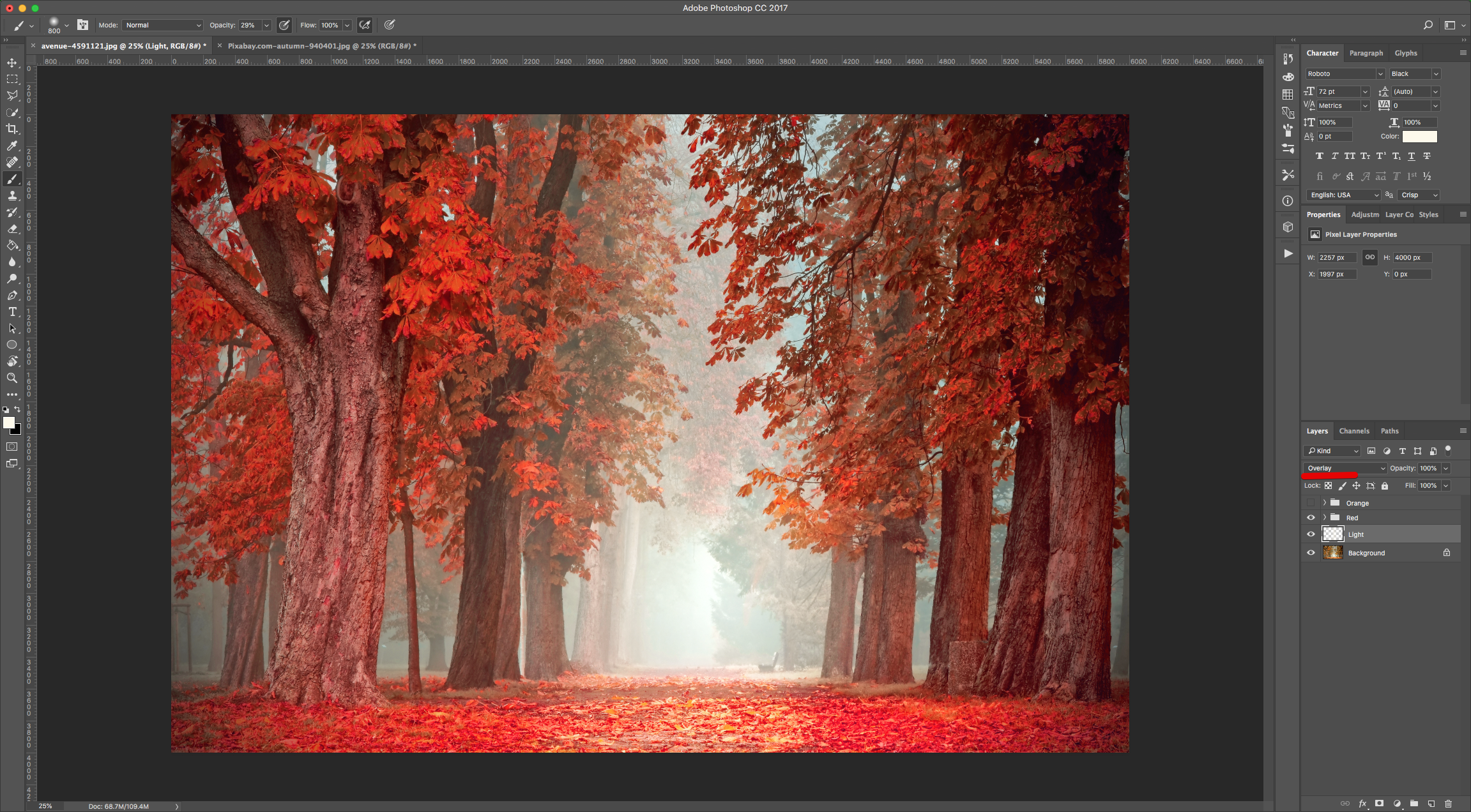
19 - With that layer still selected, go to the “Adjustments Panel” and create a “New Color Lookup” Adjustment Layer.
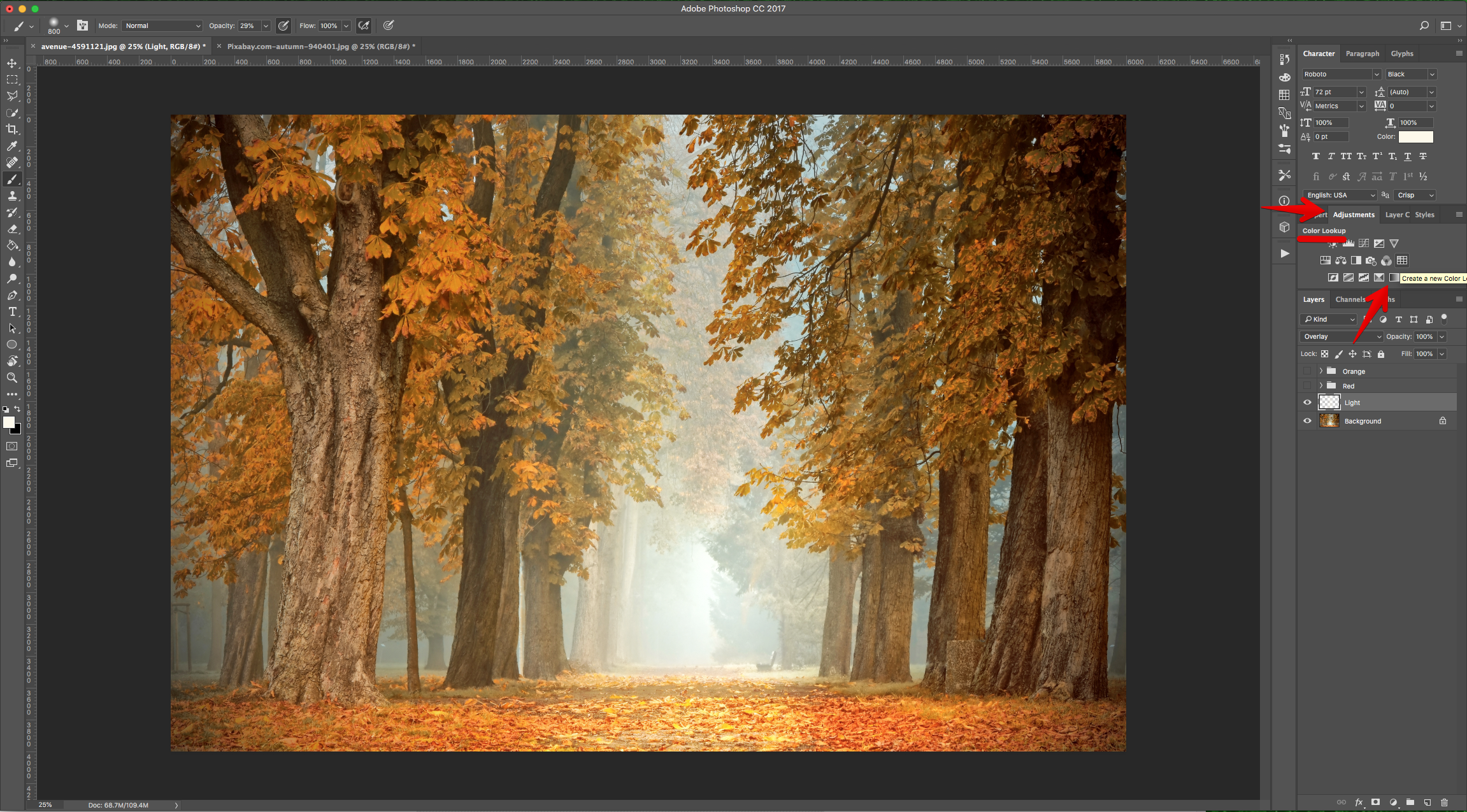
20 - You can choose between different “3DLUT File” presets. We used “3Strip.look”, “Crisp_Warm.look” and “TensionGreen.3DL”.
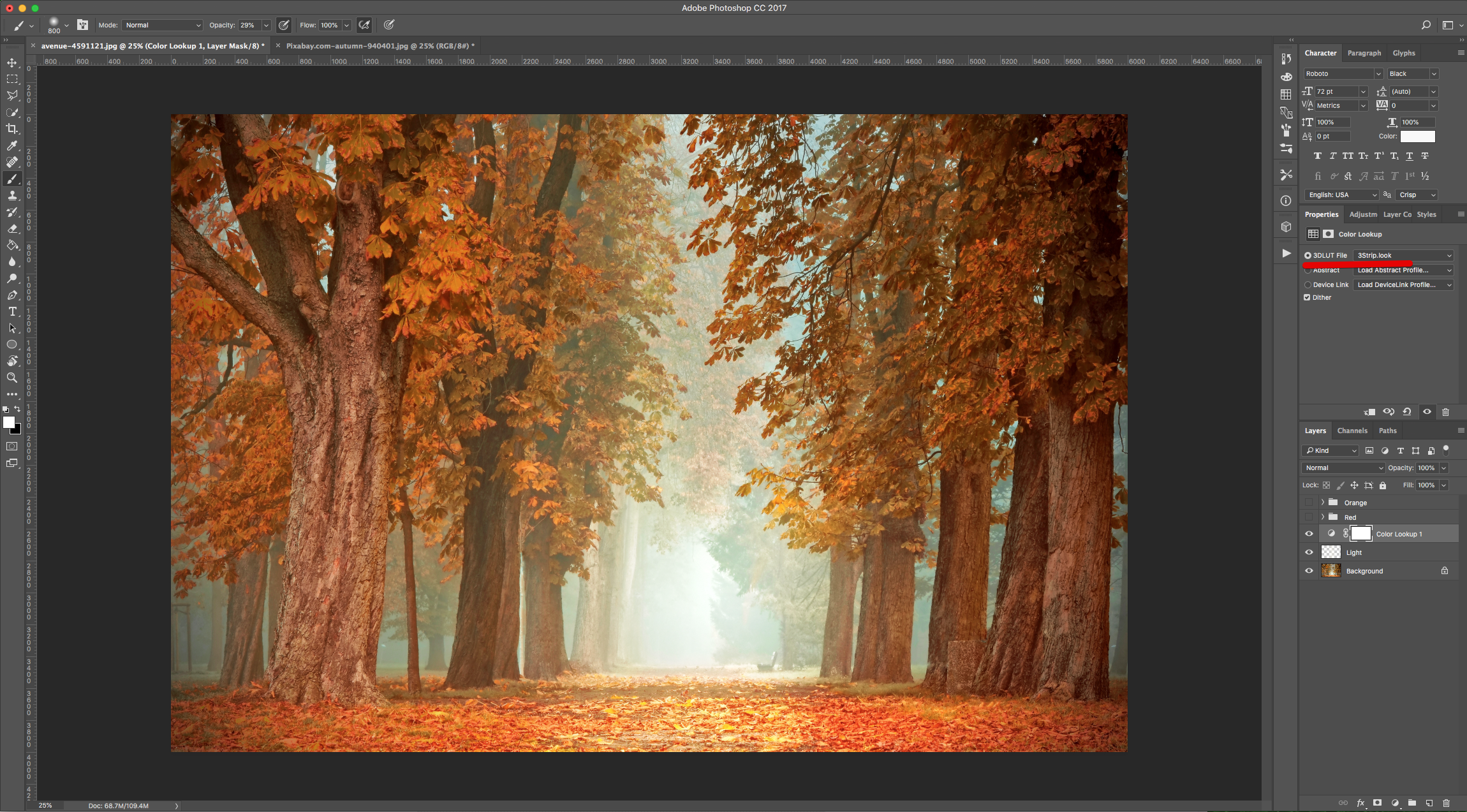
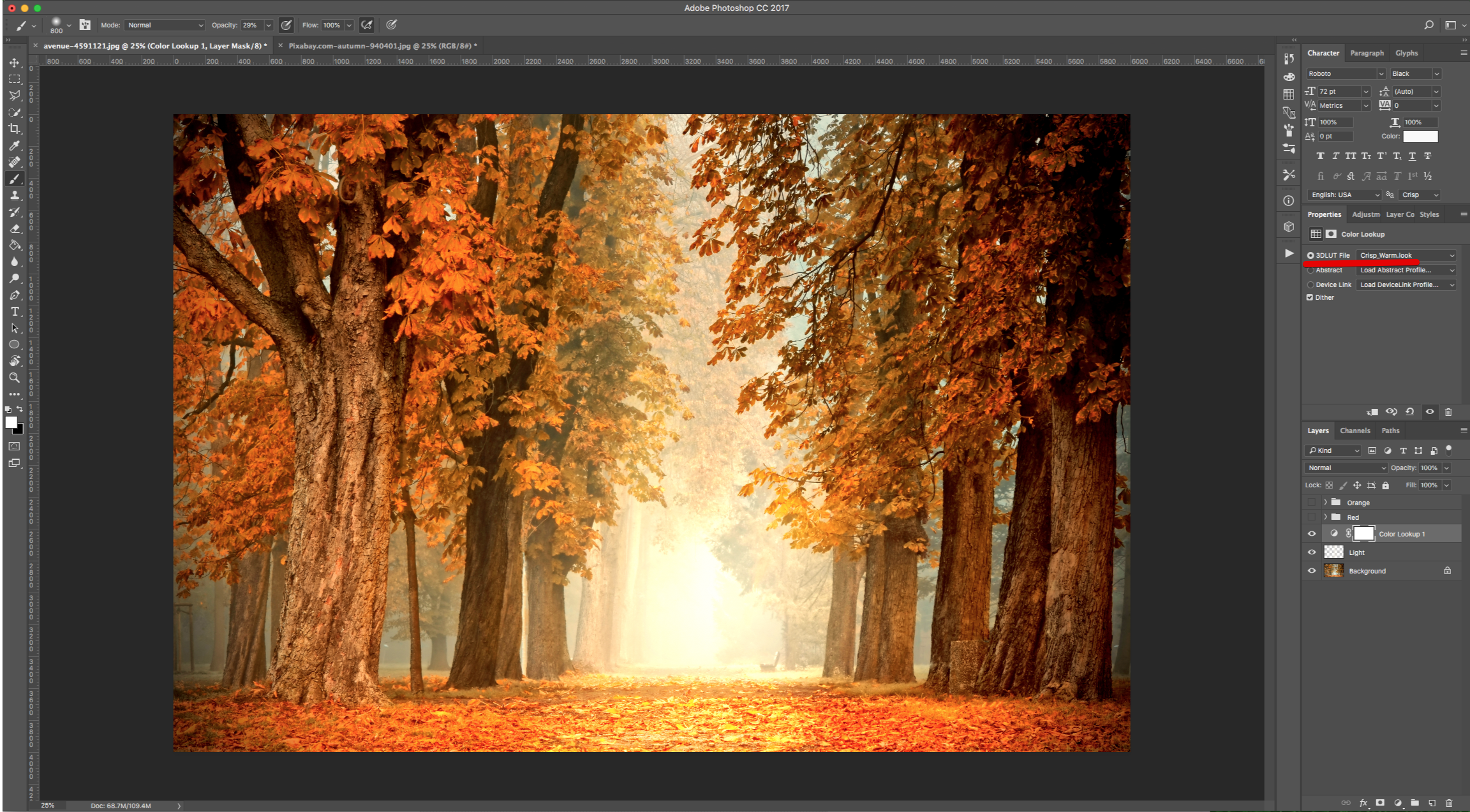
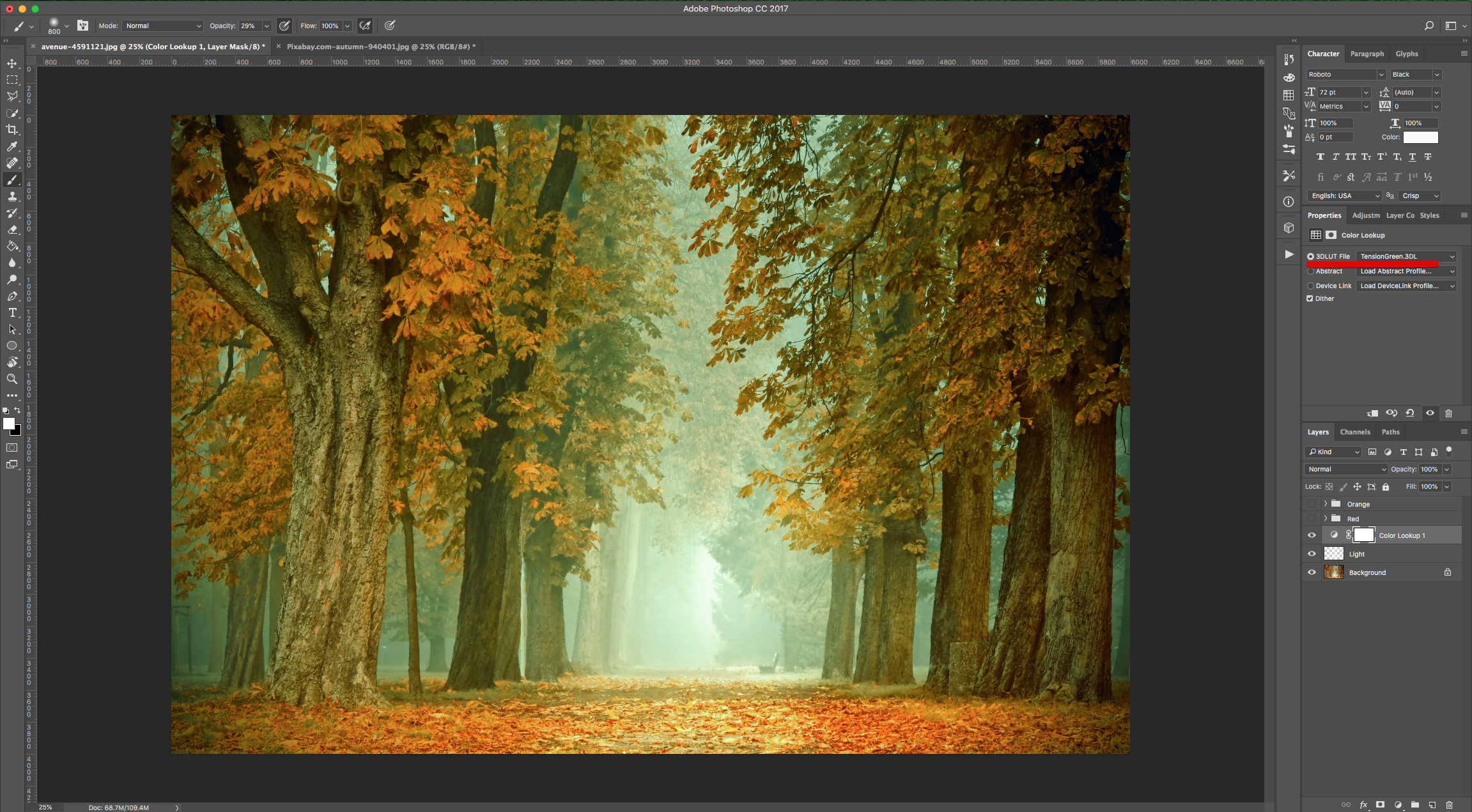
21 - You can also combine this “Adjustment Layer” with one of the previously created groups.
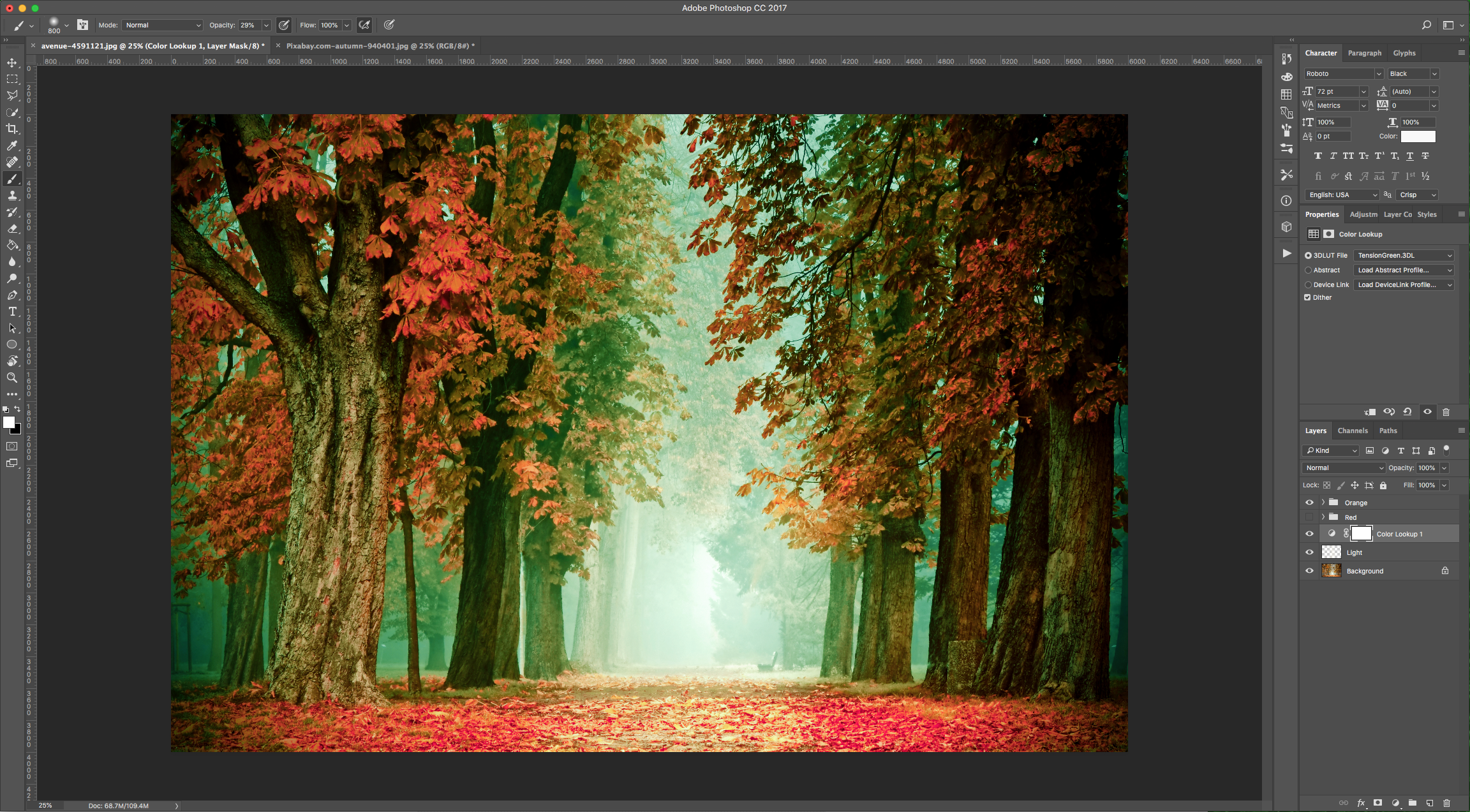
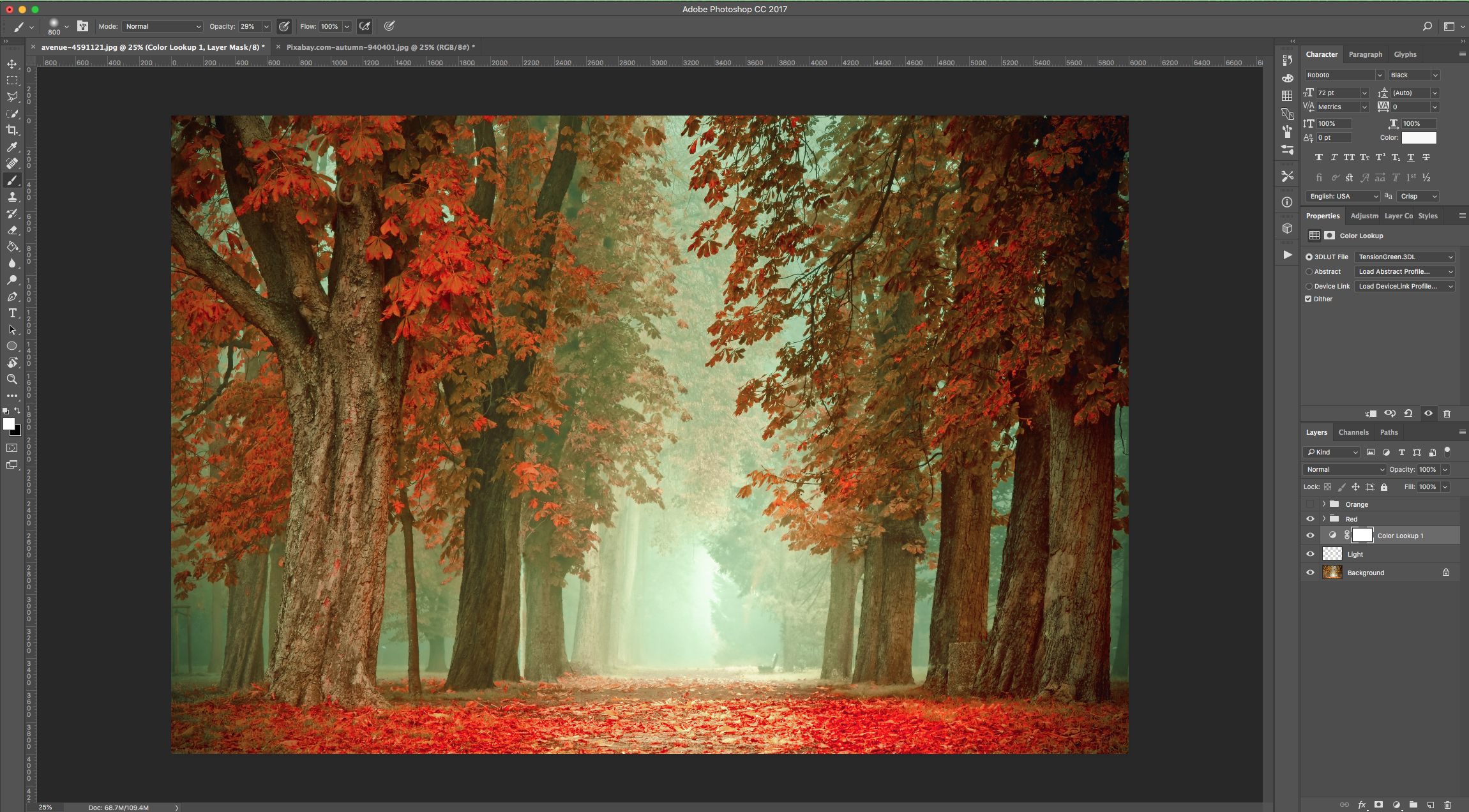
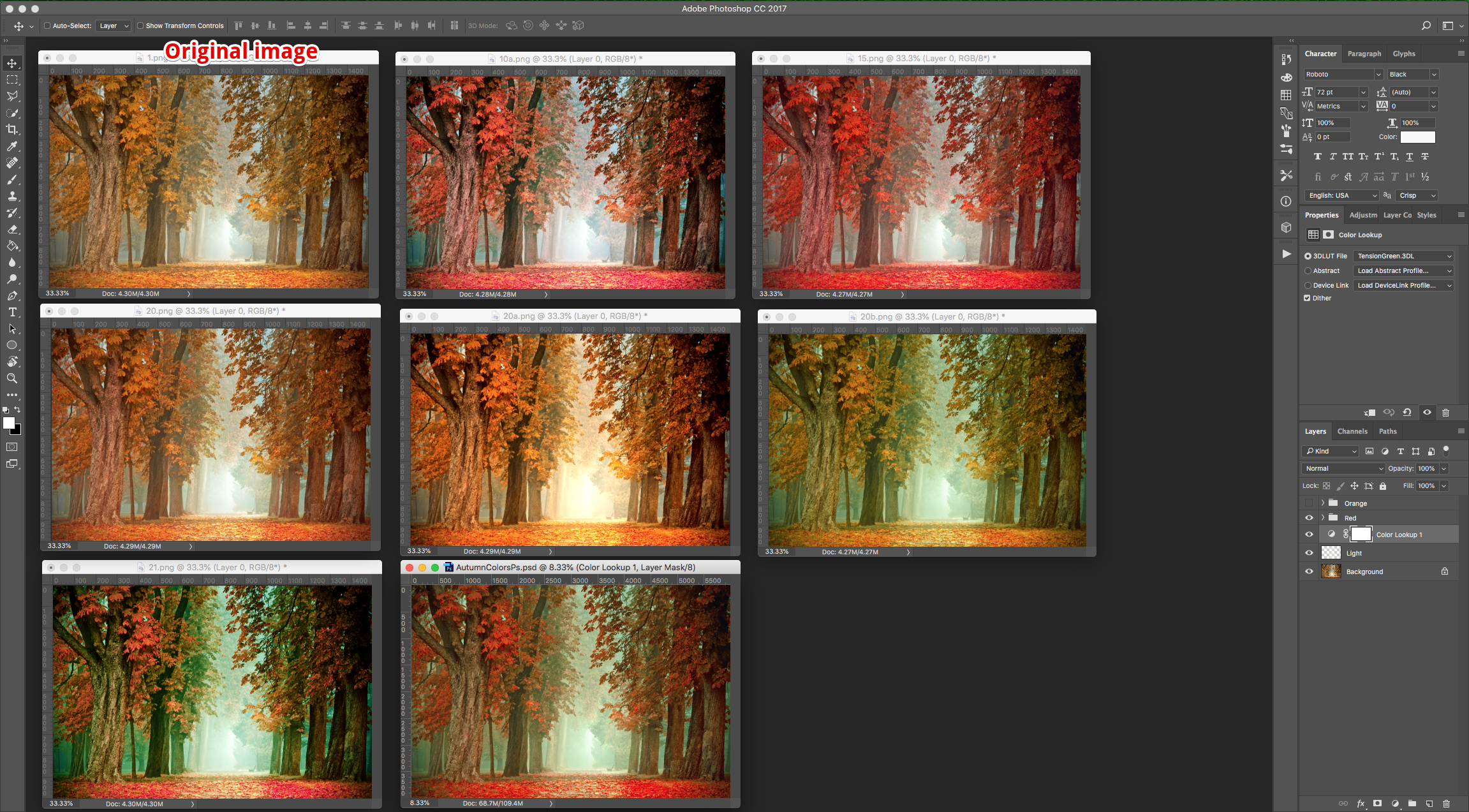
22 - Check out the various autumn looks!
1 - In Photoshop, open the image you wish to use apply the “Effect” to.
2 - Go to the “Adjustments Panel” and create a “New Gradient Map” Adjustment Layer.
3 - Double-click on the Gradient and use #020c52 @ 0% (Location) and #fbb4fa @ 100% (Location).
4 - Change the “Blending Mode” of the “Gradient Map” layer to “Soft Light”.
5 - Go to the “Adjustments Panel” and create a “Selective Color” Adjustment Layer.
6 - Choose “Reds” and lower the “Cyan” completely (or almost), the “Yellow” to about 40% and increase the “Magenta” around 10. Then, choose “Yellows”, lower the “Cyan” and “Yellow” increase the “Magenta”. Finally, choose the “Neutrals” and increase the “Cyan” and “Yellow” and lower the “Magenta” a bit. The values to use are going to depend on your image.
7 - Go to the “Adjustments Panel” and create a “Color Balance” Adjustment Layer.
8 - Choose “Shadows” and move the first lever towards the “Red” side a bit and the last one towards the “Yellow” a bit. Then, choose “Midtones”, and move the levers towards the “Cyan”, “Green” and “Blue” sides a bit. Finally, with the “Highlights”, move the levers towards the “Red”, “Green” and “Blue” sides a bit. The values to use are going to depend on your image.
9 - Go to the “Adjustments Panel” and create a “Vibrance” Adjustment Layer. Increase the “Vibrance” and “Saturation” values to make the colors pop a bit more.
10 - Select all the “Adjustment Layers” (“Shift” key) and “Group” them together by clicking on the small Folder icon at the bottom of the “Layers Panel”. Name the group “Orange”.
11 - Hide the “Orange” group by clicking on the small eye icon on the left side of its Thumbnail.
12 - Go to the “Adjustments Panel” and create a “New Hue/Saturation” Adjustment Layer.
13 - Choose “Reds” and lower the “Hue” to about -25 and increase the “Saturation” to 18, and in the “Yellows” lower the “Hue” to about -15 and increase the “Lightness” to 11. The values to use are going to depend on your image.
14 - Duplicate the “Hue/Saturation Adjustment Layer” (Command/Control + J). Increase the “Lightness” of the “Master” a couple of points and change the “Reds” “Hue” value to about -3 and the “Saturation” to 1.
15 - Select all the new “Adjustment Layers” (“Shift” key) and “Group” them together. Name the group “Red”.
16 - Hide the “Red” group too. Create a “New Layer” by clicking on the small button at the bottom of the “Layers Panel” and make sure it’s placed on top of the “Background” Layer.
17 - Select the “Brush Tool” (B)and choose a Large and soft brush (800 pt and 0% “Hardness”) with 29% “Opacity”. Change the “Foreground” color to # df9ea and paint some “Light” where needed.
18 - Change the “Blending Mode” of the Layer to “Overlay”.
19 - With that layer still selected, go to the “Adjustments Panel” and create a “New Color Lookup” Adjustment Layer.
20 - You can choose between different “3DLUT File” presets. We used “3Strip.look”, “Crisp_Warm.look” and “TensionGreen.3DL”.
21 - You can also combine this “Adjustment Layer” with one of the previously created groups.
22 - Check out the various autumn looks!
by @lornacane
Related Tutorials
Photoshop Tutorials
How to Change Colors of Objects in Photoshop
Photoshop Tutorials
8 Bit Color Images with Old Game Console Colors Photoshop
Photoshop Tutorials
How to Use Text Effects in Photoshop
With Photoshop Text Effects, you can create text with impact in just a few steps.
Photoshop Tutorials
How to Create Speech Bubbles in Photoshop
Learn how to create and edit fun speech bubbles in Photoshop using custom shapes.
Photoshop Tutorials
How to Make Sublimation Designs in Photoshop
Discover how to make sublimation designs in Photoshop that you can use to create beautiful gifts.
Photoshop Tutorials
How to Use EPS Files in Photoshop
In this tutorial, learn how to use EPS files in Photoshop as Smart Objects to maintain image quality