By Design Bundles
Photoshop Tutorials5 min
Watercolor Text Effect in Photoshop (Part 2)
For this tutorial we are using a canvas or paper background and Titin Script from Font Bundles.
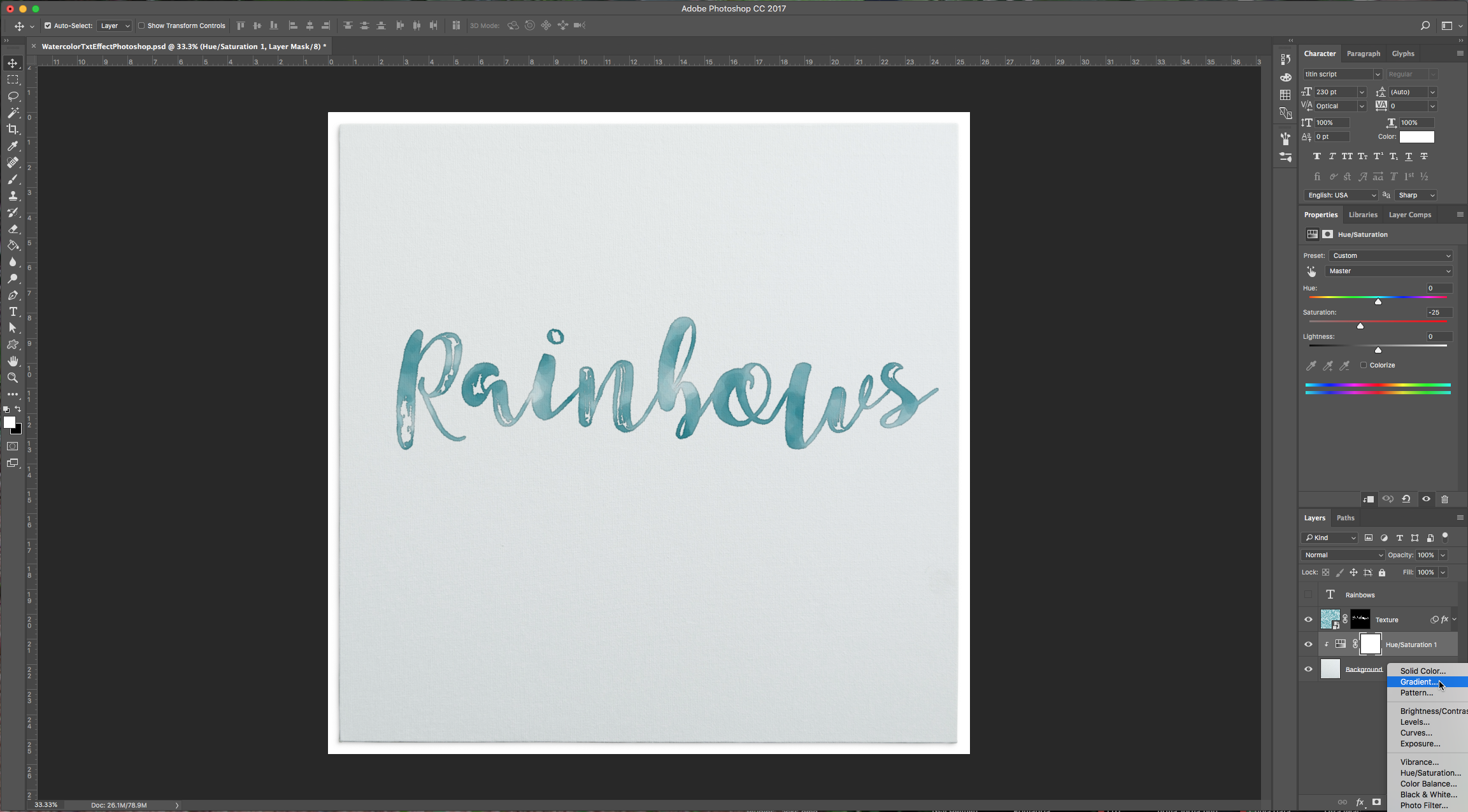
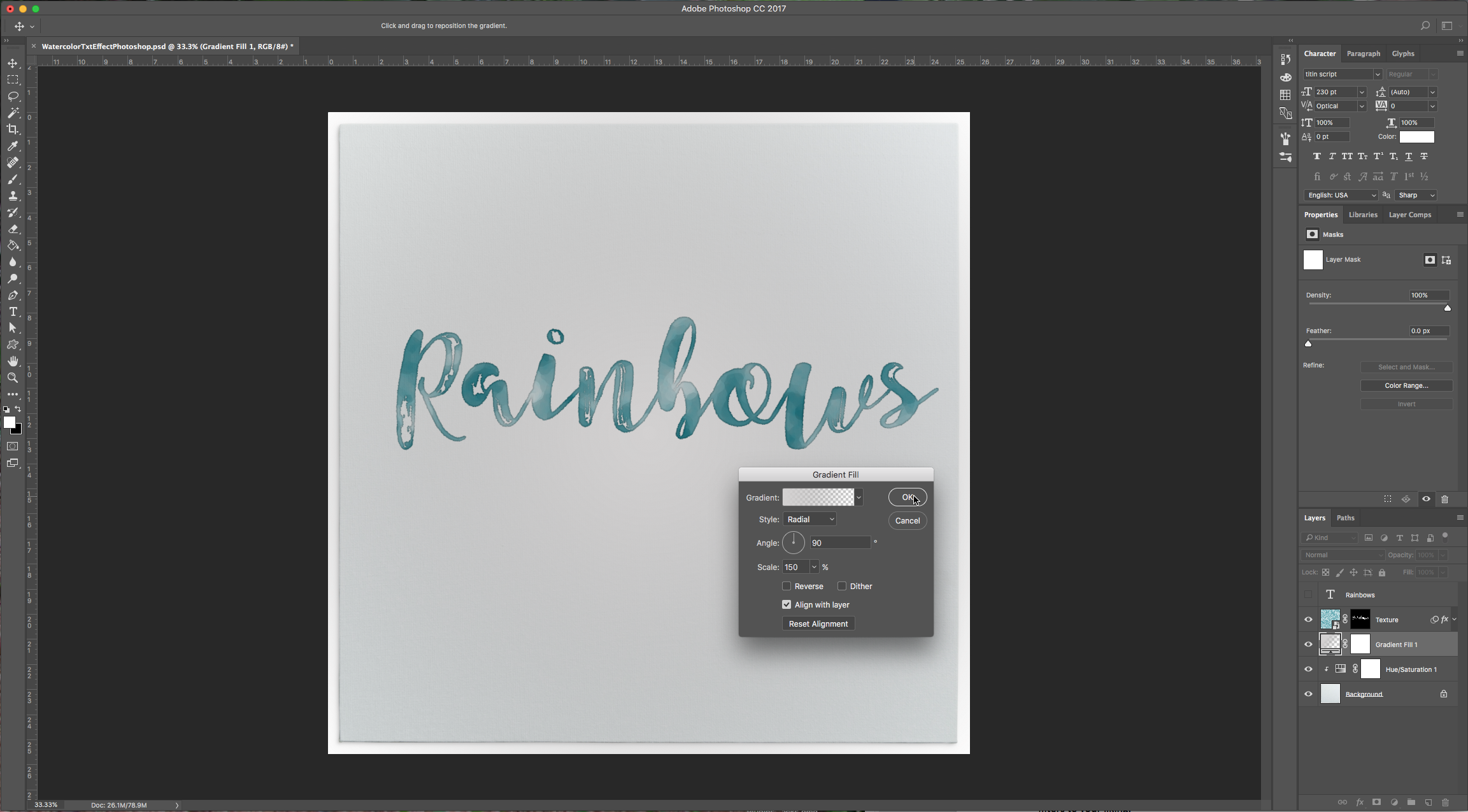
1 – Create a new “Gradient Layer” under your “Texture” layer. Use a “Transparent to Fill Color” gradient with #d3d1d1 and #918f8f as colors, the Style as Radial and a 250% Scale. Hit Ok.
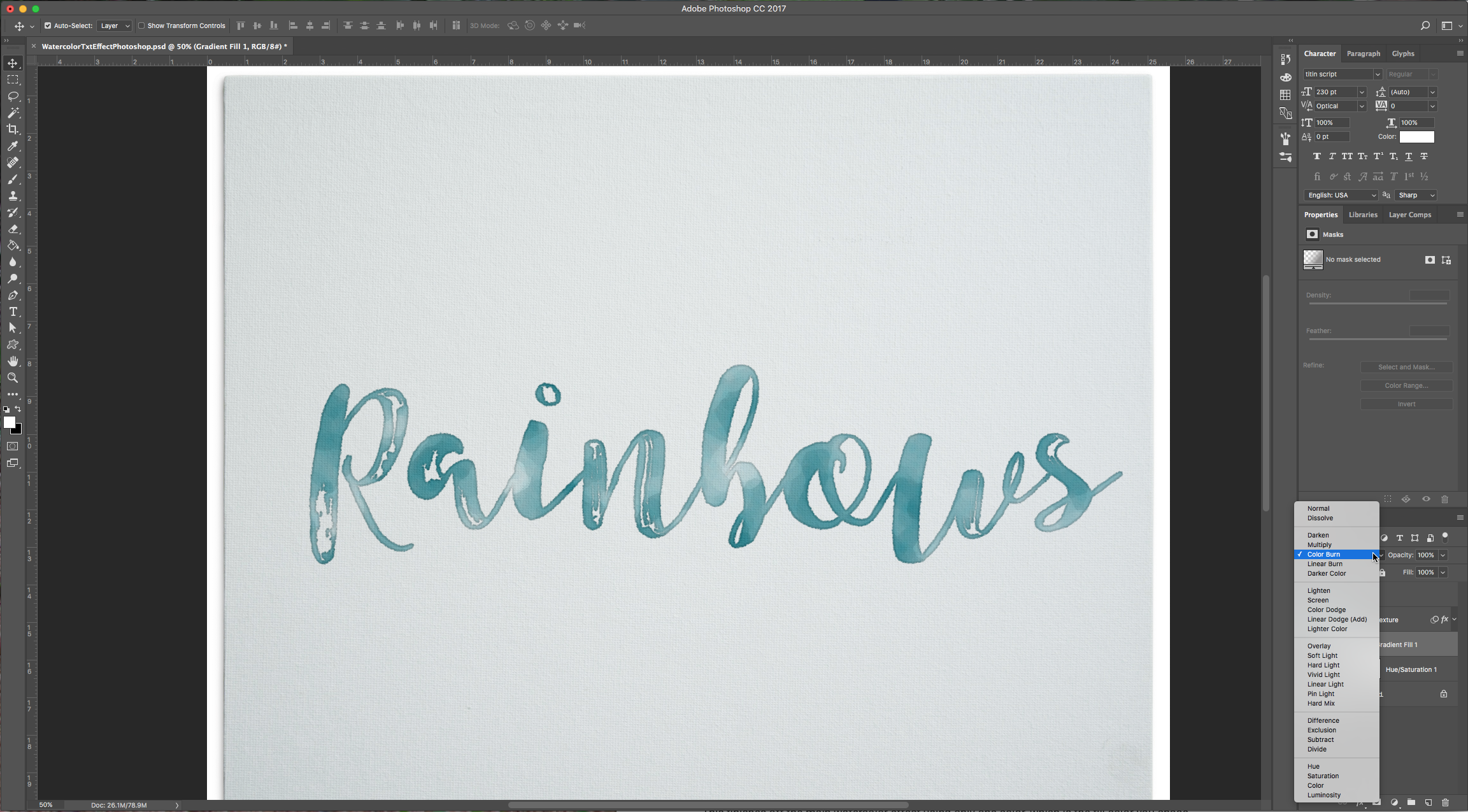
2 – Change the “Gradient Layer” Blending Mode to “Color Burn”.
3 – Let’s create a new watercolor brush to add some detail. Select the “Brush Tool” (B). Select a hard round tip and Use the following values in the “Brush Panel”:
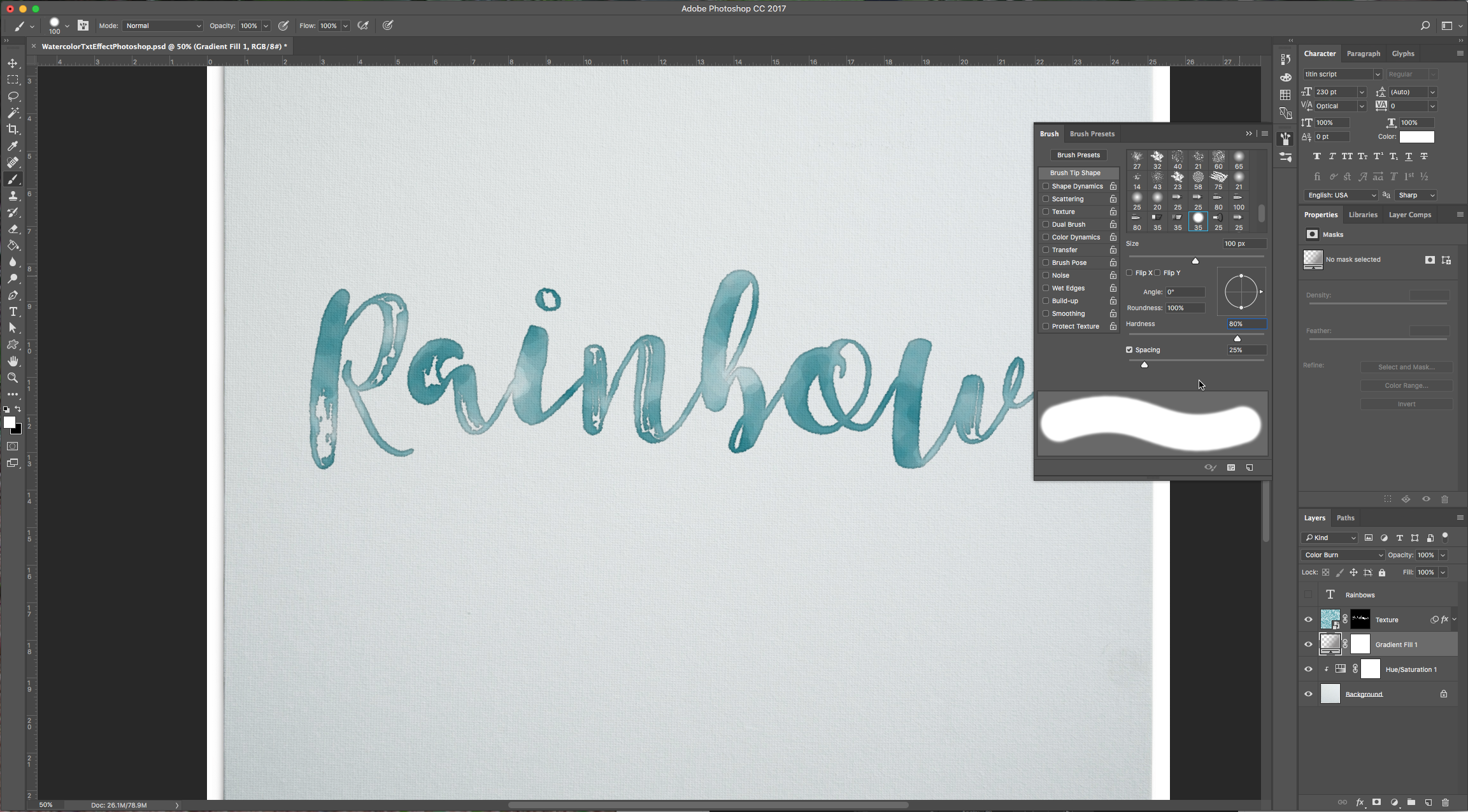
Brush Tip Size:
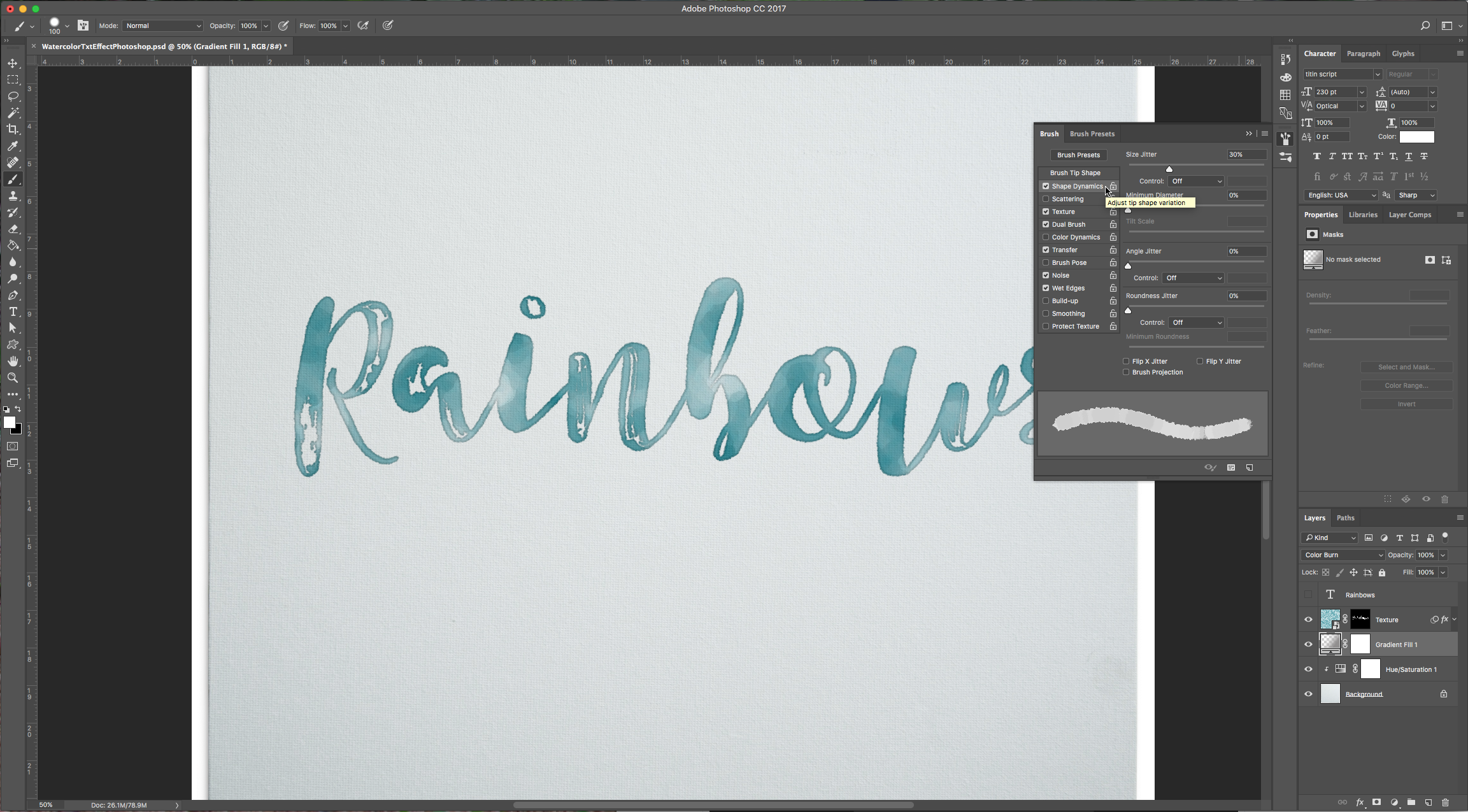
Shape Dynamics:
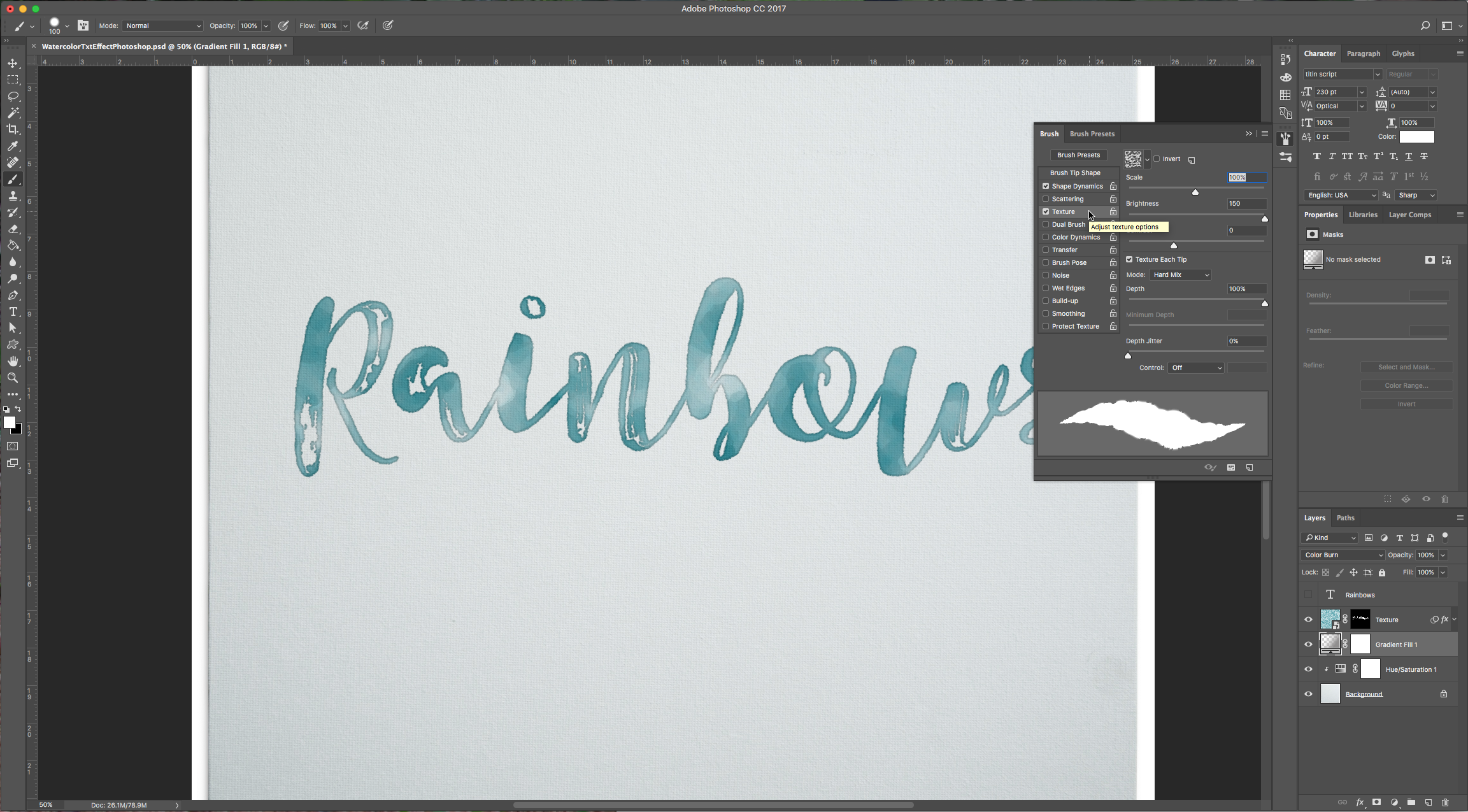
Texture:
Dual Brush: Chalk 23 pixels tip.
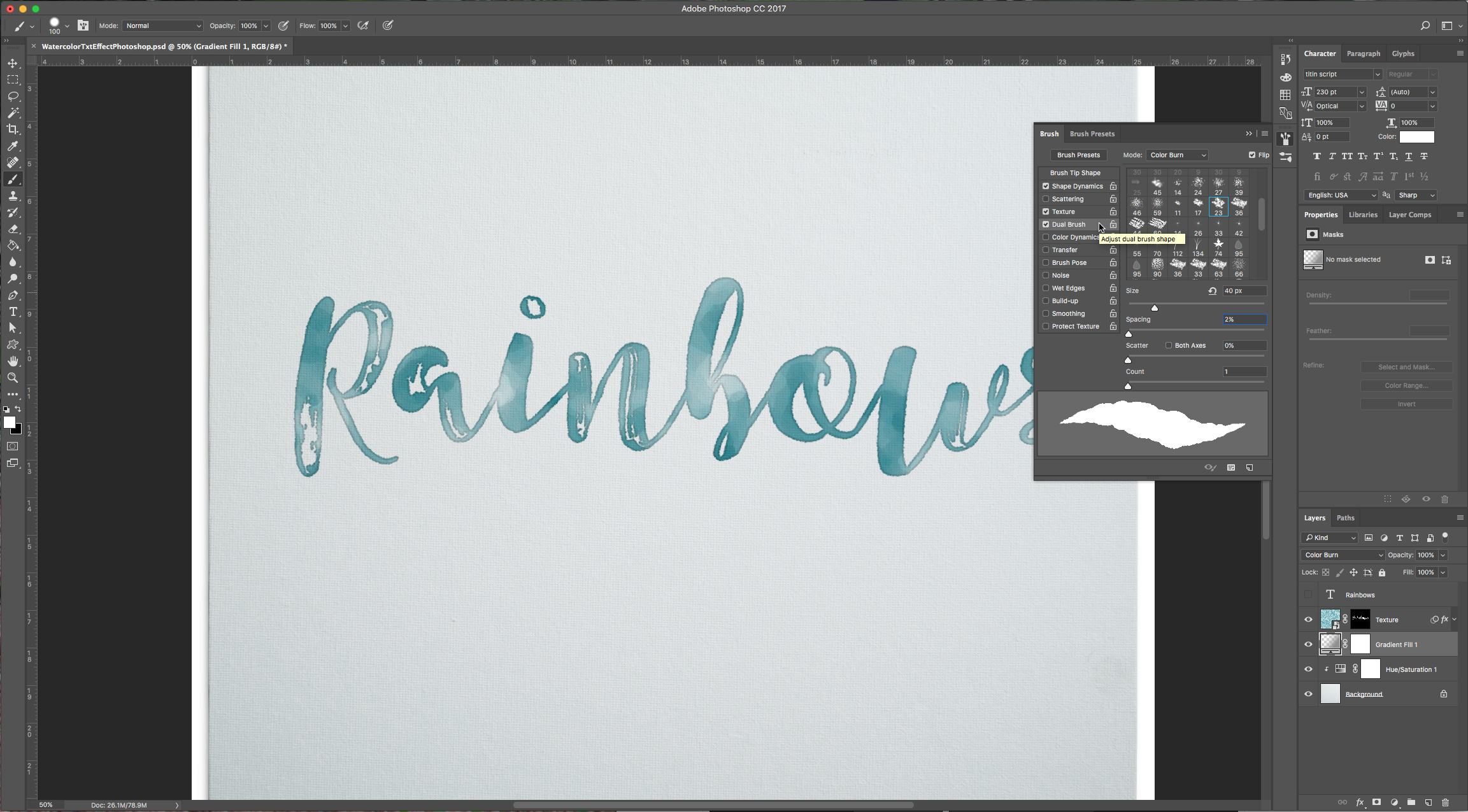
Transfer:
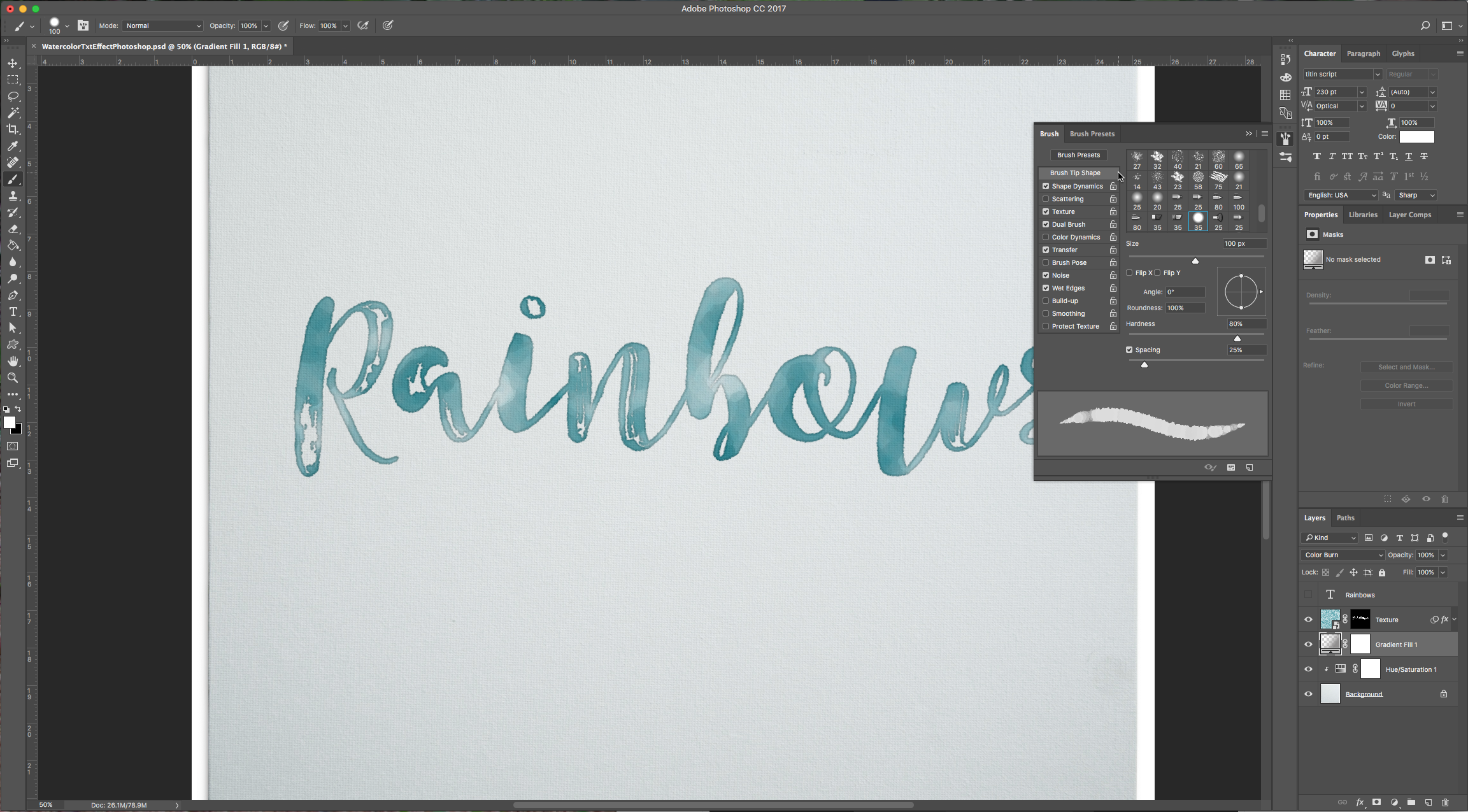
And check “Noise” and “Wet Edges”.
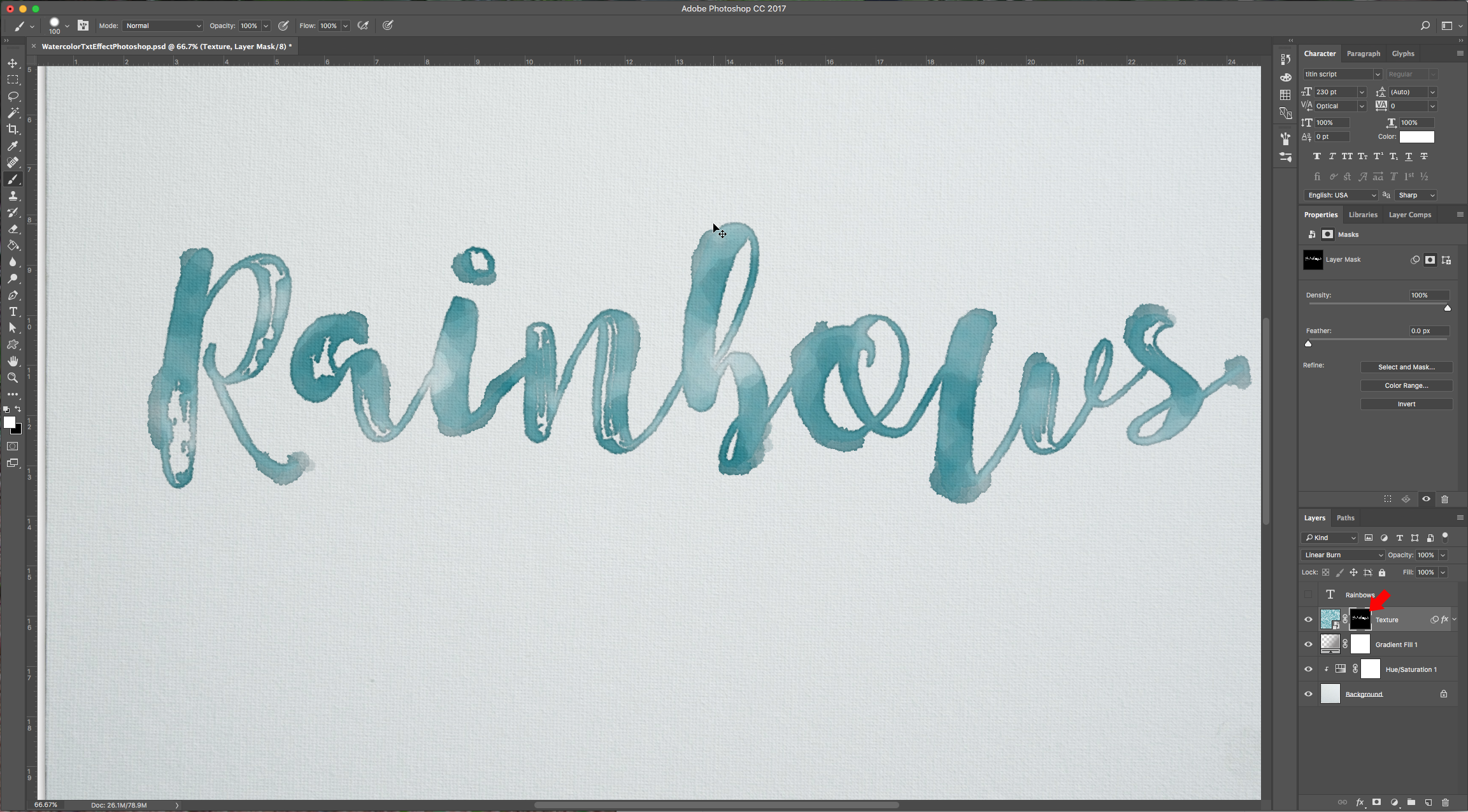
4 – With your “Texture” layer mask selected draw some smudges and stains.
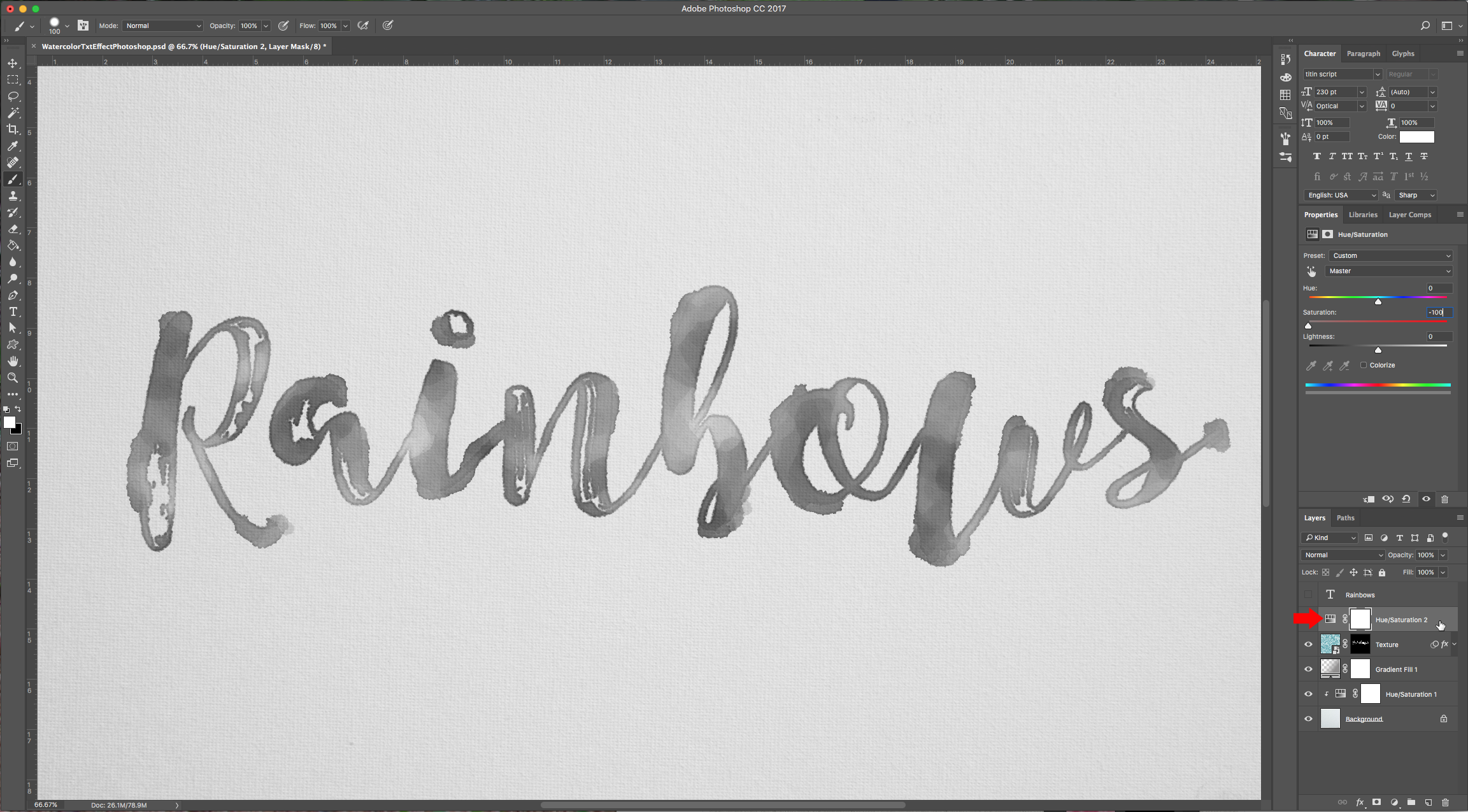
5 – Let’s add a “Hue/Saturation Adjustment” layer and clip it to the “Texture” layer. Change the Saturation value to -100.
6 – Create a new layer on top of this adjustment layer and set the Blending Mode to “Color Burn” name it “Rainbow”, lower opacity to about 70% and clip it to the “Hue/Saturation” layer.
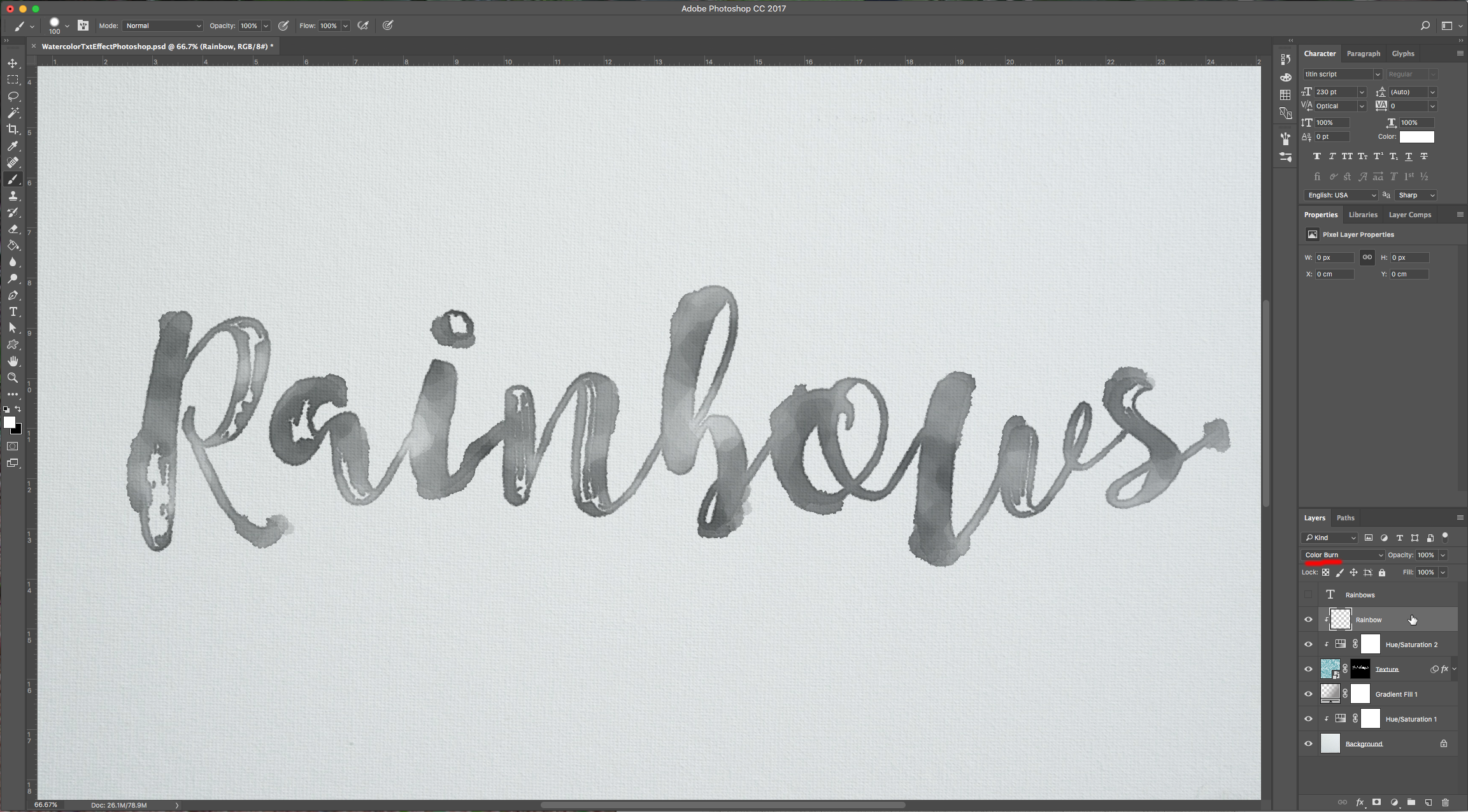
7 – Select a big soft brush and paint some colors over your text.
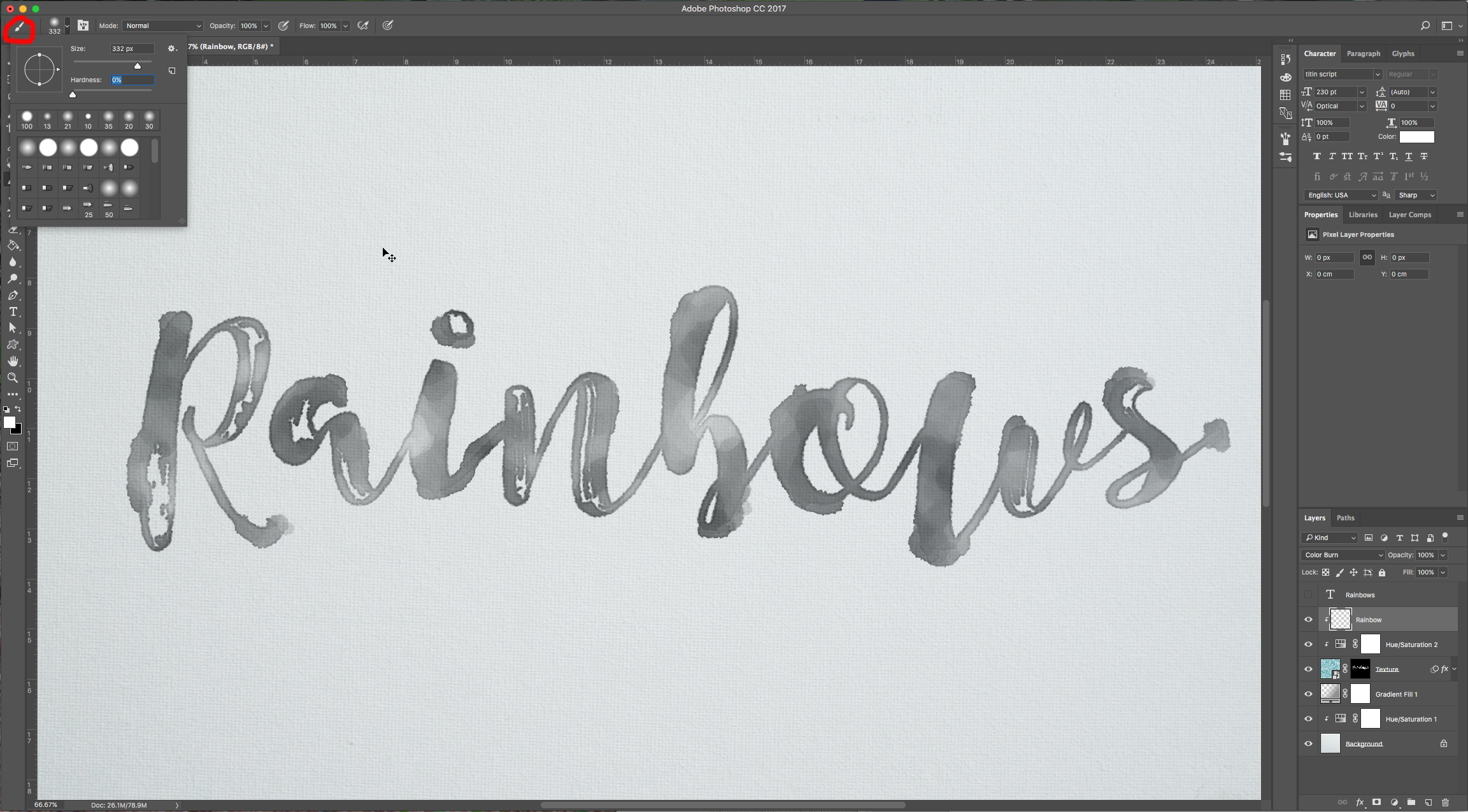
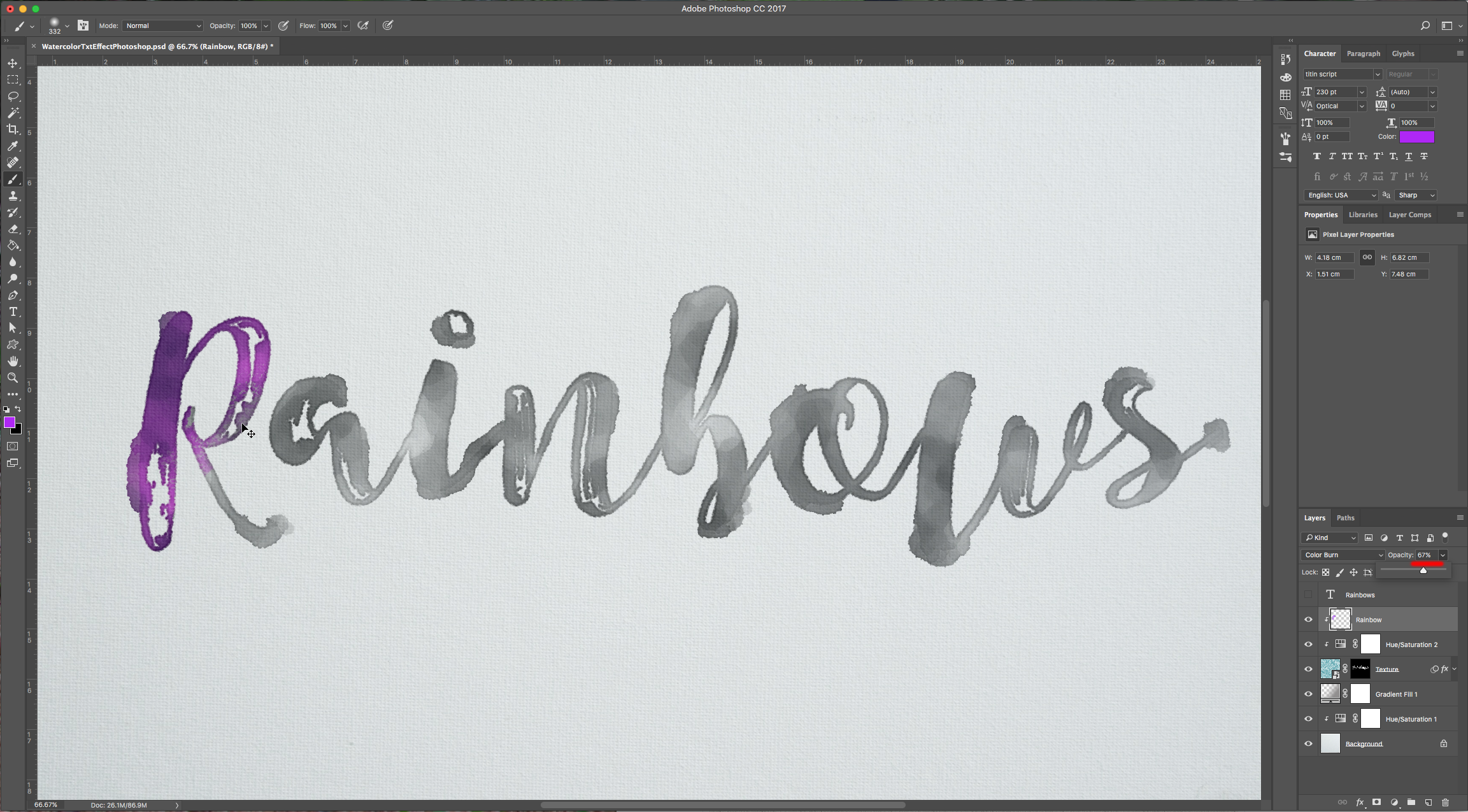
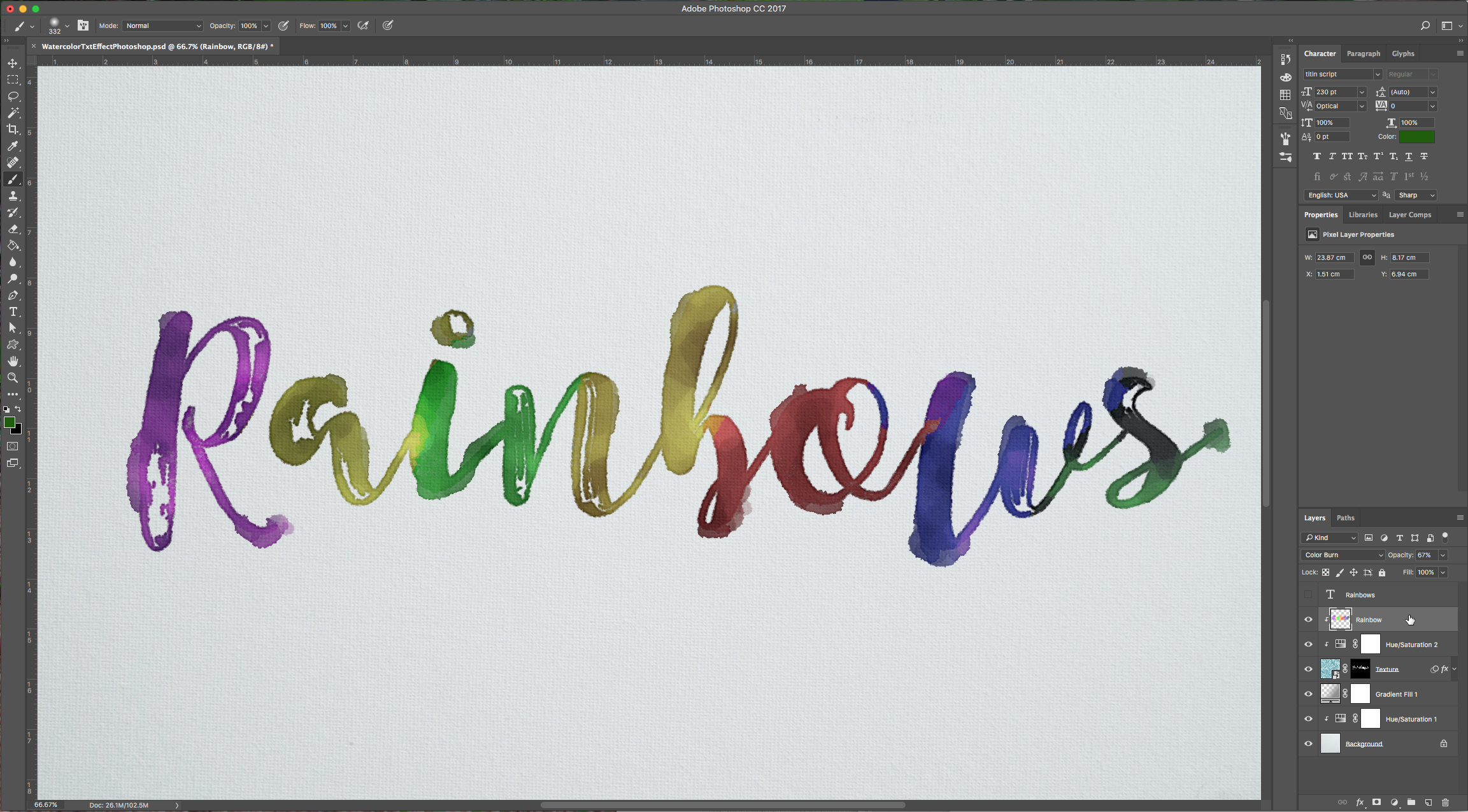
8 – To apply more filters, create a new layer on top and click Shift + Command/Control + Option + E to create a “Visual Stamp” of your text and apply your filter to that. Don’t forget to convert your “Visual Stamp” layer into a “Smart Object” so you can undo or tweak the changes.
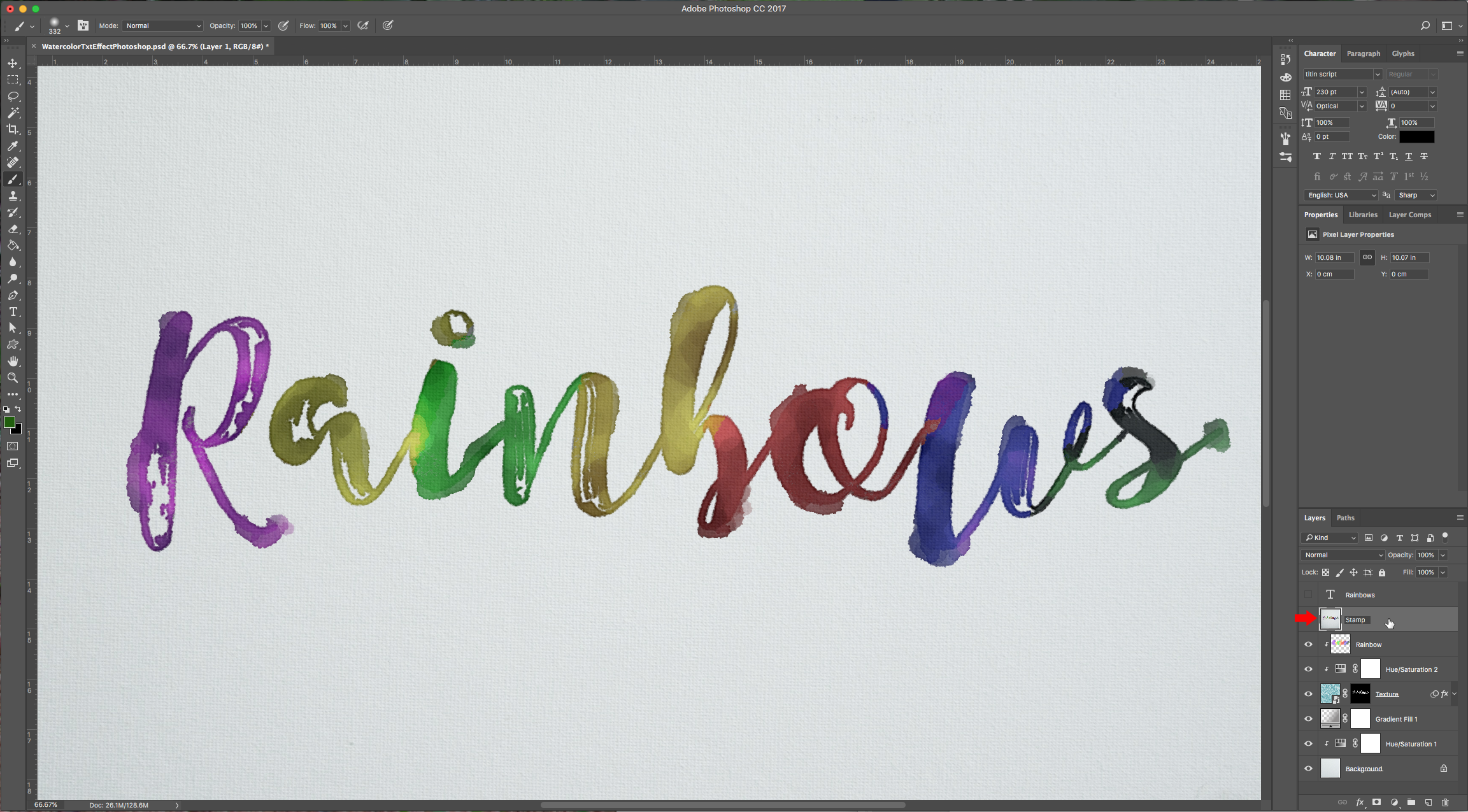
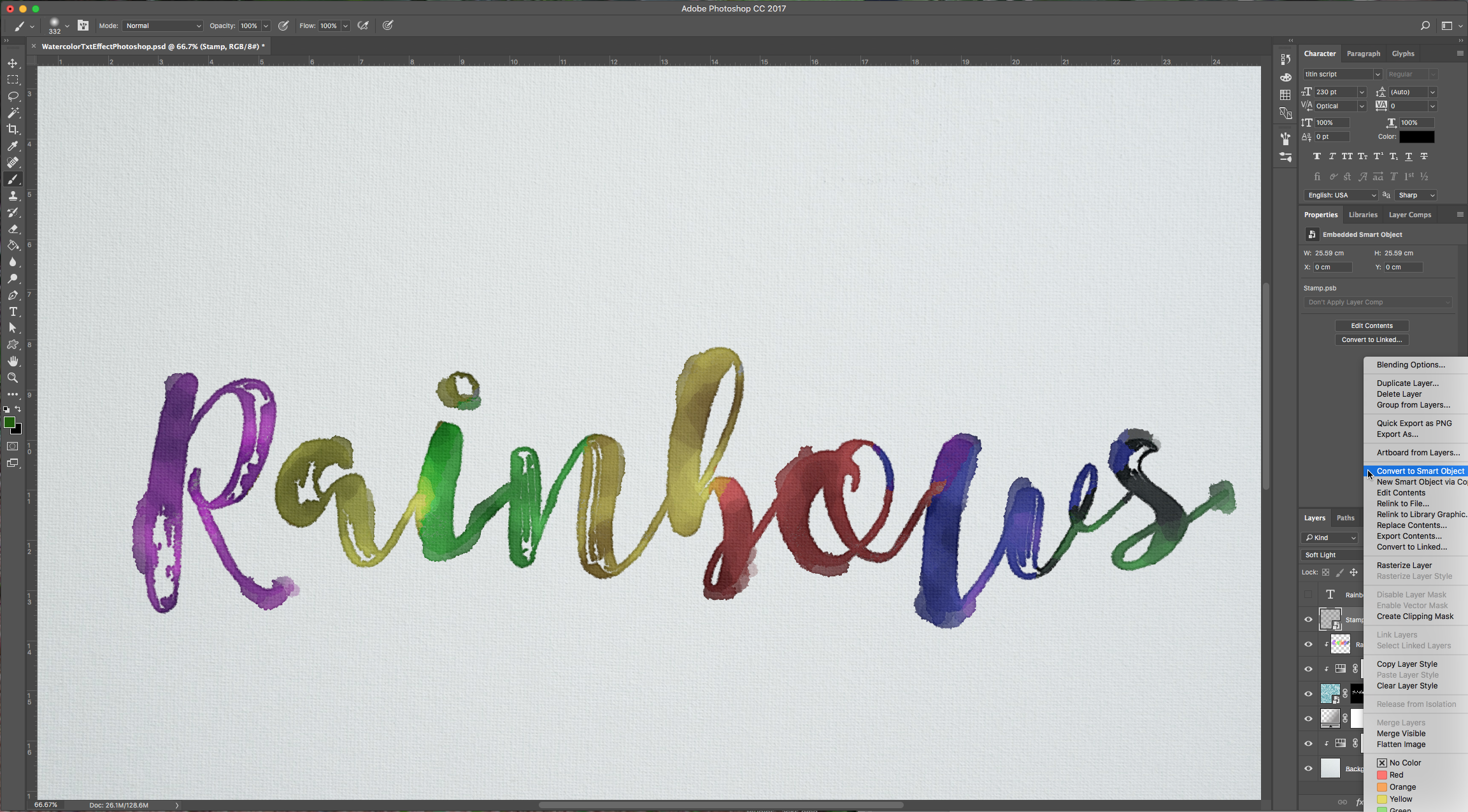
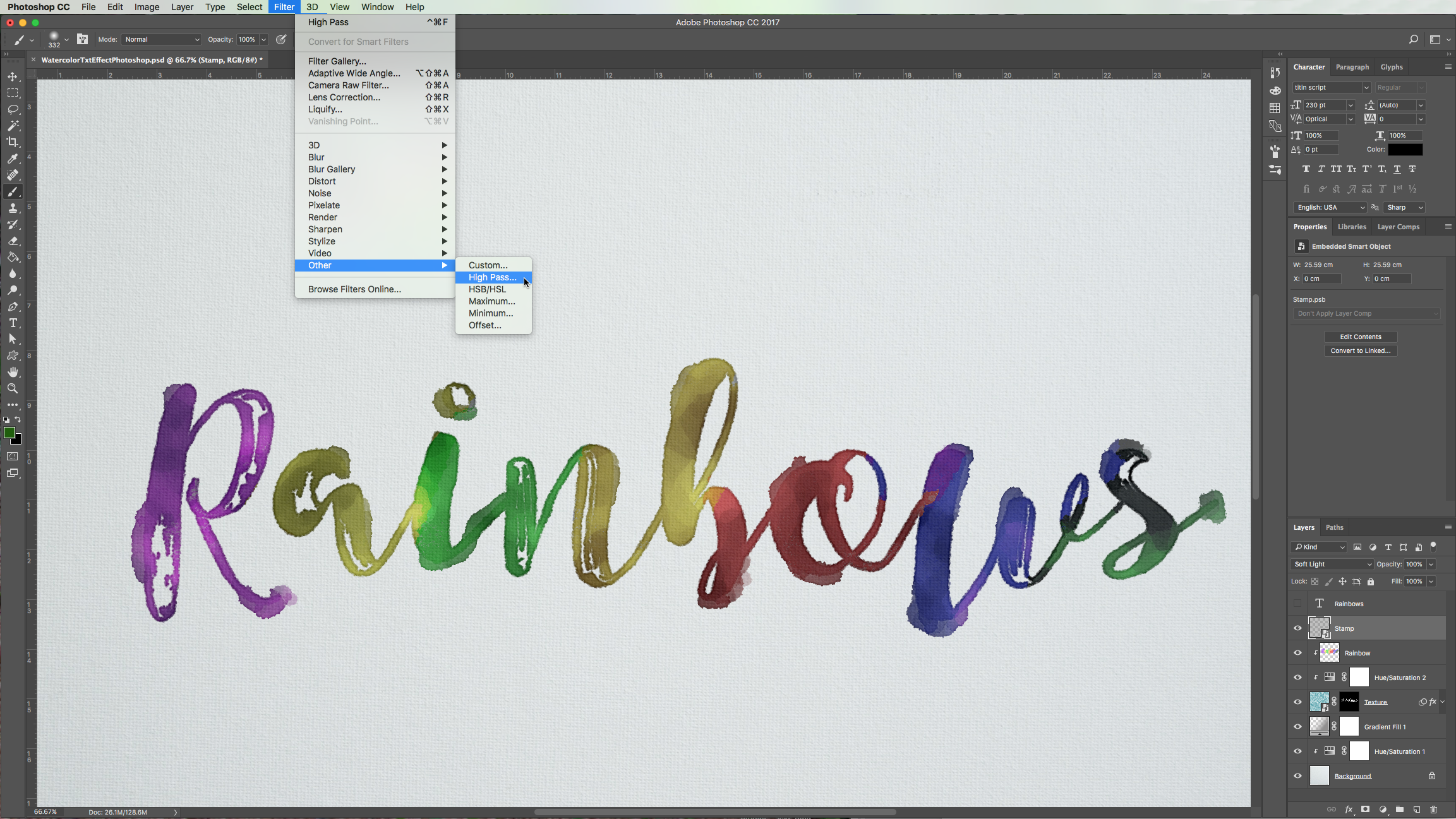
9 – Example: Go to Filters > Other > High Pass and use a Radius of 1.5 pixels, click Ok and then change the Blending Options of the layer to “Soft Light” with an Opacity of 60%.
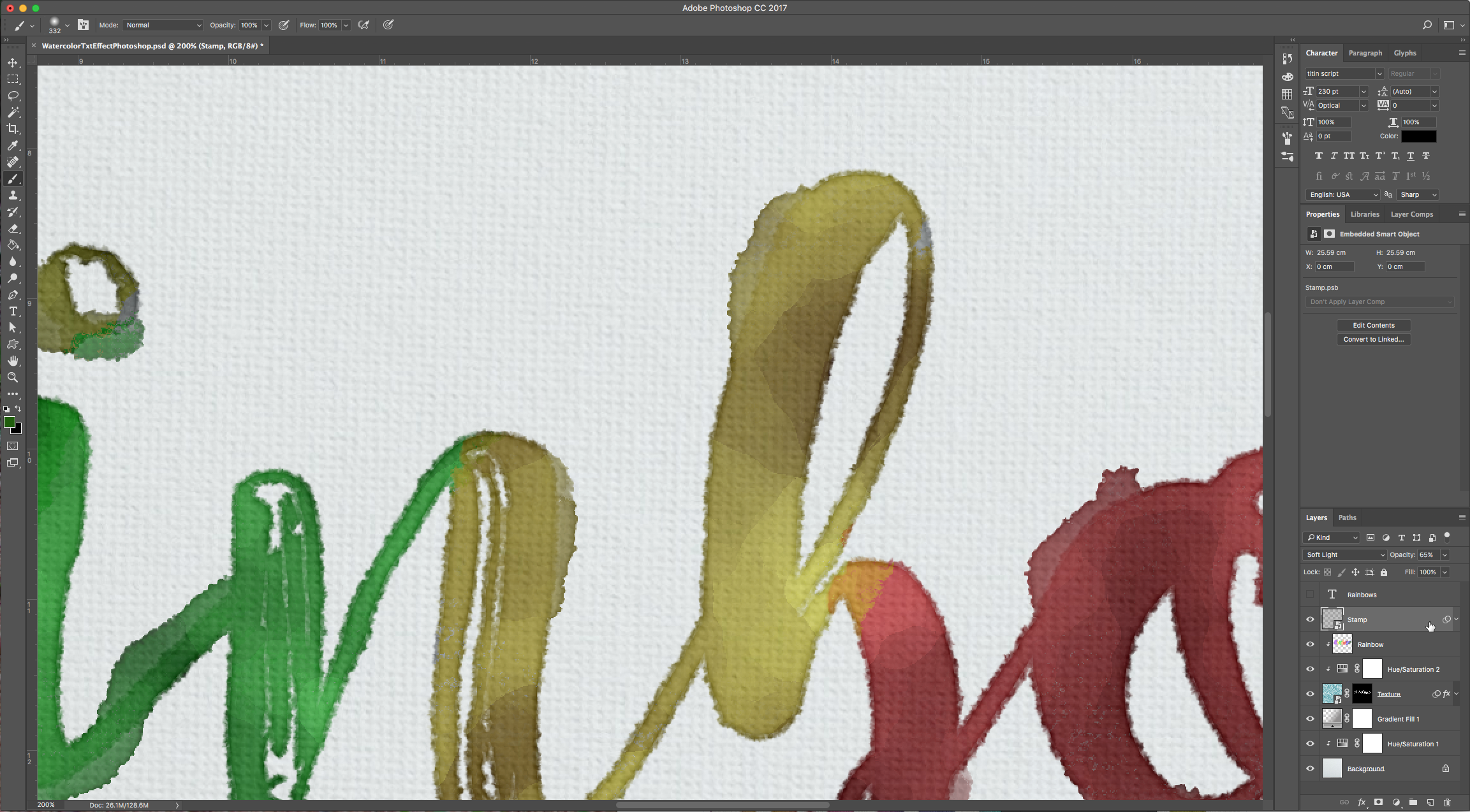
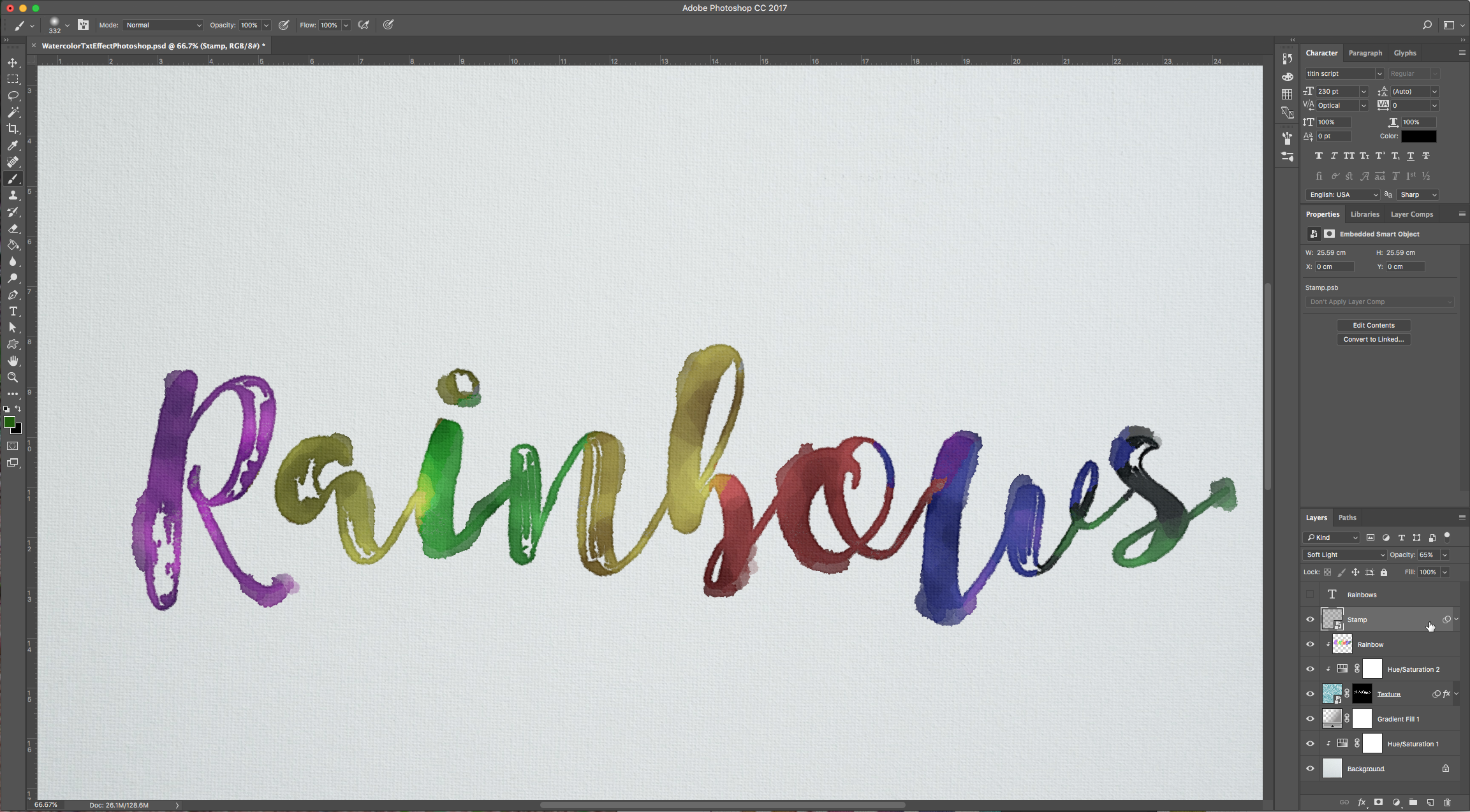
10 – Your image should look a bit like this:
You can repeat this last steps many times and create multiple “Visual Stamps” to apply many filters.
Check Part 1 of this tutorial here.
1 – Create a new “Gradient Layer” under your “Texture” layer. Use a “Transparent to Fill Color” gradient with #d3d1d1 and #918f8f as colors, the Style as Radial and a 250% Scale. Hit Ok.
2 – Change the “Gradient Layer” Blending Mode to “Color Burn”.
3 – Let’s create a new watercolor brush to add some detail. Select the “Brush Tool” (B). Select a hard round tip and Use the following values in the “Brush Panel”:
Brush Tip Size:
Shape Dynamics:
Texture:
Dual Brush: Chalk 23 pixels tip.
Transfer:
And check “Noise” and “Wet Edges”.
4 – With your “Texture” layer mask selected draw some smudges and stains.
5 – Let’s add a “Hue/Saturation Adjustment” layer and clip it to the “Texture” layer. Change the Saturation value to -100.
6 – Create a new layer on top of this adjustment layer and set the Blending Mode to “Color Burn” name it “Rainbow”, lower opacity to about 70% and clip it to the “Hue/Saturation” layer.
7 – Select a big soft brush and paint some colors over your text.
8 – To apply more filters, create a new layer on top and click Shift + Command/Control + Option + E to create a “Visual Stamp” of your text and apply your filter to that. Don’t forget to convert your “Visual Stamp” layer into a “Smart Object” so you can undo or tweak the changes.
9 – Example: Go to Filters > Other > High Pass and use a Radius of 1.5 pixels, click Ok and then change the Blending Options of the layer to “Soft Light” with an Opacity of 60%.
10 – Your image should look a bit like this:
You can repeat this last steps many times and create multiple “Visual Stamps” to apply many filters.
by @lornacane
Check Part 1 of this tutorial here.
Related Tutorials
Photoshop Tutorials
Watercolor Text Effect in Photoshop
In this tutorial, the realistic watercolor text effect is made with filters, a layer mask, and more!
Photoshop Tutorials
How to Make a Graffiti Text Effect in Photoshop
Learn how to create a realistic grafitti text effect in Photoshop.
Photoshop Tutorials
How to Create a Holographic Text Effect in Photoshop
Discover how to create a holographic text effect in Photoshop with this step by step tutorial.
Photoshop Tutorials
Chalk Text Effect in Photoshop
In this tutorial, learn how to turn any font into chalk text in Photoshop with the Brush tool.
Photoshop Tutorials
Puffy Sticker Text Effect in Photoshop
Photoshop Tutorials
How to Create an Embossed Text Effect in Photoshop
In this tutorial, discover how to create an Embossed Text Effect in Photoshop!