

By Design Bundles
SCAL Tutorials2 min
Sure Cuts A Lot 4 Basics - Knockout Function
*Note- SCAL4 Pro used.
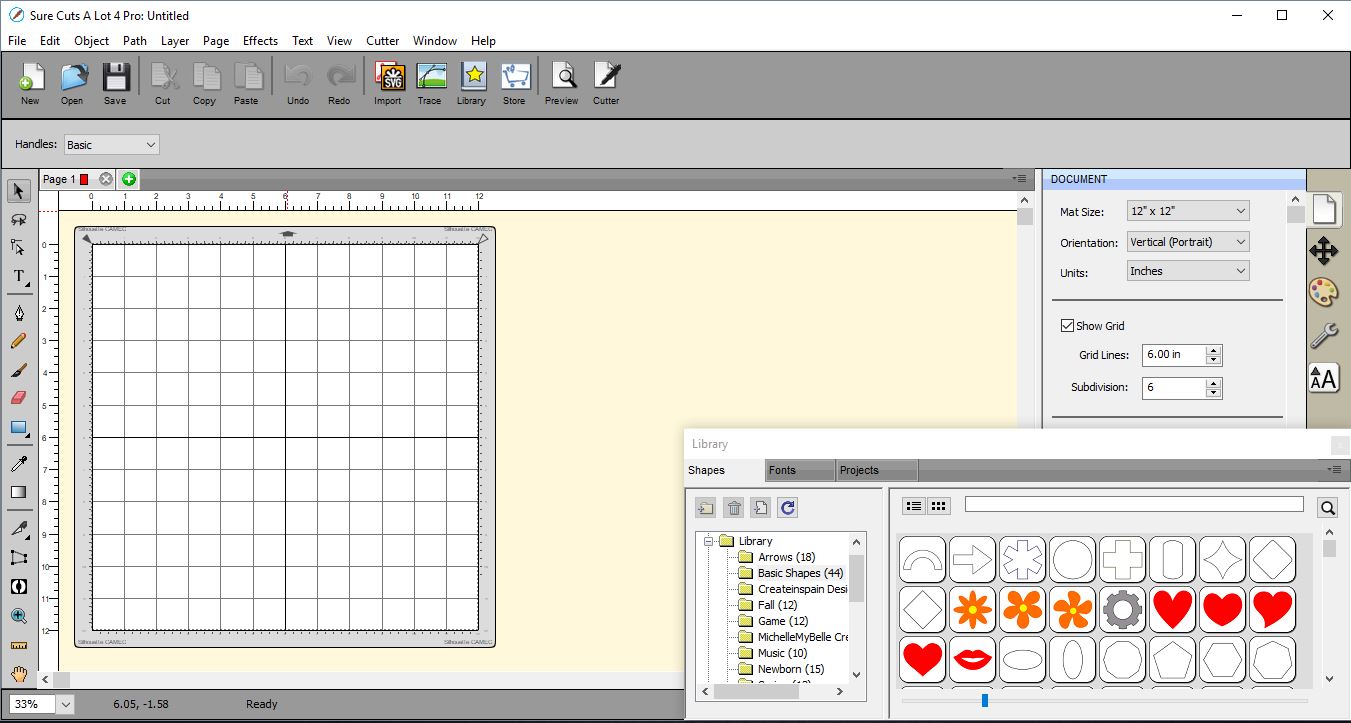
1- Open Sure Cuts A Lot 4 software.
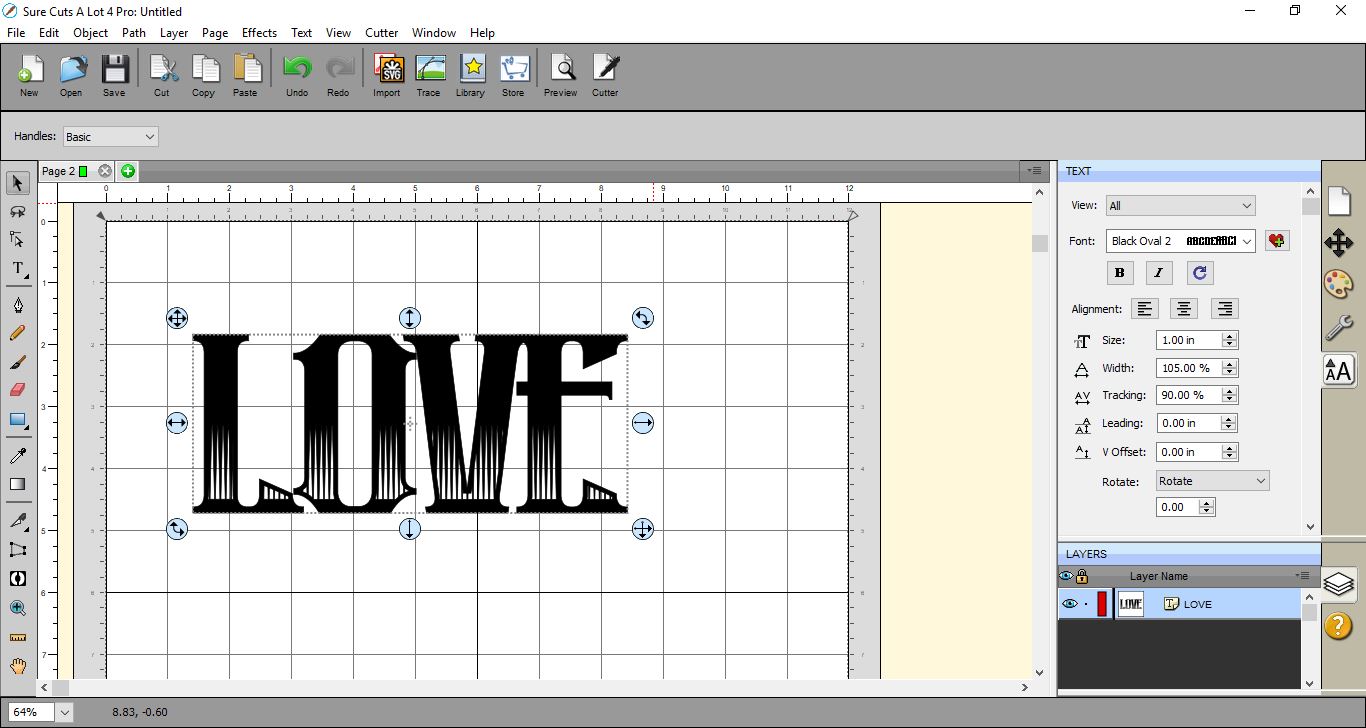
2- Create your text. I am using the Black Oval font.
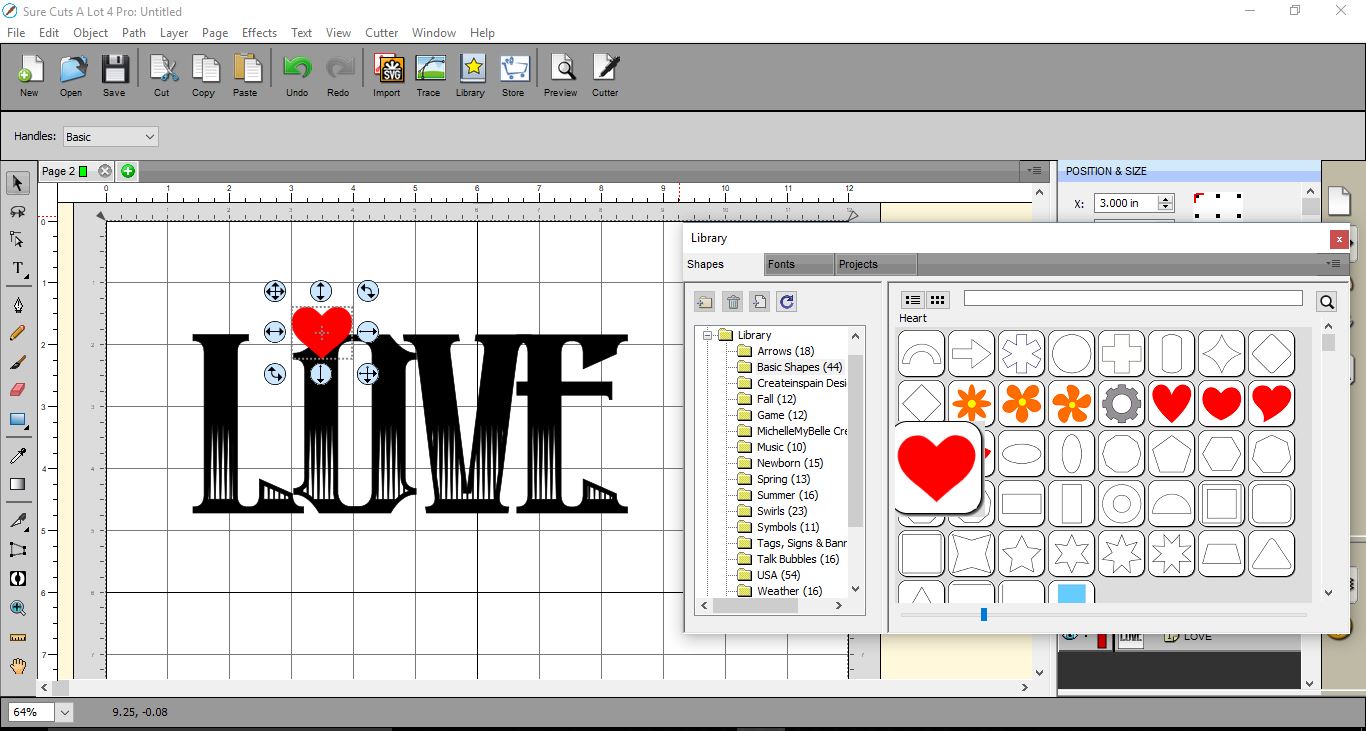
3- Click on the library and then select the shape you would like to use for the knockout. You can also import a shape. Silhouettes will work the best for this technique.
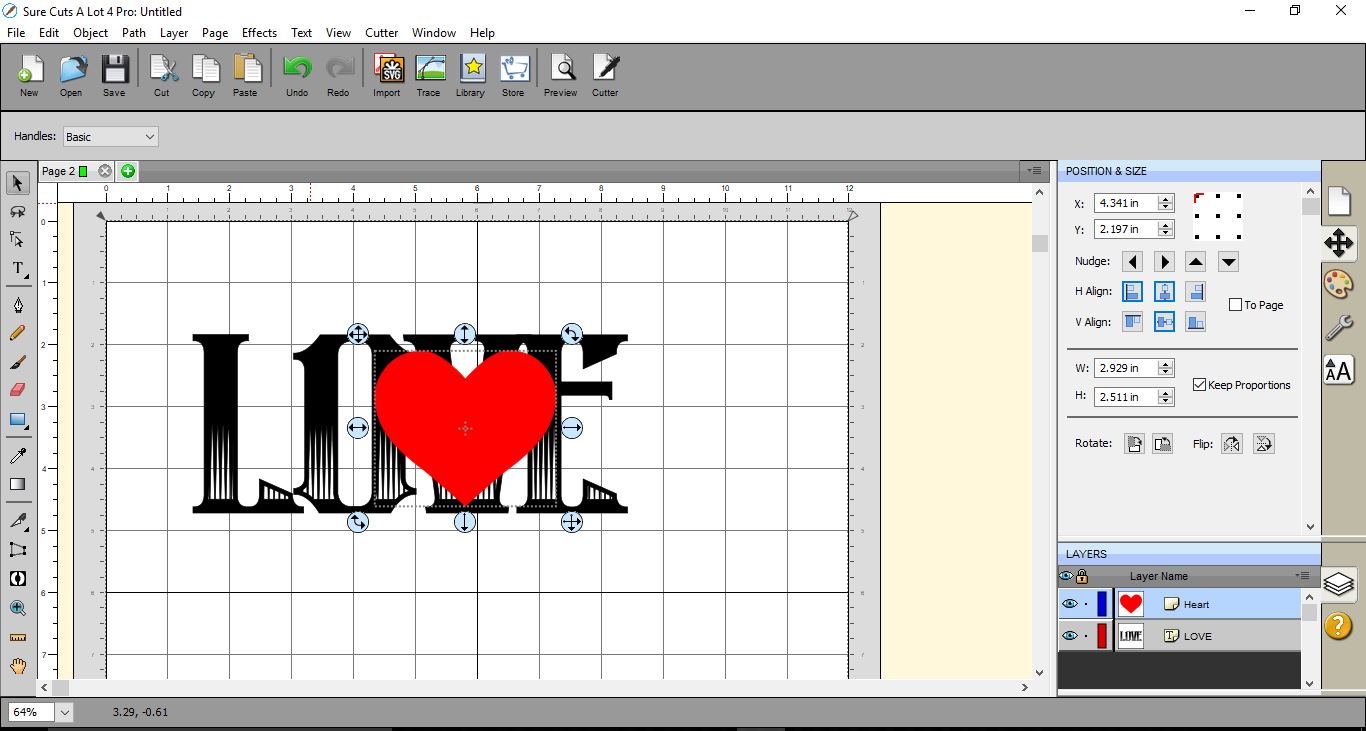
4- Place the shape where you would like to apply the knockout, then resize to fit your text.
5- Select both the shape and the text, then click on Effects > Knockout.
6- A new window will appear. Select the gap you would like around the shape you are knocking out. I find between 0.05 and 0.15 inch gap is more than enough. Click OK.
7- Your knockout is complete.
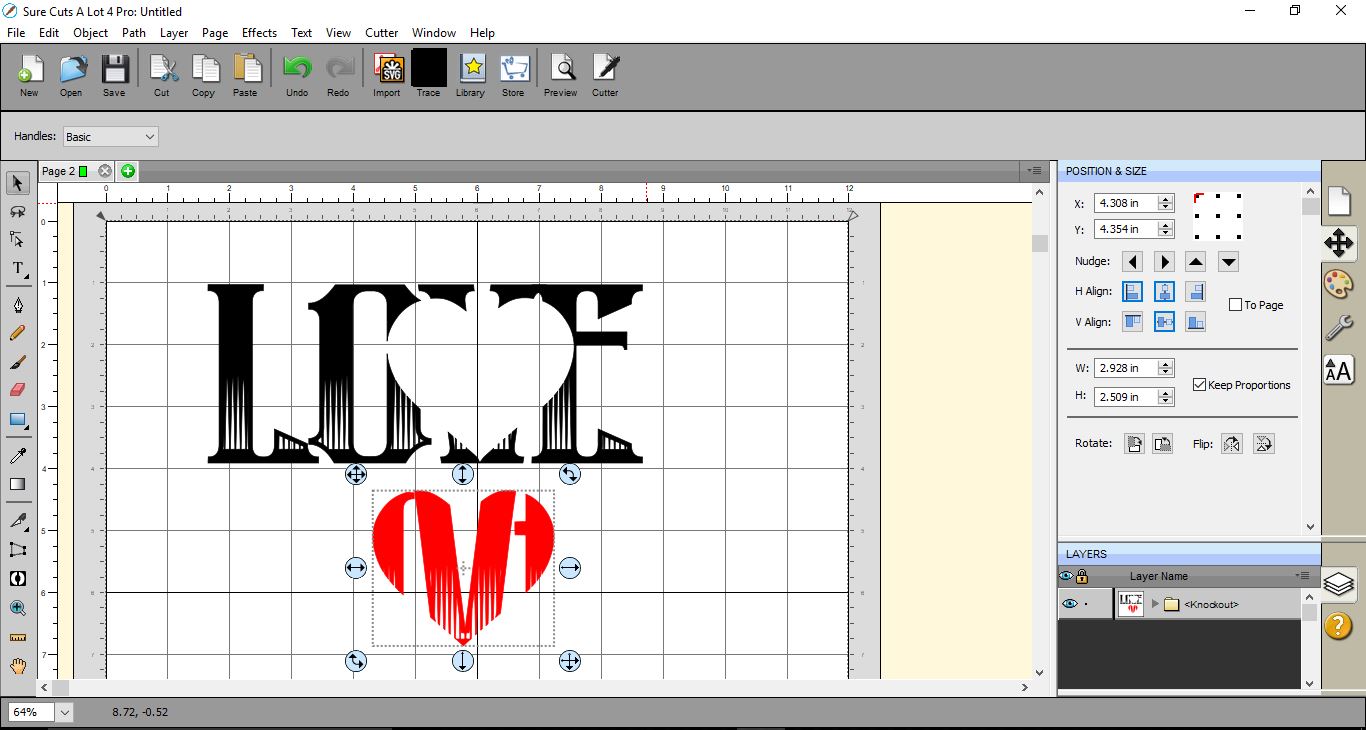
8- At this point, you can move the shape from the text to see the knockout. You can cut the shape and text separately.
1- Open Sure Cuts A Lot 4 software.
2- Create your text. I am using the Black Oval font.
3- Click on the library and then select the shape you would like to use for the knockout. You can also import a shape. Silhouettes will work the best for this technique.
4- Place the shape where you would like to apply the knockout, then resize to fit your text.
5- Select both the shape and the text, then click on Effects > Knockout.

6- A new window will appear. Select the gap you would like around the shape you are knocking out. I find between 0.05 and 0.15 inch gap is more than enough. Click OK.
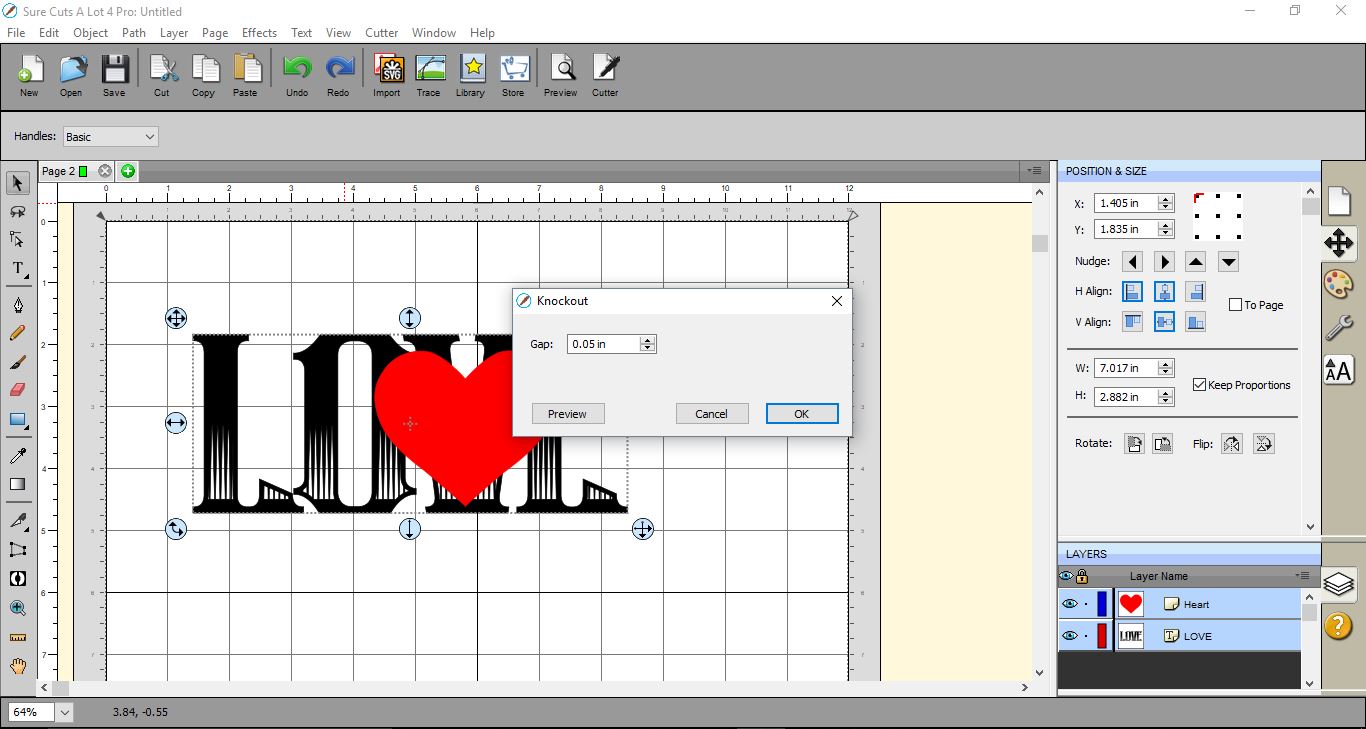
7- Your knockout is complete.
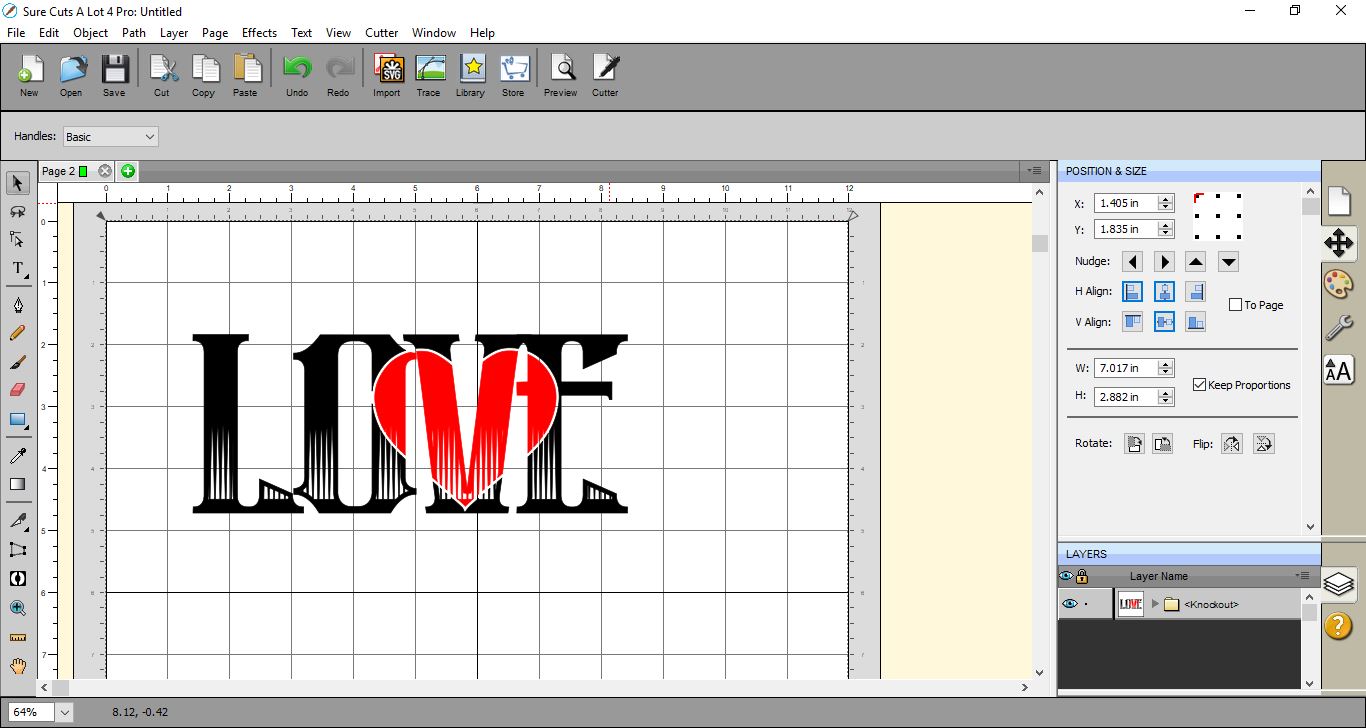
8- At this point, you can move the shape from the text to see the knockout. You can cut the shape and text separately.
Related Tutorials
SCAL Tutorials
Sure Cuts a Lot 4 Basics - Font Preview function
SCAL Tutorials
Sure Cuts A Lot 4 Basics - Lattice function
SCAL Tutorials
Sure Cuts a Lot 4 Basics - Saving files
SCAL Tutorials
Sure Cuts A Lot 4 Basics - Tracing a colored image
SCAL Tutorials