By Design Bundles
Scan N Cut Tutorials2 min
Converting SVG to FCM cutting fine in Brother scan and cut canvas workspace
1- Open scan and cut canvas workspace. Click on the SVG icon.
2- Select your SVG file. I am using Valentines Day Quotes.
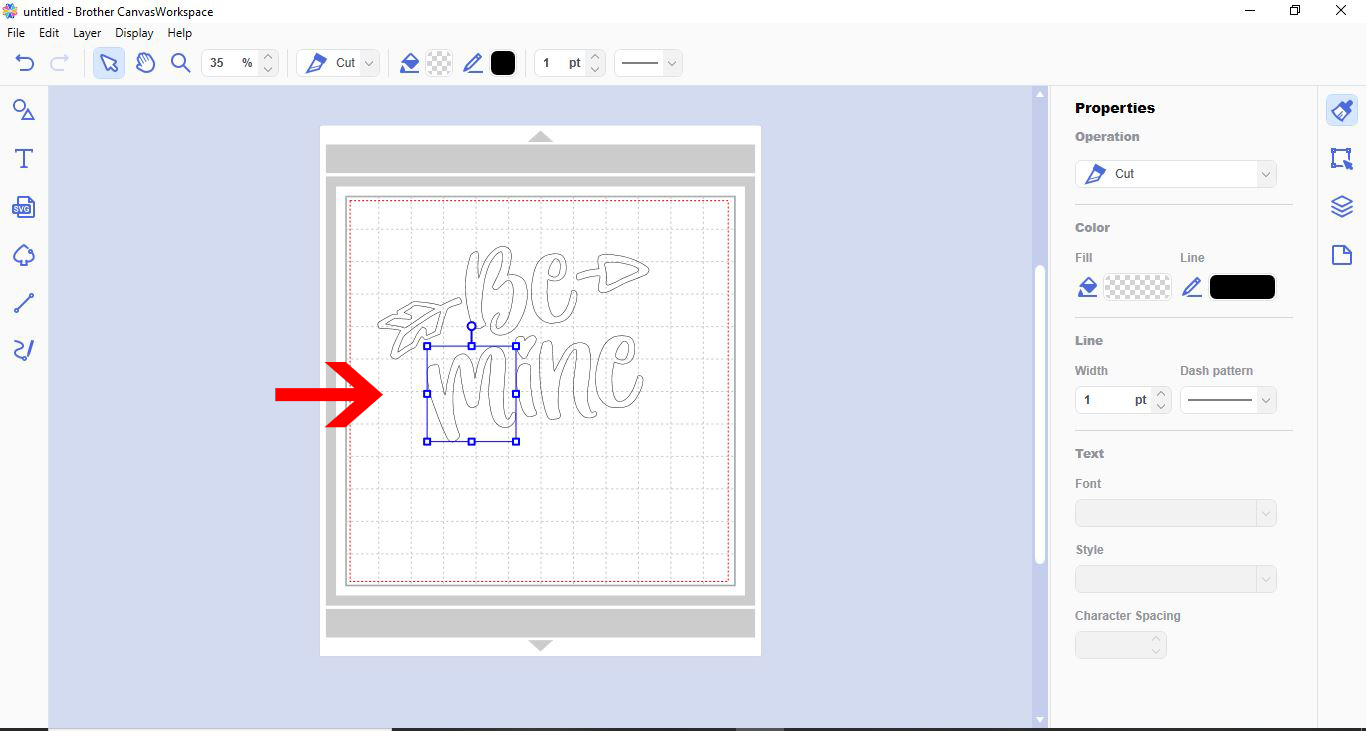
3- Your design will appear in the workspace.
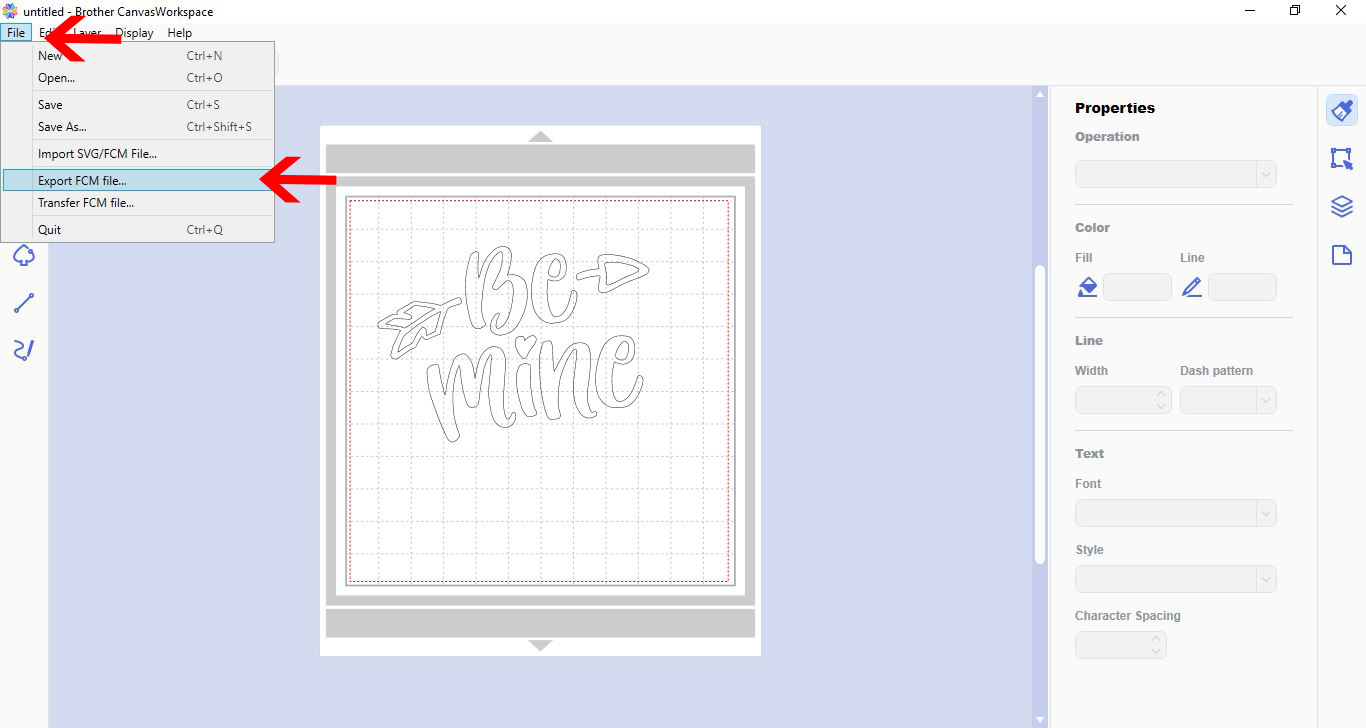
4- To save as a FCM file so you can use it in your Brother scan and cut machine, click on File then Export FCM file.
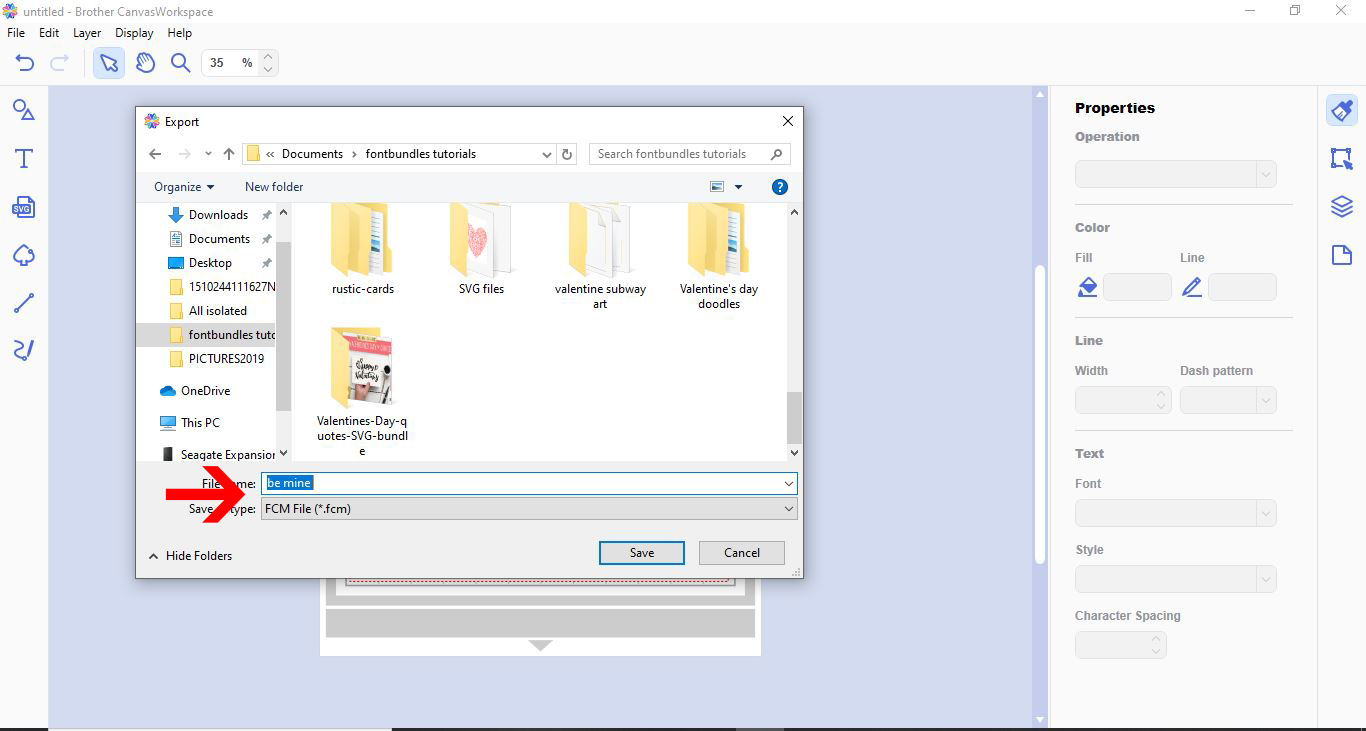
5- Name your file and ensure FCM is selected. Save.
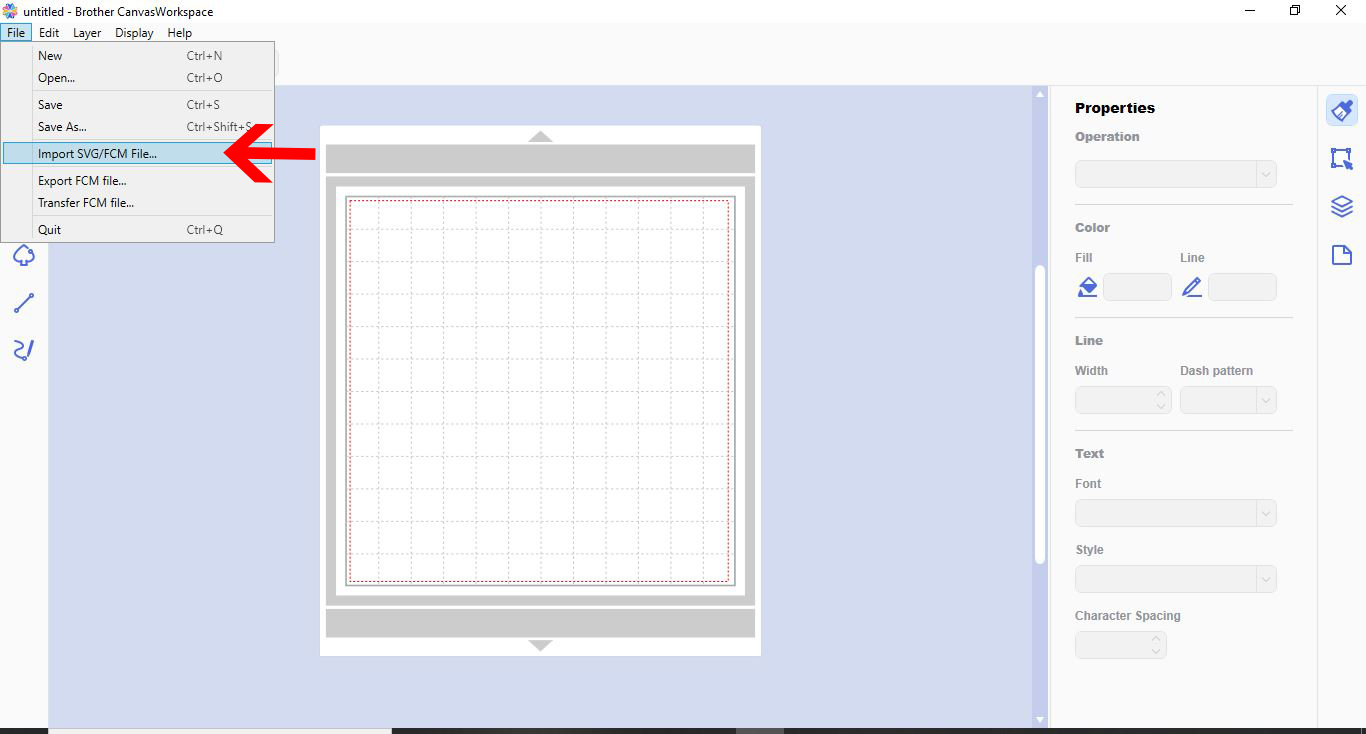
6- To re access your FCM file to adjust it, go to workspace, then click on File then Import SVG/FCM file.
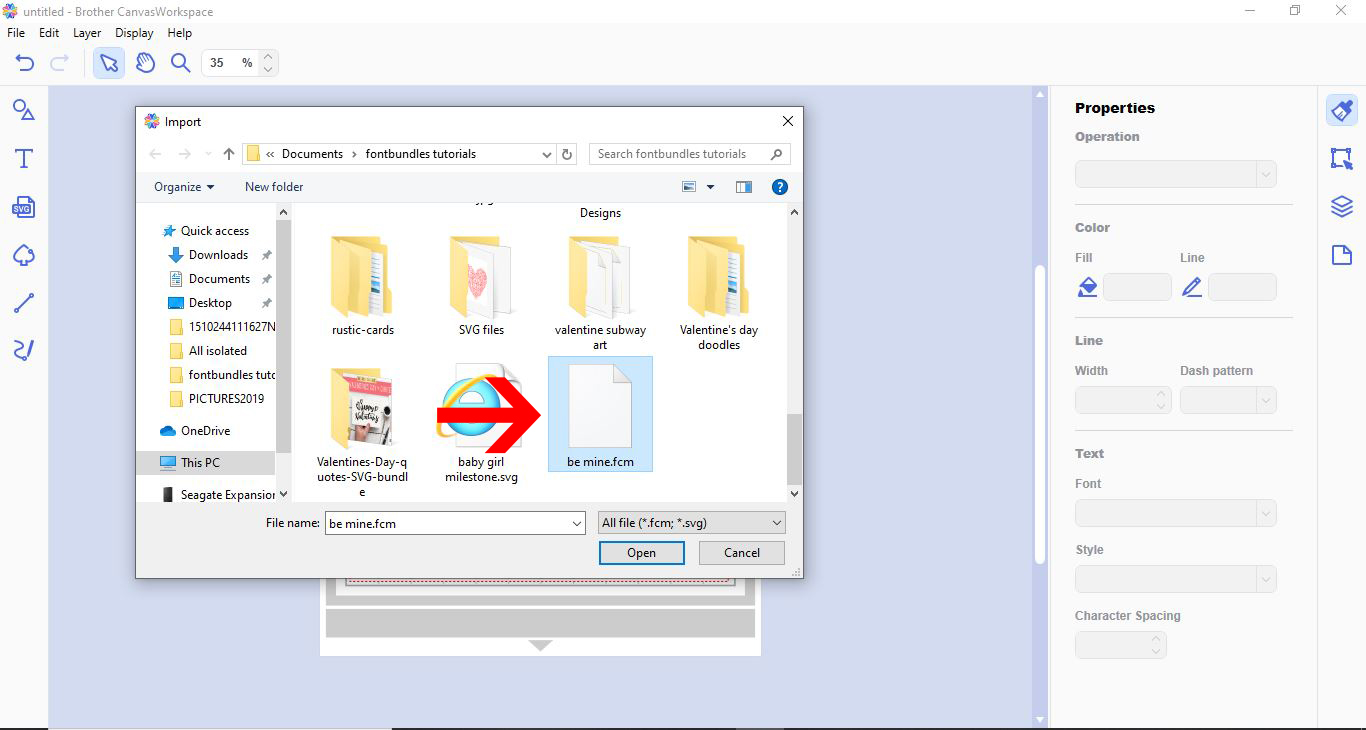
7- Click on the FCM file you would like to adjust.
8- Your file will appear on your workspace. You can now readjust it as you need too.
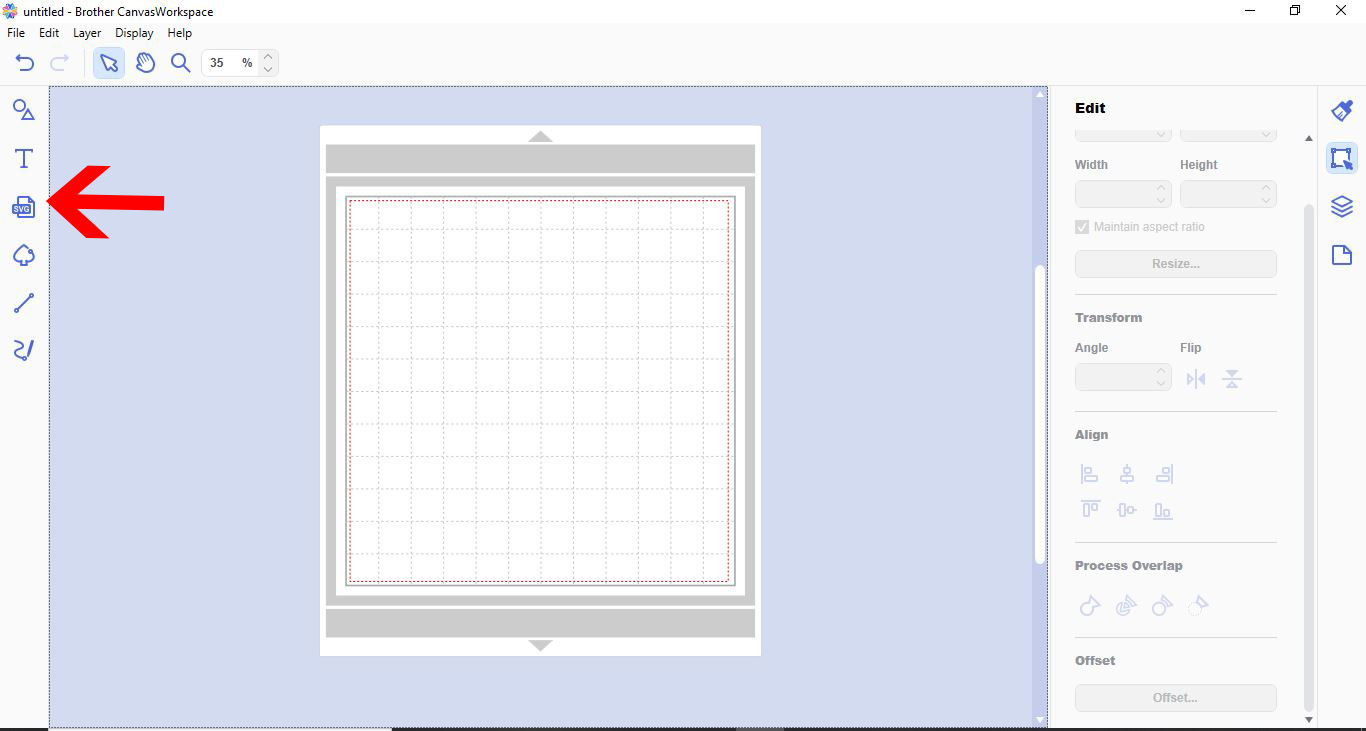
2- Select your SVG file. I am using Valentines Day Quotes.
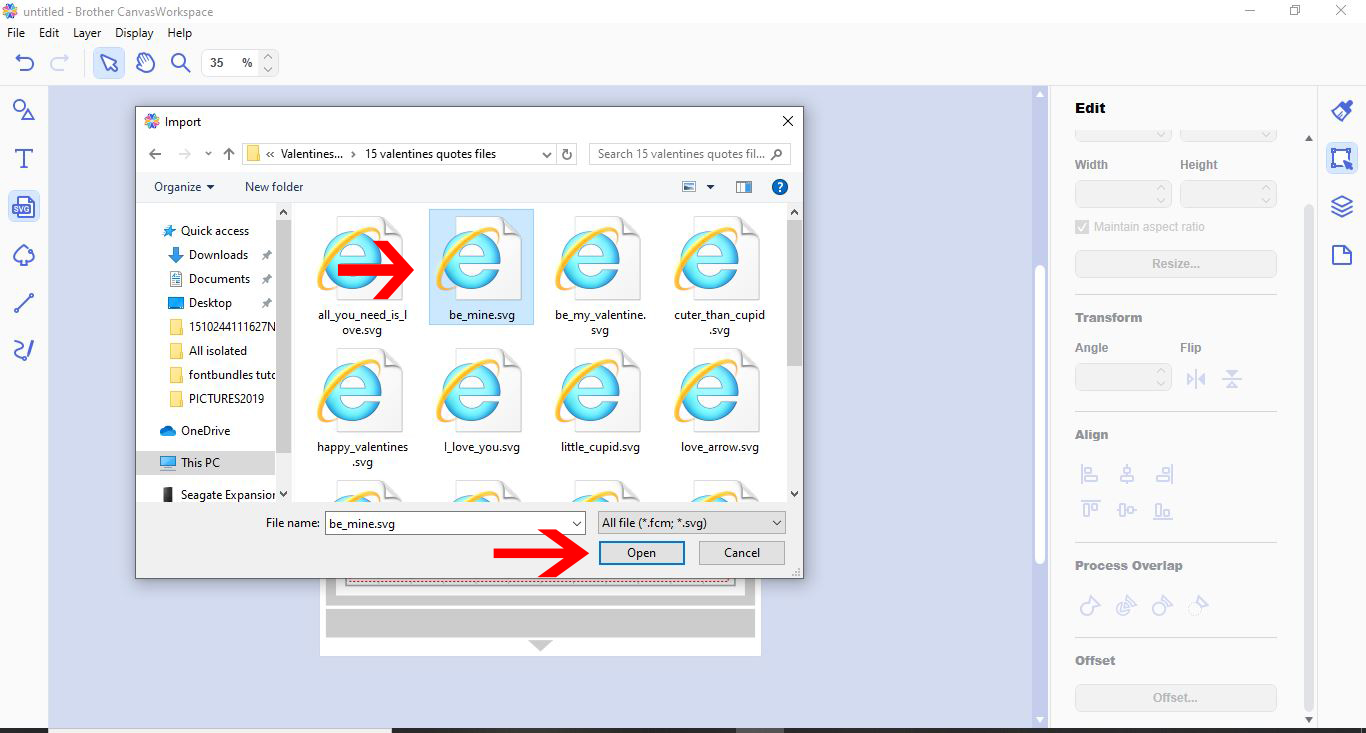
3- Your design will appear in the workspace.
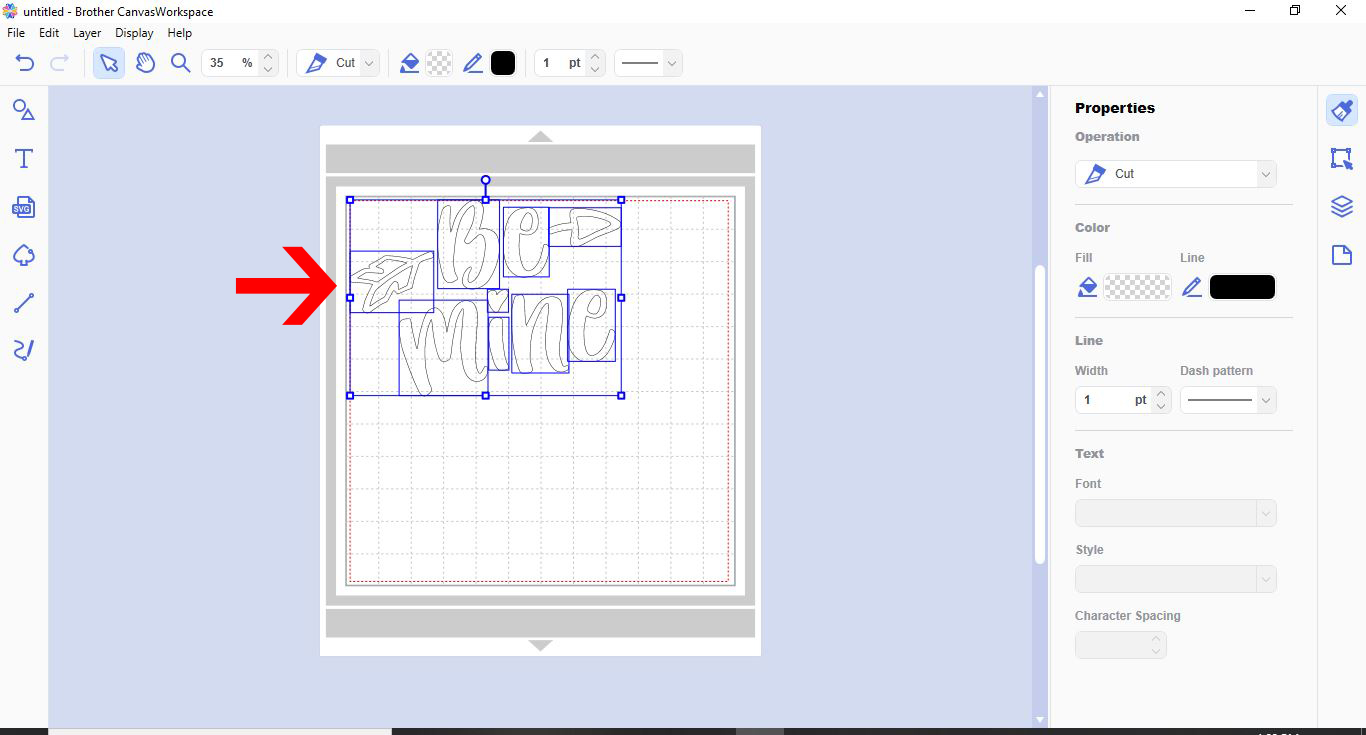
4- To save as a FCM file so you can use it in your Brother scan and cut machine, click on File then Export FCM file.
5- Name your file and ensure FCM is selected. Save.
6- To re access your FCM file to adjust it, go to workspace, then click on File then Import SVG/FCM file.
7- Click on the FCM file you would like to adjust.
8- Your file will appear on your workspace. You can now readjust it as you need too.
Related Tutorials
Scan N Cut Tutorials
How to make a image larger than your cutting mat in Brother Scan N Cut canvas workspace
Learn how to cut designs larger than your cutting mat in Brother Scan N Cut canvas.
Scan N Cut Tutorials
How to create curved text in brother scan and cut canvas workspace
Learn how to curve text in Brother Scan N Cut
Scan N Cut Tutorials
Remove cut lines from shapes in brother scan and cut canvas workspace
Scan N Cut Tutorials
How to use the free designs in brother scan and cut canvas workspace
Scan N Cut Tutorials