By Design Bundles
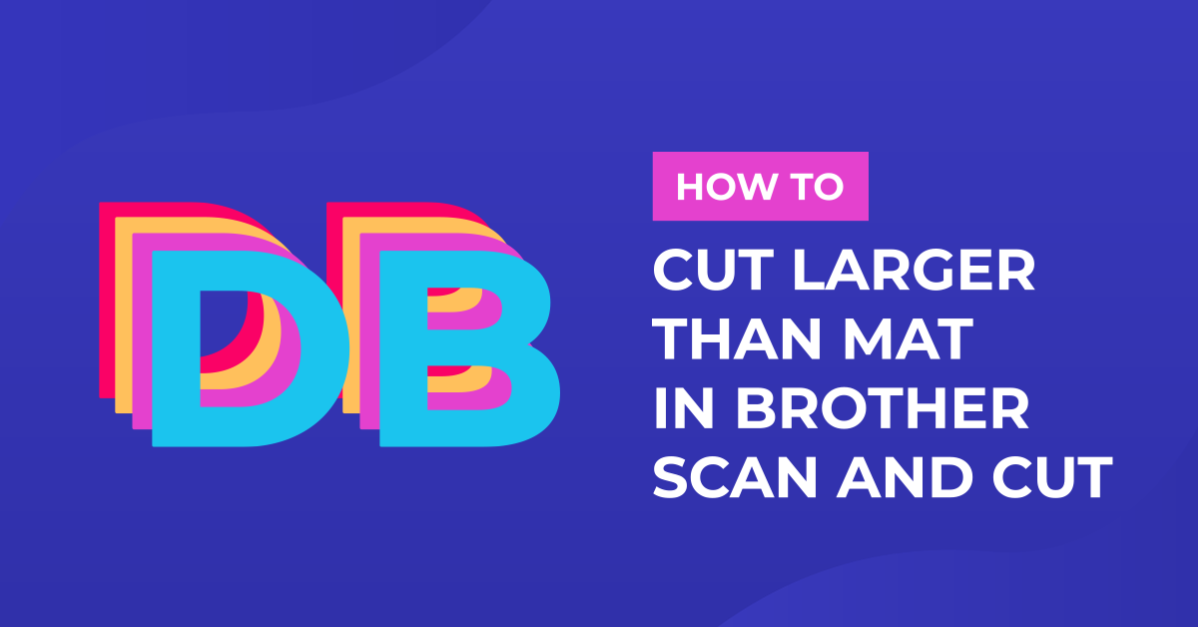
How to make a image larger than your cutting mat in Brother Scan N Cut canvas workspace
1- Open canvas workspace.Select the design you would like to cut. you can create your own, upload a SVG or use a preset design.
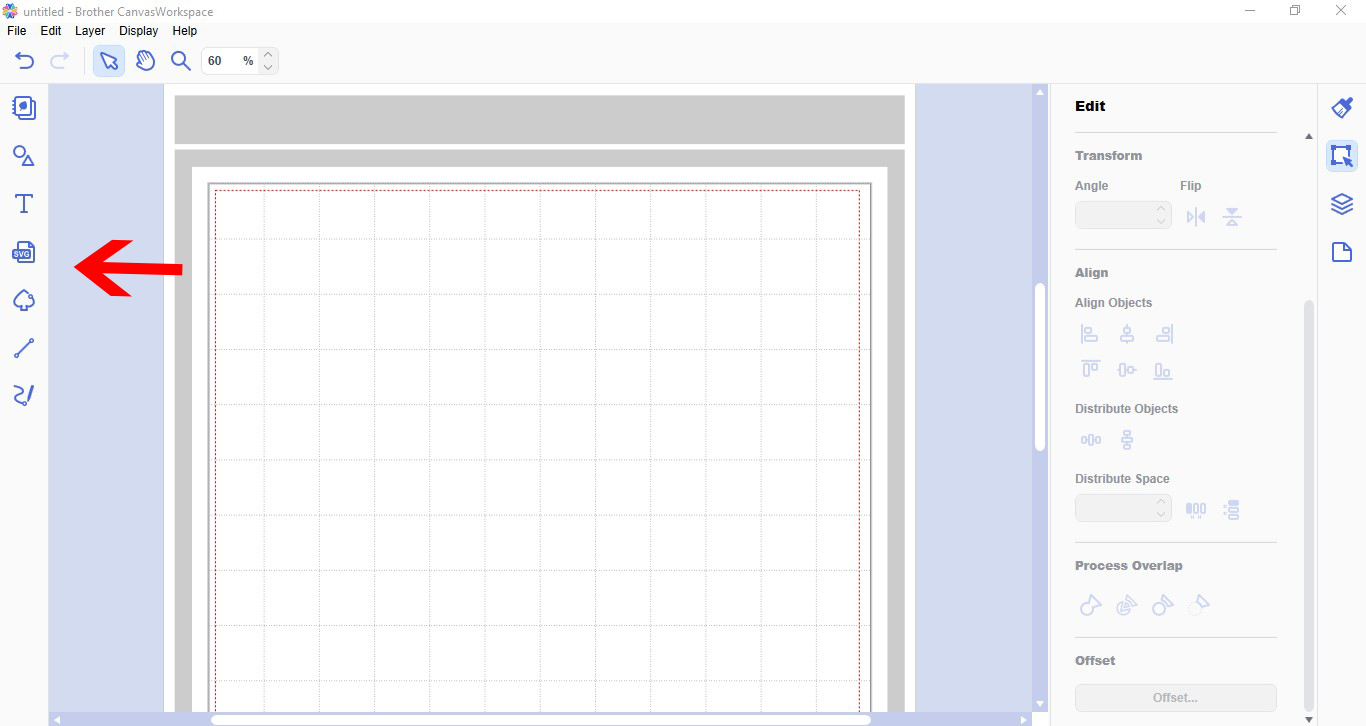
2- Resize your design to the dimensions you need.
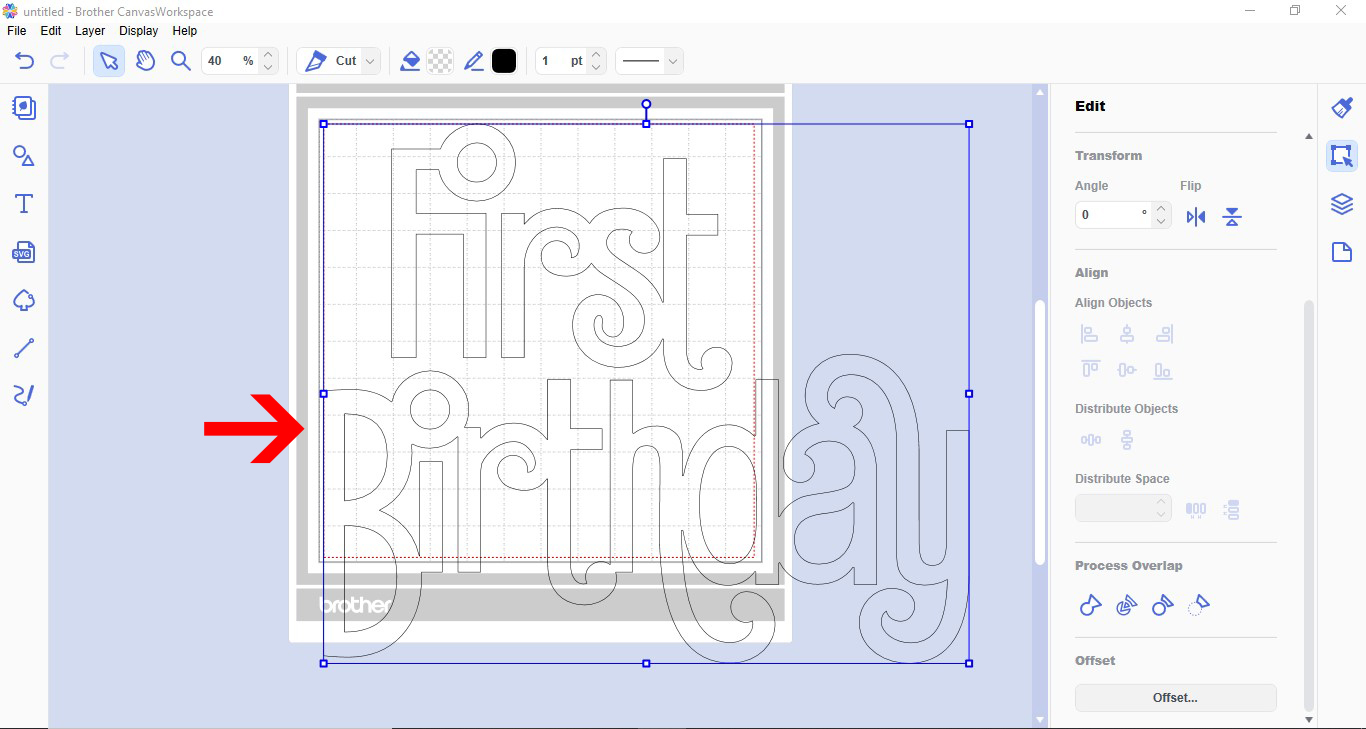
3- Go to the shape icon and create a square.
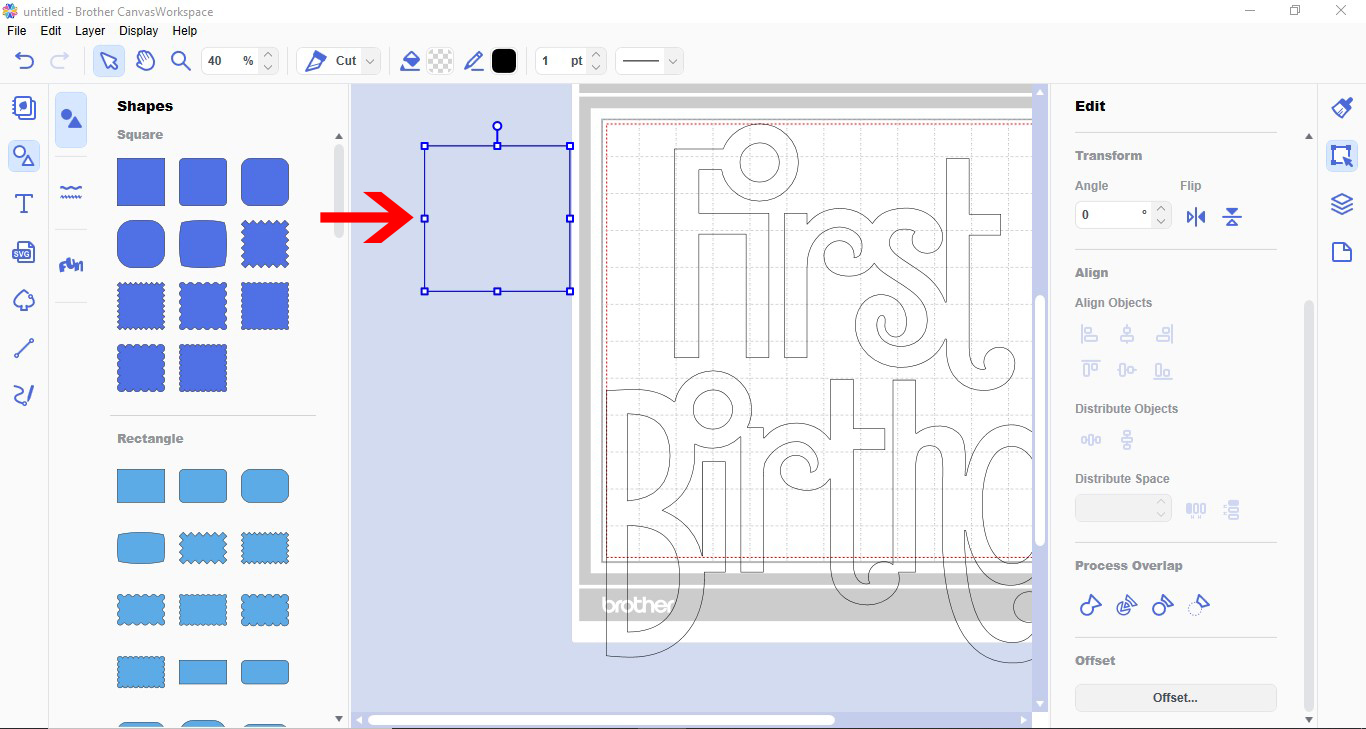
4- Resize the square to 1/4 the size of your design.

5- Color the square. this will make it easier when you are dividing your design.

6- Duplicate your square so you have 4.
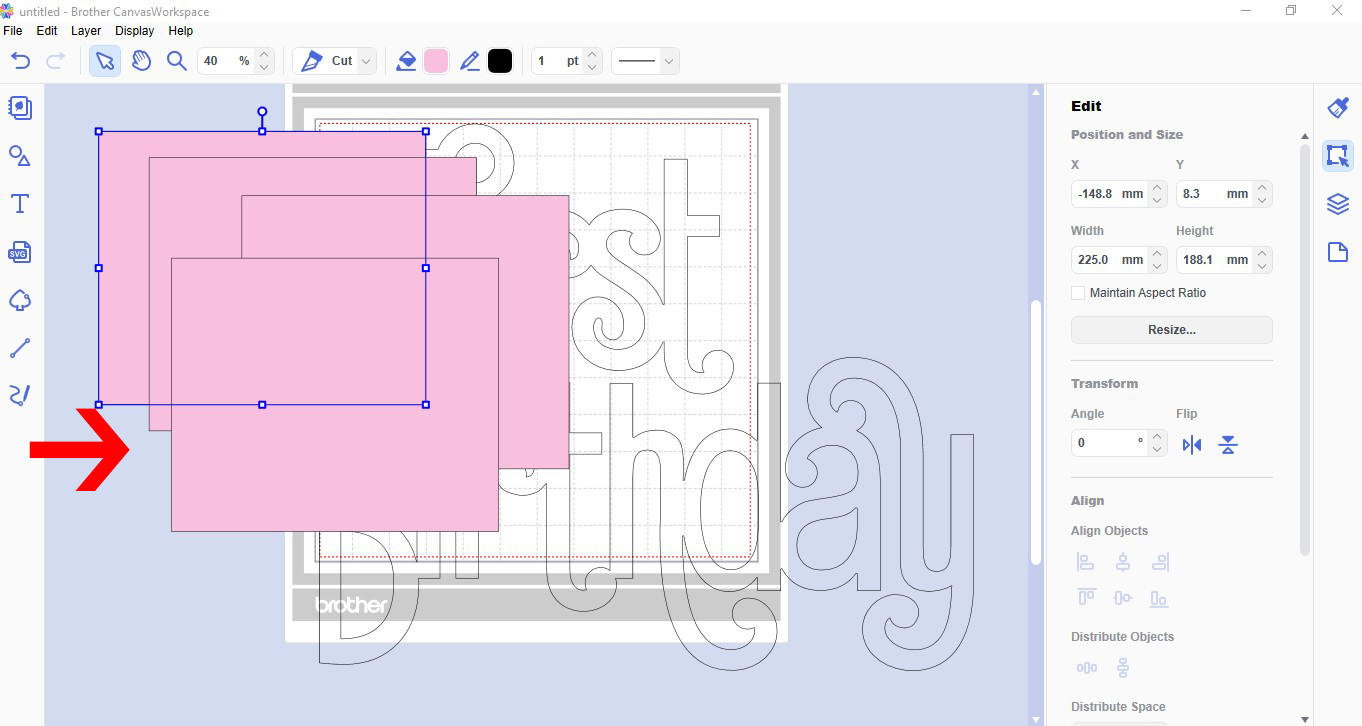
7- Duplicate your design so you have 4. color each copy a different color. By coloring them you will be able to see what layer you are cutting. and it also makes it easier to remove excess cuts you do not need.

8- Using the align tool left and top, align your deign on top of each other.

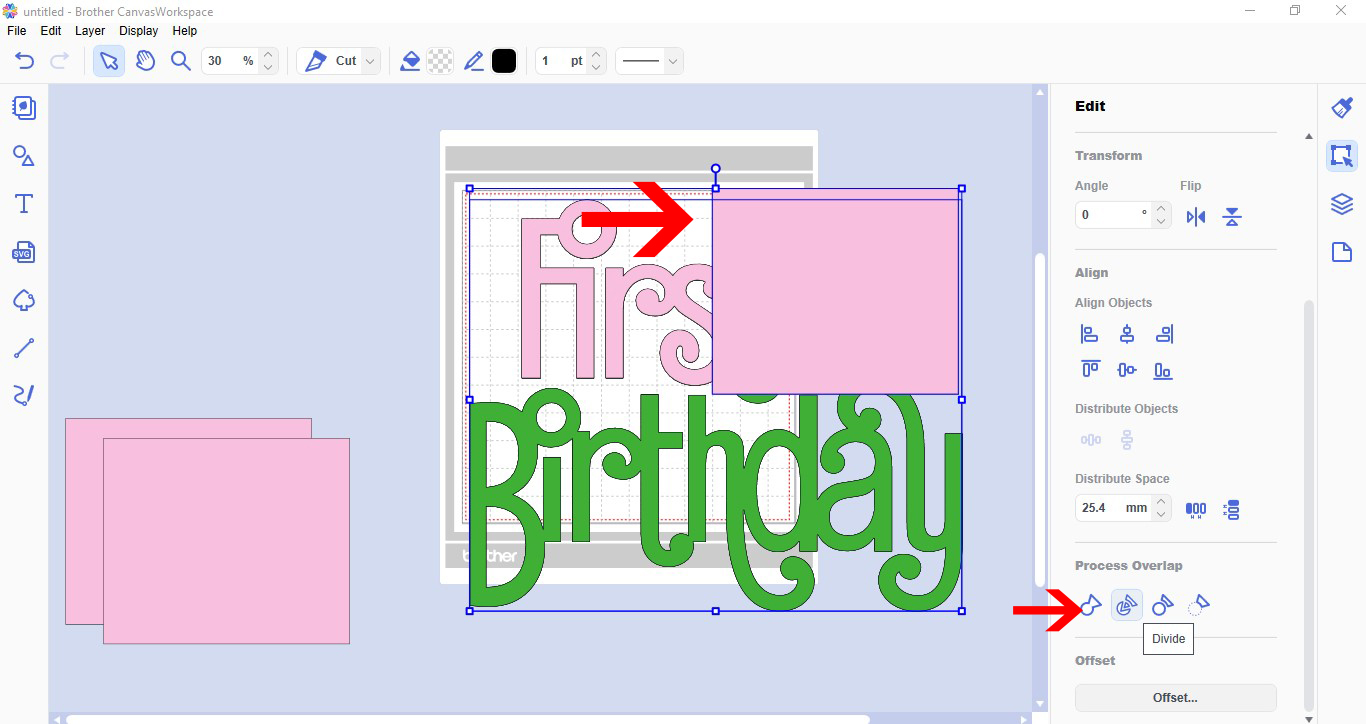
9- Place the first square over the top left of your design. make sure everything is covered and in the square. Select the square, right click and bring to the front.
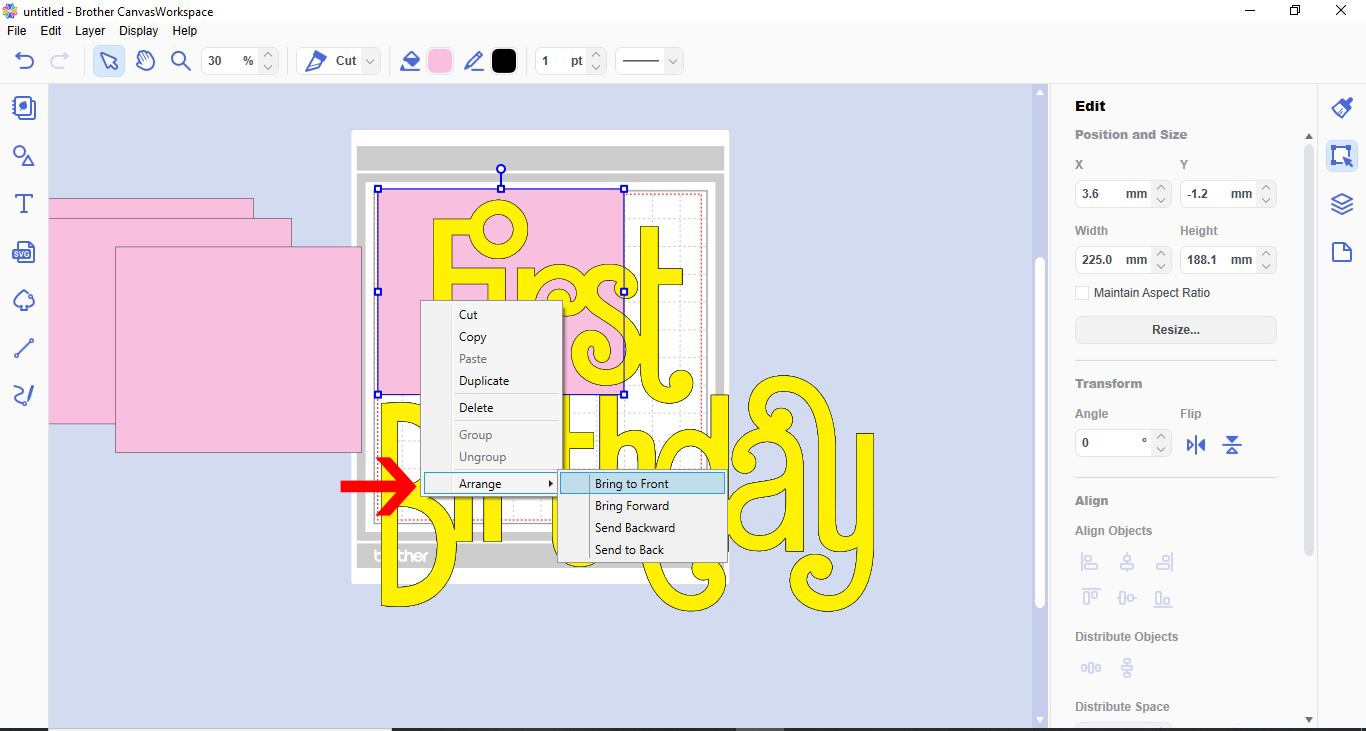
10- Select the square and the top copy of the design. go to process overlap and click divide.
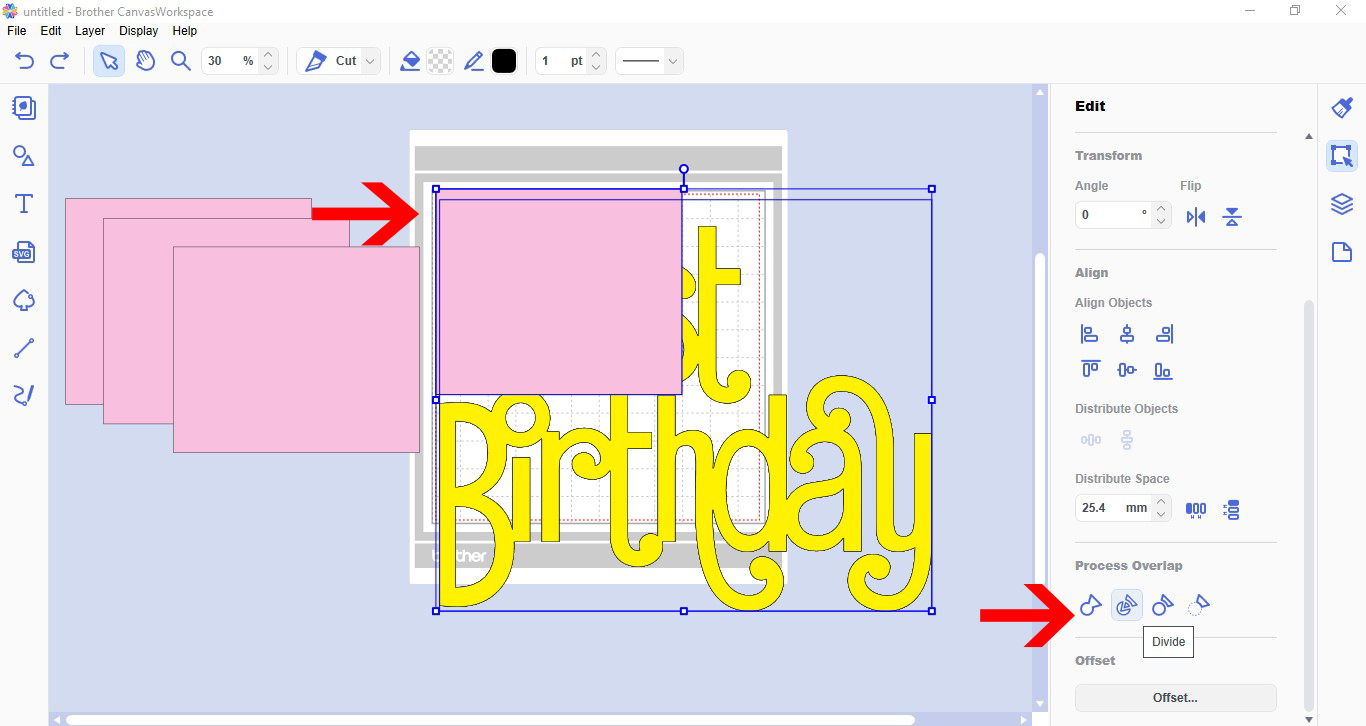
11- Remove the cut out parts from the pink shape. This will leave you with a cut out of 1/4 of your design.
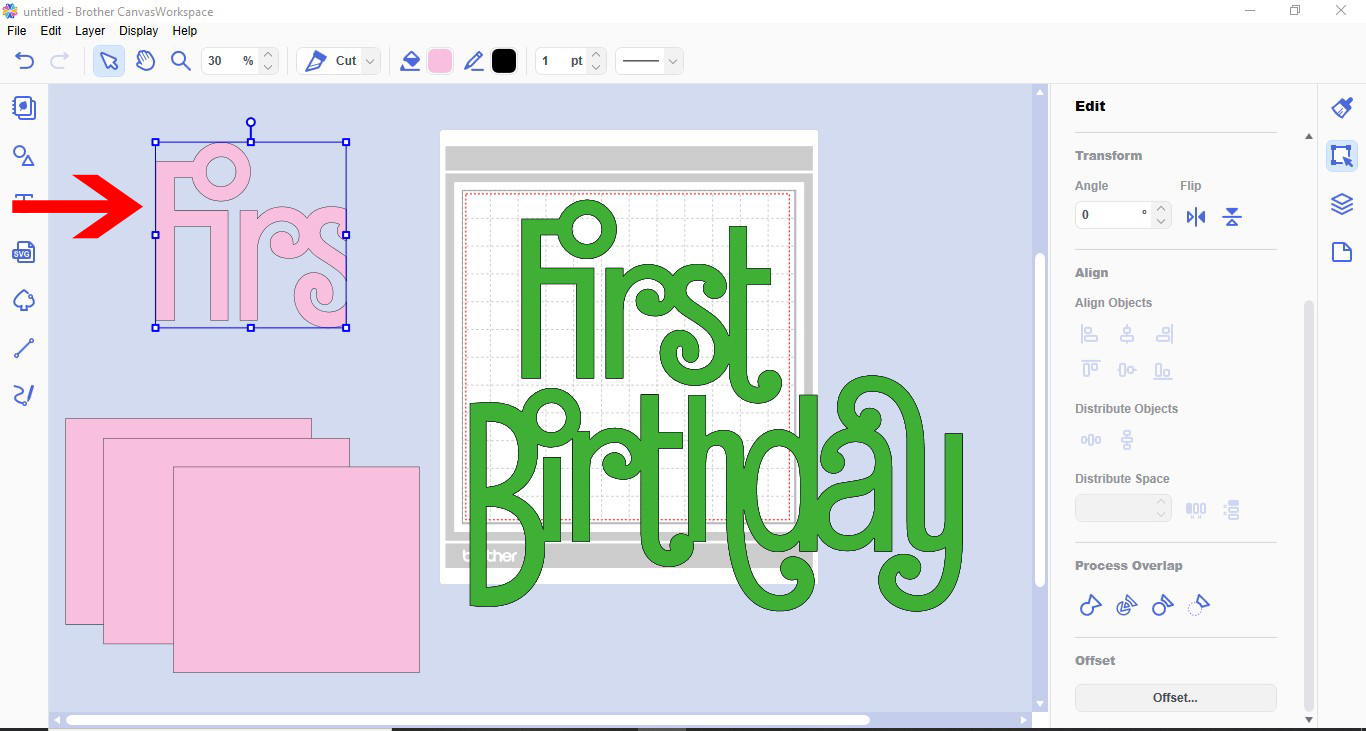
12- Place the cut out back over the 2nd copy of the text. Next, place the 2nd square over your design, lining it up with the first part you cut.
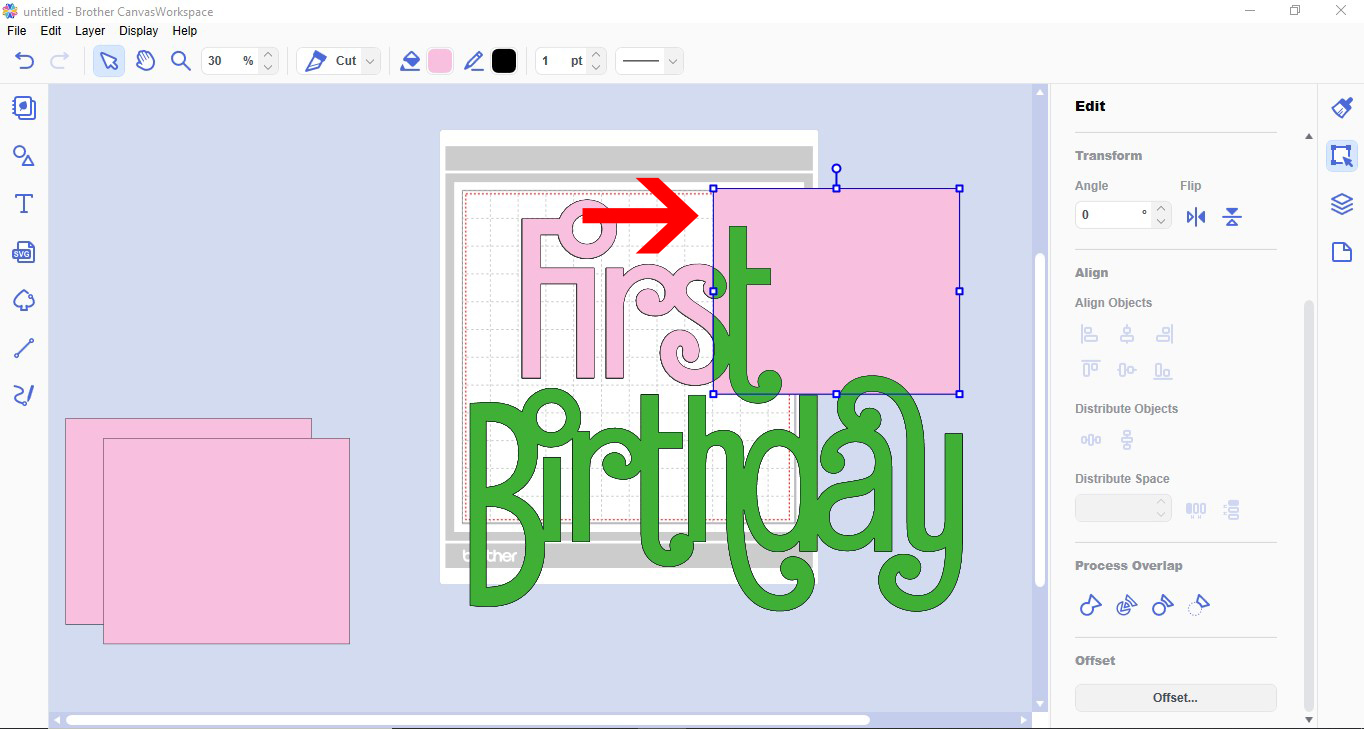
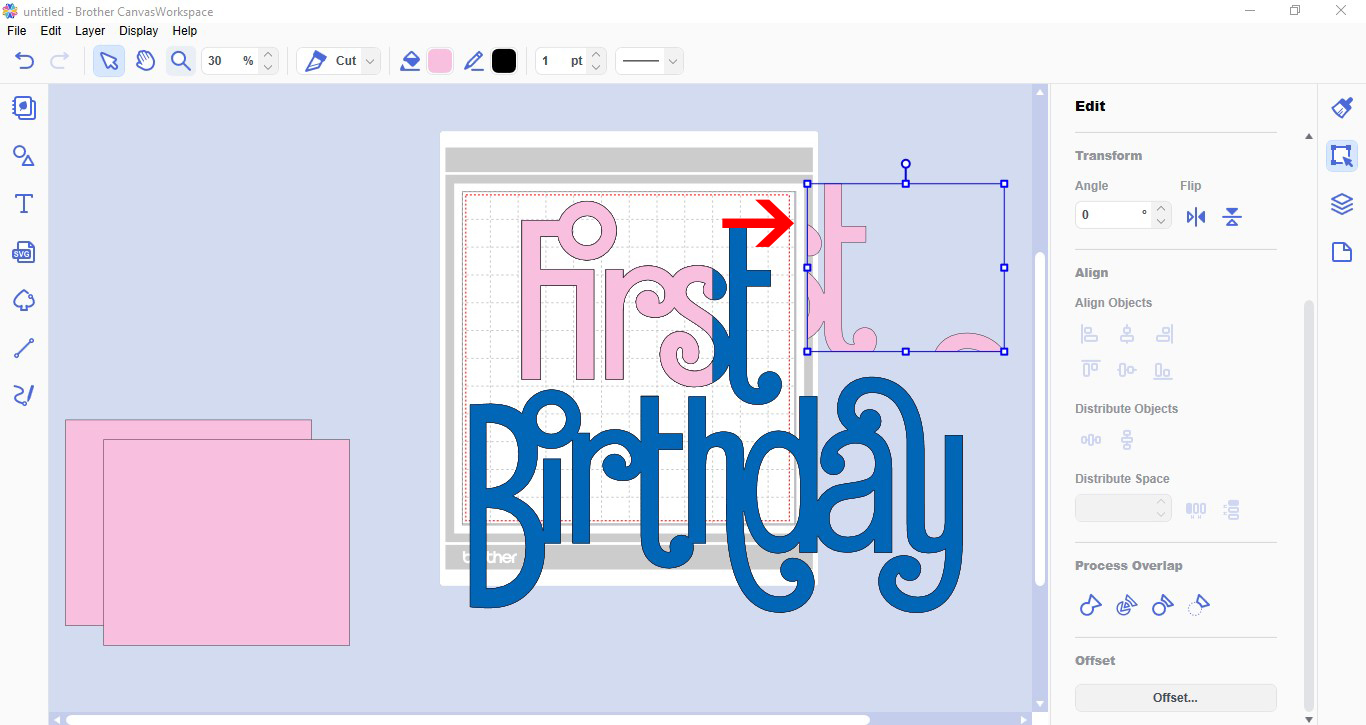
13- Select the square and your second design copy. Right click then send to the front. With both still selected go to process overlap and select divide.
14- Remove the excess cut outs. you will now have 2 parts of your design.
15- Repeat the above steps to get the 3rd and 4th quarter's of the design.Place all the parts together to ensure they line up. Now you can cut each section separately and when put together they will be larger than your mat space.
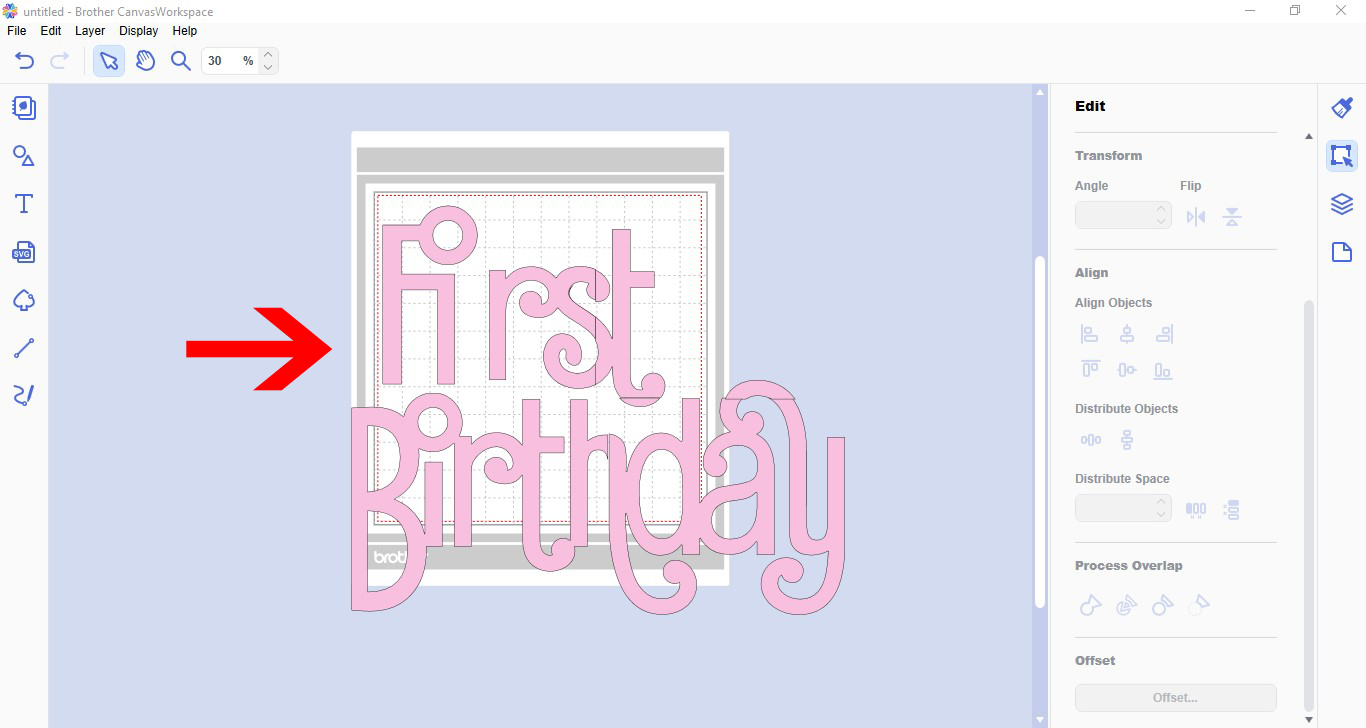
Congrats on learning how to cut designs larger than your mat.