
Get Unlimited Access to Thousands of Premium Fonts and More! Start Creating for Free Now

FontBundles.NET
Pricing
FontBundles.NET

Categories

New

Account

Start Free Trial
How to Activate Your Silhouette Studio Upgrade

By Design Bundles

How to Activate Your Silhouette Studio Upgrade

In just 2 steps we will show you how to quickly activate your Silhouette Studio upgrade.

Do you need a guide on how to activate your Silhouette Studio upgrade? Then follow this tutorial as we show you how quick and easy it is to upgrade. Upgrades can open up additional features that enhance your cutting experience with your machine. So let’s take a look at activating your purchased upgrade.

We have a great guide on the software upgrade comparison if you need more information on features.

Step 1 - Access Upgrade Studio Option

Open Silhouette Studio then go to Help > Upgrade Silhouette Studio.
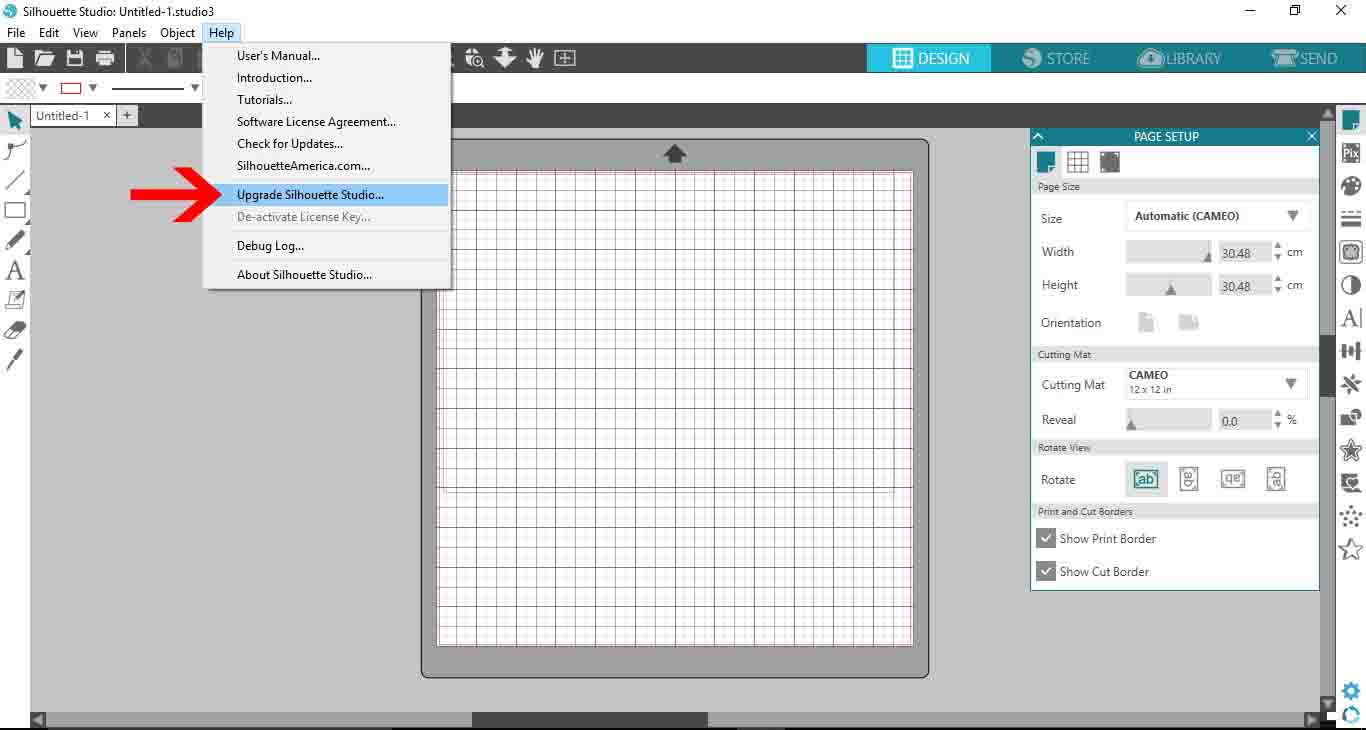
Select Upgrade Silhouette Studio option

You will see a new window appear requesting information before proceeding.
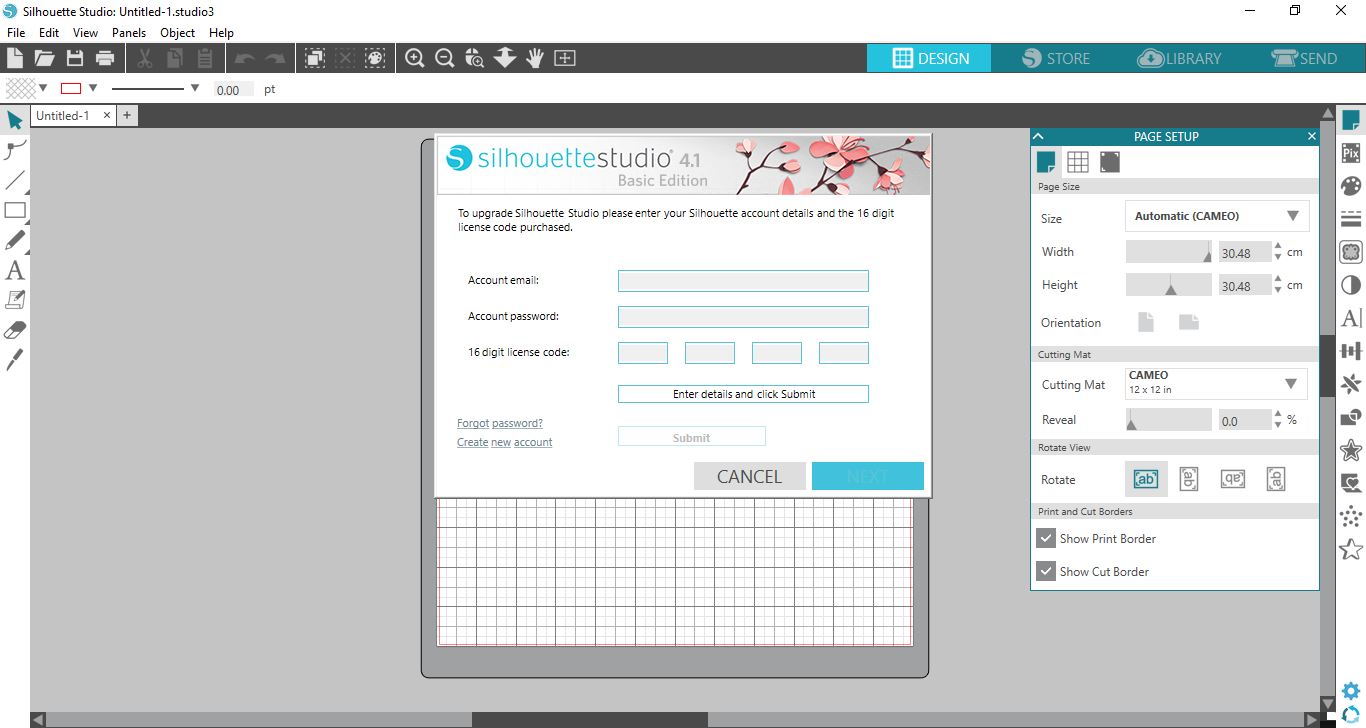
Window requesting upgrade information Silhouette

Step 2 - Enter in Registration Code

Fill in the requested information starting with the email address you use for the Silhouette Store. Next, input the password for the account. Then add the sixteen digit code you received after purchasing the upgrade.

Finally, once everything is filled in, click on Submit. You will need an internet connection to submit the upgrade code.
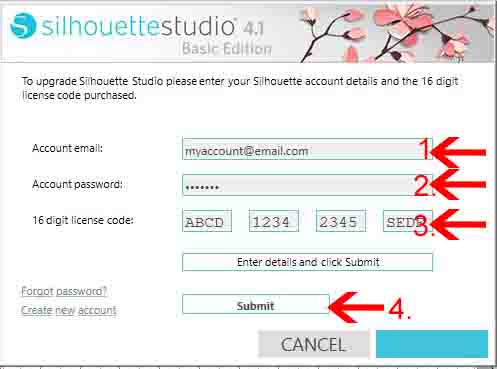
Enter upgrade code in Silhouette Studio

Silhouette Studio will then verify your information with an internet connection. Once done, the blue button icon bottom right will change to Next. Click on this to go to the next step.
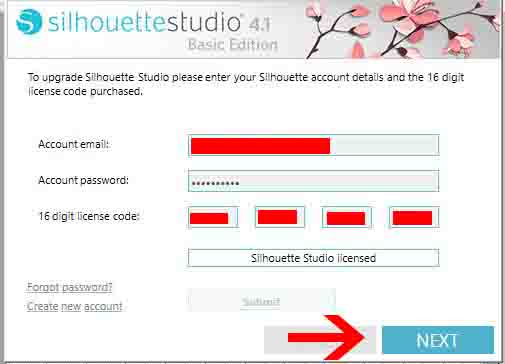
Click on Next to upgrade in Silhouette

A window with Activation Successful will now appear. You can click on the Finish icon bottom right to complete the upgrade.
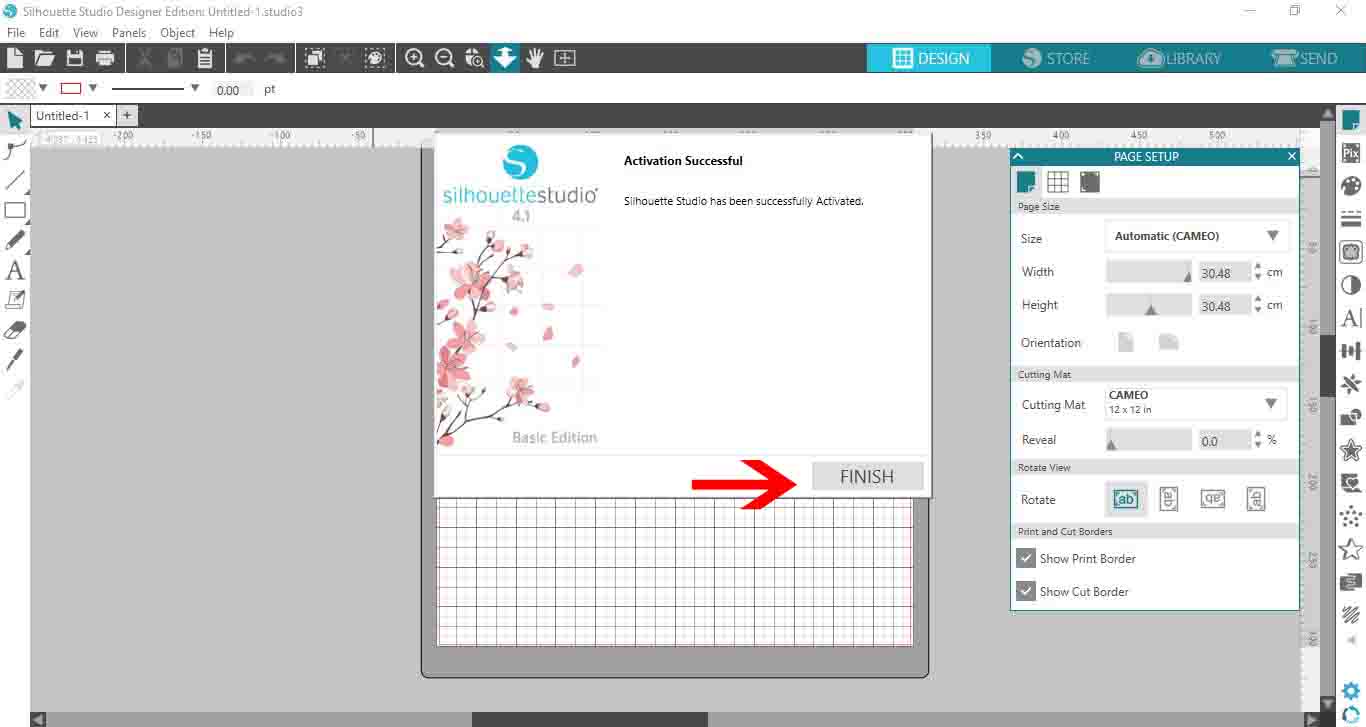
Finish Silhouette Studio upgrade

You can easily find your upgrade code by going to your Silhouette Store account. Click on the profile icon, then click on the tab for License Keys. Any and all license keys used will be stored here.

Well done on upgrading your Silhouette Studio! We hope that you enjoy all of the new features that are now available to you.


Related Tutorials

Silhouette Tutorials

How To Convert and Cut an EPS file in Silhouette Studio

In this tutorial we will show you two methods to convert and cut an EPS file in Silhouette Studio.
Silhouette Tutorials

Eraser Tool in Silhouette studio

Discover how to use the Eraser Tool in Silhouette Studio to remove unwanted areas of your design.
Silhouette Tutorials

Conical Warp Tool in Silhouette V4.1

In only 2 steps use the Conical Warp tool in Silhouette Studio to make Tumbler Templates today!
Silhouette Tutorials

Removing Unwanted Cut Lines in Silhouette Studio

Today, we'll show you three methods of removing unwanted cut lines in Silhouette Studio.
Silhouette Tutorials

How to Add an Outline Around Any Text in Silhouette Studio

Discover how to add an outline to any text in this Silhouette Studio tutorial. Quick read!
Silhouette Tutorials

How to Create Sublimation Designs in Silhouette Studio

Learn to create Sublimation Designs in Silhouette Studio in 6 easy steps!

Keep going

You may also like

All silhouette tutorials
The weekly drop

Fresh tutorials, trends & free files.

Join 6 million makers getting our best craft guides and exclusive freebies straight to their inbox.

No spam. Unsubscribe anytime.