By Design Bundles
Cricut Tutorials8 min
How to Use the Current Color Feature in Cricut Design
In this tutorial we will show you how to recolor shapes and designs in Cricut Design Space. You will learn how to recolor objects using the color palettes from artwork on the canvas.This is a great tool to use when you want to stay within a single color palette throughout the design process. We also have the ability to choose from 1000s of colors using the color pick box.
I will be using a beautiful chasing rainbow SVG as well as a rainbow unicorn clipart. To begin, open Cricut Design Space and upload the SVGs you will be using. We have an easy to follow guide on uploading SVGs to Cricut if needed.
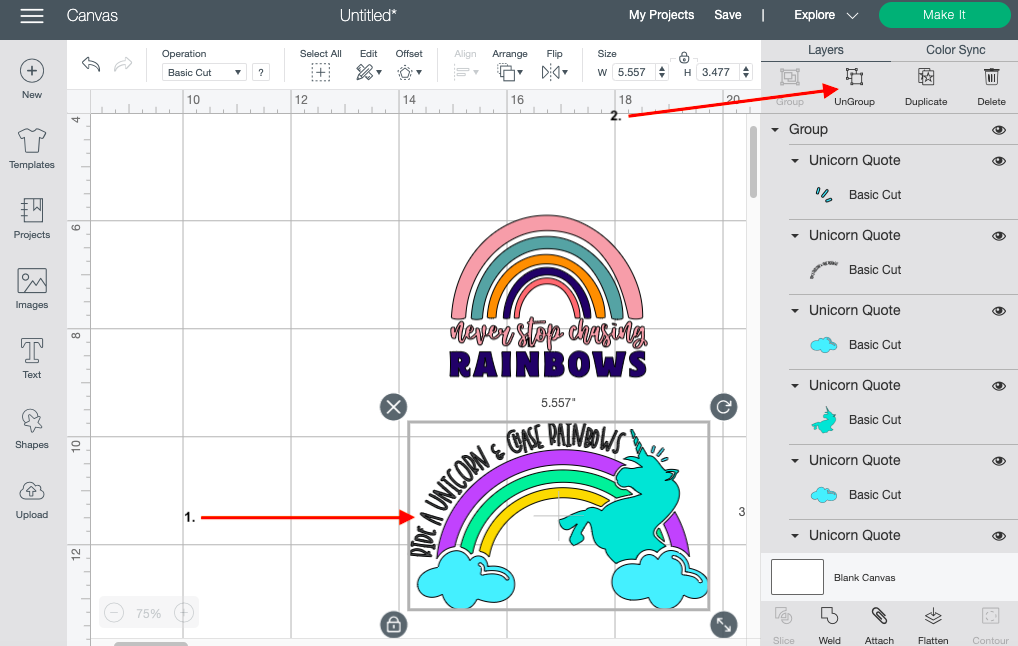
To start, select the SVG file and click Ungroup on top of the layers panel. Your design will now be separated and each piece will be on its own layer.
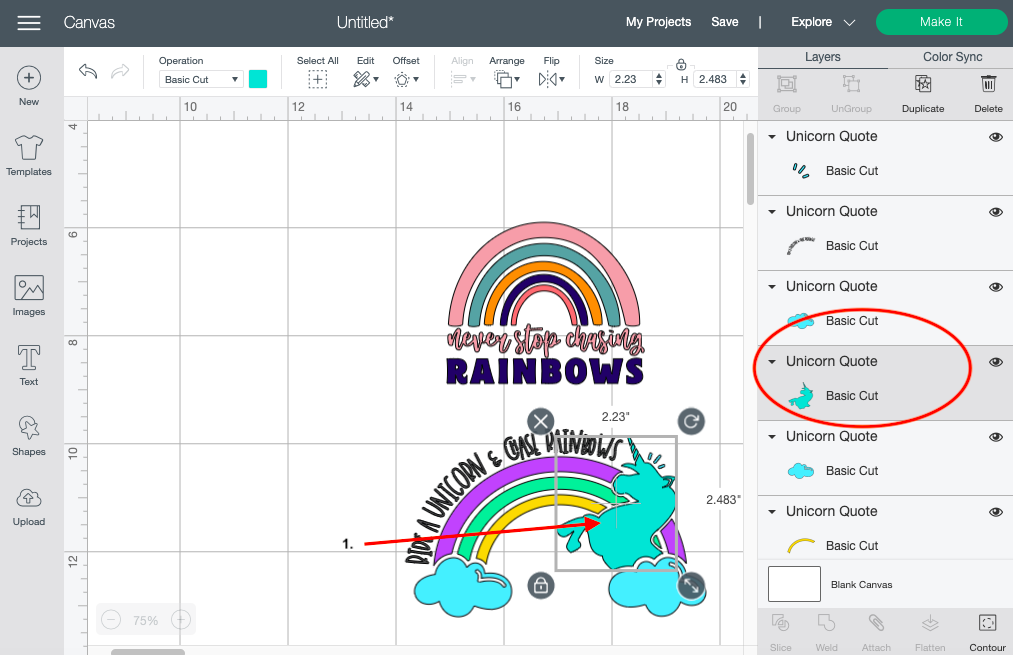
Next, select the layer you would like to recolor. You can do this by selecting the item right from the canvas or by clicking on the individual layer under the layers panel.
You can recolor your artwork by using the swatch tool or the color sync icon. We’ll go over both of them today.
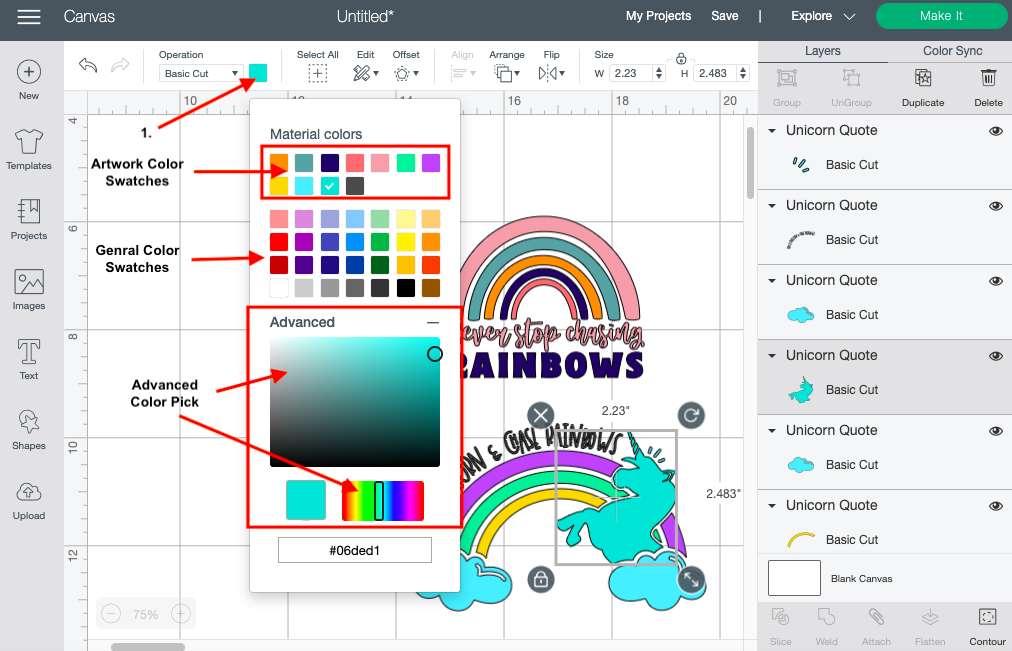
Open the color swatch tool in the upper toolbar. A small window will appear containing your color swatches. The first set of swatches under Material Colors are colors pulled directly from designs on the canvas page. This will include the color palettes from each artwork. The swatches beneath it are your general colors, including black, white, blues, greens, and more.
You can click on these swatches anytime to change the color of your object. Below the general color swatches are the Advanced color settings. Open the settings by clicking the plus symbol across from it. Once you do so, you can click within both boxes under the advance option to change the colors.
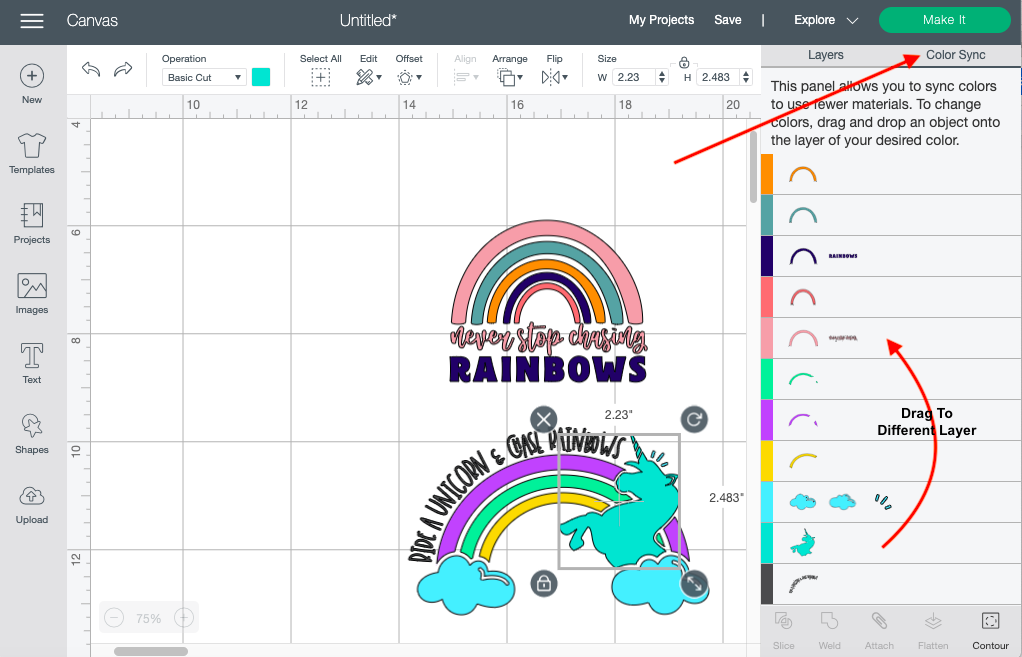
Next, we will learn how to use the color sync tool. This is an easy way to recolor individual layers using your artwork color palette. Click on the Color sync icon near the top of your screen. You will notice that the color sync panel looks similar to your layers panel. The only difference is that each layer is now organized by color.
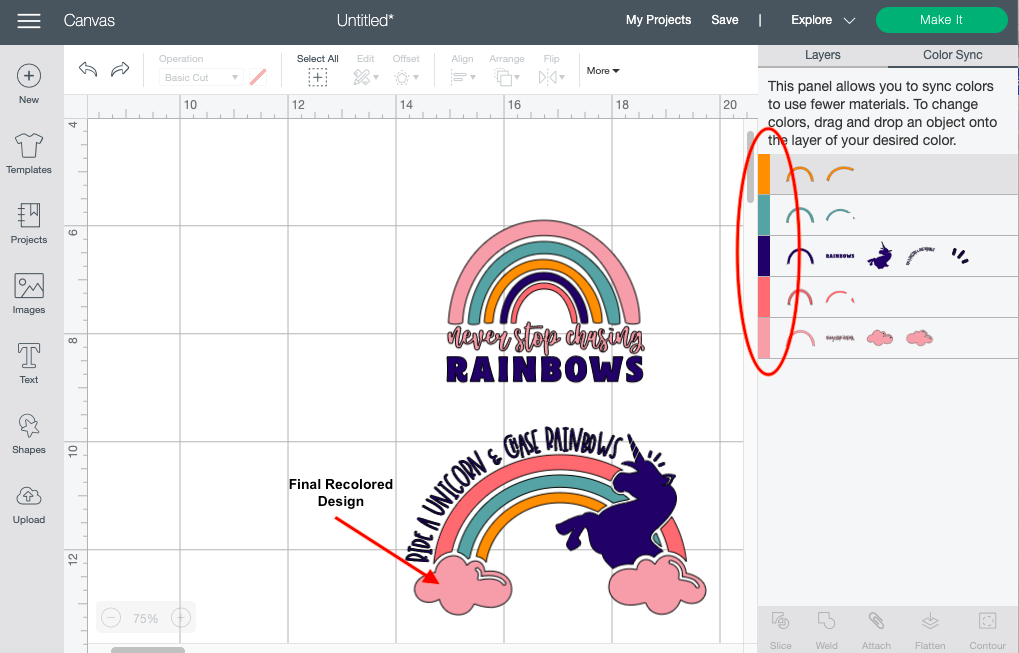
You can easily change the object's color by selecting it and dragging it to another color layer. Using the color sync tool is an easy way to change the colors quickly when working with multiple designs and layers.
Recoloring your design in Cricut Design Space is really that easy and quick.
If you liked this tutorial make sure to check out our guides on creating a shadow, using the score tool and creating a layered image in Design Space.
I will be using a beautiful chasing rainbow SVG as well as a rainbow unicorn clipart. To begin, open Cricut Design Space and upload the SVGs you will be using. We have an easy to follow guide on uploading SVGs to Cricut if needed.
Step 1- Ungroup and Select layer
To start, select the SVG file and click Ungroup on top of the layers panel. Your design will now be separated and each piece will be on its own layer.
Next, select the layer you would like to recolor. You can do this by selecting the item right from the canvas or by clicking on the individual layer under the layers panel.
Step 2 - Use the Color Swatch Tool
You can recolor your artwork by using the swatch tool or the color sync icon. We’ll go over both of them today.
Open the color swatch tool in the upper toolbar. A small window will appear containing your color swatches. The first set of swatches under Material Colors are colors pulled directly from designs on the canvas page. This will include the color palettes from each artwork. The swatches beneath it are your general colors, including black, white, blues, greens, and more.
You can click on these swatches anytime to change the color of your object. Below the general color swatches are the Advanced color settings. Open the settings by clicking the plus symbol across from it. Once you do so, you can click within both boxes under the advance option to change the colors.
Step 3 - Use the Color Sync tool
Next, we will learn how to use the color sync tool. This is an easy way to recolor individual layers using your artwork color palette. Click on the Color sync icon near the top of your screen. You will notice that the color sync panel looks similar to your layers panel. The only difference is that each layer is now organized by color.
You can easily change the object's color by selecting it and dragging it to another color layer. Using the color sync tool is an easy way to change the colors quickly when working with multiple designs and layers.
Recoloring your design in Cricut Design Space is really that easy and quick.
If you liked this tutorial make sure to check out our guides on creating a shadow, using the score tool and creating a layered image in Design Space.
Related Tutorials
Cricut Tutorials
How to Use the Group Hiding Feature in Cricut Design Space
Cricut Tutorials
How To Use The Slice Tool In Cricut Design Space To Split Images
Learn how easily to Split Images in Cricut Design Space using the Slice Tool.
Cricut Tutorials
How to Use a PDF File in Cricut Design Space
In this tutorial we guide you through the steps on using a PDF file in Cricut Design Space.
Cricut Tutorials
How to use Glyphs in Cricut Design Space
Discover how to use font glyphs/alternate characters in Cricut Design Space.
Silhouette Tutorials
How to Use Silhouette Files in Cricut Design Space
Discover how you can use your Silhouette Studio file in Cricut Design Space.