By Design Bundles
How to use Glyphs in Cricut Design Space
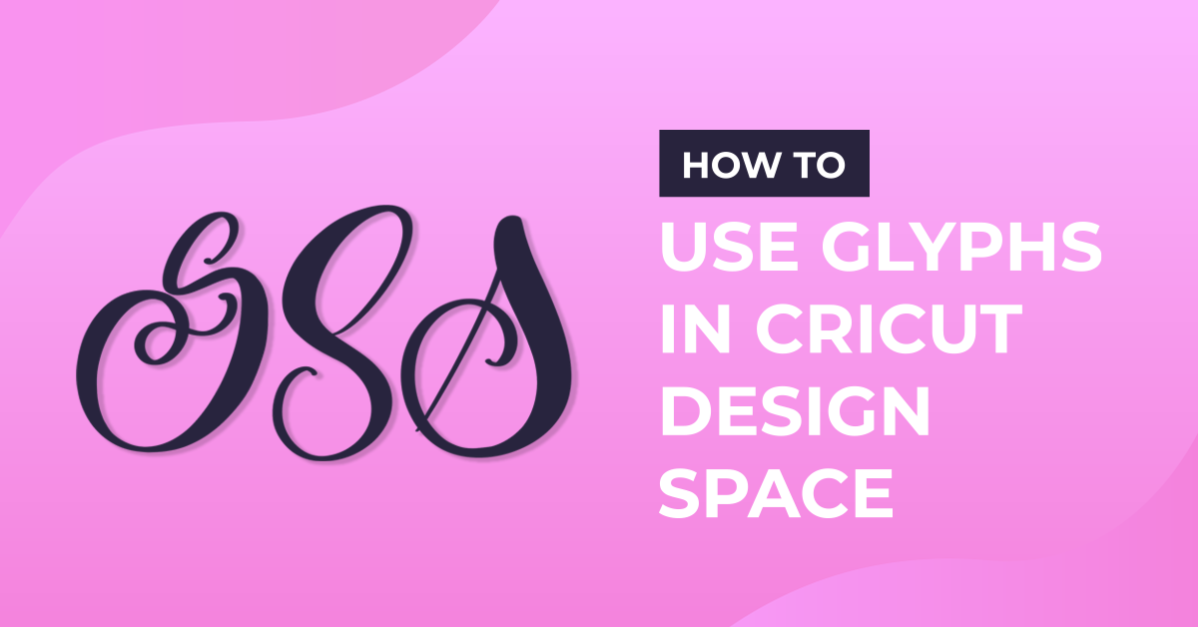
So many fonts now come with extra swirls and alternate text known as glyphs. These glyphs give you a ton of creative possibilities. Using glyphs in Cricut Design Space is not only fun but easy to do as well.
Step 1 - Install Fonts
Before using your fonts in Cricut Design Space, you must install them onto your device. We have an easy-to-follow guide on installing fonts to Mac or PC.
In this tutorial, we will be using a heart script font called About Love, but there are tons of great fonts with swashes available on Font Bundles.
Step 2 - Type Out Text and Change the Font
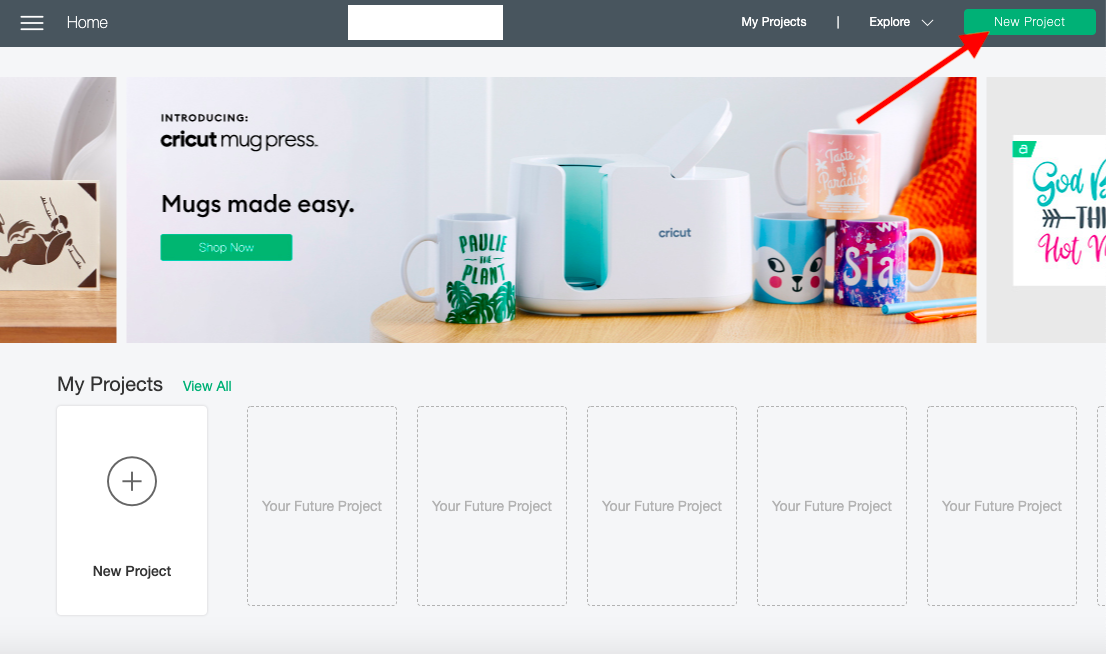
Start by opening Cricut Design Space and create a new project. You can do this by clicking on the green rectangle box label New Project.
Click on your Text tool on your left side toolbar. Type your text in the rectangle box that will appear on your screen.

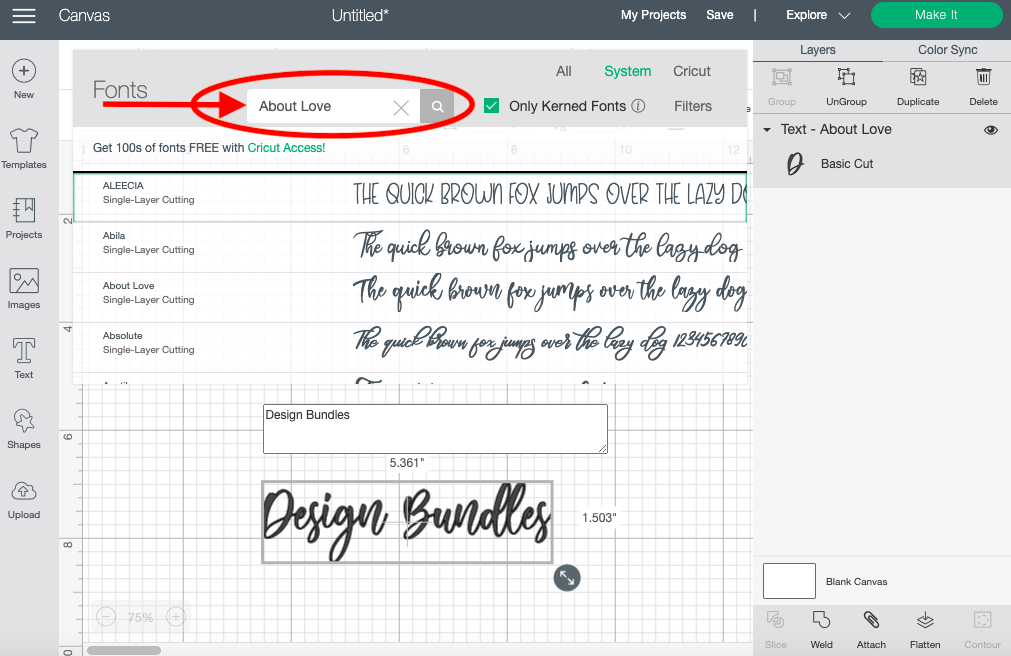
Next, choose your font by clicking on the Font tab button on your upper toolbar. A box will appear, and you will now be able to search for your font. I'll be searching for About Love, a font that I recently installed. If you are using Design Space desktop, Cricut recently rolled out a new text feature that will automatically Kern your fonts. This is a wonderful feature if you are using script fonts like I will be working with today.
With your text still selected, click on the ungroup icon right above your layers panel. This will allow you to make changes to each letter.

Step 3 - Use Glyphs and Weld
Locate all your glyphs by going to the Character map (pc) or Font book (mac). If using Font book make sure repertoire mode is turned on to see alternate characters. Now search for the glyph you would like to use in the project. Once you find the perfect one, click Ctrl C (PC) or Cmd C (Mac) to copy the Glyphs. Head back to Design Space to paste your glyph.

Once in Design Space, double click on the letter you would like to change. Your text box will appear. You can now highlight the original letter and paste the glyph that you just copied. To paste, hit Ctrl V (PC) or Cmd V (Mac) on your keyboard. Repeat the previous steps until you are satisfied with your design.

If you are pleased with your design, select all your items and click Weld on the button on the right-hand side of your screen.

You have successfully created a new unique design using glyphs in Cricut Design Space.
If you liked this tutorial, check out our other tutorials on using fonts in Design Space.