By Design Bundles
Cricut Tutorials6 min
How to Use the Snap Rotation Function in Cricut Design Space
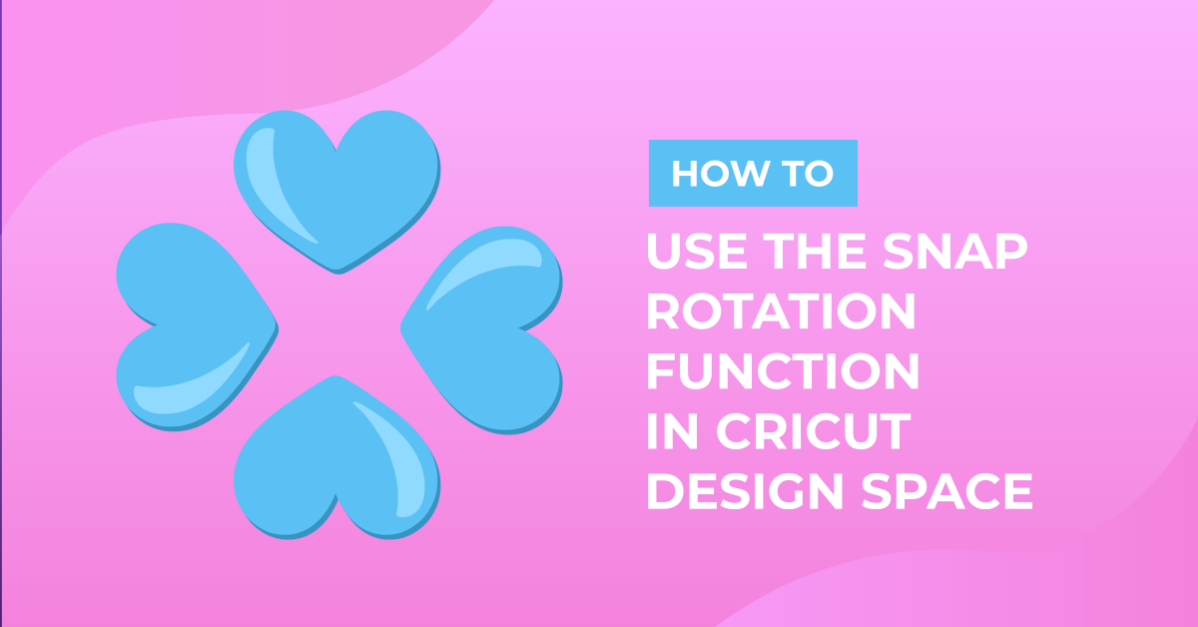
Cricut Design features a rotation function that is a great tool for creating designs. The feature can rotate objects every 22.5 degrees with precise positioning each time. This can be essential when you want to keep your design elements consistent. In this tutorial we will show you how to use the Snap Rotation function in Cricut Design Space.
Today we’ll create an easy flower design. To start, open a new project in Cricut Design Space.
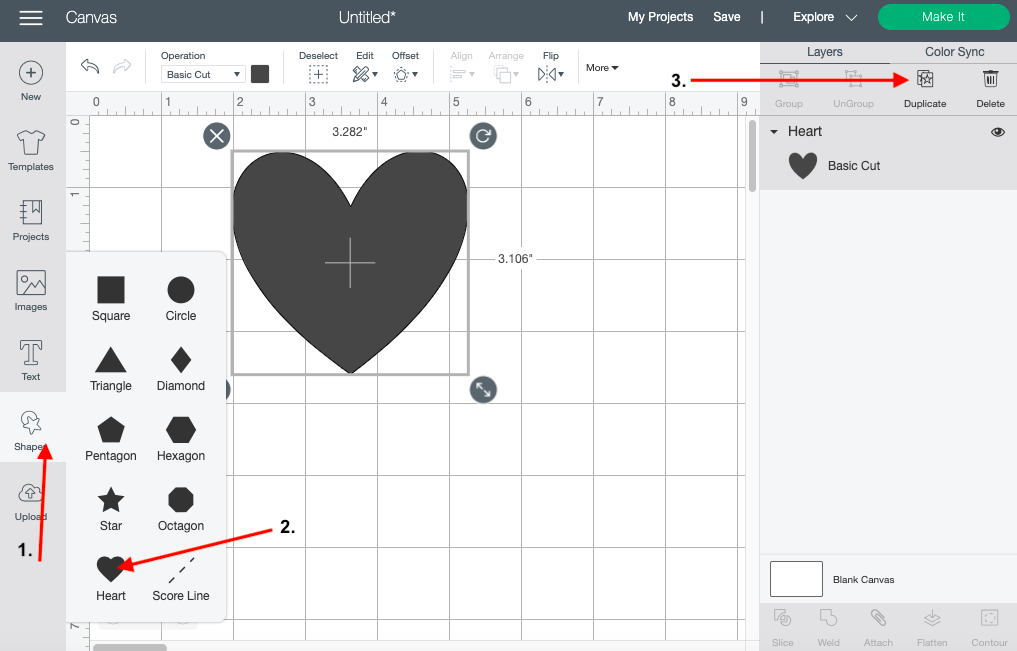
First, we will create a heart shape by using the shapes tool in Cricut Design Space. After creating the heart shape, click the duplicate icon which is on top of your layers panel. We’ll be using these two items to create the design.
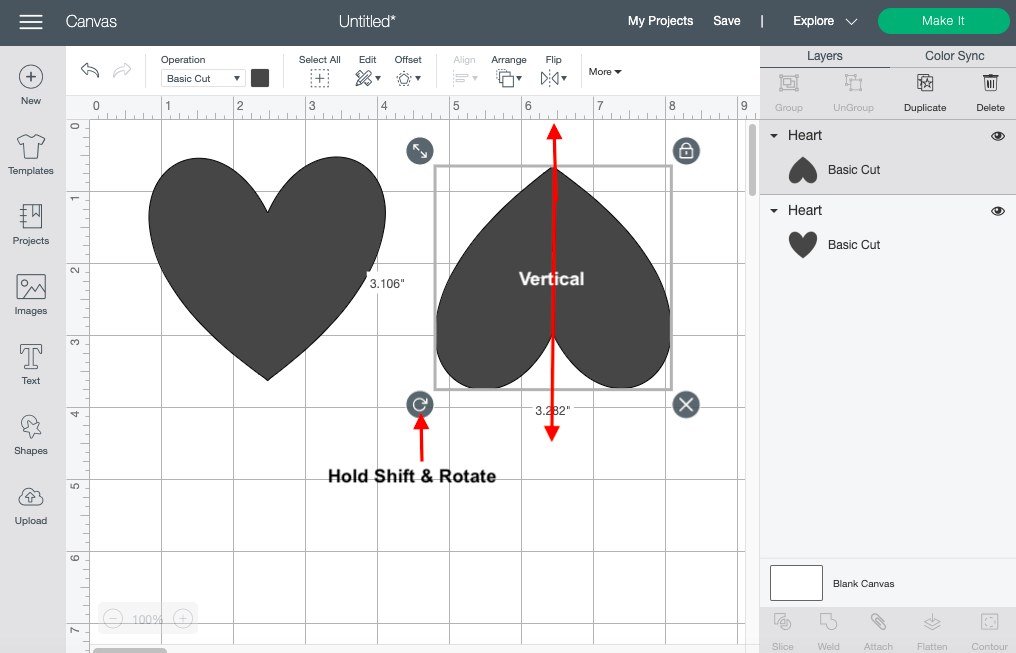
We will be flipping the duplicate heart and repositioning it. Select the duplicate heart. Next, snap rotate by holding down the shift key and rotating the shape to 180 degrees vertically. This will turn the shape upside down, which is what we want.
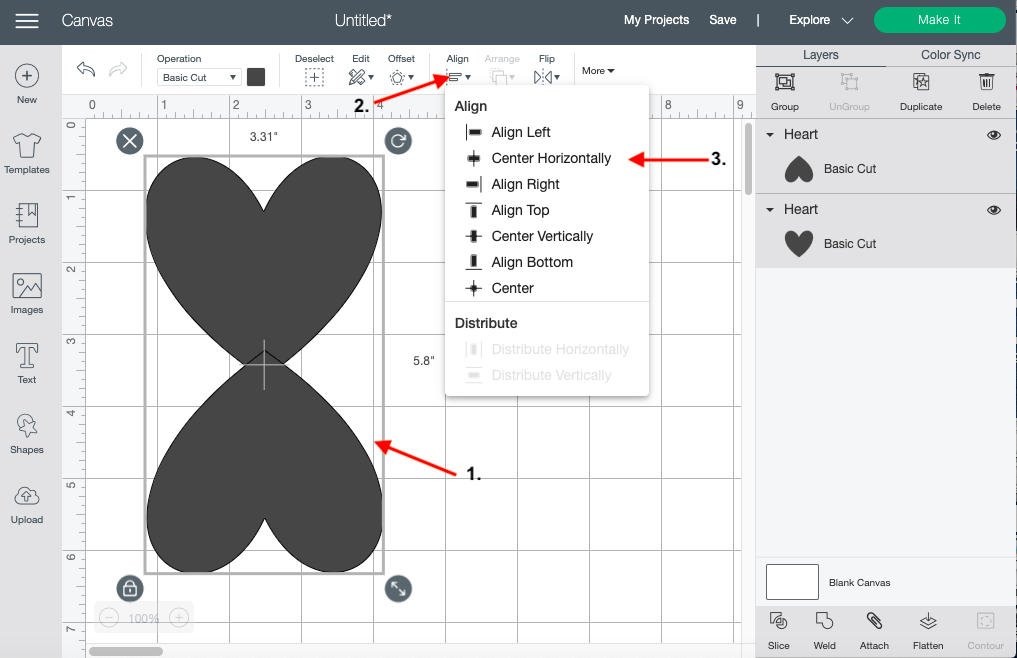
Place the heart shape slightly over the object that you first created. Select both items and align the center horizontally by clicking the Align icon on the top toolbar.
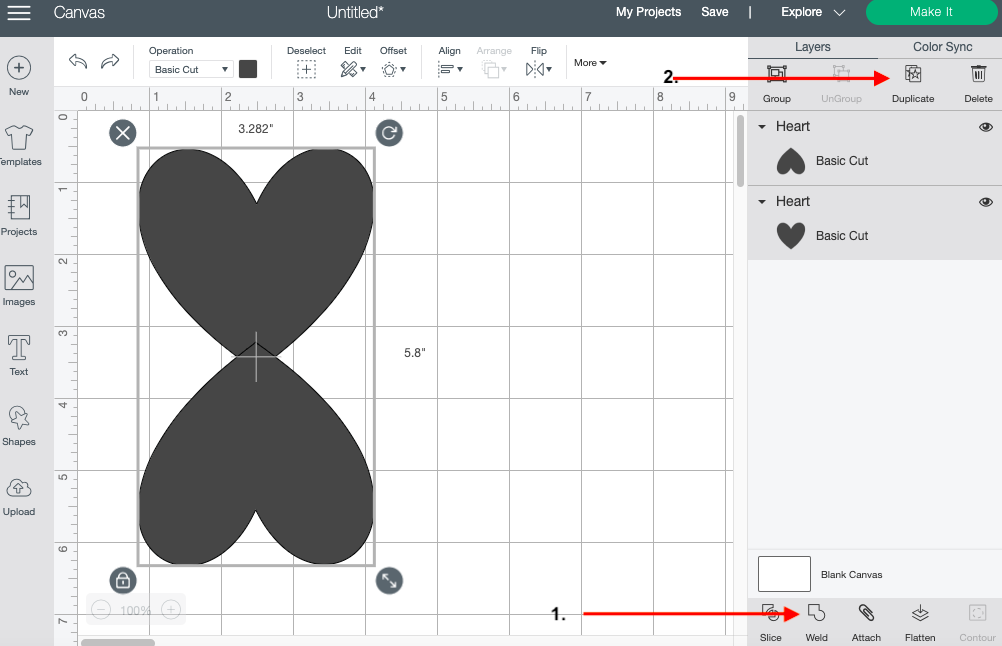
Once you are done, click the Weld tool at the bottom of your layers panel. You will now have one solid figure. Click the Duplicate button once again to make a copy of your shape.
After duplicating your object, repeat step two. This time rotate your object horizontally and place it on top of the original one.
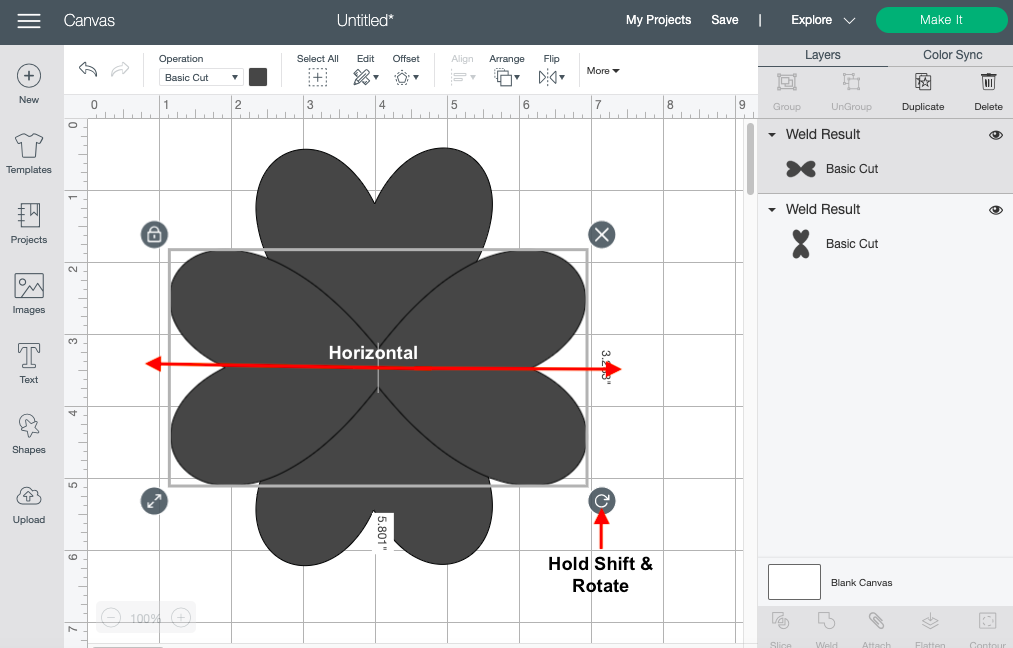
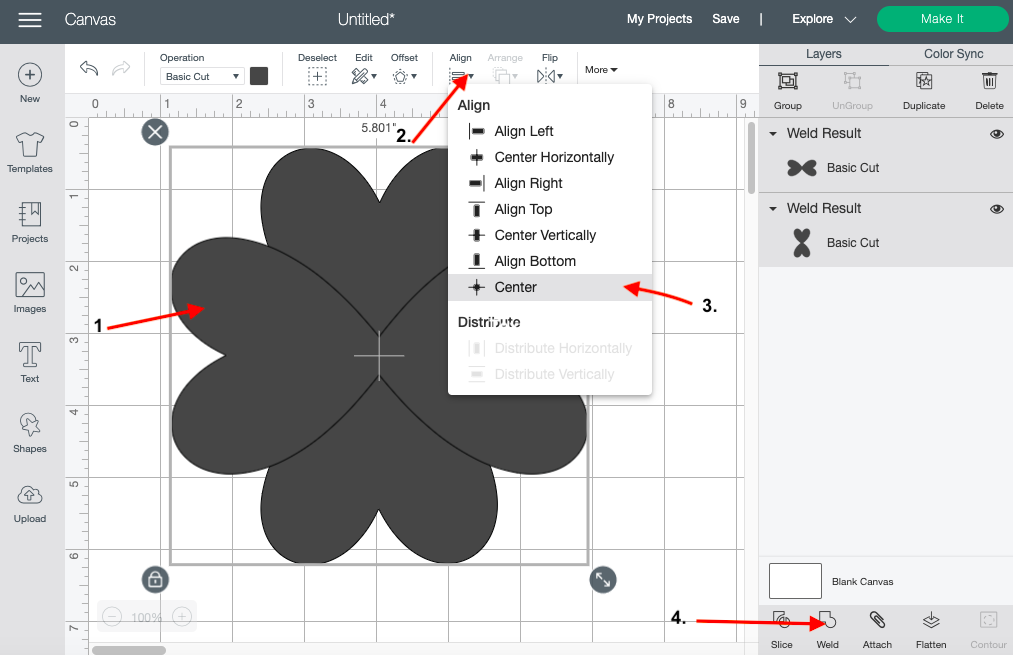
Select both objects and click the Align button on the top toolbar. Then, select Center at the bottom of the pop-up window. Click Weld on the bottom of your layers panel to make one solid form.
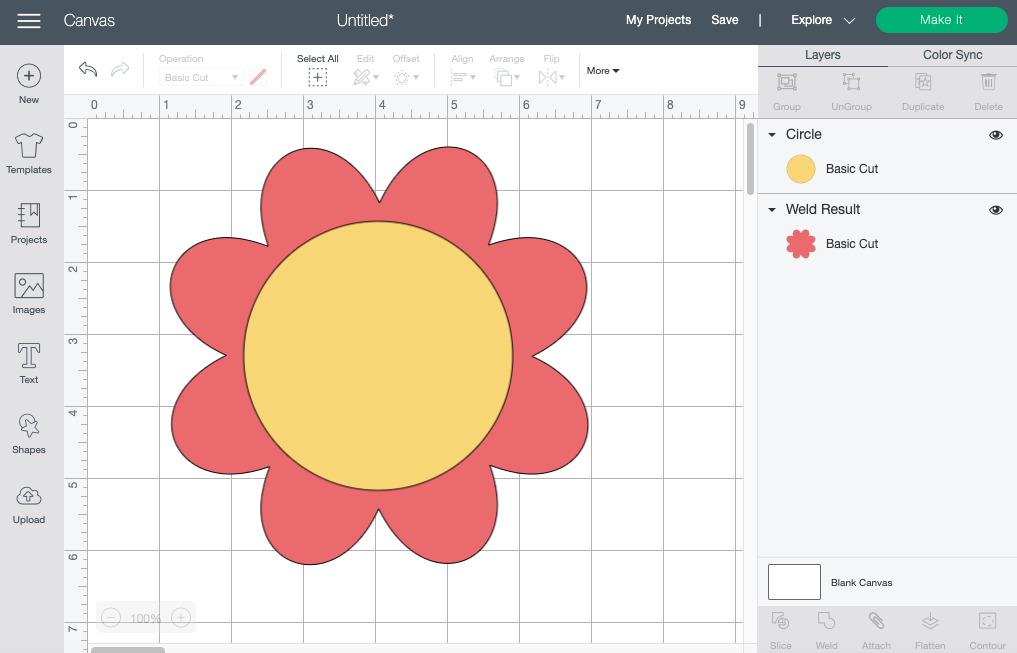
Insert a circle into your canvas and finish up your flower. You have easily created a design using the Snap Rotation feature.
If you liked this tutorial make sure to check out our tutorials on how to make a layered image and how to use the slice tool in Design Space.
Today we’ll create an easy flower design. To start, open a new project in Cricut Design Space.
Step 1- Insert heart shape and duplicate
First, we will create a heart shape by using the shapes tool in Cricut Design Space. After creating the heart shape, click the duplicate icon which is on top of your layers panel. We’ll be using these two items to create the design.
Step 2 - Snap rotate and align center horizontally
We will be flipping the duplicate heart and repositioning it. Select the duplicate heart. Next, snap rotate by holding down the shift key and rotating the shape to 180 degrees vertically. This will turn the shape upside down, which is what we want.
Place the heart shape slightly over the object that you first created. Select both items and align the center horizontally by clicking the Align icon on the top toolbar.
Once you are done, click the Weld tool at the bottom of your layers panel. You will now have one solid figure. Click the Duplicate button once again to make a copy of your shape.
Step 3 - Snap Rotate and Center Align Objects
After duplicating your object, repeat step two. This time rotate your object horizontally and place it on top of the original one.
Select both objects and click the Align button on the top toolbar. Then, select Center at the bottom of the pop-up window. Click Weld on the bottom of your layers panel to make one solid form.
Insert a circle into your canvas and finish up your flower. You have easily created a design using the Snap Rotation feature.
If you liked this tutorial make sure to check out our tutorials on how to make a layered image and how to use the slice tool in Design Space.
Related Tutorials
Cricut Tutorials
How To Use The Slice Tool In Cricut Design Space To Split Images
Learn how easily to Split Images in Cricut Design Space using the Slice Tool.
Cricut Tutorials
How to Use a PDF File in Cricut Design Space
In this tutorial we guide you through the steps on using a PDF file in Cricut Design Space.
Cricut Tutorials
How to use Glyphs in Cricut Design Space
Discover how to use font glyphs/alternate characters in Cricut Design Space.
Silhouette Tutorials
How to Use Silhouette Files in Cricut Design Space
Discover how you can use your Silhouette Studio file in Cricut Design Space.
Cricut Tutorials
How to use Fonts In Cricut Design Space
Learn how to successfully use Fonts in Cricut Design Space with this step-by-step tutorial.
Cricut Tutorials
How to Use Pattern Fill in Cricut Design Space
Learn how to use the pattern fill feature in Cricut Design Space with this beginner tutorial.