By Design Bundles
How to Add a Score Line in Cricut to Create a Card Fold
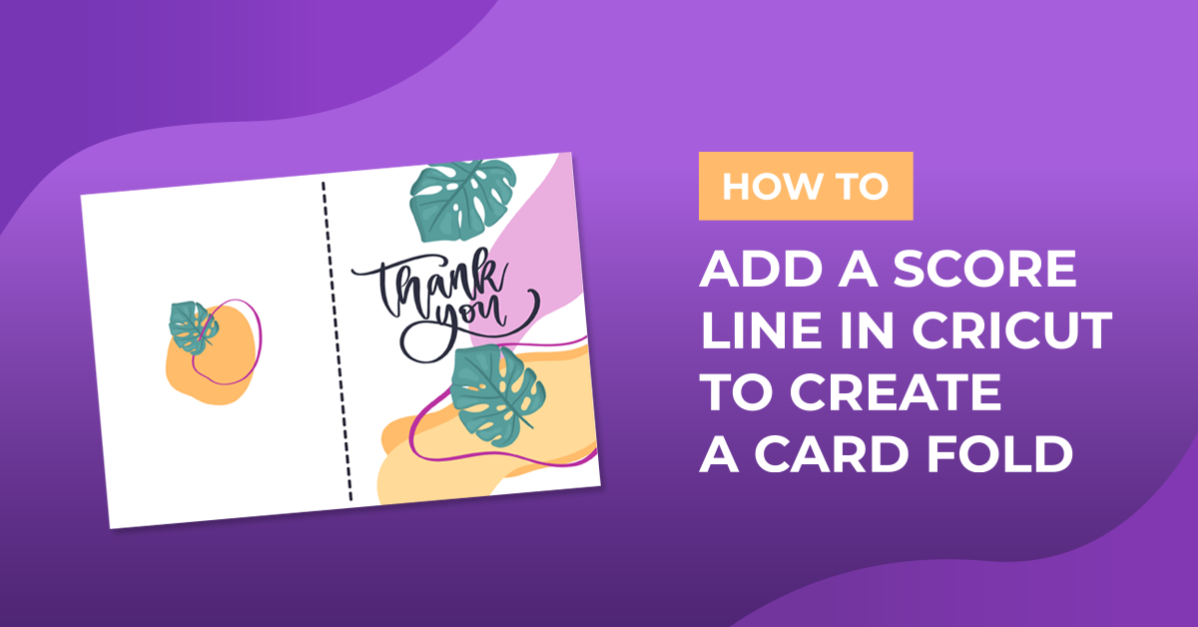
In this tutorial, we will be making a card template in Cricut Design Space by adding a score line.
Step 1. Create a New Project
Open Cricut Design Space and create a new project by clicking the green rectangle box that is labeled New Project.

Step 2. Insert a Square
First, insert your square using your shape icon on the left side of your canvas screen.

With your shape still selected, click on the More tab on the top toolbar. Once you do this, a box will appear, and you will be able to change the dimensions of your shape. Click on the width and height box to type in the required dimension, which will be 8.5” by 5.5”.

Step 3. Add Score line
We can finally add a score line Click on your shapes icon once more and then click the Score line icon.

For today's tutorial, we will be placing the score line in the center of our rectangle. To align the score line with the shape, select both objects and click Align on the toolbar. A box will appear, and you can then click on Center Horizontally.

Make the score line the same height as your shape, which is 5.5”. You can do this by clicking on the More icon in the upper toolbar, and just like before type out the height.

Step 4. Attach objects
Select the score line and the shape and click the Attach button. You can find the attach button on the lower right side of your screen. Once you are finished you can click the Make it button and follow the computer prompts to create your score line.

You have successfully created a score line in Cricut Design Space. Continue to follow the computer prompts to create your score lines.

If you liked this tutorial make sure to check out our guides on using the pattern fill option and creating sticker sheets in Cricut Design Space.