By Kia Lor
How to Make a Long Shadow Effect in DesignScape
You can create many great design effects in DesignScape, such as a long shadow effect. You can make some awesome stickers using this effect, or maybe you'd like to create a sublimation design using text that has a long shadow.
If you don’t have a Gold Plus membership and would like to try out DesignScape and its amazing features, we have a free 30-day trial available for you today. DesignScape is an excellent alternative to Illustrator and Photoshop with no software to install as it’s browser-based.
Let’s first start a new project and import the font we want to use into DesignScape.
Step 1 - Add Text
Select the Type Tool (T) and change the font and font color if needed. We will be using a bold sans serif font called Helton with pink as the font color.

Click on the canvas and enter your text. Make any needed adjustments to the text. You can read our guide on text basics in DesignScape if you’d like to learn about all the available text features.

Step 2 - Duplicate Text Layer
Right-click on the text layer and select Duplicate Layer.
Select the topmost text layer and lock it by clicking the padlock icon.
Step 3 - Change Bottom Text/Shadow Layer's Color and Convert It to a Shape
Click the bottom text layer and select the Type Tool (T). Change the text to a different color. We chose the color black.
Right-click on the bottom black text layer and choose Convert to Shape. This layer is the first shadow layer.
Step 4 - Shift and Duplicate the Shadow Layer
Using the Move Tool (V), move the shadow layer over by clicking the down arrow key once and the left arrow key once. You can move your shadow to the right instead if you want your shadow to go in the opposite direction.
Duplicate the shadow layer and repeat this step until your shadow is a little longer.
Step 5 - Merge Shadow Layers Together
Click the bottom-most shadow layer, and holding the Shift key, click the topmost shadow layer to select all of the shadow layers.
Right-click on the layers and choose Merge Layers.

Merging layers will place all the shadow shapes onto a single layer.

Step 6 - Duplicate and Place Long Shadow Layer
Now you can duplicate the single long shadow layer instead of duplicating an individual shadow layer to save you some time.
Select the duplicate shadow layer and click and drag it to its new location to continue creating the long shadow. Repeat this step until the shadow is as long as you need.
Step 7 - Merge Long Shadow Layers Together
Select all the shadow layers and merge them again once your shadow is as long as you want it.
Step 8 - Merge Shadow Shapes Into One Using the Path Select Tool
The straight edges of your shadow may look jagged. To edit the edges, we will have to merge the separate shadow shapes into one shape. Select the Path Select tool (A).
Then, in the top toolbar, choose Merge from the dropdown menu. The process may take a few seconds to complete.
You will now see a single shape instead of many separate shapes.

Step 9 - Make Jagged Shadow Edges Straight Using the Direct Select Tool
Zoom in (View > Zoom In) to the shape until you can see the individual anchor points.

Use the Direct Select tool (A) to select and delete the anchor points that are causing the jagged edges. You can select and delete one anchor point at a time or click and drag to select and delete several, like below.

Continue selecting and deleting anchor points until all the straight lines are no longer jagged. Make sure you don’t accidentally delete a wrong anchor point. If you do, you can press Control/Command + Z to undo.
Step 10 - Delete Empty Inside Shapes
If your text has letters that have holes, like “O,” “B,” and “D,” there will be holes in the shadow shape. We want to delete the holes.
Select the anchor points of the holes and delete them.

Repeat this for all of the hole shapes. Your long shadow layer is complete, but now we will create different looks using adjustment layers.
Step 11 - Add and Edit a New Adjustment Layer
We will add a new adjustment layer and clip it to the shadow layer.
Select the New Adjustment Layer icon at the bottom right. You can fill the shadow with a solid color, gradient, or pattern. We chose Gradient Fill.
Before we make any changes to the Gradient Fill layer, let’s clip it to the shadow layer first so we can see what we’re doing.
Make sure the Gradient Fill layer is directly above the shadow layer. Then right-click on the Gradient Fill layer and select Clipping Mask.
Now you can adjust the Gradient Fill properties to your liking.
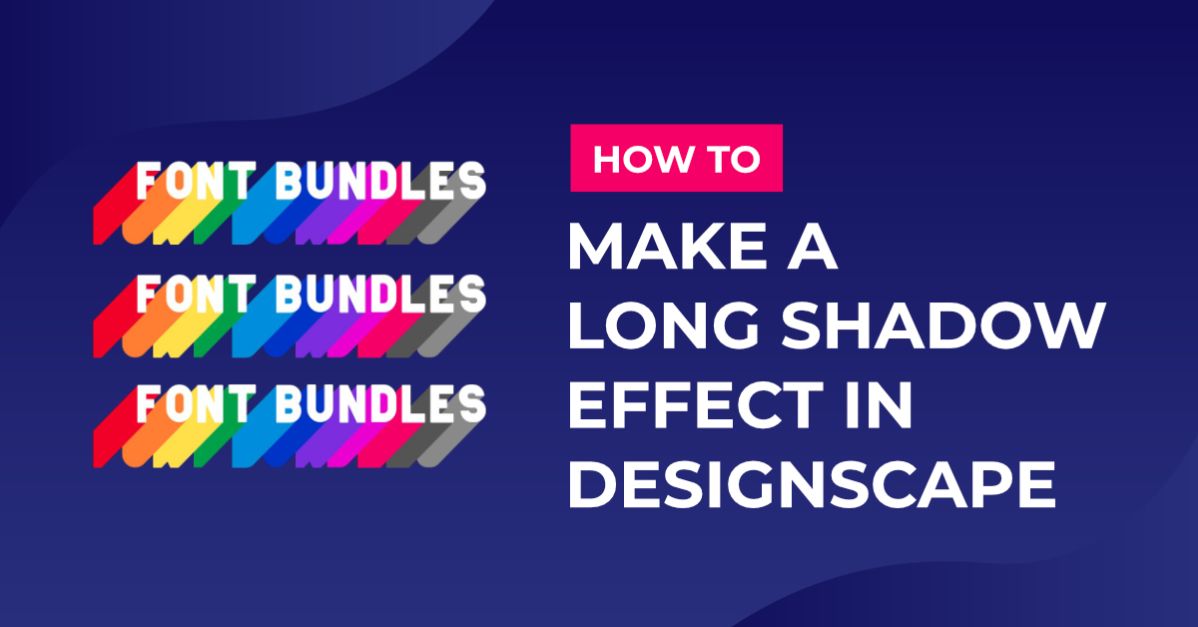
Below are some different long shadow effect styles we created following the steps in this tutorial.
You can also create the long shadow for each letter separately to be able to make styles like the following.