By Design Bundles
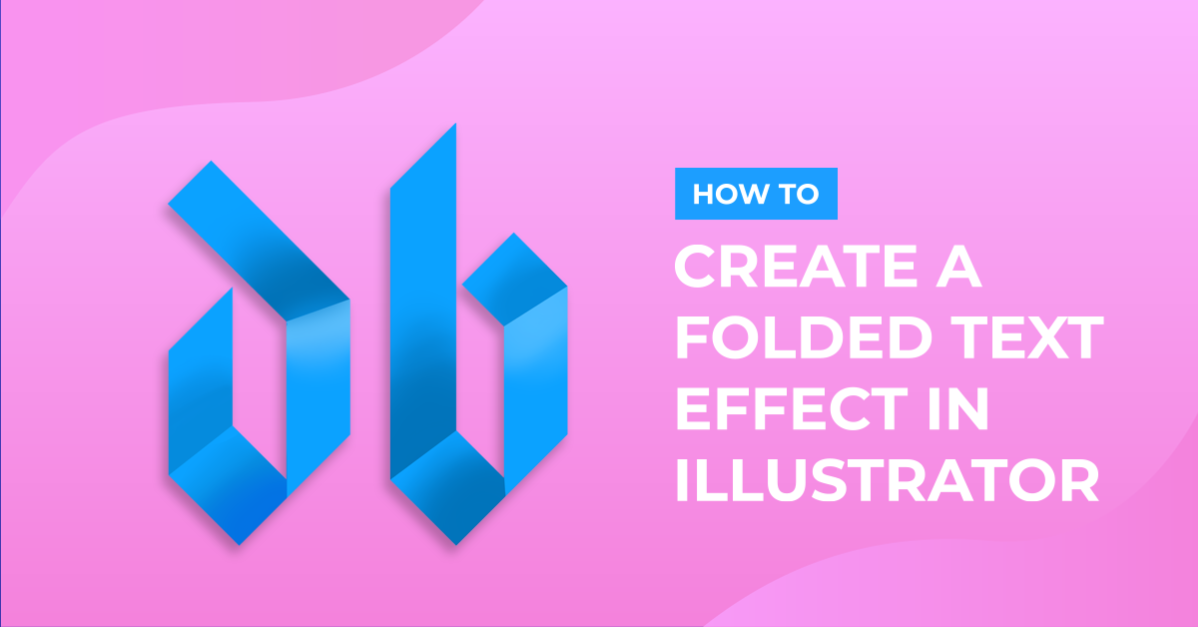
Folded Text Effect in Illustrator
For this tutorial we used Bajern Font from Font Bundles. Just make sure the font you choose has angles in it so the folding effect will be easier to achieve.
1 – In Illustrator create a New Document or open an existing one.

2 - Using the “Type Tool” (T) and the font you chose write your text. You can give it any color and size.

3 – Select your text with the “Selection Tool” and go to Object > Expand. “Object” and “Fill” must be selected in the dialog window. Click OK.


4 - Select the text again and right-click on it then select “Ungroup” to make each letter selectable.

5 – Now, let’s start making the shading for the folded areas. Use the “Pen Tool” (P) to draw vector shapes in the areas your shading will occur.

6 - Fill the vector shapes with gradients and apply this settings (the angle of the gradient will be different depending on the location of the shaded area. Complete all the folded areas for every letter.
Horizontal: Transparency: Multiply, Opacity 50 %. Gradient: Angle: Linear from transparent to black or a darker shade of the color of your text.
Vertical: Transparency: Multiply, 40 % opacity.


7 – In some of our letters we are making some “Highlights”. Instead of using black (or a dark color) use white and change the Transparency mode to “Luminosity”.


8 – If you want to modify your shapes you can use the “Direct Selection Tool” (A) to move individual anchors in your path.

9 – On the letters that have longer portions, add a shade in the middle with a values similar to this:


10 - Your final result should look similar to this.

11 – If your font of choice is more rounded, you can create some “corners” after step 4. (We are using a font called Norwester from jamiewilson.io for this example). Just use the “Direct Selection Tool” (). Then you can use the “Anchor Point Tool” to straight some curved paths or vice versa and you can use the “Add Anchor Point Tool” (+) or “Delete Anchor Point Tool” (-) to add or delete some points to make your letters easier to work with.


by @lornacane