By Design Bundles
How to Create a Drop Shadow in Illustrator
In this tutorial you will learn how to add a drop shadow to any design. You will also be able to fully edit the settings to achieve your desired look and feel. Drop shadows add dimension and depth, giving a 3D look and making elements stand out. Follow these simple steps to level up your Illustrator skills.

Step 1 - Create design and use drop shadow options
To create my design I used a cute handwritten font called Crisp Leaves. If you would like to use another font we have an awesome selection of Cute Fonts available.

Once the design is created, select the element(s) you want to add the drop shadow to. Open up the drop shadow options by selecting Effects > Stylise > Drop Shadow. In Step 2 we will go into more detail about the options.

Step 2 - The drop shadow options
Within your drop shadow menu you will have six individual options. Start by ticking the box next to Preview. This will allow you to see the changes made in real time. We will discuss the drop shadow options below.
Mode
This options changes the blending mode for the drop shadow. The typical setting would be Multiply as this essentially displays as an opacity. It shows through the background color that it is positioned on and looks most like a natural shadow.
If you have a colored background, you will notice the difference when changing this setting. You may want to play around with the different Mode options to achieve the results you want.
Opacity
Opacity will change the strength of the shadow. If you’d like it to be more subtle, turn this percentage setting down.
X and Y Offset
This changes the distance of your shadow on the X and Y axis. You can also use positive or negative numbers to determine the direction of the shadow.
Blur
Blur changes the distance of the blur from the edge of the shadow. Bringing the blur setting right down will create a harsher shadow around your artwork.
Color
This will change the color of your shadow, the most natural color would be 100% black. But you can change this for any color to make your design more funky!
Darkness
This will use the object color and add a shadow using a darker shade, which may look more natural. You can change the amount of black that you want in this drop shadow.
When you are happy with your drop shadow options, select OK to apply it to your design.
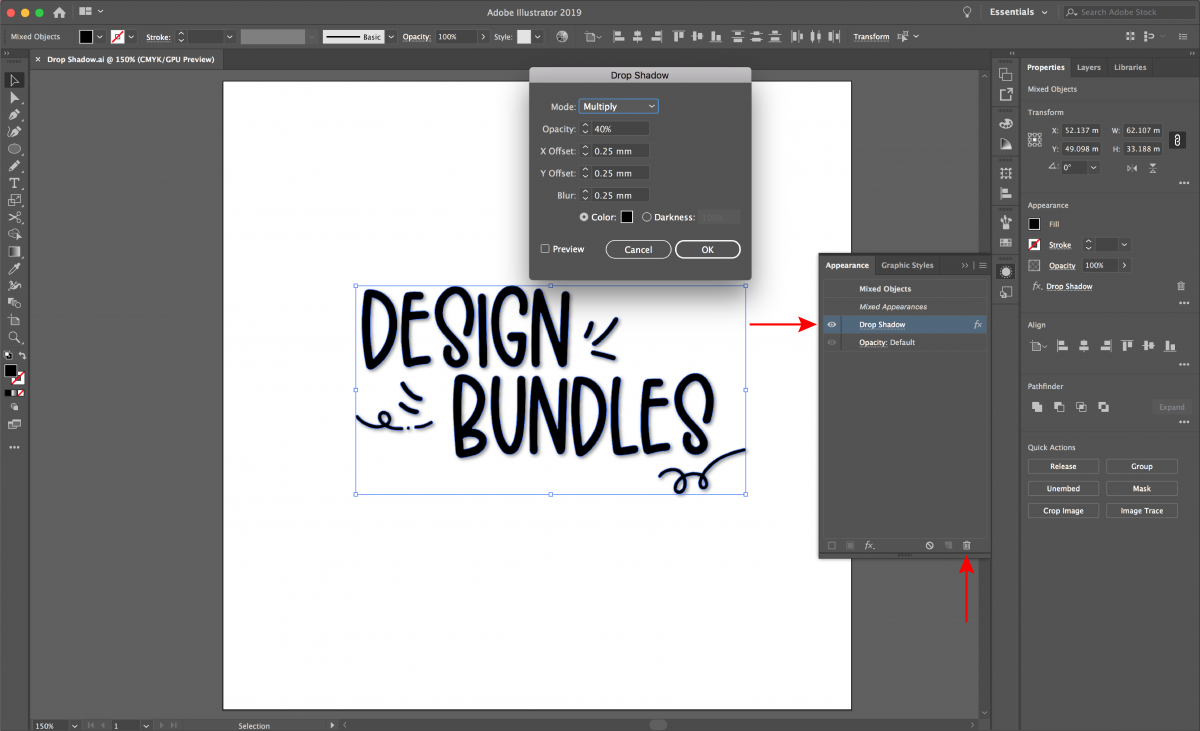
I have added a subtle drop shadow to my design. I have achieved this by keeping the shadow and blur close to the design while keeping the opacity low. See my setting values in the image below.

Step 3 - Editing or deleting the Drop Shadow options
To edit your drop shadow options, select Window > Appearance.

Your Appearance Panel is where all your applied effects are stored and can be edited from here. Find 'drop shadow' in the list and select it to bring up the settings. It will have stored all the details of your current values and you can edit them from here. You can also select any effect from the appearance panel and use the trash button to remove it.
We hope you enjoyed this tutorial. Be sure to check out our other Illustrator tutorials on using the blend tool with text, typing on a path, and creating a knockout effect.