By Design Bundles
Procreate Tutorials9 min
How to Make Drop Shadow Lettering in Procreate
In this tutorial, we are going to have a look at how to make drop shadow lettering in Procreate. We are also using the Honey Bee font by Blush Font co to create a lovely bold brush style for our lettering. Let’s get started!
Please note: we are using the latest version of Procreate 5X. If you do not see the features mentioned below, ensure your Procreate is up-to-date.

First, we will import our font to Procreate and in a new canvas add a text box and type out the wording we want to add a drop shadow to. You can add text by tapping on the Actions (Wrench) icon at the top left of your toolbar. Tap on “Add” and select “Add text”. This will add a text box to your canvas.
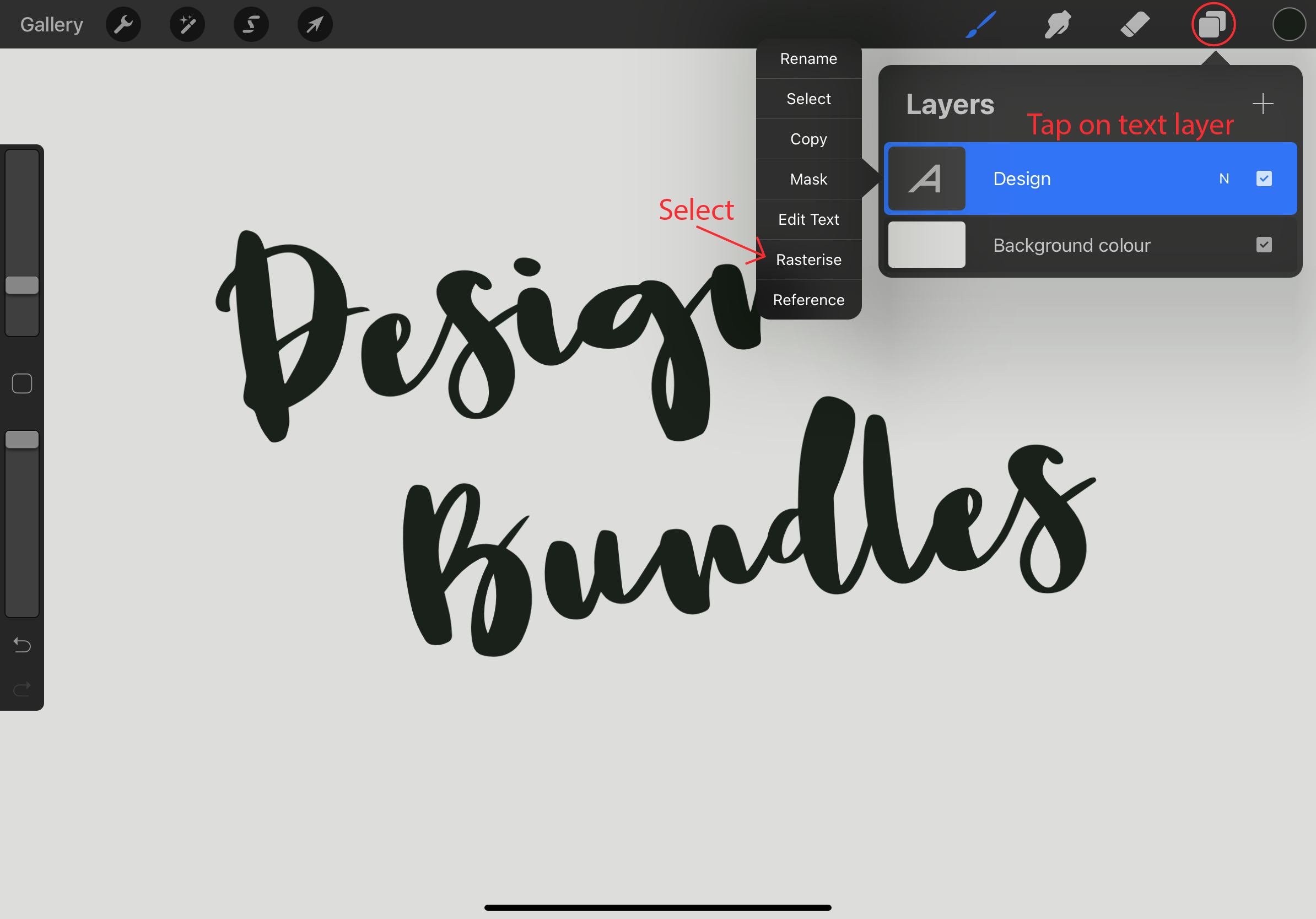
Go ahead and type in your wording and set your font style. Once you are done coloring, sizing, and making all edits to your text we are going to rasterise it. To rasterise your lettering open your layers panel and tap on the text layer. You will see a layers options tab pop up next to the layers panel, tap on “Rasterise”.
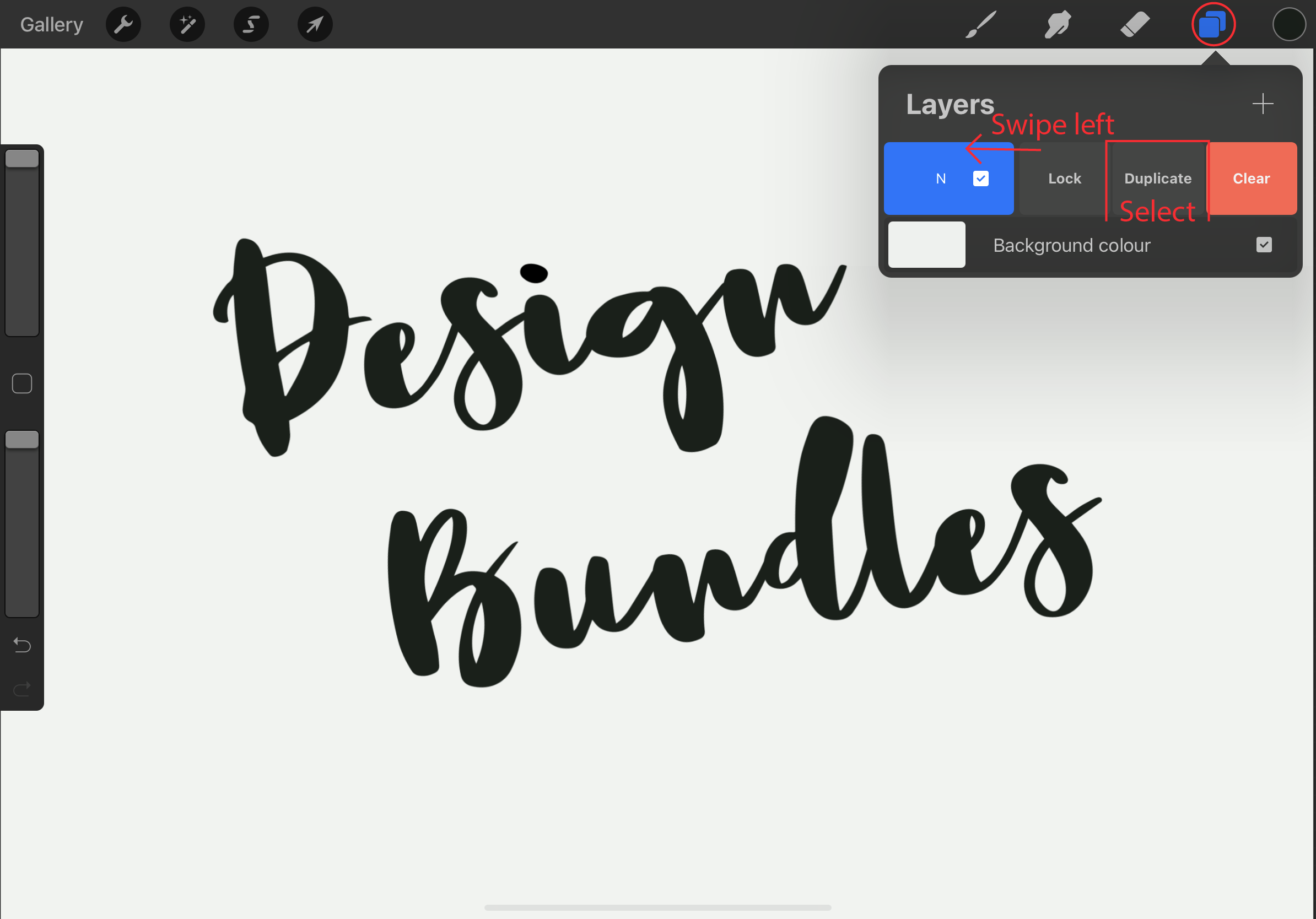
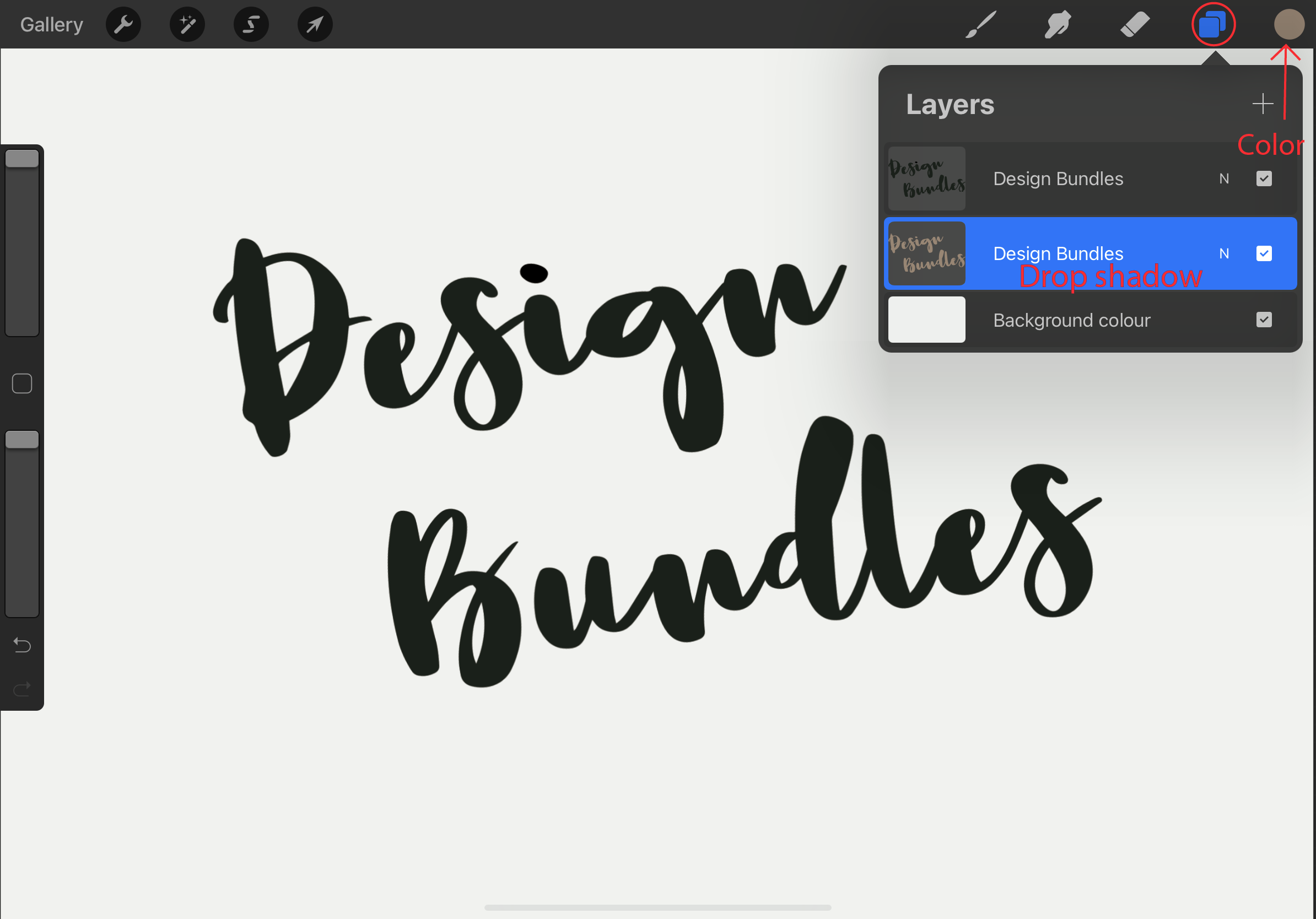
With our text rasterised we can go ahead and make a copy and use the text as our drop shadow. To Duplicate your lettering keep your layers panel open and swipe left on your text layer then tap on duplicate from the options shown.
We now have 2 copies of our lettering, the top one will be our main lettering and the bottom one will be our drop shadow. You can go ahead and change the drop shadow color. A quick way to do this is to select the layer and choose a color, then drag and drop the color onto the text.
Note: You can always color the top layer to the color you want your drop shadow to be and then drag that layer below your main lettering layer.
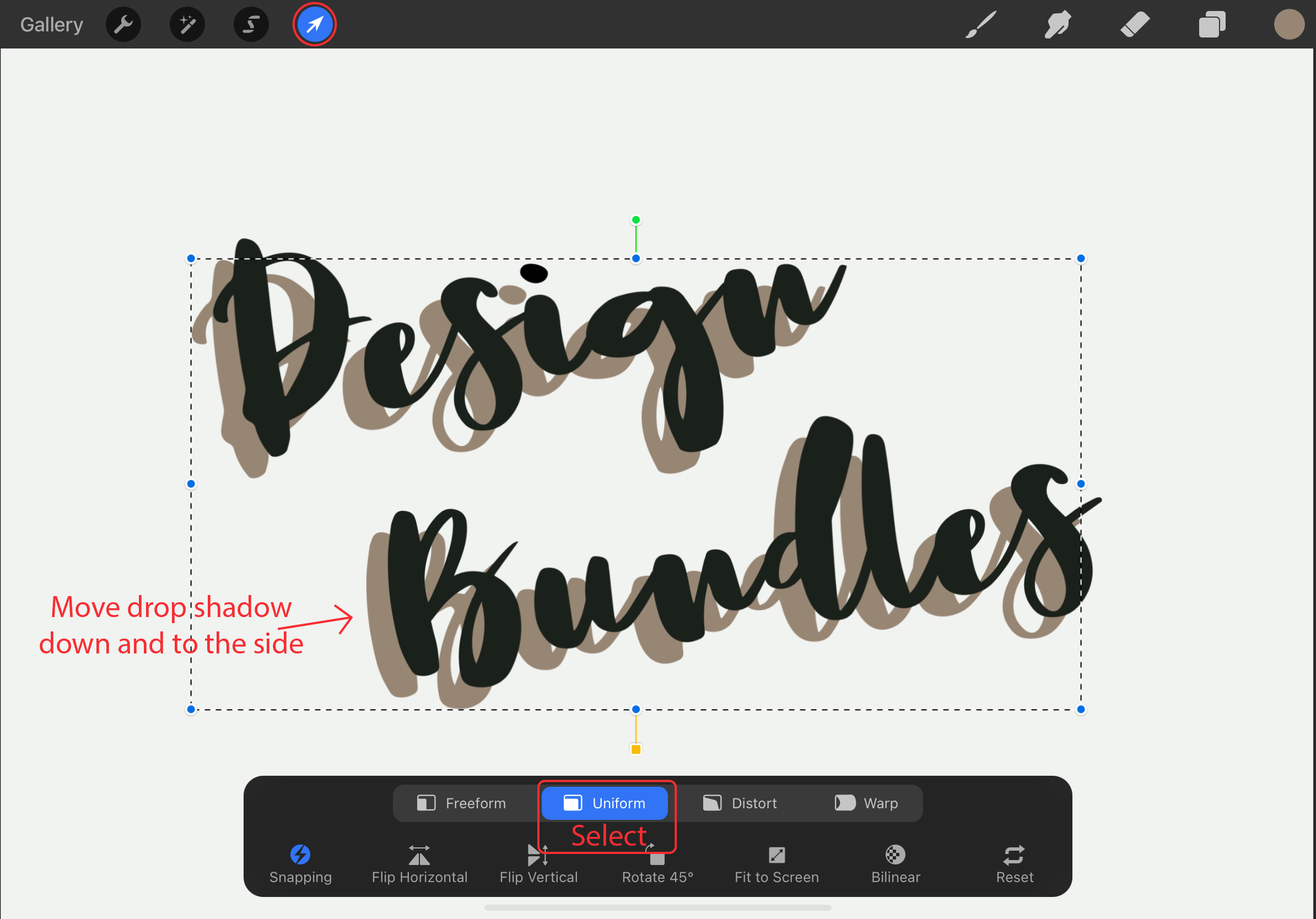
Keeping your bottom layer selected, tap on the “transformation” icon (Mouse-pointer Icon) on the Toolbar. From the options at the bottom, select “Uniform” to keep the ratio of your lettering. Move your lettering down and to the side, enough so that it isn’t hidden behind your top layer. Deselect the Transformation icon when done.
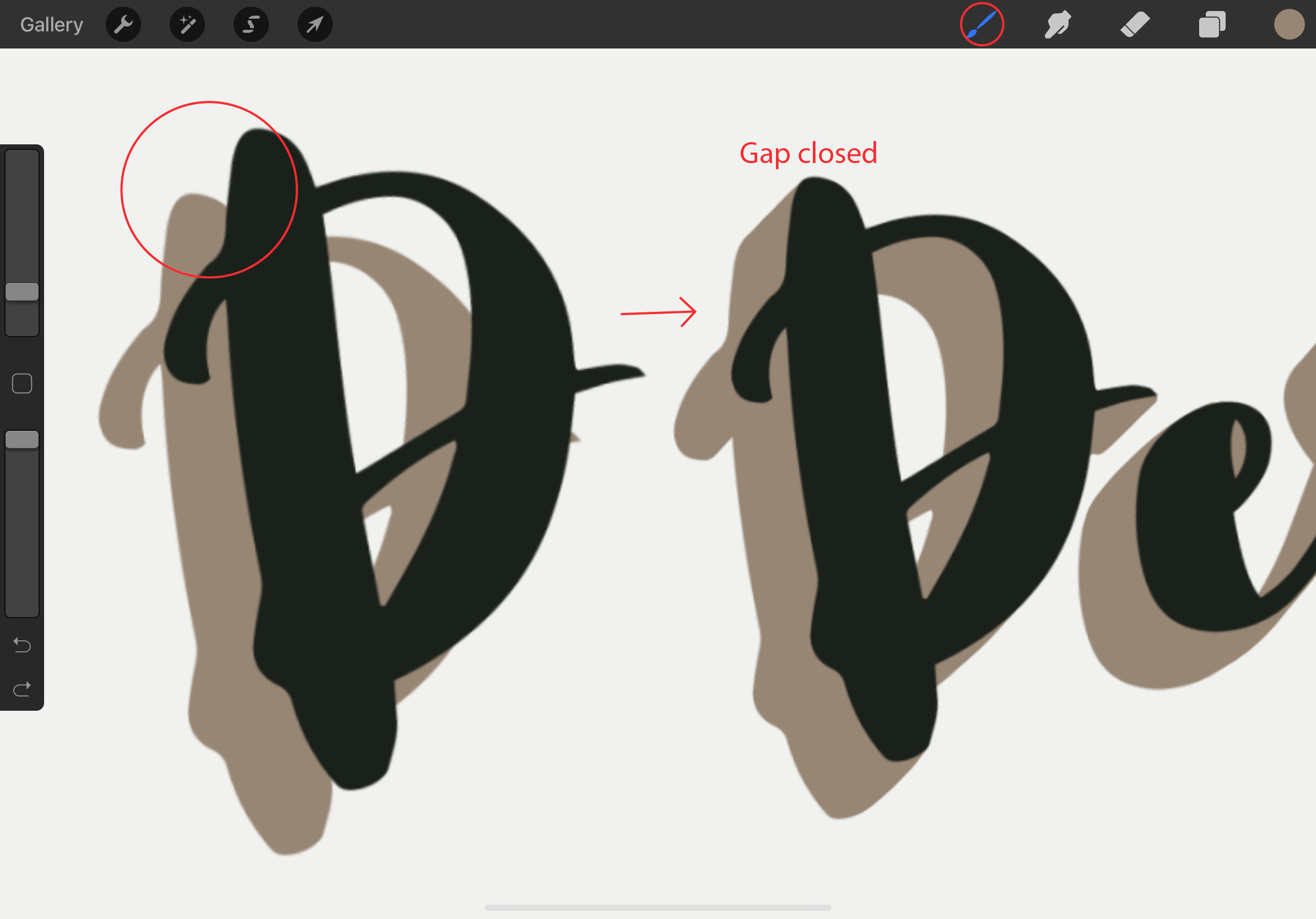
When you have spaced your drop shadow layer you will notice gaps between them. We need to go to the bottom layer and fill in the gaps. Making it look like a seamless extension. I used the “Monoline” brush provided by Procreate to fill in the gaps and making sure I was mindful of the direction of my drop shadow.
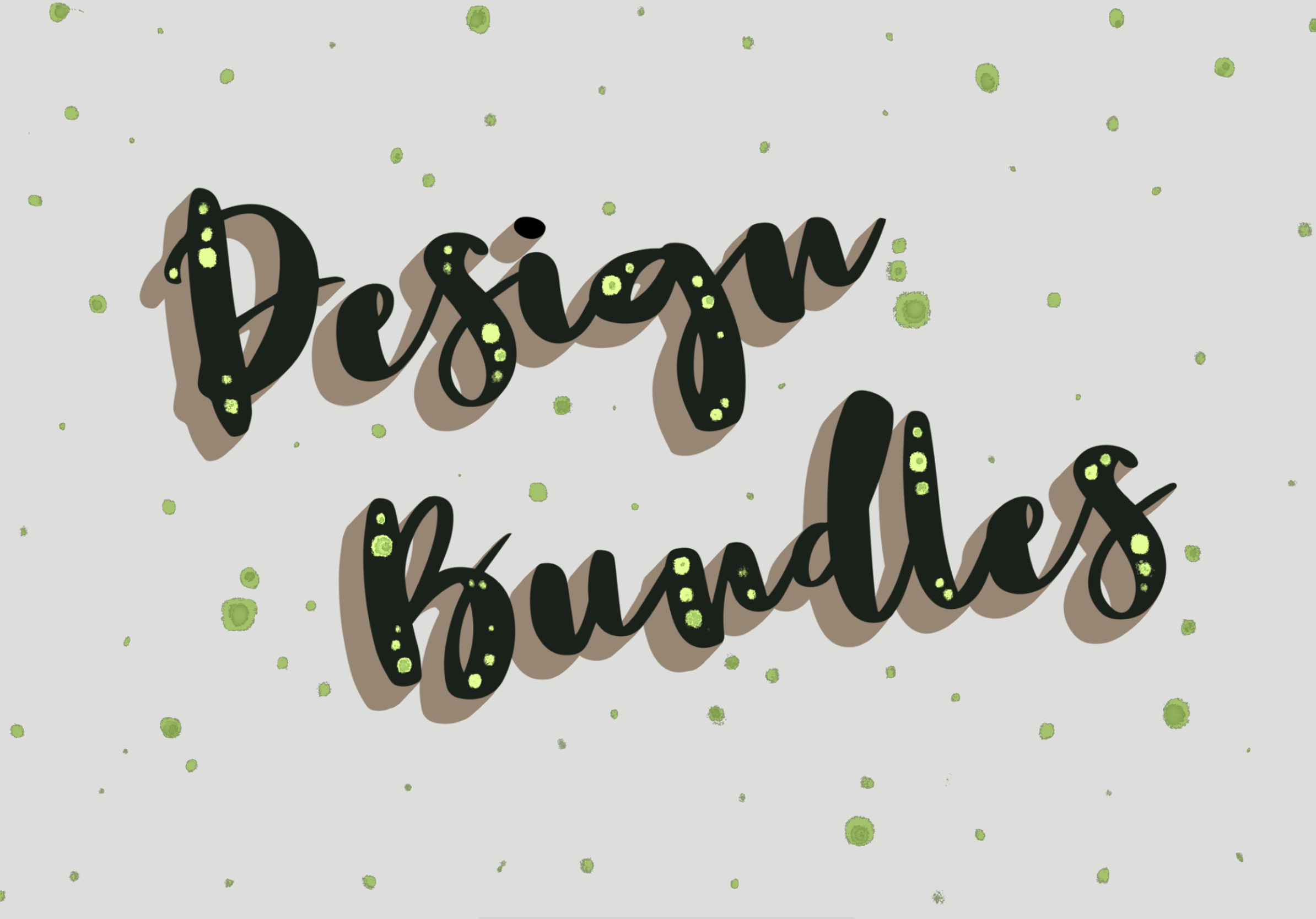
We are done, you can leave your lettering just as is or add finishing touches. I wanted to add some green detailing to finish off my drop shadow lettering.
If you liked this tutorial, make sure to check out our other lettering tutorials such as creating ribbon lettering, and making watercolor lettering in Procreate.
Please note: we are using the latest version of Procreate 5X. If you do not see the features mentioned below, ensure your Procreate is up-to-date.
Step 1 - Making the Lettering
First, we will import our font to Procreate and in a new canvas add a text box and type out the wording we want to add a drop shadow to. You can add text by tapping on the Actions (Wrench) icon at the top left of your toolbar. Tap on “Add” and select “Add text”. This will add a text box to your canvas.
Go ahead and type in your wording and set your font style. Once you are done coloring, sizing, and making all edits to your text we are going to rasterise it. To rasterise your lettering open your layers panel and tap on the text layer. You will see a layers options tab pop up next to the layers panel, tap on “Rasterise”.
Step 2 - Duplicate the Lettering
With our text rasterised we can go ahead and make a copy and use the text as our drop shadow. To Duplicate your lettering keep your layers panel open and swipe left on your text layer then tap on duplicate from the options shown.
We now have 2 copies of our lettering, the top one will be our main lettering and the bottom one will be our drop shadow. You can go ahead and change the drop shadow color. A quick way to do this is to select the layer and choose a color, then drag and drop the color onto the text.
Note: You can always color the top layer to the color you want your drop shadow to be and then drag that layer below your main lettering layer.
Step 3 - Position the Drop Shadow
Keeping your bottom layer selected, tap on the “transformation” icon (Mouse-pointer Icon) on the Toolbar. From the options at the bottom, select “Uniform” to keep the ratio of your lettering. Move your lettering down and to the side, enough so that it isn’t hidden behind your top layer. Deselect the Transformation icon when done.
Step 4 - Fill the Drop Shadow
When you have spaced your drop shadow layer you will notice gaps between them. We need to go to the bottom layer and fill in the gaps. Making it look like a seamless extension. I used the “Monoline” brush provided by Procreate to fill in the gaps and making sure I was mindful of the direction of my drop shadow.
We are done, you can leave your lettering just as is or add finishing touches. I wanted to add some green detailing to finish off my drop shadow lettering.
If you liked this tutorial, make sure to check out our other lettering tutorials such as creating ribbon lettering, and making watercolor lettering in Procreate.
Related Tutorials
Procreate Tutorials
How to Make a Procreate Outline Brush
Discover how to make your own Procreate Outline Brush with this tutorial.
Procreate Tutorials
How to Outline Lettering in Procreate
Learn how to add outlines to your lettering or design in Procreate on your iPad.
Procreate Tutorials
How to Use Procreate to Make Sublimation Designs
Learn how to create Sublimation designs then send them directly to the printer from Procreate!
Procreate Tutorials
How to Make a Gradient in Procreate
Gradients can really help to add depth and texture to your drawings. A...
Procreate Tutorials
How to Make Procreate Brushes
Learn how to make your own Procreate Brushes in this step by step tutorial.
Procreate Tutorials
How to Make a Paper Cutout Effect in Procreate
In this tutorial you will discover how to create a Paper Cut Out Effect using Procreate.