By Design Bundles
How to Duplicate Objects Around a Circle in Illustrator
In this tutorial we will duplicate an object around a circle.We will be using the Rotate Tool in Illustrator to do this. It is a super easy way to create accurate and symmetrical circle designs. The Rotate Tool helps you by working out the measurements for each object. This is a great tool to widen your Illustrator skills as well as a time saver!
Step 1 - Show the rulers for guidelines
Rulers are a very useful tool as guidelines for centering designs. Let us start by activating the rulers in Illustrator. Go toView > Rulers > Show Rulers.

Select the artboard tool from your left toolbar. Then drag and drop your guides using the artboard points as a reference for the center.

Step 2 - Draw the shape and central circle
To create the design we will draw a central circle. Then another shape that will be duplicated around the circle.
Select the Ellipse Tool from your left toolbar. Start to draw your circle from the central point, holding Shift + Option + Command to keep the proportions.

Then, draw the shape you would like to duplicate. Position it above and centrally to the larger circle.

Step 3 - Duplicate object around the circle
Select the second smaller circle then click on the Rotate Tool on the left toolbar. Now choose the position you want to use as the central point of the rotation. Hold down Option on your keyboard then select the center of the main circle.
In your rotate options, enter 360 divided by the amount of objects you want around the circle.

For example, I am going to enter ‘360/15’ as I want 15 objects around the circle. Then select ‘copy’, which will addanothercircle.

Now press Command + D a number of times until the circle is full. For my design there will now be 15 circular shapes around the larger circle.

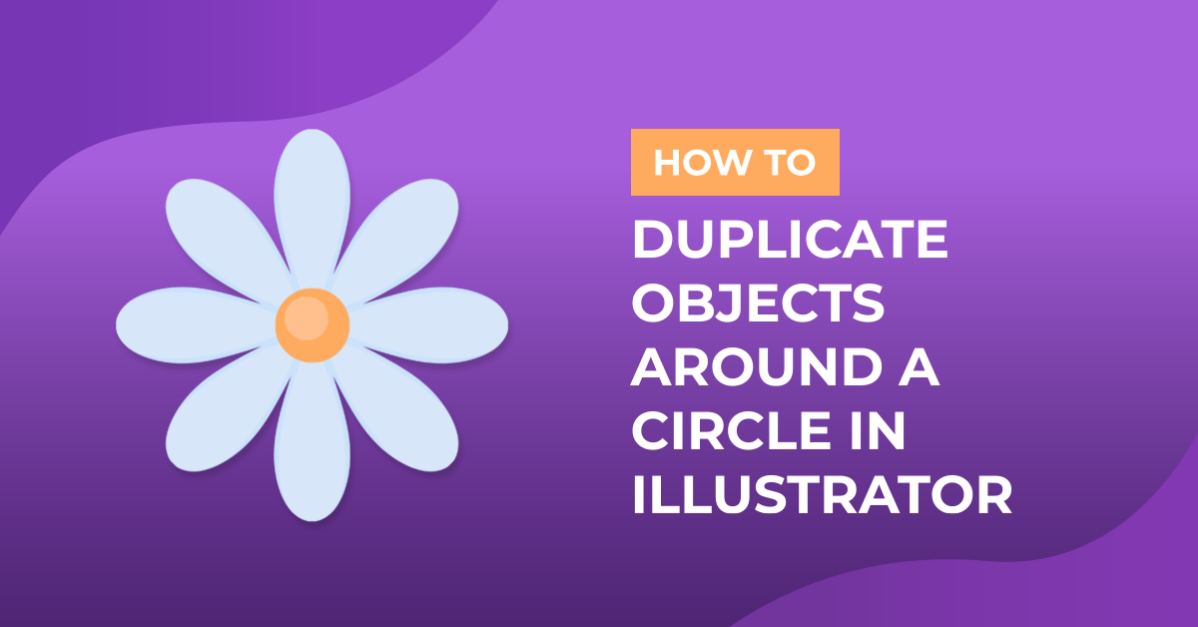
That's all there is to it.Experiment with different shapes around a circle for unique designs.The flower below has been created using the same process.

You now have the opportunity and freedom to create so many beautiful, symmetrical designs.Next up, check out our tutorials on making a triangle in Illustrator, using the width tool, and using the Pathfinder tool in Illustrator.