By Design Bundles
Seamless Quatrefoil Pattern in Illustrator
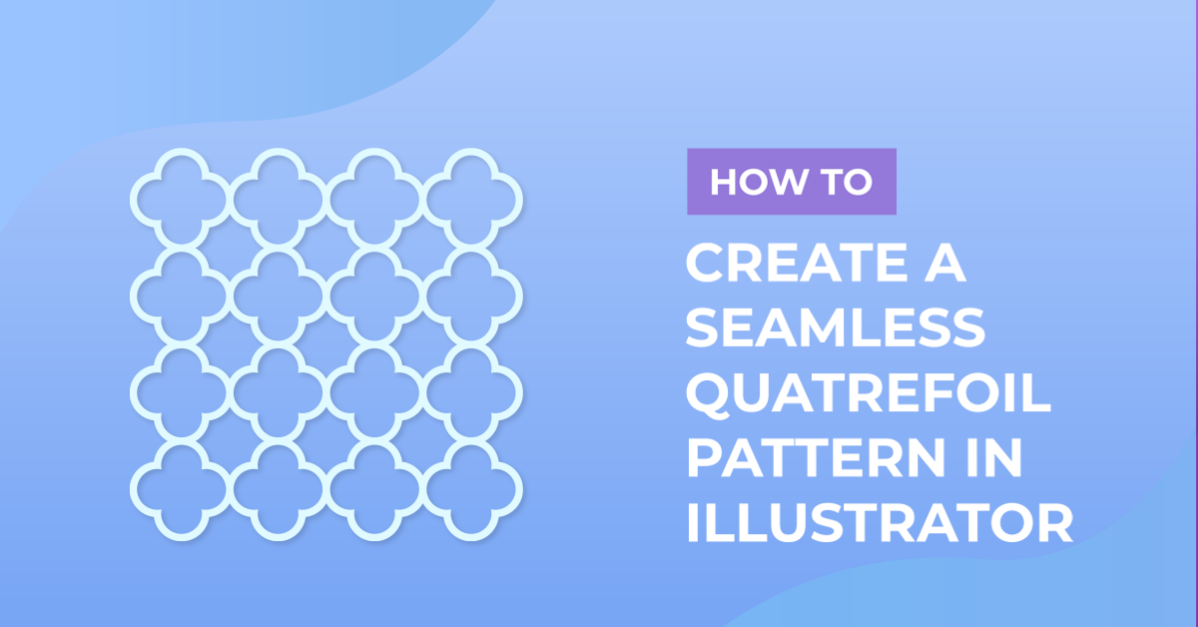
Making a seamless quatrefoil pattern in Illustrator is easy to do. Once you've created the pattern, you can modify it in multiple ways to create different styles. Seamless quatrefoil patterns look great on decor items, or you can also use them as a background in your designs.
Although a seamless quatrefoil pattern is simple to make, you might prefer purchasing a premade pattern. If so, you can take a look at this white quatrefoil pattern paper bundle or this pastel two-color quatrefoil pattern pack. If neither of those suits your needs, Design Bundles has several more seamless quatrefoil pattern options available.
Step 1 - Create a Square Using the Rectangle Tool
Select the Rectangle Tool (M) and click inside the canvas.

Input a width and height of 15 cm and click OK.

Step 2 - Center Align the Square and Fill It With a Very Light Gray
Center the square on the canvas using Horizontal Align Center and Vertical Align Center in the top toolbar or the Align panel. Make sure that Align to Artboard is selected.

Fill the square with a very light gray from the Swatches panel.

Step 3 - Make a Circle With A Medium Blue Stroke
Select the Ellipse Tool (L).

Set the fill color to none and pick a medium blue stroke color.

Click inside your canvas and input a width and height of 1.5 cm. Then click OK.

Step 4 - Change Stroke Weight of Circle and Center It to the Canvas
Change the stroke weight to 10 px.

Center the circle to the canvas as you did with the square.

Step 5 - Make a Copy of the Circle Directly Below It
Select the circle and go to Object > Transform > Move (Shift + Cmd/Ctrl + M).

Use a vertical position of 2 cm, a distance of 2 cm, and an angle of -90°. Then click Copy.

Step 6 - Make a Copy of Both Circles With the Copies Rotated 90°
With both circles selected go to Object > Transform > Rotate.

Set the angle to 90° and click Copy.

Step 7 - Unite All Four Circles
Select all four circles, head to the Pathfinder panel, and click Unite to create the quatrefoil shape.

Step 8 - Delete Center Vector Shape
Double-click on the center vector to isolate it and then delete it.

To exit Isolation Mode, click on the small arrow at the top left of the canvas area or press the Escape key.

You may need to center the quatrefoil shape again.

Step 9 - Make Quatrefoil Pattern
Select the quatrefoil vector shape and go to Object > Pattern > Make.

Click OK on the pop-up dialog.

Name your pattern in the Pattern Options panel, and change the measurements so that the vector strokes overlap. We entered 3.5 cm for width and height. When you are happy, click Done at the top left.

Step 10 - Duplicate the Pattern in the Swatches Panel
Your new pattern should be in the Swatches panel.
Create another square on top of the first one with the Rectangle Tool (M), and fill it with the newly created pattern.

Create a duplicate of the pattern by dragging it to the Create New Swatch icon at the bottom of the Swatches panel.

Step 11 - Modify Duplicate Pattern's Path Stroke Color
Double-click on the duplicate pattern to open the Pattern Options. Select the path(s) and change the stroke color to white. When you are happy, click Done at the top left.

See the two patterns side by side in the following image.

You can set a fill color, and you can also add a circle filled with white to the center of the pattern's vector shape to further modify the pattern.

Step 12 - Add a Background Color to the Quatrefoil Pattern
To change the background color of the pattern, simply change the fill color of the square behind the quatrefoil pattern.

We hope you enjoyed this tutorial, and as you can see, anyone can create a seamless quatrefoil pattern in Illustrator. If you'd like to learn even more, we also have an Illustrator tutorial on creating a seamless pattern using all kinds of design elements.