By Design Bundles
Perspective Crop in Photoshop
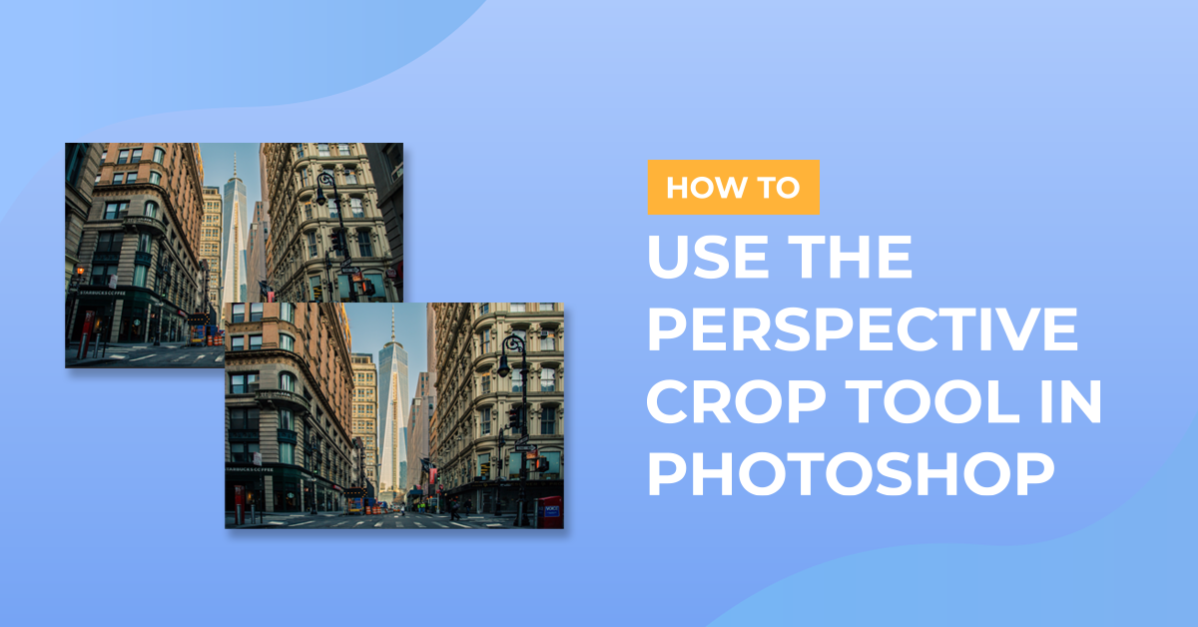
For this tutorial, we will use some images to illustrate the cropping technique.
1 - In Photoshop, open the image you want to work with.

2 - Depending on your version of Photoshop, you will find the “Perspective Crop Tool” (C) in different locations. In older versions, it will be with the “Crop Tool” (C) but in the most recent versions you should find it by clicking in the 3 dots at the bottom of the “Tool Bar” (Edit Toolbar). Drag your cursor from corner side of the image to the other to make a selection of the entire “Document”.


3 - Make sure the “Show Grid” box is checked in the Top Menu.

4 - Grab one of the top corners of the “Grid” and while holding the “Shift” key, drag it to match the vertical grid to something in the image that should be straight (vertically). Repeat with the other side.


5 - Hit “Enter” or click the “Check Mark” on the Top Menu to apply the “Perspective Crop”.


6 - If the image looks a bit squished down, double-click on the “Background” thumbnail to unlock it.

7 - Enter “Free Transform” (Command/Control + T) and drag the top “Handle” up a bit. Hit “Enter” or click the “Check Mark” on the Top Menu to apply the changes.


8 - Check it out!

by @lornacane