
Get Unlimited Access to Thousands of Premium Fonts and More! Start Creating for Free Now

FontBundles.NET
Pricing
FontBundles.NET

Categories

New

Account

Start Free Trial
How to Add a Snow Overlay to Photos in Pixascape

By Jordyn

Pixascape TutorialsBeginner5 min

How to Add a Snow Overlay to Photos in Pixascape

Learn how to add a snow overlay to photos in this quick Pixascape tutorial.

'Tis the season for holiday photos, family gatherings, and snow! Okay, well that last one might be dependent on where you live, but if you want to add some snow to your photos then this tutorial is for you!

In this quick tutorial, we'll show you how to add a Snow Overlay to your photos in Pixascape. Never heard of Pixascape? Well, it's a Photo Editing program that comes with your Silver or Gold Plus Membership! We have an amazing Free 30 Day Trial of the Gold Plus Membership that you can sign up for today!

How to Add a Snow Overlay to Photos in Pixascape 1

Step 1 - Upload Your Photo

For this tutorial, we will be using this lovely group of friends holiday photo. Once you've opened Pixascape, click on the blue Upload button.

How to Add a Snow Overlay to Photos in Pixascape 2

Step 2 - Select Snow Overlay

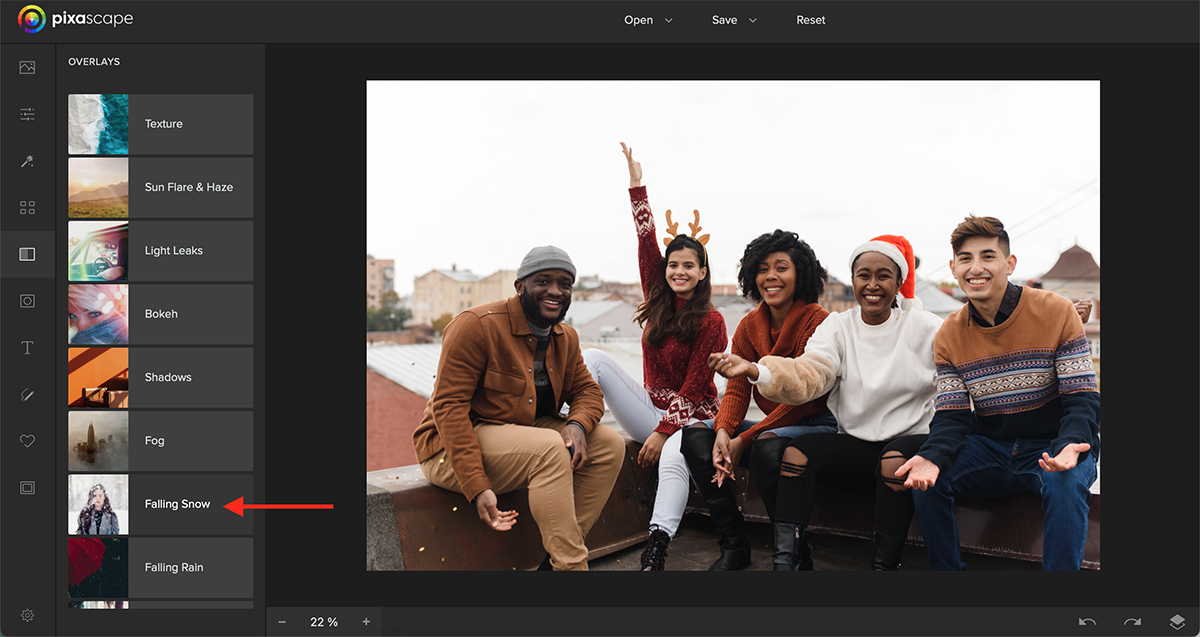
In the left side panel, you'll see a lot of different options. Click on the Overlays tab.

How to Add a Snow Overlay to Photos in Pixascape 3

Then scroll down until you see Falling Snow and click on that.
How to Add a Snow Overlay to Photos in Pixascape 7

Scrolling through the list, you'll see 30 different snow overlays to choose from! Here's just four of the options depending on how much or how little snow you want.

How to Add a Snow Overlay to Photos in Pixascape 4

Step 3 - Apply the Overlay

Once you've found the overlay you want to use, you can use the slider to apply more or less of it. Once it's at the level you like, click on the blue Apply button.

How to Add a Snow Overlay to Photos in Pixascape 5

Step 4 - Save Your Image

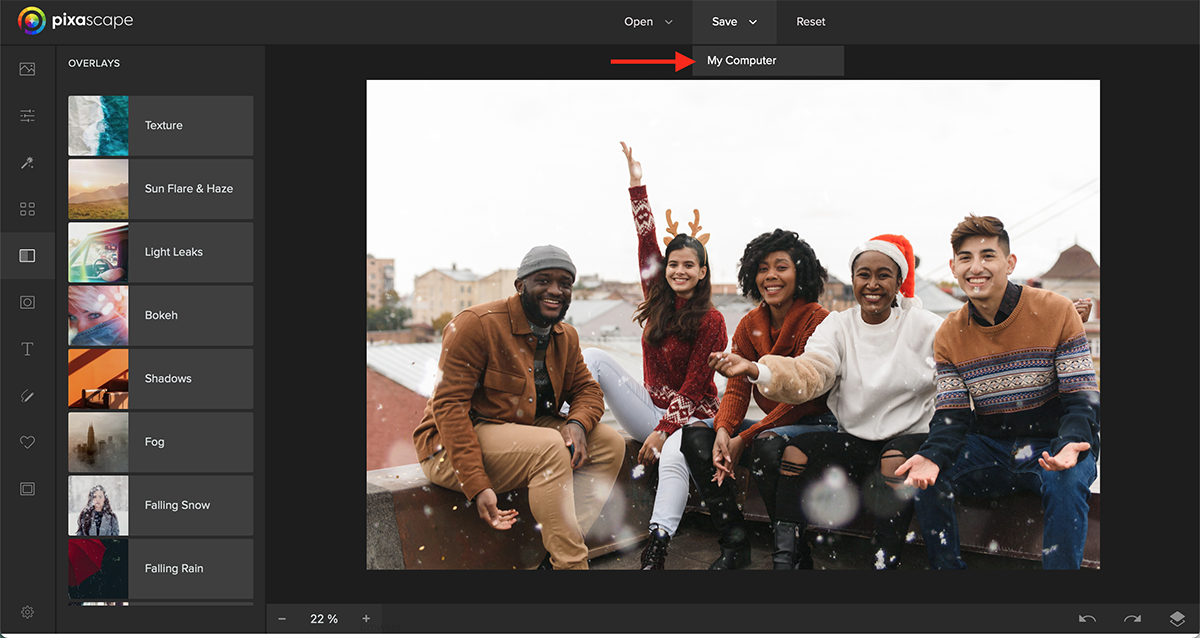
Now that your photo is how you like it, click on Save then click on My Computer.
How to Add a Snow Overlay to Photos in Pixascape 8

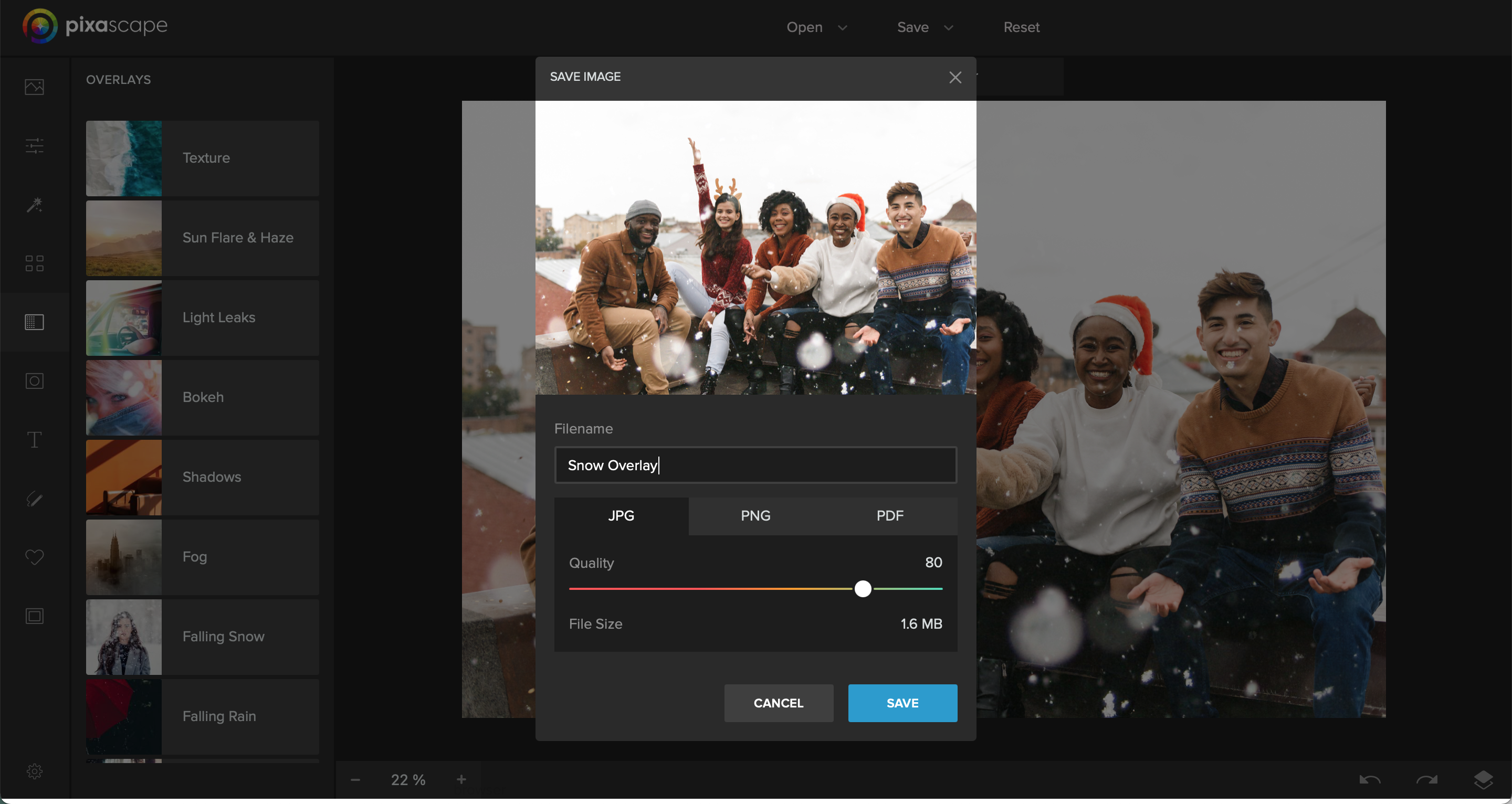
Give your photo a name, select the file type you want, then hit Save once more.
How to Add a Snow Overlay to Photos in Pixascape 6

You now have a snowy photo that is perfect for sending out during the holidays. And how easy was that?!

Have questions about Pixascape? Feel free to leave a comment!
Related Tutorials

Pixascape Tutorials

How to Add a Cartoon Effect to Photos in Pixascape

Turn yourself into a Cartoon with the photo editor created by Design Bundles; Pixascape!
Pixascape Tutorials

How to Add a Frame to Photos in Pixascape

Learn how to quickly add frames to your photos in Pixascape.
Pixascape Tutorials

How to Add a Vignette to Photos in Pixascape

Add a vignette to your images in Pixascape with this step by step tutorial.
DesignScape Tutorials

How to Make a Cartoon Pet Portrait Using DesignScape and Pixascape

In this tutorial, learn how to make a cartoon pet portrait using DesignScape and Pixascape.
Pixascape Tutorials

How to Save Your Photos to the Pixascape Library

Did you know you can save your images to the Pixascape library. We will show you how today.
Pixascape Tutorials

How to Round Your Photos in Pixascape

Learn how to round the edges of your photos in this quick Pixascape tutorial.

Keep going

You may also like

All pixascape tutorials
The weekly drop

Fresh tutorials, trends & free files.

Join 6 million makers getting our best craft guides and exclusive freebies straight to their inbox.

No spam. Unsubscribe anytime.