

By Design Bundles
SCAL Tutorials4 min
Arched text effect in Sure Cuts a Lot 4
*Note- SCAL4 pro used.
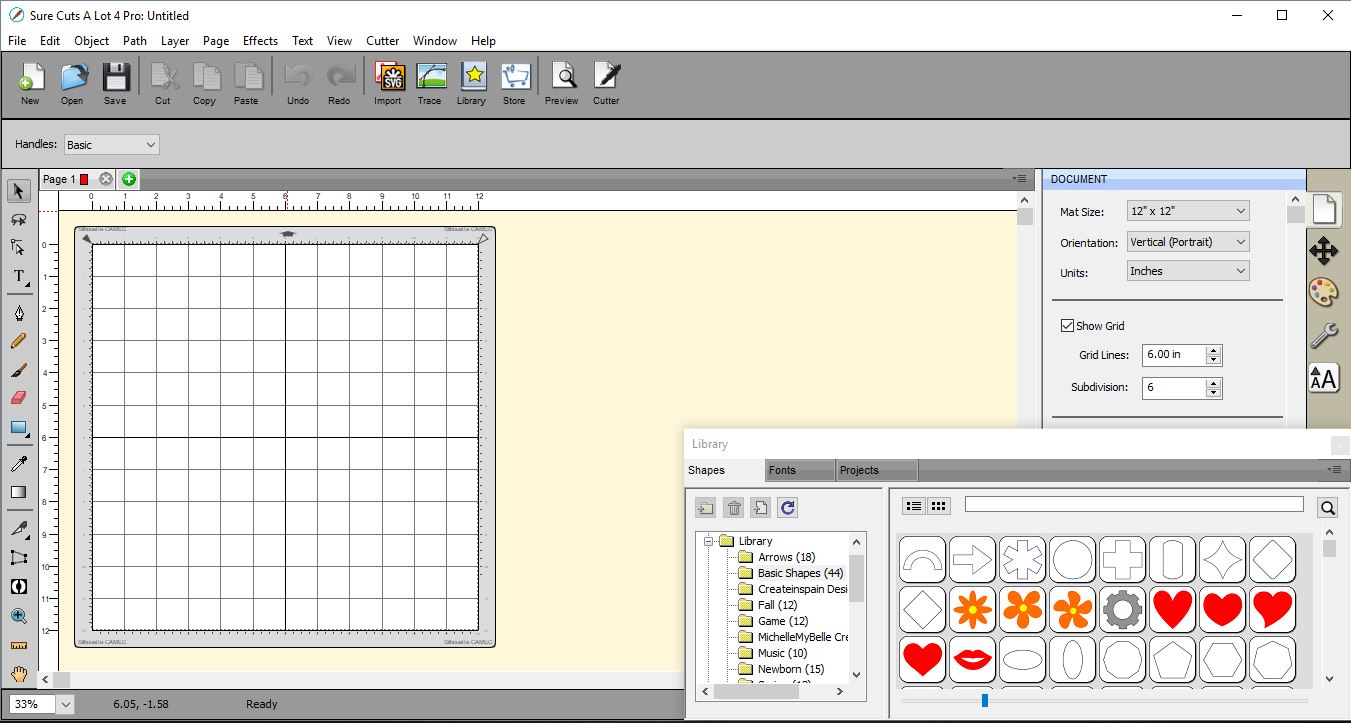
1- Open SCAL4 software.
Type your text in the font you would like to use.
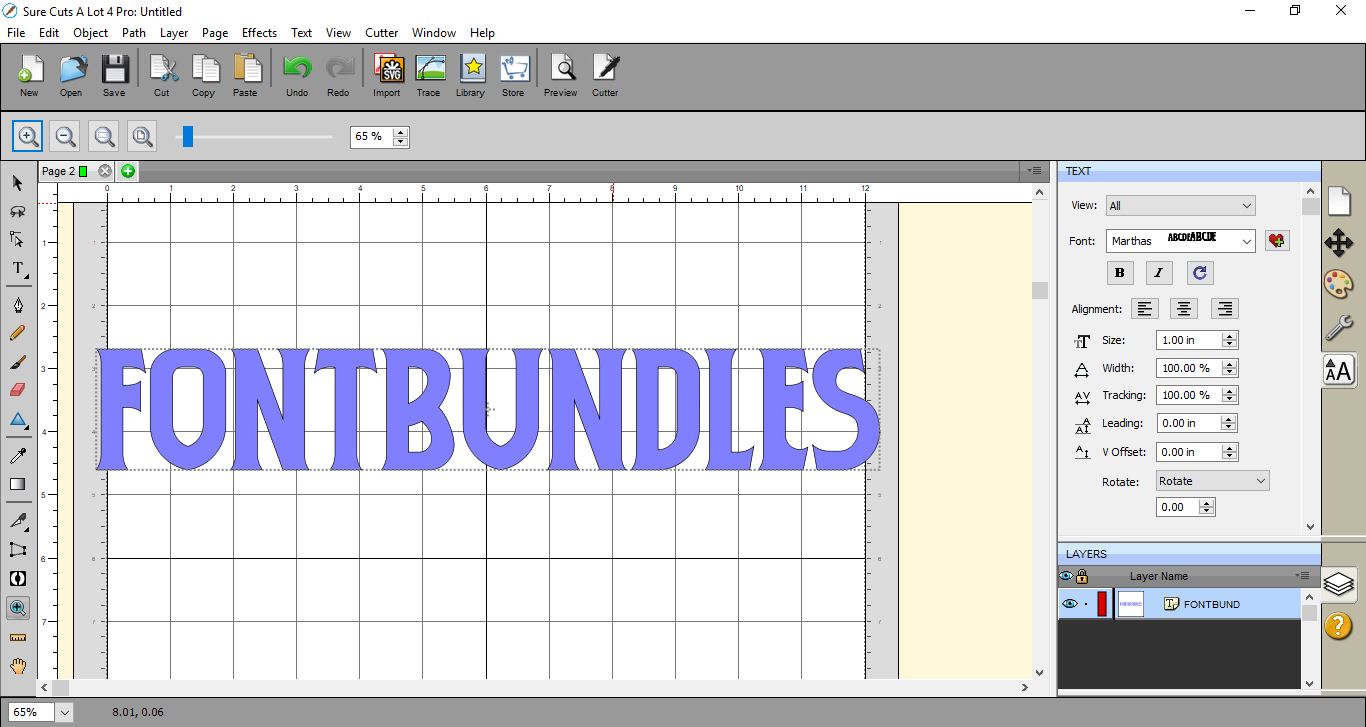
3- Resize your text.
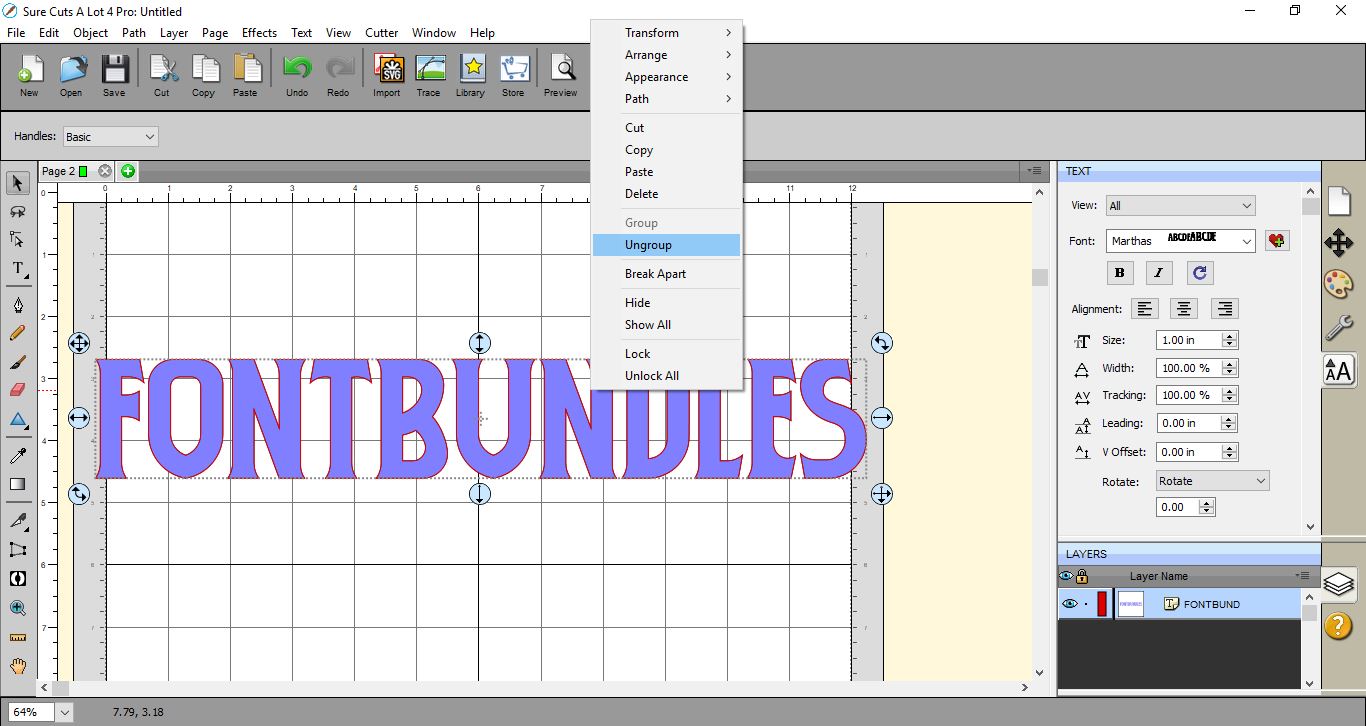
4- Right click on your text and ungroup.
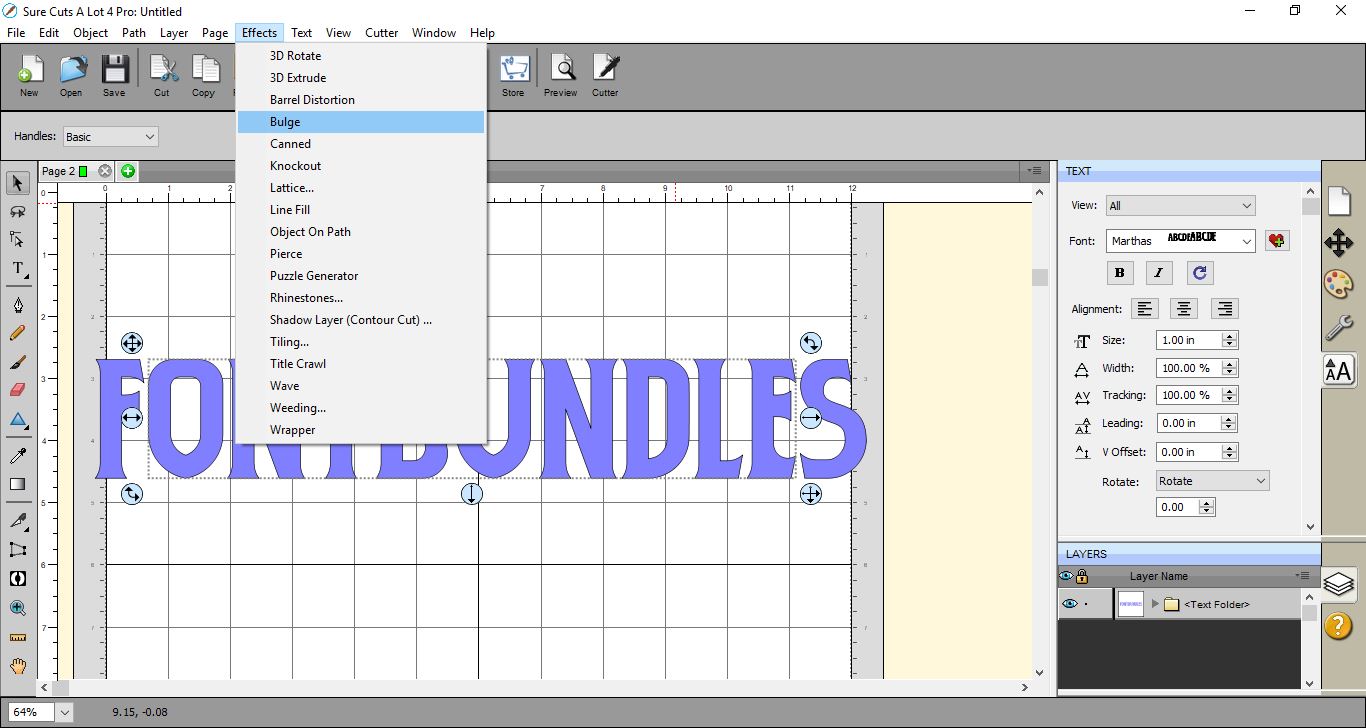
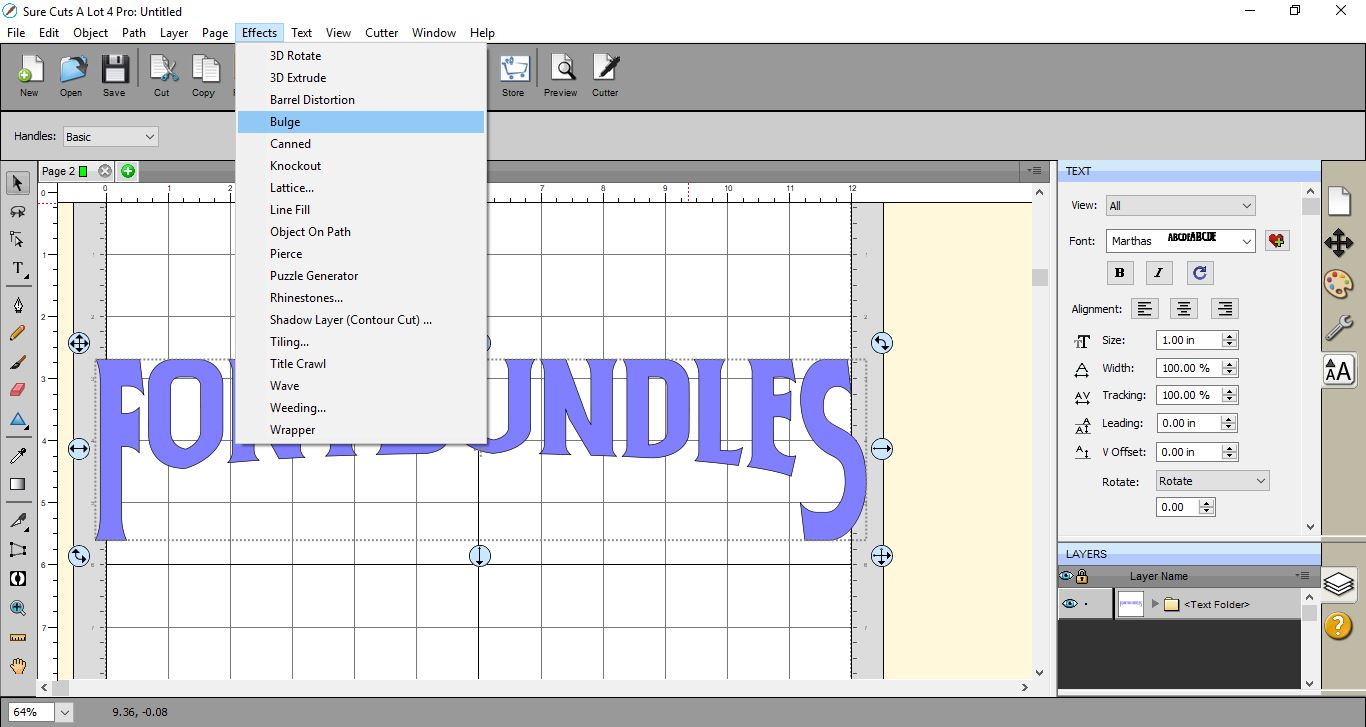
5- Select all of your text apart from the first and last letter. Next got to Effects > Bulge.
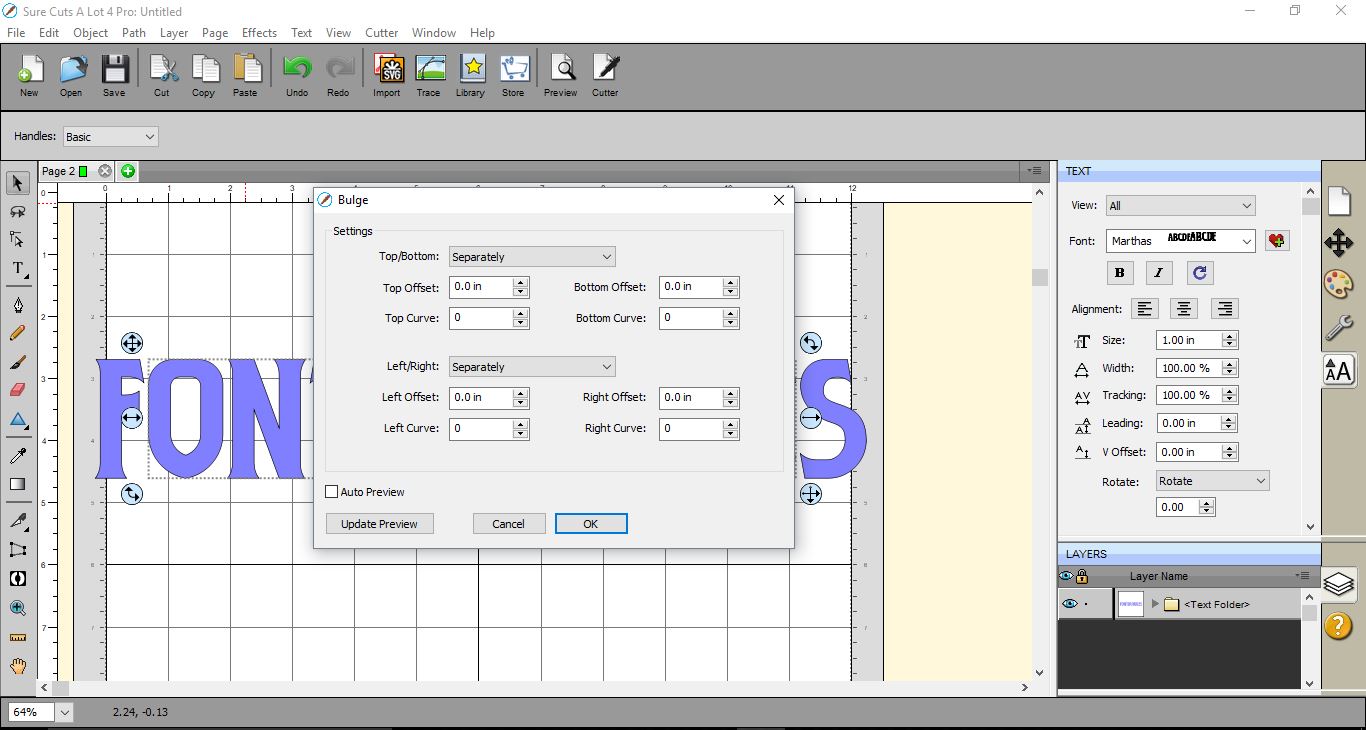
6- A new window will appear.
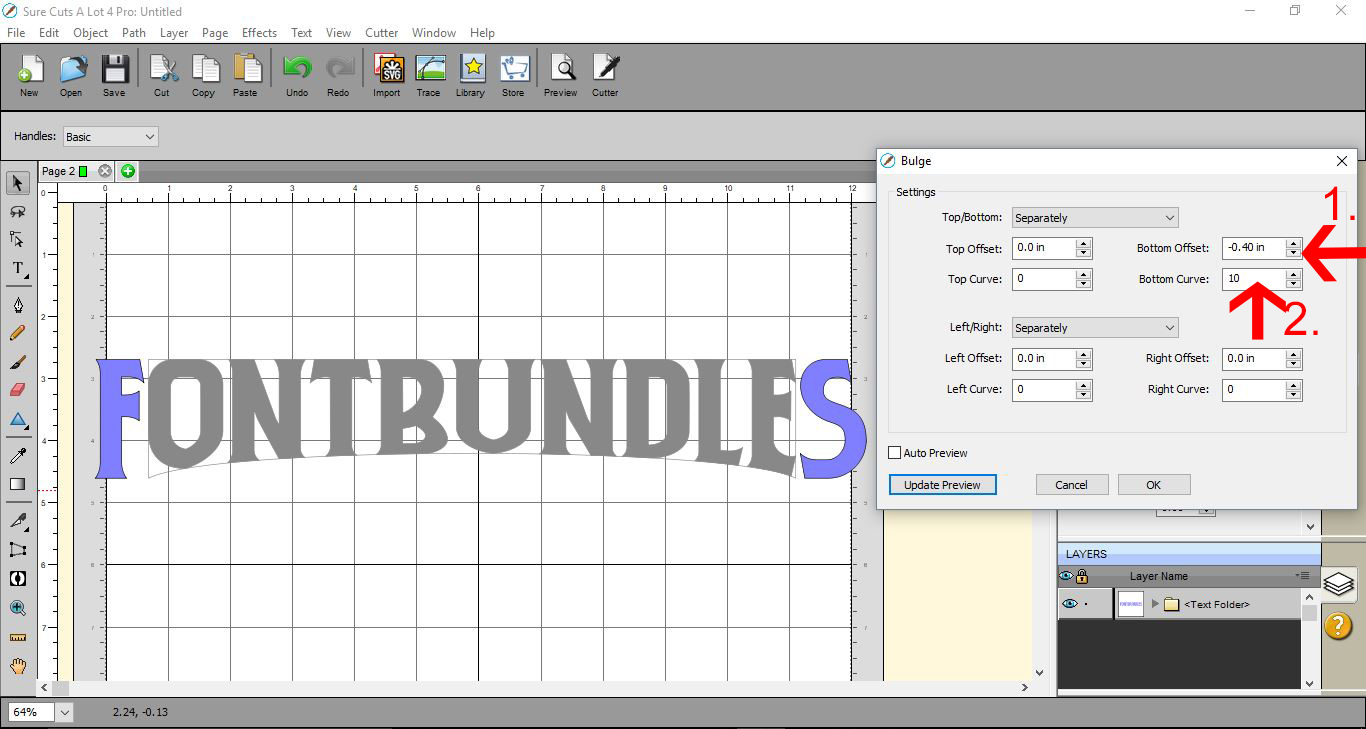
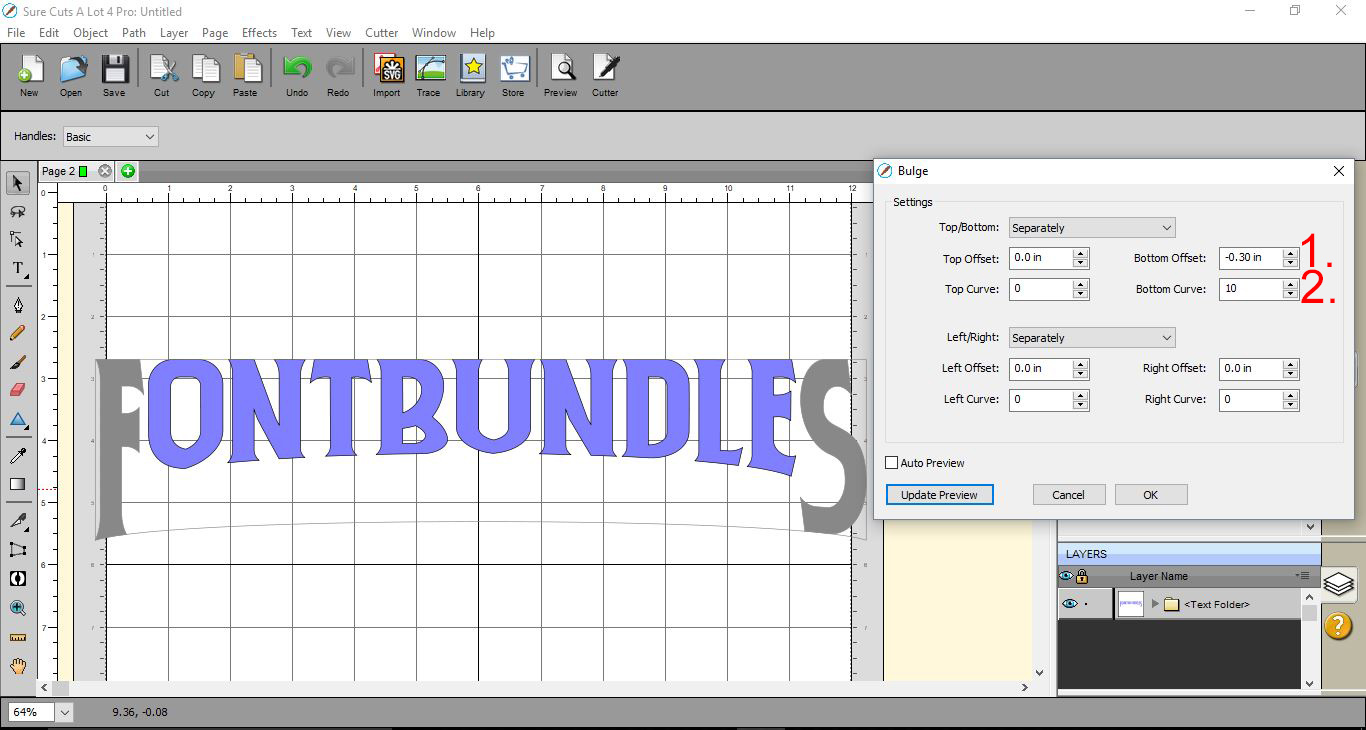
7- We need to adjust the bottom offset to you get the curve you would like. I tend to use 0.40 as a good guide.(1) Next adjust the bottom curve to around 10 to fix any distorting of the letters.(2)
Click on the preview button to ensure you are happy, then click OK.
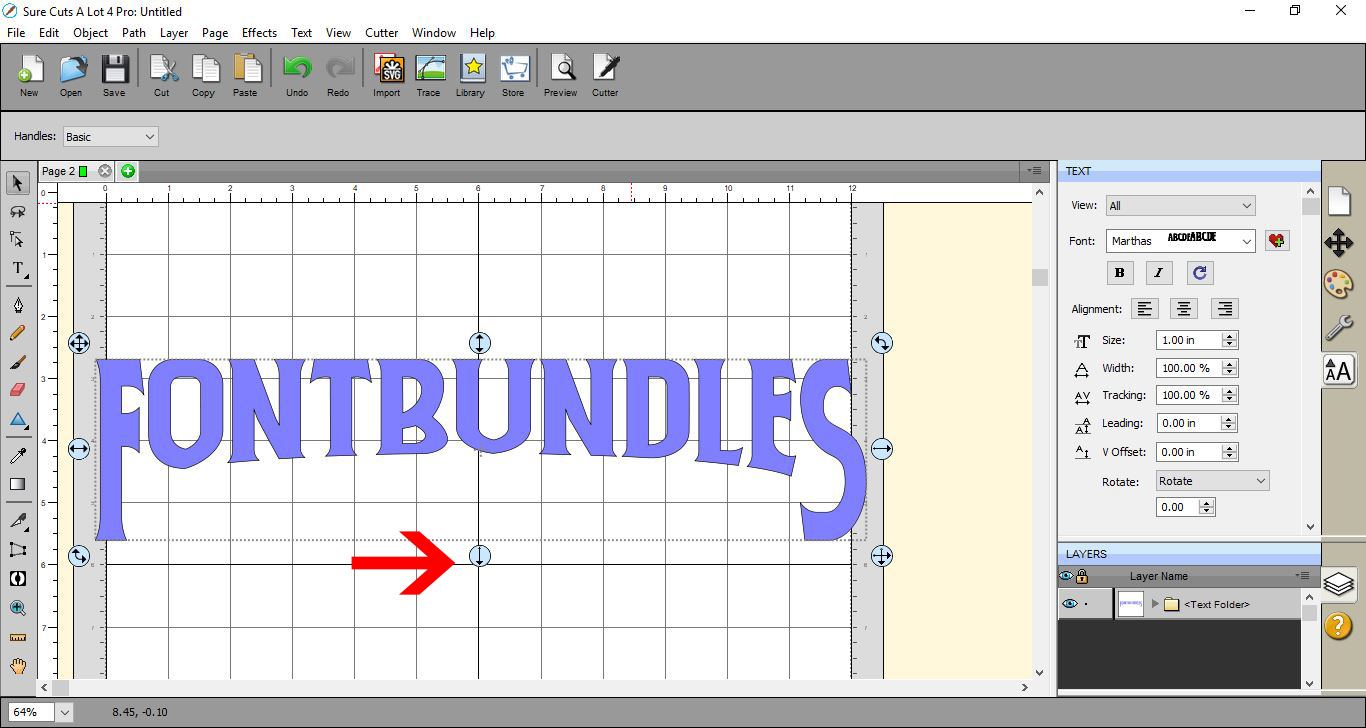
8- Select the first and last letter (hold shift to do this) and then lengthen the letters.
9- while the 2 letters still selected, go to Effects > Bulge.
10- Adjust the bottom offset and bottom curve again. Preview the letters and when happy click OK.
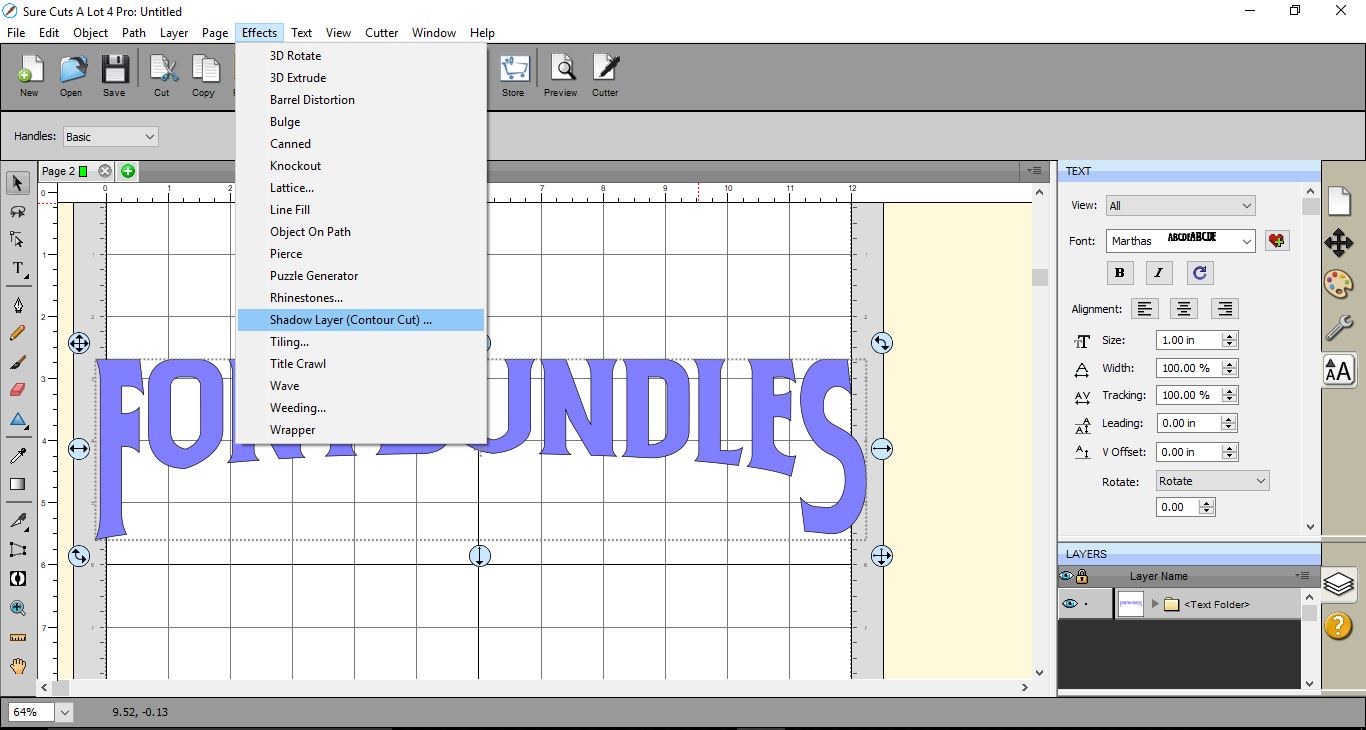
11- Select all of the letters and go to Effects > Shadow layer.
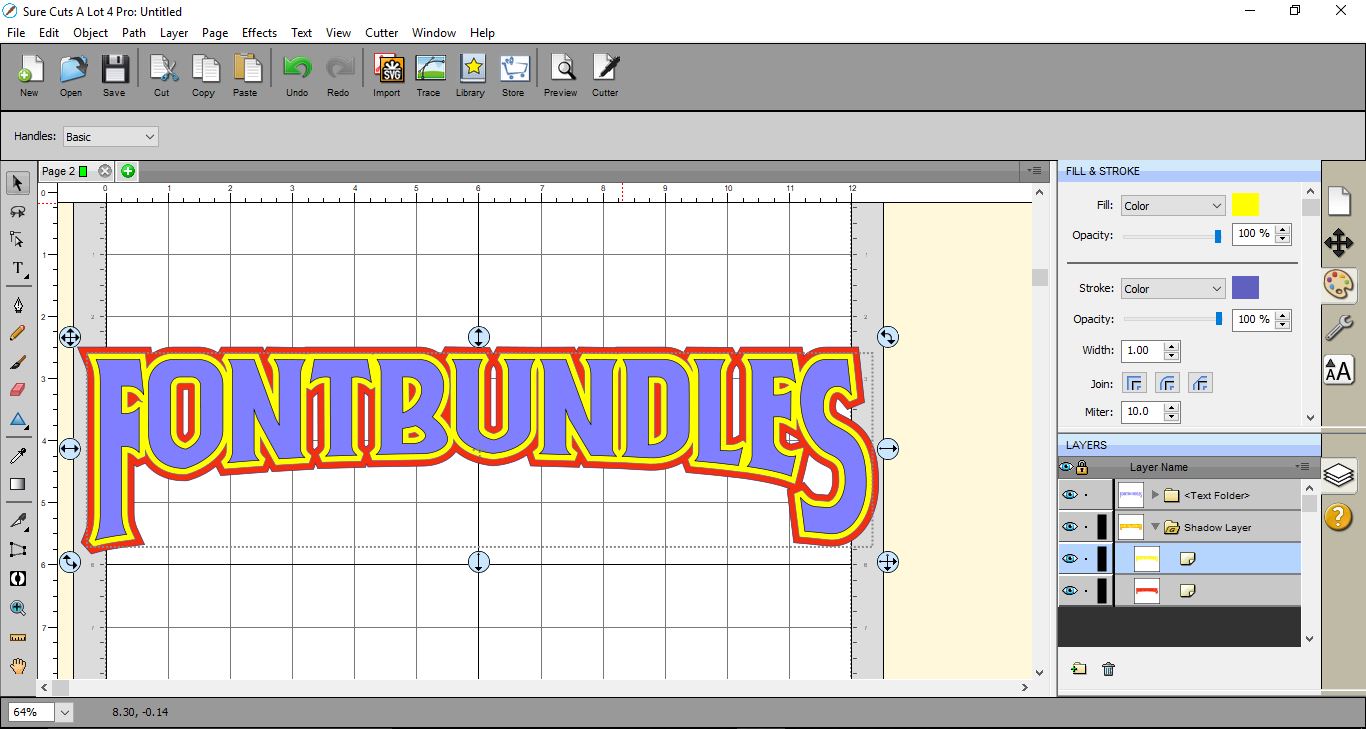
12- Add 1 or 2 shadow layers to your text.
13- To change the color of each shadow layer, click the layer in the layer panel and then click on the fill color. Select the color you want and click OK.
14- Repeat the above process for each shadow layer. and your text is complete.
1- Open SCAL4 software.
Type your text in the font you would like to use.
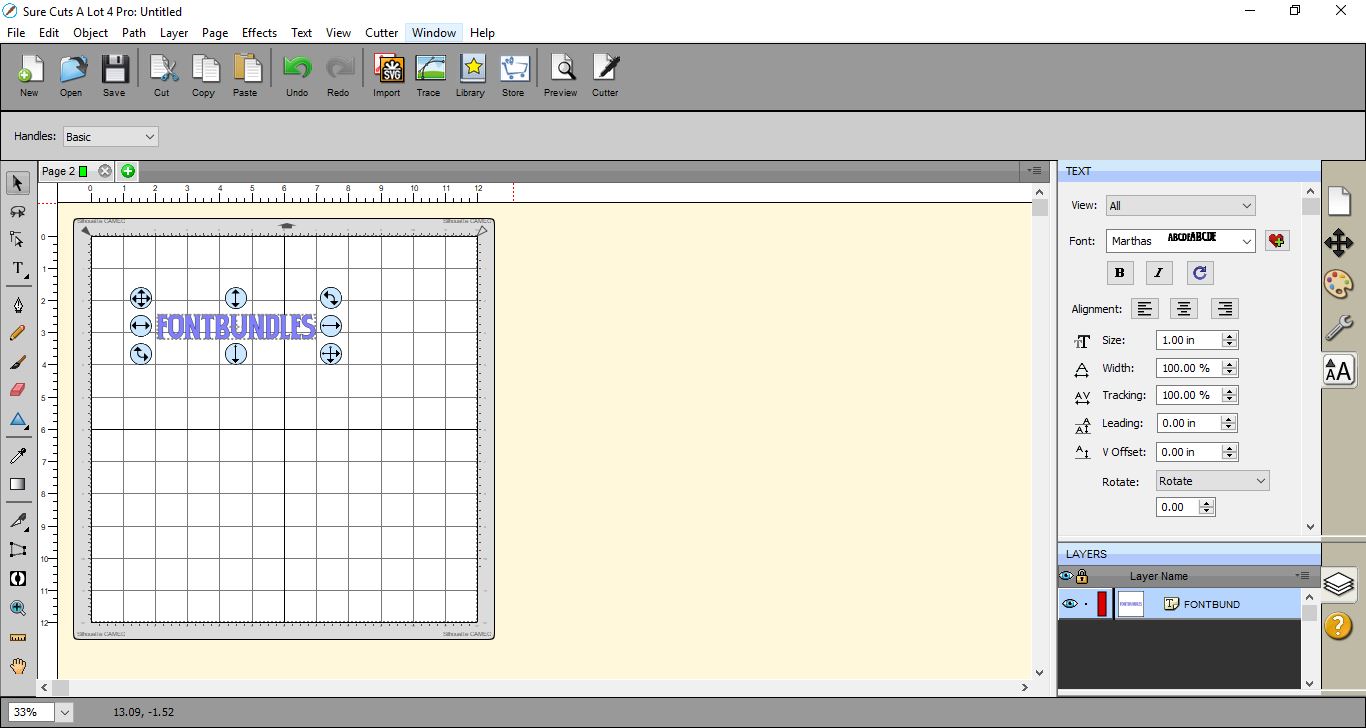
3- Resize your text.
4- Right click on your text and ungroup.
5- Select all of your text apart from the first and last letter. Next got to Effects > Bulge.
6- A new window will appear.
7- We need to adjust the bottom offset to you get the curve you would like. I tend to use 0.40 as a good guide.(1) Next adjust the bottom curve to around 10 to fix any distorting of the letters.(2)
Click on the preview button to ensure you are happy, then click OK.
8- Select the first and last letter (hold shift to do this) and then lengthen the letters.
9- while the 2 letters still selected, go to Effects > Bulge.
10- Adjust the bottom offset and bottom curve again. Preview the letters and when happy click OK.
11- Select all of the letters and go to Effects > Shadow layer.
12- Add 1 or 2 shadow layers to your text.
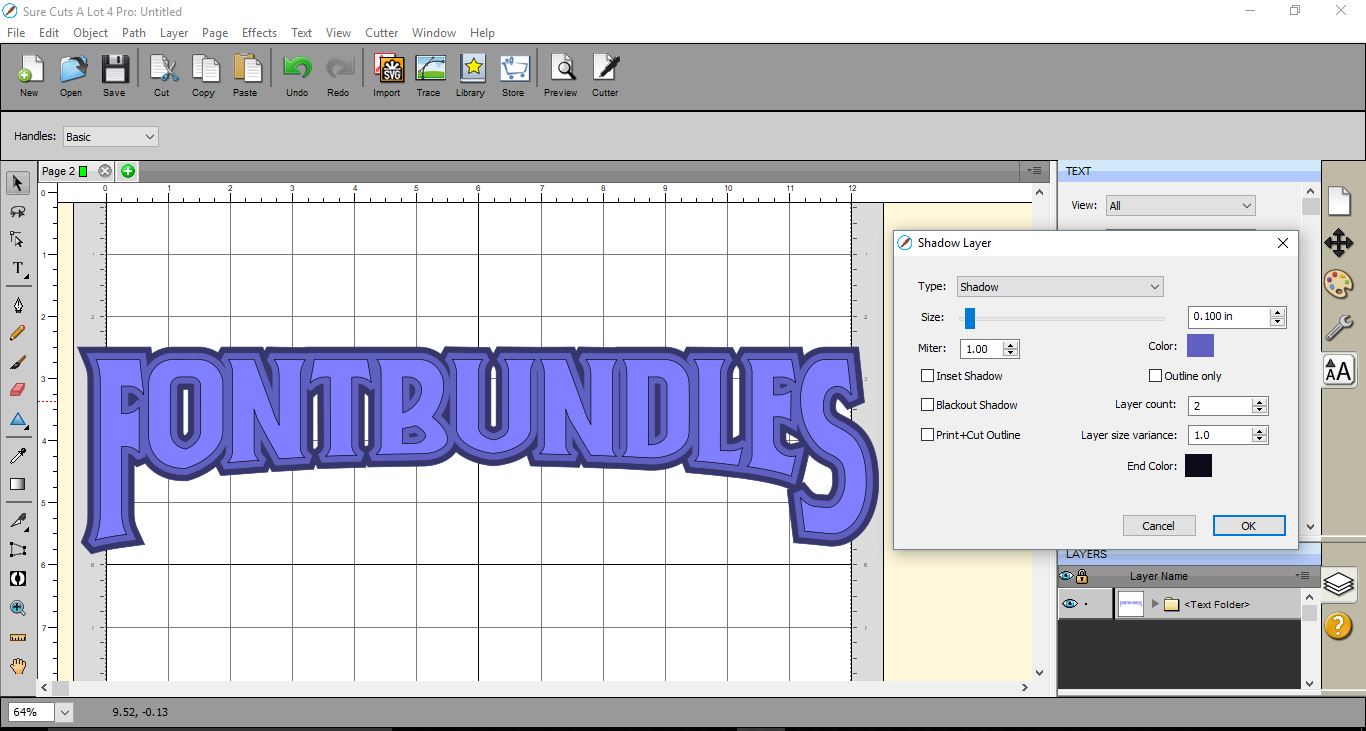
13- To change the color of each shadow layer, click the layer in the layer panel and then click on the fill color. Select the color you want and click OK.
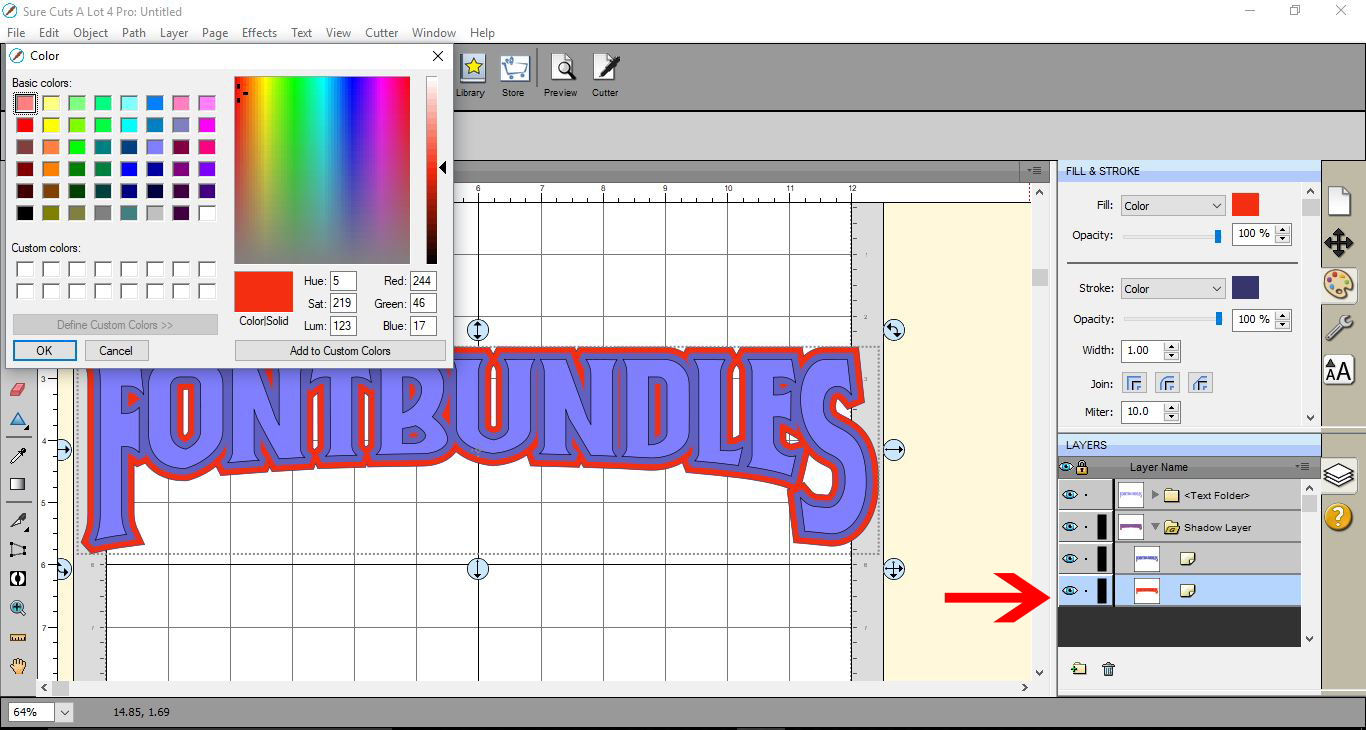
14- Repeat the above process for each shadow layer. and your text is complete.
Related Tutorials
SCAL Tutorials
How to create Curved text in Sure Cuts A Lot 4
SCAL Tutorials
Sure Cuts A Lot 4 Basics - The Text tool
SCAL Tutorials
Sure Cuts a Lot 4 Basics - Text Panel
SCAL Tutorials